Category Focus/categories/productivity
Productivity AI Tools
Discover and compare the best productivity AI tools and software. Browse 859+ curated tools with reviews and rankings.
Projects tracked
859
Sort mode
RECENT
Page
6
Discover and compare the best productivity AI tools and software. Browse 859+ curated tools with reviews and rankings.
Projects tracked
859
Sort mode
RECENT
Page
6
devpit is a native desktop application for controlling your coding agents from a single window. It brings together a terminal per project, a board for the work, the cost of every call and an orchestrator that spans projects. It is built for developers who run coding agents such as Claude Code and want their sessions, tasks and spend in one place rather than spread across tabs and applications. devpit runs on Linux, macOS and Windows, is free and open source under Apache 2.0, and runs locally on your own machine using the Claude Code plan you already have. Most agent work happens in fragments. A terminal lives in one window, the task list lives somewhere else, and the cost of the calls is invisible until later. devpit's answer is one window with everything the work needs inside it, with panes side by side rather than tabs split across six applications. Its stated goal is that several agents can run at once and none of them get lost: sessions stay visible, the ones waiting on you surface first, and nothing advances without your knowledge. Because the app is local-first and writes nothing into your repository, it can be adopted without changing how a team works. The centerpiece is an orchestrator that works across projects. It is a chat that reads every board you link, so you can hand it a card and it starts a session, then reports back to you. A Sessions panel keeps track of every session of your account and puts the ones waiting on you first, letting you answer them in place, as yourself. Above your windows sits a capsule called the island, which shows what each agent is doing and lets you allow or deny from there. The island distinguishes states such as thinking (started, before its first step), working, asking, waiting, done, failed and sleeping. There are also reminders that only remind: you can ask devpit to remind you at three to review the PR, and it will tell you then without starting anything. Everything the work needs lives in panes side by side. The Chat pane shows a turn at a time, along with what each one cost. The Terminal pane is a real pty behind tmux, so it can be split, the window can be closed, and the process is still found running when you return. The Board pane shows your columns in your order, and moving a card starts the work. Capabilities are optional extras per project, Notes and Excalidraw today, opened as panes. There is also a view for files, diffs and a browser, so you can review what an agent changed and the page it serves without leaving the app. devpit drives the agent you already use: Claude Code today, with more behind the same interface, and your own agents are defined as markdown files. Each project gets its own workspace. The board, the panes, the terminal and the costs live in ~/.devpit, so nothing lands in your repository. There is nothing to gitignore and nothing appears in the diff, and a teammate can work with you without ever hearing about devpit. Every project has one target terminal; switching between lines of work switches what is attached, while the previous session keeps running. Sessions outlive the window: you can close devpit, reopen it, and what was running still is, because tmux holds the processes. A worktree is created per line of work when a step needs a checkout, and it is never removed while it holds uncommitted work. A spending cap sits on every call: the column sets the ceiling and the card gets the real cost. The board is deliberately conservative. Nothing advances on its own. A step writes down its output, its exit code and its real cost, then stops; moving on is your call, unless you have set a lane to move, which the board shows. The orchestrator has clear limits: it never moves a card into a lane that runs a step, never acts on a timer, and never approves anything in another session. Replies it drafts go out only when you send them. Under the interface, devpit is Rust and Tauri rather than an Electron app, and each terminal is a real pty behind tmux, or psmux on Windows. Agent status is reported through a devpit-agent hook for other agents, while Gemini CLI reports status with nothing to set up, and Claude Code works through the claude CLI you already have. The outcome for users is visibility and control. Sessions that would otherwise be forgotten stay listed, with the ones waiting on you at the top. Cost is attached to individual calls rather than discovered later. Work survives closing the window, so an agent can be left running and picked up again. Worktrees mean parallel lines of work do not collide, and they are protected while they hold uncommitted changes. Because everything is local-first and nothing is written into the repository, you can start using devpit without asking a team to change its process. And because it uses your existing Claude Code plan, there are no new API keys to manage. Typical workflows include running several projects at once and switching between them without losing the thread, since each project keeps its own board, panes, terminal and costs. A developer might hand a card to the orchestrator, let it start a session, and wait for it to report back. When an agent asks a question, it appears in the Sessions panel under waiting on you, and it can be answered in place. Someone working on a flaky test can watch the session in the island and allow or deny actions from there. A user can review an agent's diff and the page it serves inside devpit rather than switching tools. And a reminder such as reminding you at three to review the PR is used when the user wants a nudge and no agent activity at all. devpit is aimed at developers who already run coding agents, particularly Claude Code users who want one place to watch and steer them. It integrates with Claude Code through the claude CLI, supports status reporting from other agents through the devpit-agent hook, and works with Gemini CLI with nothing to set up; Codex, Cursor and opencode support is stated as coming. The stack is Rust and Tauri, with a real pty per terminal behind tmux (psmux on Windows). Installation is a shell command on Linux and macOS and a per-user installer on Windows, and the Linux build also runs in WSL 2. It is free and open source under Apache 2.0 and needs no account; an account today only signs you in. Access from a phone is possible over Tailscale by pairing a device with a one-time code and choosing what it may do. In short, devpit is a local-first, open-source control room where multiple coding agents run side by side, every session stays visible, every call carries its real cost, and nothing advances without your say-so.
Rival Workshop is a local app and a library of editable skills for people who build with AI coding agents. The Workshop app shows every skill in a repository as a book on a shelf, so you can see exactly what Claude Code, Codex or Cursor reads before every task. It includes 150 editable skills covering the work around the screen — tests, security review, launch copy and pricing — across 22 disciplines, plus Brief, a kit that turns a code change into a visual report with source references. Its purpose is to help you choose, edit and finish the work your agent produces from one place on your own computer. A skill, in the product's own definition, is an instruction file your AI reads while it works: it explains how to approach a task and check the result, and you can read and edit every skill. As those files accumulate in a repository, it becomes hard to know which skills each agent loads, how much each one contributes, and where one stops. Rival Workshop answers that with a visible, controllable shelf. The product is also explicit about scope. Free skills exist and are worth using — the FAQ points to Impeccable and Anthropic's frontend-design as strong on design, with Impeccable also covering accessibility audits, error handling and empty states — while Workshop concentrates on the work around the screen, including tests, security review, launch copy and pricing, across 22 disciplines, with Brief to review each change, editable examples and an installer. The heart of the product is the Workshop app, which presents a project's skills as books on a shelf. The spine of each book is what Claude Code, Codex or Cursor reads before every task, and a bookend marks where each skill stops, making the relative size of each skill visible. From the app you can switch skills off, make them run only when asked, rewrite them with Claude Code, and add good ones from the web after a safety check. Everything runs on your computer after a single node command, so the skills stay in your own project rather than inside a hosted service. Behind the app sits a library of 150 skills, browsable and searchable in pages of twelve. The catalogue is grouped into disciplines including product strategy, accessibility, design systems, design engineering, 3D and creative coding, frontend engineering, backend and APIs, data and analytics, AI engineering, quality and testing, security and privacy, delivery and reliability, brand and direction, writing and documentation, marketing and SEO, growth and experiments, sales and pricing, customer success, community and partnerships, company operations, research and knowledge work, and finance and fintech. Individual skills are concrete: "Product acceptance contract" translates a product brief into observable acceptance examples and resolves ambiguity before implementation or release review; "Feedback to backlog" turns a batch of product feedback into deduplicated, evidence-linked backlog changes and customer response drafts; "Repair contrast and reflow" targets interface content that is difficult to read, distinguish or operate under zoom, color changes or narrow layouts. Finding the right skill is handled two ways. An installer lets you choose a folder and your coding agent, and it adds the skills and tools to the project. A "What are you working on?" prompt takes a description of your task and returns matching skills plus a prompt to use with your agent; prompts are sent to TypeSafe. The library is wired for the tools teams already use: Codex, Claude Code and Cursor as agents; shadcn/ui and Tailwind for components; OpenAI, Replicate and fal for images; and Motion with Remotion for motion work. The documentation states that the skills are based on published practices from Anthropic's modular skills approach, Vercel's guidance on pairing code examples with checks, and OpenAI's image generation guidance, and notes that the product is independent with no affiliation or endorsement. Brief is included with Workshop and sells for $19 on its own. It turns a code change into a visual report with source references, so you know what your agent changed before you merge. In a workflow where an agent writes a large share of the code, that report is the review step: it shows the change and points back to the source it came from, giving a moment to check the work before it lands. Workshop buyers receive Brief along with the skills, and the free sample includes the app, six full skills, the project installer, an image helper and working examples with editable source. Getting started is deliberately manual and local. You unzip the download, open "Open Workshop.html" in the extracted folder, copy the command from that page into Terminal, and start the app, which needs Node 20 or newer. You then pick the folder you use with your coding agent and switch on the skills you need. Without Node, you can use the folder installer on the download's opening page, or install from the download page in Dia, Chrome or Edge. A browser demo is also available for trying the app against a fictional project without installation, where changes stay in the demo. The product has shipped 19 editions since September 6, and a changelog is published. Benefits follow from that structure. You can see which skills an agent actually loads and how much of the context each one occupies, so the set that runs stays intentional. Skills can be switched off or made to run only when asked, keeping routine tasks lighter, and every skill can be read and edited so teams can adapt the guidance to their own conventions. Brief adds a review layer before merging, and the installer puts the right skills and tools into a project in one step. The optional image helper requires Python 3.10 or newer and an OpenAI, Replicate, fal or compatible provider key with model access; your provider bills image usage separately. Concrete workflows appear throughout the documentation. A developer opening a repository can use the shelf to audit which skills Claude Code, Codex or Cursor will read, then disable the ones that are no longer relevant. Someone starting a task can describe it in the "What are you working on?" box and receive matching skills plus a prompt to hand to their agent. A team shipping a release can run product strategy skills such as "Product launch readiness" or "Release scope cutter" to produce a release decision, owner actions and customer-facing artifacts. Before merging, Brief can be used to turn the code change into a visual report with source references. The free sample lets a newcomer open Atelier, a project workspace with search, filters and a detail panel, and work through six full skills on local, fictional data. The product is aimed at people who already work with an AI coding tool such as Codex or Claude Code; an AI subscription is separate. Workshop costs $79 as a one-time payment until October 31, 2026 at 11:59 pm Pacific, after which it is $149, and every future edition stays included either way. An All-Access option bundles every Rival kit and future kits — Workshop with Brief, UI Glow-Up, VoiceLock and the AI research collection — for $129 until October 31, then $249. Files are delivered by Lemon Squeezy after checkout and by email, with instant download and a 14-day money-back guarantee. The licence allows use and editing of the skills in unlimited personal or client projects, including by collaborators on those projects, but not resale of the download or distribution as a competing collection. Rival Workshop is essentially a control surface for the instruction files an AI coding agent depends on: a library of 150 editable skills, an app that shows what each agent reads, an installer that wires them into a project, and Brief to review the resulting change before it merges.
TinyFolder is a native app launcher for the Mac Dock that turns Dock clutter into one beautiful click. It lets you group the apps you actually use together into custom folders that live right inside your Dock, designed to feel native, and it opens them instantly. Instead of a row of separate icons, you get one folder tile; a single click pops the folder open above the tile, and you launch whatever is inside. It is built for Mac users who want their most-used apps within reach without giving up a large slice of the Dock, and it is free to start on the Mac App Store. The problem TinyFolder addresses is simple: the Mac Dock has no app folders, and since macOS Tahoe there is no Launchpad either. As the product's designer and developer, Sergey Filkov, explains, "I built TinyFolder because my Dock was always split between two bad options: too many icons, or apps hidden somewhere else." The product's own comparison table makes the distinction explicit. A standard macOS folder can open files, but it does not live beside your apps, it is not designed for app launching, it has no adaptive popup layouts, no custom folder styles and no global keyboard shortcuts. TinyFolder is purpose-built for launching apps, which is why it exists as a separate tool rather than a Dock setting. At its core, TinyFolder puts a folder of apps right in your Dock. The folder's icon is built from the apps inside it, so the tile itself reflects what you have grouped together rather than relying on a generic folder graphic. Because the folder lives beside your apps, it behaves like any other Dock item: one click opens it, and the popup appears directly above the tile where you expect it. You can add as many apps as you want, spread across pages to stay organized, so a single folder can hold an entire workflow without becoming a wall of icons. The free Starter plan includes one folder with up to four apps, while Lifetime Pro removes the limits on folders and apps. Layouts are one of the areas where TinyFolder goes well beyond a plain folder. You can present the contents as icons, as a list, or as big tiles, and set columns and pages to control how much fits on screen at once. The popup sizes itself to fit its contents, so it stays responsive, balanced and never cramped regardless of how many apps a page holds. This adaptive layout system means a folder of four apps and a folder of forty apps both open in a shape that suits them, which matters when the whole point is to launch something quickly and get out of the way. Icons, list and big tiles are all first-class options rather than afterthoughts. Every folder is built in a live editor called the Design Studio. The workflow described on the site is straightforward: pick a style, tweak the glass, drop in icons, and watch it update in real time; when it looks right, pin it. You can create surfaces using glass, color, depth and texture, and tune every last detail including background, shape, icons, type and effects while the folder updates live. The feature list includes Liquid Glass, grid control, custom backgrounds, the ability to rename apps and hide titles, plus deep customization and a live preview. To get started quickly there are 64 built-in curated presets and 4 icon packs, and a Shuffle option lets you explore over a billion unique style combinations in one click. TinyFolder is built to feel native and to stay out of the way. It is Apple notarized, signed and verified for macOS, code-signed with a Developer ID, and distributed both on the Mac App Store, where it is reviewed by Apple, and as a direct download. It is private by default: it runs locally on your Mac, no personal data leaves your device, it works offline and there is nothing to sign into. It is native for Mac and available in 12 languages. Speed is part of the design, with a shortcut opening a folder in less than half a second, described on the site as under 0.4s. Global keyboard shortcuts let you open folders from anywhere, and any folder can be given its own shortcut. The benefits follow from that design. Instead of hunting through a row of icons, you open a curated folder in a fraction of a second and launch what you need. Dock space is reclaimed: the apps you are not running sit in one folder instead of occupying their own tiles. Your setup stays personal, because you design each folder's look rather than accepting a system default, and it stays private, because everything happens locally on your Mac. One-time Pro pricing means you are not buying a subscription to keep customizing your own Dock, and offline operation means the app keeps working with no account, no sign-in and no connectivity required. The site presents three concrete scenarios: Design, Development and Routine, each illustrated with example app groupings such as design tools, development apps, and everyday apps like Calendar, Mail, Notes, Reminders, Keynote, Pages, Linear and Learn Spanish. A designer might gather their whole creative stack into one styled tile; a developer might keep project and reference apps in a single folder pinned beside active apps; and anyone with a daily routine can put Calendar, Mail and Reminders together so the morning workflow is one click away. Because any folder can be assigned a global shortcut and opened from anywhere, TinyFolder also suits people who want to trigger an app group without reaching for the Dock at all, and the Starter plan's single four-app folder is enough to test the idea with the apps you use most. TinyFolder is free to start and upgrades once. The Starter plan costs $0 and includes one folder with up to four apps, Liquid Glass styling and the ability to pin directly to the Dock, free forever and with no account required. Lifetime Pro is priced at $21 once, marked down from $32, and covers 2 Macs, such as a desktop and a laptop, activated with your email and key and no account needed; it adds unlimited folders and apps, the full Design Studio, 64 presets and 4 icon packs, global keyboard shortcuts and all future updates. A 7-day, no-questions money-back guarantee applies. Two builds are offered: the Mac App Store version 2.0.4 for macOS 13.1 and later on Apple Silicon, limited to one folder in the Dock by App Store rules, and the direct download version 1.1.8 for macOS 13 and later on Apple Silicon and Intel, with any number of folders in the Dock. Support is available by email at support@tinyfolder.app. In short, TinyFolder is a focused, native Mac utility that fills a gap the operating system leaves open. It gives you app folders in the Dock, lets you design exactly how they look with glass, color, texture and layouts, opens them in under half a second from a click or a global shortcut, and keeps everything local and private. For Mac users who want their most-used apps grouped, styled and instantly reachable, TinyFolder turns clutter into one beautiful click.
WikiFix for Confluence is an app that keeps a Confluence wiki accurate — for the people who read it and for the AI tools that answer from it. It watches the spaces you care about and flags the pages that are wrong, from pages nobody owns any more to pages that contradict each other, and each finding resolves in a few clicks. It is aimed at Confluence admins and knowledge leads, and its purpose is simple: make sure the documentation your team depends on is true. The problem WikiFix addresses is drift. Documentation quietly stops matching reality: an incident runbook tells you to SSH into a host that no longer exists or restart a service that was renamed, a developer setup guide sends a new hire through screenshots and links that are long dead, and an HR handbook states that ten days of unused leave carry over while the leave policy says five. The page you need most in the moment is often the one that has rotted. There is also a newer risk: Rovo and every copilot answer from the same Confluence your team does, so whatever mistakes live in your docs get repeated back — and acted on — confidently and at scale. The practical blocker is scale: as the site states, you can't read 5,000 pages to find the ten that are wrong. WikiFix's first job is to find what is actually wrong, not just what is old. It is explicitly not a date filter. Instead it reads the content and finds the pages that disagree with each other, then lays the claims side by side, quoted from each page, so you can settle which one is right. In the example shown in the product, a finding about how many days of unused leave carry over lists the claim of "5 days" with the pages that state it and the claim of "10 days" with the pages that state it, so the conflict is visible before you decide anything. WikiFix only surfaces findings it is confident about, which keeps the review queue meaningful rather than noisy. Reviewing and fixing is designed to avoid busywork. Each finding is reviewable without opening the page: you pick the answer that's right, WikiFix writes the fix, you check it and click, and every page that disagrees is corrected. The product shows exactly what will change before it changes — for example, showing both the leave policy page and the onboarding checklist being updated to the chosen answer. Nothing happens without you: WikiFix writes nothing until you approve it, and a content fix reverts in one click, so the page goes back as it was. Reassigning the owner of an abandoned page is the one action that does not undo, and the card tells you before you click. Findings that reference a page you can't access are hidden. Today WikiFix catches three kinds of problem. Pages contradict each other — you choose which claim is right and every page that disagrees is corrected. Duplicate and near-duplicate content — you pick the page and unique facts that survive, and the rest fold and point to the source of truth. And the page owner has left — the scan spots an orphan and you reassign it in one click. If the page isn't yours, Ask owner posts an inline comment that lays out what each page says, @mentions the owner and the space admins, and moves the finding to the Escalated tab. A weekly scan summary is emailed to you with a per-space table showing the change versus the last scan and the number of open issues. WikiFix is also building detection for pages that contradict the live code, and has on its list broken links, buried important facts, the same thing called three different names, docs split across Confluence and Notion, and docs that live as Markdown in Git repos. WikiFix runs inside the Confluence you already have, so there is no migration and no new tool to roll out. It scans the spaces you care about — the product's own interface shows spaces such as Engineering, Product, Support, IT runbooks, People and Sales, each with its scan status and counts of conflicts, duplicates or unowned pages. Scans only spend credits on pages that are new or changed since the last scan, and billing runs through the Atlassian Marketplace on its per-user model. Every install starts with $50 of scan credits. The Advanced plan adds more credits for larger or busier wikis and the option to run scans on your own Anthropic key. The stated outcome is that people trust what they find in Confluence again. WikiFix keeps runbooks current so the page is right when you reach for it, turns a sprawling wiki into docs your team can actually follow, and makes the wiki a source of truth your AI can rely on. Because review happens on signal — concrete contradictions to act on — rather than on a calendar, teams stop re-reading the same spaces every quarter hoping to catch something, and nobody goes numb to the process. Concrete scenarios run through the product's own examples. An on-call engineer pulls up a payments outage runbook at 02:14 and finds half the steps no longer match reality — WikiFix finds and reconciles those pages so the runbook is right when it is needed. A new hire works through a developer setup guide step by step and hits dead links and missing files; the guide can be kept true instead. HR content that disagrees on leave carry-over between a handbook and a policy page can be settled in one review. And teams whose AI assistants answer from Confluence can reduce the chance that a copilot repeats and acts on a mistaken document. WikiFix is positioned for Confluence admins and knowledge leads, and its feedback form asks users to identify as a Confluence or space admin, a knowledge or documentation lead, an IT or sysadmin, or engineering/platform — with company Confluence sizes from under 100 to 2,000+ users and common pains listed as outdated pages, pages that contradict each other, factual errors and compliance. It is delivered as a Confluence app installed from the Atlassian Marketplace, and it is built around Confluence as the place docs live. Pricing is credit-based: roughly $0.10–$0.20 per new or changed page on average, with credits spent only on pages that are new or changed since the last scan. Standard costs $1.68–$0.29 per user a month with everything WikiFix does and a monthly credit allowance sized for an average wiki; Advanced costs $6.70–$1.15 per user a month with more credits and the option to use your own Anthropic key; Custom lets you adjust volume to your needs. Every install starts with $50 of scan credits. WikiFix's core promise is control without busywork: it finds the contradictions, duplicates and orphans that make a knowledge base untrustworthy, presents them for a decision you make in a few clicks, and changes nothing until you approve it — with a one-click revert if you change your mind.
ChatGPT Space is a shared workspace where people and AI work together on living documents. According to OpenAI, Space helps you create living documents with ChatGPT and the people you work with, keeping work in one shared space where you can tag in ChatGPT, Codex, or your dot to help and build on shared context together. It is described as the home for the pages and files you create, upload, and share in ChatGPT, including spreadsheets and presentations, and it replaces the former Library. Its stated purpose is to let people create, collaborate, and build together with AI, turning conversations, files, and ideas into plans, documents, prototypes, slides, and more while keeping everyone aligned in one place. Teams often deal with context scattered across tools, documents that go stale, and the friction of turning discussions into deliverables. Space addresses this by making the document itself a shared, connected place rather than a static file. The product description notes that you can add links, files, and ideas to build a living source of context, then work with ChatGPT to turn them into plans, docs, apps, and more. Pages can stay updated from your connected tools, so the stated goal is that you can focus on the work, not updating the doc. Space also serves as the home for the pages and files created, uploaded, and shared in ChatGPT, including spreadsheets and presentations, while collaborative slides and spreadsheets are noted as coming soon. Powerful, self-updating pages are a core capability. A page is described as an editable document where you can work with ChatGPT and other people. You can bring together text, images, charts, and interactive tools, then ask ChatGPT to help you revise and build on the work. Pages are built for work you do with agents—write, visualize, research, and code—and they can stay updated from your connected tools. To keep a page current, you can ask ChatGPT to update the page whenever you need a change. For recurring updates, you set up an automation with instructions for what to update, which sources to use, and how often to run; you then return to the page to review the changes. Working together with AI is explicit in Space. Teammates can edit pages in real time, leave feedback in comments, and tag ChatGPT or their dot to make changes or take on next steps—all in the same page. People with edit access can work on the same page at the same time, and each person works with their own ChatGPT to ask questions or make changes to the shared page. When refining work, you can ask ChatGPT or your dot to organize the work with checklists, images, charts, and tables, and keep improving it together right on the page. You can also @mention ChatGPT or your dot in a comment to help make changes. Sharing a page does not give collaborators access to your private chats or personal memory, although anything you or ChatGPT write on the page is visible to people with access, including personal details drawn from memory. A home for shared knowledge: Space lets you bring your team's files, pages, slides, spreadsheets, and more into one shared place, and ChatGPT and your dot can use that context to help your team build on what's already done. Shared context for your team and agents means you can bring your team's goals, plans, and designs into one shared space and ask ChatGPT or your dot to keep dashboards updated, turn a teammate's design into engineering tasks, or flag blockers. New work your team creates builds on that shared context. You can also bring in files and context from other tools by adding files or asking ChatGPT to use connected tools such as Google Drive and Slack. Files uploaded into a page follow that page's permissions; linking to a separate file does not grant access to it, and its own permissions still apply, while any content copied or summarized onto the page is visible to collaborators. Overall, Space works around pages that stay connected to context and to the people and agents working on them. You can start with a conversation or a template—asking ChatGPT to turn an existing conversation into a page or slides, or starting from templates such as Welcome to Space, a daily to-do list, or a project dashboard. Each page can hold text, images, charts, tables, and interactive tools. You give your page instructions: tell ChatGPT what to update on your page, which sources to use, and when to check, then come back to review what changed and decide what comes next. You find and organize your work in Space by browsing or searching for your pages, spreadsheets, slides, and files, saving favorites for quick access, or returning to a team space to pick up where you and your teammates left off. To create a team space, you give your space a name and add individual team members or your entire team, then tell ChatGPT about your projects and priorities. Benefits described include keeping project context, files, and shared pages together so teams stay aligned in one place, and spending more time doing the work rather than making the list. The self-updating to-do list pulls to-dos from Slack, email, and your calendar into a page, and ChatGPT or your dot can keep items, due dates, and next steps current as priorities shift. Because pages stay updated from connected tools and from shared context, teams can build on what's already done rather than starting over. Real-time editing, comments, and the ability to tag AI in the same page are presented as ways to move work forward without leaving the document. Concrete scenarios described include visualizing prototypes, research, data, or key decisions right on a page, editing together with your team, and tagging ChatGPT, Codex, or your dot to work through changes; an example shown is an onboarding prototype displayed on a shared page with teammate cursors and a sidebar. Another scenario is collaborating on slides: turning a conversation into slides using your team's template, editing with teammates, adding feedback, and asking ChatGPT to revise the slides so everyone works on the same deck. Teams can also ask ChatGPT or their dot to keep dashboards updated, turn a teammate's design into engineering tasks, or flag blockers. The self-updating to-do list is a further scenario: pulling to-dos from Slack, email, and calendar and keeping items, due dates, and next steps current. With the Meetings plugin, you can create private, personalized notes with suggested follow-ups, review the notes, then ask ChatGPT to research a follow-up, draft a message, or update a plan, bring the work into a page, and choose what to share with your team. Space is available for ChatGPT Pro, Business, and Enterprise users. Create and edit pages on web and desktop; on mobile you can find, read, and share pages, while creating and editing pages is not supported at launch, and mobile editing and collaboration are coming soon. Collaborative slides and spreadsheets are coming soon as well. Workspace availability and sharing are subject to admin settings. On a workspace plan, use Share to invite people or teams in your ChatGPT workspace; for pages you can give view or edit access and change or remove that access later. On an eligible personal plan, invite people by email from a page's Share menu and choose view or edit access, or share by link where that option is available. If teams are enabled in your workspace, you can select a team when sharing a page or presentation and reuse that group when sharing other work. Dots work natively across files in Space, and wherever you work with your dot—in ChatGPT, Slack, or Microsoft Teams—you can also ask it to keep the page up to date as plans change, with texting coming soon. OpenAI does not train on ChatGPT Business or Enterprise data by default; for individual accounts, your training and memory settings apply. ChatGPT Space is, in OpenAI's own framing, a place where people and AI work together: a shared space for creating, planning, and collaborating, with pages that hold text, images, charts, and interactive tools and that can stay updated from connected tools. Its primary value proposition is keeping project context, files, shared pages, and teammates in one place while letting ChatGPT, Codex, and dots help build on that shared context—so work keeps moving instead of stalling in scattered documents.
Smooth Recorder is a native Mac screen recorder built for making demos and tutorials. Its promise is that you record once and the video is edited by the time you hit stop: it zooms in where you click, smooths your cursor and camera movement, adds captions on your Mac, and places the recording on a nice background. Screenshots get the same treatment, opening into an editor with wallpaper, padding, corners, shadow, arrows, text, numbers, blur and 3D tilt. The app is for Mac users who want polished screen recordings and captures without doing much editing afterwards. It is a one-time purchase with no subscription and no account, so the workflow stays self-contained. The problem it solves is the distance between a raw screen recording and something you are happy to share. A plain capture usually needs zoom-ins on the clicks that matter, a cursor that glides instead of jumping, captions for people watching without sound, and a background that makes the frame look deliberate rather than accidental. Doing all of that by hand in a video editor takes time and a second tool, and the recording has to be captured again if the framing is wrong. A reviewer quoted on the site, Stanislav Tyshchenko, founder of Opencals, summed up the search for a fix: "I remember having a hard time looking for a tool like this, one that lets me record demos in one go without having to do much editing." Smooth Recorder takes the position that the polish should be produced during the recording rather than afterwards. The site also positions the app against the recorders people weigh it against. Its comparison table covers Screen Studio, CleanShot X and Loom, checked on their own websites in September 2026. In that table Smooth Recorder is the native Mac app that is pay once with no subscription, with auto-zoom on your clicks, a smooth cursor, captions made on your Mac, cutting by editing the transcript, and screenshots with an editor. Screen Studio is shown as an Electron app; Loom's captions are cloud-based and its transcript cutting sits on a $24/mo plan; CleanShot X is listed with yearly updates. These are the seller's own readings of competitor sites. The core recording features are the zooms that follow your clicks, the smooth cursor and camera, and the captions. Version 1.1 added 3D angles. Because the zoom is driven by where you click rather than by manual keyframes, the emphasis lands on the buttons, fields and menus you actually used, and the camera work is already cut together when you stop. Captions light up each word as it is spoken, which keeps a viewer's eye on the part of the interface being described even when they are watching with the sound off. The recording is placed on a nice background as part of the same flow. Editing is done by editing the words. The recording is transcribed on your Mac and the transcript sits alongside the video: delete a word or a sentence from the transcript and it is gone from the video too. The interface reports what was removed — the product tour shows "Cut 3 filler words" with an Undo control — so repeated takes and verbal tics such as "um", "uh" and "er" can be trimmed out without touching a timeline. That turns the transcript into a practical editing surface rather than just a subtitle file, which matters for anyone recording a walkthrough in one take. One shortcut — the tour shows ⌥1 — opens the capture overlay. You pick the area, then choose what to make from it. There are five options: Screenshot (an area, a window or the full screen, ↩), Record (with camera, mic and system audio, R), GIF (a looping clip that goes straight to your clipboard, G), Scroll (one tall screenshot of a whole page, S) and Text (copy the words inside any area, T). Putting all five behind a single overlay means the same starting gesture covers a quick still, a looping clip for chat, a full-page capture, or lifting text off the screen. Screenshots get everything the editor does, a key or a click away. "Make it yours" covers wallpaper, padding, corners and shadow, with 76 wallpapers, 40 of them new. "Make your point" covers arrows, text, numbers and blur, one key each, and edits stay editable. "Tilt it in 3D" offers nine presets that turn the screenshot, with fine-tuning available if you want it. Because the edits remain editable rather than baked in, a screenshot can be reworked instead of re-taken. Smart Redact handles what comes before sharing. It finds the things you would rather not show and blurs them in one click: emails, phone numbers, card numbers, API keys and faces. The tour shows it reporting its matches, such as "Smart Redact 2 found" or "5 found" on a billing screen, before the screenshot goes anywhere. All of it runs on your Mac — captions, text recognition and redaction are processed locally, and recordings do not leave the machine. Rakesh Potnuru, founder of WithUPI, singled the feature out: "I love the auto detection and blurring of sensitive details feature." Smooth Recorder is a native macOS app built in SwiftUI and AppKit — not a Chrome extension, not a website in a window. It runs on macOS 15 Sequoia and later, and on macOS 26 it uses newer system features when they are available. The Library lives in the notch and holds every screenshot and recording, with search and the recording timer. Version 1.1 added menu bar and Dock support: the menu bar icon opens your Library, and the Dock menu offers Capture and Recent. Shortcuts and Siri can take a screenshot, capture text, or start and stop a recording, and the app follows your Mac's appearance or your choice of Light, Dark or Auto. Exports cover the places recordings actually go: MP4 for anywhere, MOV for Keynote and Final Cut at 30 or 60 fps, and GIF for docs, chat and READMEs at up to 24 fps. Pricing is deliberately simple. During early access the app costs $9 once against a launch price of $69 — $60 off for the first 100 buyers, with 90 left when the page was captured. There is no subscription and no account. The single payment includes recording with auto-zoom, smooth cursor and captions; transcript editing and filler-word removal; screenshots, GIFs, scrolling capture and text; the screenshot editor with Smart Redact and Motion; 3D zoom angles and 76 wallpapers; MP4 and MOV export at up to 60 fps plus GIF; and every update during early access. Taken together, Smooth Recorder collapses recording, polishing and screenshot work into a single flow on the Mac. You set up the area once, capture in the format you need, and stop — the zooms, cursor, captions and background are already in place, and the transcript gives you a way to trim without a timeline. For founders, developers and anyone producing demos, tutorials or documentation on a Mac, the value proposition is the one in the headline: record it once, and the polish is done when you stop.
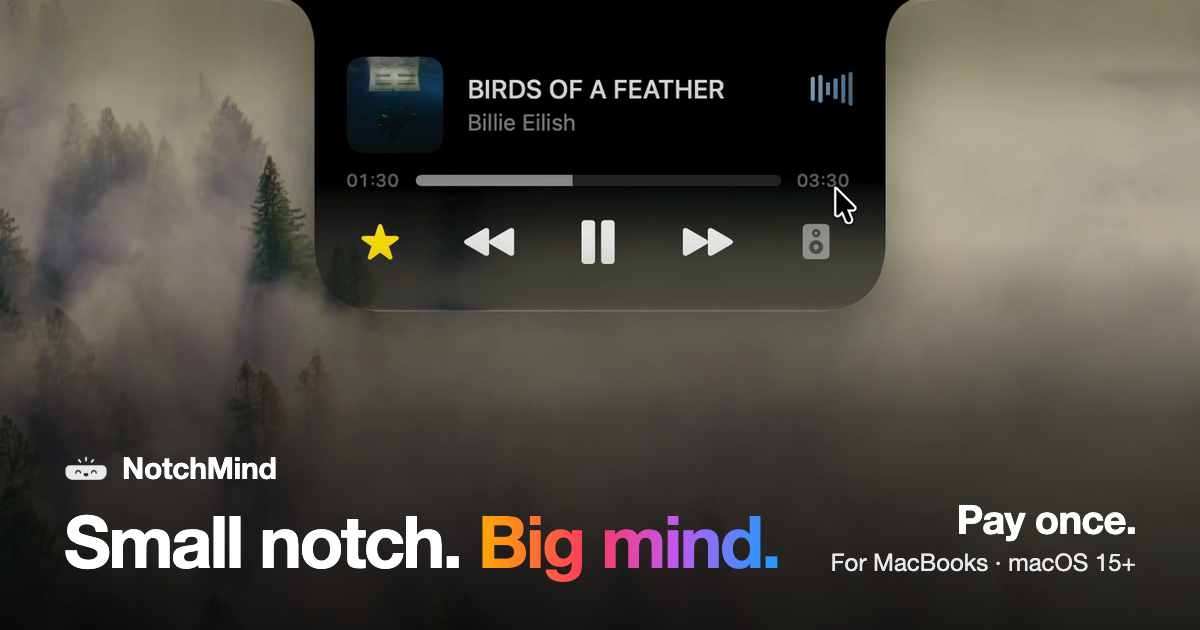
NotchMind is a native macOS app that turns the MacBook notch into a working hub for the things you reach for all day. Move your pointer to the top of the screen and the notch opens, revealing music controls, a file tray, clipboard history, timers, downloads and the small system updates that normally interrupt your work. It is built for MacBooks with a notch running macOS 15 or later, and it is sold as a one-time purchase rather than a subscription. Most Mac apps live in the menu bar, in the Dock or in a window you have to find and switch to. Each of those places takes you away from what you are doing: checking a download means opening the browser, skipping a track means hunting for the music app, and copying something twice can wipe the first item forever. NotchMind's answer is placement rather than raw power. The notch already sits at the top of the screen where your eyes go, and it is already framed by the hardware, so NotchMind treats it as a place to park the information you glance at rather than a place to work. The result is that music, files, clipboard history, timers and system updates appear where you are already looking and then get out of the way. NotchMind's media and file tools cover the actions people repeat constantly. The music player lets you see what is playing, skip a track, pause, read lyrics and switch speakers without leaving the front app, and a companion tool puts now playing and lyrics on your lock screen. Camera Mirror is there to check yourself before a call. On the file side, the File Tray lets you drag a file to the top of the screen and park it in the notch, then drag it out anywhere later; AirDrop lets you drop a file on the notch to send it in one move. Downloads fill the notch with progress while a file downloads, so you know when it is done without opening your browser. The File Converter changes files in place between PNG, JPEG, HEIC, PDF, ZIP and more, all on your Mac, and screenshots and recordings can be grabbed, dragged or deleted from the notch. The clipboard tools are the part NotchMind treats as more than a list. Clipboard history keeps up to 500 things you copied, each one click away from being pasted again. Clipboard actions go further by recognising what you copied: copy a color and NotchMind offers tools to preview and convert it, copy JSON and it can be formatted in one click, and links, emails, paths and commands are recognised too. Secret Guard watches for a copied password or API key, keeps it on your Mac and clears it in a tap on a red 'Possible secret copied' card. All of this runs locally on the machine, with no account to create. The daily-life tools cover the small, frequent events of a working day: a timer set on a ruler that keeps counting down at the top of the screen, reminders typed in natural shorthand such as 'in 30m', your next meeting from the calendar, and weather for today and the next few days in °C or °F. Banners from Slack, WhatsApp, Chrome and other apps appear in the notch, messages and mail show the sender's name, and a beta Inbox ranks the emails most likely to need a reply on your Mac. The Mac-status tools mirror the same idea: volume and brightness changes show in the notch instead of over your work, battery charging and low-battery alerts appear there, AirPods and Bluetooth headphones show up with their battery the moment they connect, drives appear so you can eject them, and live graphs show CPU and memory usage. Focus changes, Wi-Fi status and VPN connections are covered as well. For makers, NotchMind includes developer tools that format JSON and encode Base64 and URLs, generate UUIDs and work with colors and timestamps; an AI usage panel showing tokens used by Codex and Claude Code today and this month; a Revenue panel pulling Dodo Payments sales; and Site traffic from Plausible or Umami. Every license includes all 28 tools, and you can switch off the ones you do not need. The overall approach is a single hover target: point at the top of the screen and the notch opens with whatever tools you have enabled, then closes again when your pointer leaves. NotchMind's approach is placement plus local processing. There is no account to create, and clipboard actions, Secret Guard checks and text recognition in images run on your Mac. The optional Smart Mode is off by default; if you turn it on, short text snippets are classified by NotchMind's server using TypeSafe Jev, while files and screenshots are never uploaded. The notch itself is configurable across four finishes — Black, Semi, Liquid Glass and Glass Dark — so it can refract your wallpaper the way the rest of macOS does or stay solid black like the notch itself. The benefit is fewer context switches and fewer interruptions. Instead of opening a browser to watch a download, a music app to skip a track, or a clipboard manager to find something you copied an hour ago, you hover at the top of the screen and the answer is already there. Transient system events such as plugging in power, connecting AirPods or changing the volume surface briefly in the notch and then disappear, so they are noticed without covering your work. Because clipboard history, Secret Guard and file conversion stay on the Mac, sensitive material such as passwords and API keys does not have to travel. And because it is a one-time purchase with no account and nothing that renews, the cost and the commitment stay fixed. Concrete workflows come straight out of the tools. While working in a full-screen app you hover the notch to skip a track, switch speakers or read lyrics without leaving the window. You drag a folder to the top of the screen to park it in the File Tray or AirDrop it in one move, then pull it back out when you need it. You set a 15-minute timer on the ruler and it counts down above your work. You copy a color, a block of JSON or a URL and the notch offers the right action for what it recognised; you copy an API key and Secret Guard clears it. You keep an eye on a download filling the notch instead of a browser tab, and you let the notch tell you that your AirPods connected at 10 percent battery or that a drive called Photos Backup is ready to eject. For makers, the notch doubles as a small dashboard showing Codex and Claude Code token usage, Dodo Payments revenue and Plausible or Umami site traffic. NotchMind is aimed at people who work on Apple silicon MacBooks with a notch and want their everyday information in one glanceable place: Mac users who keep music and files moving all day, clipboard-heavy workers, and makers who want developer tools and small dashboards nearby. It supports Macs with Apple silicon running macOS 15 or later; Intel Macs are not supported. Pricing is a one-time purchase with no subscription. The launch price was US$5.99 for two Macs for the first 50 customers with the code LAUNCH50 already applied at checkout, after which it became US$15.99, with plans from US$9.99 one time and options for 1, 2 or 5 Macs. One license works on two Macs at the same time, every 1.x update is included, there is a 14-day money-back window, and your key and the download appear the moment you have paid. Dodo Payments handles the purchase and emails the key and receipt, and the integrations mentioned for data include Dodo Payments, Plausible and Umami. NotchMind's case is simple: the notch is a piece of hardware you already look at, and this app fills it with the music, files, clipboard history, timers, downloads and system details you would otherwise chase across apps. It is a native macOS app, local-first where it matters, configurable in four finishes, and paid for once rather than rented. Everything you reach for, one hover away, is the whole idea.
Starlie is a native Jira desktop app for Mac, built for the Jira work you do every day: find an issue, see what is going on, update it, leave a comment, move it across the board, and get back to work. It brings your Jira projects, issues, and workflows into a native macOS app powered by the Jira API, so your projects, issues, and workflows stay in Jira. Starlie works with both Jira Cloud and self-hosted Jira instances. It requires macOS 15 or later, is installed from the Mac App Store, and starts with a free 7-day trial. Starlie exists because Jira on the Mac has lacked a native home. Atlassian stopped supporting its own Jira Cloud for Mac app in February 2022 and now offers the web app and mobile apps instead, and Starlie fills that gap. The app is built with native macOS technologies rather than an Electron wrapper, which is why it supports native notifications, light and dark mode, multiple windows, and fast issue loading. It is distributed as an Atlassian Marketplace partner app that has been reviewed and approved for distribution, with an Atlassian Marketplace privacy and security review completed. Search is the centerpiece of the everyday workflow. Press ⌘K to find an issue, a summary, or a project. For a more specific view, you can write JQL with suggestions for fields, operators, and values, so queries such as project = LOOP AND priority = High can be composed without memorizing syntax. Starlie pairs JQL autocomplete with a free JQL query builder for finding the Jira work you need. Quick filters and ⌘K access to recent issues keep the work you return to most often within easy reach, which reduces the friction of navigating back to the same set of items throughout the day. Sprint boards keep your sprint moving. Starlie shows the active sprint at a glance, with issues organized into status columns, and lets you drag a card to its next column. The change syncs to Jira, so the board in Starlie stays consistent with the board your team sees. Smooth Kanban drag and drop is paired with quick filters, so you can narrow the board to the work you are focused on. Because the board reflects the state of the sprint, it also works as a lightweight way to check how the work is progressing before a stand-up or a review. Issue details keep the whole conversation in one Mac window. Starlie shows the description, subtasks, and comments together in a single view, so you can read the full context of an item without switching between screens or tabs. You can change the status, assignee, or priority right from the issue, and leave a comment without leaving the app. Custom fields are supported, and Quick Look lets you preview attachments. The combination means the routine editing tasks that make up most Jira usage — reassigning, reprioritizing, commenting, and updating — happen in one place. Outline brings every little task into the bigger picture. Starlie can pull epics, stories, and subtasks from multiple projects into one expandable tree, so you can see who is doing what and how the work is progressing across project boundaries. Because the hierarchy is expandable, you can start at the epic level and drill down to individual subtasks as needed. Reminders round out the day-to-day loop by helping you stay aware of the items that need attention. The Outline view is aimed at people who need to understand the shape of a body of work, not just one ticket at a time. Starlie is deeply integrated with macOS and feels right at home. You can jump into search with ⌘K and move through your work with keyboard shortcuts, keeping your hands on the keys. You can open multiple windows to keep more than one issue in view at once. Notifications are native macOS notifications, so you stay in the loop in the way your Mac already works. The app supports light and dark mode, so you can work in the appearance that feels comfortable on your Mac. The team also publishes a collection of Jira keyboard shortcuts, including the official list plus Mac-native ones, to help you get faster over time. Starlie is built for privacy. It stores your credentials in the macOS Keychain, and issues, comments, and attachments travel directly between your Mac and Atlassian's official API. Starlie's server handles secure sign-in but never sees your Jira content. During setup you choose the Jira site you want to use, and you do not need a separate Starlie account. The app is private by design, with no analytics or tracking. Installation is from the Mac App Store; you open the app from Launchpad or Spotlight and connect your Jira site, a process that takes about five minutes. Beyond reading and updating issues, Starlie connects Jira work to coding tools. From an issue you can open coding tasks in Claude Code or Codex with the issue context and your local project attached, so the work item and the repository it belongs to arrive together. This is a small feature in the interface but a meaningful one in practice: it removes the manual step of describing an issue to an agent or copying details between tools, and it keeps the coding task anchored to the Jira item that motivated it. Users describe the result in terms of smoother day-to-day work. App Store reviewers have called Starlie a game changer and said they could not believe somebody finally made an even better answer to Jira's sunsetted native app, arguing that the web experience will never match a native app. One reviewer on r/macapps said a $14.99/year subscription is totally worth it. An Atlassian Marketplace reviewer who works as a product person said they like it way more than the web interface and that using different types of boards became way smoother with the app. In practice, Starlie fits into several concrete workflows. A developer starts the day with ⌘K to jump to a recent issue, reads the description, subtasks, and comments, updates the status, and then opens a coding task in Claude Code or Codex with the issue context and local project attached. A product person works from sprint boards, dragging cards between columns and using quick filters to focus on a subset of the sprint. A team lead uses Outline to expand epics into stories and subtasks across multiple projects and see how the work is progressing. Someone reviewing a ticket uses Quick Look to preview attachments and native notifications to stay aware of updates. Starlie is built for Mac users who work in Jira every day — developers, product people, and anyone else whose routine involves finding issues, updating them, and moving them across a board. It requires macOS 15 or later and works with Jira Cloud and self-hosted Jira. There is a free 7-day trial; after that, pricing is $2.99 per month, $14.99 per year, or a $29.99 lifetime license. Starlie is available on the Mac App Store and is an Atlassian Marketplace partner app reviewed and approved for distribution. The takeaway is simple: Starlie gives Jira a native Mac home. Your projects, issues, and workflows stay in Jira, the app connects through Jira's API, and your credentials stay in the macOS Keychain while your Jira content travels directly to Atlassian. Fast search, JQL with autocomplete, sprint boards, rich issue detail, and an expandable Outline cover the Jira work you do every day — and it all runs at native speed on your Mac.
Chat.sh is a help center that answers questions instead of simply returning a list of titles. According to the website, search reads the question and answers it, with the pages it used. It can be served on your own domain, or in a folder on the site you already run. The product is presented as a help center built after Intercom's search broke, and it is aimed at teams that want a public support site, an AI search experience, and content that AI assistants can consume. The main purpose is to let visitors ask anything in their own words and receive an answer drawn from published articles, while the team keeps the help center on a domain or path they control. It is free for 50 pages and 100 AI answers a month with no card, and your own domain costs $399 once rather than a subscription. The background is stated directly on the site: I was a longtime Intercom customer until its help center search broke. The fix didn't come fast enough, so I built my own. That story frames the problem the product addresses. Most help centers, according to the launch description, give you a subdomain, a keyword search, and a monthly bill. Chat.sh positions itself differently by offering AI search that writes the answer and cites the pages it used, living in a folder on your own site, making every page available as markdown for ChatGPT, Claude, and llms.txt, and charging once instead of a subscription. The problem matters because a help center that only hands back a list of titles can leave customers searching for the right page, while an answer that shows its sources can resolve the question directly. For teams already paying for support software, the monthly bill and the subdomain are also friction points that chat.sh explicitly calls out. One of the central features is search that reads the question. The website explains that a model retrieves the passages and writes the answer, then shows the pages it used. It is not a keyword index handing back five titles that all contain the word 'domain'. Answers come from published articles only, which means the help center is grounded in the articles the team has published. The site shows live examples at testimonial.to/guide and chat.sh/help. This approach is useful because a customer can ask in their own words and still receive a response that points back to the source article. The interaction is designed around a simple prompt: ask anything, or search for a page. When a person asks a question such as whether the help center can be put under /guide, the system answers and shows the page it used. The product is built around one knowledge base that can answer in three ways. Articles, links, and files go in once, and the help center, the messenger, and the markdown you hand to an assistant all come from that same knowledge base. The content types explicitly listed include articles, web links, files, and TXT and Markdown. The help center is a public site that answers instead of handing back a list of titles. The chat messenger is marked as coming soon; it will put the same answers in a widget on your app, so a customer who is stuck never has to leave the page they are stuck on. The AI agent capability is available now: on each article, you can copy the page as markdown, open it in ChatGPT or Claude, or copy the whole help center. An agent can also start from llms.txt. The copy options include Copy page as Markdown for LLMs, View as Markdown, Open in ChatGPT, Open in Claude, and Copy all docs as Markdown. This matters because it turns the help center into a source that AI tools and agents can use directly, rather than leaving the content trapped in a proprietary format. A key differentiator is hosting. The help center can live at yoursite.com/help, at help.yoursite.com, or at your-team.chat.sh. It can also be hosted in a folder on the site you already run: name it /guide, /help, or whatever you call it, and the help center is served from there on the same domain, with the same analytics, and no subdomain to explain. A custom domain can be added by pointing a domain you own at the help center. The site contrasts old-style URLs such as /en/articles/8341022-add-a-custom-domain with readable addresses that contain no numeric id wedged into the path. In chat.sh, the slug is the title, and it is yours to change. Another detail is that each article draws its own preview card, so a link dropped in Slack arrives as the article rather than as your logo. The visual design is also configurable: you can pick the accent and the mark, and every page follows and stays readable, because the colour is darkened until it is. Overall, the product works from a single knowledge base and exposes it through the help center, the forthcoming messenger, and markdown for AI assistants. The website frames this under the heading One knowledge base, three ways to answer. The search methodology is retrieval combined with answer generation: a model retrieves passages and writes the answer, then shows the pages it used, and answers come from published articles only. The site also asks what a fixed format can't give you, arguing that the old stack hands every team the same URLs, the same search, and the same page with a different logo on it. Chat.sh claims to differ in hosting, addresses, preview cards, and theme control. The commercial approach is described as Get all three. Pay once. It is free on a chat.sh address. The lifetime option adds your own domain, bigger ceilings, and your agents. The site says what you get never changes, and only the price does: it goes up $100 each time we ship. At every price, the help center is live now and includes AI answers on your domain or in a folder, 1,000 pages, and 1,000 AI credits a month per workspace. A link counts as one page for every 2,500 characters of its text, and an article counts as one page. A PDF counts as one page per page of the file. One credit is one answer, here or in the messenger. When the month's credits are gone, 1,000 more are $20, paid once. The chat messenger is shipping next, and each AI reply uses 1 credit from the monthly allowance. The inbox is shipping after; teammates take over a conversation, with 3 people per workspace, and each person after that is $10 a month. Human replies don't use AI credits, and buying another person does not move the lifetime onto a subscription. Benefits follow from those features. Customers get an answer with the pages used, which can reduce the back-and-forth of a keyword search that returns titles only. Teams can keep the help center on a domain or folder they already run, preserving their own analytics and avoiding a subdomain to explain. Because every article can be copied as markdown and the whole help center can be copied or accessed through llms.txt, the same content can feed ChatGPT, Claude, and AI agents. The card preview for every article makes shared links more useful in tools like Slack. The free tier lets teams start with 50 pages and 100 AI answers a month without a card. The lifetime option adds a custom domain, 1,000 pages, and 1,000 AI credits a month per workspace, and it is a one-time payment rather than a subscription. The site emphasizes that human replies in the inbox don't use AI credits and that adding a person does not convert the lifetime into a subscription. For teams tired of a monthly bill for a fixed-format help center, these outcomes are the stated value: a help center that answers, lives where they want it, and can be handed to AI assistants. Concrete use cases appear throughout the content. A customer can ask a question in their own words and receive an answer that shows the page it used. A team can host the help center in a folder such as /guide or /help on the site it already runs, keeping the same domain and analytics. A team can add a custom domain by pointing a domain it owns at the help center. A user can copy a single page as markdown, view it as plain text, open it in ChatGPT, open it in Claude, or copy all published articles as markdown for pasting into AI tools. An AI agent can start from llms.txt to access the help center. When the chat messenger ships, it will place the same answers in a widget on an app so a stuck customer does not leave the page. When the inbox ships, teammates can take over a conversation. The site also shows live examples at testimonial.to/guide and chat.sh/help, and the launch description points to chat.sh/help as a place to try it. The target audience is implied by the story and the product framing: teams that run a help center or support site, particularly SaaS and customer success teams. The launch metadata lists topics such as Customer Success, SaaS, and Artificial Intelligence. The product is for people who want answers served on their own domain or in a folder on an existing site, and who want content available as markdown for ChatGPT, Claude, and llms.txt. Pricing is stated clearly. It is free for 50 pages and 100 AI answers a month, no card. Your own domain is $399 once and never a subscription. A launch-day offer gives $200 off any lifetime deal with code PHLAUNCH: $399 becomes $199, and $799 becomes $599, ending Oct 2, 12 AM PT. The lifetime includes 1,000 pages and 1,000 AI credits a month per workspace. Extra credits are 1,000 for $20, paid once. The chat messenger is shipping next, and the inbox is shipping after with 3 people per workspace and $10 a month for each additional person. No specific tech stack is named, but the product explicitly works with markdown, ChatGPT, Claude, and llms.txt. Chat.sh's primary value proposition is a help center that answers the question. It combines AI search that reads the question and cites the pages it used with hosting on your own domain or in a folder on the site you already run. One knowledge base powers the help center, the coming messenger, and markdown for AI assistants. It is free to start, and the lifetime plan adds your own domain, bigger ceilings, and agents for a one-time payment. For teams frustrated by keyword search, subdomains, and monthly bills, chat.sh presents a different model: answers instead of titles, your site instead of a subdomain, and a pay-once lifetime instead of a subscription.
Dots by OpenAI are always on agents that live inside ChatGPT and are powered by GPT-6 Astra. Each dot is given its own cloud computer and its own browser, connects to over 4,000 apps through plugins, and can work toward your goals 24/7. The agent is reachable in ChatGPT on desktop, web, and mobile, and it can also be messaged in Slack and Teams. According to the product description, dots learn your preferences from feedback and bring you finished work to review, while Custom Rules, Activity View, and auto review are provided to keep you in control. Dots is rolling out now to Pro and Business Premium. The tagline frames the product plainly: always on agents built to handle everything. That framing is the context for why Dots exists. A conventional assistant interaction is bounded by the session — you ask, you get a response, and the work pauses until you come back. Dots is described instead as working toward your goals 24/7, with an environment of its own. The stated feature set — a cloud computer, a browser, plugin connections, always-on operation, and review controls — reads as a response to work that is continuous rather than conversational. It also speaks to a second problem that appears in the description: when an agent acts on its own, you need ways to shape its behavior and see what it has been doing. That is why Custom Rules, Activity View, and auto review are listed alongside the agent itself. Because availability is limited to Pro and Business Premium at launch, the product is positioned for people who already pay for ChatGPT and want more than a chat window. The first capability group is the always-on operation itself. Each dot has its own cloud computer and browser, and can work toward your goals 24/7. Those three facts belong together. Because the computing environment sits in the cloud rather than on your device, the dot is not dependent on your machine being awake, and because it has a browser, it has a way to act in the same places work normally gets done on the web. The 24/7 framing is the point of the whole product: the agent keeps moving toward a goal outside a single sitting, rather than only answering when you message it. For the user, this is the difference between an assistant that replies and an agent that progresses. It also explains why the product is described as being built to handle everything, and why control features are treated as a necessary companion to autonomy rather than an add-on. The second capability group is connectivity. Dots connect to over 4,000 apps through plugins, according to the product description. In practice, that plugin layer is what lets a dot reach past ChatGPT itself and work with the external tools a goal depends on, instead of remaining confined to a single conversation. The number matters because the range of apps dictates the range of work an agent can be pointed at: the more services it can connect to, the more of a real workflow a dot can cover. Combined with its own browser, plugin access means a dot is not limited to what it can reason about — it has routes into the systems where the actual tasks live. For a user delegating ongoing work, this is what turns an agent into something that can operate across the tools they already use. The third capability group is how you reach the agent. The description states that you can message or call your dot in ChatGPT on desktop, web, and mobile, or message it in Slack and Teams. That spread of surfaces matters for a product built around always-on work. If a dot is running continuously, you need to be able to check in, add instructions, or answer a question from wherever you happen to be, rather than only from one machine. Covering desktop, web, and mobile keeps the same agent reachable through the ChatGPT surfaces you already use, and adding Slack and Teams brings it into the messaging tools where teams already collaborate. The result is that dot work can be folded into existing communication habits instead of requiring a separate application. The fourth capability group is learning and delivery. Dots learn your preferences from feedback, and the agent brings you finished work to review. Those two statements describe a loop: you respond to what a dot produces, the dot takes that feedback on board, and the output it returns is framed as finished work rather than an intermediate draft. For the user, this changes the rhythm of using an assistant. Instead of correcting the same things repeatedly, feedback is expected to shape how the agent approaches later work, and the review step keeps a human in the position of accepting results. The description places this alongside the control features, which suggests delivery and oversight are meant to operate together. The fifth capability group is explicit control, named as Custom Rules, Activity View, and auto review. The description says these keep you in control. Each addresses a different part of supervising an autonomous agent. Custom Rules give you a way to define how a dot should behave, so its operation reflects your requirements rather than defaults. Activity View gives you a window onto what the agent has been doing while it worked, which matters when the work happened without you watching. Auto review adds a review step into the process. Taken together they answer the obvious question that always-on agents raise — what happens while I am not looking — by giving you rules upfront, visibility during, and review after. The overall approach follows from those pieces. A dot is powered by GPT-6 Astra, runs on its own cloud computer, and has a browser, which is the operating environment. Plugins to over 4,000 apps are the connections. ChatGPT on desktop, web, and mobile, plus Slack and Teams, are the interfaces through which you message or call it. Feedback is the learning channel, and Custom Rules, Activity View, and auto review are the supervision layer. The product description presents this as one arrangement: an agent that is always on, equipped to operate, connected to your tools, reachable where you already are, and supervised by you. That combination — not any single capability — is what Dots is described as offering. The benefits stated or directly implied are about continuity and oversight. Work toward your goals no longer depends on you being present to drive each step, because a dot can work 24/7 on its own cloud computer. You are not forced into a single tool, because the agent can be messaged in ChatGPT or in Slack and Teams. You are not left without visibility, because Custom Rules, Activity View, and auto review are named as controls. And you are not handed raw output, because the dot brings finished work to review. What the description promises is delegated progress with a defined review point, rather than either a passive assistant or an unsupervised process. Concrete workflows follow the surfaces described. You can message or call your dot in ChatGPT on desktop, web, or mobile to give it direction or check on progress. You can message it in Slack or Teams when work is coordinated in those platforms. You can set Custom Rules for how the dot should operate, then use Activity View to see what it did across the time it ran on its own, with auto review in place as the review step. And you can take delivery of finished work to review, then give feedback so the dot learns your preferences for next time. These are the interactions named in the product description, and together they form a cycle of instruction, autonomous work, inspection, review, and correction. On audience and availability, the description is specific: Dots is rolling out now to Pro and Business Premium. That places the product with paying ChatGPT plans rather than a free tier, and it accounts for the Slack and Teams messaging, which suits organizational settings on Business Premium. No integration partners beyond the 4,000-plus app plugins are named, and no pricing details beyond the plan rollout are given. The underlying technology stated is GPT-6 Astra, and the agent's environment consists of its own cloud computer and browser. Everything else about availability is simply that it is rolling out now to those two plans. The takeaway is straightforward. Dots by OpenAI takes the agent idea and makes it continuous: always on, powered by GPT-6 Astra, each dot equipped with its own cloud computer and browser, connected to over 4,000 apps through plugins, and working toward your goals 24/7. Reaching it is meant to be easy — message or call in ChatGPT on desktop, web, and mobile, or message in Slack and Teams — and supervising it is meant to be explicit, through Custom Rules, Activity View, and auto review, with finished work delivered for your review and feedback that teaches the dot your preferences. That combination of autonomy and control is the product's core proposition for Pro and Business Premium users.