Category Focus/categories/video
Video AI Tools
Discover and compare the best video AI tools and software. Browse 95+ curated tools with reviews and rankings.
Projects tracked
95
Sort mode
RECENT
Page
1
Discover and compare the best video AI tools and software. Browse 95+ curated tools with reviews and rankings.
Projects tracked
95
Sort mode
RECENT
Page
1
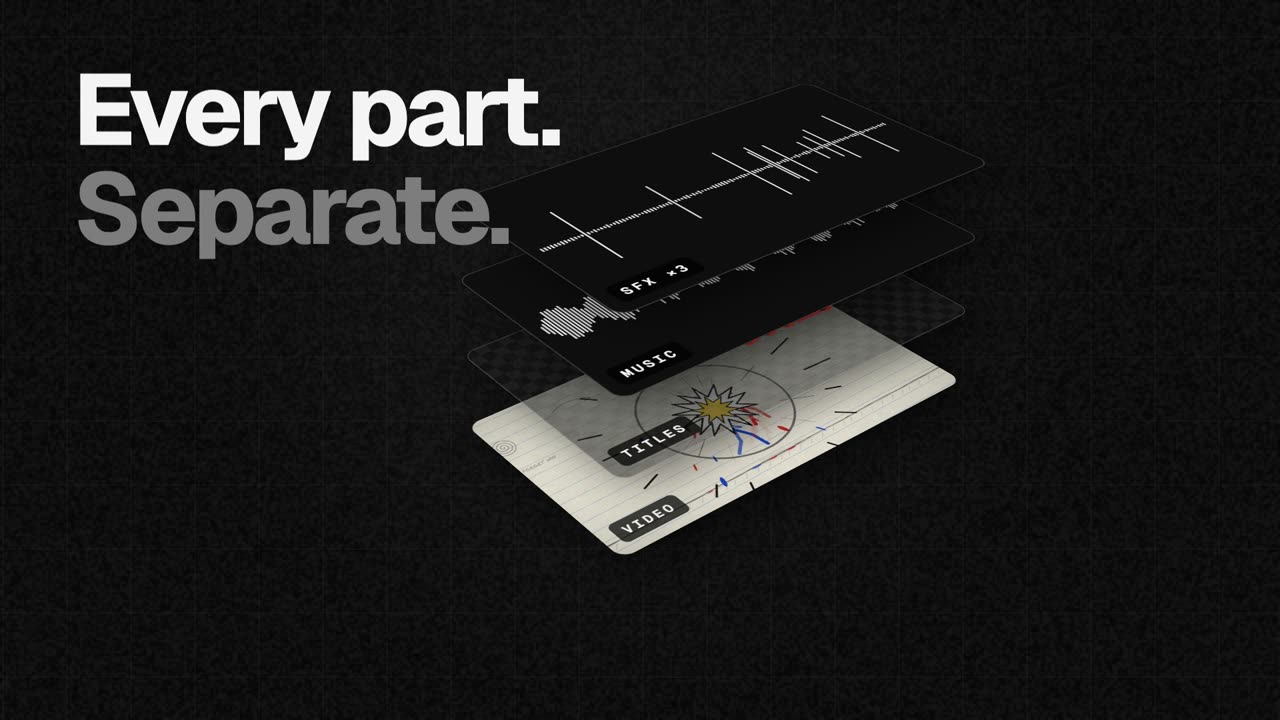
EasyCut is a free video editor that runs entirely in your browser and is built specifically to finish motion videos made by Claude. When Claude designs, animates and scores a video — its own motion, music and sound effects — EasyCut opens it as one project in which the video, the titles, the music and each individual sound effect sit on their own track, lined up and labelled. The tool is for anyone who wants the creative reach of an AI video generator but still needs a real editing timeline to trim scenes, swap music, add captions, adjust timing, add their own brand, and export the finished film in whatever shape a platform needs. The problem EasyCut addresses is that an AI-generated video normally arrives as one finished, flattened file. If you want a different music bed, a shorter title card, a quieter sound effect or a cut that lands half a second earlier, there is often no practical way to change just that element — the usual answer is to regenerate the whole video and hope the new version keeps everything else you liked. EasyCut's answer is to keep every part of the Claude-made video separate. Because each title, scene, image, sound and element is preserved on its own track, you can select anything and ask Claude to change just that part without rebuilding the whole video. That turns an AI video from a fixed output into a starting point you can actually edit. The editing core is a full timeline rather than a trimmed-down AI toy. EasyCut describes itself as a real editor with a magnetic timeline, frame-exact cuts, J/K/L keyboard controls, markers and undo for everything. You can cut, trim and split clips by dragging edges, split at the playhead, and reorder clips by dragging them, with transitions added in one click. Pauses can be removed in one go, or you can cut words by crossing them out directly in the transcript. Auto captions are generated word by word, written on your own computer, and can be saved out as SRT or VTT files for use elsewhere. Audio work is handled with the same level of control. Music can be fitted to the video's length, cut on the beat with its real ending, and there are free music and effects libraries built in, with ducking so music sits under voices automatically. You can record your screen, your camera, or both together with your voice, straight onto the timeline. A Layers panel lists every clip of a Claude video in one place, so you can find all the whooshes and mute or delete them at once, and speed ramps let you slow one moment down or speed it up with easing that moves smoothly in and out of the change. Visual and AI features are included as well. Colour looks, green screen, split screen, blur boxes, shapes and stickers are available to make footage look good, while voice clean-up, background removal and an AI voice all run on your device without uploading anything. Export covers MP4 up to 4K and 60 fps, produced as wide, tall and square versions in one go, plus GIF and audio-only exports. Projects save automatically in your browser as you work and can be moved anywhere as a single file, and a brand area keeps your logo, colours and fonts in one place for every video — a set Claude can use too. EasyCut's distinctive approach is how the Claude connection works. Setting it up takes about one minute, once. You add the EasyCut connector to Claude, and from then on Claude can open the videos it makes straight in EasyCut with every part on its own track. There are two routes. With Claude Desktop you download the EasyCut extension — a 170 KB .mcpb file for macOS and Windows — and press Install when Claude asks to install it, since Claude already has everything it needs to run it. With Claude Code you run one terminal command: claude mcp add easycut -- npx -y easycut-connector@latest. Then you open EasyCut, press Claude at the top, turn it on and choose Allow if the browser asks to let it reach apps on this device. If you are using claude.ai in the browser instead, you ask for the parts as downloads and open them from EasyCut's Claude panel. Claude Code needs Node.js 18 or newer. The practical benefit is that a finished AI video becomes a controllable edit rather than a fixed result: you trim a scene, mute a whoosh, drop in your own track or move the titles, and if you want something changed that only Claude can produce, you select one clip and ask for just that. Everything can then be exported in the shapes different platforms need. EasyCut is free with no trial, no watermark and no account, and nothing is uploaded: cutting, the AI features and the export all happen in your browser on your computer. The only downloads are the AI models, fetched once the first time you use a feature, and anything you choose from the free music and photo libraries. It is deliberately calm by design, with big buttons, plain words and tips everywhere, so there is nothing to learn first. Concrete workflows follow the three steps EasyCut describes. First, you ask Claude for a video — for example, a dynamic 40-second launch video for an app with bold type, smooth camera moves, great music and sound effects, opened in EasyCut. Second, every part lands on its own track: the video, the titles, the music and each sound effect open as one project, lined up, labelled and ready. Third, you finish it your way — trim a scene, mute a whoosh, drop in your own track, move the titles, or select one clip and ask Claude to change just that — and then export in every shape you need. EasyCut is not limited to Claude output either: it is a full editor, so you can add your own videos, photos and music, or record your screen and camera. EasyCut is made for computers; on a phone the screen is too small for a timeline, so it is not a mobile editing app. Browser support is broad but tiered: Google Chrome and Microsoft Edge do everything, including export, while Safari 16.4+ and Firefox 130+ can edit too. Its Claude integration is the headline connection, available through Claude Desktop and Claude Code, with a fallback for claude.ai in the browser. Pricing is simply free — no trial, no watermark and no account — and the site positions it as a finishing editor for AI video rather than a video generator, with the tagline that Claude makes it and you finish it. EasyCut's value proposition is narrow and clear: it is the finishing editor for AI video. Claude makes the whole video — motion, music, sound effects — and EasyCut opens every part on its own track so you can trim it, swap the music and export it, free, right in your browser, with your footage never leaving your computer.
iLand is a Mac app from CodeM Labs that turns the empty space around your Mac's notch into a living hub of everyday tools. Instead of digging through the menu bar or opening separate applications, you hover near the notch and it unfolds to reveal music controls, AirPods and accessory battery levels, local weather, calendar events, a drag-and-drop file tray, live translation and more. CodeM Labs describes it as one quiet hub for the things you check all day, and the Product Hunt listing frames it as a way to turn your Mac's notch into an everyday workspace. It is made for Mac users who want fast, glanceable access to the small pieces of information and utility they reach for constantly, without leaving whatever they are working on. Modern MacBooks have a notch, and for most people that strip of screen does nothing at all. iLand is built on the premise of giving that space a job. The product page puts it plainly: give your notch a job, and turn that empty strip of screen into the most useful pixels on your Mac. The problem it addresses is fragmentation: the things you check all day — what is playing, the weather, the next meeting, how much battery your AirPods have left, a file you need to move to another device — are scattered across menu bar icons, separate apps and system settings. Each of those checks is small, but together they pull you out of your work. iLand gathers them into a single place attached to hardware you already look at, so instead of switching contexts you glance, act, and get back to what you were doing. The heart of iLand is a set of widgets that live in the notch and stay one glance away. Music control lets you play, scrub and skip right from the notch, and album art spills into view the moment a track starts, so you can see what is playing without opening a music app. Weather shows local conditions along with highs and lows, updating quietly in the corner of your screen. A battery widget keeps track of every device at a glance with real-time battery levels for AirPods and accessories, which removes the guesswork of deciding whether something is charged. Calendar and events keeps your next meeting one hover away and offers a join button when it is time, so the transition from noticing an appointment to attending it happens in the same place. Timers are also part of the widget set described in the Product Hunt listing. Beyond passive information, iLand puts working tools in the notch. The tray is a file shelf built into the notch: you drop files in, AirDrop them to nearby devices, or convert formats on the fly and then drag them anywhere. That means a file can be parked temporarily while you move between folders or apps, sent to another device, or converted without opening a separate converter. A built-in media converter is listed as part of the feature set included in every plan, and a built-in screenshot and recorder add capture tools to the same hub. Live translation covers the word you absolutely know but, annoyingly, only in the wrong language: you type on one side, read on the other, and swap the languages with a tap. Together these turn the notch into a place where small, frequent tasks are finished rather than deferred. iLand is designed to be shaped by the person using it. Widgets can be switched between and reordered, and you pick what shows, so you decide which tools occupy the hub. The Product Hunt listing also mentions gesture controls and a customizable layout that keeps everything within reach. The approach is hover-aware: iLand stays out of the way until your cursor approaches, then it unfolds, which means the notch stays out of your workflow until you actually want it. Appearance is adjustable as well, with liquid glass or dark styling available. That combination of picking widgets, ordering them and choosing a look makes the notch feel like a personal surface rather than a fixed panel of controls. The product's stated rhythm is simple: hover to expand, glance to know, get back to work. iLand is not a dashboard you sit in front of; it is a hover-triggered surface that appears when your cursor approaches the notch and recedes when it leaves. Under the hood it is deliberately lightweight. CodeM Labs describes iLand as a tiny, signed menu-bar app with no Electron and no bloat, calling out negligible battery use. It requires macOS 13 or later and runs on both Apple Silicon and Intel Macs, and the download is about 30 MB. That combination — a native, signed menu-bar app with a small footprint — is the mechanism that lets the notch act as a workspace without becoming another resource-hungry app running in the background. The benefit iLand promises is fewer context switches. Music, weather, calendar, battery and files are all one glance away, so the small checks that interrupt a task stop requiring a trip to a different app, window or menu bar icon. Files move faster because the tray, AirDrop and conversion live in the same place; meetings are easier to catch because the join button appears when it is time; questions of language are answered in the same hover. Because the app is native and small, those conveniences do not come with the cost of a heavy background process. In short, the outcome is a notch that earns its screen space by handling the things you check all day, quietly and on demand. Concrete scenarios follow directly from the widgets. While working, you hover to pause, skip or scrub a track and see album art without leaving your document. Before heading out, you check the weather highs and lows and confirm your AirPods have charge. During a busy day, you hover to see the next meeting and use the join button when it starts. When you need to move a file to another device, you drop it into the tray and AirDrop it, or convert its format on the fly before dragging it where it is needed. If a word comes up in another language, you type it on one side and read the translation on the other, then swap with a tap. And when something on screen needs capturing, the built-in screenshot and recorder handle it from the same hub. iLand targets Mac users, particularly those who spend the day in front of a MacBook and want their tools within reach rather than scattered. CodeM Labs describes itself as an independent group of developers crafting lightweight, privacy-first apps for Apple platforms. Pricing is straightforward: a free 7-day trial, then either a monthly plan at $1.99 per month for full access with a one-device license, or a one-time lifetime purchase at $14.99 that covers up to three devices. Both plans include all iLand features, all future updates, the built-in media converter, and the built-in screenshot and recorder. The site also notes a macOS 13+ requirement, Apple Silicon and Intel support, and a roughly 30 MB download, and it invites further questions through its FAQ and social channels. iLand's core idea is that the notch is not dead space. By turning it into a hover-aware hub for music, weather, calendar, batteries, files, translation and capture, it makes the most of pixels you already own and keeps the things you check all day one glance away — and then gets out of the way.
LaunchReel is a Claude Code plugin that edits talking-head videos and generates launch videos for your real product. According to the product's website, you record yourself and Claude cuts the footage, adds captions and zooms, and builds visuals around what you say; you can also pin a comment on any frame and it fixes just that spot. It is aimed at founders, makers and small teams who need finished videos for a product launch, without doing a manual editing pass themselves. The site positions it as a way to get a professional-looking video out of a raw recording and out of your own repository. The problem it addresses is the gap between describing an edit and actually getting it. In the site's own comparison, using Claude Code alone means that to fix one thing you describe it, wait, and render again; a small edit costs another prompt; there is no sound; the Reels version means starting again in portrait; and getting an MP4 means setting up a renderer yourself. LaunchReel is presented as the layer that removes each of those steps: you pin a comment on the frame instead of writing a prompt, you click text to change it, you get original music and voiceover, you say "make the 9:16 version," and you press Export. That framing matters because it turns video editing from a back-and-forth prompting loop into a visual, direct-manipulation workflow while keeping the automation. The core editing capability is on talking-head footage. LaunchReel cuts the fillers, pauses and retakes out of a recording, then — according to the site — listens back to check every cut before adding captions and zooms. That sequence is what makes the output usable: filler removal alone can leave awkward jumps, so the verification step is described as a check on each cut, and captions and zooms are layered on afterward to keep attention on the parts that matter. Recordings up to 5 minutes are supported on the Creator plan and up to 10 minutes on Pro, which sets the practical ceiling on a single talking-head project. The Studio is the manual-editing surface, and it opens while Claude works. It runs locally at localhost:4747 and gives you a live preview with sound. The site's headline example is pinning a comment on any frame — the preview shows an instruction such as "make this bigger" attached to a specific moment — and Claude then fixes just that spot. Alternatively, you can click text and change it directly, with no prompt involved. The Studio is also where structure becomes visible: the preview shows the narrative beats Hook, Problem, Demo, Proof and CTA, so you can see how the video is organised as you work. The selling point the site makes is that small fixes cost no prompt, which keeps iteration cheap once the first edit exists. Alongside talking-head editing, LaunchReel writes launch videos. Claude writes every scene as code for your real product, taken from your repository, rather than from generic stock. Those videos come with original music and voiceover — the pricing page describes this as an original score and studio voices — so the finished film ships with sound rather than silence. LaunchReel also adds what the site calls a director's playbook, described in the Creator plan as "the full playbook, always current." If you are not using Claude Code, the site offers a separate path: you can generate a video from a template. The workflow is deliberately short. First, you say one sentence — the example given is "cut this recording into a reel" — and Claude does the first edit. Second, the Studio opens while Claude works, so you can watch the video build rather than waiting blind. Third, you make it yours: pin comments or edit directly on the frame, then export when it's right. Setup is also minimal and command-line based: you run "/plugin marketplace add gajanansr/launchreel-plugin" and then "/plugin install launchreel@launchreel", one at a time, with Node 20 or later installed. Because the Studio runs on localhost, the editing happens on your own machine; the site notes that Claude's work uses your own Claude plan, while edits you make in the Studio do not. Talking-head projects keep working copies of your recording and use roughly 0.07 GB per minute of 1080p, and LaunchReel tells you the cost before it starts. The stated benefits follow from that workflow. Fixing a detail no longer requires describing it, waiting and re-rendering — you mark the frame. Changing wording no longer requires a prompt — you click the text. Portrait versions no longer mean a separate edit from scratch — you say "make the 9:16 version." Sound is included through original music and voiceover. Export is a button rather than a renderer you configure yourself. And output is finished to the format you need: 16:9 or 9:16, up to 4K, with 2K and 4K available on Pro. Concrete scenarios from the site include cutting a raw recording into a reel, producing a launch film describing your real product, making a demo video, and generating the vertical 9:16 version for Reels or Shorts from the same project. Because fixes and re-renders within the same month do not count as another video, the product is also suited to iterating on one video — re-rendering it and re-voicing it — until it is right. The template option covers people who want to generate a video without using Claude Code at all. Pricing is structured around projects. A free trial lets you make one full video with every feature, exported in 1080p with a small watermark in the corner. Creator is $19 per month after a founding discount (50% off the first three months with code FOUNDING50) and includes 5 videos a month, no watermark or end screen, 1080p export, talking-head recordings up to 5 minutes, original score and studio voices, the full playbook, and use on up to 2 computers. Pro is $49 per month and adds 20 videos a month, 2K and 4K export, recordings up to 10 minutes, use on up to 3 computers, and early access to new looks and features. Team is $149 per month with everything in Pro, 80 videos a month, up to 10 computers, and one invoice. A video is one project; fixing, re-rendering and re-voicing it in the same month do not consume another video, and the count resets on the first of the month. Plans renew monthly and can be cancelled anytime; prices are in USD, billed monthly by the reseller Dodo Payments, which handles tax and invoices. In short, LaunchReel's value proposition is that Claude does the editing work while the product supplies the parts that make the result shippable: a Studio for direct fixes, a director's playbook, original music and voiceover, and export in 16:9 or 9:16 up to 4K. For a founder or small team that records talking-head videos and needs launch videos for a real product, it collapses editing, sound and export into a short, mostly automated flow.
Smooth Recorder is a native Mac screen recorder built for making demos and tutorials. Its promise is that you record once and the video is edited by the time you hit stop: it zooms in where you click, smooths your cursor and camera movement, adds captions on your Mac, and places the recording on a nice background. Screenshots get the same treatment, opening into an editor with wallpaper, padding, corners, shadow, arrows, text, numbers, blur and 3D tilt. The app is for Mac users who want polished screen recordings and captures without doing much editing afterwards. It is a one-time purchase with no subscription and no account, so the workflow stays self-contained. The problem it solves is the distance between a raw screen recording and something you are happy to share. A plain capture usually needs zoom-ins on the clicks that matter, a cursor that glides instead of jumping, captions for people watching without sound, and a background that makes the frame look deliberate rather than accidental. Doing all of that by hand in a video editor takes time and a second tool, and the recording has to be captured again if the framing is wrong. A reviewer quoted on the site, Stanislav Tyshchenko, founder of Opencals, summed up the search for a fix: "I remember having a hard time looking for a tool like this, one that lets me record demos in one go without having to do much editing." Smooth Recorder takes the position that the polish should be produced during the recording rather than afterwards. The site also positions the app against the recorders people weigh it against. Its comparison table covers Screen Studio, CleanShot X and Loom, checked on their own websites in September 2026. In that table Smooth Recorder is the native Mac app that is pay once with no subscription, with auto-zoom on your clicks, a smooth cursor, captions made on your Mac, cutting by editing the transcript, and screenshots with an editor. Screen Studio is shown as an Electron app; Loom's captions are cloud-based and its transcript cutting sits on a $24/mo plan; CleanShot X is listed with yearly updates. These are the seller's own readings of competitor sites. The core recording features are the zooms that follow your clicks, the smooth cursor and camera, and the captions. Version 1.1 added 3D angles. Because the zoom is driven by where you click rather than by manual keyframes, the emphasis lands on the buttons, fields and menus you actually used, and the camera work is already cut together when you stop. Captions light up each word as it is spoken, which keeps a viewer's eye on the part of the interface being described even when they are watching with the sound off. The recording is placed on a nice background as part of the same flow. Editing is done by editing the words. The recording is transcribed on your Mac and the transcript sits alongside the video: delete a word or a sentence from the transcript and it is gone from the video too. The interface reports what was removed — the product tour shows "Cut 3 filler words" with an Undo control — so repeated takes and verbal tics such as "um", "uh" and "er" can be trimmed out without touching a timeline. That turns the transcript into a practical editing surface rather than just a subtitle file, which matters for anyone recording a walkthrough in one take. One shortcut — the tour shows ⌥1 — opens the capture overlay. You pick the area, then choose what to make from it. There are five options: Screenshot (an area, a window or the full screen, ↩), Record (with camera, mic and system audio, R), GIF (a looping clip that goes straight to your clipboard, G), Scroll (one tall screenshot of a whole page, S) and Text (copy the words inside any area, T). Putting all five behind a single overlay means the same starting gesture covers a quick still, a looping clip for chat, a full-page capture, or lifting text off the screen. Screenshots get everything the editor does, a key or a click away. "Make it yours" covers wallpaper, padding, corners and shadow, with 76 wallpapers, 40 of them new. "Make your point" covers arrows, text, numbers and blur, one key each, and edits stay editable. "Tilt it in 3D" offers nine presets that turn the screenshot, with fine-tuning available if you want it. Because the edits remain editable rather than baked in, a screenshot can be reworked instead of re-taken. Smart Redact handles what comes before sharing. It finds the things you would rather not show and blurs them in one click: emails, phone numbers, card numbers, API keys and faces. The tour shows it reporting its matches, such as "Smart Redact 2 found" or "5 found" on a billing screen, before the screenshot goes anywhere. All of it runs on your Mac — captions, text recognition and redaction are processed locally, and recordings do not leave the machine. Rakesh Potnuru, founder of WithUPI, singled the feature out: "I love the auto detection and blurring of sensitive details feature." Smooth Recorder is a native macOS app built in SwiftUI and AppKit — not a Chrome extension, not a website in a window. It runs on macOS 15 Sequoia and later, and on macOS 26 it uses newer system features when they are available. The Library lives in the notch and holds every screenshot and recording, with search and the recording timer. Version 1.1 added menu bar and Dock support: the menu bar icon opens your Library, and the Dock menu offers Capture and Recent. Shortcuts and Siri can take a screenshot, capture text, or start and stop a recording, and the app follows your Mac's appearance or your choice of Light, Dark or Auto. Exports cover the places recordings actually go: MP4 for anywhere, MOV for Keynote and Final Cut at 30 or 60 fps, and GIF for docs, chat and READMEs at up to 24 fps. Pricing is deliberately simple. During early access the app costs $9 once against a launch price of $69 — $60 off for the first 100 buyers, with 90 left when the page was captured. There is no subscription and no account. The single payment includes recording with auto-zoom, smooth cursor and captions; transcript editing and filler-word removal; screenshots, GIFs, scrolling capture and text; the screenshot editor with Smart Redact and Motion; 3D zoom angles and 76 wallpapers; MP4 and MOV export at up to 60 fps plus GIF; and every update during early access. Taken together, Smooth Recorder collapses recording, polishing and screenshot work into a single flow on the Mac. You set up the area once, capture in the format you need, and stop — the zooms, cursor, captions and background are already in place, and the transcript gives you a way to trim without a timeline. For founders, developers and anyone producing demos, tutorials or documentation on a Mac, the value proposition is the one in the headline: record it once, and the polish is done when you stop.
Pexo is an AI video agent that turns ideas into videos through natural conversation. According to its website, users simply tell Pexo what video they want to create — for example, an instruction to create a one-minute launch video for a website with dynamic motion graphics — and Pexo produces a publish-ready video. The site states that no advanced AI video generator skills are required. Users can start from a URL, PDF, image, video, audio, or simply an idea, and Pexo takes the process from there. The product is presented as one agent for every kind of video, and on its own site it is framed as more than an AI video generator: an agent that plans, generates, assembles, and revises video content on the user's behalf. On Product Hunt, Pexo is described as a way to produce pitch perfect launch videos with precise control, where you share your product, website, or assets and direct one agent from idea to a finished, on-brand launch video. The problem Pexo addresses is framed in its own FAQ. Most AI video generators, the site explains, are tools you operate: you write prompts, pick a model, and edit the output yourself. That leaves the user responsible for creative direction, model selection, and post-production. Pexo's approach inverts this. Instead of handing the user a toolbox, Pexo asks them to describe what they want in plain language; it then figures out the approach, chooses the right model, and delivers a finished video rather than a short clip. The company notes that users can review the plan and adjust as it goes. Reviews published on the site echo the same contrast. One reviewer states they generate five to ten product videos a week now, and that what used to cost about $500 per video from freelancers is handled by Pexo in minutes. Another says they are not techy at all, but that Pexo made it effortless to get a polished video ad ready for Instagram and TikTok. A third describes trying a dozen AI video tools and finding Pexo to be the first true AI video agent. The underlying pitch is consistent: reduce the operational burden of video production by making the agent responsible for planning, model routing, assembly, and revision. Pexo accepts a wide range of starting points. The website says you can start with a URL, PDF, image, video, audio, or your idea, and the 'How Pexo Delivers A Full Video' section narrows this to pasting a URL, an image, an audio file, or a reference, after which Pexo writes, creates, and delivers the video end-to-end. The product also lists dedicated input flows as features: text to video, where you describe an idea in plain language and Pexo turns it into a finished video; image to video, where an uploaded image is animated into a moving video; URL to video, where a product or page link yields a finished video; audio to video, which turns a song, podcast, or voice note into a visual video; and script to video, which takes a written script and produces the full video. The site gives a broad range of example briefs, including a mascot launch video, a collage-style explainer, an AI avatar video, a SaaS launch video, a kinetic typography explainer, a brand launch video, an educational explainer, an infographic product animation, an app demo, a service explanation, social ads, a cinematic short film, a live-action instructional video, and an animation. The second stage of Pexo's workflow is planning. The site states that Pexo works with the user to develop the script, scenes, shots, and creative direction, and a separate section describes Pexo as building storyboards, selecting references, and structuring the video. This capability is presented as 'Plans the Creative Work.' Pexo also claims to understand intent — context, references, and creative direction beyond prompts — which the site illustrates with a reference-aware prompt understanding interface. The FAQ explains the mechanism: users talk naturally and add links, images, music, notes, or references, and Pexo turns that context into a video plan. In practice this means the user is not limited to a single text prompt; they can supply supporting materials and let the agent interpret them. For someone with a rough idea rather than a finished brief, this planning layer is what moves the project forward without requiring them to write prompts or storyboard shots themselves. Pexo markets access to 'the world's leading AI models,' stating that it understands your request, selects the right model, and routes each step for the best result. The home page displays logos for Hailuo AI, Pika, Midjourney, Kling AI, GPT Image, Veo, Seedance, Luma AI, MiniMax, and Runway, and lists individual model pages for Seedance 2.0, Happy Horse 1.0, GPT-Image 2, Nano Banana, and Kling AI 3.0. A blog description elsewhere on the site says Pexo auto-routes across Kling 3.0, Sora 2, Veo 3.1 and more to return a finished video. The product's pitch is that the user never has to pick a model themselves; the agent makes that decision per task. This is the feature that most directly supports the claim that Pexo is different from generators that require you to choose a model manually. On the output side, Pexo says it delivers finished content — complete videos with narration, music, subtitles, and transitions — and that the final deliverable includes voiceover, music, motion graphics, captions, and editing. The Product Hunt description adds that Pexo generates and assembles the scenes and handles voiceover, music, captions, motion graphics, and editing as part of a launch video workflow. Revision is handled conversationally: users mark what they want fixed and make changes through conversation, which the site compares to commenting in a Google Doc. The Product Hunt listing describes leaving a comment or circling what you want changed, after which Pexo makes the edit. Pexo frames this as improving through feedback, applying revisions naturally without restarting from scratch — a meaningful distinction for anyone who has regenerated an entire video just to fix a single scene. Beyond video assembly, Pexo includes standalone generation features. The AI avatar feature is described as a lifelike AI avatar that speaks your script in any language. Image generation lets users describe any scene and get a high-quality image in seconds, and music generation composes original music instantly from a described mood or genre. These capabilities feed the main workflow — an avatar can deliver a script while generated images and music populate the video — and the site presents them in a 'More Than an AI Video Generator' section. The product also supports a long list of formats and styles, including motion graphics explainers, launch videos, story and film formats, product ads, social media, kinetic typography, 2.5D animation, whiteboard animation, paper animation, line art, animated explainer videos, app launch videos, talking head videos, music videos, anime, UGC ads, product videos, YouTube Shorts, AI dancing videos, AI kissing videos, and ASMR videos. The stated outcomes center on speed and reduced effort. Pexo says it delivers a 'ready-to-post' video and that its videos are platform-ready, so users can post to TikTok, YouTube, Instagram, X, and more without extra editing. Customer reviews on the site describe turning product photos into video ads in minutes, describing an idea and receiving one polished ad, and generating five to ten product videos per week. Another reviewer says the videos look professional and match their brand, with no awkward AI artifacts. These claims come from customer testimonials published on Pexo's site and reflect the benefits Pexo chooses to highlight: less manual editing, consistent branding, and output that is ready for publication. Pexo's FAQ lists what the product can be used for: product ads, social posts, explainers, launch videos, personal memories, and more. A separate answer describes the types of videos Pexo can create as short-form social videos, product demos, brand ads, story videos, and publish-ready clips. The home page's example prompts and style gallery expand on this with concrete scenarios, such as creating a one-minute launch video for a website with dynamic motion graphics, building a mascot launch video, producing a SaaS launch video, making an app demo, explaining a service, creating social ads, producing a cinematic short film, generating a live-action instructional video, making a collage-style explainer, and producing an educational explainer or infographic product animation. Pexo's site indicates the product is aimed at product teams and marketers who need clear, polished visual storytelling and feature explanation, alongside creators producing social content. Product Hunt classifies Pexo under Marketing, Artificial Intelligence, and Video. Pricing information on the page is limited to a 'Start for Free' call to action, suggesting users can begin without payment, though no detailed plan tiers are listed. Platform-wise, Pexo is a web product accessed at pexo.ai; the site does not describe a dedicated mobile or desktop application. Output is tailored for TikTok, YouTube, Instagram, and X. In summary, Pexo presents itself as an AI video agent rather than a video generator tool. The user supplies an idea, link, image, audio, or script; Pexo plans the story, routes tasks to what it considers the best AI model, generates and assembles scenes with voiceover, music, captions, and motion graphics, and then revises the result through conversational feedback. Its primary value proposition is directing one agent from concept to a finished, on-brand, publish-ready video — without requiring advanced AI video generation skills.
Arsaze is an AI-native video editor built for both human editors and AI agents. It presents a real, multi-track timeline — described by its makers as "Cursor for video editing" — where users can cut, rewrite, generate, grade and review footage by hand, or hand control to an AI agent that drives the same timeline. The product positions a single workspace for AI video editing, AI video generation and agent-driven video editing, aimed at people who want a genuine non-linear editor rather than a one-click automation toy. The product addresses a workflow shaped by fragmentation and feedback loss. Generation tools typically live in separate subscriptions, so material has to be downloaded and re-imported before it can be cut, and review notes left by clients tend not to survive the next cut, arriving detached from the frame they describe. Arsaze's answer is to put generation, grading, review and editing on one timeline, and to make that timeline addressable by an AI agent. Its pitch to that audience is simple: stop scrubbing, start directing. Rather than replacing the editing suite with a single automated button, it keeps a conventional multi-track editor at the center and adds an agent as an operator. The first of Arsaze's four power tools is Rewrite, which lets editors treat video like a document. Every clip is transcribed word by word, so the transcript becomes an editable surface: select a sentence and delete it, and the corresponding cut happens on the timeline. The same transcript-driven approach is used to find retakes, strip filler words and shorten pauses. Because the timeline follows the transcript, cleaning up a talking-head recording becomes a text-editing task rather than a scrubbing task. Arsaze also provides word-timed automatic captions in styles that can be reused across a project, and captions are editable like any other clip on the timeline. The Playground is a node editor for generation, usable by both the editor and their agents. Users chain prompts and AI image and video models into reusable graphs — the site gives examples such as Gemini Image into Seedance, or two stills into a single transition — and then drop the result straight onto the timeline. Beyond the Playground, generation is built into the editor across three media types with one credit balance on every paid plan, so there is no tab-hopping between five subscriptions and no downloading and re-importing files. AI video generation covers text-to-video and image-to-video from frontier models including Veo 3.1, Seedance 2.5, Kling 3.0 and PixVerse v6, landing on the timeline as real clips. AI image generation covers stills, thumbnails, style frames and b-roll plates with Nano Banana Pro, Flux 2 Pro, Seedream and Gemini Image. AI audio adds natural voiceover in dozens of languages plus music and sound effects, with ElevenLabs v3 and Multilingual v2 listed. Color is Arsaze's full grading stack, and it can be driven by hand or by asking. It includes a keyer, shot matching, a light tool, color wheels, curves, HSL qualifiers, film-stock LUTs and finishing. Grading is non-destructive and applied per shot, then rendered on export, and editors can import their own .cube files. The site highlights wheels, curves and HSL controls, film and creative LUTs, and the ability to match one shot's look to another. On the audio side, Arsaze offers voice isolation, noise reduction, loudness normalization and automatic ducking under speech. These tools matter because every one of them is also a tool the agent can call, so a request to grade a sequence teal and orange, or to clean a noisy talking-head recording, plays out on the real timeline. Arsaze runs on a dual engine: a real-time multi-track timeline and a code-to-video renderer, side by side in the same edit. The timeline engine offers unlimited video and audio tracks with frame-accurate trims, keyframes, transitions and live preview — the NLE editors already know. The code-to-video engine renders title cards, kinetic type and animated scenes written as code, by a human or an agent, frame-perfect onto the timeline; the site shows a scene definition with a stagger of words, a blur range and an easing curve, rendered at 1080p. Rounding out the toolkit are Remarker, Arsaze's frame-accurate client review tool, automatic version history that versions every edit so cuts can be branched, compared and reverted, and export options covering MP4 from the cloud, free local exports on Windows, and FCPXML for DaVinci Resolve and Premiere Pro. Arsaze works by treating the AI agent as an operator that drives the same timeline a human uses. Setup begins by connecting an agent: Arsaze is added as a custom connector in Claude, ChatGPT or Grok over MCP, a process the site says takes about two minutes and requires no code. The user then states what they want in natural language — the example given is "Cut the silences, add b-roll where I mention the car, grade it teal and orange" — and the agent edits the real timeline, with its tool calls playing back live in the editor. From there the editor reviews and tweaks, stepping in manually at any point, shares a review link, then exports MP4 or FCPXML. Crucially, the agent is optional: Arsaze is a full manual NLE with timeline, trim modes, color wheels and keyframes, and the agent is an operator you can hand the controls to rather than a requirement. Benefits center on control and continuity. Because every edit is versioned automatically as it happens, nothing an agent does is one-way: if the agent makes a bad edit, the editor can step back to any earlier state. Feedback survives the next cut because Remarker pins client comments to the exact frame and version they concern, and because those notes are agent-readable, the agent can read every note and make the fix. Generation arriving directly on the timeline removes the download-and-reimport loop. Exports render on Arsaze's servers by default, so the editor is just a browser tab and no fast machine is required, while Windows users can export locally for free with no watermark. Uploads, generated video and voice models stay tied to the account and are not used to train models without consent. Concrete use cases follow directly from these tools. A creator editing a talking-head video can run one pass to remove dead air and filler words, then fine-tune on the timeline and caption the result with word-timed captions. A marketer or filmmaker can ask an agent to cut silences, place b-roll where a topic is mentioned and grade the sequence teal and orange, then review the result and export. A motion designer can write title cards and kinetic type as code and render them frame-perfect onto the same timeline as the footage. A freelancer or studio can share a Remarker link so clients pin comments to exact frames, reply in threads and rate scenes. Teams finishing in DaVinci Resolve or Premiere Pro can export FCPXML with cuts, transitions and captions intact. Arsaze is aimed at editors, creators, freelancers and studios who want AI assistance inside a real editing environment rather than a black-box generator, and at developers and agent users who already work in tools like Claude, ChatGPT, Grok, Codex, Gemini, Cursor, Windsurf, Zed, Copilot and Perplexity, whose logos the site displays as the agents it is built for. Officially, Claude, ChatGPT and Grok are supported today over MCP. Arsaze runs in the browser and offers a Windows desktop app. Pricing is freemium: a free plan with 50 welcome AI credits, no credit card required, covers audio analysis of videos such as transcripts, captions and silence detection. AI generation of video, image, voice and music and the built-in AI assistant come with paid plans, which add monthly AI credits and cloud export hours; credit top-ups never expire and local Windows exports are always free. Arsaze's primary value proposition is a single, real timeline that both humans and AI agents can drive — the place where AI video editing, AI video generation and agent-driven video editing converge. By combining a manual NLE, a node-based generation Playground, a full color and audio stack, code-to-video rendering, frame-accurate client review, automatic version history and open exports to DaVinci Resolve and Premiere Pro, it lets editors direct rather than scrub, and lets agents do real work on a project that stays fully reversible and under human control.
Dina is a screen recorder built exclusively for macOS that turns raw screen captures into polished, presentation-ready videos. It records your screen, audio, camera, cursor, and keystrokes in one take, then refines the result — with motion, zoom, and clarity handled for you — so every recording feels ready to present. The tool is made for people who need to explain something on screen clearly and beautifully, from product demos and tutorials to courses and social media videos. Dina's stated goal is to make every video worth watching, so what your audience sees is as clear as what you imagined. Screen recordings are the fastest way to show rather than tell, but the result rarely matches what the creator pictured. Key interactions get lost when the viewer cannot tell where to look, and motion can feel less intentional than intended. Dina's approach is to handle the refinement automatically: it records your screen and refines it automatically, and according to the product, demos and tutorials made with it feel clearer, more engaging, and effortless to watch because automatic zoom keeps the audience focused on what matters. Dina also positions itself as an alternative to tools such as Screen Studio, Loom, and Tella, standing apart by adding cinematic zoom, smooth animations, and AI-powered features to recordings so they feel polished without manual editing. Capture everything that matters, all in one take. Dina records screen, audio, camera, cursor, and keystrokes together, and you can capture your screen, a window, or a selected area with camera, mic, and system audio in high quality from the same recording panel. Scheduled Recording lets you set a time and let Dina handle the rest, so a recording can start without you being there, while Pause Recording lets you pause and resume whenever you need to so you can record at your own pace. Because capture happens in one place in one take, there is no need to assemble separate tracks afterwards. Automatic zoom is at the heart of the experience. Dina automatically zooms into key interactions, helping your audience stay focused without distraction, and you can switch to precise manual zoom control when you want to highlight something specific. Smooth, intentional zoom animations guide the audience through every important detail. A new dimension of depth comes from subtle 3D camera movement added to your recording, so scenes feel more cinematic and alive. You set the perspective with presets that range from a gentle angle to a dynamic top-down shot, then fine-tune camera position, distance, roll, and depth blur so each move feels exactly right. Cursor movement is gently refined so motion feels steady and intentional, and cursor size, variant, and highlight effects can be customized to match your brand. Keyframes provide smooth, natural transitions that highlight important moments and guide the viewer's attention. Complete layouts bring titles, slides, images, and video together into cohesive scenes that feel balanced, intentional, and ready to present. Mask Layout hides sensitive information with flexible, multi-region masking exactly where you need it. Slide Layout adds slides directly into your recording and gives you control over their color, timing, and animation so they feel like part of the video rather than an overlay. Text Layout adds text with solid or gradient fills and refined animations timed to appear and exit naturally as the recording progresses. Annotations guide attention exactly where it matters: arrows, highlights, shapes, and callouts are added directly into the video. Callouts provide contextual notes with customizable text, colors, and timing, Highlights draw the viewer's eye to key moments, and Shapes & Arrows frame, point, and guide with precision. Background and spacing can be adjusted to frame content clearly and consistently. Dina is built for presence, recording your webcam, microphone, and captions together so your message comes through naturally without extra setup. The webcam can be adjusted for size, shape, roundness, and position to place your camera exactly where it belongs in the frame. Voiceovers can be recorded directly in the timeline, so narration can be added, edited, and refined without breaking your flow. Editable captions generate transcripts automatically and let you fine-tune words, timing, and phrasing so captions read clearly and accurately. AI transcript editing turns speech into edits: your recording appears as text, so you can edit your video by editing the transcript while AI removes fillers and silence automatically. AI voiceovers turn text into natural-sounding narration instantly, generating voiceovers from text using efficient on-device models. Dina puts control at your fingertips so you can customize shortcuts and edit your video with speed and precision without slowing down. Visual keyboard overlays show every key as it is pressed so your audience can follow along, and the shortcut display itself can be customized to match your brand and improve clarity. Output is studio-quality and ready instantly, with 4K output, multiple formats, and fast rendering. Native resolution exports preserve the original resolution without quality loss, which is useful for high-quality demos and tutorials. Shareable video links let anyone watch, review, and collaborate on a recording without needing an account, and Layer Export lets you export videos in layers to preserve quality and flexibility for professional editing workflows. Dina also handles iPhone recordings. Beautiful iOS Recordings capture your iPhone in original resolution and enhance it with smooth motion and refined presentation, designed to make every recording look polished. A range of iPhone variants and device mockups let you present your recordings inside device mockups. Easy iOS device recording works by connecting your iPhone with a USB cable or by choosing the iPhone mirroring window, and then starting the recording. Under the hood, Dina is designed exclusively for macOS, using modern Apple technologies to deliver native performance. The interface is crafted with SwiftUI for fluid animations, precise interactions, and a clean macOS-native experience. Metal taps directly into the GPU to power smooth motion, real-time visual effects, and high-quality video processing. On-device Core ML models run intelligent features, from transcript generation to voice synthesis, with full privacy and zero cloud latency. Dina runs natively on Macs powered by Apple Silicon and requires macOS Sequoia or later; there is no Windows version, and the app is built exclusively for macOS to take full advantage of Apple Silicon and Metal. Privacy is a core part of the product. All recordings are saved locally on your Mac, Dina works completely offline, and it does not require any account or cloud connection, so your data stays on your device, private and secure. The AI features, including transcript generation and voice synthesis, run on-device via Core ML, so nothing needs to leave the machine. The practical outcome is a fast, private workflow where polished videos are produced without manual editing, without subscriptions, and without depending on an internet connection. Typical uses include product demo videos that show a feature in action, video tutorials and courses that walk through a process step by step, and social media video content intended for quick sharing. Mask Layout is useful when a recording contains sensitive information that should not be shown, and Scheduled Recording helps capture sessions that happen at a fixed time without the creator being present. Layer Export serves professional editing workflows where further work happens in another editor, while shareable links support review and collaboration, since anyone can watch, review, and collaborate on a video without an account. Dina is trusted by professionals at companies including FloraAI, Sketch, Windsurf, and Typeform. It is distributed as a Mac licence: a native macOS app sold as a one-time purchase rather than a subscription. The licence costs $58 per device and includes lifetime updates, with an option to choose one device or three devices. Buyers get a lifetime license, free updates forever, files saved locally, full offline operation, and all features unlocked. Dina also maintains a Slack community for new features and tips, and an X/Twitter account for release updates. In short, Dina is a native macOS screen recorder that makes recordings look intentional without manual editing. It captures screen, audio, camera, cursor, and keystrokes in one take, then applies automatic zoom, 3D camera motion, smooth cursor movement, layouts, annotations, captions, and transcript-based AI editing to produce studio-quality video. For Mac users who need demos, tutorials, courses, or social videos that look polished and stay private, Dina combines speed, cinematic presentation, and one-time pricing in a single offline app.
Lofi Cities is a free web app that pairs animated pixel-art city nights with endless lofi music generated live in your browser. It is made for anyone who wants a calm, continuous background for studying, working or winding down, and it asks for nothing beyond a browser: there is nothing to install, no account needed, and no pop-ups. You pick a city, press play, and let it run. Every scene is a 480×270 pixel-art animation that loops seamlessly every four minutes, with its own weather, landmarks and city sounds, while new lofi tracks are composed on the fly. It works on computers, phones and tablets. Lofi music has become a familiar companion for focus, study and sleep, but most ways of listening depend on an app, an account or a fixed playlist that eventually ends. Lofi Cities takes a different route. Rather than streaming a catalogue of recordings, it composes music while you listen, so the stream never runs out. Rather than showing a single looping video, it renders each city as a pixel-art animation drawn with its own weather, landmarks and ambient sounds. The result is a background that behaves more like a place than a playlist, one that can be left running for hours while you work, read or fall asleep. There are 16 cities to choose from: Paris, Tokyo, New York, London, Rio de Janeiro, Istanbul, Hong Kong, Sydney, San Francisco, Hamburg, Amsterdam, Dubai, Madrid, Rome, Prague and Munich. Each one is a distinct scene — rain on a painter's attic window under the zinc roofs of Paris with the Eiffel Tower sparkling far off; neon rain by Tokyo Tower; snow over the Brooklyn Bridge; fog and drizzle on the Thames; a Copacabana summer night; a rooftop tea garden on the Bosphorus; Victoria Harbour after dark; a jacaranda night on Sydney harbour; fog pouring through the Golden Gate; harbour lights on the Elbe; canal bridge lights in Amsterdam; a fountain night at the Burj; a summer night on Gran Vía; a warm night by the Colosseum; lamps on Charles Bridge; and a Christmas market in the snow in Munich. The city picker shows each city's local time and how many people are in it right now, and new cities are added over time. Every track is composed on the spot with the Web Audio API: a chord progression, a drum groove, a bass line and often a melody, finished with tape wobble and vinyl crackle. Chords, drums, bass and melody are all synthesized in real time, with no samples or recordings, which is why the music never runs out and every track is new. Track titles are inspired by the city on screen, so the music and the scene stay connected as you listen. The Vibe panel shapes what is playing. Style offers nine options: jazzhop, the default, built on a Rhodes, jazzy chords and a swung boom-bap beat at 68 to 88 BPM; piano, a sleepy felt piano with soft drums; ambient, slow warm pads with barely a beat, made for sleep and deep focus; bossa, nylon guitar over a bossa nova groove; synth, 80s city-pop synths; house, lofi deep house on a soft four-on-the-floor kick; guitar, a clean electric guitar fingerpicked over a lazy beat; sad, slow minor chords and a lonely muted trumpet; and medieval, a lute and a recorder over hand drums. Energy moves the mood from chill (slower and darker) to upbeat (faster and brighter), and Band plays the full band, no drums, or the chords only. A new style starts with the next track. A separate ambience layer mixes each city's own sounds under the music. The city sounds mixer goes further, offering a slider for every sound of the city — turn the rain up, the traffic off or the bells down — and that setting carries over to every city that has the same sound. The Weather chip brings rain, snow, autumn leaves or a clear night to any city, and the city sounds and track titles follow it: rain brings the sound of rain in, while snow arrives with a hush of wind. Music and city sounds each have their own volume slider, and the Up next list shows the coming tracks so you can pick one to play right away. Focus and sleep timers are built in. The focus timer runs 25 minutes of focus and 5 of break, or 50 and 10, on repeat, with a soft chime at each break and a bell to call you back; the sleep timer fades the music and city sounds out after 15 to 90 minutes and then pauses. The Tour chip moves on to the next city every 5, 10, 15 or 30 minutes, or follows the night, showing whichever city is closest to 1 am local time and moving west from Sydney to San Francisco as the hours pass, with cities on the same clock taking turns. Together adds a social layer: pick a heart, note, star or moon and tap the scene to float it up from that spot on everyone's screen there, or release a paper lantern that rises over the city for about a minute in the same place for everyone. The Chat button opens short messages from the last hour under a random two-word name such as "sleepy fox", with emoji available from a smiley button or by typing a colon and a name like :coffee:. The whole thing runs in your browser. Because the cities and the music are generated locally, Lofi Cities works offline after your first online visit, every city included. There is no sign-in and no cookies: settings such as the last city, volumes and vibe, plus anonymous random ids for statistics and the live count, are kept in your browser's local storage. Anonymous usage statistics, such as which cities are viewed, are collected without cookies, and browsers that send Do Not Track are left out of them. For chat, a random id in local storage makes your tabs count as one person, the server forgets it about 25 hours after your last visit, and other people only ever see your two-word name. For studying and working, the app gets out of the way: fullscreen hides everything else, H hides the interface, the controls fade out on their own when you stop moving the mouse, and P opens a picture-in-picture mini player that keeps the scene floating over your other apps on computers in browsers that support it. Streamers can add a browser source at 1920×1080 pointing to a city page with ?obs, which keeps the interface hidden and starts the music on its own, with the option to control audio via OBS. The save button or the S key exports the current frame as a 1080p PNG, and the city videos can also be bought on Gumroad as a 16-city collection of four-minute 1920×1080 MP4 loops at 60 fps without audio, for personal use and video or livestream backgrounds. Every city also has a billboard for rent where a business can be drawn in pixel art. In practice, Lofi Cities fits around a working day and around sleep. It can sit in a browser tab as a background for studying, coding, writing or reading, run in fullscreen with the interface hidden so only the city and the music remain, or float in a mini player over other applications. The focus timer turns it into a Pomodoro companion with chimes at each break. In the evening it becomes a wind-down: the ambient style, the sleep timer and the fader that pauses the music after 15 to 90 minutes. Streamers use it as a browser source behind their overlay, listeners save frames as 1080p wallpapers or loop the city videos, and people who like a bit of company can release lanterns, send a reaction or chat with whoever else is in the same city. Lofi Cities turns a browser tab into a place: sixteen animated pixel-art cities, each with its own weather and sounds, and lofi music composed live so it never runs out. It is free, needs no account, works on phone and desktop, and is built to be left running quietly in the background — a simple way to get a calm, endless lofi atmosphere for work, study or sleep.
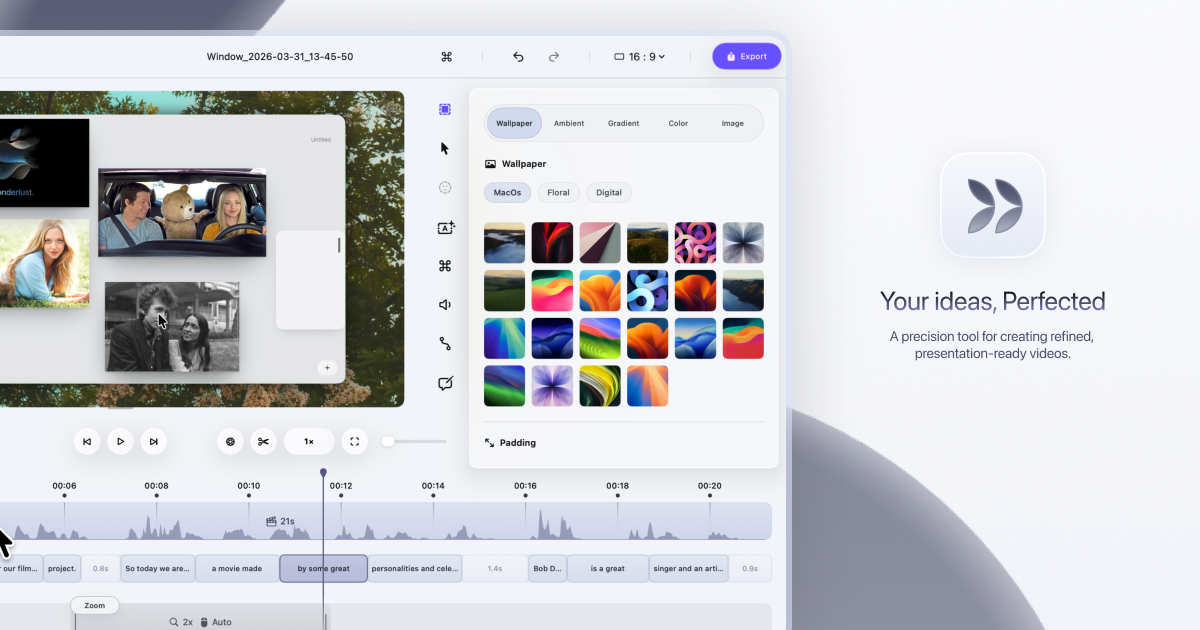
Kapshot is a screen recorder for macOS that turns ordinary screen captures into polished, presentation-ready videos. It is built for people who need to share their screen — content creators making tutorials, developers walking through features, educators recording lessons, and product teams preparing launch demos — but who do not want to spend time in a video editor afterwards. Instead of recording the screen and then opening a separate editing app to add zooms, fix the cursor, and frame every interaction, Kapshot performs that polish automatically while you record. The result, in the product's own words, is a recording that "looks edited without a timeline," exported as a clean MP4 for fast loading and sharing. Recording a screen is easy; making the result look intentional is not. A raw capture usually arrives full of jittery cursor movement, missed clicks, and a flat full-screen frame that buries whatever detail mattered. The conventional fix is a second app: import the capture into a video editor, keyframe zooms by hand, try to mask cursor jitter, add a background, and render. That process is slow and repetitive, and it is the reason a customer quoted on the Kapshot site says "$19 lifetime is cheap for what editing zooms and cursor framing manually costs in hours." Kapshot's answer is to treat polish as something that happens during the recording itself, not after it — the zooms, the cursor and the framing are generated automatically as you record, so there is no timeline to work through before you can send the file. The first thing Kapshot changes is your pointer. It replaces your real cursor with a clean, smooth one that glides instead of jittering, driven by spring physics rather than raw mouse input. Size is adjustable from 16 to 200 pixels, so a cursor can be small and unobtrusive or large and readable in a compressed video. Click animations can be toggled on, and ripples can be added that show exactly where you clicked — useful when a viewer is watching an interaction and needs to see which control was pressed. The controls shown in the product interface include cursor size, ripple effects, and spring physics, all configurable. Auto-zoom handles emphasis. When you click something, Kapshot zooms in on that area so viewers do not miss it, then eases back out. Zoom can run from 1x to 4x. Instead of a hard cut every time you click, rapid clicks in the same spot are clustered into one smooth zoom rather than a series of jarring jumps, and the movement uses cinematic easing — the settings shown are a zoom level such as 2.5x, cinematic easing, and a duration of around 400ms. The result is a recording that directs attention the way a hand-edited screencast would, but without anyone placing keyframes. Styled backgrounds make the recording look like a product demo rather than a raw screen grab. The captured screen floats on a customizable canvas where you can choose a styled background preset or supply your own image. Padding, rounded corners and drop shadows are applied to the floating frame. Customizing these elements normally means rebuilding the composition inside a design or editing tool; here they are part of the recording setup, so the framing is already in place by the time you reach the export step. Kapshot ships with a built-in editor, so no extra apps are required. You can trim and cut footage, scrub the timeline, adjust the zoom segments that were placed automatically, and preview in real time — what you see in the editor is exactly what you get in the file. Export is a single action: the finished recording is written as an H.264 MP4 optimized for fast loading and sharing, with no render queues. The stated encoding details are CRF 18 for quality, the yuv420p pixel format, 60 fps smooth motion, and fast start so the file plays while it loads. Recording itself is captured at 60 FPS through ScreenCaptureKit, which keeps fast scrolls and animations fluid. The workflow is four steps. First, launch: a compact capture bar appears and you choose Display or Window, then toggle the camera. Second, record: a minimal floating dock controls the recording, and the dock itself is never captured, so it stays out of the way while you present. Third, edit: the editor opens with your recording already on a styled canvas and auto-zoom segments already placed. Fourth, export: click Export MP4 and the H.264 file is produced, ready to share. An optional camera overlay can be included during recording if you want a presenter view alongside the screen. The outcome Kapshot aims at is a video that looks like you meant it. Zooms land on the right places, the cursor is calm and readable, and the frame has a deliberate presentation treatment, all without a manual editing pass. Because everything runs locally on your Mac — recording, editing and exporting — nothing is uploaded and no data is sent to any server. Setup required is listed as none, and the product sits alongside tools like Lumiko and OBS with its own combination of automatic zoom, cursor smoothing, click ripples, styled backgrounds and a built-in editor. Kapshot is described as made for people who share their screen. Content creators use it for tutorial and demo videos that look professional. Developers use it for feature walkthroughs and bug reproductions, where zooming into a click and smoothing the cursor makes a reproduction easier to follow. Educators use it for screencasts in courses and lessons. Product teams use it for polished demos at launches and presentations. In all of these cases the same pattern applies: record the screen as normal, let the zooms, cursor and background treatment happen automatically, then trim and export a single MP4 file that can be shared directly. Kapshot is a native macOS app for macOS 14 or later and runs on both Apple silicon and Intel Macs; Windows and Linux are listed as planned. It records at 60 FPS via ScreenCaptureKit and supports MP4, WebM, MOV, MKV and AVI files. Pricing is a one-time purchase: the launch price is $19 against a regular price of $49, with $49 applying afterwards. A licence includes all pro features unlocked, lifetime updates, and a 14-day money-back guarantee — if the app does not fit how you work, you can email within 14 days of purchase for a refund. There is no subscription, and existing buyers download Kapshot from the site. Kapshot's proposition is narrow and clear: record your screen normally, and get back a polished video. Auto-zoom, cursor smoothing, styled backgrounds, a built-in editor and one-click export are combined in a single macOS app, so the hours that would otherwise go into keyframing zooms and fixing cursor movement are removed from the process. For anyone who shares their screen regularly — creators, developers, educators and product teams — that is a smaller workflow with a better-looking result.
Hookest is a searchable swipe file of viral video hooks — the opening seconds of short-form videos that make people stop scrolling. It gathers hooks from TikTok, Instagram Reels and YouTube Shorts and attaches real performance data to every clip, so creators, social media marketers and brands can study what has already worked instead of guessing. Users browse a library of hooks by keyword, caption or creator, filter by category, save the ones they want to study, and can connect that collection to Claude, ChatGPT or Gemini through MCP for deeper analysis. The site presents itself as a place to find 1000+ creative hook videos and trending hooks across the platforms where short-form video actually lives. Short-form video is decided in its opening seconds. Hookest's own FAQ defines a viral hook as the first 1–5 seconds of a video, or the opening line of a caption, designed to stop the scroll and grab attention instantly, and notes that hooks go viral when they trigger curiosity, emotion or controversy within the first three seconds. That is a very small window carrying a very large consequence, and the information creators need to fill it has traditionally been scattered across separate feeds, platforms and accounts. Raw view counts are a poor guide on their own: a high number tells you a video was seen, not whether its opening kept the promise it made. Add the fact that TikTok, Reels and Shorts each respond to different hook styles, and that trend hooks can shift within days, and the case for a structured, searchable record of proven hooks — with performance context attached — becomes clear. The centre of the product is the hook library. Users can search by keyword, caption or creator, or filter by one of 14 categories, and can sort results by newest to surface the trending hooks added today or by views to see what is already proven. Every hook in the library carries real performance numbers, so the decision about which opening to study is based on data rather than impression. The collection is organised around niches, with categories including Health, Food, Cars, Fashion, Beauty, Electronics, Technology, Business, Sports, Travel, Education, Music and Finance, and individual hooks are named for the visual device they use — Water Tank Splash, Saw To Supercar, Cream Splash, Mega Ramp Launch and Slow Motion Impact are examples from the library. Because the library is updated daily, it is meant to be a constantly refreshed source of hook ideas for Reels, Shorts and TikTok rather than a static archive. Saving a hook turns the library into a personal collection to review when planning content, and Hookest explicitly looks past raw view counts when it evaluates one. It asks whether the hook keeps its promise: the curiosity gap it opens, how relevant it is to its audience, and the direction it sets for the rest of the video. From there, users can connect Hookest to Claude, ChatGPT or Gemini through an MCP server and ask the assistant to break down any hook for them. The practical effect is that a saved hook stops being a bookmarked clip and becomes study material — why the opening worked, what it assumes about the viewer, and how the rest of the video pays off the promise the opening made. Two listening tools sit on top of the library. Competitor Listening lets a user add any Instagram competitor and receive a notification as soon as one of their posts starts going viral, so the format can be examined while it is still warm. Trend Radar delivers the week's new hooks to the inbox every Monday, limited to the categories the user chooses. Alongside these, Hookest publishes a weekly roundup of the viral hook videos gaining the fastest engagement across TikTok and Instagram, refreshed weekly precisely because trend hooks can shift within days, so users can spot a format before it peaks and adapt it into their own content early. The library also treats platforms separately rather than as one undifferentiated pool: TikTok hooks are described as leaning on fast cuts, sound-triggered openers and a first second that makes no sense until you keep watching; Instagram Reels hooks are described as caption-driven, with bold on-screen text and clean visual reveals where brands do particularly well; and YouTube Shorts hooks work best when they promise a specific result or reveal, so viewers stay for the payoff. Hookest's approach is to track the opening seconds of viral short-form videos and make them searchable, rather than serving a general feed of popular clips. Three ideas run through the product. The first is context: every hook is stored with performance data and judged on whether it kept its promise, not just on how many views it collected. The second is platform specificity: the same opening can stop the scroll on TikTok and fall flat on Reels or Shorts, so each platform is tracked separately and shown in terms of what its audience responds to in the first three seconds. The third is recency: the library, the weekly trending list and the Monday Trend Radar digest all assume that formats move fast. The site reports 2026 trend data drawn from 100 viral hooks tracked across niches, pointing to text-overlay hooks, transitional hook edits and niche-specific pain points such as relationships, money and fitness outperforming generic openers. For a user, the payoff is a shorter path from wondering what to post to a decision grounded in evidence. Instead of scrolling a feed and trying to remember what caught the eye, a creator can pull up proven openings in their own niche, see the numbers behind them, save the ones worth studying and understand why they worked. The FAQ suggests a workable method: pick a proven formula or clip, adapt it to your niche rather than copying it word for word, and test two or three variations. Competitor Listening and Trend Radar shorten the distance between a format appearing and the user noticing it, which matters when a trend can turn into yesterday's news within days. Hookest also reminds users that most transitional hook clips and hook video download templates are free to download and reuse, while advising them to check each clip's usage terms and avoid reposting someone else's original footage without modifying it into their own edit. In practice, Hookest fits several workflows. A creator planning next week's content opens the library, filters to their niche, sorts by views, saves a handful of hooks and adapts one into their own style. A marketer adds a competitor to Competitor Listening and waits for the notification that a post is taking off, then studies the opening while it is still building. Someone watching trends turns on Trend Radar to get the week's new hooks by email every Monday and checks the weekly trending roundup for formats gaining engagement fastest. A user who wants a deeper read saves a hook and asks Claude, ChatGPT or Gemini to break it down through MCP. And because each platform is tracked separately, users comparing TikTok against Reels or Shorts can see how the same idea is executed differently and build the version for where it will actually be watched. Hookest is aimed at creators, social media marketers, brands and content teams who publish on TikTok, Instagram Reels and YouTube Shorts, and who would rather plan around proven formats than post blind. Its most notable integration is the MCP server, which connects the saved hook collection to Claude, ChatGPT or Gemini. The product runs on the web, and the site exposes an English interface with alternate locales listed for Turkish, German, French and Spanish. Its categories let users work inside a specific niche — Health, Food, Cars, Fashion, Beauty, Electronics, Technology, Business, Sports, Travel, Education, Music or Finance — while platform separation supports teams comparing hook styles across networks. No pricing details are stated on the site beyond the note that most transitional hook clips and download templates are free to reuse, subject to each clip's usage terms. Taken together, Hookest treats the first few seconds of a short-form video as the thing worth studying, and it gives users the tools to study them properly. A searchable library of hooks with real performance data answers what is working; the evaluation model and MCP analysis answer why; Competitor Listening and Trend Radar answer what to watch next; and platform-specific tracking answers where a hook will land. For anyone whose growth depends on stopping the scroll on TikTok, Instagram Reels or YouTube Shorts, that combination turns a vague instinct about hooks into a repeatable, evidence-based part of content planning.