Category Focus/categories/productivity
Productivity AI Tools
Discover and compare the best productivity AI tools and software. Browse 859+ curated tools with reviews and rankings.
Projects tracked
859
Sort mode
RECENT
Page
5
Discover and compare the best productivity AI tools and software. Browse 859+ curated tools with reviews and rankings.
Projects tracked
859
Sort mode
RECENT
Page
5
Ghostifier is a data privacy service that finds every company holding your personal information and gets them to delete it. Rather than completing one request form per company by hand, Ghostifier starts from your inbox: after you sign in with Google, it scans your Gmail to identify the companies that email you and builds a list of everyone who has your details. From there it unsubscribes you from mailing lists, opts you out of the sale and sharing of your data, and asks companies to delete what they hold, tracking every reply along the way. It is free to see who has your data, and it works with Gmail. Companies accumulate a great deal of information about you over time. Your name and address are handed over with every account you open and every order you place. What you buy is saved in purchase histories attached to a profile with your name on it. How you browse is gathered to target ads at you. Where you go is collected by apps and sometimes sold. Data brokers add another layer: they collect and sell information about people who never heard from them at all. Exercising your privacy rights normally means hunting down each company and filing a separate request, which is why most people never do it. Ghostifier's approach is to begin from the records already sitting in your inbox, so the work of identifying who holds your data happens automatically instead of manually. The first step is connecting Gmail. You sign in with Google, and the first scan looks back about two years and shows you every company it finds. Ghostifier is explicit about what it accesses: the sender, the subject line, the date and any unsubscribe link in the header. It cannot open your message bodies or attachments, and it does not store your emails. That narrow set of signals is enough to recognize the companies behind the mail you receive. The scan starts right away after a single sign-in, and the result is a list of every company that has your information along with what kind of company each one is. Once the scan finishes, you see the scale of the problem laid out. In the example shown on the site, 412 companies have your data, of which 148 are marketing mail suitable for unsubscribing. Ghostifier also flags companies it will not delete: 108 in the example, including 61 used within the last year and 38 household names. Nothing has been sent at this point, the scan is purely informational, and the free plan covers this discovery step plus unsubscribing from every list that supports one-click unsubscribe. Seeing who has your data costs nothing; asking them to delete it is where the paid plans begin. After you approve, Ghostifier unsubscribes you from every list that supports one-click unsubscribe, tells each company in writing to stop selling or sharing your data, and then asks it to delete. Deletion happens once any waiting period has passed, such as the return window on an order. Each request is tracked to the legal deadline where your state has one, and if a company misses its deadline Ghostifier follows up once. Every request generates a receipt: the letter, when it went out, and what the company said back, kept in the company's own words as proof. Data brokers are handled too. Ghostifier asks 220 registered brokers to delete your details even if they never emailed you, and the dashboard shows how many were asked, how many replied and how many were done or had nothing on file. You stay in control throughout. You see every company and the plan for it before anything goes out, and nothing is sent until you say go; you can also approve each company yourself. The control center lets you pick how much Ghostifier does on its own for each kind of company, using defaults by relationship from the Balanced preset. Marketing-only relationships are handled automatically for unsubscribe, opt-out and delete, with deletion held 48 hours first. Account and updates, and purchases, ask you before unsubscribing or opting out, and are left alone for deletion. Certain categories are never deleted whatever you pick: banks, insurers, doctors, schools and employers; password managers, email and storage, domains and crypto; anything you used in the last year; and household names like Google and Spotify. Those companies can still be asked to stop selling your data, as your settings say. Settings can be changed at any time. Ghostifier's distinguishing choice is its method. Requests are sent from Ghostifier's own address on your behalf, acting as an authorized agent with a signed written authorization you grant once when you pick a plan. The site publishes the deletion request it sends, which cites the California Consumer Privacy Act as amended by the CPRA, notes the 45-day response window, and asks companies to instruct any service providers or third parties they shared data with to delete it too. A separate version is used for data brokers, covering records they gathered from other sources. There is no AI in the loop: every decision follows fixed rules, so behavior is predictable. Autopilot adds a daily check of your inbox, handling companies found later as they appear and following up with companies that keep emailing after you unsubscribe. Payments go through Stripe, and Ghostifier never sees your card. The outcome is a measurable reduction in who holds your data. The dashboard shows counts for Ghosted, meaning companies that have confirmed deletion, and Waiting, plus a Needs you queue for anything requiring your attention, such as a company that emailed you directly to verify the request. A daily activity view over the last three days breaks down requests per day into sent, replies received and completed. Companies confirm in their own words, as illustrated by a confirmation that data was deleted from their systems, and those messages land in your inbox as proof. One user quoted on the site, Jonathan W., describes the emails from companies he never knew had his data confirming deletion as a highlight. Data retention is limited: a list of companies and a few dates, plus each letter and reply encrypted so only you can read them, held until 30 days after a request finishes and deletable sooner. Typical scenarios include clearing out years of accumulated marketing mail by unsubscribing from lists in bulk; reducing the sale and sharing of your data by sending written opt-outs; requesting deletion from online retailers after a waiting period such as a return window has closed; asking 220 registered data brokers to remove records you never signed up for; and keeping the picture current with Autopilot's daily inbox check and weekly summary email so newly appearing companies are handled as they show up. The Needs you queue handles the common case where a company writes to your account address to verify a deletion request, sending you a link or asking for a reply that you complete yourself and then mark done. The site also answers twelve questions in its FAQ, with longer explanations on its data page. Ghostifier is aimed at people who want their personal data reduced without doing the paperwork themselves, particularly those comfortable connecting Gmail and granting written authorization for an agent to act on their behalf. It works with Gmail only, and is delivered as a web dashboard. Payment processing runs through Stripe. Pricing has three tiers: Free at $0 forever, which includes seeing every company that has your data and unsubscribing from every list that supports one-click unsubscribe; Cleanup at $29 one time, adding opt-out and deletion requests to every company found so far, deletion requests to 220 registered data brokers, tracking to the legal deadline with a follow-up, and a receipt for every request; and Autopilot at $59 per year, about $5 a month billed yearly or $8 monthly, which is recommended and adds companies found later handled as they appear, a daily check of your inbox, follow-ups for companies still emailing after you unsubscribe, and a weekly summary email. Upgrading to Autopilot within 60 days counts the $29 Cleanup toward the first year. In short, Ghostifier turns a scattered, manual privacy chore into a single tracked workflow that begins with your inbox: you connect Gmail once, review the companies it finds, approve what should happen, and then watch unsubscribes, opt-outs and deletion requests go out and get answered, with every step recorded and nothing sent without your say-so.
Incredible is an AI that does tasks on your computer. It is a desktop app for macOS and Windows that clicks and types in your browser, files, and apps, exactly like you do, so the busywork gets done while you do something else. Incredible is a personal AI assistant that gets work done directly inside the applications you already use. Rather than only producing an answer you must act on yourself, Incredible performs the action on your machine: you give it a task, and Incredible does the work on your computer, in the same places you would. The company describes the product as "vibe computing" and frames it as a way to control your computer with your voice. The problem Incredible addresses is the gap between getting an answer and getting work finished. As the website puts it, a chatbot writes the answer, but you still have to put it into each app yourself — Incredible puts it there for you. Repetitive work such as building leads lists, summarizing reviews, screening resumes, filing receipts, sending invites, booking meetings, drafting reports, updating a CRM, reconciling a sheet, submitting forms, answering threads, organizing docs, compiling research, and outlining a deck still has to be carried out step by step across many different applications. Incredible is designed to close that last mile by acting on your computer instead of only advising you. The site illustrates the difference with a comparison measured on select repetitive workflows across multiple domains, showing work done on your own, with a chatbot, and with Incredible, while noting results vary by task. The first capability group centers on how you direct Incredible: voice and screen. You hold the activation key and say what you need in your own words, and you can also type the task. When you activate Incredible, it can see the page or document in front of you. That screen context means you can say something like "reply to this" without explaining which email you mean, because Incredible uses whatever is in front of you as the reference point. Voice removes the need to navigate menus for routine requests, and screen awareness removes the need to spell out context that is already visible. The second capability group covers where Incredible works: your browser and your apps. Incredible uses websites the way you do, clicking through pages and filling in forms on the sites you are already signed in to. It opens the apps you already use and moves information between them, so you no longer copy and paste from one app to the next. More than 3,000 apps connect to Incredible directly, and any other app you can open in your browser works too. Because Incredible operates in the same places you do, there is no migration step and no need to rebuild your workflows inside a new tool. The third capability group covers what Incredible actually does and how you stay in control: actions, reminders, control, and privacy. Incredible sends the emails and fills in the forms for you, then tells you when the task is done. You can also tell Incredible what needs your attention and when, and Incredible reminds you at that time with the details you gave attached to the reminder. Crucially, Incredible asks you before anything is sent; you can approve the step or change it first, and you can stop Incredible at any time. On privacy, Incredible only looks at your screen after you activate it — the rest of the time, your screen stays private. The fourth capability group covers files. Incredible can read and update the spreadsheets and documents on your computer, so you stop copying numbers between them by hand. It works with the material already on your machine, reading documents and updating totals, adding slides, and capturing key points so your files stay current without manual data entry. Incredible's overall approach is to learn from what is already on your computer. It learns how you work by watching you do it: you show it a task on your computer, talk through the steps, and let it handle the routine from there — from processing invoices and updating your CRM to editing spreadsheets. It uses your files and the page in front of you as context, so you can give a task without explaining everything first. And it works from what is already there rather than requiring new inputs. The benefits are framed around getting repetitive work done faster and boosting rather than replacing people. The comparison on the site shows workflows moving from work done on your own, to work done with a chatbot, to work completed with Incredible, measured on select repetitive workflows across multiple domains. CellMark, which uses Incredible in its offices in Sweden, France, and the United States, describes the impact in a customer story: "It's not about taking the work away from me. It's about boosting me. We are seeing higher accuracy and better results across the board," says Håkan Enhager, VP Global IT & Digital at CellMark. Concrete use cases span sales, marketing, recruiting, operations, founders, and everyday work. For sales, Incredible can find and reach out to 50 VP of Product at fintech SMEs with personal intros, reading profiles, adding contacts, and sending personalized emails. For marketers, it can read 100 G2 reviews of a competitor and pull out what users complain about. For recruiters, it can screen a folder of 200 resumes against the role being hired for, producing a top 10 ranked with reasons. For operations, it can find every receipt in an inbox this month and organize them for accounting. For founders, it can find the speakers at a conference and invite each one to a dinner. And for everyone, it can turn a long email thread into a meeting with everyone included. Incredible is available as a desktop app for macOS and Windows, and you can download it for either platform or book a demo. Its integrations span more than 3,000 connected apps plus any app you can open in your browser, with the site showing icons for tools across categories such as email, messaging, docs, CRM, and project management. On security and data privacy, the company states that Incredible is SOC 2 Type 2 audited by Sensiba and GDPR compliant, that data is encrypted at rest and in transit, and that there is no training on your data. It also lists operational protections such as protection against malicious code, confidentiality agreements with staff and partners, feedback on every response, and a dashboard of your team's usage, along with a dedicated success team, priority support with an SLA, guidance on setting up your first tasks, and onboarding for your whole team. In summary, Incredible is an AI that does tasks on your computer, clicking and typing in your browser, files, and apps exactly like you do. By learning from how you work, seeing the screen in front of you, and acting inside the tools you already use — with your approval before anything is sent — it moves repetitive, multi-step work from "answer" to "done."
OpenBot is a free desktop app that runs a team of AI agents on your own computer. Rather than a single chat window, OpenBot gives you persistent AI teammates: each agent has its own name, instructions and workspace, and agents can send each other messages, hand off tasks and share files while they work. OpenBot connects to Codex, Claude Code, Gemini, Grok, OpenCode, Cursor and Cline, so you can run your agents with the ChatGPT, Claude, Gemini or Grok plan you already pay for, or with your own model. It is available for macOS, Windows and Linux. The usual way to work with an AI assistant is one assistant, one chat, one provider. OpenBot starts from a different assumption: that the AI plans people already pay for should be able to work together as a team on the machine in front of them. OpenBot is positioned as an alternative to Grok Bot, and the site describes it as a free, local, open-source and multiplayer workspace for AI teammates. The problem it addresses is practical. Agent work is fragmented across providers and accounts, an agent loses its context when you close it or switch tools, and everything it touches tends to live on someone else's servers. OpenBot answers those points directly: agents keep their workspace and conversation when you restart the app or move an agent to a different provider, and workspaces, conversations, files and browser data stay on the computer that runs OpenBot rather than on OpenBot's servers. The source code is public on GitHub, so you can read, change and run it for any noncommercial purpose. Agents work as a team. Each agent you create has its own name, its own instructions and its own workspace, so you can describe the agent you want in one prompt, check its instructions and save it. From there the agents act like colleagues rather than tools: they send each other messages, hand off tasks and share files. In the launch example shown on the site, an agent called Research verifies the evidence while Builder checks the rollout path and Launch owns the release, and the user asks the team to prepare the launch plan, tag Research, and keep every decision traceable. The result comes back as a written plan with a workstream table, owners and statuses, plus attached files such as launch-brief.md and launch-metrics.csv. A later message asks the team to turn this into the final launch brief, using @Research's evidence and @Builder's rollout notes and attaching the source files. Because the agents are named and addressable, you can direct work to a specific teammate instead of hoping a single assistant remembers everything. The site also shows an agent handing a task to another agent, who fixes a file, asks a third to review it, and gets the change merged and the issue closed. OpenBot works with the AI plans you already have. Codex signs in with your ChatGPT plan and Claude Code signs in with your Claude plan; Gemini uses a Google AI Pro or Ultra plan, and OpenCode ships free models that need no account at all. Grok, Cursor and Cline are also supported providers. If none of those fit, you can connect any OpenAI-compatible endpoint, or run local models through Ollama or LM Studio. The provider is not a lock-in either: an agent keeps its workspace and conversation when you move it to a different provider, so the same teammate can start a job on one model and continue it on another. In the demo on the site, an agent called Ada begins a billing migration with Codex, which reports that six tables use the billing code and then changes four files and writes the migration, and Ada then continues the work on Claude Code to write the test for that migration. Everything the agents produce is stored on your computer. Workspaces, conversations, files and browser data stay on the machine that runs OpenBot, not on OpenBot's servers; the only external traffic is the prompts your agents send to the AI provider you chose, and the pages an agent opens in its browser. That browser is built into OpenBot: agents can open, read and control pages inside it, which is how they can work through a sign-in screen or a dashboard without you switching windows. OpenBot also lets you queue work. If an agent is already busy, you can send more messages and they wait in a queue that you can pause, resume or cancel, so you can line up the next task without interrupting the current one. And the workspace is multiplayer: you can invite other people to your team and collaborate live with the same agents, which requires an account. OpenBot's approach is to keep the orchestration on your desktop and to treat each model as an interchangeable worker. You download the app, connect a provider, describe the agent you want in one prompt, review its instructions and save it, then send it work immediately. Agents are described as persistent AI teammates, which means an agent is not a conversation you lose when the app restarts: its workspace and its conversation survive restarts and provider changes. Roles, rather than one-off prompts, are the organising unit. One agent can own research, another the build, another the release, and they coordinate by messaging each other and handing off tasks while you steer from the same window. Tasks given to a busy agent simply wait in the queue instead of being dropped. Because OpenBot is free, with no hidden fees and no locked features, the only cost is the AI plan you already pay for. Because it runs locally, your workspaces, conversations, files and browser data remain on your own machine. Because agents keep their workspace and conversation, work can continue across restarts and across providers rather than starting from zero each time. Because agents have names, instructions and their own workspaces, responsibility for a task is visible and handoffs between teammates are explicit. And because the source is public under the PolyForm Noncommercial License 1.0.0, you can read, change and run the code for any noncommercial purpose, although commercial use needs a separate license. OpenBot is explicit that it is a development preview: agents can read and change files, run commands, use the network and control the built-in browser without asking each time, so it advises giving them only tasks you trust and keeping backups. From the material on the site, OpenBot's use cases cluster around multi-step work that benefits from several specialised agents. Launch coordination is one: preparing a launch plan, tagging work, verifying claims and evidence, checking a rollout path, confirming the rollback owner and publishing a release note. Software changes are another: reading billing code, moving tables to their own schema, editing files, writing a migration and then writing the test for it, with a second agent reviewing a change before it is merged and the issue closed. Ongoing operational chores are a third: summarising the support inbox, drafting release notes and checking new sign-ups, all queued up while another agent is busy. Web-based tasks are a fourth, since an agent can drive the built-in browser through a page such as a sign-in screen or a dashboard as part of its work. And for anyone who wants to avoid hosted plans, Ollama or LM Studio plus an OpenAI-compatible endpoint covers the local-model path. OpenBot is aimed at people who already pay for an AI plan and want more than a single chatbot: developers, small product teams and anyone coordinating multi-step work, including teams that want to share the same agents live. It runs on macOS 13 or newer on Apple silicon or Intel, Windows 10 or newer on x64, and Linux on x64 or arm64 as an AppImage. No account is needed to use the app; you only need one to invite other people to your team. Pricing is $0, with no hidden fees and no locked features, and the code is published on GitHub under the PolyForm Noncommercial License 1.0.0, which is not an OSI open-source license because commercial use requires a separate license. OpenBot is, in short, a free and open-source desktop workspace that turns the AI plans you already pay for into a persistent team of local agents, complete with roles, handoffs, shared files, a built-in browser, a task queue and live multiplayer collaboration, all running on your own computer.
Rill is a free browser for Mac where the Claude Code and Codex agents you already use work beside you. It is an AI-native browser built around the coding agents you already have rather than a new assistant of its own. You browse normally, and when something on a page gives you an idea, you press ⌘E to turn what you are looking at into a task for your agent. Rill finds the right project, passes along the context, and the agent works while you keep browsing. Rill is for people who already run Claude Code or Codex on their Mac and want to hand work to those agents from the page where the thought actually arrived. An idea used to mean switching to the terminal. The moment you found something worth acting on — a method in a paper, a release note worth testing, a row in a table of consumer prices, or a page whose look you liked — you had to leave what you were reading, open a terminal, and describe from memory what you had just seen. Rill starts from the opposite position: you say it where you found it. Because the browser already holds the page, the text you selected, the row you pointed at with a click, or the paragraph you highlighted, the request travels with its context attached instead of being paraphrased. Rill also knows where the work goes. Your browser knows your projects, so each request lands in the right one without you having to work out which project a passing thought belonged to. The core gesture is ⌘E on any page. Pressing it opens a small note over the page you are reading, where you write your task or question. Rill finds your projects in your Claude Code and Codex history, and there is nothing to set up — no project list to maintain, no configuration to write. In the demonstrations shown on the site, a task written over an arXiv paper, "Try this method on my data.", is routed to the project longitudinal-study. A task written over the Polars 2.0 release post, "Try this on one lesson.", goes to lessons. A task that carries the page and a single row of a table you pointed at, "Chart this against last year.", goes to newsroom-charts. A task over a type foundry page that carries the page and a paragraph you pointed at, "Make my project pages like this.", goes to portfolio. When the request is not code at all, it goes to the web instead: a note over Wikipedia's article about New York City, "Find a nonstop from SF to NYC, Nov 12 to 16.", is sent on the web, and your agent goes looking in a tab behind yours. You never have to go and check on the work. While you read, agents at work are shown with their model, and tasks in a project are listed where you can see them. When an agent needs something from you, it asks in the corner rather than making you open a terminal to find out. In the site's demonstration, a task on the web for a nonstop flight sends a bubble over the essay being read: "Nonstop from SF to NYC. Needs your answer. Morning or afternoon departure?" with Morning and Afternoon buttons and a Reply box. You can answer it or keep scrolling; once answered, the agent carries on in the same tab. It reports back when it is done — the sample result for the chart task reads "Done · 2 files changed". Alongside the agent work, Rill tidies the parts of browsing that accumulate. Your tabs are sorted by AI into themes, each with a one-line summary — the screenshots show groups such as Music videos, Land and climate, Art collection and Space imagery, and on the start page, Art collection and Understanding music. Your history reads like a journal rather than a list: it shows where you went, what you asked for, and what got done, summed up in a sentence with a ribbon of the day. One example reads "History for Sunday, September 27: 64 pages in six stretches". After a few weeks, every project your agents have touched appears on one map — 38 projects in the demonstration, named by AI into areas such as Research and data, Writing and publishing, Design, Teaching, Home and life, and Tools and code, with the finished ones lit as Done. Talking is also available in beta: hold Fn and say the task instead of typing it, after setting it up once in Settings › Talking. Rill's approach is to make the browser the interface for the agent, on the reasoning that the best interface for agents is just the browser. Setup is three steps. You download Rill and drag it to Applications; you sign in to Claude Code or Codex, using either or both, with Rill walking you through it; and then you press ⌘E on any page. The AI features run the Claude Code or Codex on your Mac, under your own account, so Rill runs on the plan you already have — no new subscription and no API keys. Everything the agent needs about your projects and your context is already present in the browser window you are looking at. The benefit is that the gap between noticing something and acting on it closes. You do not copy a URL, re-describe a table row in words, or try to remember which project a thought belonged to; the page, the selection and the destination travel with the request. You keep reading while the work happens, and you are told — in a bubble beside the page — when you are needed and when the task is finished. Because your tabs are grouped and your history is summarised by day, the browsing you did around the work is legible afterwards rather than lost. And because Rill presents the result in the same window, checking on the agent no longer means leaving what you were doing. The scenarios on the site show the range. You are reading a paper on changepoint methods and send "Try this method on my data." to a project called longitudinal-study; while you browsed the page, the chart got made — a chart titled "July surface water temperature: one step, not a slope" for three lakes. You read a release note worth testing and send it to your lessons project. You point at one row of a table of consumer prices and ask for it to be charted against last year, for a newsroom project. You find a page whose look you like and send it to portfolio with "Make my project pages like this." You ask the same way for something that is not code at all — a nonstop flight from SF to NYC in November — and your agent goes looking in a tab behind yours. Or, holding Fn, you say "Add a dark mode to the customer portal that follows the system setting." and the agent gets to work in the customer-portal project. Rill is for Mac users who already run Claude Code, Codex, or both, and who want to point those agents at things they find while browsing; browsing itself works without either, and Rill also works as a browser without an agent. Without an agent you can ask about a page and get the answer beside it from the agent you already use, compare up to six tabs in a table that quotes each page, and let agents in a project read the web in tabs of their own, without your logins, which you can take over when you want. The basics are covered too: passwords in your Keychain, private windows, and sign-ins brought over from Chrome, Arc or Safari. Privacy is local by design — your history and passwords live on your Mac, history is kept as files for as long as you choose, passwords sit in the Keychain unlocked with Touch ID, and tab sorting and day summaries can be turned off in Settings. New tasks are read-only until you allow edits, and in git repositories each edit can be undone. A task on the web is told to stop before the step that pays, places an order, sends, posts or deletes unless you plainly told it to go through with it, and it cannot type into password, card or one-time-code fields. Rill is free, in beta, and runs on Macs with Apple silicon on macOS 14 or later. Rill's proposition is simple: your browsing and your agents in one window. It is a free Mac browser that runs on the Claude Code or Codex plan you already have, turns any page into a task with ⌘E, routes that task to the right project automatically, and lets you keep browsing while the agent works beside you.
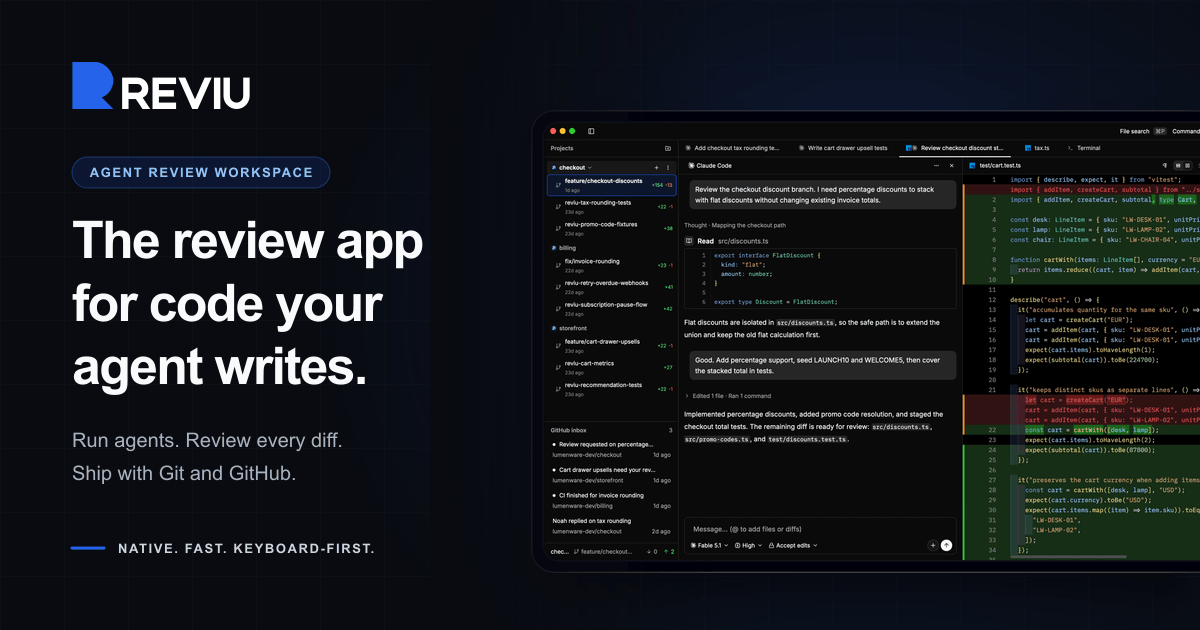
Reviu is a native desktop app for reviewing the code your coding agents write. It is built for developers who run agentic coding tools such as Claude Code, Codex, or Gemini and want a dedicated place to inspect what those agents produced before it lands on a branch. Rather than treating an agent run as a disposable chat, Reviu turns each task into a durable session with its own conversation, branch, terminal, checkpoints, file edits, and review queue. From that session you watch the agent work, review every diff, send line comments back, and then finish the branch with real Git - staging, rebasing, committing, and pushing without leaving the app. Reviu sums this up by calling itself the review app for code your agent writes. Since the first launch, Reviu was rebuilt from a Git client with an agent panel into a review workspace for coding agents. The gap it targets sits between agent output and a clean commit: an agent can produce a large diff quickly, but a human still has to read it, decide what to keep, and turn those decisions into a tidy branch. Reviu states the premise directly - agent work only matters when it becomes a clean commit. The app is therefore built around the loop that starts before the commit: the agent works in a durable session, you review the diff, send fixes back from inline comments, then finish with hunk staging, interactive rebase, conflicts, history, and push in the same application. Reviu also positions itself next to existing Git tooling rather than replacing it, inviting users to keep the Git tools they already like and add the missing agent review layer. Reviu manages sessions like real work. Each task becomes a durable session rather than a disposable chat, carrying its own conversation, branch, terminal, checkpoints, file edits, and review queue, and you can switch between sessions without stopping running agents. Parallel worktrees let you run multiple agents at once without letting one task dirty another checkout - the product shows a main checkout alongside separate agent worktrees for tasks such as discount work and tax rounding. Attention states make the status of each session visible, showing what is running, waiting, failed, or ready for review. Readable agent activity keeps commands, reads, edits, permissions, and failures grouped as reviewable events, so an edit of forty-two added and eight removed lines in a source file, or a test command run, shows up as an event you can inspect rather than as an opaque log line. Diff review is the core of the app. You inspect the diff and leave line comments on local changes, including file, line, and side context, then batch those comments and send them back to the agent. The content illustrates this with a review queue on a feature branch where three comments are selected: a request to apply flat discounts before percentage discounts, a fix for discount order, a new rounding test, and a rename for an unclear helper. Once the comments are sent, the agent can act on them directly. Reviews happen against an isolated worktree so parallel agent tasks stay out of your main checkout. Reviu also describes the ability to checkpoint or undo turns, giving turn-level control over what the agent changed. Underneath the review layer is real Git. You shape the diff by staging the hunks you trust, unstaging others for another pass, and restoring the rest. You clean the branch before the pull request exists by squashing, fixup, dropping, and reordering commits. You recover from messy states by resolving conflicts, continuing rebases, stashing work, cherry-picking, and undoing mistakes. Every surface in the app follows the checkout, so changes, history, terminal, and review stay in sync with whatever branch is active. Git actions are reachable from the command palette in the same keyboard-first flow as the rest of the app: commit, amend commit, push, force push with lease, interactive rebase, and pop stash. The result is staged hunks, rewritten history, and a branch you can push with confidence. Reviu Pro adds GitHub. The paid tier is for developers whose local agent work ends in a GitHub pull request review and merge. A pull request dock brings your branch, agent session, working tree, review threads, checks, and merge button into one window, so you can use GitHub without turning every review into a browser tab hunt. An inbox surfaces events such as a requested change, a CI run finishing, or a reply in a file. When checks have passed and the review is approved, the dock shows that the merge is ready and lets you create a merge commit. The PR follows your branch: check out a branch and Reviu finds its pull request, or helps create one from the header. You can review GitHub diffs locally by opening PR files in the editor, commenting inline, replying to threads, and submitting a full review. Merging works like GitHub would, with squash, merge, or rebase using GitHub's generated title, message, bullets, and trailers. A browser extension adds an Open in Reviu button to GitHub pull requests, opening the branch locally ready for diff review, files, and terminal; it is available for Firefox and Chrome. Reviu's approach is local by default. It launches the agent CLI you already installed and signed into, so agents run as local processes on your machine with your existing subscription and no API key to paste. Your code and the agent process stay on your machine; Reviu does not run agents in the cloud and does not meter your agent usage. It drives any agent from the official Agent Client Protocol registry, naming Claude Code, Codex, Gemini, Copilot, Cline, and about twenty others. The app itself is fully native, built with Rust and GPUI, a Rust-based GPU-accelerated UI framework - no Electron and no webview. No account is required for agent sessions or local Git features; signing in is only needed for the GitHub integration in Reviu Pro. For users, the benefit is a single place where agent output becomes a reviewed, clean branch. The review queue turns scattered comments into batched instructions the agent can act on, isolated worktrees keep parallel agent tasks from interfering with each other, and attention states make it obvious which sessions need you now. Because Git stays close to the diff, review decisions become staged hunks, rewritten history, and a pushable branch rather than a manual cleanup exercise after the fact. On Pro, the pull request dock collapses branch, threads, checks, and merge into one window, reducing context switching between the local workflow and GitHub. Concrete workflows described in the content include running several agents in parallel on separate tasks - for example discount work, tax rounding, and cart property tests - each in its own worktree, and switching between those sessions while they continue running. Another is reviewing an agent's diff on a feature branch, leaving line comments with file and side context, and sending a batch back to the agent so it can correct the order of discount calculations or add a rounding test. A third is finishing a branch before any pull request exists: staging trusted hunks, reordering or squashing commits, resolving conflicts, and pushing. Pro workflows include finding a branch's pull request from the header, reviewing and commenting on PR files locally, submitting a review, watching checks and notifications in the inbox, and merging with squash, merge, or rebase. The browser extension supports starting in GitHub and finishing the local review in Reviu. Reviu is aimed at developers who use coding agents on their own machines and want to review that work with real Git tooling. It integrates with agents from the Agent Client Protocol registry, with GitHub on Pro, and with Firefox and Chrome through the Open in Reviu extension. It runs as a native desktop app on macOS for Apple Silicon and Intel, on Windows for ARM64 and x64, and on Linux through a terminal install command. Pricing is straightforward: the local agent review tier is free at $0 and covers agent sessions with ACP registry agents, parallel worktrees and durable session state, diff review with comments sent back to the agent, and local Git including staging, rebase, conflicts, and terminal. Pro is $9 per month or $79 per year, which the site lists as a 27% saving, with a 14-day free trial and cancel anytime; it adds the pull request dock with checks and merge, GitHub review comments and submit review, and inbox notifications and the browser extension. Mobile access and remote over SSH to servers and VPS are listed as planned rather than available today. Reviu occupies the space between an agent writing code and a branch being merged. It keeps the review loop - durable sessions, isolated worktrees, inline comments sent back to the agent - free on the desktop, and adds GitHub pull requests, checks, merge, and notifications as a Pro layer, all built on real Git and a native Rust and GPUI app rather than a webview.
Pilot5 Legal is a deliberative AI platform built for legal work. Rather than returning a single fluent answer, it puts one legal question in front of five independent frontier AI models. Each model forms its own position without seeing the others, then the models critique one another, answer objections, and revise under pressure before the panel converges on a structured recommendation. The product is aimed at lawyers and legal teams who need an answer they can inspect, challenge, and verify rather than simply trust, and it is organised around five concrete legal workflows: statutory review, contract understanding, settlement range analysis, statutory authority lookup, and firm playbooks. The product exists because a fluent answer is easy to produce, while a defensible one needs the source, the opposing view, and a record of how the conclusion was reached. A single answer leaves things out: the adverse case is not argued, the authority behind a claim cannot easily be checked, and the limits of the analysis stay invisible. Legal work that will be challenged requires a different standard of answer, and that standard is the design brief behind every part of the product. Pilot5 is described as relaunching for legal work, adding primary-source research, citation verification, contract analysis, and transparent reasoning so that lawyers can inspect, challenge, and verify AI output. The premise is that authority, challenge, and uncertainty should stay attached to the conclusion rather than being stripped away. The statutory review workflow checks a separation agreement against selected statutory requirements and shows the provision behind each finding, so a lawyer can find what the agreement is missing and see the authority behind it, with an annotated agreement delivered in Word. Contract understanding is built for getting oriented in an unfamiliar contract: it produces a clause-by-clause map explaining what each numbered clause does while quoting the source wording verbatim, and it identifies skipped material rather than silently passing over it. The stated goal is orientation without losing the original text, so that reading a new agreement starts from a structured map instead of a blank page. The settlement range workflow pressure-tests both sides of a dispute and exposes a settlement range that costs each side something, using five independent positions, statutory claims that are checked, and preserved dissent. Statutory authority lookup retrieves the enacted text: a lawyer pastes a citation and receives the publisher's own words with no generative model involved, handling up to 25 citations at a time and returning the official source and retrieval date, under the explicit rule that no text is generated and anything unresolved stays unresolved. The firm playbook workflow makes the firm's position repeatable by adding approved firm positions to the statutory baseline used in future reviews; human approval is required, the statutory baseline remains in place, and approved positions are reused in later reviews. The defining difference is that the models do not merely answer, they answer one another. The deliberation runs in four stages: blind first analysis, anonymous cross-critique, reasoned revision, and synthesis with a minority report. In the published example, the panel includes The Architect (structure, benchmarks, operational logic), The Counsel (evidence, nuance, legal clarity), The Strategist (long-range value and trade-offs), The Engineer (feasibility and failure conditions), and The Contrarian, who is required to make the strongest case against consensus. In a worked Chapter 7 preference dispute, the Engineer initially proposed building and litigating only after a six-week forensic payment audit and otherwise settling at 35 to 45 cents; the Contrarian challenged the legal premise by warning not to assume the affirmative defenses and instead attacking the trustee's prima facie case; the Counsel argued that a prima-facie-only attack is not a standalone strategy and called for quantifying ordinary-course and new-value evidence; and the Architect revised the approach so that payment timing, new-value offsets, and defense cost became settlement gates rather than a fixed dollar anchor. The final view follows that argument; it is not an average of five first drafts. Every deliberation is designed to remain reviewable. The authority sits beside the claim: primary law is fetched from the publisher's text, and analytical inference is marked separately so that confidence never masquerades as authority. The opposing view is part of the work, and the strongest dissent stays visible rather than being erased. The reasoning remains inspectable, with every source, finding, challenge, and limitation travelling with the outcome, and the lawyer remaining the decision-maker and the reviewer of record. Accepted, rejected, and overridden findings carry into the review output. The product states plainly that silence never means clearance: unresolved and unexamined issues remain explicit, and resolved citations link to publisher text while unresolved ones stay unresolved. Because client matters carry their own duty of confidentiality, Pilot5 Legal publishes the data rules that govern every review. Client data is never a training asset: there is no cross-account use and no model training. Data is encrypted with AES-256 at rest across tables, WAL, and backups, and encryption cannot be disabled. A right to erasure provides hard delete across all tables, and retention is published per data class. Frontier models run on zero-retention endpoints, and models without one are excluded. Identifiers are pseudonymized before inference, tokenized, then re-identified in the response, and traffic uses TLS 1.3 with AES-256-GCM and forward secrecy. A Zero Data Retention mode offers ephemeral processing with no outcome logging; every sub-processor is disclosed with role, region, and transfer basis; in-region deployment with BYOK and sovereign hosting is available on demand; and a DPA under Article 28 can be put in place under NDA. Every review is scoped to United States law, no other jurisdiction is consulted, and the same disclosure travels with every deliberation record. The practical benefit is that the lawyer receives an answer that arrives with its own audit trail. Because the strongest opposing view travels with the result, the thinking has already been stress-tested before it is relied on. Because sources and inference are separated, a reviewer can see which parts of a conclusion rest on authority and which rest on reasoning. Because unresolved issues stay visible, the absence of a finding is never mistaken for a clean bill of health. And because human accept, reject, and override decisions remain on the record, the output fits a review workflow rather than replacing it. Cost transparency is part of the proposition as well: the product cites fifty cents for a statutory review and about four dollars to pressure-test a settlement position. Pilot5 Legal runs where lawyers already work: deliberations can be launched from Claude, ChatGPT, Cursor, Perplexity, Mistral Le Chat, and Microsoft Copilot Studio through an MCP setup, and data can be brought in from sources including Slack, GitHub, Notion, Google Drive, Jira, Confluence, Linear, GitLab, Stripe, Zendesk, Sentry, PostgreSQL, Zotero, Finnhub, EODHD, Twelve Data, Indian Kanoon, OpenCorporates, Docket Alarm, UniCourt, Clio, SharePoint, and NetDocuments. Authority lookup and the firm playbook are free. Every plan includes all five legal workflows and differs only in monthly credit allowance: contract understanding costs 0.2 credits, statutory review 0.5 credits, and settlement range roughly 4 credits. Paid plans are Starter at $29 per month for 30 credits, Pro at $79 per month for 90 credits, Expert at $149 per month for 200 credits, Master at $299 per month for 450 credits, and Business at $999 per month for 1,750 credits. Unused credits roll over for 12 months, the credit estimate is shown before a paid run, any unused reserve is refunded when the run completes, and there are no daily caps or feature-gated plans. Pilot5 Legal's core value proposition is that it treats the record, not the answer, as the product. Five independent models argue the question, one is required to argue against consensus, the authority behind each claim can be checked, and the dissent, limits, and human decisions stay attached to the result. For legal work that will be challenged, that combination turns AI output from something a lawyer has to trust into something a lawyer can review, challenge, and stand behind.
Crosswalk is an AI newsletter reader built into Claude and ChatGPT, described by its makers as a third place for you and your agents. It provides an inbox, groups, calendar and notes, and it lets anything sent to you@crosswalk.to — or sent directly to @username — be read inside your Claude or ChatGPT. Claude reads anything you ask it, and can answer what's new, what matters, and store important stuff for later. The pitch is deliberately simple: catch up on everything and forget nothing, using the AI assistant you already work with as the reading surface instead of yet another standalone app to open, check and lose track of. The problem crosswalk addresses is stated plainly on the site: you have too many newsletters and emails that you never get to. AI reading the open web is working from content written by anyone for anyone. A crosswalk is framed as the opposite — curated, trusted sources plumbed directly into your agent. Your inbox is the first crosswalk, and only what you subscribe to gets in. That design choice matters because it means your agent reads sources you have deliberately chosen rather than whatever the open web happens to contain, which is what the site describes as giving your agent your point of view. Beyond your own inbox, you can also share with other people's agents — friends, groups, or your public feed. Getting started is intentionally short. Step one is to add crosswalk to your AI: one click for Claude, and four steps for ChatGPT, with a free ChatGPT plan supported too. In practice this means adding a custom connector named crosswalk with the remote MCP server URL https://mcp.crosswalk.to — the site notes the form is prefilled so you just press Add. The same route is offered for Claude Code, Codex and Cursor. Crosswalk supports a broad set of agents beyond the two headline assistants: Claude, ChatGPT, Cursor, Muse, Grok Bot, dots and Instinct, plus a more developer-oriented set covering Claude Code, Codex, Gemini CLI, GitHub Copilot, Windsurf, Zed, Cline, opencode, Warp and JetBrains AI. Step two is picking newsletters. You pick the ones you read and your agent reads them too. Crosswalk says it will sign you up, or you can use your crosswalk email anywhere. The site lists examples of the newsletters available, including One Useful Thing, Latent Space, Benedict Evans, The Pragmatic Engineer, 1440, Simon Willison's Weblog, Import AI, Platformer, Newcomer and Fabricated Knowledge. There is also a live-ranked list of the most subscribed newsletters on crosswalk and a ranked list of the most visited bundles, with the full directory reported as 773 newsletters. Step three is checking crosswalk: you ask Claude what's new, ask it to read an issue, or ask it anything about them. The site shows a sample exchange where the agent returns what is worth knowing today, one sharp idea worth noting, a note to skip the rest, and a summary line covering five issues and 42 minutes of reading. Beyond the inbox, crosswalk describes four related capabilities, and notes that the first two take a minute while the last two are the same idea, bigger. The first is your own crosswalk, where username@crosswalk.to lands. You already have one and it is private to you: pick a username and every email sent to that address becomes a post there, newest first. Your agents read it from every repo and session and can add to it, so it doubles as a CLAUDE.md that lives on the server instead of in one repo. The site notes that nothing else depends on this feature. The second is inviting a friend. One call, their email, and you share a duo crosswalk — nothing to install on their side. The suggested use is the thing you never quite send: the Paris list with all 47 places and 44 links, the setup that finally worked, the post-mortem. Your agent writes it up from what it already has, and their agent reads it. This turns an informal, half-finished share into something an agent on the other end can actually consume. The third is going public: other people's agents read your feed by name at @username. The public feed is separate from your inbox, which stays private. You can use it to broadcast your CLAUDE.md, the tips you keep repeating, or just a readme about you — how to reach you, what you're building, what you want to learn. The site notes that writing to public crosswalks is invite-only, which it frames as being for your agent's security. The fourth is group crosswalks, private for a team and public for a community. Private groups are suggested for decisions, post-mortems and playbooks. Public groups are suggested for a subreddit or a Discord used through agents. The site adds a specific case: if you ship an MCP server, CLI, or API that people use through agents, this is where your users trade best practices, tips, and things to try. Public crosswalks can be browsed on the popular page. Alongside the inbox, groups, calendar and notes, these capabilities form the broader "third place" the product is named for — a shared space that people and their agents both inhabit. The site also describes how crosswalk behaves from the agent's side. Facts, not instructions, is the framing. Crosswalk is an MCP server at mcp.crosswalk.to. For a connected agent, one get_context call returns the user's inbox — newsletters and email sent to their crosswalk address — along with what their friends and groups shared. Connecting is always user-initiated, whether through a terminal command or a connector the user adds in their client's settings. A machine-readable summary lives at /llms.txt, and the page states that it asks nothing of any agent reading it: whether to connect is the user's call. That stance is consistent with the newsletter model, where only what you subscribe to gets in. The benefits described follow directly from that design. Rather than letting subscriptions accumulate unread, you can ask a question and get an answer about what is new and what matters, with the agent able to store important things for later. Because the sources are curated and trusted rather than open-web, the agent's reading reflects your chosen point of view. Because crosswalk works inside Claude, ChatGPT and a long list of other agents, the workflow fits tools you already use, and your crosswalk address can follow you across repos and sessions. The result the product promises is summed up in its own headline: catch up on everything, forget nothing. Concrete use cases appear throughout the site. The most direct is catching up on newsletters by asking your agent what's new or asking it to read an issue. A second is sharing something personal and rich — the Paris list, the setup that finally worked, a post-mortem — with a friend's agent through a duo crosswalk, with no installation required on their side. A third is a private group crosswalk for a team's decisions, post-mortems and playbooks. A fourth is a public group crosswalk for a community such as a subreddit or Discord accessed through agents. A fifth is for builders who ship an MCP server, CLI, or API used through agents, who can host a crosswalk where their users trade best practices, tips and things to try. A sixth is treating your own username@crosswalk.to as a server-side CLAUDE.md that your agents read from every repo and session and can add to. Crosswalk is aimed at people drowning in newsletters and email they never get to, and at the agents they already rely on. The supported agent list spans everyday assistants such as Claude and ChatGPT and coding-oriented tools including Claude Code, Codex, Cursor, Gemini CLI, GitHub Copilot, Windsurf, Zed, Cline, opencode, Warp and JetBrains AI, which suggests the audience includes both general readers and developers. It also serves friends and groups who want to pass curated material between agents, teams that need a private space for decisions and playbooks, and communities or product builders who want a shared place where users of an MCP server, CLI or API can exchange tips. Connecting is always initiated by the user, either as a terminal command or through a connector added in the client's settings, and the connector setup lists the remote MCP server URL as https://mcp.crosswalk.to. Taken together, crosswalk positions itself as the inbox layer of a shared space for people and their agents. Its primary value proposition is straightforward and repeatedly stated: only what you subscribe to gets in, your agent reads it on your behalf, and you can ask your AI what's new, what matters, and keep what you need for later. By turning newsletters and email into curated, trusted sources plumbed directly into Claude, ChatGPT and a wide range of other agents, crosswalk aims to help you catch up on everything and forget nothing.
iLand is a Mac app from CodeM Labs that turns the empty space around your Mac's notch into a living hub of everyday tools. Instead of digging through the menu bar or opening separate applications, you hover near the notch and it unfolds to reveal music controls, AirPods and accessory battery levels, local weather, calendar events, a drag-and-drop file tray, live translation and more. CodeM Labs describes it as one quiet hub for the things you check all day, and the Product Hunt listing frames it as a way to turn your Mac's notch into an everyday workspace. It is made for Mac users who want fast, glanceable access to the small pieces of information and utility they reach for constantly, without leaving whatever they are working on. Modern MacBooks have a notch, and for most people that strip of screen does nothing at all. iLand is built on the premise of giving that space a job. The product page puts it plainly: give your notch a job, and turn that empty strip of screen into the most useful pixels on your Mac. The problem it addresses is fragmentation: the things you check all day — what is playing, the weather, the next meeting, how much battery your AirPods have left, a file you need to move to another device — are scattered across menu bar icons, separate apps and system settings. Each of those checks is small, but together they pull you out of your work. iLand gathers them into a single place attached to hardware you already look at, so instead of switching contexts you glance, act, and get back to what you were doing. The heart of iLand is a set of widgets that live in the notch and stay one glance away. Music control lets you play, scrub and skip right from the notch, and album art spills into view the moment a track starts, so you can see what is playing without opening a music app. Weather shows local conditions along with highs and lows, updating quietly in the corner of your screen. A battery widget keeps track of every device at a glance with real-time battery levels for AirPods and accessories, which removes the guesswork of deciding whether something is charged. Calendar and events keeps your next meeting one hover away and offers a join button when it is time, so the transition from noticing an appointment to attending it happens in the same place. Timers are also part of the widget set described in the Product Hunt listing. Beyond passive information, iLand puts working tools in the notch. The tray is a file shelf built into the notch: you drop files in, AirDrop them to nearby devices, or convert formats on the fly and then drag them anywhere. That means a file can be parked temporarily while you move between folders or apps, sent to another device, or converted without opening a separate converter. A built-in media converter is listed as part of the feature set included in every plan, and a built-in screenshot and recorder add capture tools to the same hub. Live translation covers the word you absolutely know but, annoyingly, only in the wrong language: you type on one side, read on the other, and swap the languages with a tap. Together these turn the notch into a place where small, frequent tasks are finished rather than deferred. iLand is designed to be shaped by the person using it. Widgets can be switched between and reordered, and you pick what shows, so you decide which tools occupy the hub. The Product Hunt listing also mentions gesture controls and a customizable layout that keeps everything within reach. The approach is hover-aware: iLand stays out of the way until your cursor approaches, then it unfolds, which means the notch stays out of your workflow until you actually want it. Appearance is adjustable as well, with liquid glass or dark styling available. That combination of picking widgets, ordering them and choosing a look makes the notch feel like a personal surface rather than a fixed panel of controls. The product's stated rhythm is simple: hover to expand, glance to know, get back to work. iLand is not a dashboard you sit in front of; it is a hover-triggered surface that appears when your cursor approaches the notch and recedes when it leaves. Under the hood it is deliberately lightweight. CodeM Labs describes iLand as a tiny, signed menu-bar app with no Electron and no bloat, calling out negligible battery use. It requires macOS 13 or later and runs on both Apple Silicon and Intel Macs, and the download is about 30 MB. That combination — a native, signed menu-bar app with a small footprint — is the mechanism that lets the notch act as a workspace without becoming another resource-hungry app running in the background. The benefit iLand promises is fewer context switches. Music, weather, calendar, battery and files are all one glance away, so the small checks that interrupt a task stop requiring a trip to a different app, window or menu bar icon. Files move faster because the tray, AirDrop and conversion live in the same place; meetings are easier to catch because the join button appears when it is time; questions of language are answered in the same hover. Because the app is native and small, those conveniences do not come with the cost of a heavy background process. In short, the outcome is a notch that earns its screen space by handling the things you check all day, quietly and on demand. Concrete scenarios follow directly from the widgets. While working, you hover to pause, skip or scrub a track and see album art without leaving your document. Before heading out, you check the weather highs and lows and confirm your AirPods have charge. During a busy day, you hover to see the next meeting and use the join button when it starts. When you need to move a file to another device, you drop it into the tray and AirDrop it, or convert its format on the fly before dragging it where it is needed. If a word comes up in another language, you type it on one side and read the translation on the other, then swap with a tap. And when something on screen needs capturing, the built-in screenshot and recorder handle it from the same hub. iLand targets Mac users, particularly those who spend the day in front of a MacBook and want their tools within reach rather than scattered. CodeM Labs describes itself as an independent group of developers crafting lightweight, privacy-first apps for Apple platforms. Pricing is straightforward: a free 7-day trial, then either a monthly plan at $1.99 per month for full access with a one-device license, or a one-time lifetime purchase at $14.99 that covers up to three devices. Both plans include all iLand features, all future updates, the built-in media converter, and the built-in screenshot and recorder. The site also notes a macOS 13+ requirement, Apple Silicon and Intel support, and a roughly 30 MB download, and it invites further questions through its FAQ and social channels. iLand's core idea is that the notch is not dead space. By turning it into a hover-aware hub for music, weather, calendar, batteries, files, translation and capture, it makes the most of pixels you already own and keeps the things you check all day one glance away — and then gets out of the way.
Marv is a small AI companion for Windows that sits alongside your cursor and helps you get things done on your own desktop. It sees your screen, answers out loud when you ask a question, and then shows you the next step by drawing on top of whatever application you are using. The interaction is deliberately simple: you hold a hotkey — the website shows Ctrl + Alt — and ask about anything currently on your screen. Marv replies in speech so you can keep moving, while circles, arrows, highlights and written notes appear on screen to point the way. The website describes Marv as 'your cursor's new plus-one', a little companion for everyday desktop work, and early access is being offered for Windows through a waitlist. The friction Marv addresses is the interruption that comes with needing help. When you get stuck — on a formula, a line of code, or a control you cannot find — the usual move is to leave the thing you are working in, open a browser, search, read, and then try to translate what you found back into the app in front of you. Marv is built to remove that round trip. The Product Hunt listing says it lets you debug some code, work out a spreadsheet formula or find the right control in your video editor 'all without leaving the app you're using'. The website captures the same idea with the line 'One task, all the way through', illustrating it with a spreadsheet question that carries from the formula through to the next app. Instead of answering a single question and stopping, Marv is presented as a companion that stays with you as the task progresses. Marv's first capability is voice conversation tied to a hotkey. The website lays out three steps, and the first is 'Ask out loud. Hold your hotkey to talk.' The example prompt shown is a simple one — 'Where do I start?' — which reflects the kind of open question Marv is meant to handle. The second step is 'Get a clear answer. Marv speaks, so you can keep moving.' That detail matters: because the answer is spoken, your eyes and hands stay on the task, and you are not pulled into a chat window to read a wall of text. Underneath the interface the website shows Marv in a few states — listening, smiling and pointing — so you can tell at a glance whether it is hearing you, responding, or directing you. The third step is 'Follow Marv's lead. Circles, arrows and highlights show the way.' This is the feature that separates Marv from a plain voice assistant: rather than describing where something is, it marks it on your actual screen, so the instruction and the thing you need to click are in the same place. The Product Hunt description adds that Marv draws arrows, circles buttons and writes notes directly on your screen while it walks you through a task. Written notes are useful for anything that does not map neatly to a single click — a sequence of steps, a formula to type, or a list of things to do. The website's hero illustration shows exactly this spirit, with Marv peeking over the edge of a cream mouse pointer, holding on with both hands. Because Marv answers questions about what is on your screen, it has to be able to see your screen, and the website treats that access as something visible and controllable. A section headed 'Helpful when you need it. Quiet when you don't.' includes a 'Screen access' control shown in a paused state. In practical terms, that means Marv's view of your desktop is a state you can switch rather than something running invisibly. The site also publishes Terms and a Privacy Policy, which are referenced when you join the early-access waitlist with your email address. Together these details describe a companion that is present when you call on it and out of the way when you do not. Marv's approach is a loop rather than a one-off query. You hold the hotkey and speak; Marv listens, looks at the screen you are on, and responds with spoken guidance; then it draws its answer onto the same screen so you can act on it immediately. The website frames this as a 'conversation, on your desktop', and the demo on the page is captioned as taking a spreadsheet question 'from the formula to the next app' — a description of one task carried through end to end. Everything happens on top of the application you already have open, which is the core of the design: no separate window to manage, no switching, and no moving information from one place to another. The practical benefit is continuity. Spoken answers keep your hands on the keyboard and your attention on the screen, and on-screen marks remove the translation step between reading an instruction and finding the thing it refers to. The website's phrasing for this is 'so you can keep moving'. For someone who is momentarily stuck, that means the interruption lasts as long as the question rather than the length of a search. The other stated benefit is quietness: Marv is described as helpful when you need it and quiet when you don't, with screen access able to be paused. The examples given for Marv are concrete desktop tasks. Debugging code is named in the Product Hunt description, where Marv can point at what matters inside your editor instead of you pasting code elsewhere. Working out a spreadsheet formula is a second example, and the website's demo shows a spreadsheet question being carried through to the next app. Finding the right control in a video editor is a third, which plays to Marv's on-screen arrows and circles — pointing out a specific control in a dense interface is far quicker than describing its location in words. The website also illustrates a simpler everyday case with a Notepad file titled 'Weekend plan' containing tasks to book a train and pack a bag, alongside the prompt 'Where do I start?' — an example of Marv helping someone begin rather than solve something technical. Marv is built for Windows, and the site states that early access is for Windows, with a waitlist you join by entering an email address. That places the current audience at desktop users rather than mobile users: developers, spreadsheet users, video editors, and anyone working in software where a second window would break concentration. Beyond Windows, the website does not detail additional platforms, integrations or a technology stack. Pricing is not stated on the page either; the only current call to action is to join the waitlist, and the site notes that joining is subject to the Terms and Privacy Policy. Marv's promise is narrow and clear: a small companion that sees your screen, answers out loud, and draws the next step directly onto the app you are using. By keeping help inside the window you are already working in — and keeping screen access under your control — it turns a moment of being stuck into a spoken question and a marked-up answer, so you can carry one task all the way through without leaving what you were doing.
Jarq is a macOS app that translates, shortens, fixes, or rewrites any text right where your cursor is, inside any app on your Mac. Instead of moving text out to a browser tab or a separate window, Jarq acts in place: you select text, hit a hotkey, and the result replaces the selection or is copied for pasting. The same app also handles dictation — you press a hotkey, speak, and clean text with punctuation lands at the cursor. It is built for people who write, reply and work across apps all day and who want their editing and translation to happen without leaving the field they are already typing in. Jarq supports thirteen languages and runs from the menu bar, answering a key wherever you are already typing. The problem Jarq describes is the cost of leaving your context. Every trip to a translator tab drops your train of thought. The site lays out the old way as seven steps and two app switches: select the text and copy it, switch to a translator tab, paste and wait for the answer, copy the result, switch back to where you were, paste it, and then wonder where you were. With Jarq the same job takes two steps and zero switches: select the text and click the button. That difference matters because, as the site puts it, the train of thought is gone and the flow is broken. By keeping the work in the app you are already in, Jarq removes the copying, the switching and the waiting from the loop, which is where the friction — and the lost momentum — actually lives. Translate any selection is the core surface of the app. Select text anywhere on your Mac and the buttons appear right there beside it — the dot. One click replaces the text in place, or copies it to paste. Because the buttons appear next to the selection, you never open a window: you select, point at the dot, and you are done. A side effect the team says they did not plan is that translations appear next to the original, in real context, and the site argues that this is exactly how words stick: phrases you translate today stop needing a translator at all. Translation between any two of the thirteen supported languages is handled from the same inline buttons, and the app offers a particular quality of translation — not word-for-word, but the way you would actually say it, with your tone kept intact. Dictation lets you speak and get typed text. Press the dictation hotkey, talk, and press it again: clean text with punctuation lands at the cursor, in any app — Slack, Mail, your IDE. Dictation works together with translation: you can speak in one language and get clean text in another, so saying it in Russian can put English into the input. Jarq supports thirteen languages, including English, Russian, Spanish, Portuguese, French and German, and you can either speak one and type another, or translate a selection between any two. Apple's dictation, the site notes, does not do this: Jarq drops finished text — punctuation, capitals, the language you chose — into any app, and can translate as you speak, and it keeps working in the apps macOS dictation trips over. Actions let you create your own buttons. You write an instruction in your own words — shorten this, fix the grammar, make it formal — and it becomes a button that sits beside the language buttons; one tap runs it on the selected text. Selected text is never read as a command, only as material, which keeps custom instructions safe to reuse. Jarq also claims to work where other tools cannot: in Figma or a terminal, the ⌥T hotkey grabs the text anyway, even in places where an app blocks the inline selection. Control is part of the design — every hotkey can be remapped, and history stays on your Mac as a file on your own disk. Jarq's approach is to stay where you already are. The app sits in the menu bar, one file dragged into Applications, and answers a key wherever you are typing. There are two keys between you and finished text: a hotkey that acts on a selection, and a dictation hotkey that turns speech into finished text at the cursor. Where a selection is blocked, ⌥T reaches the text anyway. On privacy, the site is direct: an app that hears you and types for you owes a straight answer about both. History is a file on your own disk, and with on-device recognition your voice never leaves the Mac. In the cloud, a recording or a selection becomes text in memory and comes straight back — stored nowhere, used to train nothing. The microphone opens with the hotkey and closes when you stop. Jarq does use cloud AI models to process your text and voice, but says Jarq itself does not keep your text on its servers. The benefits follow from that. You keep your flow: no tabs, no copy-paste, no app switching, and no re-reading to find where you were. Editing happens in place, so a sentence can be shortened, cleaned up or made more formal without leaving the draft you are working in. Translation arrives next to the original text in real context, which — as the site describes — is how words stick and can reduce how often you need a translator at all. Dictation produces finished text with punctuation and capitals rather than a raw transcript, and it works in the apps macOS dictation struggles with. Because history stays on your Mac and voice can stay on-device, users get these conveniences without sending their writing out to a separate service window. The site names several concrete situations. If you work in two languages, you read in one and answer in the other: you tap a message to read it in your language, then tap your reply so it goes out in theirs, as shown with Telegram. If email eats your day, you write the draft fast and then tap a sentence to make it shorter, cleaner or more formal, fixing long drafts, typos and off tone. If you would rather talk than type, you press the dictation hotkey, speak, and clean text lands in the field — the site shows this in Slack, with speak English producing finished English, as well as Mail and an IDE. And if you want your own buttons, you write an instruction in your own words and it becomes a one-tap action. Translation, shortening, grammar fixes and rewrites all happen on selected text in any app — a browser, a PDF, Figma, a terminal or a native window. Jarq is for Mac users who write and reply across many apps — people working in two languages, people buried in email drafts, people who prefer to talk rather than type, and people who want their own custom editing buttons. It requires a Mac on Apple Silicon (M1 or later) running macOS 13 Ventura or newer. There is no integration to set up: the app works in any app where you can select text, from a browser and a PDF to Figma, a terminal, and native windows. Pricing starts with fourteen days of Pro, free, with no card and no account. After that, the free plan keeps working with 5 dictations or translations a day, unlimited on-device dictation, no account and no expiry. Pro is $4.99 a month or $39 a year and includes unlimited dictation and translation and up to two Macs, cancellable any time. A Lifetime option, at launch price $179 once instead of $200, includes everything in Pro and every future version, for up to two Macs. Prices are in USD with tax included, payable by card, PayPal or Apple Pay, with 30 days to change your mind. The download is version 1.0, 15.1 MB. Jarq's value proposition is simple: two keys between you and finished text. By translating, shortening, fixing, rewriting and dictating in place — in any app, without tabs or copy-paste — it keeps your editing and your flow together, while keeping your history on your Mac and your voice, with on-device recognition, from leaving it.