Category Focus/categories/writing
Writing AI Tools
Discover and compare the best writing AI tools and software. Browse 128+ curated tools with reviews and rankings.
Projects tracked
128
Sort mode
RECENT
Page
1
Discover and compare the best writing AI tools and software. Browse 128+ curated tools with reviews and rankings.
Projects tracked
128
Sort mode
RECENT
Page
1
Markdoc is a shared editor for Markdown that places a code editor and a rich preview side by side inside a single document. You can type in either surface and the other follows instantly, cursors included, live for everyone in the document. Its purpose is to make Markdown a genuinely collaborative format, where writing, reviewing and publishing all happen in the same place. It is built for people who already work in Markdown and want the presence, comments and version history they expect from modern document tools — writers, developers and teams whose files live in GitHub. Markdown is one of the most durable writing formats there is: plain text, easy to diff, easy to store in Git. Its tooling, however, has traditionally been solitary. Collaborative work in Markdown usually means copying text out into another tool for review, leaving feedback in a separate chat thread or issue, and losing any clean record of who changed what and when. Markdoc addresses that gap by treating a Markdown file as a live, shared document rather than a static blob of text. Collaboration happens on the document itself, comments stay attached to the words they were written about, and versions are captured automatically, so the file remains the single source of truth from first draft through to publication. The core of the product is its two-surface editing model. A code editor and a rich preview sit side by side, and typing in either one updates the other instantly, cursors included. That means a writer can work in the rendered view while a developer works in the source, and both see the same document change in front of them in real time. Real-time collaboration runs across both surfaces, with presence indicators, live carets and selections, and conflict-free merging, so simultaneous edits do not overwrite one another. The editor also works offline and catches up when you reconnect, which keeps writing uninterrupted on an unreliable connection, a plane, or anywhere the network drops out mid-sentence. Review is handled by two complementary features. Comments anchor to specific text and follow those words as the document changes, so a thread stays where it was written even after paragraphs move or text is rewritten; threads can be replied to, resolved and reopened. Suggesting mode turns edits into tracked changes rather than direct modifications: a contributor proposes an edit, and the document owner accepts or rejects each suggestion individually or all at once. Together these give a Markdown file the same review mechanics as a collaborative word processor, without giving up the plain-text format underneath — the source is still the source, it simply now carries a conversation and a decision trail with it. Version history and GitHub-native storage close the loop. Markdoc takes automatic snapshots while you work and lets you name versions when it matters, with word-level diffs and one-click restore, so a bad edit is always recoverable and a good state can be pinned deliberately. Storage is GitHub-native: you can open any Markdown file from a gist or a repository, and publishing creates a real commit on the branch you choose. Markdoc also supports bringing your own agent over MCP, so an AI agent can take part in the same document as a collaborator, and you can publish straight to a gist or a repository file once the work is ready. How the product works overall is defined by keeping everyone on the same document. Both surfaces are backed by the same content, and edits from either side are merged conflict-free, including edits made while offline. Because the underlying file lives in GitHub, publishing is not an export step but a commit: the document you have been editing becomes a change on a branch. That single-threaded approach — one document, two views, one storage backend — removes the copy-paste-and-reconcile cycle that normally sits between writing Markdown and getting it into a repository. The benefits follow directly from that design. Teams stop losing review context because comments travel with the text they annotate, and they stop overwriting each other because merging is conflict-free across both surfaces. Suggestion mode lets an owner keep control of a document without rejecting help outright, since every proposed change can be judged one at a time. Word-level diffs and named versions make it safe to edit freely, knowing any state can be restored in one click. And because publishing is a real commit to a branch, the path from draft to repository is short — no manual formatting pass, no export-and-paste step, and no divergence between what was reviewed and what was shipped. Concrete use cases follow the way Markdown is already used. A team maintaining a README or project documentation can open the file from the repository, discuss changes in anchored comment threads, and accept suggested edits before publishing a commit to the chosen branch. A technical writer and an engineer can co-edit a specification, one working in the source and the other in the preview, seeing each other's cursors as the document evolves. A blogger or newsletter author can draft in Markdown, review with a colleague using comments and tracked suggestions, keep a named version at each milestone, and publish to a gist. Anyone working with an AI agent over MCP can have the agent draft or revise content inside the same document that humans are reviewing, keeping the agent and the people on one shared copy rather than trading files. Markdoc runs on the web and requires a GitHub account. Its integrations are GitHub-centric: gists and repository files for opening and publishing, and MCP for bringing your own agent into the document. The product is priced as free while in preview, with a GitHub account required to get started. Beyond Markdown, GitHub and the two editing surfaces, no further stack details are stated in the available content. For anyone who writes in Markdown and needs other people — or agents — in the document, Markdoc combines live two-surface editing, threaded comments, tracked suggestions, automatic version history and GitHub-native publishing in a single shared editor. The takeaway is simple: Markdown stops being a file you pass around and becomes a document you work on together.
Claude for Google Workspace is an add-on that puts Claude to work directly inside Google Docs, Google Sheets and Google Slides. Rather than leaving a file to ask an assistant for help, users open Claude from the Extensions menu and work with it in a sidebar beside the document, spreadsheet or slide deck they have open. In Docs, Claude drafts from scratch, tightens wording and structure, and delivers changes as suggestions the author applies or dismisses. In Sheets, it builds financial models, analyzes data and pulls in live numbers from data sources. In Slides, it builds slides from a deck's layout, edits whatever is selected and flags overlapping elements. The product is in beta and is aimed at individuals and teams who already run their writing, modelling and presenting inside Google Workspace. Most AI assistance today lives in a separate window. A user copies text or numbers out of a document, pastes them into a chat interface, prompts for a result, and then copies the answer back into the file. That round trip breaks concentration, risks losing formatting, and makes it hard to see exactly what the assistant changed once the text is back in place. Claude for Google Workspace is designed to remove that loop, so that there is no more copying and pasting between apps. By working inside the file, the assistant can operate on the real content, respect the document's existing styles, and present its output as something the user reviews and approves rather than something that simply appears in the middle of shared work. Claude for Google Docs covers three kinds of work. It can draft a document from scratch when there is nothing on the page yet; it can tighten wording and structure in something that already exists; and it can present its changes as a suggestion that the author either applies or dismisses. That last behaviour matters because it keeps editorial judgement with the writer instead of silently rewriting a shared file. In Google Sheets, the same sidebar can build financial models, analyze the data already in the spreadsheet, and pull in live numbers from your data sources. Suggested edits are visible in Docs and changed cells are highlighted in Sheets, so every modification is legible before it becomes permanent. Claude for Google Slides builds slides from your slides layout rather than inventing a look of its own. It edits whatever you have selected, which keeps changes scoped to the element under discussion, and it flags overlapping elements so layout problems are surfaced rather than left for a reader to notice later. New slides are visible before you accept them. Formatting is preserved throughout: Claude builds from your deck's theme, follows your heading styles, and leaves surrounding formatting intact. The result is that generated content looks like it belongs in the file, instead of needing a second pass to repair fonts, colours and heading levels. Beyond the three apps, a set of core capabilities carries across them. Connectors bring in your tools, letting Claude pull context from other systems into the sidebar so answers can account for information that is not in the open file. When a process works, it can be saved as a skill, and a team then runs that same process the same way in Docs, Sheets and Slides. Preferences let you tell Claude how you like a model built or a memo drafted, and it works that way next time. Reference files extend the same idea: you can drop a PDF, a CSV or an Office file into the sidebar and Claude reads it alongside your open file, which is useful when the source material lives outside Google Workspace. The mechanics are deliberately narrow. Installation happens from the Google Workspace Marketplace, or a workspace admin can deploy the add-on to a domain or to selected groups; after that, Claude is opened from the Extensions menu and runs as a sidebar. Inside the add-on, Claude can access only its sidebar and the file you opened it in, plus any connectors you turn on, and Google lists both permissions before you allow access. Workspace admins control who installs it. Editing also runs in the other direction: you can ask Claude to grab a Google file, or paste a Google Docs, Sheets or Slides link into Claude on web or desktop, and on supported setups the file opens beside the chat so you and Claude edit together. That path uses the Google Docs, Sheets and Slides connectors, currently in beta, and access follows your Google Drive permissions. The practical benefit is that assistance arrives where the work already is. Writers keep their heading styles and review changes before they land. Analysts can build and adjust models without exporting data. Presenters get slides that match an existing theme and are warned about overlapping elements. Teams get consistency, because a saved skill runs the same process across three apps. And administrators get visibility, because permission scopes are shown up front and installation is centrally controlled. Underneath it all, the user remains in control of what changes, since suggested edits, highlighted cells and new slides are all presented before acceptance. Concrete scenarios follow the three apps. A marketing team drafts a brief in Docs, asks Claude to tighten the wording, and applies only the suggestions it likes. A finance analyst builds a financial model in Sheets, has Claude analyze the underlying data and pull in live numbers from a connected data source, then checks the highlighted cells. A consultant assembles a client deck in Slides, letting Claude build slides from the existing layout while flagging overlapping elements. Elsewhere, someone drops a PDF or CSV into the sidebar to have Claude read it next to an open sheet, and a team turns a repeated reporting process into a skill so everyone produces the same output. Claude for Google Workspace is in beta on all paid Claude plans and runs in Chrome, Edge and Safari. Installation can be self-service from the Google Workspace Marketplace or managed by an admin who deploys it to a domain or selected groups. Because the add-on surfaces permission details before access is granted, it suits organisations that need to know what an assistant can see. Data handling depends on the plan: for consumer plans, data is handled according to Anthropic's Privacy Policy, while for teams and enterprise plans it is handled according to the Commercial Terms and the Data Processing Addendum. Support is available through the Help Center article on using Claude in Google Docs, Sheets and Slides, or from an Anthropic account team. The takeaway is that Claude for Google Workspace keeps the assistant inside the file instead of beside it. Drafting, spreadsheet analysis and slide building all happen in a sidebar in Docs, Sheets and Slides; connectors, skills, preferences and reference files extend what Claude can draw on; and suggested edits, highlighted cells and previewed slides keep the user in control of what actually changes. It is a beta add-on for paid Claude plans, delivered through the Google Workspace Marketplace, and built for people whose working day already happens in Google Docs, Google Sheets and Google Slides.
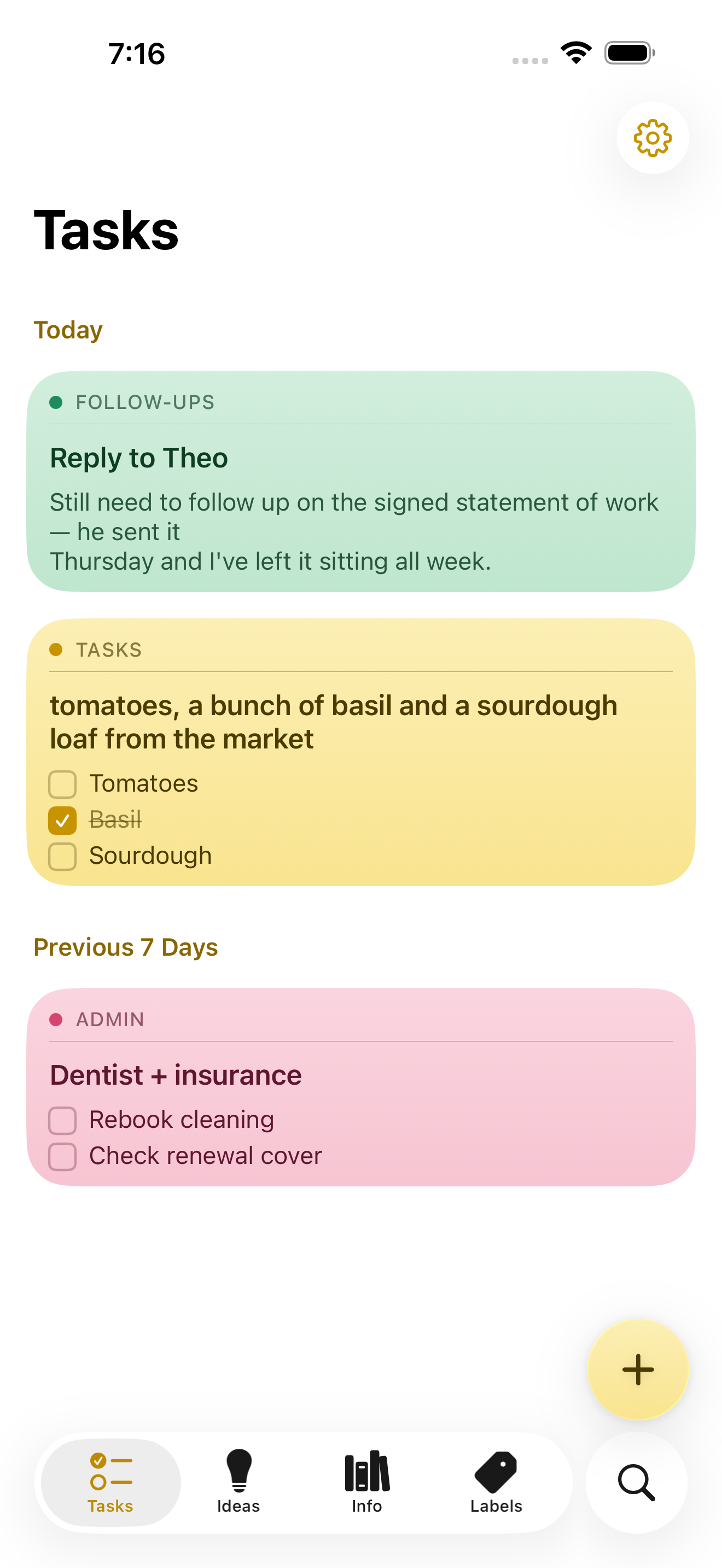
NoteWorthy is a notes app for iPhone, iPad and Mac that writes your titles, summarizes your notes, cleans up your formatting and files everything into the right place. You write the note; the app does the rest. It is made for people who jot things down messily and would rather not spend time tidying, tagging or filing afterwards, because the organizing work happens automatically using AI that runs entirely on the device in your hand or on your desk. Most note apps leave the boring parts to you: you still have to think of a title, decide which folder something belongs in, and turn a rushed brain-dump into something readable. NoteWorthy targets exactly that gap. Instead of asking a cloud model to read your notes, it bundles the intelligence into the app itself, so the same convenience arrives without the note ever leaving your device. The result is a notes app with AI that keeps the AI local: no account to create, no connection required, and not a single note sent to a server. The editing surface is rich text backed by real Markdown. You get checkboxes, headings, bold and italic text, tables and images, and you edit the way you would expect in a normal notes app. Underneath, the note is stored as Markdown, which means it is portable: any note exports as Markdown and opens in any other editor. Six paper colors let you give notes a visual tone, and the app can scan text straight out of a photo so information captured on paper or a whiteboard becomes editable text inside a note. Two on-device features handle messy input. AI Format turns a scrappy line into headings, bullets and checkboxes without changing your wording — it reshapes the structure, not the words. AI Summarize pulls a long page of thinking down to a sentence. Both show you the result before either touches the note, and you can preview it, then copy, insert or replace. Neither uses the network in either direction. On older hardware that cannot run the models, both fall back to fast built-in heuristics. AI Organize is the filing layer. Every note gets a title and files itself into Tasks, Ideas, Info or Personal, and you can create your own labels with a custom icon and color, pinning the ones you use most to the tab bar. One tap on AI Organize tidies the whole library. The filing is stable: run it twice and nothing moves, because it reads what is already stored rather than asking a model to guess again. Matching is based on meaning rather than keyword, and the model can also decide that a note fits none of your labels. Capture does not require opening the app. Select something in Safari, share it, and it becomes a note. Siri and Shortcuts handle the rest: five Shortcuts actions are available, and Summarize and Format work on text from any app. Widgets come in four sizes and include checkboxes you can tick without opening anything. Finding notes works two ways. Inside the app there is keyword search with highlighted matches that you can filter by color. Outside the app, every note is indexed with Spotlight, so system search finds it without opening NoteWorthy at all, and a Spotlight result opens the note directly. Indexing happens on the device, like everything else in the app. Notes also understand what they contain. A date becomes a calendar event, a name links to your contacts, and an address opens in Maps. If you write “remind me before Friday”, the note offers to set a reminder, which arrives as a local notification. All of this detection happens on device and is never uploaded, and nothing happens until you tap it. Privacy here is framed as a property of the build rather than a promise. There is no server to trust, because the app makes no network requests at all. No account, no tracking, no analytics and no uploads of our own. Notes are written to disk with file protection, and an optional app lock asks for Face ID or Touch ID before showing them. The app explains itself on first launch with three screens covering what the labels do, what AI Organize does, and exactly what happens to your writing, then gets out of the way. Two models run on the device. Apple's Foundation Models, running on the Neural Engine, write the words: titles, summaries, the Markdown rewrite and topic extraction, all through Apple Intelligence. A second model, EmbeddingGemma 300M, is a 300M-parameter embedding model, 4-bit, bundled inside the app and run through MLX. It decides where things go by matching a note to a label by meaning rather than by keyword, and being an embedding model it can also say that none of the labels fit. The weights ship inside the app and are never downloaded; Gemma is provided under the Gemma Terms of Use. NoteWorthy is universal across iPhone, iPad and Mac. On iPhone it behaves like sticky notes, on iPad you get a sidebar and a note board, and on the Mac it is a notebook that waits on the edge of your screen, opened from a rail of labels. It requires an iPhone or iPad on iOS or iPadOS 26 or later, or a Mac with Apple silicon on macOS 26 or later, and it is a single Universal Purchase covering all three. Apple Intelligence is needed only for the writing features such as AI Format, AI Summarize and generated titles; without it, writing, filing and search still work. Sync is not available yet: each device keeps its own notes, and you can move one across by exporting it as Markdown. Everything NoteWorthy does today is free, with no ads and no subscription. Two features are announced but not shipped: iCloud Sync, which will put your notes on every device through your own iCloud account rather than a server of theirs, and Shared Notes, which will hand a note or a whole label to someone else over that same private channel. When they arrive they will be a single one-time unlock, and everything that happens on your device stays free. Both are opt-in. The Mac version is in review for the Mac App Store; until it clears, it can be downloaded as a DMG from GitHub and dragged to Applications, or installed with Homebrew using the same notarized build. NoteWorthy is made by Suman Hansada, an independent developer. The app's permissions are deliberately narrow: Photos to import an image and pull the text out of it, Calendar add-only to add an event for a date in a note (it cannot read your calendar), Contacts to link a name in a note to the person, Face ID or Touch ID for the optional app lock, and Camera in the App Clip only to scan text from a photo. In short, NoteWorthy takes the parts of note-taking that people tend to avoid — titling, summarizing, formatting and filing — and moves them onto the device, where they cost nothing, work offline and never leave your hardware. You write the note. It does the rest.
Jarq is a macOS app that translates, shortens, fixes, or rewrites any text right where your cursor is, inside any app on your Mac. Instead of moving text out to a browser tab or a separate window, Jarq acts in place: you select text, hit a hotkey, and the result replaces the selection or is copied for pasting. The same app also handles dictation — you press a hotkey, speak, and clean text with punctuation lands at the cursor. It is built for people who write, reply and work across apps all day and who want their editing and translation to happen without leaving the field they are already typing in. Jarq supports thirteen languages and runs from the menu bar, answering a key wherever you are already typing. The problem Jarq describes is the cost of leaving your context. Every trip to a translator tab drops your train of thought. The site lays out the old way as seven steps and two app switches: select the text and copy it, switch to a translator tab, paste and wait for the answer, copy the result, switch back to where you were, paste it, and then wonder where you were. With Jarq the same job takes two steps and zero switches: select the text and click the button. That difference matters because, as the site puts it, the train of thought is gone and the flow is broken. By keeping the work in the app you are already in, Jarq removes the copying, the switching and the waiting from the loop, which is where the friction — and the lost momentum — actually lives. Translate any selection is the core surface of the app. Select text anywhere on your Mac and the buttons appear right there beside it — the dot. One click replaces the text in place, or copies it to paste. Because the buttons appear next to the selection, you never open a window: you select, point at the dot, and you are done. A side effect the team says they did not plan is that translations appear next to the original, in real context, and the site argues that this is exactly how words stick: phrases you translate today stop needing a translator at all. Translation between any two of the thirteen supported languages is handled from the same inline buttons, and the app offers a particular quality of translation — not word-for-word, but the way you would actually say it, with your tone kept intact. Dictation lets you speak and get typed text. Press the dictation hotkey, talk, and press it again: clean text with punctuation lands at the cursor, in any app — Slack, Mail, your IDE. Dictation works together with translation: you can speak in one language and get clean text in another, so saying it in Russian can put English into the input. Jarq supports thirteen languages, including English, Russian, Spanish, Portuguese, French and German, and you can either speak one and type another, or translate a selection between any two. Apple's dictation, the site notes, does not do this: Jarq drops finished text — punctuation, capitals, the language you chose — into any app, and can translate as you speak, and it keeps working in the apps macOS dictation trips over. Actions let you create your own buttons. You write an instruction in your own words — shorten this, fix the grammar, make it formal — and it becomes a button that sits beside the language buttons; one tap runs it on the selected text. Selected text is never read as a command, only as material, which keeps custom instructions safe to reuse. Jarq also claims to work where other tools cannot: in Figma or a terminal, the ⌥T hotkey grabs the text anyway, even in places where an app blocks the inline selection. Control is part of the design — every hotkey can be remapped, and history stays on your Mac as a file on your own disk. Jarq's approach is to stay where you already are. The app sits in the menu bar, one file dragged into Applications, and answers a key wherever you are typing. There are two keys between you and finished text: a hotkey that acts on a selection, and a dictation hotkey that turns speech into finished text at the cursor. Where a selection is blocked, ⌥T reaches the text anyway. On privacy, the site is direct: an app that hears you and types for you owes a straight answer about both. History is a file on your own disk, and with on-device recognition your voice never leaves the Mac. In the cloud, a recording or a selection becomes text in memory and comes straight back — stored nowhere, used to train nothing. The microphone opens with the hotkey and closes when you stop. Jarq does use cloud AI models to process your text and voice, but says Jarq itself does not keep your text on its servers. The benefits follow from that. You keep your flow: no tabs, no copy-paste, no app switching, and no re-reading to find where you were. Editing happens in place, so a sentence can be shortened, cleaned up or made more formal without leaving the draft you are working in. Translation arrives next to the original text in real context, which — as the site describes — is how words stick and can reduce how often you need a translator at all. Dictation produces finished text with punctuation and capitals rather than a raw transcript, and it works in the apps macOS dictation struggles with. Because history stays on your Mac and voice can stay on-device, users get these conveniences without sending their writing out to a separate service window. The site names several concrete situations. If you work in two languages, you read in one and answer in the other: you tap a message to read it in your language, then tap your reply so it goes out in theirs, as shown with Telegram. If email eats your day, you write the draft fast and then tap a sentence to make it shorter, cleaner or more formal, fixing long drafts, typos and off tone. If you would rather talk than type, you press the dictation hotkey, speak, and clean text lands in the field — the site shows this in Slack, with speak English producing finished English, as well as Mail and an IDE. And if you want your own buttons, you write an instruction in your own words and it becomes a one-tap action. Translation, shortening, grammar fixes and rewrites all happen on selected text in any app — a browser, a PDF, Figma, a terminal or a native window. Jarq is for Mac users who write and reply across many apps — people working in two languages, people buried in email drafts, people who prefer to talk rather than type, and people who want their own custom editing buttons. It requires a Mac on Apple Silicon (M1 or later) running macOS 13 Ventura or newer. There is no integration to set up: the app works in any app where you can select text, from a browser and a PDF to Figma, a terminal, and native windows. Pricing starts with fourteen days of Pro, free, with no card and no account. After that, the free plan keeps working with 5 dictations or translations a day, unlimited on-device dictation, no account and no expiry. Pro is $4.99 a month or $39 a year and includes unlimited dictation and translation and up to two Macs, cancellable any time. A Lifetime option, at launch price $179 once instead of $200, includes everything in Pro and every future version, for up to two Macs. Prices are in USD with tax included, payable by card, PayPal or Apple Pay, with 30 days to change your mind. The download is version 1.0, 15.1 MB. Jarq's value proposition is simple: two keys between you and finished text. By translating, shortening, fixing, rewriting and dictating in place — in any app, without tabs or copy-paste — it keeps your editing and your flow together, while keeping your history on your Mac and your voice, with on-device recognition, from leaving it.
JevGPT is a chat assistant that writes every reply one word at a time. Instead of a model that generates whole sentences, JevGPT is built on TypeSafe's Jev System One model, described on Product Hunt as a model that can't write. In JevGPT, that model is put to work in a chat interface that opens with the question "What can I help with?", and each word of each answer is picked by Jev from a vocabulary of 1,772 words, one probability distribution at a time. The app is built around people who already hold a TypeSafe API key and want to run a conversation on their own Jev credits, at roughly a cent per reply. For years, the framing goes, large language models built to write text have been used to make choices. JevGPT returns the favor: a chat app where TypeSafe's Jev, a model built to make choices, writes every reply one multiple-choice word at a time. The Product Hunt tagline states the premise bluntly — "A chatbot built on a model that can't write" — and the Product Hunt description answers its own question, "Does it work? Sort of." That framing makes the project less a polished productivity tool than a visible experiment in what happens when a decision-making model is asked to produce written text. The central mechanic is word-by-word generation. As the site states, "Every word is picked by Jev from a 1,772-word vocabulary, one probability distribution at a time." Rather than emitting a full sentence in a single pass, the app resolves each next word as a choice over that fixed vocabulary, then moves on to the next word. The vocabulary is small and fixed, and every reply is assembled sequentially from it. Watching this happen makes the generation process unusually visible: a reply is not retrieved as a block of text but constructed word by word, where each word is a multiple-choice decision made by the model. Because both the vocabulary and the selection step are constrained, the shape of the output is determined by that choice process rather than by open-ended text generation. JevGPT does not ship with its own model access. To start chatting, you enter your TypeSafe API key, and the app runs on your own Jev credits; the site states that a reply costs about a cent. After entering the key, you press Save and the session is ready to use. Keys come from TypeSafe's console — the site links to console.typesafe.ai, specifically the settings page for keys — for anyone who needs to create one. This bring-your-own-key arrangement means usage is metered against the individual user's own credits, and the cost of a conversation is expressed per reply rather than through a subscription described on the site. The site is also explicit about how the key is handled. It is "kept in an httpOnly cookie in this browser and sent only to this app's server." That statement covers both storage and transmission: the key persists in a cookie that page scripts cannot read, because httpOnly cookies are not exposed to JavaScript, and it is sent only to the server that powers this app. For anyone who hesitates to paste an API key into a web app, this stated handling is the detail that matters — the credential stays in the browser's cookie store and travels only to the app's own backend. If you do not have a key yet, the site offers two alternatives: watch the demo video, or read how JevGPT works on GitHub. Overall, JevGPT is a conversational layer over TypeSafe's Jev. The user supplies the credentials, the app passes the conversation to Jev through TypeSafe's API, and the model returns its selection for each word, a process the app repeats until a reply is complete. Because each word is drawn from the same 1,772-word vocabulary via a probability distribution, the output is shaped by that constrained choice process. The project is open source, with the GitHub repository linked directly from the site for readers who want to study how it works rather than watch it produce a reply. The site pairs that repository link with the demo video as the two routes to understanding the project without running it yourself. The stated benefits follow from those mechanics. You keep control of your own usage, since the app runs on your own Jev credits and a reply costs about a cent. You can inspect the project, because it is open source and the repository is presented as the place to read how JevGPT works. You can also approach it with honest expectations, since the Product Hunt framing answers whether the approach works with "Sort of" rather than a promise of polished prose. And because the vocabulary is only 1,772 words and every word is a discrete choice, the generated replies are constrained in a way that is visible to the person reading them, one word at a time. Concrete uses described in the content are straightforward. The primary one is chatting: the app opens with "What can I help with?", you enter your TypeSafe API key, and you start a conversation whose replies are written one multiple-choice word at a time. A second is evaluating the model: users can watch whether a model built to make choices can actually carry a written reply and form their own judgment. A third is developer review — the GitHub repository is offered so that people can read how JevGPT works, and the project is listed as open source. A fourth is passive exploration: the demo video lets someone see JevGPT operate without needing a key first, since the site suggests it to readers who do not have one yet. JevGPT is a browser-based web app, and its audience is narrowest at the point of access: you need a TypeSafe API key and Jev credits before you can chat. That points toward people already working with TypeSafe's console and looking for a hands-on way to see Jev in a conversational role. Beyond that, the project is open source and tagged with topics including Open Source, Writing, Artificial Intelligence, and GitHub, which speaks to developers and technically curious readers who want to examine the code. Pricing is usage-based by nature: JevGPT runs on your own Jev credits, and the site puts the cost of a reply at about a cent. No subscription tiers or plan details are mentioned in the content. The takeaway is that JevGPT is a deliberately unusual chat app: it asks a model built to make choices to write, and it writes by choosing. Every reply is assembled one word at a time from a 1,772-word vocabulary, one probability distribution at a time, on the user's own TypeSafe credits at roughly a cent per reply. It is open source, it documents how your API key is stored and sent, and it offers a demo video for those who do not have a key yet. Whether the writing is good is answered with a shrug — "Sort of" — and that honesty is part of the project's character.
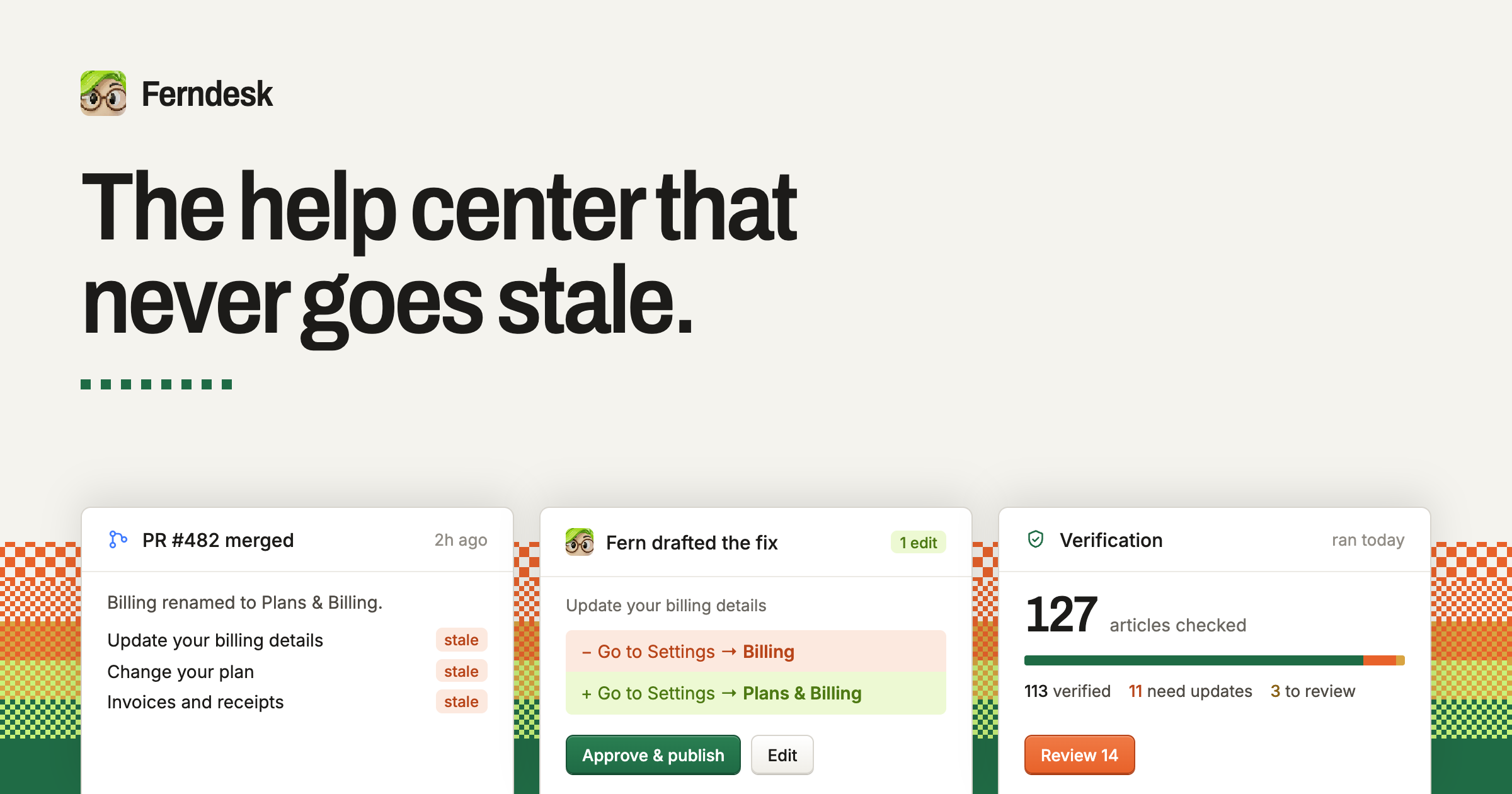
Ferndesk is a complete help center built around an agent called Fern that checks every article against your product, catches what has changed, and drafts the fixes for you. It is aimed at software teams that publish customer documentation and find it impossible to keep that documentation true while shipping features every week. Instead of treating a help center as a static set of pages that slowly drifts out of date, Ferndesk treats it as something that is continuously verified against the codebase, the live product and the support inbox, so the answers customers read match what the product actually does. The problem it solves is familiar to almost every software company. This month you changed a default, and yet your docs were last updated three months ago. Along the way you renamed a plan, killed a feature, moved the export button, added a plan, changed the pricing page, broke a link, shipped a new flow, renamed a button and changed a setting. None of those changes is dramatic on its own, but together they quietly make a knowledge base wrong. Ferndesk frames this as not the team's fault: keeping docs true while you ship every week is genuinely tough, and most teams fall back on hoping they will remember to update the documentation. The site quotes founders describing exactly this reality, including one who says their previous process for updating documentation was basically hoping they would remember to do it, another who says they ship features every week and updating docs is hell, and another who admits they used to write articles once and let them go stale right from day one. The first core capability is verification. Fern verifies every article in the help center and drafts the fix when something is wrong. Each claim is checked against the code and the product, and anything that is no longer true comes back as a change you approve, together with the reason it was flagged. A typical example shown on the site is a sentence that says a setting lives under Settings, Billing when it has actually moved to Settings, Plans and Billing; Ferndesk surfaces the outdated claim, proposes the corrected wording, and presents it for you to approve and publish. Nothing publishes without you. The second half of this capability is automatic updates for new releases: when a pull request merges, Fern drafts the documentation for that feature before the release goes out, so new functionality is documented as part of shipping rather than months later. The site illustrates this with a merged pull request that adds image editing, after which Fern drafts the docs for editing images in articles and updates the article about automating screenshots in your docs. Beyond verification and drafting, Ferndesk is a full help center product. It provides a public help center that can live on your own domain or at /help, and it is described as fast, searchable, and indexed both by Google and by AI search engines. AI conversations let customers ask questions in plain language and receive answers drawn from your verified docs rather than a guess, which matters because an AI answer is only as trustworthy as the documentation behind it. An in-app widget can be embedded with one script tag and brings search, articles and AI chat inside your product, exactly where people get stuck. Together these surfaces give customers more ways to answer their own questions before they ever open a ticket. Ferndesk also covers the more specialized documentation needs that usually require extra tools. API documentation provides an OpenAPI reference with a try-it playground that sits next to your customer docs. Private docs support magic link, OIDC or JWT access, so the same system can serve customer-facing documentation, partner documentation or an internal knowledge base for your own team. Translations produce a multilingual help center with a glossary and language-prefixed routes. Analytics surface searches, missed searches, failed answers and feedback, so you can see what to write next instead of guessing which articles are missing. Escalation connects the widget to your existing support stack: when the widget cannot answer a question, it hands the conversation off to Intercom, Zendesk or Help Scout. Ferndesk works by connecting to the tools where the truth about your product already lives. You connect your codebase, your live product and your support inbox, and the site lists GitHub, Intercom, Linear, Zendesk, your live app, Slack, Help Scout and Discord among the connectors. Setup is described as taking about ten minutes, after which Fern can see what your customers see. From that point on, verification runs continuously rather than as a one-off audit: every article is checked against what the product actually does, incorrect claims are turned into reviewable changes, and newly shipped features are drafted into articles. The workflow keeps a human in the loop at all times, since you review and approve and Fern publishes. Ferndesk also lets you manage your docs from tools such as Claude Code, Cursor or ChatGPT, meeting documentation work where developers already are. The benefits reported by customers are concrete. Ferndesk states that founders report saving 20 hours a month on docs, with one founder saying that a task which used to take an hour now takes five minutes. Because the docs Fern keeps current are the same docs a support AI trains on, better documentation also produces better AI answers. Customers describe support requests dropping significantly, and one customer reports a measurable drop in churn within three months of launch. Another says they have started to get organic clicks for queries and questions they did not expect to be ranking for. Together these point to a help center that reduces tickets, keeps customers self-serving, and continues to work as a marketing and search asset even after launch. Typical use cases follow directly from that. A team that ships weekly connects its repository so that merged pull requests turn into drafted documentation before each release. A company with a stale help center imports its existing articles and gets a verified, searchable public portal, then adds AI conversations and an in-app widget to bring tickets down. A support-driven company keeps its existing ticketing tool and uses Ferndesk for the knowledge layer, with the widget escalating unanswered questions into Intercom, Zendesk or Help Scout. A team selling internationally adds translations to run a multilingual help center, as Metricool did with seven languages live while using the same docs to train their AI support agents. A company with private or partner-facing material uses magic link, OIDC or JWT protected docs for audiences that should not see the public portal. And a content-led team reviews analytics to find missed searches and failed answers, then writes the articles those queries reveal. Ferndesk is used by more than 100 software teams, including Metricool, Zeffy, Andri, PixelFlow and SEO Gets, and is positioned for founders and support teams at software companies of varying size. Migration is deliberately low friction. Imports are supported from Intercom, Zendesk, Crisp, Help Scout, HubSpot, GitBook, Document360 and other help centers, with every URL preserved and redirects created, usually in under ten minutes, and your existing support tool stays where it is. A custom domain is supported, and customers can keep their knowledge base at a subfolder of their own domain. Getting started is a 7-day free trial with no card required, and nothing publishes without your approval. The takeaway is that Ferndesk turns documentation from something you hope is right into something you know is right. It combines a complete help center, covering the public portal, AI conversations, the in-app widget, API documentation, private docs, translations, analytics and escalation, with an agent that verifies every article against your product, drafts the fixes, documents new releases as they merge, and leaves the final decision to you. For teams whose docs have been stale for months, the promise is a help center that never goes stale, imported in ten minutes and kept current from then on.
Lattice is a web-based text transformation tool that reshapes your writing so it sounds like you wrote it. You paste in a draft, choose an input and output language, and Lattice returns a rewritten version that carries the same meaning in a more natural, less predictable expression. Its stated purpose is simple: make any text sound like the person who wrote it. Rather than replacing your ideas, it works on the wording, swapping phrasing that reads as stiff or generated for language people actually use. Lattice is presented as being built for academic writing, and its interface also lists emails and communication, content creation, reports and documentation, multilingual expression and everyday writing among the areas it addresses. Most drafts, as Lattice describes it, lean on the same handful of phrases. Stock openers such as hoping a message finds someone well, and filler transitions about circling back, appear again and again, along with a rhythm that is too even to read as spontaneous. The site points to em dashes and stock phrases as tells that make a message read as AI-written. The problem matters because those tells get in the way of the message itself: a reader notices the padding before they notice the request. Lattice's answer is to find those repeated, predictable phrases and rewrite them in plain language, so your message lands the way you meant it. In the before-and-after example published on the site, an email laden with stock phrasing and four em dashes becomes roughly half the length while making exactly the same request. The site's central idea is a different path to the same idea. Every language, as Lattice puts it, says things its own way. Lattice passes your text through a few languages, so what comes back keeps your meaning but loses the stiff, predictable phrasing. The site diagrams this as a journey: an English draft, then a hop into Spanish, a second hop into German, a third hop into Japanese, and then back to English. The interface shows the sentence about today's fast-paced world and the importance of leveraging effective communication strategies as the original in English, marked as stage one of five in the visualised path. Each hop is a stage in the transformation, and the wording that returns is not the wording that went in. The result is meant to be a fresh expression of the same idea rather than a simple synonym swap. Lattice's first stated promise is that it drops the tells. Stock openers, filler transitions and that too-even rhythm get replaced with wording people actually use. This is the part of the rewrite a reader feels immediately: the salutation stops sounding like a template, the transitions stop announcing themselves, and the sentences stop marching in step. Because the tool targets the specific patterns that make text read as generated, the output is meant to pass as ordinary writing rather than as a lightly edited machine draft. In the published example, the original opens with a formal greeting and a run of padded clauses, while the rewritten version opens with a name and a direct follow-up request, closing with a short question about being free for fifteen minutes this week. Lattice is equally explicit about what it does not touch. Names, numbers, technical terms and the point you were making all come through untouched. That constraint is what makes the rewriting useful rather than risky: you are not re-checking facts, figures or terminology after each pass, because the transformation is aimed at expression rather than content. The third promise is that the result reads like you. Sentences vary in length and flow naturally, so the output sounds written rather than generated. Together, the three claims describe a narrow, deliberate kind of editing: change how the text sounds, leave what the text says alone. Using Lattice follows a short, visible workflow. You paste your draft into the input area, which is labelled with the input language and a counter showing a maximum of 1,000 characters, so the tool operates on short passages such as an email, a paragraph or a set of sentences rather than a whole document. You then choose the output language, shown as English in the interface, and press Transform. The page reports that the transformation runs in 4 hops by default, and an Advanced options panel sits beneath that setting. A Clear action empties the input, and the transformed text appears in a dedicated output panel with a Copy button, so the result can move straight into the document or message you were writing. The site also presents before-and-after comparisons so you can see the original and the Lattice version side by side before using it. The stated outcome is a message that lands as intended. Shorter, plainer text does the same work with less to read, as the roughly halved length of the published example suggests. Dropping stock openers and filler transitions removes the cues that make a reader suspect the text was generated. Preserving names, numbers and technical terms means the rewrite does not create rework. And because sentences vary in length and flow naturally, the result sounds like a person rather than a template. For anyone writing in a professional or academic setting, those outcomes combine into a simpler promise: you can start from the draft you already have and end with something you would be comfortable having written yourself. The interface lists the kinds of writing Lattice is aimed at. Academic writing is called out as a focus: good research writing, the site notes, is precise rather than padded, so Lattice smooths out clunky sentences and repetitive transitions while leaving terminology, citations and argument exactly where you put them. Emails and communication is the second area, illustrated by the before-and-after follow-up email about a project timeline and a request for fifteen minutes this week. Content creation is listed as a third area, and reports and documentation as a fourth. Multilingual expression is a fifth, which follows naturally from a tool whose method is to pass text through several languages. Everyday writing is the sixth. Across all of them the pattern is the same: a draft with predictable phrasing goes in, and a plainer version of the same message comes back. Lattice presents itself most explicitly as a tool built for academic writing, and the example it publishes is a workplace email, so the audiences the content speaks to are academics and researchers on one side and professionals writing messages, content, reports and documentation on the other. The site does not describe integrations, a technology stack or a plan structure. What it does show is a single web interface with input and output language selectors, a hop count and an advanced options panel, which points to a browser-based tool rather than something you install. Everything about the product in the available content runs through that one page and one transform action. Lattice's value proposition is narrow and clear. It does not write for you or generate new ideas; it takes text you have already written and reshapes it through multiple language paths until the same meaning arrives in a fresher, more natural expression. The tells go, the names, numbers and terms stay, and what the reader sees is a message that sounds like the person who sent it.
Ryu Journal is a calm, private journaling app for iPhone and iPad, available on the App Store. Ryu means 'flow' in Japanese, and that single idea shapes the entire product: it is a quiet place to put a thought down and let it go. There are no accounts, no social feed and no pressure — just you and the page. The app is made for busy minds that want a low-friction way to write something down and then return to their day rather than managing another complicated tool. You open Ryu Journal, write what is on your mind, and close it again. A Home Screen widget keeps a gentle zen quote in view as a small, steady reminder of the same idea: let it flow, let it go. Ryu Journal is built around the belief that a journal should help you release a thought rather than trap you in a system. The app deliberately leaves out the things that usually make journaling feel heavy: there is no sign-in or account creation, so the app never knows who you are; there is no social feed to post into or compare yourself against; and there is no pressure of any kind built into the experience. Privacy is treated as a default rather than a setting. Ryu Journal collects no data, runs no analytics, telemetry or crash-reporting SDKs, and uses no third-party services, ads or trackers. For anyone who has wanted to write things down but did not want their private reflections sitting on someone else's server, that combination is the core promise of the product. The heart of Ryu Journal is a clean, distraction-free editor. Adding an entry is intentionally minimal: tap the plus, write, and save. Tapping any existing entry opens it again so you can keep writing inside the same post instead of starting over. Because there is nothing to configure, the act of writing stays as short as the thought itself. Saved entries gather into a simple timeline, so a week of short notes collects softly into one place instead of scattering across notebooks, notes apps and fragments of memory. The result is a record that builds quietly in the background of your day — you are not asked to maintain it, organise it or design it, only to write and let go. Pulling the journal down reveals Trends, a compact view of what your writing is showing over time. Trends includes your streak, a word cloud and your mood, all derived from the entries you have written. The streak shows how consistently you have been writing; the word cloud surfaces the keywords and themes that keep coming up in your words; and the mood signal reflects how your entries are reading. All of this is stored locally on your device alongside the entries themselves. Trends also uses the phone's motion sensors for one small, purely visual purpose: to tilt its colours gently as you move the device. Nothing from those sensors is ever stored. A Home Screen widget keeps a gentle zen quote where you will see it, drawn from a collection that includes Zen proverbs and words from Lao Tzu, Thich Nhat Hanh, Ram Dass, Eckhart Tolle and Glen Hansard. The widget reads only a small snapshot of your latest entry and its quotes from local storage that is shared between the app and the widget and nowhere else. If you want an extra layer of protection, you can turn on app lock; the passcode is kept in your device's keychain and never leaves it. You stay in control of what is kept: press and hold any entry to delete it on its own, or pull the journal down to reveal Trends, tap Options and then Delete all posts to remove everything at once. Deleting the app removes all of its data from your device. Ryu Journal works entirely on your device, and that single design decision explains most of how the product behaves. Everything you write — entries plus the keywords, themes and mood signals derived from them — is stored locally. The app makes no network requests carrying your content and works fully offline, so it behaves the same on a plane, in a tunnel or in airplane mode. Because there is no account system, there is nothing to log into and nothing for anyone else to look up. If you use iCloud device backups, your device may include the app's local data in your encrypted backup, but that backup is governed by Apple's privacy policy rather than Ryu's, and the developer has no access to it. The practical benefit is a journal you can trust with things you would not type into a feed. Your words belong to you and stay with you, which lowers the hesitation that usually comes before writing something honest. The absence of accounts, trackers and analytics means there is no audience, no profiling and no data trail; the absence of a social feed means there is no performance. The calm, minimal editor and the pull-down Trends view give the app a rhythm that matches its name: write, glance at what has accumulated, and move on. For busy minds, the outcome described is simple — a place to put a thought down, and the relief of letting it go. Ryu Journal fits small, frequent moments rather than long ritualistic sessions. One common pattern is the quick capture: something is bothering you or an idea arrives, you tap the plus, write a few lines, save, and get back to your day. Another is the continuing entry — you tap a post from earlier and keep writing in the same thread as a thought develops. Reviewing the week is a third: the timeline gathers your entries so you can scroll back through what you have written. When you want a wider view, you pull the journal down to check your streak, word cloud and mood in Trends. Others keep the Home Screen widget in view for a zen quote during the day, and anyone can delete a single entry or all posts whenever they choose. Ryu Journal is aimed at iPhone and iPad users, and it is available on the App Store. It suits people with busy minds who want somewhere private to write, particularly those who are put off by apps that require accounts or invite sharing. The product's stated approach is privacy-first and offline-first: no data collection, no accounts, no analytics, no telemetry, no crash-reporting SDKs, no third-party services, no ads and no trackers. Questions can be directed to the developer on Threads at @jayrunquist. The privacy policy, last updated September 8, 2026, states that Ryu Journal collects no data and that your journal never leaves your device. Ryu Journal is, in its own words, a quiet place to put a thought down and let it go. Everything it does follows from that: a clean editor that takes seconds to use, a timeline that gathers the week softly, Trends that quietly reflect your streak, words and mood, a widget that keeps a zen quote in sight, and a privacy model in which nothing leaves your device unless you back it up yourself. For busy minds that want to write without an audience, a sign-in or a data trail, that is the whole value — write it down, let it flow, let it go.
Superhuman Go is an AI assistant and agent platform that works everywhere you work and can offer help proactively across more than 1 million apps and websites. Instead of waiting for a prompt, Go automatically looks for opportunities to help you say something better or do something faster. It annotates in real time everywhere you write, pointing out where you could be clearer or more convincing, or when you are just wrong. It is built for people who communicate for a living — professionals working inside email, Slack, docs, and the browser — and for teams and schools that need trusted security and controls around AI. The problem Go sets out to solve is the friction of general-purpose AI chatbots. ChatGPT, Claude, Cowork, and Gemini are powerful general-purpose chatbots: you open a separate window, describe what you need, and copy the result back into your work. That workflow means switching tabs, re-explaining context, and pasting answers back and forth, with prompt engineering required to get anything useful. Go is built for the opposite experience. It lives inside the apps where you already write and work, so help arrives in the flow of what you are doing. Because Go works in context, it already understands the email you are replying to, the document you are drafting, or the message you are about to send — no prompt engineering required. Rather than waiting for you to ask, Go surfaces the right suggestion at the right moment, the way Grammarly's underlines always have. Go's most visible capability is suggestions as you type. Everywhere you write, Go annotates in real time, pointing out where you could be clearer or more convincing — or when you are just wrong. In your text, Go gives you the knowledge you need as you type: a grammatical rule, a company-approved stat, or a forgotten tidbit from last week's meeting. The assistant also works on your cursor: simply highlight text in any app and it will cue a list of actions from your favorite agents. A context-aware side chat is always at your side, ready to chat about whatever you are reading, writing, or wondering. Underpinning the writing help is Grammarly's 17 years of writing intelligence, which Superhuman maintains and brings inline wherever you are already working. Go manages your email the way you wish you could. It sorts your incoming mail and pre-drafts replies in your voice and with your context, so you can respond in record time. The Email Assistant agent does the same work in more depth, sorting your inbox and drafting replies informed by your voice, calendar, and connected apps; it is powered by Superhuman Mail. Go is also a meeting co-host: you can ask it to handle the prep and follow-through, crowdsourcing the agenda before a team sync or auto-assigning tasks when the meeting ends. Because Go connects to your data sources, you can give it more complex tasks, such as building out a team project tracker and keeping it up to date. Agents are your team of AI collaborators in Go, built for the common tasks that fill up your workday, like summarizing long threads, drafting reports, or finding information across tools. Go comes with a powerful set of default agents and lets you build custom ones tailored to you and your team's needs without coding or engineering experience. The default roster includes a customizable Grammarly agent — tell it which underlines you find useful and it adjusts the feedback going forward — alongside the Email Assistant, the Knowledge Checker, which searches your data sources for evidence to back up your claims and prevent you from making the wrong one, and the Daily Brief, which starts every day with a custom report based on your apps, such as deals about to close in Salesforce, Jira tickets from last night, and tasks and meetings that need your attention. Custom Agents let you design agents for your workflows and routines, configuring them to show up as you type, on a schedule, or after an event, like when a meeting ends or someone sends you an email. Anyone on the Pro, Business, or Enterprise plans can build them through a simple chat conversation or the visual agent builder, share agents directly with teammates, or publish them to a company agent directory. For deeper integrations, the Superhuman Agents SDK lets developers build agents that plug into an organization's unique tools, systems, and workflows. And if you would rather not build, the Agent Store is a growing library of ready-made agents from Superhuman and its partners, with agents for schoolwork, sales teams, accountants, and more. AI is only as good as the context you give it, so Go connects to the apps you use most through pre-built or custom MCP connectors — meaning everything Go says and does will be grounded in your knowledge. Go is also designed to work how you work, changing shape to meet you where you are: it can show up as an underline in a doc, a side panel in your browser, or a scheduled automation. It works in your text, in a context-aware side chat, on your cursor, and in Slack, where you can message Go like a teammate or at-mention it in a group channel for a quick answer or task. The Go app is your home base for tackling complex tasks and managing all your Go agents — a full screen where you can chat, make agents, create docs, and complete tasks. That combination is what makes Go different from other AI assistants. Unlike assistants that require you to go to them and ask for help, Go provides proactive help and suggestions right where you are working, not in a separate window. It surfaces suggestions inline as you write, with edits, context, and next steps appearing automatically with no prompting required. It understands what is on your screen, so you never have to copy-paste or describe what you are working on. It connects to your most important apps so suggestions are grounded in your real work context, and it manages a team of AI agents — including Grammarly's embedded writing intelligence — to help when and where it is useful. Finally, it grows with you over time: you can add new agents as they are released or create your own, so Go keeps getting more useful without you having to switch tools. Nothing happens without your approval — Go suggests, and you decide. The benefits show up in the daily work Go takes off your plate. It can draft documents inside your existing tools with inline suggestions, coordinate meetings end to end from scheduling to follow-up, manage tasks across tools like email, Asana, and Jira, and surface past decisions or context on demand. All of this happens inside the apps you already use, without copy-pasting or tab switching, which reduces your daily admin tasks. Because Go works within the tools and platforms you have already invested in, it increases their ROI rather than replacing them. And if you do want to migrate from another AI assistant, it is simple: ask your existing tool to summarize what it knows about you, paste that into Go, and pick up right where you left off. Concrete scenarios illustrate where Go fits. While replying to a customer email, Go sorts the message, drafts a reply in your voice using your calendar and connected apps, and flags phrasing that could be clearer. Before a team sync, you ask Go to crowdsource the agenda; when the meeting ends, it auto-assigns the follow-up tasks. Each morning, the Daily Brief delivers a custom report drawn from your apps — deals about to close in Salesforce, Jira tickets from last night, and the tasks and meetings that need your attention. While drafting a report, the Knowledge Checker searches your data sources for evidence to back up your claims. In Slack, you at-mention Go in a group channel for a quick answer or task. And for a team project tracker, Go builds it out and keeps it up to date from your connected data sources. Go is aimed at professionals who need real results rather than just a chatbot, and at teams and schools that need security and controls. It does not require switching tools or platforms; Go works within the tools you already use and have invested in. It is available via the Superhuman desktop app for Windows and Mac, through browser extensions for Chrome and Edge, on mobile for iOS and Android, and in your browser with nothing to install. Superhuman Go is free to start by signing up for a Superhuman account and is available in all Superhuman plans; visit the pricing page to compare plans for individuals or teams. On trust, Superhuman maintains Grammarly's 17-year track record of safe, responsible AI, trusted by over 40 million people, and you control whether your content is used to train Go's AI models — for Enterprise users, AI training is off by default. Superhuman Go's core promise is proactive, in-context assistance. Instead of another destination you have to visit with a prompt, it works where you do — annotating your text, drafting your replies, prepping your meetings, and running a team of agents you can extend over time. Free to start, included in every Superhuman plan, and grounded in your connected knowledge, Go is built to make the communication and work you are already doing faster, clearer, and more on-brand.
Paragraph Notes is a privacy-focused Markdown notes app for Mac. It provides Mac users with a simple, distraction-free plain text editor for writing notes with Markdown formatting. The app is designed around privacy: it collects no data and never connects to the internet, so the writing a person creates stays on their own Mac. Notes are stored locally in an open, portable format. Paragraph Notes can be used free for up to 20 notes, and a one-time Pro purchase unlocks unlimited notes. The app addresses a common concern around note-taking: what happens to the things you write. Paragraph Notes makes a clear, simple promise — it collects no data and never connects to the internet. For anyone who keeps personal thoughts, drafts, or working notes on a computer, that promise matters, because it means the contents of those notes are never transmitted anywhere and no information about the user is gathered. Instead of relying on a remote service, Paragraph Notes works as a local writing tool on the Mac, and the notes it produces are stored locally in an open, portable format. That combination — no data collection, no internet connection, and portable local files — is the core of what the product offers. The core of Paragraph Notes is its editor. It is a plain text editor, which means notes are written as plain text rather than in a rich formatting layer. Markdown formatting is supported, giving writers a lightweight way to structure their notes with Markdown syntax while keeping the underlying content as plain text. Because the editor is deliberately simple, writing stays the focus; there is no complicated toolbar or layout to manage. For people who already write in Markdown, the format is familiar and portable, and for people who simply want to write notes without fuss, the plain text approach keeps the experience straightforward. The interface is described as a distraction-free writing environment. The idea is a space dedicated to the act of writing, with the app's structure kept out of the way. Distraction-free writing environments are useful when the goal is to think and type rather than to manage settings, panels, or formatting controls. Paragraph Notes pairs this minimal interface with its plain text Markdown editor, so the user opens the app and writes. The emphasis throughout the product description is on simplicity: a simple, distraction-free plain text editor is how the app is presented, and that simplicity is intentional rather than a limitation. Privacy is the defining trait of Paragraph Notes. The product states plainly that it collects no data and never connects to the internet. In practice, that means the app does not send notes, usage information, or other data anywhere, because it does not connect to the internet at all. There is no cloud component involved in using the app. For users who want their notes to remain entirely under their own control, this local-only design is the central reason to choose Paragraph Notes over apps that depend on a network. The privacy promise applies across the app, not just to specific features. Notes in Paragraph Notes are stored locally in an open, portable format. Local storage means the notes live on the user's Mac rather than on a remote server. An open, portable format means the notes are not locked into a proprietary database: they are kept in a form that can be read and moved. This matters because note collections tend to grow and to outlive individual apps; writing that is stored in an open format can be preserved, carried between machines, or opened with other tools. Portability also reinforces the privacy story, since the notes exist as files the user holds rather than as records in someone else's system. Paragraph Notes works as a straightforward, self-contained Mac writing app. The user writes in the plain text editor, using Markdown formatting where it is helpful, inside a distraction-free interface. The app keeps that writing locally, in an open and portable format, and it never connects to the internet and never collects data. Pricing is equally simple: the app can be used free for up to 20 notes, and upgrading to Pro — through a one-time in-app purchase — removes the note limit. There is no subscription model described; the Pro upgrade is a single purchase. The overall approach is minimal by design: one editor, local files, an offline app, and a single upgrade path. The benefits follow directly from those design choices. Users get a writing environment that is free of online dependencies, so their notes are not exposed to network transmission or data collection. They get an interface that keeps attention on the writing itself rather than on managing the app. They get notes stored in an open, portable format, so their writing remains accessible and not tied to a closed system. And they get a clear, low-commitment pricing path: try the app with up to 20 notes for free, and if the app fits, make a one-time purchase for unlimited notes instead of paying an ongoing subscription. Paragraph Notes is a Mac app, distributed through the Mac App Store listing linked from the product's website. It is intended for Mac users who write notes and who care about privacy — people who want a plain text, Markdown-friendly editor and would rather their notes stay on their own machine. Pricing is split into two parts: the free version supports up to 20 notes, and the Pro upgrade, priced at $19.99 as a one-time in-app purchase, provides unlimited notes. The free tier makes it possible to try the editor and the privacy-first workflow before committing, while the one-time Pro purchase suits users who do not want a recurring subscription. A user guide is available on the product's website for getting started. Concrete use cases for Paragraph Notes are shaped by its local-only, plain text design. It suits writing private notes on a Mac — text that the user would prefer not to send over the internet. It suits writing in Markdown, since Markdown formatting is supported directly in the editor, which appeals to people who keep structured plain text notes. It suits distraction-free writing sessions, where a simple editor and a minimal interface help maintain focus. It also suits anyone who wants their notes stored in an open, portable format rather than in a closed app, so the writing can be kept and moved on their own terms. Users who begin with the free tier of up to 20 notes can move to Pro for unlimited notes as their collection grows. Paragraph Notes is a private, local-first Markdown notes app for Mac. It combines a simple, distraction-free plain text editor with a strict privacy stance: no data collection and no internet connection, ever. Notes are stored locally in an open, portable format, and the app can be used free for up to 20 notes, with unlimited notes available through a one-time Pro purchase for $19.99. For Mac users who want to write without an internet connection and know exactly where their notes live, Paragraph Notes offers a focused, minimal tool built around those priorities.