Category Focus/categories/translation
Translation AI Tools
Discover and compare the best translation AI tools and software. Browse 22+ curated tools with reviews and rankings.
Projects tracked
22
Sort mode
RECENT
Page
1
Discover and compare the best translation AI tools and software. Browse 22+ curated tools with reviews and rankings.
Projects tracked
22
Sort mode
RECENT
Page
1
iLand is a Mac app from CodeM Labs that turns the empty space around your Mac's notch into a living hub of everyday tools. Instead of digging through the menu bar or opening separate applications, you hover near the notch and it unfolds to reveal music controls, AirPods and accessory battery levels, local weather, calendar events, a drag-and-drop file tray, live translation and more. CodeM Labs describes it as one quiet hub for the things you check all day, and the Product Hunt listing frames it as a way to turn your Mac's notch into an everyday workspace. It is made for Mac users who want fast, glanceable access to the small pieces of information and utility they reach for constantly, without leaving whatever they are working on. Modern MacBooks have a notch, and for most people that strip of screen does nothing at all. iLand is built on the premise of giving that space a job. The product page puts it plainly: give your notch a job, and turn that empty strip of screen into the most useful pixels on your Mac. The problem it addresses is fragmentation: the things you check all day — what is playing, the weather, the next meeting, how much battery your AirPods have left, a file you need to move to another device — are scattered across menu bar icons, separate apps and system settings. Each of those checks is small, but together they pull you out of your work. iLand gathers them into a single place attached to hardware you already look at, so instead of switching contexts you glance, act, and get back to what you were doing. The heart of iLand is a set of widgets that live in the notch and stay one glance away. Music control lets you play, scrub and skip right from the notch, and album art spills into view the moment a track starts, so you can see what is playing without opening a music app. Weather shows local conditions along with highs and lows, updating quietly in the corner of your screen. A battery widget keeps track of every device at a glance with real-time battery levels for AirPods and accessories, which removes the guesswork of deciding whether something is charged. Calendar and events keeps your next meeting one hover away and offers a join button when it is time, so the transition from noticing an appointment to attending it happens in the same place. Timers are also part of the widget set described in the Product Hunt listing. Beyond passive information, iLand puts working tools in the notch. The tray is a file shelf built into the notch: you drop files in, AirDrop them to nearby devices, or convert formats on the fly and then drag them anywhere. That means a file can be parked temporarily while you move between folders or apps, sent to another device, or converted without opening a separate converter. A built-in media converter is listed as part of the feature set included in every plan, and a built-in screenshot and recorder add capture tools to the same hub. Live translation covers the word you absolutely know but, annoyingly, only in the wrong language: you type on one side, read on the other, and swap the languages with a tap. Together these turn the notch into a place where small, frequent tasks are finished rather than deferred. iLand is designed to be shaped by the person using it. Widgets can be switched between and reordered, and you pick what shows, so you decide which tools occupy the hub. The Product Hunt listing also mentions gesture controls and a customizable layout that keeps everything within reach. The approach is hover-aware: iLand stays out of the way until your cursor approaches, then it unfolds, which means the notch stays out of your workflow until you actually want it. Appearance is adjustable as well, with liquid glass or dark styling available. That combination of picking widgets, ordering them and choosing a look makes the notch feel like a personal surface rather than a fixed panel of controls. The product's stated rhythm is simple: hover to expand, glance to know, get back to work. iLand is not a dashboard you sit in front of; it is a hover-triggered surface that appears when your cursor approaches the notch and recedes when it leaves. Under the hood it is deliberately lightweight. CodeM Labs describes iLand as a tiny, signed menu-bar app with no Electron and no bloat, calling out negligible battery use. It requires macOS 13 or later and runs on both Apple Silicon and Intel Macs, and the download is about 30 MB. That combination — a native, signed menu-bar app with a small footprint — is the mechanism that lets the notch act as a workspace without becoming another resource-hungry app running in the background. The benefit iLand promises is fewer context switches. Music, weather, calendar, battery and files are all one glance away, so the small checks that interrupt a task stop requiring a trip to a different app, window or menu bar icon. Files move faster because the tray, AirDrop and conversion live in the same place; meetings are easier to catch because the join button appears when it is time; questions of language are answered in the same hover. Because the app is native and small, those conveniences do not come with the cost of a heavy background process. In short, the outcome is a notch that earns its screen space by handling the things you check all day, quietly and on demand. Concrete scenarios follow directly from the widgets. While working, you hover to pause, skip or scrub a track and see album art without leaving your document. Before heading out, you check the weather highs and lows and confirm your AirPods have charge. During a busy day, you hover to see the next meeting and use the join button when it starts. When you need to move a file to another device, you drop it into the tray and AirDrop it, or convert its format on the fly before dragging it where it is needed. If a word comes up in another language, you type it on one side and read the translation on the other, then swap with a tap. And when something on screen needs capturing, the built-in screenshot and recorder handle it from the same hub. iLand targets Mac users, particularly those who spend the day in front of a MacBook and want their tools within reach rather than scattered. CodeM Labs describes itself as an independent group of developers crafting lightweight, privacy-first apps for Apple platforms. Pricing is straightforward: a free 7-day trial, then either a monthly plan at $1.99 per month for full access with a one-device license, or a one-time lifetime purchase at $14.99 that covers up to three devices. Both plans include all iLand features, all future updates, the built-in media converter, and the built-in screenshot and recorder. The site also notes a macOS 13+ requirement, Apple Silicon and Intel support, and a roughly 30 MB download, and it invites further questions through its FAQ and social channels. iLand's core idea is that the notch is not dead space. By turning it into a hover-aware hub for music, weather, calendar, batteries, files, translation and capture, it makes the most of pixels you already own and keeps the things you check all day one glance away — and then gets out of the way.
Jarq is a macOS app that translates, shortens, fixes, or rewrites any text right where your cursor is, inside any app on your Mac. Instead of moving text out to a browser tab or a separate window, Jarq acts in place: you select text, hit a hotkey, and the result replaces the selection or is copied for pasting. The same app also handles dictation — you press a hotkey, speak, and clean text with punctuation lands at the cursor. It is built for people who write, reply and work across apps all day and who want their editing and translation to happen without leaving the field they are already typing in. Jarq supports thirteen languages and runs from the menu bar, answering a key wherever you are already typing. The problem Jarq describes is the cost of leaving your context. Every trip to a translator tab drops your train of thought. The site lays out the old way as seven steps and two app switches: select the text and copy it, switch to a translator tab, paste and wait for the answer, copy the result, switch back to where you were, paste it, and then wonder where you were. With Jarq the same job takes two steps and zero switches: select the text and click the button. That difference matters because, as the site puts it, the train of thought is gone and the flow is broken. By keeping the work in the app you are already in, Jarq removes the copying, the switching and the waiting from the loop, which is where the friction — and the lost momentum — actually lives. Translate any selection is the core surface of the app. Select text anywhere on your Mac and the buttons appear right there beside it — the dot. One click replaces the text in place, or copies it to paste. Because the buttons appear next to the selection, you never open a window: you select, point at the dot, and you are done. A side effect the team says they did not plan is that translations appear next to the original, in real context, and the site argues that this is exactly how words stick: phrases you translate today stop needing a translator at all. Translation between any two of the thirteen supported languages is handled from the same inline buttons, and the app offers a particular quality of translation — not word-for-word, but the way you would actually say it, with your tone kept intact. Dictation lets you speak and get typed text. Press the dictation hotkey, talk, and press it again: clean text with punctuation lands at the cursor, in any app — Slack, Mail, your IDE. Dictation works together with translation: you can speak in one language and get clean text in another, so saying it in Russian can put English into the input. Jarq supports thirteen languages, including English, Russian, Spanish, Portuguese, French and German, and you can either speak one and type another, or translate a selection between any two. Apple's dictation, the site notes, does not do this: Jarq drops finished text — punctuation, capitals, the language you chose — into any app, and can translate as you speak, and it keeps working in the apps macOS dictation trips over. Actions let you create your own buttons. You write an instruction in your own words — shorten this, fix the grammar, make it formal — and it becomes a button that sits beside the language buttons; one tap runs it on the selected text. Selected text is never read as a command, only as material, which keeps custom instructions safe to reuse. Jarq also claims to work where other tools cannot: in Figma or a terminal, the ⌥T hotkey grabs the text anyway, even in places where an app blocks the inline selection. Control is part of the design — every hotkey can be remapped, and history stays on your Mac as a file on your own disk. Jarq's approach is to stay where you already are. The app sits in the menu bar, one file dragged into Applications, and answers a key wherever you are typing. There are two keys between you and finished text: a hotkey that acts on a selection, and a dictation hotkey that turns speech into finished text at the cursor. Where a selection is blocked, ⌥T reaches the text anyway. On privacy, the site is direct: an app that hears you and types for you owes a straight answer about both. History is a file on your own disk, and with on-device recognition your voice never leaves the Mac. In the cloud, a recording or a selection becomes text in memory and comes straight back — stored nowhere, used to train nothing. The microphone opens with the hotkey and closes when you stop. Jarq does use cloud AI models to process your text and voice, but says Jarq itself does not keep your text on its servers. The benefits follow from that. You keep your flow: no tabs, no copy-paste, no app switching, and no re-reading to find where you were. Editing happens in place, so a sentence can be shortened, cleaned up or made more formal without leaving the draft you are working in. Translation arrives next to the original text in real context, which — as the site describes — is how words stick and can reduce how often you need a translator at all. Dictation produces finished text with punctuation and capitals rather than a raw transcript, and it works in the apps macOS dictation struggles with. Because history stays on your Mac and voice can stay on-device, users get these conveniences without sending their writing out to a separate service window. The site names several concrete situations. If you work in two languages, you read in one and answer in the other: you tap a message to read it in your language, then tap your reply so it goes out in theirs, as shown with Telegram. If email eats your day, you write the draft fast and then tap a sentence to make it shorter, cleaner or more formal, fixing long drafts, typos and off tone. If you would rather talk than type, you press the dictation hotkey, speak, and clean text lands in the field — the site shows this in Slack, with speak English producing finished English, as well as Mail and an IDE. And if you want your own buttons, you write an instruction in your own words and it becomes a one-tap action. Translation, shortening, grammar fixes and rewrites all happen on selected text in any app — a browser, a PDF, Figma, a terminal or a native window. Jarq is for Mac users who write and reply across many apps — people working in two languages, people buried in email drafts, people who prefer to talk rather than type, and people who want their own custom editing buttons. It requires a Mac on Apple Silicon (M1 or later) running macOS 13 Ventura or newer. There is no integration to set up: the app works in any app where you can select text, from a browser and a PDF to Figma, a terminal, and native windows. Pricing starts with fourteen days of Pro, free, with no card and no account. After that, the free plan keeps working with 5 dictations or translations a day, unlimited on-device dictation, no account and no expiry. Pro is $4.99 a month or $39 a year and includes unlimited dictation and translation and up to two Macs, cancellable any time. A Lifetime option, at launch price $179 once instead of $200, includes everything in Pro and every future version, for up to two Macs. Prices are in USD with tax included, payable by card, PayPal or Apple Pay, with 30 days to change your mind. The download is version 1.0, 15.1 MB. Jarq's value proposition is simple: two keys between you and finished text. By translating, shortening, fixing, rewriting and dictating in place — in any app, without tabs or copy-paste — it keeps your editing and your flow together, while keeping your history on your Mac and your voice, with on-device recognition, from leaving it.
Vitra.ai Universe is an agentic content platform that replaces a fragmented stack of content tools with one connected workflow. According to the website, it lets teams create, translate, personalize, review, and publish videos, images, documents, websites, and app content without jumping between tools. The site positions Universe as a way to "do the work of 12 AI tools in one place," and states that it is trusted by more than 120 enterprises globally. It addresses organizations whose content spans many languages, formats, and markets, including marketing, product, learning and development, and customer support teams. The core purpose is to keep the whole content workflow in one platform, with AI agents handling the repeat work while the team reviews what matters. The site emphasizes that you can start free with no credit card and build your first workflow in minutes. The problem Vitra.ai Universe addresses is tool sprawl and manual handoff. The website contrasts a "before" state of 23 manual handoffs and 12+ disconnected tools with one connected platform and unlimited content workflows. It lists the tools teams currently stitch together: asset manager, video editor, dubbing tool, image editor, image translator, translation app, CMS tool, lip-sync tool, personalization tool, website translator, app translator, Adobe apps, Figma, Canva, Office 365, SEO tool, spreadsheet, and document tool. The described consequence is people stuck between the tools, with files labeled "final_v7_revised," the recurring question "which version?", export-and-upload cycles, and missing context. The platform's stated intent is to stop video, images, documents, websites, and apps from being separate production lines by making them read and write the same brief, memory, brand system, approvals, and quality decisions. Under Create, Vitra.ai Universe covers video creation and image creation. Video creation turns an idea, a blog post, a deck, a PDF, or a product page into a finished video: it reads the blog, deck or PDF, drafts script and scenes, generates visuals and an avatar, adds voiceover and animated subtitles, burns captions onto the cut, and cuts long video into shorts. Image creation generates campaign-ready creative from a prompt or a brief, conditioned on your own brand kit; it reads the brief, conditions on the brand kit, composes the creative, fans out A/B variants, and runs a quality and compliance check. The benefit described is that the master is made once and multiplied without multiplying the work, because every capability shares the same brief and brand context. Translate & Adapt covers five capabilities. Video dubbing transcribes and splits speakers, clones each speaker's voice, carries emotion and prosody over, re-times lip-sync to the new audio, generates subtitles, and exports every delivery format. Image translation reads layers, fonts and positions, extracts the style kit, maps every text element, translates into 75+ languages, resizes type to fit the box, and rebuilds the file with layers intact, so designs do not have to be rebuilt. Document translation handles Word, PowerPoint, PDF, XLIFF, XML, JSON, HTML, DITA and more across 25+ formats and 75+ languages: it parses structure and tags, applies glossary and style guide, translates, reflows the layout, and writes back to translation memory. Website translation requires one snippet with no backend change: it crawls and segments the DOM, translates text, media and documents, server-renders so the site indexes, and picks up new content on its own. Mobile app translation drops in an SDK that reads the live screen, maps strings and dynamic content, translates on the fly, shares memory with web and video, and ships without a release. Personalization spans video personalization, image personalization, and hyper-personalization. Video personalization renders one video per person, product, or region: it starts from one master, reads the data rows, swaps name, offer and footage, re-voices and re-syncs per row, renders one cut per person, and delivers from your CRM or ESP. Image personalization takes one master creative and adapts it to every placement, audience, and market: it recomposes for each placement, resizes to every ratio, re-messages per audience, and holds the brand rules constant. Hyper-personalization starts from one video or one creative, picks the region, applies culture and festival rules, swaps the offer and creative, localizes the message, and broadcasts to WhatsApp and Facebook. Together these let a single approved asset become many localized, audience-specific outputs while brand rules remain fixed. Under Operations, Quality Control uses multimodal QC agents that check image, text, audio, and video before anything reaches an audience. The agents ingest image, text, audio and video, judge brand and accuracy, back-translate and compare, screen culture and compliance, and return APPROVED, REVIEW or BLOCKED with the evidence behind it. The site frames this as "review exceptions, not every asset," because no team can judge every language, format and market by hand. Back-translation catches drift so shifted meaning shows up as a concrete difference rather than a hunch, and regional rules and language acceptance are checked before anything ships. A blocked asset can be regenerated compliant for that market, from the decision itself. The platform's overall approach is agentic and memory-driven. A brief becomes shared intelligence: Universe connects the prompt to approved memory, product facts, brand rules, audience data, and prior campaign decisions before an agent creates anything; in the illustrated run, a memory agent linked 1,284 approved decisions to the launch brief and five context sources were connected. The demonstrated workflow expands from one brief to 200,000 content variants, moving through context, creation, 20 languages, 5 ratios, 1,000 partners, approval, and publishing, with a QC and human gate where agents verify all and reviewers resolve only the edge cases. VitraTM is described as one translation memory across video, images, documents, web and apps: it reuses exact, then fuzzy, then semantic matches, and only calls a model for genuinely new content. Approved work writes back so the next identical request is free, matches work in any direction because memory is stored per language, and glossaries are enforced during translation rather than corrected after. Review is built into the workflow engine rather than bolted on: one branch can wait for sign-off while every other branch keeps running, linguists, proofreaders and managers each see only the work that is theirs, every asset carries a defensible status of unverified, verified, or approved, and approvals or comments can be made from a phone so decisions never wait for a desk. Universe is described as not a dashboard with an API bolted on. Every capability is a callable skill that a person, event, workflow, or AI agent can trigger over MCP, REST, SDK, CLI and connectors. Any MCP agent can discover Universe skills and call them as tools; capabilities can be composed visually into one run and saved as a template; and a run can start from a business event via n8n, Make, Zapier, a CMS, or a webhook. Every run is recorded node by node against an append-only ledger and is auditable to the credit. The stated outcomes are that the content operation gets faster every time it runs, that every approved word makes the next campaign cheaper, and that handoffs such as creative handoffs, agency queues, and launch spreadsheets disappear. By team, marketing can launch one campaign in every market on the same day, turning one brief into localized video, imagery, landing pages, and social creative while every format stays on-brand and every market stays in sync, supported by 75+ languages, one shared campaign brief, market-level adaptation, and human approval before publishing. Product localizes before release, learning and development scales courses without re-recording, and customer support keeps every answer current. Integrations named in the content include Figma, Canva, Adobe apps, Office 365, CRM or ESP systems for delivering personalized video, Instagram and YouTube for publishing, CMS and LMS destinations, and automation platforms n8n, Make, and Zapier. On security and deployment, the site states SOC 2, GDPR and VAPT-aligned controls, with roles, tenant isolation, bring-your-own keys and buckets, content living where policy says, and an append-only audit ledger. Where cloud is not acceptable, the same operation runs fully air-gapped on your hardware with fine-tuned models, described as in production for defence today, and the platform can be white-labeled with tenancy, entitlements, credits and partner branding as your own product. A customer story from SOTC describes highly reliable and accurate website translation, market-specific adaptation that stayed true to brand identity, fast turnaround, and increased engagement and positive feedback after launching translated site versions. The product is rated 4.8/5 across Capterra, GetApp and Software Advice. On pricing, the website advertises starting free with no credit card and building your first workflow in minutes, without publishing specific paid tiers. Taken together, Vitra.ai Universe is a single agentic platform for content creation, translation, personalization, review, and publishing. Its primary value proposition is consolidation and controlled automation: one connected platform instead of 12+ disconnected tools, one shared memory and brand system instead of scattered files, and AI agents that handle repeatable production while people retain decision rights, approvals, and an auditable trail across every language and format a team operates in.
Lattice is a web-based text transformation tool that reshapes your writing so it sounds like you wrote it. You paste in a draft, choose an input and output language, and Lattice returns a rewritten version that carries the same meaning in a more natural, less predictable expression. Its stated purpose is simple: make any text sound like the person who wrote it. Rather than replacing your ideas, it works on the wording, swapping phrasing that reads as stiff or generated for language people actually use. Lattice is presented as being built for academic writing, and its interface also lists emails and communication, content creation, reports and documentation, multilingual expression and everyday writing among the areas it addresses. Most drafts, as Lattice describes it, lean on the same handful of phrases. Stock openers such as hoping a message finds someone well, and filler transitions about circling back, appear again and again, along with a rhythm that is too even to read as spontaneous. The site points to em dashes and stock phrases as tells that make a message read as AI-written. The problem matters because those tells get in the way of the message itself: a reader notices the padding before they notice the request. Lattice's answer is to find those repeated, predictable phrases and rewrite them in plain language, so your message lands the way you meant it. In the before-and-after example published on the site, an email laden with stock phrasing and four em dashes becomes roughly half the length while making exactly the same request. The site's central idea is a different path to the same idea. Every language, as Lattice puts it, says things its own way. Lattice passes your text through a few languages, so what comes back keeps your meaning but loses the stiff, predictable phrasing. The site diagrams this as a journey: an English draft, then a hop into Spanish, a second hop into German, a third hop into Japanese, and then back to English. The interface shows the sentence about today's fast-paced world and the importance of leveraging effective communication strategies as the original in English, marked as stage one of five in the visualised path. Each hop is a stage in the transformation, and the wording that returns is not the wording that went in. The result is meant to be a fresh expression of the same idea rather than a simple synonym swap. Lattice's first stated promise is that it drops the tells. Stock openers, filler transitions and that too-even rhythm get replaced with wording people actually use. This is the part of the rewrite a reader feels immediately: the salutation stops sounding like a template, the transitions stop announcing themselves, and the sentences stop marching in step. Because the tool targets the specific patterns that make text read as generated, the output is meant to pass as ordinary writing rather than as a lightly edited machine draft. In the published example, the original opens with a formal greeting and a run of padded clauses, while the rewritten version opens with a name and a direct follow-up request, closing with a short question about being free for fifteen minutes this week. Lattice is equally explicit about what it does not touch. Names, numbers, technical terms and the point you were making all come through untouched. That constraint is what makes the rewriting useful rather than risky: you are not re-checking facts, figures or terminology after each pass, because the transformation is aimed at expression rather than content. The third promise is that the result reads like you. Sentences vary in length and flow naturally, so the output sounds written rather than generated. Together, the three claims describe a narrow, deliberate kind of editing: change how the text sounds, leave what the text says alone. Using Lattice follows a short, visible workflow. You paste your draft into the input area, which is labelled with the input language and a counter showing a maximum of 1,000 characters, so the tool operates on short passages such as an email, a paragraph or a set of sentences rather than a whole document. You then choose the output language, shown as English in the interface, and press Transform. The page reports that the transformation runs in 4 hops by default, and an Advanced options panel sits beneath that setting. A Clear action empties the input, and the transformed text appears in a dedicated output panel with a Copy button, so the result can move straight into the document or message you were writing. The site also presents before-and-after comparisons so you can see the original and the Lattice version side by side before using it. The stated outcome is a message that lands as intended. Shorter, plainer text does the same work with less to read, as the roughly halved length of the published example suggests. Dropping stock openers and filler transitions removes the cues that make a reader suspect the text was generated. Preserving names, numbers and technical terms means the rewrite does not create rework. And because sentences vary in length and flow naturally, the result sounds like a person rather than a template. For anyone writing in a professional or academic setting, those outcomes combine into a simpler promise: you can start from the draft you already have and end with something you would be comfortable having written yourself. The interface lists the kinds of writing Lattice is aimed at. Academic writing is called out as a focus: good research writing, the site notes, is precise rather than padded, so Lattice smooths out clunky sentences and repetitive transitions while leaving terminology, citations and argument exactly where you put them. Emails and communication is the second area, illustrated by the before-and-after follow-up email about a project timeline and a request for fifteen minutes this week. Content creation is listed as a third area, and reports and documentation as a fourth. Multilingual expression is a fifth, which follows naturally from a tool whose method is to pass text through several languages. Everyday writing is the sixth. Across all of them the pattern is the same: a draft with predictable phrasing goes in, and a plainer version of the same message comes back. Lattice presents itself most explicitly as a tool built for academic writing, and the example it publishes is a workplace email, so the audiences the content speaks to are academics and researchers on one side and professionals writing messages, content, reports and documentation on the other. The site does not describe integrations, a technology stack or a plan structure. What it does show is a single web interface with input and output language selectors, a hop count and an advanced options panel, which points to a browser-based tool rather than something you install. Everything about the product in the available content runs through that one page and one transform action. Lattice's value proposition is narrow and clear. It does not write for you or generate new ideas; it takes text you have already written and reshapes it through multiple language paths until the same meaning arrives in a fresher, more natural expression. The tells go, the names, numbers and terms stay, and what the reader sees is a message that sounds like the person who sent it.
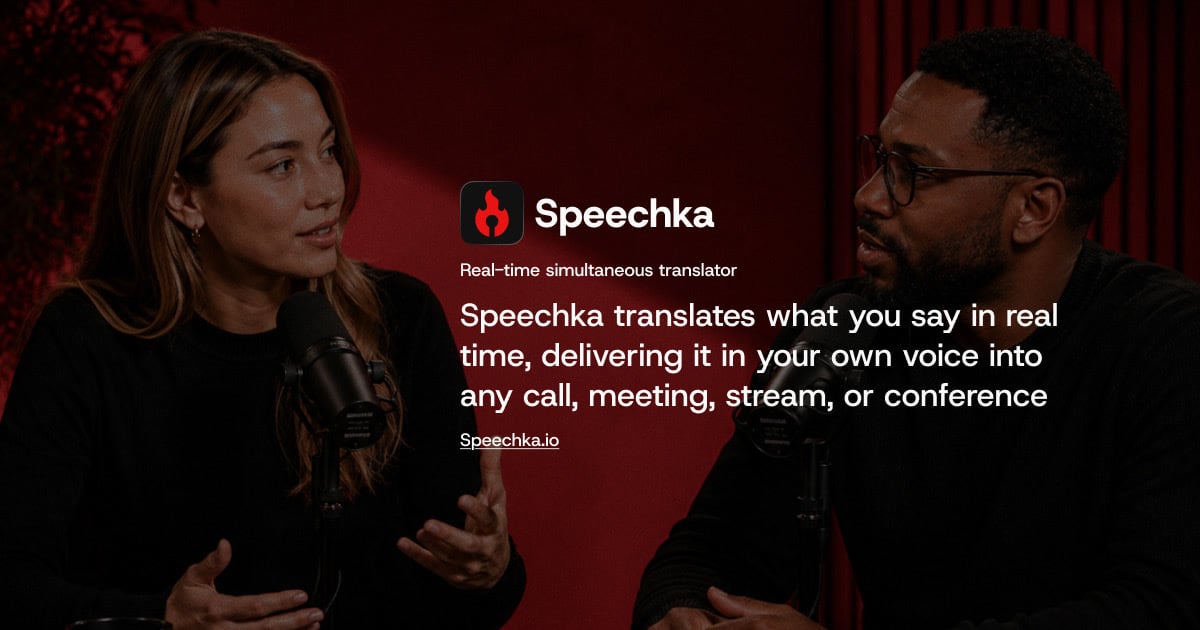
Speechka is a real-time voice translation app that lets you speak naturally in one language while others hear you in theirs. According to its website, Speechka translates what you say in real time and delivers it in your own voice into any call, meeting, stream, or conference. Rather than relying on captions, subtitles, or transcripts, it delivers translated speech as audio, spoken in your Personal voice. The product is aimed at anyone who communicates across languages live: people in online meetings, sales and client calls, livestreams, presentations, conferences, keynotes, workshops, classrooms, and international events. Speechka runs as a desktop application for macOS and Windows, and a limited version of the experience can be tried directly in the browser for free. The problem Speechka addresses is the friction that language barriers create in live conversation. Traditional solutions such as subtitles or transcripts shift attention away from the speaker, and less immediate approaches can turn a conversation into a series of delayed voice messages. Speechka's website frames the goal simply: once translation becomes part of the conversation, language stops getting in the way. It positions itself as built for conversations, not subtitles, translating live speech with natural timing so that conversations stay fluid. The site also notes that participants should not have to follow subtitles, repeat themselves, or rely on separate streams and dubbed recordings. At its core, Speechka provides real-time voice translation. You speak in your language while others hear you in theirs, and the company describes this as low-latency voice translation built for meetings, calls, conferences, and live conversations. Speechka listens, translates, and delivers every sentence in sequence, which the site says keeps conversations smooth, natural, and easy to follow. A related capability is ordered playback: every translated sentence is delivered in the correct order, which keeps multilingual conversations clear even when multiple people are speaking. The site also states that Speechka automatically handles pauses, sentence boundaries, and playback timing, so translated speech follows the rhythm of a real conversation rather than sounding fragmented. Together these mechanisms are meant to make translation feel like part of the exchange instead of an interruption layered on top of it. Personal voice is one of Speechka's most distinctive features. Instead of generic AI narration, translated speech preserves your identity and speaking style, so you keep your own voice, accent, and identity across every supported language. Setting it up involves recording a short voice sample—the interface allows recording up to 10 seconds of your voice, and offers a sample text you can read. After recording, you can listen to the sample and re-record it if needed, and you can remove or replace your voice at any time. Speechka states that every translation is spoken using your Personal voice, preserving your identity, speaking style, and natural accent across supported languages. The voice sample has its own language setting, and by creating a personal voice and using translation you agree to the Terms & Conditions and confirm that you have permission to use that voice. Speechka's context-aware translation is designed to understand complete ideas rather than individual words. By recognizing context, sentence structure, tone, and intent, the company says translated speech sounds natural instead of robotic or fragmented. Users can also choose between two quality modes. Faster is optimized for the lowest possible latency, making it suitable for fast-paced conversations, while High quality prioritizes the most natural voice generation and translation quality, which the site recommends for presentations, meetings, podcasts, and professional communication. Two listening modes are described in the FAQ: Listen Mode plays translated speech only for you through your headphones or speakers, while Broadcast Mode sends translated speech directly to other participants through your microphone, so they hear the translation while you continue speaking naturally. Getting started follows a simple three-step flow. First, you choose your languages—Speechka translates both ways between 44 languages. Second, you create your voice, which will be used for translation. Third, you start translation and can listen to the result in real time. The browser experience follows the same three steps and lets you hear how Speechka translates you before downloading anything, but free browser translation time is limited to 5 free minutes; after that, the site prompts you to download Speechka and complete your account to keep translating in real time. On desktop, Speechka integrates with the tools already in use, which the company describes as a seamless fit with existing communication tools. Because it works with virtually any application that accepts microphone input, the translation can flow into the same channels people already use. The stated benefits center on keeping conversations moving and preserving the speaker's identity. In online meetings, Speechka translates your voice in real time so everyone hears you in their own language, with no subtitles to follow and no need to repeat yourself. For presenters, the promise is to speak once and reach every room: present in your own language while Speechka delivers your voice to multilingual audiences in real time without interrupting the flow of the presentation. For streamers, Speechka translates your voice live for viewers around the world, so you can grow your audience without creating separate streams, subtitles, or dubbed recordings—every viewer hears the same content, naturally translated and spoken in your own voice. Speechka's site names several concrete scenarios. In online meetings, it covers daily stand-ups, client calls, and remote workshops where everyone can hear you in their own language. For conferences and events, it is described as perfect for conferences, keynotes, workshops, classrooms, and international events where clear communication matters more than language. Livestreamers use it to go live for a global audience on Twitch, YouTube, Kick, TikTok, or their own platform, and the site notes it suits livestreaming software as well. For professional communication, the High quality mode is recommended for presentations, meetings, podcasts, and professional communication, and the Pro subscription is described as designed for those who communicate across languages regularly, including sales calls and customer calls. Speechka works with virtually any application that accepts microphone input. The site explicitly lists Zoom, Google Meet, Microsoft Teams, Discord, Slack, OBS, Webex, browser-based meetings, and livestreaming software, and displays logos for Zoom, Google Meet, Microsoft Teams, Slack, Discord, and Webex. It is available as a desktop app for macOS and Windows (the site offers download links for Mac and Windows), and the browser experience is offered as a way to try real-time voice translation before downloading. Pricing is structured around credits. There is a 7-day free trial with 10 credits and no feature limitations, described as enough to experience real-time voice translation in real meetings, calls, presentations, or livestreams. The Pro subscription costs $19.99 per month and includes 180 credits every month. Additional credits can be purchased without changing the subscription: 60 credits for $9.99, 180 credits for $24.99, and 360 credits for $39.99. Questions and privacy requests can be sent to support@speechka.io. Speechka's core proposition is straightforward: speak naturally in your own language and be heard in someone else's, in your own voice. By combining real-time translation, ordered playback, context-aware processing, and Personal voice with support for 44 languages and compatibility with the communication tools people already use, it turns language from a barrier into something that simply becomes part of the conversation. For teams, presenters, and streamers who work across languages every day, that is the value Speechka sets out to deliver.
Edyt is a lightweight desktop application for Mac and Windows that adds AI actions to any text field. Select text anywhere, press a shortcut, and the result appears right where your cursor is. It is designed for people who write in many different applications—email clients, browsers, notes apps, chats, and documents—and who want help without switching windows, copying text into a separate tool, or breaking their flow. Edyt's stated purpose is simple: bring AI right where you write. The company describes it as an AI text assistant that works inside any app with an editable text field, on both Mac and Windows, with Ubuntu listed as the next platform. The problem Edyt addresses is that most writing assistance requires leaving the place where the writing actually happens. You copy text, open another app or a browser tab, paste it in, get an answer, and then copy it back. That interruption is especially noticeable when the text cannot easily be selected at all—a scanned PDF, a screenshot, or a shared screen. Edyt's tagline puts it plainly: AI for text you can't even select. By living inside the apps people already use, and by offering a way to read text from images on the device itself, Edyt aims to remove the copy-paste round trip and let people get an answer, a correction, or a better phrasing without leaving their work. The Rewrite action polishes tone, grammar, and clarity in place. According to Edyt, Rewrite keeps your tone and follows your instructions, so it is not limited to correcting mistakes—it can also adjust how something sounds while preserving the writer's voice. Proofread takes a different approach: every issue is flagged in place and grouped by kind on the left, so the user can see what kind of problems were found. The arrow keys move between issues, and Enter fixes one; users can also fix them all at once. The result remains editable—after typing, a Re-check catches anything new—and Insert pastes the text back in, formatted, right where it came from. The demo also shows a readability measure such as easy-to-read word counts. Alternatives is for moments when the phrasing is uncertain. After selecting text and pressing the shortcut, Edyt suggests several ways to say it. A Show another option produces a genuinely new alternative, never a repeat, and the user can move between options with the arrow keys and press Enter to open Insert or Copy. Explain, meanwhile, is built for understanding. Selecting text and pressing the Explain shortcut opens a panel with definitions on the left and the explanation on the right. A follow-up question keeps the conversation going, so users can dig deeper into the same passage without starting over. The product demos show this with technical language such as a SOC 2 Type II attestation being explained in plain terms. Translate lets a user select a message and render it in another language. The demo shows a chat in Spanish being translated into English, and the reverse workflow: select a message, pick the language, and insert the result into the reply box before sending. Edyt also lets users ask how to adjust a translation if it is not quite right. Use Prompt is the customization layer. Pressing its shortcut runs your last prompt right away. A library on the left lets you pick another prompt, and personalized prompts remember how you like things phrased. Asked to rewrite a weekly sync draft, the demo produced progressively stronger versions, and the Insert action drops the result straight into the document without retyping. Saved prompts run on anything you select and follow your account to every machine. One of Edyt's distinctive capabilities is reading text that cannot be selected. If the text is in a PDF, a screenshot, or on a shared screen, the user can hold Option (Alt) and drag over it. Edyt reads it on the device, using Apple's built-in recognition on Mac and the built-in Windows OCR on Windows. The image never leaves the device. On Mac this uses the Screen Recording permission, and only to capture the area you drag; Windows asks for no extra permission. Once the text has been read, the same actions apply—Proofread, Alternatives, Explain, Translate, and Use Prompt—so even a scanned lease agreement can be explained in plain language. Edyt follows a three-step pattern. First, select your text: highlight anything in any app, such as email, docs, or chats, with no copying and no switching windows. Second, press a shortcut: Ctrl+Shift+Space brings up the toolbar, and you pick the action you want. Third, get your result in place: Edyt calls the AI and drops the result right where your cursor is. Each action also has its own shortcut, and every shortcut can be remapped. Users can write their own prompts and organize them in a library from the dashboard. On privacy, Edyt states that text is sent over an encrypted connection for processing and then discarded—never stored, logged, or used to train AI models. The benefits Edyt claims are straightforward. It removes the need to leave your app or break your flow, and it works across the applications people already write in. It can handle text that cannot be selected, which most writing assistants cannot. It aims to preserve the user's own tone rather than replace it, and it offers a free plan that Edyt says is enough for most people, with no credit card required. There is also a stated privacy benefit: the text is discarded after processing, and screen text is read on the device so the image never leaves the machine. The demos on Edyt's site sketch several concrete scenarios. One is fixing a grammar-heavy message before sending it to a client. Another is proofreading a personal essay, where errors are flagged in place and can be fixed one at a time or all at once. A third is replying to a Gmail message when the phrasing is uncertain, using Alternatives to find a better way to say it. A fourth is understanding jargon in a work email—the SOC 2 explanation—and asking follow-up questions. A fifth is translating a Spanish chat message and replying in the reader's own language. A sixth is rewriting a weekly sync announcement in a clearer, shorter style. Finally, holding Option and dragging over a scanned lease agreement lets the user read the automatic-renewal clause and ask what it actually means. Edyt is aimed at people who write in many apps and want AI help without switching tools—knowledge workers, writers, and anyone who sends email, chats, or documents on a Mac or Windows PC. It runs on macOS 12.3 (Monterey) or later, on both Apple Silicon and Intel, and on Windows 10 or later, 64-bit, currently as a beta. It is distributed directly from the website rather than the Mac App Store, because reading and typing text in other apps requires macOS's Accessibility API, which does not work inside the App Store sandbox; the app is signed and notarized by Apple. Edyt is free to download and free to use, with generous daily, weekly, and monthly usage on the free plan and no credit card required. Pro removes the limits for unlimited use. In short, Edyt is a desktop AI text assistant for Mac and Windows that puts rewrite, proofread, alternatives, explain, translate, and custom prompts inside any app. It keeps the work in place, reads text you cannot select, and treats privacy as part of the design. Free to download and free to use, it is built for people who want AI right where they write.
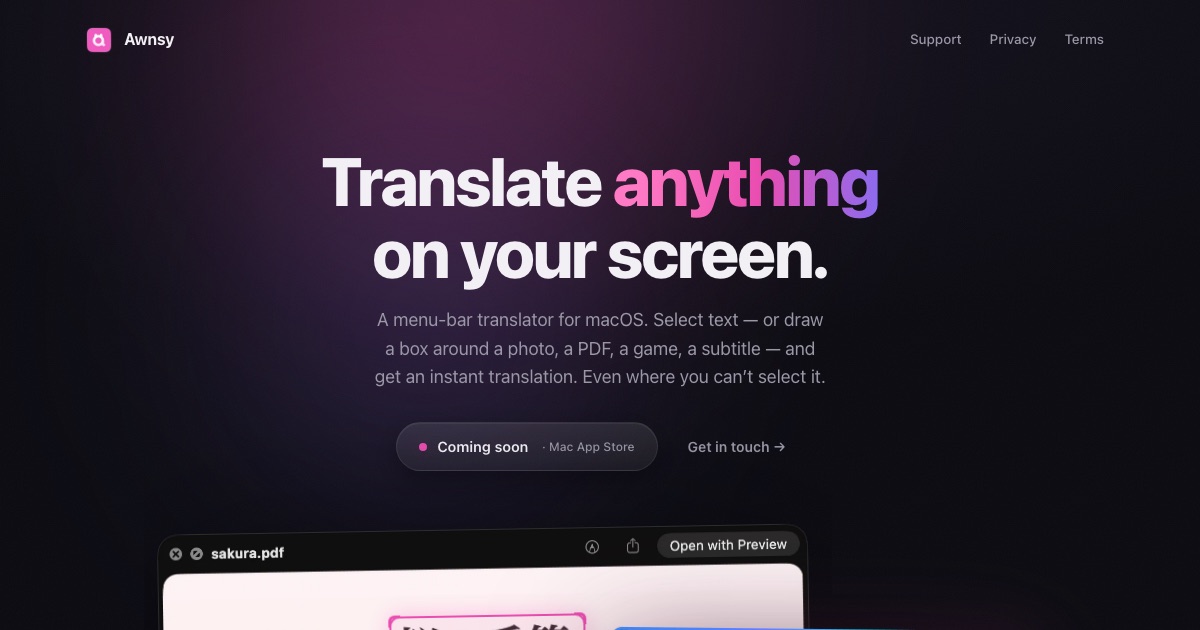
Awnsy is a small menu bar translator for macOS that turns one keystroke into an instant translation. You select text in any app, press ⌘C twice, and the translation streams in live right over the window you are working in. For text you cannot select — words inside images, videos, or apps that will not let you highlight anything — you drag a box around the area and Awnsy reads the screen itself. Its stated goal is to be everything a translator should do on a Mac, with the translation model living inside the app and running on your machine, so what you translate stays with you. Why a dedicated Mac translator? The everyday friction of reading something in another language is rarely the translation itself — it is everything around it. Copying text out of one app, pasting it into a browser, waiting for a cloud round trip, and then matching the result back to what you were reading all break the flow. Worse, much of the foreign text Mac users meet is not selectable at all: it is baked into a screenshot, a scanned PDF, a video frame, or an interface that simply refuses to be highlighted. Awnsy is built around the idea that translation should happen where the text already is, with no account to create, no API key to manage, and no telemetry. The product is positioned as a small app with serious reach: everything a translator should do on a Mac, plus a couple of things that require reading the screen rather than the clipboard. One keystroke, any language. Double-pressing ⌘C is the entire interface — or you can assign your own hotkey instead. As soon as it is triggered, the translation streams in live rather than appearing only after the whole request is finished, and the result is shown over the window you are already looking at, so you never lose your place. Inside that window you can switch the target language or change which translation model is answering, without opening preferences, signing in, or restarting anything. Awnsy describes this as "one keystroke, any language" — the point being that translation should feel like a reflex on the Mac rather than a separate task you have to go and perform somewhere else. Reads the screen itself. Plenty of the text you want to translate cannot be selected: words inside images, frames of a video, scanned PDFs, or applications that do not allow text selection. For those cases Awnsy uses on-device text recognition — you drag a box around whatever is on screen, and the app pulls the words out of the picture before translating them. Because recognition happens on the device, the content being read is not sent anywhere for that step, which keeps the same privacy posture as the built-in translation model and means the feature keeps working even when the machine is offline. Private by default, and your models if you want them. The built-in translation model runs entirely on your Mac — offline, with no account, no API key, and no telemetry — so what you translate stays on your machine. If you would rather have cloud quality, you can bring your own OpenAI or Anthropic key instead; that key is stored in your Keychain rather than sitting in plain text somewhere in the app's files. The model switcher lives in the same translation window, so choosing between the on-device model and your own cloud provider is a toggle rather than a setup project. Native and featherlight is not just a slogan here: Awnsy is written in pure Swift rather than Electron, lives in the menu bar, and never clutters your Dock. That architecture is what makes the rest of the product possible — a lightweight, always-available companion that can be summoned with a keystroke from inside whatever you happen to be doing, rather than a heavyweight application you launch and manage. The overall approach is a single, narrow surface: trigger with your hotkey, get a streamed translation over the current window, switch language or model inline if you need to, and dismiss it. There is no dashboard, no project setup, and no dedicated translation screen to learn. The outcome is translation that costs almost nothing in attention. You do not leave the app you are reading, you do not copy and paste into a browser, and you do not need an account or a key to get started — the built-in model is there the first time you double-press ⌘C. Because that model runs on your Mac and works offline, results are available in situations where a cloud service would not be: no connection, a locked-down environment, or content you would simply rather not send to a third party. And because text recognition covers material you cannot select, the same gesture handles a paragraph, a screenshot, a scanned document page, or a line of on-screen text inside a video. Concretely, Awnsy fits the moments where foreign text appears in the middle of other work. Reading a foreign-language article, help thread, or documentation page in a browser or a document, you select the passage and double-press ⌘C, and the translation appears over the page. Reviewing a scanned PDF, you draw a box around a paragraph because there is no selectable text to copy. Watching a video whose on-screen text you cannot copy, you box the frame and read it in your language. Looking at a screenshot, a chart, or a third-party app whose text resists selection, the same box gesture works. And on a plane, on a locked-down network, or simply offline, the built-in model keeps working. Awnsy is built for Mac users — the Product Hunt listing files it under Mac, Productivity, and Artificial Intelligence — and particularly for people who encounter several languages during the day and would rather not context-switch to handle them. It runs on macOS and is distributed through the Mac App Store, where it is free to download; the paid Awnsy Pro tier unlocks unlimited screen translation. The app is written in pure Swift and integrates optionally with OpenAI and Anthropic as bring-your-own-key providers, keeping that key in the Keychain. No account is required for the on-device mode. The takeaway: Awnsy compresses Mac translation into a single gesture. Select text, double-press ⌘C, read the result where you are — or draw a box when the text is trapped in an image, a video, or an app that will not let you select it. Offline and private by default, cloud quality optional with your own key, and native enough to stay out of the way in the menu bar.
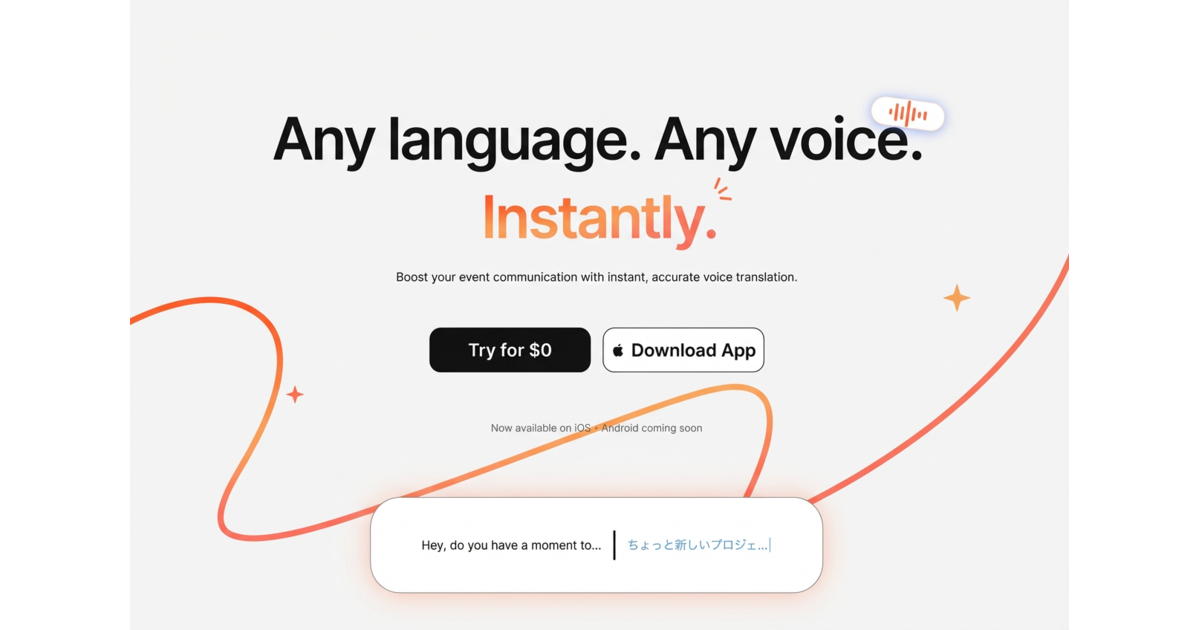
Saydi is an AI voice translation platform delivering real-time interpretation for meetings, events, and conferences. It supports 60+ languages with near-zero latency while preserving nuance and intent.

ScreenTranslate is a lightweight macOS utility that translates any on-screen text instantly. It works entirely on-device using Apple Vision OCR and Apple Translation for privacy and offline use.

Seagull captures audio from any app and translates it on screen in real-time. It provides magic captions for your entire desktop across meetings, podcasts, YouTube, and lectures.