Category Focus/categories/image
Image AI Tools
Discover and compare the best image AI tools and software. Browse 71+ curated tools with reviews and rankings.
Projects tracked
71
Sort mode
RECENT
Page
1
Travel Archive is a photo travel journal and map app that keeps your travels in one place. It brings the places you have been, the photos you took there and the notes you want to keep together on a personal map, so a trip is not just a folder of images but a connected record of where it happened. The app is available for iPhone, iPad and Android and is built for travelers who want to remember more than the view: you mark the countries, destinations and places you have visited, attach memories with a date, a note and images, and then design your own Travel Book to save or share as a PDF. Travel Archive is completely free, including creating and exporting PDF travel books, and there is no account to create. Most travel photos end up scattered across a camera roll, a messaging thread or a cloud folder, disconnected from the place that gives them meaning. A picture of a coastline is far more valuable when you can also see which destination it belongs to, what you wrote about it at the time and which other places you visited on the same journey. Travel Archive starts from the opposite direction: instead of a gallery you scroll through, it gives you a map and an atlas that grow as you mark where you have been, and it lets photos, dates and notes find their place on that map. The result is an archive that reads like a story rather than a storage folder, which is why the app describes every journey as deserving a place to live. The atlas is the backbone of the app. Your own world map grows with the countries, destinations and places you mark as visited, so you can see everywhere you have been at a glance and watch the map fill in over time. Alongside visited places, Travel Archive separates two other states: planned places, for trips that are already decided, and a wish list, for places you want to reach eventually. Keeping those three lists apart means your map is not only a record of the past but also a picture of what is next. The app draws on a large place database covering 206 countries and territories, 3,724 destinations and 67,994 places to discover. Memories are where photos become part of the archive. You can add a memory where it happened, or bring in older travel photos and confirm the place yourself, which means years of pictures taken before you started using the app can still be organized geographically. Each memory combines a date, a note and the images you love, so the context you had at the time is preserved with the photo rather than lost. When you import a photo, Travel Archive uses the metadata inside it to suggest where and when it was taken; if the location or date information is missing, you review the suggestion and select the place or date manually, and you may also need to check the photo access allowed in your device settings. Travel Book turns a journey into something you can turn the pages of. You bring a journey into a personal book, choose how the pages are arranged, then set its colors and appearance so the book matches the mood of the trip. Photos can be moved between pages and layouts and colors adjusted until the sequence reads the way you remember the journey. When the book is finished you save or share it as a PDF. A sample book, A Few Trips I Kept, shows what a finished result looks like at 29 pages. Travel Archive does not offer a printing or delivery service; the book is a digital object you customize and export, to keep or to share with the people who were there. Places give each location a page of its own. Open a place to read about it, mark a visit and find the memories you have saved there, so your photos stay connected to the place where they happened and a destination accumulates your history of it over time. Nearby discovery extends that idea forward: you can look around the map, find nearby places and learn a little before you go, then save a place for later or mark a visit when it becomes part of your story. That makes the map useful while traveling, not only after you return, and it connects planning, visiting and remembering in a single view. Travel Archive is built around a private, local-first approach. You use it without creating an account, your memories and photos stay on your device, and password-protected backups are made there too. There are no ads and no advertising profiles. Saved memories and downloaded destination maps work offline, which matters when you are traveling without reliable connectivity; new maps, place information and weather requests need an internet connection. For safekeeping you create a manual encrypted backup in the app's backup settings and keep the file and its password somewhere safe, because a lost backup password cannot be recovered and an archive the app does not hold cannot be restored. The benefit of that design is a travel record you actually own and can still read years later. Your atlas answers the simple question of where you have been, your memories keep the date, note and photos that give a place its meaning, and your Travel Book turns the whole thing into something you can look through, keep or share as a PDF. Because everything sits on your device and works offline for saved content, the archive remains usable on a plane, in a remote area or simply when you would rather not hand your travel history to an advertising business. Typical use begins with last summer's photos: you add them to the places you visited, note what happened and choose the memories that will go into your travel book. Someone planning a trip can build a wish list and a set of planned places, browse nearby places around the map and learn a little before going, then mark visits as they happen. A long-term user works backwards through older albums, confirming places by hand for photos whose metadata is incomplete, gradually filling in a personal atlas. Around a specific journey, the Travel Book becomes the final step: arranging pages, setting colors and exporting a PDF to share with the people who traveled along. Travel Archive is aimed at travelers, photographers and journal keepers who want a personal, private record of the places they have been rather than a social network for trips. It is available as a mobile app: iPhone and iPad on the App Store and Android on Google Play. The app is free, including creating and exporting PDF travel books, and it does not require an account. Support documentation and a privacy policy are published on the website. In short, Travel Archive is a place for every journey: a map that shows everywhere you have been, memories that keep photos tied to the places they belong to, and a Travel Book you design and export as a PDF. It is free, private by design, and works offline for the memories you have already saved.
cutbg is a free online collection of 27 image and PDF tools that run entirely inside your browser. Its stated purpose is to help people fit photos and documents to any upload form: if a form says "max 100 KB" or "600×600 px", cutbg makes the file fit. The toolkit covers compressing an image to an exact target size, resizing to fixed dimensions such as passport or LinkedIn presets, converting iPhone HEIC photos to JPG, stripping GPS metadata, removing a background, and merging, splitting or signing a PDF. No upload, no account and no watermark are required. Most online image tools upload your photos to a server in order to process them, which means your files leave your computer or phone before you get a result. cutbg explicitly does the opposite. The site explains that every tool runs entirely on your device using modern browser APIs, so images never leave your computer or phone. The stated consequences are real privacy, no file-size queues, and results in seconds. The product is framed around a very concrete everyday frustration: upload forms that impose strict limits on file size or pixel dimensions, and passport, ID or profile requirements that demand one exact size. Compression is organised around exact target sizes. Dedicated pages let you compress an image to 250 KB, 150 KB, 100 KB, 50 KB, 20 KB, 500 KB, 2 MB or 5 MB, which matches the limits commonly stated by upload forms. A general Compress Image tool shrinks JPG, PNG and WebP file size with no visible quality loss, according to the site. Alongside compression, resizing works from named presets: 3840 × 2160 (4K), 1920 × 1080 (Full HD), 1200 × 627 for a LinkedIn post, 1080 × 1080 for an Instagram post, 1080 × 1920 for an Instagram story, 600 × 600 for a passport photo, 512 × 512 for an icon or avatar, and 1024 × 1024 for a square avatar. A separate Resize Image tool accepts exact dimensions. Because each preset maps to a real destination — an ID photo, a social post, a profile picture — users do not have to guess the numbers. The conversion group covers an Image Converter that moves between PNG, JPG, WebP and more on your device, and a HEIC to JPG Converter that turns iPhone HEIC photos into JPG or PNG without uploading anything — useful when a form or app refuses to accept HEIC. A related cluster handles background and privacy. Remove Image Background cuts the background out of any photo, described as free and unlimited in the browser. Remove Image Metadata strips EXIF and location data from photos before you share them, while the EXIF Viewer shows the camera, date and GPS data hidden in a photo without uploading it, so you can check what a file reveals before deciding to clean it. Blur & Pixelate Image blurs or pixelates part of a photo to hide faces, plates and sensitive information. Cropping and geometry tools handle framing. Crop Image crops to any size or aspect ratio by dragging a selection in the browser. Circle Crop produces a circular image with a transparent background, aimed at avatars and profile pictures. Rotate & Flip Image rotates 90° or flips an image horizontally or vertically. The Instagram Grid Maker splits a photo into a 3×3 grid for an Instagram puzzle feed. Together these cover the common cases where a photo is the right content but the wrong shape. Eleven PDF tools make up the largest group. Image to PDF and JPG to PDF combine JPG or PNG images into a single PDF in the browser. Merge PDF combines several PDF files into one; Split PDF splits a document into single pages or pulls out a page range; Delete PDF Pages removes pages and keeps the rest; Compress PDF shrinks scanned and image-heavy PDFs. PDF to JPG converts every page to a JPG or PNG image, while PDF to PNG produces lossless PNGs described as crisp for text. Rotate PDF rotates every page and saves the file, Add Page Numbers stamps page numbers onto a PDF at a chosen position, and Sign PDF lets you draw a signature and place it on a PDF privately in your browser. Four utilities round out the set. Add Watermark stamps text over your photos to protect them, with controls for position, tile, color and opacity. Favicon Generator turns any image into every favicon size plus a web manifest. Image Color Picker lets you click any pixel to grab its HEX and RGB value. Image to Base64 encodes an image to a Base64 data URI that is ready to copy and paste. The distinctive approach is architectural rather than algorithmic: processing happens locally in the browser instead of on a remote server. cutbg attributes this to modern browser APIs and notes that because the heavy lifting happens on your device there is no server bill to cover. That in turn explains the business model — the tools can stay genuinely free. There is no sign-up, no watermark and no upsell wall. The site adds that bookmarked tools work offline once loaded. The only tracking mentioned is cookies used for anonymous analytics, and the site states that images are never uploaded either way. The practical benefits follow from that design. Files stay on your device, so sensitive material such as signed PDFs, photos carrying GPS data, or images containing faces and plates is not sent anywhere. There are no file-size queues, and the site promises results in seconds. Exact-size compression and fixed-dimension resizing remove the trial-and-error of getting under an upload limit. And because the tools are free with no account, there is no barrier to using them occasionally. Typical scenarios map directly onto the tools. Someone filling in a government or job form that caps files at 100 KB or 50 KB compresses a photo to that exact size. A passport or ID application needs a 600 × 600 photo, while a LinkedIn or Instagram post needs 1200 × 627 or 1080 × 1080. An iPhone user converts HEIC to JPG so a website will accept the file. A seller or journalist strips EXIF and GPS data, or blurs a face or licence plate, before sharing. An applicant merges PDFs, deletes pages, adds page numbers and signs the result. A developer generates favicons or a Base64 data URI. cutbg is aimed at anyone who has to make a file conform to a form or platform: people submitting applications and ID photos, social media users preparing posts and stories, privacy-conscious users sharing photos, and developers needing small utilities. Pricing is free — the site says "free forever" with no sign-up, no watermark and no upsell wall. The Product Hunt listing notes 27 tools, 17 languages, and that files never leave your device. The platform is the web browser, on computer or phone. In short, cutbg is a privacy-first, browser-only toolbox for making images and PDFs fit wherever they need to go — exact file sizes, exact dimensions, clean metadata and finished documents — without uploading anything, without an account and without paying.
Free online video downloader for TikTok, Instagram, YouTube, X, Facebook and 1000+ sites. Paste a link to save HD MP4 videos, MP3 audio, images, thumbnails and subtitles. No login, no app and no ads. Works on iPhone, iPad, Android and PC.
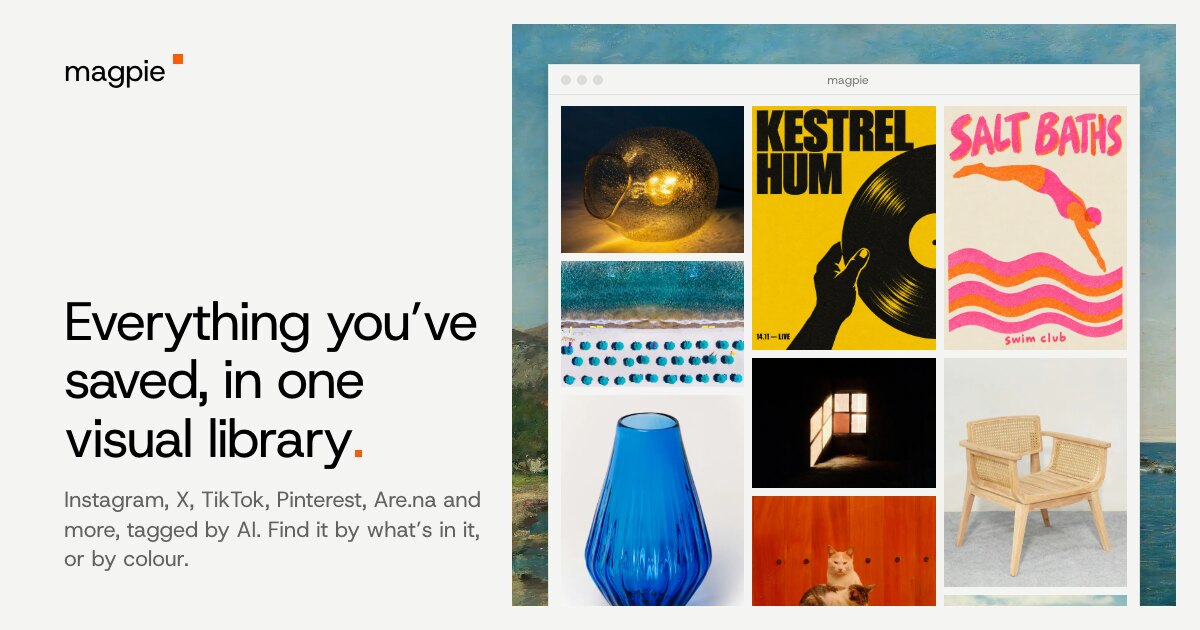
magpie is a visual library for everything you save online. It pulls your saves from Instagram, X, TikTok, Reddit, Pinterest, Cosmos, Are.na, GitHub, YouTube, Dribbble, Behance and your browser's bookmarks into a single place, then uses AI to tag them so you can find them by what's in them, or by colour. Its stated purpose is simple and direct: everything you've saved, in one visual library, so that the references you collect while browsing can actually be found again later instead of disappearing into separate apps and feeds. The problem magpie is built around is one most people who collect visual references know well. Saves end up scattered across many platforms, each with its own bookmarking gesture and its own search that rarely works on images. What you saved to Instagram lives in Instagram, what you pinned lives in Pinterest, what you bookmarked in your browser is buried in a bookmarks list, and none of those places can answer a question like "that photo of somewhere by the sea." On top of that, posts get deleted, accounts go private and content vanishes, which means the references people rely on for work can quietly disappear. magpie addresses both halves of that problem: it consolidates the sources and it keeps the save even when the post is gone. At the centre of the product is the unified library. The site describes saving from Instagram, X, TikTok, Reddit, Pinterest, Cosmos, Are.na, GitHub and your browser's bookmarks, with Chrome, Safari and Firefox represented alongside those sources, and the Product Hunt listing summarises it as saving from Instagram, X, TikTok, Pinterest, YouTube, Reddit, Dribbble, Behance, Are.na and the web. Rather than visiting each network to remember what you liked there, the library presents everything as a single visual collection. In the sample library shown on the site, that collection holds 265 saves consisting largely of design references: identity work, packaging, posters, typography specimens, photography and motion pieces, each labelled with the domain it came from. AI tagging is what makes that single collection usable. Every save is tagged by AI so that you can find saves by what's in them, rather than by whatever caption or title the original post happened to have. The site demonstrates this with a search for somewhere by the sea, which surfaces seaside imagery, and with a view of the saves that are mostly one of its blues, showing how colour functions as a first-class way to filter a library. Colour search is described as a way to find saves by colour, and it is presented next to meaning-based search as a paired way of navigating a large visual collection. A second search layer is the bar that sits over the library, labelled "Find, or ask for references." It can be reached with ⌘K, and the site notes that you can paste a link anywhere to add something new. Beyond plain lookup, the bar accepts a request in natural language: the demo types in references for a calm hardware launch. In response, magpie picks six saves from the library, gives a reason for each pick, and makes a project of them. That turns a passive archive into something you can interrogate, where the library proposes material from what you have already saved and explains why each piece fits the brief you typed. Browsing the library itself is supported by several views. The interface shown on the site includes Rows, Cells, Grid and Canvas as ways of arranging the same set of saves, with a control for zooming the grid in and out. Individual saves can be opened: the demo shows a video save opening and playing inside the library, and an Instagram collection of posters and prints being viewed as a group. Because saves are kept even when the original post is gone, the copy in the library remains available after the source disappears, which is the core archival promise of the product. The overall approach combines capture, automatic organisation and retrieval. Capture happens by pasting a link anywhere or by bringing in saves from your connected sources, including your browser's bookmarks. Organisation happens automatically through AI tagging, so nothing depends on you filing things correctly at the moment you save them. Retrieval then happens through three routes that the content demonstrates: searching by meaning, searching by colour, and asking for references in plain language and receiving a curated project with reasons attached. The result is a library that behaves like a visual memory rather than a folder tree. The stated benefits follow from those mechanics. You get one place for everything you save instead of many; you can find an image by describing it or by its colour rather than trying to recall its caption; and your saves survive deletion of the original post. For people whose work depends on accumulated visual references, the demo's calm hardware launch request illustrates the practical payoff: instead of scrolling back through months of saves, you type the brief and receive six relevant pieces with an explanation of why each one is there, already grouped into a project you can work from. Concrete use cases visible in the content include searching a library for somewhere by the sea; opening and playing a saved video directly in the library; filtering to the saves that are mostly a particular blue; browsing an Instagram collection of posters and prints as a set; and asking for references for a calm hardware launch, where magpie assembles six annotated saves into a project. The sample library itself is full of design material such as brand identities, packaging, type specimens, campaign films and photography, which reflects the kind of reference gathering the product is demonstrated with. magpie is available as a Mac download and through the web, where you can start for free. The Product Hunt listing files it under Chrome Extensions, Design Tools and Productivity, and the site's source list spans social and visual platforms alongside browser bookmarks. Its natural audience is people who collect and reuse visual references, particularly designers working with identity, packaging, typography, photography and motion, who need their saved inspiration to be searchable, colour-aware and permanent. The takeaway is straightforward: magpie turns scattered saves into one visual library that is tagged by AI, searchable by meaning and colour, answerable in plain language, and kept even when the post is gone.
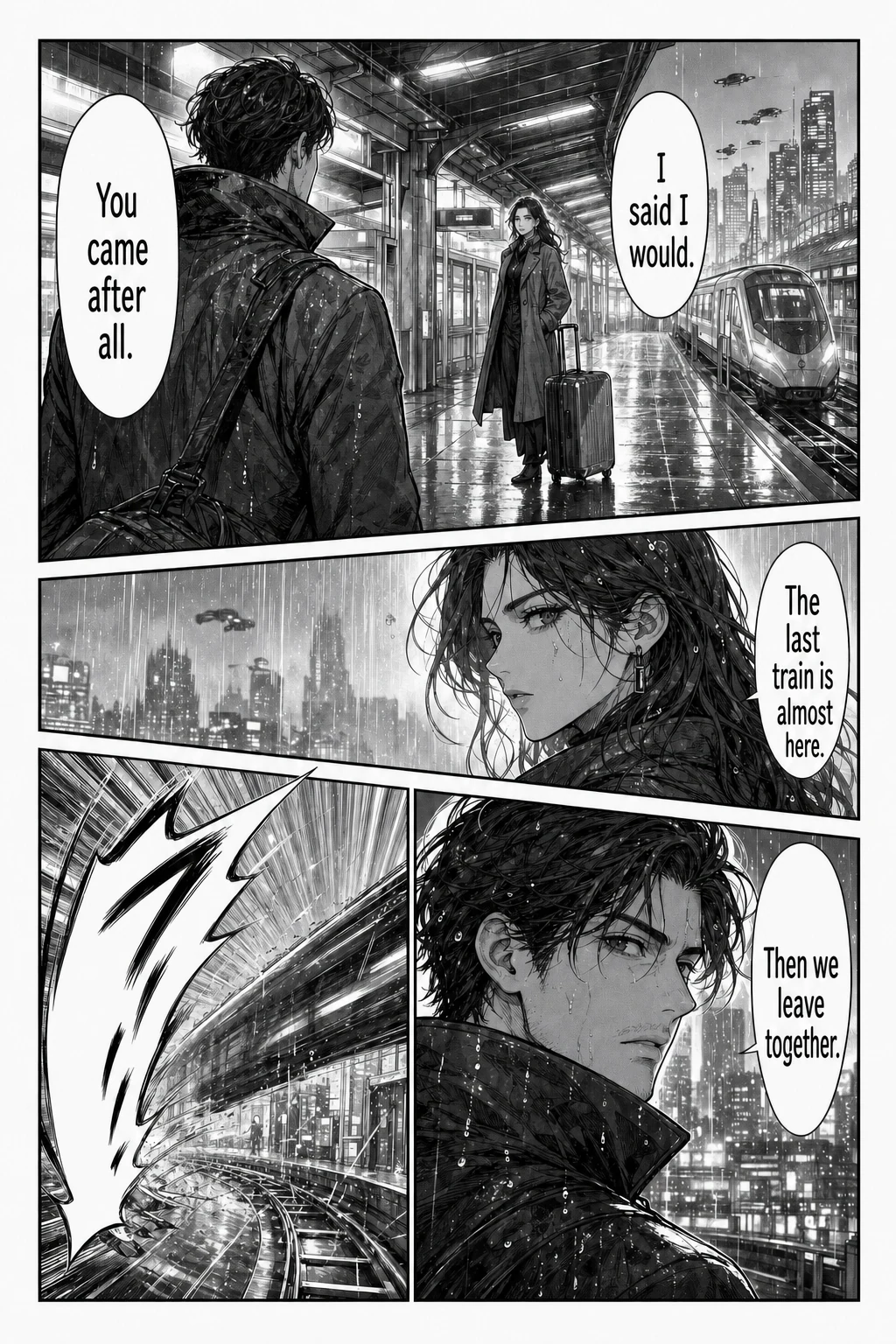
AI Manga Translator is an online tool at aimangatranslate.org that translates the text inside manga, manhwa and manhua page images and returns a translated page image. It detects speech bubbles and captions, erases the original lettering, and places the translation back onto the artwork, so readers follow the dialogue next to the panels instead of copying lines into a separate translator. It is built for people reading raw Japanese manga, Korean manhwa or Chinese comics who want the scene kept in view while they read. The alternative is taking a screenshot, copying a line, and then finding your place on the page again — work that only tells you what happens next after several manual steps. Copying dialogue line by line also means cropping every speech bubble by hand, and reading translations in a separate window makes it easy to lose track of who said what. Repeating the same steps across a chapter compounds the friction. Short replies are especially awkward, because the speaker, expression and previous panel may explain more than the words alone, and that context disappears once the text is pulled away from the artwork. The core single-page translator accepts a whole PNG, JPG, JPEG or WebP page up to 15 MB. You choose the reading language and upload the complete page rather than cropping individual bubbles; the returned image replaces the source lettering and aims to keep the panel art and layout. You can review the text and artwork before downloading. The website tools offer 133 reading languages, including English, Simplified Chinese, Japanese, Korean, Spanish, French, German and Portuguese, with the full list in the language selector. A local preview of a chosen file is available before you sign in, and the homepage recommends starting with a page that has ordinary speech bubbles and enough dialogue to judge whether the result is useful. The batch translator handles up to 20 separate page images at 15 MB each. You add the pages together, pick one target language once, and start the queue; you do not set up every page separately. Pages process in queue order, and you can open a finished translation while later pages are still processing, so you can start reading before the batch finishes. If a page fails, it shows its own error message and can be retried without losing the pages already completed — there is no need to restart the chapter. Completed pages download as separate images, and the browser may ask for permission for multiple downloads. For chapters that already exist as an archive, the CBZ translator takes one CBZ or ZIP of up to 100 MB containing up to 50 supported images, with a 15 MB per-image and 200 MB extracted-total limit. It sorts numbered filenames naturally, and once all selected pages finish, paid users can export an ordered CBZ or ZIP. Original archive metadata is not retained. A separate manga URL translator lets you paste links and import up to 20 pages without saving files first, which suits image URLs and plain webpages. PDF, CBR/RAR and EPUB are not supported directly, so documents and archives need to be organised into page files before upload. The Chrome extension covers manga you are already reading on a webpage. It works in Chrome and compatible Chromium desktop browsers: you install from the Chrome Web Store listing, sign in to the website with your account, choose a language, and translate accessible images already loaded on the page using your website account credits. Installation is free, translation uses credits and requires an internet connection. The extension offers 25 reading languages, compared with 133 in the website tools. Because it works on images already loaded on the page, nothing has to be downloaded and re-uploaded first. The Manga Cleaner is a related utility that does not translate. It accepts up to 20 images at 15 MB each and removes either bubble text or all detected text, exporting PNG or WebP files or a ZIP. That is useful when you intend to reletter a page yourself. Across these tools there is no built-in text editor for correcting or re-lettering translations after they are generated, no editable glossary, no OCR correction screen and no human proofreading, so corrections happen in your own editing tool. Every workflow uses the same page translation service. An account and sufficient credits are required to start a translation; each page costs 1 credit, and credits for failed pages are refunded automatically. Trial credits and free-account limits depend on the current account offer, and there is no unlimited free plan. Downloading translated images, cleaned images or archives requires a purchased one-time credit pack, starting at USD 4.99. There is no subscription, and purchased credits do not expire. Source images and translated results are stored for your signed-in account history, so returning to completed work does not depend on an unfinished local queue — and refreshing a running queue is discouraged. The tool returns a translated image to review and download; it does not promise that every word or piece of artwork will be unchanged. AI translation can misread names, miss context, or struggle with vertical text and stylized sound effects, and fine details or text over busy backgrounds may change. Clear images help, but no page is guaranteed to be error-free, and terminology is not guaranteed to stay consistent across a chapter. The comparison images on the homepage are illustrative examples of the interface, not live translation results, and the site recommends checking a page you know first and comparing important lines, names and tone against the original. Typical scenarios follow the sources the site lists. You have reached the latest chapter of a raw manga and the dialogue is still in Japanese, so you translate the page to follow what happens next. You have a whole chapter as image files or a CBZ or ZIP and want the pages back in order. You read on manga websites in Chrome and want pages translated without downloading them first. You have a link to an image URL or a plain webpage and want to import it directly. Or you need the text removed from a page so you can reletter it yourself. The site frames the product as a good fit if you want to read a raw manga, manhwa or manhua page with the translation placed on the artwork; if you have a chapter as images or a CBZ or ZIP and want the pages back in order; or if you read on manga websites in Chrome and want to translate pages without downloading them. It suggests looking elsewhere if you need direct PDF, CBR/RAR or EPUB import, a text editor for correcting or re-lettering translations after generation, offline processing, or unlimited free use without an account. In short, AI Manga Translator keeps the page and the dialogue together: you upload a page or a queue of pages, choose a reading language, and receive a translated image with the translation lettered back into the bubbles, priced per page with failures refunded and one-time packs that never expire. It is a reading aid rather than an edition-ready localisation pipeline, and the site is explicit that results should be reviewed against the original.
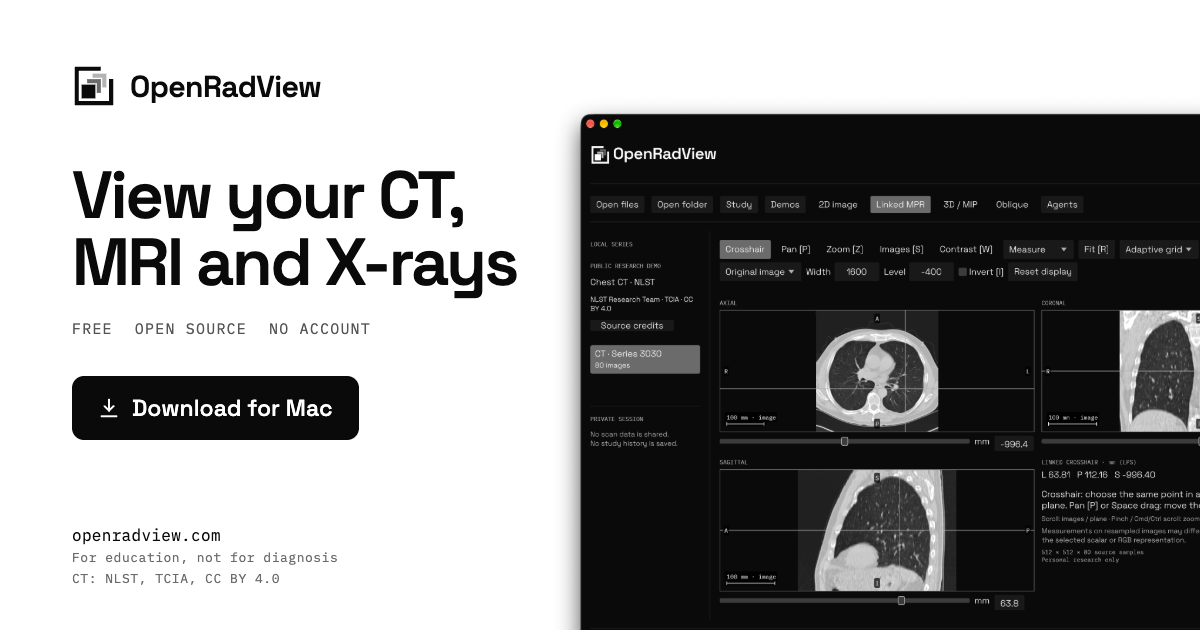
OpenRadView is a free, open-source desktop viewer for opening and exploring your own medical images on your computer. It is designed for CT, MRI and X-ray files, and it opens DICOM, NIfTI-1/2 and ZIP archives locally. The site describes it as a personal research project for education, not a clinically validated diagnostic tool. It is built for Apple Silicon and also runs on Linux, with Mac, Windows and Linux builds available from GitHub. No account is required, and the app does not upload scans or save study history. The product addresses a practical privacy problem: scan CDs and ZIP files often contain DICOM images that are awkward to inspect without sending them to a third-party service. OpenRadView keeps imports local, reads archives without extraction, and processes images on the computer. The site states there is no telemetry, analytics, account or scan upload, and no study history is saved. This matters for people who want to look at scans they own without creating an account or handing files to a cloud viewer. The app displays images without interpreting them; the site repeatedly says it is not for diagnosis and that a qualified clinician should interpret scans. File support is broad within the limits stated on the site. OpenRadView opens grayscale DICOM datasets including native, JPEG, RLE, JPEG-LS, JPEG 2000 and deflated data, plus 8/16-bit RGB/YBR and palette DICOM and native packed 8-bit YBR422. It reads NIfTI-1/2 as .nii, .nii.gz or paired .hdr/.img files, including gzip. Time points and vector/tensor components can appear as separate volumes, and complex data can be viewed as magnitude, phase, real or imaginary. Embedded RGB ICC profiles are converted to sRGB. Files, folders and ZIP archives including ZIP64 are supported, with up to 32 million samples per frame. The site lists unsupported formats such as RGB/RGBA or extended-precision NIfTI, legacy Analyze and alpha/enhanced DICOM palettes. For 2D images, the viewer provides window and level controls for grayscale contrast, with presets or manual window/level adjustment, plus pan, zoom and invert for supported color images. A reset restores the initial display. The site also mentions image information, scalar and RGB histograms, and pointer pixel values, so users can inspect display settings and pixel data. Series can be filtered by modality, series number or time/component label, and source images can play at a chosen speed; slow decoding reduces speed instead of skipping images. Users can export a local PNG and view settings for the completed pane without app overlays or labels, although identifying text may remain in the pixels. Linked MPR is a central viewing mode. It builds axial, coronal and sagittal planes from scalar or color volumes with consistent geometry, and one crosshair selects the same point in all three views. Users can move a plane with the Images control or arrow keys, which helps show how slices relate across planes. Oblique planes let users tilt a plane through a supported scalar or color volume and then step along it. The site notes that MPR, oblique and 3D views need consistent geometry, and that missing or invalid NIfTI geometry stays unlabeled in the 2D source grid. Values on resampled planes can differ from source images. 3D and maximum intensity projection views are labeled experimental. Scalar data has Source range and CT presets, while color data has brightness-based opacity and independent RGB maxima. Users can drag to orbit a projection of the same scan. Measurements include distance and angle where physical geometry is known, and rectangle statistics report scalar values or separate RGB channel codes. The site cautions that RGB maxima can combine colors from different depths, RGB codes are not physical tissue measurements, and volume views have a 512 MiB budget plus GPU limits. The decoded cache is bounded at 128 MiB, with codec and GPU allocations using additional memory. OpenRadView has no AI of its own and gives no opinion. Its optional agent feature is an MCP connection, so an agent the user already uses, on their own subscription or a local model, can see a view the user allows. MCP support is required. The workflow is explicit: a local MCP-capable client requests access, the app shows the series, tools and risks, and the user allows one series or reviewed views. Access can be revoked, changed to another series, or ended by quitting, but copies already sent cannot be recalled. Replies come from the agent, not OpenRadView, and the site says they are experimental AI commentary that can be wrong. Privacy controls are described in detail. All processing happens on the user's computer, with no telemetry, analytics, account or scan upload, and no study history saved. Automatic GitHub update checks are enabled by default and can be turned off on first launch or in Privacy → Updates. Checks send no scan data, but GitHub sees the IP address, app version and requested platform/architecture. Agent access only happens when the user approves a named session and its series or views and tools. A connected agent may send that data to its provider, and logs, retention and training depend on that provider's terms and settings. The stated benefits are educational and practical. The app is good for looking at scans you own on your own computer, seeing how contrast settings change an image, and understanding how slices form planes and a volume. Three public example scans ship with the app so users can try every view before opening their own files. It is explicitly not for diagnosis, screening, treatment or emergencies, not a replacement for a doctor or second opinion, and not for deciding whether to seek care. If urgent help is needed, the site says to contact local emergency services. Concrete use cases follow from those features. Someone with a scan CD or ZIP can open the files or folder locally and inspect the series without extraction. A user can load the bundled chest CT demo and move a linked crosshair through axial, coronal and sagittal views. On the chest X-ray demo, a user can drag to change window and level and then reset the display. A learner can tilt an oblique plane or orbit an experimental 3D/MIP projection. A user with an MCP-capable client can allow one reviewed series for their own AI agent, then revoke access. A user can export a PNG of the completed pane for their own records. The target user is someone who has their own CT, MRI or X-ray files and wants a local, account-free way to view them, plus learners who want to understand planes, volumes and contrast settings. The site stresses education and personal research rather than clinical use. Integrations are limited to optional local MCP clients such as Claude, Codex, Cursor and Grok on a subscription, or local models through LM Studio and Ollama paired with an MCP-capable client. Any client that supports local MCP servers works. Pricing is free and open source under GPL-3.0-or-later, with no account and optional update checks. OpenRadView's primary value is a free, local, open-source way to open and explore personal medical images without uploading them or creating an account. It combines DICOM and NIfTI support, linked MPR, 2D window/level, experimental 3D/MIP and measurements, with an optional MCP bridge to a user's own agent. It is explicitly educational, not diagnostic, and should be paired with a qualified clinician for interpretation.
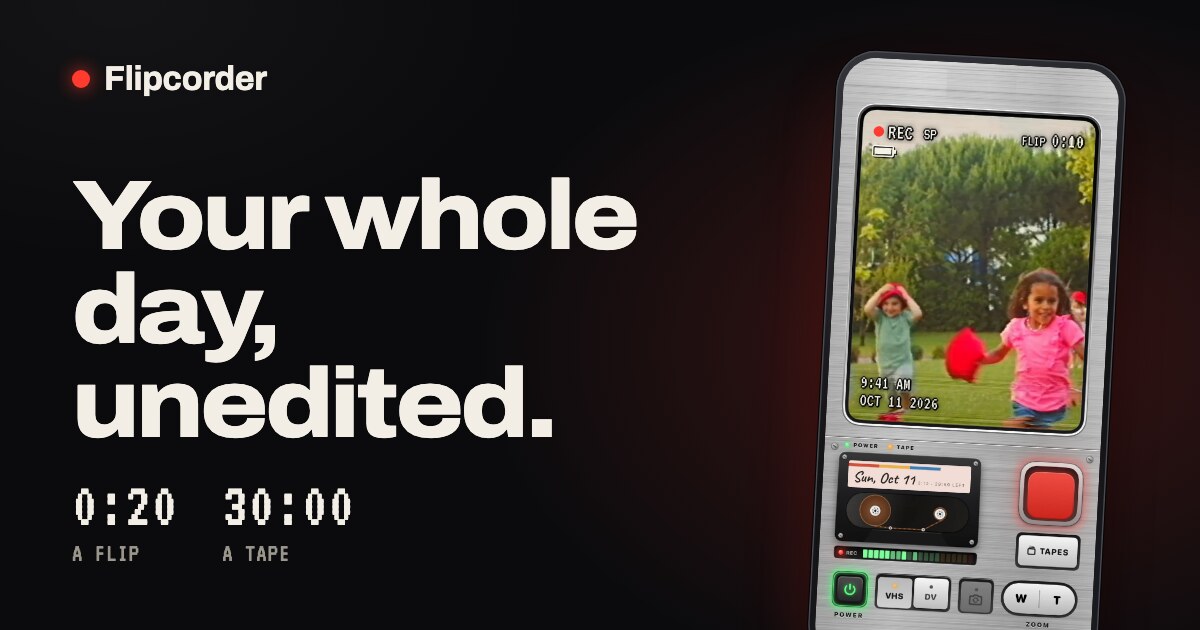
Flipcorder is a retro camcorder app for iPhone that turns the phone into a 1991 camcorder. It is built for catching small moments through your day rather than producing one polished video: you press record whenever something is worth keeping, film in short flips, and at the end of the day you get one raw film of your day to save or share. The app is made for iPhone Duo and works on any iPhone on iOS 26 or later, with the iPhone Duo extras requiring iOS 27.1. Its purpose is stated plainly on the site: film little moments all day, 20 seconds at a time, and nothing is edited out. The app exists as a reaction to how people now film. As the makers put it, we have lost touch crafting perfect videos for social media, and Flipcorder instead encourages you to take shorter flips of 20 seconds each throughout your day to enjoy as a home video at the end of the day. The site describes the product as being for catching small moments through your day, with no editing and nothing removed: the chatter, the pauses, and you fumbling for the stop button all stay in. The maker, Matt of Lotus Apps, describes it as the app he wanted for himself — as a dad, he wanted home video that feels real, with the chatter left in, and he wanted to build something for iPhone Duo. Turning the camcorder on is part of the experience. You press the glowing POWER key and the viewfinder warms up like an old TV; on iPhone Duo, opening the fold does it. The interface is styled as a camcorder body, complete with printed details such as “MADE BY LOTUS · AUTO FOCUS · Ø 52 · 8× ZOOM · 1 : 1.6 · f = 5.4 – 43 mm”, a lens-cap motif that reads “OPEN TO FILM” or “LENS CAP ON”, and a standby screen showing STBY with the time and date and today's cassette. Rather than a generic camera grid, the screen presents a flip counter such as “3 FLIPS · 0:52” and a red record key, so the shooting experience feels like operating a physical camcorder. Filming a flip is deliberately limited. By default, a flip stops by itself at 20 seconds, with a quiet countdown, so a moment is caught without the recording running indefinitely; the 20-second limit can be turned off in settings. You can also close the camcorder mid-flip, and the flip is saved before the camcorder powers down, onto today's tape. On iPhone Duo, the person you are filming sees themselves on the outside screen, in the same retro look, with a REC light so they know when to wave — a small detail that turns the filmed moment into a shared one. Every day gets its own tape, with a handwritten label, and a fresh one loads every midnight. A tape holds thirty minutes, and the app frames the limits as the fun: twenty seconds is enough to catch a moment and get back to your day, and thirty minutes is what a day's tape holds. If today's tape fills up, a flip that runs into the end is cut short and saved, never lost. Tapes accumulate on a tape shelf: a row of cassettes, one for each day, each labelled with its day or a name, showing how much is on it and whether it was saved in VHS or DV style, and you pick a tape to play it. The editing philosophy is the core of the product. There is no trimming, no cutting and no importing: every flip goes onto that day's tape in the order you filmed it, mistakes included. At the end of the day the day's tape can be saved to Photos as one film, and shared with a friend, a group chat, or wherever you like to post. The site's own description of the value is that the chatter stays in — the pauses and the fumbling for the stop button are part of the record rather than something to cut around. Flipcorder films clean video; the VHS or MiniDV look is a small extra you add when you save, so the same footage can be the clean HD original, VHS, or MiniDV. You can play a tape and switch between the three while it runs. The VHS look is described as softer and warmer, with color that bleeds, a tracking glitch that rolls through the picture and a white date stamp. Because the look is applied at save time rather than baked into the recording, one tape can be kept as a clean original and also saved with a retro look, and the time and date are stamped on every flip in the retro presentation. Privacy is handled by keeping everything on the phone. There are no accounts, no Flipcorder cloud and no tracking; videos stay on your phone until you save or share them. Every tape lives inside Flipcorder on your iPhone, one folder for each day, and they are included in your iPhone's backup. Copy new flips to Photos is off by default, so nothing goes to Photos unless you say so, and after you save a tape to Photos it is just a video in Photos. If the app crashes it can send a crash report, and it sends anonymous usage stats that can be turned off in settings; neither is linked to you and neither ever includes your videos. Getting to the camcorder quickly is supported in several ways. A widget shows today's tape as a cassette with a flip from today in its window; tap it and the camcorder opens ready to film, or today's tape opens in the player, and widgets read only a copy kept on your phone, with a “Show flips in widgets” setting that switches the pictures off. The Record control can be added to Control Center, the Lock Screen or the Action button, or you can ask Siri to “Record on Flipcorder”, or touch and hold the app icon and choose Record — any of them opens the camcorder on today's tape ready to go, and you still press REC yourself. Optional reminders offer a quiet morning nudge, an afternoon check-in while today's tape is still blank, and an evening note when it's ready to play; they are off until you turn them on and never count the days you missed. Flipcorder costs $4.99 once. There is no subscription, no watermark, no in-app purchases and no ads, and the site summarises it as one price with nothing locked. It works on any iPhone on iOS 26 or later, while the iPhone Duo extras need iOS 27.1. The app has been featured in WIRED, 9to5Mac, Stuff and The Mac Observer, and it reports being #3 in Top Paid Photo & Video on the US App Store. The maker is Matt of Lotus Apps in Knoxville, Tennessee, who has built software for other people since 2008 and started Lotus Apps in 2015. Coming later this year are a much more organized and useful library for when tapes start to fill up, and an Apple TV app. The site shows what the output looks like with six days saved as tapes, each a few short flips through one day saved as one tape: a picnic in the park, a family day from 10:12 in the morning to 5:58 pm; Sunday with the cats, a day at home with a black cat and a cream one from 10:04 in the morning to 6:05 pm; golden hour at the lake, an evening by the water from 5:10 pm to the sunset at 7:25 pm; Scout at the park, a collie at the park from 8:05 in the morning to the sunset at 6:12 pm; kitten nap day, a kitten asleep through the day with the time and date stamped on every flip; and zoo day, one Saturday at the zoo from 10:15 in the morning to a lioness at 4:05 pm, with a white tiger, a lion, giraffes and ostriches on the way. These examples show the intended workflow: shoot a few short flips as the day happens, then watch the day back as a single tape. Flipcorder's value proposition is that your whole day, unedited, becomes something you can watch back tonight. By keeping the limits — twenty seconds a flip, thirty minutes a tape, no editing — it removes the work of producing a video and leaves the record of the day, with the chatter and mistakes intact, saved as one film you can keep or share, with a retro VHS or MiniDV look available at save time if you want it.
SurgePix is an AI visual generator combined with a layer-based editor. The product's own description states that it generates images, decks, carousels and posters with AI, and then lets you edit every layer and export a finished, ready-to-publish result. The website frames the experience in three moves — dream it, edit it, call it. In practice that means a user can start from an idea, turn it into a visual with AI, refine that visual on an editable canvas, and either publish the result or reach the same capability from an external agent workflow. SurgePix is therefore aimed at anyone who wants AI-generated visuals but does not want to be stuck with a single, unchangeable output, as well as at teams that need their visuals to stay on-brand. The problem SurgePix addresses is stated directly in the product's own summary: most AI image tools stop at one-shot generation. A prompt produces a picture, and that picture is essentially final. If a word is wrong, a region does not fit, or the result drifts from the brand, the usual remedy is to regenerate the whole image and hope for a better outcome. That makes AI-generated visuals awkward to use in real publishing work, where an asset usually has to be corrected, adapted and matched to existing brand standards before it can go out. SurgePix is positioned as the step after generation — the part where a visual becomes a finished, publishable asset rather than a promising draft. SurgePix generates four kinds of visual output as named on the website: images, decks, carousels and posters. Covering several formats in one tool matters because these are the shapes that finished visual work usually takes — a standalone image, a multi-slide deck, a sequence of carousel panels, or a single large-format poster. Instead of treating AI generation as a one-off image experiment, SurgePix applies it to formats that are actually published. Each of these can be produced with AI and then moved onto the editable canvas, where the second half of the workflow — editing layer by layer — begins. The layer-based editor is the core of the product. SurgePix keeps a generated visual editable, so you can edit any layer rather than working on a flattened picture. That single design decision unlocks the specific actions the product advertises: swapping text inside the design, repainting a region, and adjusting individual elements while the rest of the composition stays as it was. For a user, this changes the nature of AI generation. The first output is a starting point rather than a final answer, and corrections are targeted instead of wholesale. When a headline needs rewording, you swap the text; when part of the image is wrong, you repaint that region. The rest of the visual is preserved. SurgePix also includes a brand kit, which the product describes as the way to stay on-brand. Brand consistency is usually the point where AI-generated visuals break down: the image looks good in isolation but does not match the brand's established look. By keeping brand assets in a kit and using them while editing, SurgePix makes it possible to bring a generated visual into line with existing standards instead of rebuilding it. Combined with layer editing and text swapping, the brand kit supports a workflow where AI supplies the composition and the user enforces the identity before anything is exported. The workflow closes with export. SurgePix's promise is a finished, ready-to-publish result — not a draft that still has to be taken into another design tool for cleanup. Once the layers have been edited, the text swapped, regions repainted and the brand kit applied, the visual leaves the product in a publishable state. That end-to-end framing is what distinguishes the product's positioning: generation, editing and export are presented as one continuous path, and the layer editor is the bridge between the AI output at the start and the finished asset at the end. The second route into the product is programmatic. SurgePix describes itself as agent-callable and offers open-source agent skills that let Claude Code and Cursor generate and edit visuals directly. The website puts it as calling SurgePix directly from your agent workflow, alongside the alternative of doing the work on the editable canvas. For developers, this means the same generation and editing capability can be invoked from inside the tools they already use, without switching to a separate interface. The product explicitly frames this as a way to skip the UI when that is preferable, and the skills are described as open-source. SurgePix also refers to a Designer Agent that turns ideas into visuals, and to an editable canvas where users make those visuals their own. The site's three-part summary — dream it, edit it, call it — maps onto this: the agent produces the initial visual, the canvas is where it is refined, and the call route is where the capability is reached from outside. Users are not required to pick one path permanently; the same visual work can begin inside the product or be requested from an agent, depending on how the person prefers to work. The practical benefit is control after generation. Because every layer remains editable, users can correct AI output instead of accepting or discarding it, and can adapt one visual direction to different messages by swapping text rather than starting from a new prompt. Region repaint keeps fixes local, so a single flawed area does not cost the whole composition. The brand kit addresses consistency, and export addresses completion. Taken together, these features are aimed at shortening the distance between an AI-generated idea and something that can actually be published — the gap the product says most AI image tools leave open. Concrete uses follow from the formats the product names. A carousel can be generated and then edited, with text swapped and regions repainted until the content reads correctly. A deck can start from AI-generated visuals and be refined on the canvas before export. A poster can be produced, brought in line with the brand kit, and exported as a finished asset. Teams that need on-brand output can apply the brand kit during editing rather than rebuilding assets. Developers can generate and edit visuals from Claude Code or Cursor through the open-source agent skills, keeping visual production inside their agent workflow. SurgePix is delivered as a web product — the site offers an entry point into the tool and an editable canvas — and it is also reachable from agent workflows, which is where the Claude Code and Cursor skills come in. Its stated audience skews toward people producing visual content: designers and creators working with images, decks, carousels and posters, and teams that care about brand consistency. The agent-callable route extends that audience to developers and technical users who would rather invoke the capability from their own environment than work inside a separate interface. The consistent theme across the product's own description is continuity. SurgePix does not present AI generation as the end of the job; it presents it as the beginning of an editing job that finishes with an exported, publishable visual. Images, decks, carousels and posters are generated with AI, every layer stays editable, text can be swapped, regions can be repainted, the brand kit keeps output on-brand, and the finished result is ready to publish. Users who prefer to work outside the interface can call SurgePix from Claude Code or Cursor through open-source agent skills. That combination — a real editor on top of AI generation, plus an agent-callable path — is the product's stated value proposition.
Reelsflow is an AI video and image studio built for short-form content. On its site, you describe an idea, upload an image or add a reference, and get a finished short-form video without cameras, editors or agencies. The product describes itself as an all-in-one AI video generation engine designed specifically for short-form content, creating high-retention videos from a prompt, an image or a reference, with neural scriptwriting, realistic AI voiceover, animated captions and cinematic music included automatically. It is aimed at creators, marketers and businesses who publish often — from solo creators to rapid marketing agencies — and it is designed for high-frequency video output. Content is created once in vertical 9:16 and is intended for TikTok, Instagram Reels, YouTube Shorts, LinkedIn, Facebook Reels and Pinterest. The site frames the core problem in terms of effort. Manual video production, it notes, costs the same effort every time: you write the script, find footage or film it, record or buy a voiceover, edit, cut and caption, then resize and export per platform. Automation, by contrast, costs you the idea — you type an idea or upload an image, pick a style and a model, then generate, review and download. Reelsflow also emphasizes that no camera is required: no filming, no editing, no agency. That matters for creators who want to test more ideas, keep a steady posting rhythm and spend their time on what works rather than on repetitive production work. Every video begins the way you think, with three starting points. Text to video takes a described idea, story or lesson and has Reelsflow generate the script, select scene visuals, add a dynamic voiceover and finish the captions, with automatic neural script generation, cinematic visual scene prompts and 5, 10 or 15 second vertical renders. Image to video brings a still photo to life — portraits, Midjourney renders or product photography — adding fluid motion, camera sweeps and voice, with start and end frame control, positioned as ideal for listings, menus and ads. Reference to video maintains the same character face, costume or artistic style across multiple clips so an episodic series looks like one unified cinematic world, and helps build recurring brand mascots. Reelsflow bundles several AI models in one studio. Seedance 2.5 and 2.0 offer fluid movement that holds together from first frame to last, with fast and mini variants for rapid drafts, support for both prompt-to-video and start/end keyframe interpolation with consistent character persistence, up to 4K Ultra-HD and fluid physics. Veo 3.1 Fast is described as cinema with native environmental sound, with volumetric lighting, realistic lens depth of field and optional synchronized native audio, up to 4K with 35mm lens emulation. Kling V3 Pro focuses on humans and characters that feel genuine, with natural micro-gestures, believable facial expressions, voice control and retained clothing details and accessories across camera moves. Grok Imagine is the rapid concept tester for high-speed motion drafts at the lowest credit cost. For images, Nano Banana generates within 3 seconds and supports natural language edits to clothing, lighting, background or camera angle, while GPT Image 2.5 targets sharp, clean typography for YouTube thumbnails, book covers and ad creatives up to 4K. Gemini Omni Flash and MiniMax H3 Max are also built in, and model access depends on the pack purchased. Alongside video, an image studio produces thumbnails, posters, ad creatives and scene starters in seconds with Nano Banana and GPT Image, with examples including cinematic posters, YouTube thumbnails, character designs, photorealistic ads, sci-fi scenes, fantasy concepts, product showcases, anime illustrations and scene starters. The text-to-image workflow includes a neural brief expander that turns raw thoughts — the site's example is "cat astronaut" — into a photorealistic director brief, with square 1:1, 16:9, cinema and 4K master framing options. Voice and captions are handled automatically: six narrator styles are offered (Documentary Narrator, Storyteller, High-Energy Hype, Friendly Business, Dark & Suspense and Calm Explainer) in multiple languages and accents, with captions that animate in time and cinematic music included. Overall the pipeline is summarized as Idea → Script → Scenes → Voice → Captions → Export. For channel launches the site suggests a four-step path: pick an evergreen niche you can talk about for months (History, Wealth, Horror, Anime, Tech); batch generate by inputting seven hooks so the engine writes scripts, voices narrator audio and builds scenes; post consistently by downloading watermark-free 9:16 videos and scheduling daily across TikTok, Reels and Shorts; then scale and monetize by doubling down on top-performing hooks, qualifying for Creator Funds and selling digital products. Creation runs through Text Studio, Image Studio and Reference Studio, matching the three starting points. Reelsflow markets speed and simplicity: videos in minutes rather than hours, no camera required, and content sized for YouTube Shorts, Instagram Reels and TikTok. A comparison table positions it against subscription tools, single-model apps and manual editing across payment model, top AI models, script/voice/captions, images and video, cost if you skip a month, and scheduling. The FAQ states that exported videos are watermark-free and come with full commercial rights for YouTube monetization, TikTok Creator Rewards, Instagram sponsorship deals and client projects. Every new user receives free generation credits on registration so the scriptwriter, voice generator and rendering quality can be tested before purchasing any credit pack. Sample niches show concrete workflows: faceless channels in history, finance, horror and motivation with narrated stories and cinematic visuals and no one on camera; anime and stylized worlds with illustrated characters and dramatic scenes kept consistent across every episode; and serialized content (part one, part two, part three) that reuses a style and characters so followers know what to expect. For businesses, restaurants, salons, gyms and agents turn offers into reels, and image-to-video animation suits product listings, menus and ads. Agencies produce client content at a pace that fits their margins, brands test creative angles quickly across feeds, and coaches and educators turn lessons, podcasts and threads into short videos. Pricing is organized as one-time credit packs rather than subscriptions. Starter costs $19 for 5,000 credits and includes Gemini Omni Flash, with estimated maximums of 20 ten-second videos or 166 images. Growth costs $49 for 12,500 credits, adding Grok Imagine and MiniMax H3 Max, with about 50 videos or 416 images. Studio costs $99 for 25,000 credits and adds Veo 3.1 Fast, Kling V3 Pro and Seedance, with about 100 videos or 833 images. Figures are estimates based on spending the full balance on 10-second Gemini Omni Flash 360p videos or Nano Banana images, vary with the model, resolution, duration, audio and settings chosen, and are not a guaranteed quota. Credits are valid for 30 days from purchase and do not roll over, and prices are in USD. There is no auto-renewal, no stored cards charged on recurring loops, and users recharge as they go. An interactive credit estimator recommends a pack from monthly video needs. Scheduling and automatic publishing are listed as coming soon, with a weekly content calendar and one-click publishing in progress; today users generate videos and images, download them and post them themselves. In short, Reelsflow's proposition is a single studio where one idea becomes a publish-ready vertical video — script, scenes, voice, captions and export — using a choice of leading video and image models on a pay-once credit model instead of a recurring subscription.
GlossPage is an iPhone and iPad app that translates the text on a page and keeps the page around it. It works with manga, comics, books, PDFs and any app screen: you open or capture a page, GlossPage translates the text inside it, and you can read the translation or see both languages together. The product is built for readers who want to read material in their own language without losing the artwork, layout or reading structure of the original. According to the site, it is available in selected App Store regions, runs on iOS and iPadOS 26 or later, and requires no account. The problem GlossPage addresses is the gap between an original page and a readable translation. Readers of manga, comics, books and PDFs often end up jumping between pages or searching for the matching passage when they want to compare an original against a translation. Text inside apps is harder still, because some of it cannot be copied at all, so translating it would normally mean retyping it somewhere else or changing your workflow. GlossPage's approach is to translate the page itself — its text blocks, speech bubbles and reading structure — and then place the translation where it belongs, so the material stays readable in its original context instead of being pulled out into a separate document. Comic and Webtoon translation is the feature the site leads with. GlossPage detects speech bubbles and text regions across Manga, Webtoons, manhwa, manhua and comics while preserving the artwork around them. Rather than flattening a page, it locates where text sits and treats each region as something to be translated and placed back into position. The site's sample pages show original speech bubbles and translations side by side, which illustrates the intent: the artwork keeps its composition and the translation lands where the text actually was. Books, scans and PDFs get a similar treatment with an emphasis on structure. GlossPage translates scanned books, documents and PDFs while keeping page structure visible, and the page can adapt to keep original and translated passages aligned when translations need more space. Translations rarely match the length of their originals, so this layout adaptation is what keeps a translated book page readable instead of overflowing. Because original and translated passages stay aligned, the bilingual mode remains usable across longer documents rather than only short snippets. Bilingual reading is central to the product. GlossPage places translated blocks beside their originals so you can read both languages together without searching for the matching passage. The site describes reading original passages and their translations together, comparing each passage as you read, without jumping between pages. After translation you choose how to read: Translation, Original or Bilingual mode. Translation shows the translated page, Original keeps the source page, and Bilingual mode presents both together so you can follow every line against its counterpart. Screen translation extends the app beyond files. Using Back Tap, the Action Button, Shortcuts or the Share Sheet, you can translate content from any app without copying text or changing your workflow, including text you cannot copy. Capture routes listed on the site include importing an image, a book scan or a PDF, grabbing a Webtoon from Safari, or capturing any app screen with Back Tap or the Action Button. The Local plan also lists a Safari Webtoon Grabber Extension for pulling a Webtoon from Safari. GlossPage splits translation between on-device and online. GlossPage Local translates privately on the device, while GlossPage Pro adds higher-quality online translation for longer pages and harder text. The site states that source images and PDFs stay on your device, and that online translation sends recognized text blocks. That distinction matters for readers handling personal documents or licensed material: the source file does not leave the device, and only recognized text is transmitted when online translation is used. History and export keep translated pages together. Source images and PDFs stay on your device, and every plan includes unlimited translation history so translated pages and documents are kept in a library. Pro adds recognized, translated and bilingual text plus Markdown exports from PDFs, and the plan details also list plain-text and Markdown export from PDFs. Local removes watermarks. The library shown on the site includes search along with document and image filters, so saved translated pages can be found again later. The workflow runs in four steps. First, open or capture: import an image, book scan or PDF, grab a Webtoon from Safari, or capture any app screen with Back Tap or the Action Button. Second, GlossPage understands the page: OCR finds the text while page analysis identifies text blocks, speech bubbles, illustrations and reading structure. Third, the translation fits the content: GlossPage translates each block and places it where it belongs, and for books and documents the page can adapt to keep original and translated passages aligned. Fourth, read your way: choose Translation, Original or Bilingual mode, save translations to history and export supported documents with Pro. The practical benefit is that reading material in another language stops requiring a second window, a separate document or a manual copy-and-paste step. Comics keep their artwork and bubbles, books and PDFs keep their page structure, and app screens can be translated in place without leaving the app you were using. Bilingual mode lets a reader check a passage against the original immediately, which is useful for verification and for following a text closely rather than trusting a translation blind. Because history is unlimited on every plan, translated pages accumulate into a personal library instead of disappearing after a session. Concrete use cases follow directly from those features. A reader following a manga or manhwa chapter can translate a page and keep the artwork intact. Someone working through a scanned book or PDF can read original and translated passages together on the same page. A person browsing a Webtoon in Safari can grab it into the app through the Safari extension on the Local plan. Anyone stuck on text inside an app that cannot be copied can capture the screen with Back Tap, the Action Button, Shortcuts or the Share Sheet and read the translation without switching workflows. And a reader comparing versions of a text can use Bilingual mode to move passage by passage. GlossPage runs on iPhone and iPad and requires iOS or iPadOS 26 or later, with no account required, and is available in selected App Store regions. Pricing starts with GlossPage Free at $0 forever, offering unlimited on-device image translation in the app, local PDF translation at 10 pages per day, Shortcuts and Back Tap at 15 per day, and unlimited translation history. GlossPage Local is $19.99 per year, or $1.99 per month or $0.99 per week, with unlimited local image and PDF translation, bilingual mode, unlimited history, Shortcuts and Back Tap, the Safari Webtoon Grabber Extension and watermark removal; a Local Lifetime option is $24.99 as a one-time purchase at the U.S. launch price through October 30, 2026, rising to $39.99 from October 31. GlossPage Pro is $49.99 per year, or $5.99 per month or $2.99 per week, adding online image and PDF translation with a weekly allowance and plain-text and Markdown export from PDFs, with 5× the Welcome Pass weekly online credit for PDF pages and photos. Eligible new installs receive a 7-day Welcome Pass with limited online credit, and the site notes that Pro online translation uses a weekly allowance and is not unlimited, that weekly, monthly and yearly subscriptions renew automatically unless cancelled, and that Local Lifetime covers local features only, without online translation or Pro text exports. In short, GlossPage's value proposition is translation that stays inside the page it came from: manga, comics, books, PDFs and app screens translated on iPhone and iPad, with bilingual reading, private on-device translation and a history that keeps everything together.