Category Focus/categories/writing
Writing AI Tools
Discover and compare the best writing AI tools and software. Browse 128+ curated tools with reviews and rankings.
Projects tracked
128
Sort mode
RECENT
Page
2
Discover and compare the best writing AI tools and software. Browse 128+ curated tools with reviews and rankings.
Projects tracked
128
Sort mode
RECENT
Page
2
ToneBird is an AI reply assistant for Mac and Windows that drafts replies inside the apps you already type in. It is built around three things the product states on its site: it understands your relationships, what you have already said, and where you left off. ToneBird brings in the person you are talking to, earlier conversations, and relevant facts so you can pick up where you left off, and it drafts the next reply in your voice in Gmail, Slack, and the other supported apps. You review the draft and send it yourself, using your app's own send button. ToneBird is positioned against the moment of being stuck on words: the site's headline promises that you don't have to be stuck on words again. The everyday problem it addresses is that a good reply depends on context that lives outside the reply box: what you promised someone last week, the price you agreed in a proposal, and whether this is the first time a customer has raised an issue or the second. Without that context, people either leave the conversation to build a giant prompt, explain the backstory, and bring the output back, or they keep postponing the reply. ToneBird is designed around keeping that context available so the assistant can help without requiring a full briefing every time. That context is relationship-specific: a client waiting on a deadline needs a different reply from a teammate checking in, and ToneBird adjusts the wording accordingly. The core of the product is relationship memory. While drafting, ToneBird recalls knowledge relevant to the person and the thread and shows it in the draft; the examples on the site include "David asked for a checkpoint" and "Sam's scope changed last quarter." It uses earlier conversations when drafting a reply, including the date you promised to confirm. It also uses facts from your files: when a client asks for the agreed price, ToneBird finds it in your connected proposal and includes it in the draft, and the site's example pulls $2,400 for the full package out of a client proposal PDF. Person cards hold the running context for each contact, such as the note that Sam's renewal follows last quarter's scope change and that he needs options he can get approved, and you can add a fact to a person manually. ToneBird is equally focused on keeping your voice intact. It adjusts tone for each person using your past conversations with that person, rather than producing one generic rewrite. The tone profile has sections for About Me, Style and Context, with sliders the site shows set to Directness 60, Formality 40 and Warmth 50, plus a written instruction such as "Keep replies concise." Saved presets appear as Internal, General, External and Casual, covering lines such as a separate quote, a renewal over coffee, a checkpoint at 3 PM, or a casual Thursday at 4. When ToneBird drafts, it offers three replies so you can compare them; you tweak the one you want and insert it. Tweak options include More Precise, Warmer and Add Humor. Using ToneBird follows three steps. First, open a reply and open ToneBird by clicking the orb or pressing Option twice on Mac or Ctrl twice on Windows. Second, pick a reply by clicking the arrows or using the left and right arrow keys to choose among the suggestions. Third, edit and insert: tweak if needed, insert the draft, then review and send. Insert only places the draft in your reply box; ToneBird does not send messages for you, and you use your app's own send button. Supported apps listed on the site include Gmail, Slack, WhatsApp, iMessage, Discord, WeChat, Lark, X, Reddit, LinkedIn, Instagram and Google Chat. ToneBird works beside readable reply fields, so support depends on the app and the field you are typing in, and some fields may not be readable. ToneBird also learns from the way you write. "Keep what you learn" lets you review facts and writing preferences from the conversation and choose what to save. A learned style such as "Clear dates first. Scope discussions second." can be applied from a message you wrote to David, and a learned fact such as "A checkpoint with David is due at 3 PM today" can be applied to your About Me context, with Apply and Dismiss options next to each. Because your projects, commitments and saved preferences are already available, you can skip the introduction and start the next conversation without re-establishing who you are talking to and what the relationship involves. Beyond single replies, ToneBird helps you track what the conversation still owes. "See what needs a reply" brings promised quotes, unanswered questions and dates to confirm into one follow-up list, organized as tasks from your replies with All, To do and Done views; the site shows 9 tasks, 5 to do and 4 done. Each task is attributed to the person and the app it came from, such as sending David the revised quote via Gmail, confirming the delivery date with Sam via Slack, sending Chen the tracking number via Gmail, or adding discussion points to the meeting notes via Lark. From reply to follow-up, ToneBird can also schedule meetings from your chats: once you have agreed on a time, it prepares the event in Apple Calendar or Google Calendar from the conversation, and you check the details and confirm. ToneBird is designed to travel across apps and languages. Reply suggestions are based on your conversation and appear right in the reply box, so you get help with wording without switching apps or moving the text somewhere else. The site lists English, Español, 中文 and 日本語 among its languages, and shows a Gmail example where ToneBird drafts a Spanish reply to a customer who cannot export a monthly report, apologizes for the repeat issue, commits to checking workspace permissions and sending findings and next steps before 4 PM, and provides an English translation alongside the draft. Privacy is framed as control over what is remembered. Your tone profile, person cards, learned corrections and usage counts live on your device, and you can export or delete them any time in Settings. Conversations can reach an AI provider: the model provider receives the context and instructions needed for your reply, and with a managed model ToneBird forwards the request, while with your own model key the writing requests go directly to that provider. There are four plan tiers. Free costs $0 and includes 15 uses every day and 30 contacts. Standard costs $9.90 per month, billed monthly, with 100 uses every day and 100 contacts. Pro costs $39.90 per month, billed monthly, with 1,000 uses every day and 1,000 contacts. Enterprise is custom pricing for your team, with custom daily usage and custom contacts. Annual billing saves about 20 percent, and the product is free to start. Concrete scenarios from the site show how this plays out. A manager messages in Slack that he needs the launch plan by Friday after already slipping once; ToneBird recalls that David asked for a checkpoint and drafts a reply committing to the core launch plan by Friday with a checkpoint at 3 PM today. A customer in WhatsApp says the renewal increase is higher than expected and he is not sure he can get it approved; ToneBird recalls that Sam's scope changed last quarter and drafts a reply proposing to work through the renewal over coffee near his office, which then becomes a calendar invite for Thursday at 4 PM near Sam's office. A customer writes in Spanish in Gmail that the monthly report export still fails for the second time; ToneBird drafts a Spanish reply and supplies an English translation. A client asks what price was agreed, and ToneBird pulls $2,400 for the full package from the connected client proposal. After a second nudge on a slipped deadline, ToneBird offers several ways to tell David that a firm date will be confirmed tomorrow, and a differently worded update for a teammate who just wants a quick answer. ToneBird runs as a desktop app with downloads for Mac and Windows. It is aimed at people who answer a lot of messages and need each reply to fit the person and the history behind it: people replying to managers, teammates and customers inside Slack, Gmail, WhatsApp and other chat and email apps they already use, including teams that need custom daily usage and contacts on the Enterprise plan. ToneBird's value proposition is narrow and specific. The product is about the reply, not the first draft of a document, and it is the relationship behind the reply that makes the draft useful. By recalling what you have already said, what you promised, and what lives in your connected files, and by adapting the wording to the person while preserving your voice, ToneBird reduces the friction that makes people postpone a response, and it keeps the final decision to send in your hands.
Edyt is a lightweight desktop application for Mac and Windows that adds AI actions to any text field. Select text anywhere, press a shortcut, and the result appears right where your cursor is. It is designed for people who write in many different applications—email clients, browsers, notes apps, chats, and documents—and who want help without switching windows, copying text into a separate tool, or breaking their flow. Edyt's stated purpose is simple: bring AI right where you write. The company describes it as an AI text assistant that works inside any app with an editable text field, on both Mac and Windows, with Ubuntu listed as the next platform. The problem Edyt addresses is that most writing assistance requires leaving the place where the writing actually happens. You copy text, open another app or a browser tab, paste it in, get an answer, and then copy it back. That interruption is especially noticeable when the text cannot easily be selected at all—a scanned PDF, a screenshot, or a shared screen. Edyt's tagline puts it plainly: AI for text you can't even select. By living inside the apps people already use, and by offering a way to read text from images on the device itself, Edyt aims to remove the copy-paste round trip and let people get an answer, a correction, or a better phrasing without leaving their work. The Rewrite action polishes tone, grammar, and clarity in place. According to Edyt, Rewrite keeps your tone and follows your instructions, so it is not limited to correcting mistakes—it can also adjust how something sounds while preserving the writer's voice. Proofread takes a different approach: every issue is flagged in place and grouped by kind on the left, so the user can see what kind of problems were found. The arrow keys move between issues, and Enter fixes one; users can also fix them all at once. The result remains editable—after typing, a Re-check catches anything new—and Insert pastes the text back in, formatted, right where it came from. The demo also shows a readability measure such as easy-to-read word counts. Alternatives is for moments when the phrasing is uncertain. After selecting text and pressing the shortcut, Edyt suggests several ways to say it. A Show another option produces a genuinely new alternative, never a repeat, and the user can move between options with the arrow keys and press Enter to open Insert or Copy. Explain, meanwhile, is built for understanding. Selecting text and pressing the Explain shortcut opens a panel with definitions on the left and the explanation on the right. A follow-up question keeps the conversation going, so users can dig deeper into the same passage without starting over. The product demos show this with technical language such as a SOC 2 Type II attestation being explained in plain terms. Translate lets a user select a message and render it in another language. The demo shows a chat in Spanish being translated into English, and the reverse workflow: select a message, pick the language, and insert the result into the reply box before sending. Edyt also lets users ask how to adjust a translation if it is not quite right. Use Prompt is the customization layer. Pressing its shortcut runs your last prompt right away. A library on the left lets you pick another prompt, and personalized prompts remember how you like things phrased. Asked to rewrite a weekly sync draft, the demo produced progressively stronger versions, and the Insert action drops the result straight into the document without retyping. Saved prompts run on anything you select and follow your account to every machine. One of Edyt's distinctive capabilities is reading text that cannot be selected. If the text is in a PDF, a screenshot, or on a shared screen, the user can hold Option (Alt) and drag over it. Edyt reads it on the device, using Apple's built-in recognition on Mac and the built-in Windows OCR on Windows. The image never leaves the device. On Mac this uses the Screen Recording permission, and only to capture the area you drag; Windows asks for no extra permission. Once the text has been read, the same actions apply—Proofread, Alternatives, Explain, Translate, and Use Prompt—so even a scanned lease agreement can be explained in plain language. Edyt follows a three-step pattern. First, select your text: highlight anything in any app, such as email, docs, or chats, with no copying and no switching windows. Second, press a shortcut: Ctrl+Shift+Space brings up the toolbar, and you pick the action you want. Third, get your result in place: Edyt calls the AI and drops the result right where your cursor is. Each action also has its own shortcut, and every shortcut can be remapped. Users can write their own prompts and organize them in a library from the dashboard. On privacy, Edyt states that text is sent over an encrypted connection for processing and then discarded—never stored, logged, or used to train AI models. The benefits Edyt claims are straightforward. It removes the need to leave your app or break your flow, and it works across the applications people already write in. It can handle text that cannot be selected, which most writing assistants cannot. It aims to preserve the user's own tone rather than replace it, and it offers a free plan that Edyt says is enough for most people, with no credit card required. There is also a stated privacy benefit: the text is discarded after processing, and screen text is read on the device so the image never leaves the machine. The demos on Edyt's site sketch several concrete scenarios. One is fixing a grammar-heavy message before sending it to a client. Another is proofreading a personal essay, where errors are flagged in place and can be fixed one at a time or all at once. A third is replying to a Gmail message when the phrasing is uncertain, using Alternatives to find a better way to say it. A fourth is understanding jargon in a work email—the SOC 2 explanation—and asking follow-up questions. A fifth is translating a Spanish chat message and replying in the reader's own language. A sixth is rewriting a weekly sync announcement in a clearer, shorter style. Finally, holding Option and dragging over a scanned lease agreement lets the user read the automatic-renewal clause and ask what it actually means. Edyt is aimed at people who write in many apps and want AI help without switching tools—knowledge workers, writers, and anyone who sends email, chats, or documents on a Mac or Windows PC. It runs on macOS 12.3 (Monterey) or later, on both Apple Silicon and Intel, and on Windows 10 or later, 64-bit, currently as a beta. It is distributed directly from the website rather than the Mac App Store, because reading and typing text in other apps requires macOS's Accessibility API, which does not work inside the App Store sandbox; the app is signed and notarized by Apple. Edyt is free to download and free to use, with generous daily, weekly, and monthly usage on the free plan and no credit card required. Pro removes the limits for unlimited use. In short, Edyt is a desktop AI text assistant for Mac and Windows that puts rewrite, proofread, alternatives, explain, translate, and custom prompts inside any app. It keeps the work in place, reads text you cannot select, and treats privacy as part of the design. Free to download and free to use, it is built for people who want AI right where they write.
thestory.run is a web app that coaches employees to write their own LinkedIn posts. It is described as a writing coach for corporate influencers — the people who post under their own name at work. The coach asks one question at a time, helps you find the story inside a rough thought, and hands you a structure to write into rather than a draft to approve. It never writes the post and it never rewrites your words, so what you publish is what you wrote. You can start on your own and bring your team when you are ready. The product exists because its makers believe we stopped writing. Its site quotes the question 'Why would I write if AI can do it for me?' and answers with three stated problems. AI slop is real: 81% of long-form posts on LinkedIn are likely AI-written, and the personality is gone even when the AI 'has your voice.' Too busy to think: it is not that you have nothing to say, it is that nobody asked you the right question about it. People use AI wrong: let it write for you and you slowly lose your own voice and the ability to put a thought into words. The stated belief is that AI is here to support humans, not replace them, and that you should leave the edits to AI and be the superstar. The core of the product is a single coached writing session that takes you from a messy thought to a finished post. The demo walks through three steps: share a rough thought, talk it through, and write it yourself. You drop in raw thoughts — the example given is 'a lot of teams confuse doing a lot with progress' — and the coach asks about it one question at a time rather than producing text. In the sample conversation the coach replies, 'That's an interesting observation, I bet you've watched it play out somewhere specific. What did that look like?' The writer answers with what they actually noticed, and the coach reflects it back, uncovering the point the writer does not yet see. The same session is shown as plain text, so the exchange stays readable and the thinking stays yours. Once your thoughts are out, the coach lays out the arc that helps you tell the story: open on the moment, name what is really going on, then the pivot. In the example these become 'Open on the moment — the room where everyone says we're making progress, and your quiet but are you, really?', 'Name what's really going on — momentum as a hiding place,' and 'The pivot — defining a goal means saying no, and that's the scary decision teams avoid.' Then you write it yourself, and the coach turns editor. It marks what carries the post and what to try. Two examples are given: 'Keep · your spine — the whole post in six words. Let it stand,' and 'Move · your opener — sharper than the meeting scene. Open on it.' Moves are applied reversibly — the coach moves your opener to the top, and you can undo anytime. The post is labelled 100% you, 0% coach. Between the posts, thestory.run keeps the week moving so you never have to guess what to do next. A weekly to-do shows what is on at a glance — for example one post on leadership and shaping a team culture idea you saved. Daily reflections deliver a nudge from your coach in the form of a question, such as 'What have you changed your mind about in remote work?', with a link to answer it directly. A posting streak and an activity calendar track activity — the sample shows five weeks in a row — with achievement stickers such as one for posting on every topic, described as keeping you accountable without guilt. Drafts are surfaced with their topic and status, such as 'nearly there' or 'a few lines in', so you can finish them while they are hot. For teams, corporate influencing is presented as a team sport. Most people start alone, but it works when the whole company shows up on the same theme. Campaigns let an admin set a theme and a window — a hiring push, a launch, a conference — and the coach folds it into everyone's week as something to draw on; nobody gets handed a post to write. The team calendar shows who is posting, on what, and which days nobody has taken, so the team can spread out instead of everyone publishing on Tuesday. Wins let people share what landed, if and when they want to, and colleagues cheer; watching a colleague's post open a real door is what gets the next person writing. Crucially, your drafts, your ideas and your conversations with the coach stay yours — not your teammates', not your admin's, not your boss's — and that is enforced in the data layer rather than hidden in the interface. Teammates see coordination only: who is posting on which topic, on which day, and the wins a person chose to share. Cheat-mode is the one exception to the rule that thestory.run never writes for you. You activate it yourself on a piece you have already started, and the coach writes it from what you brought: your rough thought, your conversation, the lines you kept, the arc you agreed on, and a few of your own published posts so it can hear how you write. It spends one of a small monthly allowance — one cheat for every four posts in your plan, never more than three a month. The resulting post is marked permanently as coach-written and does not count toward your progress. Publishing stays under your control. thestory.run posts to LinkedIn only if you ask it to, on a post you have already written and read; it never writes the text and never publishes anything you have not pressed the button on. You can also publish by hand and simply tell the app that it happened. Once you have published a few posts, the coach can hear how you write and ask for more of it. The company is explicit that thestory.run is not an employee advocacy platform and not an AI ghostwriter. An employee advocacy platform hands employees a pre-written post to reshare, so every share sounds like the marketing department; thestory.run hands nobody any words, coaching each person to write their own post in their own voice, with teams coordinating through shared topics and a calendar instead of a content queue. thestory.run is free forever for teams of five people or fewer, with no credit card, no trial clock and no feature gates. From the sixth person it is pay as you go: 1 euro per coaching session plus tax, and nothing else. People, channels and every feature are included either way — you only ever pay for coaching. Prices are in euros, and at checkout you can pay in your own currency instead in over 150 countries; Stripe does the conversion at its own rate, which carries a small currency fee, and paying in euros is always an option if you would rather avoid it. The product is aimed at people who post under their own name at work, sometimes called corporate influencers: founders, salespeople, recruiters, engineers and experts. It is operated by Swat.io GmbH in Vienna, Austria, under the GDPR and the Austrian Data Protection Act, and runs in the European Union, with the privacy policy and the data processing agreement published on the site. Swat.io is the social media management tool behind it — fifteen years, fifty people, no investors — used by more than 18,000 people and the team behind social media for 1,700+ brands, with one calendar for everything that goes out and one inbox for everything that comes back. Corporate influencing runs in there too, next to the company's own posts rather than in a separate tool; thestory.run is the other half, the coach that helps a person find and write the post in the first place. thestory.run exists to put the writer back in charge. Rather than generating posts that a human then edits, it asks questions, marks the strong lines you already wrote and offers a structure to write into, so the finished post sounds like you because you wrote it. Free for teams of five or fewer and priced per coaching session beyond that, it combines a coached writing session, a weekly rhythm of to-dos and reflections, and lightweight team coordination — campaigns, a team calendar and optional wins — while keeping every draft and conversation private to the writer. Its primary promise is simple: less AI slop, more people who write authentically.
Jevtown is a social network where people write and 10,000 AI personas read. You post a text, a listing, a product or a headline, and within seconds the town reacts: most scroll past, some like, repost, block, write to the seller or buy. The English-speaking town is described as having 10,002 residents, and the site also shows a saved example labelled "the Ukrainian residents", so posts are read by computed residents rather than by real people. Nothing about the product requires an account — the site states there is no sign-in — so a writer can move from typing a post to seeing reactions without creating a profile, connecting an account or publishing anything anywhere. The product positions itself as a way to find out how an audience responds to a piece of writing before that writing is released. Writing for an audience is usually a blind exercise. A headline, a second-hand listing or a product description goes live, and only afterwards does the writer learn whether people stopped, scrolled past, doubted it or bought — by which point the first impression has already been spent. Jevtown's stated purpose is to move that feedback loop in front of publication. The Product Hunt description puts the cost of finding out in concrete terms: a weak text dies for half a cent, so a failed test is cheap and private, while a text that earns approval reaches everyone in 14 seconds. For sellers in particular, the difference between a listing that reads as trustworthy and one that reads as a scam is often a matter of wording, and the site demonstrates that directly by showing one iPhone listing written two ways. The town is not a flat audience. A post starts with a small cohort — the description says the 600 residents it should matter to see it first. Only if more readers were glad than annoyed does it reach the next 1,500, and from there it can go on to the full town. That staged distribution is the core mechanic: the feed acts as a filter that must be earned, so a text that fails to please its first cohort stops there, while a text that lands keeps travelling. The site's own feed of sample runs shows the outcomes of that process as wave sizes — posts display 600, 2,100, 5,100, 10,001 and 10,002 people reached, with the largest waves attached to posts that collected far more glad reactions than sorry ones. The Product Hunt description summarises the fastest outcome: a good text reaches everyone in 14 seconds. Every run returns a breakdown that goes well beyond a like count. Jevtown reports who stopped, liked, reposted or blocked a post, sorted by interest, job, age, city and budget. Individual residents are shown with their first name and initial, age, job and city — for example a repost attributed to "Zoe, 20 · student, New York" or a purchase attributed to "Iryna, 37 · copywriter, Dnipro" — next to the action they took. The reaction vocabulary used across the site includes scrolled past, stopped, glad, reposted, sorry, wrote to the seller, smelled a scam, bought it and clicked, with headlines reported using stopped and clicked rather than glad and sorry. Because the numbers can be watched as they develop, the site offers a Replay control, and the public feed offers Latest and Travelled furthest views alongside a running total shown as 148 texts seen 260,005 times. For listings and products the feedback is qualitative as well as numeric. Jevtown surfaces the questions buyers would ask a listing first, and it separates out the residents who took commercial action. In the demonstration listing, 2,100 personas saw the post, 142 wrote to the seller and 6 smelled a scam, and the listing went into a second wave and reached 2,100 personas. A writer also chooses the visibility of a submission — to the public feed or by link only — and a post's text is capped at 2,000 characters, which keeps submissions the length of a real social post, a listing description or a headline. The same sample record shows how one iPhone listing was written two ways, the first version offering details and payment on inspection and the second demanding advance payment only, which makes the trust cost of wording visible in the reactions rather than in hindsight. Products can additionally be tested against price. The price ladder lets a writer enter several prices — the interface shows a set in ₴, $, € and £, allows naming a few and accepts another price — and everyone who stops at the product is asked for the highest of those prices they would pay. The result is a demand curve: how many buyers each price gets and which one earns the most. This is a distinct form of testing from the copy question above, because it tests the offer rather than the sentence, and it gives a product writer a way to compare price points using reactions from the same residents who read the post. The overall approach is simulation rather than publishing. Instead of putting a text in front of a real audience and waiting, Jevtown computes a fixed population of AI residents with their own interests, jobs, ages, cities and budgets, lets them read in waves, and reports their behaviour as a feed would. That design produces the two things the product leads with: a fast, cheap answer to whether a piece of writing works, and a demographic map of who it works for. The English-speaking town is given as 10,002 residents, a saved example is labelled "the Ukrainian residents", and persona cities shown on the site include Lviv, Dnipro, Zhytomyr, New York and Boston, with prices accepted in hryvnia, dollars, euros and pounds. Whether the submission is a text, a listing, a product or a headline, the reading, the wave logic and the reporting stay the same. The practical benefit is that a writer can see the shape of a reaction before it costs anything real. The Product Hunt description frames the value in terms of price and speed: a weak text dies for half a cent, and a good one reaches everyone in 14 seconds. Alongside that, the product answers questions a writer would otherwise have to guess at — who stopped rather than scrolled past, whether buyers would write to the seller, which residents were glad and which were sorry, which questions a listing invites first, and how demand shifts as a product's price changes. Because no sign-in is required, there is no setup cost to getting that answer, and because posts can be kept to a link, the test can stay private. Use cases are illustrated directly by the site's own feed. A seller testing a second-hand iPhone listing can compare a "details, pay on inspection" version against an "advance payment only" version and read how many personas wrote to the seller and how many smelled a scam. A marketer can post a headline and see how many residents stopped and how many clicked. A builder can post a product with a price ladder and see how many buyers each price attracts and which price earns the most. And any writer can post a plain text — the feed shows runs ranging from one-line posts to opinions, announcements and memes — and watch which wave it reaches, from 600 residents up to the full town. The product is aimed at people who write to be read: sellers and marketplace listers, marketers testing headlines and copy, builders describing products and price points, and writers posting text to a feed. Product Hunt lists Jevtown under Writing, Marketing and Artificial Intelligence, and the site's feed mixes English and Ukrainian content, with the English-speaking town singled out at 10,002 residents. The product's own pitch repeats the same core mechanics — computed residents, staged waves, reaction breakdowns, the questions buyers would ask first, and a demand curve over a price ladder — rather than any additional modules. Jevtown's core promise is simple to state and repeated throughout the site: publish a text, a listing, a product or a headline, and find out who in a town of 10,000 computed residents stopped, was glad, reposted, was sorry, wrote to the seller or bought, in seconds and without signing in. A weak text dies for half a cent; a good one reaches everyone in 14 seconds.
slop-grader is a rule-based command-line interface (CLI) tool that evaluates documents against custom rulesets, producing a document score together with line-by-line flags. It is explicitly designed to guide auto-fixing with an AI agent: the flagged output includes prompts and instructions that can be pasted directly into an agent so the agent can draft sharper copy. The maker describes it as a tool that checks any text document against rules such as English grammar, German grammar, and AI filler detection, and it lists three immediate uses: catching AI filler in launch copy, stripping buzzwords from landing pages, and scoring narrative flow in launch emails. It is an open-source tool that requires Node.js on your machine and an account with either TypeSafe or OpenRouter. slop-grader speaks directly to a common side effect of AI-assisted writing. When launch copy, landing pages, emails, or other documents are drafted or polished with large language models, they often carry a recognisable residue of filler, buzzwords, and unexamined narrative flow. slop-grader is positioned as a way to detect that residue before a document ships. Crucially, it does not simply rewrite the text for you: it scores the document against a ruleset and marks the individual lines that fail, which is a lighter and more reviewable intervention. A commenter on the launch summarised the appeal of this approach, noting that the line-by-line flags are a useful touch because they make it much easier to see exactly what needs fixing instead of rewriting the whole document. The tool ships with rules that work out of the box, including English grammar, German grammar, and AI filler detection. Beyond those built-in checks, the maker emphasises that the real power comes from creating custom rules for your own use case, and these rules can be written in plain language. The examples given include SEO checks, legal clauses, and tone of address, such as keeping the German informal "Du" versus the formal "Sie" consistent throughout a document. Because the rules are user-authored and expressed in everyday language, the same tool can be adapted to very different kinds of content review without changing the underlying program. To help users get started, a built-in skill is provided in the project repository at skills/create-slop-grader-rules/SKILL.md, which is intended for creating custom rules. Rules in slop-grader are framed as questions, and those questions can be evaluated in two different scopes. Some rules are applied line by line, such as "Does this line make a promise that requires a legal disclaimer?" Others are applied across the entire document, such as "Does the opening earn the reader's next 30 seconds?" This dual scope means the tool can police both local wording problems and broader structural or narrative qualities. The maker notes that once you have built a curated ruleset for your use case, it can be a very powerful tool. In a reply to a commenter asking how the tool handles words that are considered buzzwords in one industry but normal in another, the maker's answer was simply that you can create custom rules for your use case, which keeps the definition of "slop" under the user's control rather than baked into the product. The output of a run is a list of flagged lines plus instructions, and those instructions can be pasted directly into an AI agent to fix the document. In other words, the tool flags its outputs as prompts so that agents can draft fixes. When asked whether the output can be used directly in an AI coding or writing agent workflow, the maker confirmed that the tool outputs a list of flagged lines and instructions that you can paste directly into an AI agent to fix the document. One nuance that came up in discussion is that the tool does not explain why a given rule fired. The maker's suggested workaround is to create separate rules for each check, because the AI agent is then very good at inferring the problem. Every rule is matched against every line separately, and because of the model it uses, evaluating every rule separately remains very cheap and fast, so this granular approach does not punish users with a slow or expensive run. Under the hood, slop-grader runs on Jev, the new AI model available at typesafe.ai. The maker describes Jev as a so-called "System One" model, different from an LLM, and specialised in answering structured questions. That specialisation is what makes the ruleset approach practical: checking a document takes seconds and costs less than a cent. Running the tool requires Node.js installed on your machine plus an account with either TypeSafe or OpenRouter, which means the product is deliberately lightweight and fits into an existing developer environment rather than requiring a separate application. Users should be aware that text is evaluated on an external AI server, as the maker states explicitly. The whole package is distributed as an open-source CLI, so the rulesets themselves become an artefact that a team can curate and reuse over time. The benefits that follow from this design are speed, cost, and precision. Because a document check takes seconds and costs less than a cent, it is feasible to run a ruleset repeatedly during a writing or launch process rather than treating it as a one-off audit. Because the results are line-level, the feedback is actionable and easy to review, and because the instructions are formatted for an agent, the fix step can be automated. And because rules are written in plain language and can be scoped either to a single line or to the whole document, a team can encode its own quality bar, from grammar and buzzword control to legal disclaimers and consistent tone of address. The maker's framing that a curated ruleset becomes very powerful once assembled suggests the tool rewards a small amount of upfront investment in rule authoring. The stated scenarios for slop-grader revolve around launch and marketing writing. You can use it to catch AI filler in launch copy, to strip buzzwords from landing pages, and to score narrative flow in launch emails. It can also be applied wherever a document needs to conform to conventions that a reader could phrase as a yes/no question, which is how the German "Du" versus "Sie" consistency example was presented in the comments. Rules such as checking whether a line makes a promise that requires a legal disclaimer, or whether an opening earns the reader's next thirty seconds, illustrate the kind of editorial and structural checks the tool is intended to carry out. In each case the flagged lines and accompanying instructions are then handed to an AI agent to draft the corrected text. slop-grader is aimed at people who produce written content and want a repeatable quality gate: makers writing launch material, marketing and advertising copywriters, and developers or technical writers comfortable working from a command line. It is listed as free, it is open-source and hosted on GitHub, and it runs as a Node.js CLI. The two supported routes for running it are an account with TypeSafe, the company behind the Jev model it depends on, or an account with OpenRouter. Because rules can be created in plain language with the help of a built-in skill, using the tool does not require writing code beyond installing and invoking the CLI. No mobile or web application is mentioned; the entire experience is a command-line workflow that plugs into an AI agent for the fixing step. In summary, slop-grader turns text quality review into a rule-based, scored, line-level check that is fast, inexpensive, and designed to feed an AI agent. Instead of asking a model to rewrite a document wholesale, it identifies precisely which lines break your rules, emits instructions the agent can act on, and lets you define what counts as slop through custom rules in plain language. With built-in checks for English grammar, German grammar, and AI filler detection, plus the ability to add SEO checks, legal clauses, and tone-of-address rules, it offers a configurable and lightweight way to keep launch copy, landing pages, and emails sharp.
Harbor is a private notes app and Evernote alternative that its website describes as a second brain you finally own, and own for life. It is designed to capture notes, documents, scans, photos, audio recordings, handwriting and web clips in one place, keep them searchable, and keep them for good. Harbor positions itself as a personal rather than an enterprise product: your data is never sold, mined or shared, and the promise is that your brain stays yours. It runs as native apps on Mac, Windows, iPhone, iPad, Android and the web, plus a CLI, and it opens with a free plan that requires no credit card. The product exists because of a specific frustration. As Harbor puts it, Evernote promised to be your second brain, then broke the promise: prices doubled, the free plan was gutted, the app got slow, and your data got harder to leave with. That story is familiar to many long-term note-takers, and it explains why people hesitate before committing years of notes, scans, photos and recordings to a single service. Harbor's answer is to pick up the original idea — one private place for everything, forever — and to commit to it in writing, with explicit promises about pricing, export and data ownership rather than vague reassurances. Capture is the first half of that promise. The app is built to save anything, in any form: notes, scans, photos, audio and handwriting, plus web clips gathered through the Web Clipper. The website shows this in a domestic scene — a couple sorting their mail and scanning documents together at a sunlit table — with the scanned document then saved in Harbor. The value of capturing in many formats is that you stop deciding in advance what is worth keeping. A receipt, a handwritten page or a voice recording can all go into the same second brain, and the decision about whether it matters can be made later, at the moment you actually need it. Finding is the second half, and it is where Harbor leans most heavily on technology. Harbor reads the words inside your photos, scanned PDFs and even your handwriting, so a short two-word search can surface the exact page you need. The site illustrates this with a search for 'receipt' that returns a Monroe County business tax receipt stored as a PDF, with the matched text — 'FLORIDA LOCAL BUSINESS TAX RECEIPT — issued pursuant to Ch. 205' — shown in context, alongside a scanned 2023 F-250 brake job invoice, from which Harbor has read details such as the 24-month warranty and the next service due. Recordings are handled in the same spirit: your audio becomes searchable transcripts. For anyone who scans paperwork or records spoken notes, this turns an archive of files into something closer to a memory that can actually be queried. Privacy is the third pillar. Harbor lets you turn on zero-knowledge encryption for any note or notebook, so that only you hold the key. The point of applying it selectively is that you can lock down the genuinely sensitive material while keeping everything else fully searchable and AI-ready; the site's example is an encrypted notebook that stays locked until you unlock it. Underpinning this, the security section lists zero-knowledge encryption and privacy by principle, with a commitment that your data is never sold, plus sign-in options that include passkeys, Apple, Google and full device control. Harbor is available everywhere you are. Its apps are described as genuinely native — fast and light, not a web page in a wrapper — and everything works with no signal and syncs the moment you are back online. The listed platforms are Mac, Windows, iPhone, iPad, Android and the web, and the same notes sync across all of them. The Web Clipper extends that reach into the browser: available for Chrome, Edge, Firefox and Safari, it can clip a simplified article, a full page, a bookmark or a screenshot, let you mark it up, and then drop it straight into the right notebook without ever leaving the page. That matters because the moment you leave a page to file a clip is usually the moment the clip is lost. Rather than building a weaker assistant into the product, Harbor opens the door to the AI you already pay for. You can connect ChatGPT or Claude, as well as tools such as Cursor, through an API, CLI and MCP, so your assistant can search, add and organize your notes in Harbor. The site's framing is direct: you already pay for ChatGPT or Claude, so instead of paying Harbor for a weaker one baked in, you connect the one you have. Access works with your keys and your data, and can be revoked at any time. The rest of the feature set covers the everyday mechanics of keeping a notebook. Notes and notebooks are deliberately simple, with no Markdown and no clever-tag gymnastics; tasks and reminders sit right next to your notes with due dates, recurrence and priority; templates provide ready-made note structures you build once and reuse; version history saves every change with one-click restore so an edit is never lost; and public links let you share any note read-only, with no account needed to view it. Import and export are treated as core features rather than afterthoughts: one-step import brings an Evernote library in, and full export takes everything out, anytime, in the open. Harbor's distinctive approach is less about any single feature than about the commitments wrapped around them. You are never held hostage: if you stop paying, your account goes read-only and you can still export everything, and delete it. A real API, MCP and one-click export mean you can leave whenever you want, on the explicit logic that Harbor wants you to stay because it is great, not because you are stuck. The pricing itself is framed as a promise: no price increase for three years, then capped at 10% a year. The product is cross-platform, starts free, and is priced as one simple plan. For users, the outcome is a library that behaves the way a second brain should. Everything you save syncs the moment you save it, on every device you own, so the same notes are available on a desktop, on a phone or in the browser, online or offline. Scans, receipts, photos and recordings stop being dead files and become searchable material. Sensitive items can be encrypted while the rest of the library stays usable and available to your own AI tools. And the commercial terms — locked pricing, read-only rather than deleted data, and full export on every plan — mean the cost of committing years of notes to Harbor is bounded in a way the site argues the previous generation of note apps was not. Concrete scenarios from the site include searching a short term such as 'receipt' to pull up a scanned business tax receipt or a vehicle service invoice and immediately see the matched line; scanning household mail and documents as they arrive and filing the results in Harbor; clipping an article from a news site, annotating it and saving it into the right notebook without leaving the browser; turning audio recordings into searchable transcripts so a spoken note can later be found by its words; and importing an entire Evernote library — notebooks, tags, checklists, attachments and clips — in one step when switching over. Shared read-only links cover the case where someone else needs to read a note without creating an account. Harbor is aimed at individuals rather than enterprises: people who keep personal notes, scans and recordings, people who care about privacy and ownership, and in particular people currently considering leaving Evernote — the site offers a dedicated switching path and a one-step importer for notebooks, tags, checklists, attachments and clips. Its integrations are the AI tools you already use, reached through API, CLI and MCP, and its browser extension works in Chrome, Edge, Firefox and Safari. Pricing is deliberately simple: a free plan to start with no credit card, and one paid plan, Harbor Unlimited, at $8.25 per month when billed yearly at $99, or monthly, with annual saving 17%. The paid plan includes unlimited notes, notebooks and devices, OCR search, all apps and the Web Clipper, optional zero-knowledge encryption, API, CLI and MCP access, and import and export at any time. In short, Harbor takes the familiar promise of a second brain and attaches guarantees to it: capture in any format, find anything with OCR and transcripts, encrypt what is sensitive, work natively on every device and offline, connect your own AI, and keep the ability to take everything with you. The claim is not that it does more than the alternatives, but that it can be trusted to keep doing it — with the price, the export and the ownership terms written down rather than merely implied.
BiBimba is a Mac clipboard manager that keeps clipboard history, screenshots, and the text inside copied images in one searchable place. It is aimed at Mac users who copy and screenshot constantly and then need to find something again later without remembering where it came from. Instead of relying on memory, you type a few words, choose the item you need, and paste it straight back into the app you were using. Beyond history, BiBimba reads text inside screenshots with OCR and, on compatible Macs, runs on-device AI that can translate, summarize, or rewrite selected text. The entire experience is designed to be driven from the keyboard. The problem BiBimba addresses is simple and familiar to anyone who works on a Mac all day. The system clipboard only holds the last thing you copied, so everything before that is gone the moment you copy something new. Screenshots add a second layer of friction: an image can contain a receipt total, an error message, or a table of values, yet that text is locked inside a picture and cannot be searched or reused. The result is a lot of hunting — scrolling through folders, opening old screenshots, or copying the same information twice. BiBimba's answer, as its tagline puts it, is clipboard history that can read your screenshots, so copied text and screenshots become searchable together rather than living in separate silos. Search is the core of the product. With ⌃⇧C you open your history, then type a few words to search Mac clipboard history, screenshots, text inside images, and snippets all at once. You move through the results with ⌃N and ⌃P, choose an item, and paste it back into the app you were using. Because OCR results are indexed alongside ordinary copied text, the interface can even label matching items by type — the site shows an example query such as "invoice" returning a result group marked "@ocr · 6 items." For quick reuse without opening the full window, ⌃⇧V lets you pick an item and paste it directly, and the paste menu offers a plain paste with ↩ alongside text actions with ⌃K. The design goal is stated plainly on the site: you do not need to remember where something was saved; you search, choose, and use it. OCR is what separates BiBimba from a conventional clipboard history tool. BiBimba automatically reads the text in screenshots and copied images with OCR, so a screenshot stops being a dead-end image and becomes searchable, copyable text. You can copy the specific text you need rather than retyping it, and if BiBimba detects a table in an image, it can turn that detected table into Markdown, JSON, or HTML. The site illustrates this with a receipt screenshot reading "Receipt total ¥12,400" — the kind of detail that is easy to capture in a screenshot and painful to recover later. Dedicated shortcuts support the workflow: ⌃⇧S takes a screenshot and ⌃⇧O runs screen OCR, and the history view explicitly points out that you can search text inside screenshots and copy the part you need. Once text is in front of you, BiBimba can act on it. Selected text can be translated, summarized, or rewritten, and the site lists the built-in actions with their keyboard shortcuts: Translate (⌃T), Summarize (⌃S), Business email (⌃M), Bullet list (⌃L), and Format a table (⌃R). There is also a Saved actions entry on ⌃K, so the instructions you use often can be run from the keyboard rather than retyped. These operations run from the keyboard, which means you never have to leave the app you are working in or break your flow to open another tool. The site notes that summaries, rewrites, and some other features require a supported setup with Apple Intelligence enabled, so the AI actions depend on the capabilities of the Mac you are using. Snippets give you a small library of reusable text — the site shows a saved snippet reading "Thanks for reaching out." — which you can reach with ⌃⇧B and find through the same search you use for clipboard and screenshot content. Privacy is handled by keeping everything local. Clipboard and screenshot history is stored on your Mac, not in the cloud. You choose how many items to keep and for how long, older items are removed automatically, and you can delete anything you no longer need at any time. The site also states there are no ads and no clipboard or feature-usage analytics, so what you copy and screenshot stays on your machine. BiBimba's overall approach is keyboard-first and local-first. Everything is reached through a small set of shortcuts rather than menus or browser tabs: ⌃⇧C to open history, ⌃⇧V to pick and paste, ⌃⇧B for snippets, ⌃⇧S for a screenshot, ⌃⇧O for screen OCR, and ⌃K for text actions. Copying, screenshots, and OCR output all feed the same searchable history, and the AI text actions run on-device on compatible Macs instead of sending your content to a remote service. When an action produces a result — a translation, a summary, a rewrite, or a table converted to Markdown, JSON, or HTML — you paste the result straight back into the app you were using. The workflow loops cleanly: capture, search, transform, paste. The benefit is time and recall. Because clipboard history and screenshot text are searchable together, something you copied an hour or a week ago is still findable by typing a few words, which removes the need to remember where it was saved or to copy it again. Extracting text from an image saves retyping and makes screenshots of receipts, error messages, and tables usable as data rather than as pictures. Converting a detected table into Markdown, JSON, or HTML means an image can flow straight into documentation or code. Running translate, summarize, and rewrite actions from the keyboard keeps you inside your current app, and keeping history on your Mac with automatic cleanup and no usage analytics keeps the whole thing low-maintenance and private. Concrete scenarios follow directly from how the product is described. A shopper screenshots a receipt and later searches for the total instead of scrolling through photos. A developer captures an error message in a screenshot, finds it again with OCR search, and copies just the part needed. A support or sales person keeps snippets like "Thanks for reaching out." ready for quick replies. Someone preparing documentation finds a table in a screenshot, extracts it, and outputs Markdown, JSON, or HTML. A user reading something in another language selects the text, runs Translate with ⌃T, and pastes the result where they need it. And anyone drafting correspondence can select text and run Business email (⌃M), Bullet list (⌃L), or Format a table (⌃R) without leaving the app they are working in. BiBimba runs on Apple silicon Macs with macOS 26 or later; summaries, rewrites, and some other features require a supported setup with Apple Intelligence enabled, and the site notes it cannot run on non-Apple-silicon devices. The interface is available in ten languages: Japanese, English, Simplified and Traditional Chinese, Korean, Spanish, French, German, Portuguese, and Arabic. Pricing is a one-time US$9 purchase covering 3 active Macs, with all 1.x updates included; buying again with the same email adds 3 more Macs. A 7-day free trial is available inside the app via ⌃T, with no email, card, or automatic billing required. Installation is a DMG download from the site, moving BiBimba to the Applications folder, with distribution through Apple notarization. Refunds can be requested through Link Support from the purchase receipt; requests made within 60 days of purchase are responded to based on the circumstances, without affecting local consumer rights. The takeaway is that BiBimba turns the clipboard from a one-slot memory into a searchable, local archive that also understands the text hidden inside images. For anyone who copies and screenshots constantly on a Mac, it offers a keyboard-driven way to find anything again, extract text with OCR, and translate, summarize, or rewrite it with on-device AI before pasting the result straight back into the work at hand.
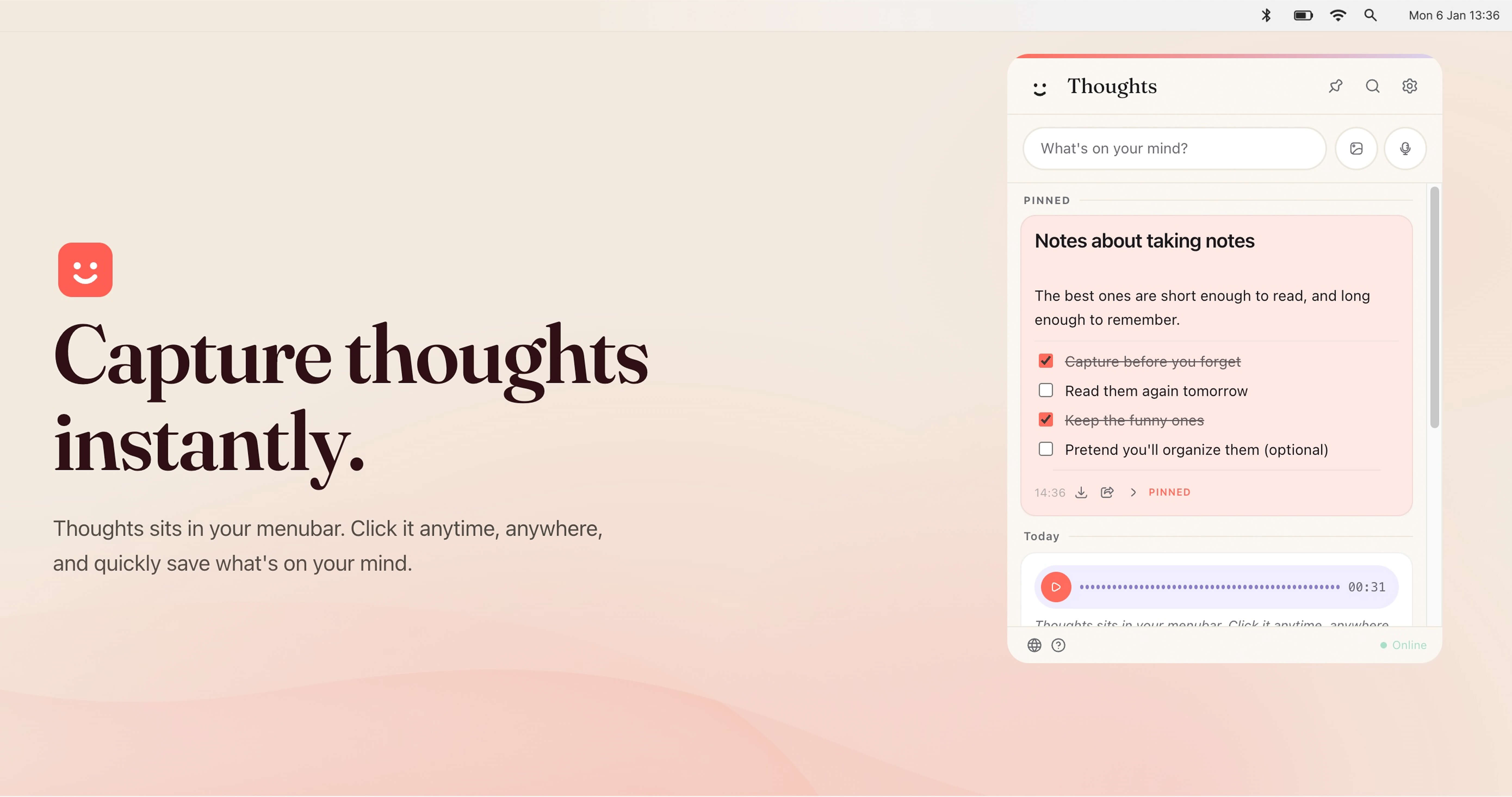
Thoughts for Mac is a native macOS menubar application for capturing notes, images, and voice recordings without leaving what you are doing. It sits in the Mac menubar, and a single click opens it so you can quickly save whatever is on your mind. The app captures structured text notes, checklists, code blocks, standalone links with previews, voice recordings, images, and text-like files such as TXT and CSV. It is presented as a small multi-tool for the menubar, and it is free to download and use, with all future updates included and no subscription. Because it lives alongside your other menu bar icons, it stays within reach while you work in other applications. The thinking behind Thoughts for Mac is speed of capture. Rather than opening a full note-taking application, creating a document, and finding a place to file it, the app puts a capture surface in the menubar where it is always one click away. The website frames this simply: Thoughts sits in your menubar, you click it anytime and anywhere, and you quickly save what is on your mind. That makes the app useful for the moment a thought, link, image, or spoken idea appears in the middle of other work. It also supports captures that arrive from outside the app itself: desktop builds can receive shared text, images, and audio through URL schemes, open-with actions, macOS Services, and native imports, so content can be sent to Thoughts from elsewhere on the system. The core capture experience covers the three input types the website presents as Write it, Drag in an image, and Talk to it. Writing produces structured text notes, and the app also handles checklists, code blocks, and standalone links that carry previews. Dragging an image in saves the image itself as a note, and screenshot capturing is listed among the app's capabilities. Talking records voice, which becomes a voice note that can later be transcribed with your own AI provider key. Beyond those interactive paths, Thoughts also accepts text-like files such as TXT and CSV, and on desktop it can take in shared text, images, and audio from URL schemes, open-with, macOS Services, and native imports. Voice recordings can be exported as MP3 in the desktop app whenever you want them. AI is optional and brought by you. In Settings you can connect OpenAI, Claude, or Gemini with your own API key. Once connected, the app can transcribe voice notes, context images to text, and perform simple text transforms such as capitalization, translations, spelling fixes, shortening, lengthening, summarizing, and converting case. The website also lists extracting text from images among the available actions. Claude is available for text actions, while transcription support depends on the provider you connect. Only AI-powered actions require a key: capturing notes, images, and audio does not need one. The app is free, and you use your own OpenAI, Gemini, or Claude API key for features like transcription, OCR, summaries, translations, and rewrites. Organizing what you capture is handled by search and pinning. Search works across notes, links, screenshots, and image names instantly, so a note can be found even when you only remember part of an image's name. Pinned Thoughts let you keep important notes at the top of your list so they are not buried under newer captures. The app also supports light and dark mode and adapts to whichever you prefer. Instant access is provided by a custom shortcut of your own choosing, meaning you can open Thoughts from anywhere on your Mac with a keystroke rather than reaching for the mouse. Thoughts works as a local-first menubar utility. In the desktop app, notes and settings are saved locally on your Mac, and media files are stored in the app's user data folder, with no account required. That means there is no sign-up step and no server-side account to manage for the core experience; AI actions are the exception, since they rely on the API key of the provider you connect. A browser preview mode also exists, but it is session-only, so notes created there are temporary. The free model and the bring-your-own-key approach combine to keep the tool light: you pay nothing to download or use it, including future updates, and you decide separately which AI provider, if any, powers the optional text and audio actions. Export and sharing are built in, so what you capture is not locked in. You can share notes as text, and you can export audio recordings whenever you want them. If you ever decide to leave, you can export all notes from Settings as JSON, or export individual notes in the best available format: text notes as TXT, image notes as image files, PDF attachments as PDF, and voice notes as MP3 in the desktop app. Benefits stated on the site include instant capture from the menubar, quick access through a custom shortcut, search that reaches into images and image names, pinning for important items, and both light and dark appearance modes. Concrete workflows follow from the capture types. During a call or a meeting you can talk to Thoughts and keep the recording as a voice note, then transcribe it later with your connected provider. While browsing, you can save a standalone link with its preview, or capture a screenshot of something you want to keep. When you drag in an image, the app can extract text from it through OCR once an API key is connected, turning a picture of text into usable content. You can bring in text-like files such as TXT and CSV, jot checklists, or store a code block you want to find again. Text actions handle small chores — summarizing a note, fixing spelling, converting case, shortening or lengthening text, or translating it. On the Mac, other apps and system services can send text, images, or audio into Thoughts through URL schemes, open-with, macOS Services, and native imports. Thoughts for Mac is built for macOS users who want a fast place to put thoughts, notes, links, images, and voice memos without opening a larger note-taking app. The site lists its topics as Productivity, Writing, and Menu Bar Apps. Integrations are limited to the AI providers you connect — OpenAI, Claude, or Gemini — using your own API key, and to macOS system entry points such as URL schemes, open-with, macOS Services, and native imports. Pricing is straightforward: the app is free to download and use, including future updates, with no subscription; the only cost you may incur comes from the API provider whose key you use for AI features. The download is delivered through the linked Gumroad page, and the app is native to macOS. Thoughts for Mac keeps capture at the edge of your screen: a menubar click or a custom shortcut, a written note, a dragged image, or a spoken thought, all saved locally with no account required. Search, pinning, export, and light and dark modes make the notes usable afterwards, while optional bring-your-own-key AI actions add transcription, OCR, summaries, and translations through OpenAI, Claude, or Gemini. It is free, and every feature is available at no cost with future updates included.
Voiskey is an AI voice typing tool that turns natural speech into polished, ready-to-use text. Rather than transcribing words literally, it starts from what you meant: you speak a rough thought and it comes back shaped for where it is going and who is reading it. It produces text for messages, emails, notes, documents, AI prompts and more. Voiskey is available on macOS, Windows, iOS and Android, works anywhere on your computer and in any language, and is described as 5x faster than typing. It is free to start, with a free month of Pro for people who join during launch. The problem Voiskey addresses is the gap between how quickly people think and how quickly they can type. An average keyboard runs at roughly 45 words per minute, while Voiskey voice is presented at 220+ words per minute. That gap shows up as friction in everyday work: the first draft is the hardest part, ideas hit fast but drafting is slow, thoughts disappear quickly before they can be captured, and meeting details are easy to forget. The same friction appears in professional routines — prompting takes longer than coding now, the faster the follow-up the warmer the deal, and tickets pile up faster than a support agent can type. Voiskey's answer is to let people speak the way they naturally would and let the product handle the shaping. Voiskey is built to listen for meaning rather than to capture every sound. The website describes it as more than listening — it understands. When you speak the way you naturally would, fillers, stumbles, changes of mind and grammar slips are all caught by Voiskey rather than passed through into the final text. The point is that you should not have to tidy your speech before you start; you think out loud, and Voiskey handles it. This is what makes the output ready to use rather than a raw transcript that still needs editing, and it is the foundation for everything else the product does with your words. Voiskey is built to adapt, and the content says it always lands right. It knows what you are going for and automatically tailors the formatting, tone and word choice so that every output fits your intent and is ready to send. The Product Hunt listing describes the same behaviour from the opposite direction: a spoken thought comes back shaped for its destination and its reader — casual with a friend, composed with a colleague, technical with an AI. This matters because the same idea needs a different form in a text message, an email, a meeting note or an AI prompt, and Voiskey applies that shaping automatically instead of leaving it to you to rewrite. Voiskey also learns your style. According to the website, it learns your names, jargon and spelling preferences so that your words always land in your style. This is a personalisation layer: rather than producing generic, uniform text, it keeps the vocabulary and spellings you actually use, which matters for people working with specialist terminology, product names, colleague names or in-house shorthand. The stated outcome is that you still sound like you — the product cleans up the mechanics of speech without erasing the voice of the person speaking. Voiskey covers voice to native-sounding text in more than 100 languages, and it presents a long list of supported languages on the site, including English, Japanese, Spanish, Korean, French, Portuguese, Arabic, Russian, Italian, Thai, Vietnamese, Dutch, Polish, Danish, Swedish, Finnish, Greek, Czech, Romanian, Hungarian, Bulgarian, Slovenian and Estonian, among others. The site states that Voiskey works anywhere on your computer and in any language. It also covers translation: you speak in your own language when you need to translate, and Voiskey turns your voice into fluent, native text across 100+ languages. That makes dictation and translation part of the same speaking workflow rather than two separate tools. A distinctive capability is turning spoken intent into AI-ready instructions. Voiskey lets you tell your AI what to build just by speaking: you talk through what you want to build or change, and Voiskey turns it into a clean AI-ready prompt with files, paths, commands and key details captured. This is presented as a practical answer to the observation that prompting now takes longer than coding, and it is a core part of how Voiskey is positioned for engineers — spoken intent becomes prompts, commits and design docs. Capturing files, paths and commands automatically means the details that are easy to lose when speaking are preserved in the final prompt. Voiskey's overall approach is a single voice experience that follows you across every device. It runs on macOS, Windows, iOS and Android, and the site states that it works anywhere on your computer — wherever you type and however you speak, Voiskey is ready. There is no separate destination app to paste into: you dictate into the place where the text is going, and the output arrives cleaned up and ready to send. The product is positioned as starting from what you meant rather than just what you said, which is the through-line connecting its filler handling, its adaptive tone and formatting, its style learning, its multilingual output and its AI prompt generation. The stated benefit is speed and readiness in the same step. Voiskey is described as arriving 5x faster than typing, cleaned up and ready to send, while you still sound like you. The comparison the site makes is 45 wpm for a keyboard against 220+ wpm for Voiskey voice, which means thoughts get out before the keyboard slows them down. Because formatting, tone and word choice are adapted automatically, the output is not a draft that needs a second pass. And because Voiskey learns names, jargon and spellings, the speed does not come at the cost of sounding generic. Voiskey frames its use cases around the formats people write in and the roles they work in. By format, the site names Messages (texts, DMs and quick replies), Emails (rough drafts shaped into clear, structured emails), Notes (reminders, quick lists and random ideas captured the moment they show up), Meetings (decisions, action items and follow-ups) and Teams (clear updates, handoffs and action items). By role, it lists Engineers (prompts, commits and design docs), Sales (call notes, CRM updates and replies), Customer Support (tickets, live chats and help articles), Writers and Creators (posts, scripts and book chapters), Students (lecture notes, essays and emails), Founders (updates, replies and job posts) and Legal and Consulting (memos, client letters and contracts). Voiskey is aimed at anyone who writes more slowly than they think, and the role pages make that concrete: engineers, sales people, customer support teams, writers and creators, students, founders, and legal and consulting professionals. It is available on macOS, Windows, iOS and Android, with a single voice experience across all four. Pricing is free to start, and the launch offer includes a free month of Pro for people who join during the launch period. No specific price points or further plan details are stated in the provided content. Voiskey's core promise is that you can say it rough and send it right. It listens for meaning rather than words, strips out fillers and stumbles, adapts tone, formatting and word choice to the reader and destination, learns your names, jargon and spellings, works in 100+ languages with translation, and turns spoken intent into AI-ready prompts. It delivers all of that across macOS, Windows, iOS and Android at a stated 5x faster than typing, and it is free to start. For anyone whose ideas outrun their keyboard, that combination is the value proposition.
Kirokune is an iPhone app for logging work and personal incidents. It lets you capture what happened in your own words — through a short note, a voice recording, or a photo — and keeps that record on your iPhone, organized into a timeline inside a private case. The app is designed for people who have been told to document everything but have no simple, private place to do it. Unlimited records in one case are free, and no account is required to start; you open the app and begin. Kirokune also offers a free workplace incident log template and example on its website, so you can start documenting even before you install anything. Everyone says document everything, but the practical question of where to write it down rarely gets answered. Work and personal incidents often happen at moments when you have neither the energy nor the time to sit down and compose a careful written account. Details fade, exact wording is lost, and the sequence of events blurs together. Kirokune addresses that gap by lowering the effort of capture to almost nothing: one tap starts a recording, and a photo or a quick note works just as well. The record you create while it is fresh stays on your iPhone until you decide what, if anything, you want to do with it — you do not have to let it go just to get through the day. The core of Kirokune is capturing what happened while it is fresh. A short note written in your own words is enough to begin, and a single tap starts an audio recording for the moments when you cannot bring yourself to type. Photos can be saved alongside notes and recordings, so a visual detail sits with the written account rather than in a separate camera roll. All of these record types live together in the same place, which means you are not choosing one format at the expense of another. The app does not require any setup before you start — you open it and immediately begin a note, a recording, or a photo. Once records exist, Kirokune organizes them rather than rewriting them. Events are shown in time order — dates, times, and exact words — and the timeline is reviewed alongside your original notes. Critically, nothing you already wrote gets changed; the app keeps your own record organized and that is all. Records are grouped into cases, and the free plan allows unlimited records inside one case. Kirokune Plus adds unlimited cases, so people who are tracking more than one situation can keep each one separate. Sorting happens later, when you have the energy, rather than at the moment of capture. Kirokune can also save a chat export as a record. You choose a supported export file from Apple Messages, Messenger, or Instagram — without connecting your chat accounts to the app. Kirokune keeps the file's whole original text alongside the messages it can display, so the original wording stays attached to the record. Because the app does not connect to those services, the guidance suggests choosing the conversation and date range before exporting, where the service allows it. This makes it possible to fold a written conversation into the same private case as your notes, recordings, and photos. The workflow Kirokune describes has three steps. First, get it down: open the app and start a note, a recording, or a photo, with no setup first. Second, sort it later: when you have the energy, group what you saved into a private case. Third, look back: everything is in order, exactly the way you wrote it. Underneath that workflow is a deliberate approach — the app stores records on your device and requires no account. Nothing leaves the app unless you export it yourself. Kirokune states plainly that it does not decide what happened, does not diagnose, and does not give legal advice; it keeps your own record organized. The benefit is that you won't have to go from memory. When you decide to talk it through — with someone you trust, HR, a lawyer, or a support service — having it written down in your own words helps you explain what happened. Because capture takes one tap or one short note, you can document something at the moment it happens instead of reconstructing it weeks later. Because records stay on your iPhone, privacy is the default rather than a setting you have to find. And because you can name the other person however you like — initials or a nickname you would recognize later — you are never forced to record a name you don't want to write. Typical uses follow the situations the app was built for. Someone documenting a workplace incident notes the date, the time, where it happened, what was said, and who was there, as soon as they can, and Kirokune keeps all of that together in one private place in time order. Someone who wants a record in the moment but cannot type taps record instead. Someone preparing for a conversation looks back at what they saved, at their own pace, and pulls it into a summary they can walk someone through. Someone with a written chat conversation exports it and saves the file as a record so the original text stays with it. The free worksheet on the website lets anyone start this practice without an app at all. Kirokune is for iPhone users running iOS 17 or later. There is no Android app; the website's free worksheet can be saved and used in your own notes without installing anything or creating an account. The app is available in the United States and India, with English, Japanese, Traditional Chinese, Korean, and Spanish interfaces. Kirokune is a free download with in-app purchases: the free plan covers unlimited notes, recordings, photos and other records organized in one case, with no account required. Optional Kirokune Plus adds unlimited cases, detailed reviews, PDF export, and removal of ads, available as monthly, yearly, or one-time lifetime purchases, with local price and renewal terms shown in the purchase screen. Two practical notes appear in the app's own guidance. Rules about recording and sharing a conversation vary by place and by situation, so Kirokune suggests considering letting the other person know and checking the rules where you are; the app cannot tell you whether a recording is lawful or how it would be treated. Also, Restore Purchases checks access to your paid plan and does not restore a backup of your records, because records are stored on your device and the app currently provides no automatic sync or cloud backup — so keep your own copies before deleting the app. The takeaway is simple: Kirokune is a private place to write down what happened, on your iPhone, until you decide to talk to someone.