Category Focus/categories/productivity
Productivity AI Tools
Discover and compare the best productivity AI tools and software. Browse 859+ curated tools with reviews and rankings.
Projects tracked
859
Sort mode
RECENT
Page
3
Discover and compare the best productivity AI tools and software. Browse 859+ curated tools with reviews and rankings.
Projects tracked
859
Sort mode
RECENT
Page
3
Busabase is an open-source (MIT) database and workspace built for AI agents and the people who work alongside them. It keeps business records, documents, skills, and apps in one shared place so that what an agent produces stays as data your team can reuse, instead of disappearing into a chat window. The product calls itself the general system of record for AI agents, and it is aimed at teams and individuals who already run agents such as Claude Code, Codex, Cursor, or their own custom agent and want the output of that work to land somewhere durable. Busabase can run on your own machine as Busabase Desktop, on your own server through Docker, or in Busabase Cloud. The problem Busabase addresses is that agent work keeps evaporating. Teams already use AI, and the work gets done, but it scatters across personal chat windows and leaves when people do. The site contrasts a scenario without Busabase — Amy drafting a quote in ChatGPT, Ben cleaning a customer list in Claude, Chris finishing a data cleanup script in Cursor before leaving the company, Dana recording a meeting decision in Gemini — with a scenario where the same output lands in one team workspace as customers, quotes, meeting notes, an app, and a skill. The stated consequences of the scattered approach are that results stay in a chat log nobody finds again, every session starts from zero, and when someone leaves, their work goes too. Busabase's answer is to keep AI work in the company rather than in chat histories, so the next task can build on the previous one. Busabase organises work into Bases. The Data Base holds customers, projects, and inventory in tables with fixed columns, so every agent reads and writes the same fields rather than free-form text. The Knowledge Base is described as the team's shared memory: answers you can find, with a source, that someone checked. A record in Busabase carries its body, its sources, and its review history, which is what separates it from a pile of unstructured notes accumulating in different tools. Because the structure is fixed, an agent writing into a Data Base produces something a person can open tomorrow, and a person editing a record produces something the next agent can read. The Apps Base collects your internal tools, called AirApps, in one place and builds them on the same data, so every screen shows the latest version — the Busa CRM template, for example, presents pipeline, deals, and follow-ups from the same underlying records. The Skills Base lets you save a workflow once as a skill, and any agent can run it next time, which turns a single successful run into a repeatable capability. Playbooks are written-down descriptions of how your team does things; agents check them before every task and follow them instead of improvising. Layered together, these Bases turn isolated agent output into assets the whole workspace shares. Busabase does not ask teams to switch tools. You connect the agents you already use — Claude Code, Codex, Cursor, n8n, or your own agent — through Agent Skills, MCP, OpenAPI, or the CLI, and any agent that can call a REST API can work with it; the documentation suggests pasting the SKILL.md file and going. You can also talk to a connected agent right inside Busabase, or connect 40+ external agents over Agent Skills, MCP, and more, with Claude Code, Codex, and OpenClaw named as examples. Either way, they read and write the same workspace. Every write is on the record: each change carries who made it, what changed, and a full history, and for the writes that matter you can hold the change for a person to review. Rejected work never enters your canonical data, and every decision — approve, request changes, or reject — stays attached so the record remains explainable later. The mechanics are described in three steps. First, connect your agents: an agent like Claude Code, Codex, Cursor, n8n, or your own connects through Agent Skills, MCP, OpenAPI, or the CLI, then runs a task such as logging today's customer calls and updating the CRM. Second, every write is on the record, with the change carrying who made it, what changed, and a full history, and important writes held for human review. Third, reuse it next time: the Data Base, Knowledge Base, Apps Base, and Skills Base are read by the next agent, a teammate, or an AirApp, so nobody starts from zero. This loop — connect, record, reuse — is the product's core methodology, and it applies whether Busabase runs on a laptop, a company server, or in the cloud. The benefits follow from that loop. Agent output stops being ephemeral and becomes typed data, documents, skills, and apps that survive sessions and staff changes. Because every change keeps its source and its full history, teams can explain later what happened and why, and because review is built in, the writes that matter can wait for a person. Individuals get a private, local place where data stays in a folder on their computer, with no usage tracking and continued offline operation. Teams get one workspace where the rules agents follow, the data they touch, and the agents themselves all live together. And because every screen reads the same data, internal tools built as AirApps always show the latest version rather than a stale export. Use cases are grouped into eight kinds of work you can start keeping today. Customer support keeps Q&A and product facts, where agents draft the reply and a person approves it. Marketing holds CRM contacts, campaign records, social posts, and creative assets in one place. Content manages briefs, drafts, and published pieces moving through one pipeline. Team memory stores decisions, meeting notes, and context the next agent can read. Operations tracks projects, to-dos, and supplier details in one place. Research gathers market signals and monitored sources, verified and adding up over time. Product catalog keeps SKUs, specs, pricing, and relations searchable and managed in one place. Compliance covers access reviews, vendor checks, and a complete audit log. A worked example on the site shows a content calendar of scheduled social posts with visuals, platform, copy, and status, read from a Products base and written to a Content base. Deployment is a deliberate choice rather than a default. Busabase Desktop runs on your machine with data staying in a folder on your computer, no usage tracking, and offline operation. Self-hosting via a Docker image deploys the same engine inside your company network so data never has to leave it, and the project offers a security page for teams heading into a security review. Busabase Cloud is for teams that want to work together right away with nothing to install. Pricing follows: the open-source engine is free forever, and Cloud starts free with one space you own, three seats per space, 5,000 records per space, 1 GB of attachment storage, and one self-hosted connection online. Plus costs $10 per seat per month billed $120 per seat annually and adds three spaces you own, ten seats per space, 20 GB of attachment storage, and OpenAPI, webhooks, and MCP. Pro costs $20 per seat per month billed $240 per seat annually and adds unlimited spaces, unlimited seats, 100 GB of attachment storage, and priority support over WhatsApp, WeChat, or email. In summary, Busabase is an open-source, local-first database and workspace that gives AI agents somewhere to put their work. Data, docs, skills, playbooks, and apps share one structure with a full history behind every change, agents connect through the tools they already speak, and important writes can wait for a human. Start local for free, and add Cloud when the team is ready.
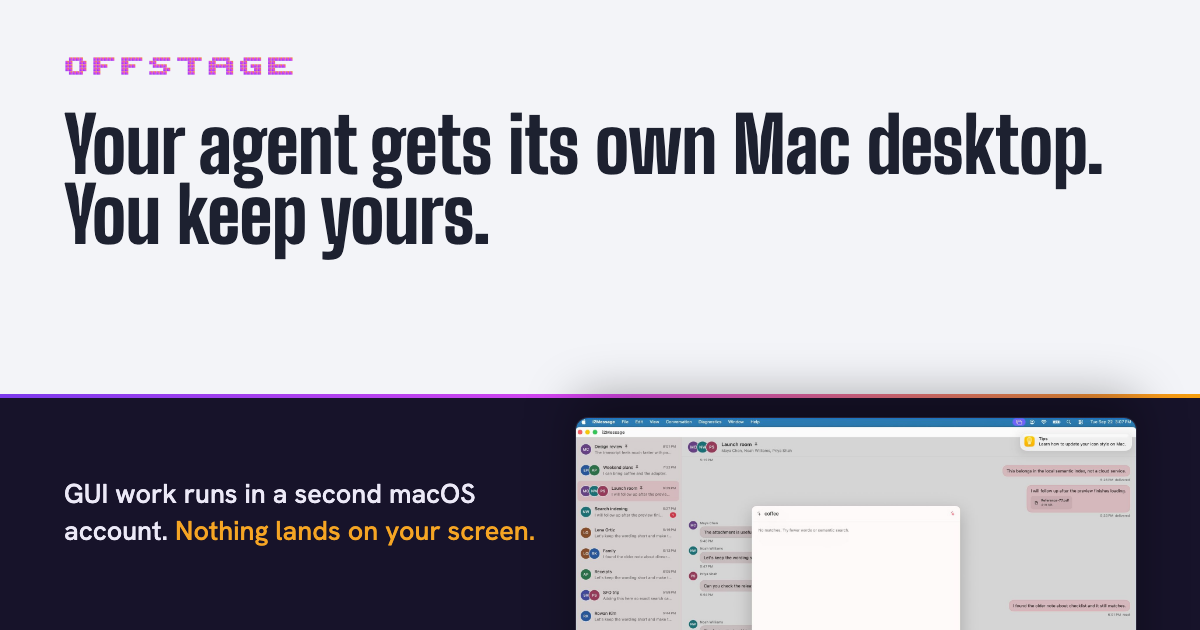
offstage is a tool for macOS that gives your coding agent its own Mac desktop. It provides Claude Code, Codex and opencode with a second, logged-in macOS account to work in, so that GUI work runs behind your session instead of on top of it. Simulators, Xcode UI tests and the app your agent just built open on that account's desktop, while your windows, keyboard and mouse stay yours. It is free and MIT licensed, built for Macs on Apple Silicon with Node 20 or newer, and the helper account takes a single setup command. The problem it addresses is focus theft by computer-use agents. Coding agents do more than edit files: they run test suites, boot simulators, drive headed browsers and open the applications they have just built. Every one of those actions normally needs a real display, a real window server and real input, which on a single-user Mac means your screen. Faced with that, you either watch the agent take over your desktop — windows flashing, the pointer moving on its own, focus pulled away from what you were doing — or you avoid running that work as often as you would like. offstage's answer is to stop sharing one desktop: it gives the agent a second macOS account that is logged in at the same time as yours, so both desktops exist simultaneously and the agent's work happens somewhere that is not your screen. At the centre of offstage is command routing. Before anything runs, offstage reads the command and sends it to the cheapest place that keeps it off your display. Commands that need a real Mac desktop — xcodebuild test, xcrun simctl, XCUITests, open -a, osascript, or a built .app — go to the second macOS account, which has its own desktop, window server and input; this is the reason offstage exists. Headed browser work, signalled by flags such as --headed or headless: false, or by cypress open and WebGL and GPU flags, goes to a Linux container with a virtual display if Docker is installed — a real display, just not yours. Commands that never open a window, such as npm test, vitest, headless Playwright and Puppeteer, run right where they are, because wrapping them would only cost time. And a fourth class — installers, a .pkg, a .dmg or hdiutil — runs nowhere at all: both accounts share one machine, so offstage refuses these and no flag overrides that refusal. Agents drive offstage through MCP tools. offstage_route tells the agent which lane a command would get, and offstage_run executes it there. For testing an app with a GUI, the agent uses offstage_session_launch, which waits until the app registers and returns its pid; then offstage_session_screenshot, decide, offstage_session_input, and another screenshot to confirm. Coordinates are points, not pixels, so a pixel coordinate is divided by the screenshot's scale. offstage_session_quit closes the app when the agent is done. A status of "skipped" means nothing ran anywhere, and the agent is instructed to surface the fix line from diagnostics and stop rather than re-running the command outside offstage. A "refused" status means offstage will not run an installer on any lane, and the decision to run it belongs to the user. Isolation is enforced rather than assumed. The daemon posts input to its own session only and never to the global input stream that feeds your screen; if its session is ever the one on the console, it refuses to send input at all. In testing, the window server's own log showed every synthetic event landing in the helper session and none reaching the console. The helper account is an ordinary second user, so it cannot write to your files and can read only what macOS lets any other local account read. Where an agent needs access to a project the helper account cannot otherwise reach, offstage session share grants read-only access to that folder — one folder at a time, reversible with unshare — and each run writes its output to its own artifacts folder. offstage's approach is deliberately not virtualisation. It is a second user account on the Mac you already have, with no guest OS and nothing to boot. It takes about 3 GB of disk, where the macOS VM image the project measured was a 68.8 GB download. The trade-off is that both accounts share the Mac's CPU, memory and disk. Setting the helper account up happens once, and it needs sudo and one click, so the agent cannot do it: install the CLI with npm i -g @viraatdas/offstage and run offstage doctor to learn which lanes work on this Mac and how to fix the rest; run sudo offstage session setup --create, which creates an ordinary account called computeruse and builds a small Swift daemon for it, granting Screen Recording and Accessibility if your terminal has Full Disk Access and otherwise naming the two toggles to flip, printing the whole root script before running it; switch to the account once using the user menu in the menu bar and then switch back, which starts the daemon and leaves the account logged in behind yours until the Mac restarts; and optionally share a project folder. offstage session status exits 0 when the account is ready. The agent can then connect itself: an MCP install line for Claude Code, a config block for Codex in ~/.codex/config.toml, or an entry in opencode.json. Anything that can run a shell command can use the offstage CLI instead — offstage route -- and offstage run -- are the same code path as the MCP tools. The benefit is that the agent gets a genuine macOS desktop while you keep yours. GUI test runs no longer steal focus, move your pointer or cover your screen, and you can carry on watching a video or working while an Xcode UI test grinds through a simulator on the other account. Because the second account is a real account rather than an emulation layer, the agent sees the same window server and input model as a normal user. Because input cannot reach the console session, the agent cannot click on your screen even by accident. Because folder sharing is read-only, handing the helper account access to a repository does not give it write access to your work. And because headless commands run in place, the tool does not slow down the parts of the agent's work that never needed a display. Typical scenarios follow the lanes. A developer asks Claude Code to run an Xcode UI test or boot a simulator: the work lands in the computeruse account, and the app under test opens on that account's desktop. An agent finishes building an app and needs to try it: it launches the app in the helper session, takes a screenshot, issues input, screenshots again to confirm, and quits the app. A Playwright or Cypress run needs a headed browser or WebGL: if Docker is present, it runs in a Linux container with a virtual display. A macOS automation step uses open -a or osascript, again off the developer's screen. Ordinary test suites such as npm test or vitest run in place. Developers who want the behaviour to stick paste the provided instruction into their project's AGENTS.md or CLAUDE.md, so the agent connects offstage itself and keeps GUI work off the screen from then on. offstage is aimed at developers on Apple Silicon Macs who run coding agents such as Claude Code, Codex and opencode and who want those agents to be able to do GUI work without hijacking a desktop. It works with those three agents through MCP, and Claude Code also as a plugin. Anything else that can run a shell command can use the offstage CLI, which runs the same code path. It requires Node 20 or newer, adds a small Swift daemon for the helper account, and uses a Linux container with a virtual display only for headed browser work and only if Docker is installed. offstage is free, MIT licensed, and open source, with the source published on GitHub. In short, offstage separates the question of whether an agent may use a desktop from the question of which desktop it may use. It hands the agent a real, logged-in macOS account of its own — one that boots no VM, costs about 3 GB of disk, and cannot post input to your session — so computer-use work keeps happening, and your screen, keyboard and mouse stay exactly where they belong.
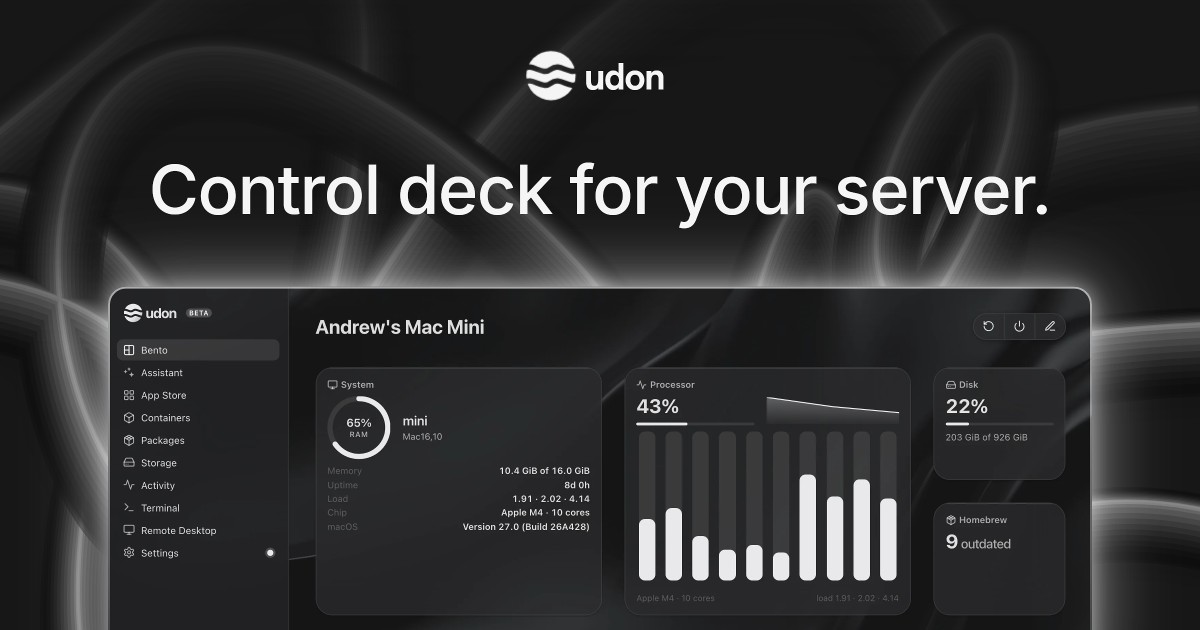
Udon is a control deck for a Mac home server. It turns an Apple Silicon Mac into a home for your files, photos, media, and apps, letting you keep your digital life on hardware you own and manage it all from your browser. It is built for people who want to self-host without leaving the Mac ecosystem: instead of a dedicated NAS, a Raspberry Pi, or x86 server hardware, Udon runs on the Mac you already have. From a single dashboard you can install and run self-hosted applications, manage containers and packages, browse and share storage, open a terminal or the Mac's own desktop remotely, and watch live system activity. An optional AI sysadmin can install apps, check the server, or investigate a problem, and a mobile companion app for iPhone and Android is coming soon. macOS has no dashboard for running self-hosted apps, so anyone who wants to host their own media, photos, or files on a Mac usually falls back to manual SSH work and a container tool such as Portainer, or buys dedicated hardware. Udon adds the missing control layer. A Mac mini idles at a few watts, runs near silent, and still has power to spare for media, photos, and a dozen containers, which makes it a practical always-on home server. Udon exists so that the Mac keeps working as a normal Mac while also serving your files and apps, giving you a single browser-based place to run and monitor everything rather than juggling command lines and separate tools. The AI sysadmin is the feature that sets Udon apart. You can ask it to install apps, check your server, or investigate a problem, and it responds through the dashboard. It is optional and stays off until you turn it on. You choose which AI provider to connect, or run a local model on the same Mac: Udon supports an Anthropic or OpenAI API key, a coding CLI such as Claude Code or Codex, or a local model. By default the assistant asks before every change, and it records its actions in an audit log, so you stay in control of what happens on your machine. This turns routine server administration, which normally requires knowing command-line tools, into a conversation. Containers and Packages let you choose the software your Mac runs. Udon manages Docker images and Homebrew packages in one place, so system utilities installed through Homebrew and containerized applications live under the same roof. It runs standard images from Docker Hub, GitHub Container Registry, or any other registry, on Apple Container (Apple's native runtime) or OrbStack (Docker-compatible). On OrbStack you can also build compose stacks in the visual Composer, which means multi-container setups can be assembled and adjusted graphically instead of by hand-editing configuration. Terminal and Remote Desktop bring your Mac within reach from any browser. You can work on the machine from anywhere, with its terminal and its desktop both available, and your terminal sessions stay open between visits so you can pick up where you left off. Storage and Sharing is the other half of the everyday workflow: keep your files on your own drives, browse and preview them, check drive health, and share folders across your home network as SMB shares. Together these features mean the Mac's files, screen, and shell are accessible without sitting in front of it. The App Store lets you build a photo library, stream your media, or organize documents at home by installing self-hosted apps with their settings pre-filled, or by finding more on Docker Hub and Homebrew. Tailscale lets you take your apps and files with you while your Mac stays home: you connect over your own Tailscale network, and the dashboard gets trusted HTTPS. Activity gives you an at-a-glance picture of how your Mac is doing, following CPU, memory, network, and power use live and showing which processes are running, so you can spot heavy workloads or problems as they happen. Udon installs with a single terminal command, curl -fsSL https://udon.sh/install | bash, and then serves its dashboard in the browser, for example at mac-mini.local:4443. Under the hood it runs containers on Apple Container or OrbStack, and it manages Homebrew packages alongside them. The Mac keeps working as a normal Mac. Udon runs on any Apple Silicon Mac (M1 or newer) with macOS 26 or later, including Mac mini, Mac Studio, MacBook, and iMac; Intel Macs are not supported. Licensing is tied to your Mac's serial number, so there are no accounts to create. The benefit is ownership without administration overhead. Your files, photos, and media stay on your Mac rather than in someone else's cloud, and the dashboard is served over HTTPS while remote access runs over Tailscale, your own private network. If you connect a cloud AI model, it sees what you ask the assistant to work on, which Udon states plainly. Because it is a one-time purchase, there is no subscription to renew, and updates are included. Terminals that persist between visits, live system stats, drive health checks, and the audit log all reduce the friction of running a server at home. Concrete uses follow the apps people host: stream media with Jellyfin or Plex, back up photos with Immich, sync files with Nextcloud, keep passwords in Vaultwarden, block ads for the whole network, archive documents with Paperless, and automate it all with n8n. Udon can also host your development environments and coding agents, which you reach from a laptop or iPad anywhere. The App Store's pre-filled settings make these installs quicker, and compose stacks on OrbStack let the more involved setups be assembled visually. Udon is aimed at people who want to own their digital life and are comfortable starting from a Mac, particularly owners of a Mac mini, which is described as the usual pick for an always-on home server because it is small, quiet, and draws a few watts at idle. It integrates with Docker Hub, GitHub Container Registry, OrbStack, Apple Container, Homebrew, Tailscale, and AI providers including Anthropic, OpenAI, coding CLIs such as Claude Code or Codex, and local models. Udon is free for 5 days with no card required; every feature is included and the trial starts when you install. After that, a lifetime license is $29 one-time (listed at $49, saving $20, 41% off for early supporters), includes every feature and updates, is tied to your Mac's serial number, and comes with a 14-day money-back guarantee. When the trial ends the dashboard locks until you buy a license, while containers keep running and your files and settings stay as they are. Udon's core promise is simple: own your digital life, starting with your Mac. It brings self-hosted apps, containers, storage, monitoring, remote access, and an optional AI sysadmin into one browser-based control deck, so an Apple Silicon Mac can serve your files and media at home while remaining a normal Mac. For anyone comparing it with Unraid, TrueNAS, Proxmox VE, a Synology NAS, Umbrel, CasaOS, or OpenMediaVault, or simply managing things manually with SSH and Portainer, Udon offers a Mac-native, pay-once alternative.
Off the Record is a macOS app built by Weird Machines that blocks AI from transcribing your meetings. It reshapes your voice in real time, so the people on the call hear and understand you exactly as usual, while AI notetakers, meeting bots and hidden interview copilots get nothing usable to work with. The product is for anyone who spends their day on Zoom, Google Meet, Microsoft Teams or any other application that uses a microphone, and who wants to decide for themselves when AI is allowed to hear them. Rather than asking other people's notetakers to behave, Off the Record changes the audio itself before it ever leaves your machine, and it does that work entirely on your own device. You stay on the record when you want to be, and off it when you don't. AI notetakers have become a normal part of online meetings, and, as the site acknowledges, they are often useful. The problem is that not every notetaker announces itself. Some run quietly on the other person's computer, with no bot ever joining the call and no notice to anyone on the invite. They do not simply transcribe either; they pick out what was said between the two of you and send it to everyone on the invite. Interviewing has its own version of the same problem: AI copilots hide on candidates' screens, listen to your questions and write polished answers in seconds, which makes it hard to know whether an answer is really the candidate's. As the site puts it, you cannot say no to what you cannot see. Off the Record gives that choice back, letting you keep the lock off when you are happy to be transcribed and turn it on when you are not. The core capability is real-time voice reshaping. A small model running on your Mac alters your voice as you speak, adding small amounts of noise at strategic points that are aimed at speech-to-text systems rather than human ears. The result is that colleagues and friends hear you normally, though they may sometimes notice a slight change, and the site recommends headphones for the best results. Off the Record is honest that the effect is subtle rather than invisible: people still understand every word, live or in a recording. What changes is what a machine can do with the audio afterwards. A demo on the site plays a clip twice, first as original audio and then off the record, so visitors can hear the difference for themselves. Compatibility is deliberately broad. Off the Record works with Zoom, Google Meet and Microsoft Teams, and with any app that uses your microphone, with no per-app setup required. The site backs the claim with unedited output from four widely used speech-to-text engines, including one running live, with names withheld. Across the engines, the protected audio produces nonsense, garbled phrases and, in one live case, no text returned at all, while the intended sentence is simply that the people on this call can understand everything the speaker says, and the robots cannot. Visitors can download a protected sample audio file and run it through any transcriber of their choosing. Voice processing stays on your Mac. Everything happens on your device, and your voice is never sent to Weird Machines or to any cloud service, which the company frames as both a privacy and an ownership point: it stays private, and it stays yours. A menu bar app shows a lock and a processing-on-this-device indicator; clicking the lock takes you off the record. For hiring, Off the Record protects the interviewer's side of a conversation, so a candidate's hidden copilot hears nonsense while the candidate hears the questions as usual. The same protection is being extended beyond meetings with the Off the Record Stick, a device available for pre-order at $59.99 that brings protection to phone calls, since regular calls are not end-to-end encrypted. The Stick works with any phone you can pair a Bluetooth headset with, iPhone or Android, protects calls 100% on your device as you speak, and turns on or off with one click. The approach is different from asking platforms or notetakers to respect a setting. Off the Record does not fight AI notetakers directly; it changes the signal they receive. Your voice is reshaped before it leaves your Mac, which means the protection travels with the audio: because the reshaping happens at the source, a recording carries the same protection, and transcribing it later still gets nothing usable. That answers the obvious question of whether someone could simply listen to the recording. Yes, they can, and that is the point. Humans hear you as usual, live or recorded. What Off the Record stops is AI. Getting started reflects the same simplicity: download it for macOS, open it from the menu bar and click the lock. The benefits follow from that design. You keep speaking normally and being understood, without changing how you present yourself on calls. You gain a way to say no to transcription that you cannot see, including notetakers running silently on someone else's computer and copilots listening in to feed answers. Your voice never leaves your device, so the tool does not create a new copy of your speech in the cloud. Because processing is local, the protection applies both to what is said live and to any recording of it. And because it sits at the microphone level, it covers every app you already use rather than requiring you to switch tools or configure each meeting platform separately. Concrete scenarios are described throughout the site. In an ordinary online meeting, you speak as usual while AI notetakers and meeting bots that transcribe calls get nothing worth sharing with everyone on the invite. In a hiring interview, the interviewer turns protection on so that a hidden interview copilot on the candidate's screen hears nonsense instead of the questions, and every answer is genuinely the candidate's own. On a personal or business phone call, the Off the Record Stick is designed to bring the same protection to calls that are not end-to-end encrypted. Should you want the notetaker to work normally, you simply leave the lock off and stay on the record. The site also positions the tool for company-wide rollouts through its Organization plan. Off the Record is priced in tiers. The Free plan costs $0, needs no account, and gives you 60 protected minutes a week that reset every Monday, with your voice staying on your Mac; the site describes it as a way to try the product on real calls. Pro is $8 per month, or $72 a year, saving 25%, and removes the limits: unlimited protected minutes, up to five Macs, and email sign-in with no password. Hiring is $30 per seat per month, billed yearly at $360 per seat, and gives Pro to every interviewer, lets a team invite members by email and add or remove seats at any time. Organization is custom priced for a team's size, includes everything in Pro for everyone, sets up seats for you, and offers custom terms and invoicing. Prices are in USD, tax may apply at checkout, and you can upgrade anytime from the app. The target users are people in meetings on Zoom, Google Meet, Teams or any mic-based app, interviewers and hiring teams, and organizations rolling the tool out company-wide. Off the Record is, in Weird Machines' words, the company's first machine, not its last, and it targets a narrow, specific job: choosing when AI hears you. It does not pretend to make you invisible to humans, and it does not ask other people's tools to cooperate. It reshapes your voice in real time on your own Mac so that the people you are talking to understand you as usual while speech-to-text gets nothing usable, whether live or from a recording later. With a free tier to test it on real calls, paid plans that lift the limits, an interview-focused plan and a phone-call Stick on the way, it gives control back to the person speaking.
Hark is a personal AI assistant built around a simple promise: whatever you need, let Hark handle it. Instead of adding yet another chatbot to your day, it is designed to take tasks off your plate entirely. You chat with Hark in a single thread for whatever you need — booking a table for a birthday dinner, submitting expenses from email receipts, or doing quick research — and Hark works from the Hark Pro app on browser, iOS, and Android. The company describes Hark as "a new kind of system for getting things done" and states that at Hark it is building the most personal, human-like intelligence in the world. Its purpose is to handle life before you have to. Most productivity tools and AI assistants add work rather than remove it: another app to open, another prompt to write, another set of tabs you still have to manage yourself. Hark explicitly positions itself against that pattern, describing Hark Pro as a personal AI "designed to take things off your plate, not add another chatbot to your day." The everyday problem it targets is life admin — the accumulation of small and large obligations such as planning a trip, collecting home insurance quotes, finding a dentist who takes your insurance, sorting a crowded inbox, auditing spending, or booking a Friday dinner for two. These are exactly the tasks people postpone, and Hark's premise is that a personal AI should remember what matters, think ahead about what you might need, and then get things done across the web rather than just offering advice. Hark's everyday interface is a single conversation thread. You can ask for anything in that thread: book a table, submit expenses from email receipts, or do quick research. What distinguishes it from a stateless assistant is persistent memory — Hark remembers what matters, so its responses are tailored to actually be useful to you rather than generic. For larger, multi-step efforts, Hark provides Projects, which keep bigger undertakings such as job searches or trip planning organized instead of scattered across separate chats. Together, the single thread, persistent memory, and Projects create a structure where small requests and long-running goals live in one place. For anything that requires touching the web, Hark uses Handoff, described as its computer use agent. Handoff can use the internet just like you would, operating from its own secure computer with a full browser that is individual to you. Because it works through a real browser rather than narrow integrations, the range of tasks is broad: it can build websites, do research, place orders, make slides, and, in Hark's words, "you name it." This is what turns Hark from a conversational assistant into one that completes work end to end — placing the order, filling in the form, or running the search rather than telling you how to do it. Because Hark asks you to connect accounts, save logins, and make payments on its behalf, trust is central to the product. Secured by hark applies end-to-end encryption so your data stays safe. Hark describes the arrangement as a vault that absolutely no person has access to, and states that your sensitive credentials stay encrypted, that Hark never sells your data, and that it does not share your data with advertisers. Crucially, Hark also checks in with you before doing something that requires your approval, so you retain a decision point on consequential actions. You can also watch it work, which keeps the automation observable rather than opaque. Hark's Action Buttons reframe the to-do list. Hark suggests and prioritizes actions based on what it knows you have on your plate, and all you have to do is click on one — Hark will then perform that action from start to finish. Examples reflected in the product include managing and sorting your email, auditing what you spend the most on and helping you save money, and finding the cheapest flight from SFO to JFK for the weekend and booking it for you. The value here is the inversion of the usual workflow: instead of you describing a task in detail and supervising it step by step, Hark proposes the task and then executes it. Panels let you build your own custom views. You describe what you want and Hark will build mini-apps completely tailored to you, so you can stay on top of whatever you like. You can also ask your Panels questions to dig deeper into their data, which Hark says unlocks even more from services you already use, such as Strava, Spotify, and Venmo. That combination — describe, build, then interrogate — means Panels are not just static dashboards but interactive, purpose-built tools created on request, extending the value of accounts you already have without you having to assemble anything yourself. Hark's overall approach combines a conversational front end with an autonomous execution layer and a security layer. On top, you speak naturally in one thread, supported by persistent memory and Projects. Beneath that, Handoff supplies an individual secure computer and full browser so actions can be carried out across the web. Around it, Secured by hark provides end-to-end encryption and approval check-ins so you stay in control of sensitive steps. Action Buttons push suggested next steps to you, and Panels let you shape the surface you interact with. All of it is delivered through the Hark Pro app on browser, iOS, and Android. The stated outcome is relief from the weight of unfinished tasks. Hark lets you tap things off your list instead of carrying them, handles life before you have to, and keeps bigger goals — a job search, a trip — organized rather than fragmented. Because Hark remembers what matters and thinks ahead about what you might need, you spend less time re-explaining context. Because it acts through its own browser, the work actually completes rather than returning a list of links to follow. And because credentials are encrypted, nobody has access to your vault, and you are consulted before actions that require approval, using Hark does not mean surrendering control. The examples shown on Hark's website sketch a wide set of concrete scenarios. Travel planning: "Book me a trip to Mexico City next weekend. Find the cheapest flights and a nice hotel in Polanco," or "Find the cheapest flight from SFO to JFK this weekend, and book it for me." Food: "I'm really craving some pizza. Can you order me a Margherita from my usual place?" Household admin: "I've been putting off home insurance quotes. Find me competitive quotes with equivalent coverage, show me a comparison, and make the switch." Health: finding a dentist who takes your insurance and booking a checkup, or finding a spot for an annual physical. Money and inbox: auditing what you spend the most on to help you save, and helping manage and sort your email. Social: "I'm interested in a nice dinner for 2 in my neighborhood this Friday." Hark is aimed at people who want everyday tasks handled rather than merely assisted — individuals managing busy personal and household logistics, travel and appointment booking, inboxes, bills, and spending. It is delivered through the Hark Pro app across browser, iOS, and Android, so the same assistant follows you between desktop and mobile. Sign-up is available with Google or Apple, or by continuing through the standard flow, and doing so constitutes agreement to Hark's Terms of Service and acknowledgement that data will be processed in accordance with its Privacy Policy. Product Hunt lists Hark under Android, Productivity, Artificial Intelligence, and Lifestyle topics, and the site also links to a security page and a manifesto. Hark's value proposition is straightforward: a personal AI that does the work instead of describing it. With one threaded conversation, persistent memory, Projects for long undertakings, the Handoff computer use agent running on its own secure browser, Action Buttons that execute suggestions in a click, customizable Panels, and end-to-end encrypted credentials with approval check-ins, Hark covers the full arc from remembering what matters to getting it done — whatever you need, let Hark handle it.
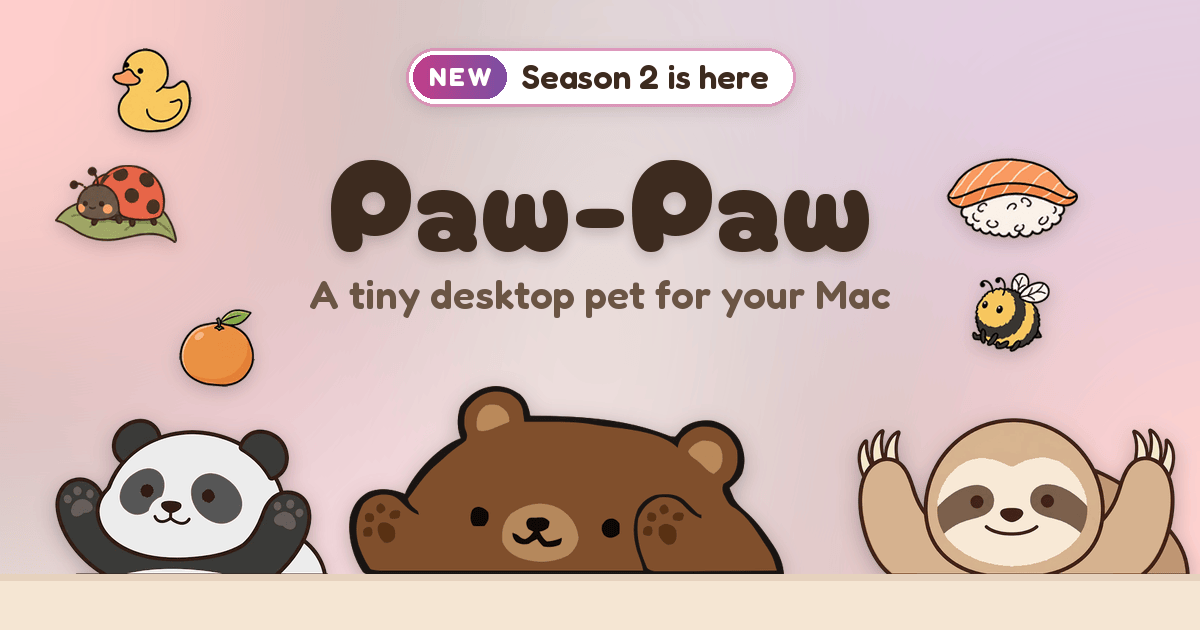
Paw-Paw is a free desktop pet for macOS that places a small illustrated animal in the corner of your screen, where it reacts as you type and click and naps when you pause. The product is positioned as a cute little companion that stays out of your way and makes coding, writing and working a bit cozier, and according to the official site it runs on any MacBook, iMac or Mac mini with macOS 13 or later. Paw-Paw is free with no ads, no subscription and no account required. Both seasons, with all of their Paw-Paws and items, are included at no extra charge and unlock as you play, with one optional paid artist collection available inside the app. The site describes a desktop pet as a small animated character that lives on your screen alongside your other windows, like a tiny companion that keeps you company while you work or study. Paw-Paw is built around exactly that idea rather than around tasks or documents: it does not manage your work, it sits beside it. By reacting to typing and clicking, the pet turns ordinary keyboard activity into progress, so long stretches of coding, writing or studying gain a small, visible reward loop. The makers describe their goal as making work a bit cozier and emphasize that the pet stays out of your way, with no ads, no nonsense and no account needed. Paw-Paw's core interaction is reactive: the pet notices when you type and click and responds on screen. Type fast enough and your Paw-Paw catches On Fire, a state that doubles XP while you keep up the rhythm. Progress is tracked as levels per season track, and the site shows examples such as Season 1 at level 12 with a 0/50 XP bar and a Season 2 track at level 15 with 2× XP. When you pause, the pet naps, illustrated on the site with a zzZ state. Clicking your Paw-Paw makes it talk, offering little cheers for the next small step; one example line shown on the site reads, "Ewe can do it, and I'm not being sheepish about it." Typing, clicking and working are also how you earn random item drops. Paw-Paw is organized into seasons. You start with a choice between Shiba or Sheep, and each season grows on its own track as you type and click, so progress in one season is separate from the other. Clicking any Paw-Paw brings it to your corner. Season 1 holds the original Paw-Paws, while Season 2 introduces many new ones, beginning with Sheep. The site stresses that every Paw-Paw in both seasons is free to discover, and that new Season 2 Paw-Paws and items can arrive without needing an update. Items are the collectible layer on top of the pets. The site states that typing, clicking and working earn random item drops, with more than 100 free items to find, ranging from common sprouts to legendary frog princes, and every item fits every Paw-Paw. To try one on, you click an item or drag it onto your Paw-Paw in the corner, and clicking it again takes it off. In Season 2, gifts arrive as one of three gift balls — pink, purple or orange — and you can wear what is inside straight from the reveal or choose to pick again. The Library's Items page lets you filter by category, search by name and see which season each item came from, using category and origin badges on each item card. Season 2 introduced a brand-new Library window that gathers every Paw-Paw, item and achievement in one place, with a page for each season. The Library now opens on Home, and a short tour shows you around after setup. From a season or collection page you can choose which track earns XP, so you decide where your typing effort goes. The Library also added Open All, which opens a pile of gifts at once, plus a Feedback & bugs entry for sending notes straight from the app. Updates download in the background, and signing in on a new Mac brings your progress along in one step. Paw-Paw can be adjusted to fit your screen setup. In Settings you pick a size — Small, Medium or Large — and you can turn on Mirror Mode. Right-clicking your Paw-Paw, or its Dock icon, opens a menu where you can switch Paw-Paws and items or set its opacity. The pet sits next to the Dock in the bottom-right corner of the screen and moves to the bottom-left in Mirror Mode; you can drag it anywhere, and Reset Position puts it back. Paw-Paw also has its own Dock icon whose right-click menu mirrors the pet menu, offering Open Library, Change Paw-Paw, Click-Through and more. Achievements give the collection another goal: the app pops up notifications such as "Achievement discovered, First Spark" and "Achievement discovered, New Look" as you reach milestones. Alongside these, the site mentions secret Paw-Paw and item pairings to find in the app Paw-Paw is a native macOS app that is downloaded directly, with no App Store and no sign-up required; the download is signed with Apple Developer ID and notarized by Apple. To notice typing and clicking, the app needs macOS Accessibility access, and the site is explicit about what that access does: it counts key presses and clicks, never what you type, and never logs or transmits typed text. The setup guide explains how to grant the permission. Paw-Paw checks its CDN for updates, syncs your progress only if you sign in, and sends usage analytics or crash diagnostics only if you opt in. Accounts are optional and are used only if you want to buy a collection or keep your progress in sync. Pricing is simple: Paw-Paw is free, with no ads or subscription, and both seasons with all of their Paw-Paws and items are included and unlocked as you play. The one optional extra is the Illustrain Collection, Paw-Paw's first artist collection, illustrated by Illustrain: 5 Paw-Paws and 57 items on a level track of their own, bought inside the app for USD 2.99 one time. After purchase you select Earn XP Here on its page to level up the track and unlock its Paw-Paws and items one by one. The app is macOS only for now — a native app for macOS 13 Ventura or later, including macOS 14 Sonoma, macOS 15 Sequoia, macOS 26 Tahoe and macOS 27 — with a universal binary that runs on Apple silicon and Intel Macs, from a MacBook Air to an iMac or Mac Studio. A Windows version is planned for later in 2026, alongside Season 3, multiplayer and a winter holiday special. The benefits are deliberately small and light. Paw-Paw gives a long work or study session a companion to keep you company, and it converts ordinary typing and clicking into visible progress such as XP, levels, On Fire streaks and item drops. Because the pet is always on screen but never in the way, it adds a layer of playfulness to work without demanding attention. Cheering speech bubbles and achievements reinforce small steps rather than big milestones, which suits the product's stated aim of making coding, writing and working a bit cozier. Concrete uses follow directly from how the app behaves. A developer writing code can keep Paw-Paw in the corner and watch it react with each keystroke, building speed to trigger On Fire and double XP. A writer drafting a document gets the same response loop, with the pet napping during thinking pauses. A student studying through a long session can click the pet for encouragement and collect item drops as a light break. Collectors can focus a session on one season or on the Illustrain Collection by choosing which track earns XP, or use Open All to reveal a batch of gifts. And someone with more than one Mac can sign in to carry progress across machines. At its core, Paw-Paw is a free, native, privacy-respecting macOS desktop pet that makes typing feel a little less lonely. Dozens of free Paw-Paws across two seasons, more than 100 free items, achievements, secret pairings and a single optional USD 2.99 artist collection add up to a small, cheerful companion that lives beside your Dock and grows as you work.
Markdoc is a shared editor for Markdown that places a code editor and a rich preview side by side inside a single document. You can type in either surface and the other follows instantly, cursors included, live for everyone in the document. Its purpose is to make Markdown a genuinely collaborative format, where writing, reviewing and publishing all happen in the same place. It is built for people who already work in Markdown and want the presence, comments and version history they expect from modern document tools — writers, developers and teams whose files live in GitHub. Markdown is one of the most durable writing formats there is: plain text, easy to diff, easy to store in Git. Its tooling, however, has traditionally been solitary. Collaborative work in Markdown usually means copying text out into another tool for review, leaving feedback in a separate chat thread or issue, and losing any clean record of who changed what and when. Markdoc addresses that gap by treating a Markdown file as a live, shared document rather than a static blob of text. Collaboration happens on the document itself, comments stay attached to the words they were written about, and versions are captured automatically, so the file remains the single source of truth from first draft through to publication. The core of the product is its two-surface editing model. A code editor and a rich preview sit side by side, and typing in either one updates the other instantly, cursors included. That means a writer can work in the rendered view while a developer works in the source, and both see the same document change in front of them in real time. Real-time collaboration runs across both surfaces, with presence indicators, live carets and selections, and conflict-free merging, so simultaneous edits do not overwrite one another. The editor also works offline and catches up when you reconnect, which keeps writing uninterrupted on an unreliable connection, a plane, or anywhere the network drops out mid-sentence. Review is handled by two complementary features. Comments anchor to specific text and follow those words as the document changes, so a thread stays where it was written even after paragraphs move or text is rewritten; threads can be replied to, resolved and reopened. Suggesting mode turns edits into tracked changes rather than direct modifications: a contributor proposes an edit, and the document owner accepts or rejects each suggestion individually or all at once. Together these give a Markdown file the same review mechanics as a collaborative word processor, without giving up the plain-text format underneath — the source is still the source, it simply now carries a conversation and a decision trail with it. Version history and GitHub-native storage close the loop. Markdoc takes automatic snapshots while you work and lets you name versions when it matters, with word-level diffs and one-click restore, so a bad edit is always recoverable and a good state can be pinned deliberately. Storage is GitHub-native: you can open any Markdown file from a gist or a repository, and publishing creates a real commit on the branch you choose. Markdoc also supports bringing your own agent over MCP, so an AI agent can take part in the same document as a collaborator, and you can publish straight to a gist or a repository file once the work is ready. How the product works overall is defined by keeping everyone on the same document. Both surfaces are backed by the same content, and edits from either side are merged conflict-free, including edits made while offline. Because the underlying file lives in GitHub, publishing is not an export step but a commit: the document you have been editing becomes a change on a branch. That single-threaded approach — one document, two views, one storage backend — removes the copy-paste-and-reconcile cycle that normally sits between writing Markdown and getting it into a repository. The benefits follow directly from that design. Teams stop losing review context because comments travel with the text they annotate, and they stop overwriting each other because merging is conflict-free across both surfaces. Suggestion mode lets an owner keep control of a document without rejecting help outright, since every proposed change can be judged one at a time. Word-level diffs and named versions make it safe to edit freely, knowing any state can be restored in one click. And because publishing is a real commit to a branch, the path from draft to repository is short — no manual formatting pass, no export-and-paste step, and no divergence between what was reviewed and what was shipped. Concrete use cases follow the way Markdown is already used. A team maintaining a README or project documentation can open the file from the repository, discuss changes in anchored comment threads, and accept suggested edits before publishing a commit to the chosen branch. A technical writer and an engineer can co-edit a specification, one working in the source and the other in the preview, seeing each other's cursors as the document evolves. A blogger or newsletter author can draft in Markdown, review with a colleague using comments and tracked suggestions, keep a named version at each milestone, and publish to a gist. Anyone working with an AI agent over MCP can have the agent draft or revise content inside the same document that humans are reviewing, keeping the agent and the people on one shared copy rather than trading files. Markdoc runs on the web and requires a GitHub account. Its integrations are GitHub-centric: gists and repository files for opening and publishing, and MCP for bringing your own agent into the document. The product is priced as free while in preview, with a GitHub account required to get started. Beyond Markdown, GitHub and the two editing surfaces, no further stack details are stated in the available content. For anyone who writes in Markdown and needs other people — or agents — in the document, Markdoc combines live two-surface editing, threaded comments, tracked suggestions, automatic version history and GitHub-native publishing in a single shared editor. The takeaway is simple: Markdown stops being a file you pass around and becomes a document you work on together.
Claude for Google Workspace is an add-on that puts Claude to work directly inside Google Docs, Google Sheets and Google Slides. Rather than leaving a file to ask an assistant for help, users open Claude from the Extensions menu and work with it in a sidebar beside the document, spreadsheet or slide deck they have open. In Docs, Claude drafts from scratch, tightens wording and structure, and delivers changes as suggestions the author applies or dismisses. In Sheets, it builds financial models, analyzes data and pulls in live numbers from data sources. In Slides, it builds slides from a deck's layout, edits whatever is selected and flags overlapping elements. The product is in beta and is aimed at individuals and teams who already run their writing, modelling and presenting inside Google Workspace. Most AI assistance today lives in a separate window. A user copies text or numbers out of a document, pastes them into a chat interface, prompts for a result, and then copies the answer back into the file. That round trip breaks concentration, risks losing formatting, and makes it hard to see exactly what the assistant changed once the text is back in place. Claude for Google Workspace is designed to remove that loop, so that there is no more copying and pasting between apps. By working inside the file, the assistant can operate on the real content, respect the document's existing styles, and present its output as something the user reviews and approves rather than something that simply appears in the middle of shared work. Claude for Google Docs covers three kinds of work. It can draft a document from scratch when there is nothing on the page yet; it can tighten wording and structure in something that already exists; and it can present its changes as a suggestion that the author either applies or dismisses. That last behaviour matters because it keeps editorial judgement with the writer instead of silently rewriting a shared file. In Google Sheets, the same sidebar can build financial models, analyze the data already in the spreadsheet, and pull in live numbers from your data sources. Suggested edits are visible in Docs and changed cells are highlighted in Sheets, so every modification is legible before it becomes permanent. Claude for Google Slides builds slides from your slides layout rather than inventing a look of its own. It edits whatever you have selected, which keeps changes scoped to the element under discussion, and it flags overlapping elements so layout problems are surfaced rather than left for a reader to notice later. New slides are visible before you accept them. Formatting is preserved throughout: Claude builds from your deck's theme, follows your heading styles, and leaves surrounding formatting intact. The result is that generated content looks like it belongs in the file, instead of needing a second pass to repair fonts, colours and heading levels. Beyond the three apps, a set of core capabilities carries across them. Connectors bring in your tools, letting Claude pull context from other systems into the sidebar so answers can account for information that is not in the open file. When a process works, it can be saved as a skill, and a team then runs that same process the same way in Docs, Sheets and Slides. Preferences let you tell Claude how you like a model built or a memo drafted, and it works that way next time. Reference files extend the same idea: you can drop a PDF, a CSV or an Office file into the sidebar and Claude reads it alongside your open file, which is useful when the source material lives outside Google Workspace. The mechanics are deliberately narrow. Installation happens from the Google Workspace Marketplace, or a workspace admin can deploy the add-on to a domain or to selected groups; after that, Claude is opened from the Extensions menu and runs as a sidebar. Inside the add-on, Claude can access only its sidebar and the file you opened it in, plus any connectors you turn on, and Google lists both permissions before you allow access. Workspace admins control who installs it. Editing also runs in the other direction: you can ask Claude to grab a Google file, or paste a Google Docs, Sheets or Slides link into Claude on web or desktop, and on supported setups the file opens beside the chat so you and Claude edit together. That path uses the Google Docs, Sheets and Slides connectors, currently in beta, and access follows your Google Drive permissions. The practical benefit is that assistance arrives where the work already is. Writers keep their heading styles and review changes before they land. Analysts can build and adjust models without exporting data. Presenters get slides that match an existing theme and are warned about overlapping elements. Teams get consistency, because a saved skill runs the same process across three apps. And administrators get visibility, because permission scopes are shown up front and installation is centrally controlled. Underneath it all, the user remains in control of what changes, since suggested edits, highlighted cells and new slides are all presented before acceptance. Concrete scenarios follow the three apps. A marketing team drafts a brief in Docs, asks Claude to tighten the wording, and applies only the suggestions it likes. A finance analyst builds a financial model in Sheets, has Claude analyze the underlying data and pull in live numbers from a connected data source, then checks the highlighted cells. A consultant assembles a client deck in Slides, letting Claude build slides from the existing layout while flagging overlapping elements. Elsewhere, someone drops a PDF or CSV into the sidebar to have Claude read it next to an open sheet, and a team turns a repeated reporting process into a skill so everyone produces the same output. Claude for Google Workspace is in beta on all paid Claude plans and runs in Chrome, Edge and Safari. Installation can be self-service from the Google Workspace Marketplace or managed by an admin who deploys it to a domain or selected groups. Because the add-on surfaces permission details before access is granted, it suits organisations that need to know what an assistant can see. Data handling depends on the plan: for consumer plans, data is handled according to Anthropic's Privacy Policy, while for teams and enterprise plans it is handled according to the Commercial Terms and the Data Processing Addendum. Support is available through the Help Center article on using Claude in Google Docs, Sheets and Slides, or from an Anthropic account team. The takeaway is that Claude for Google Workspace keeps the assistant inside the file instead of beside it. Drafting, spreadsheet analysis and slide building all happen in a sidebar in Docs, Sheets and Slides; connectors, skills, preferences and reference files extend what Claude can draw on; and suggested edits, highlighted cells and previewed slides keep the user in control of what actually changes. It is a beta add-on for paid Claude plans, delivered through the Google Workspace Marketplace, and built for people whose working day already happens in Google Docs, Google Sheets and Google Slides.
OpenSwarm is a free AI desktop for Mac where many agents work at once. Rather than giving you a single assistant in a single chat window, OpenSwarm gives each agent its own browser, apps and tools, and places the entire swarm on one canvas. You can watch every agent work in parallel, step in whenever you want, and pick up the finished work when it is done. Its stated promise is simple: anything you do on your computer, a swarm can do for you, because the agents use your browser, your apps and your connected tools, so they finish the whole task instead of telling you how to do it. Most AI tools still give you one agent in one chat. That agent works on a single task while you wait, and as OpenSwarm puts it, anything bigger than that ends up back on your plate. The framing is that AI has been bolted onto the computer rather than built into it, so the tool always sits beside the work instead of doing the work. OpenSwarm's answer is an AI-first operating system where agents run the whole machine: apps create themselves, browsers control themselves, and swarms of agents work together. The shift the product describes is from you doing one task at a time to orchestrating dozens in parallel, with you at the helm. The site reports 10,672 people on the waitlist and carries a 'Backed by' link to joinef.com. The first capability OpenSwarm highlights is browsing in parallel. When you ask a question such as 'Find the best food in Berkeley', OpenSwarm opens six browsers at once, and each agent reads its own set of pages. Instead of one agent paging through results sequentially while you wait, several agents divide the reading between them and work at the same time. Because each agent runs its own browser rather than sharing the one you are using, research that would normally be a long serial process becomes a broad, simultaneous sweep. The same behaviour underpins the bigger jobs: the site describes swarms for work that would otherwise require you to open many tabs, read many sources and stitch the answers together by hand. A second capability is apps on request. If you type 'Make me an app for my daily brief', an agent builds the tool for you, and it then sits in your launcher next to the rest. This means the software you need does not have to already exist: you describe the tool you want in plain language, and OpenSwarm produces it as an app inside your desktop. For everyday work this removes the gap between realising you need a small utility and actually having one. The apps land in the same launcher as everything else in OpenSwarm, so they become part of your environment rather than one-off scripts you have to remember, run and maintain yourself. OpenSwarm also ships an agent marketplace: apps that your agents use inside OpenSwarm to find leads, validate problems and more. Lead Finder is an app for finding your next customers with five agents. Problem Validator takes a problem you describe and has agents search Reddit, X, Hacker News and review sites for real people who have it, using six agents. Post Harvester lets you paste a profile, after which agents harvest the posts and turn them into a knowledge base you can talk to, using three agents. Social Footprint Finder takes a name or a handle and has agents find public profiles across the web, again with six agents. Each marketplace app is a packaged, multi-agent workflow: you supply the input, the swarm does the searching, and you get back something structured, whether that is leads, evidence of demand, a browsable knowledge base, or a set of profiles. Beyond individual jobs, OpenSwarm is positioned as one desktop for every team, where you hand the repetitive, multi-step work to a swarm whether you sell, run operations, hire or research. Its sales and outreach example is illustrative: an agent team can find the right people, learn what they care about, and have a first email ready for each one. The prompt shown on the site is 'Find 50 Series A fintech startups in New York and draft a first email to each founder', and the workflow reports progress toward 50 leads. The website groups the same pattern under Operations, Recruiting and Research, treating each as a domain where a swarm can take over the repetitive, multi-step portion of the job while the person stays in charge of direction. The way all of this fits together is consistent across every example. You describe what you want in natural language; OpenSwarm spins up multiple agents; each agent receives its own browser, apps and tools; and the whole swarm is visible on a single canvas. You can watch the work happen, intervene at any point, and collect the finished output at the end. Because the agents operate your browser, your apps and your connected tools, they act inside the environment where the work actually lives rather than in a separate chat box. OpenSwarm describes this as a swarm of agents in the same place you work, with the desktop itself acting as an infinite canvas for parallel work. The stated benefits follow from that structure. Work that used to be sequential becomes parallel, so a task that needed one agent and a long wait is instead split across many agents running at once. Anything bigger than a single question no longer ends up back on your plate; the swarm carries it through to finished output, and you stay at the helm, deciding what to run and stepping in where judgement is needed. Because agents use your actual browser, apps and connected tools, they finish the whole task rather than telling you how to do it. And because capability is packaged as marketplace apps with a fixed number of agents, the work is repeatable, since the same app can be pointed at a new problem the next day. Concrete scenarios appear throughout the site. For research, ask for the best food in Berkeley and six browsers open in parallel, each reading its own set of pages. For tooling, ask for an app for your daily brief and an agent builds it into your launcher. For idea validation, describe a problem and Problem Validator sends six agents across Reddit, X, Hacker News and review sites to find real people who have it. For prospecting, run 'Find 50 Series A fintech startups in New York and draft a first email to each founder', with Lead Finder supplying five agents. For audience research, paste a profile into Post Harvester and three agents turn the posts into a knowledge base you can talk to. For identity checks, give Social Footprint Finder a name or handle and six agents locate public profiles across the web. Text Agents, Call Agents and Verbal Hotkeys are listed as coming soon. OpenSwarm is built for people whose work involves repetitive, multi-step computer tasks. Sales and outreach, operations, recruiting and research are the four team contexts the site names explicitly. The sales workflow shown on the site works with LinkedIn, Crunchbase, HubSpot and Gmail, and the page displays icons for Apple Messages, FaceTime, ChatGPT, Claude, Safari and Calendar alongside the OpenSwarm logo. Pricing is stated plainly: OpenSwarm is described as a 100% free AI desktop for Mac, and joining the free waitlist is the current route to early access. Early-access updates arrive by email and can be unsubscribed at any time, and the site reports 10,672 people already on the waitlist. OpenSwarm's core proposition is that you should not have to bolt AI onto your computer one chat at a time. It is a free AI desktop for Mac where a swarm of agents, each with its own browser, apps and tools, works in parallel on one canvas while you direct and intervene. From parallel browsing and apps built on request to a marketplace of multi-agent apps for lead finding, problem validation, post harvesting and social footprint discovery, OpenSwarm turns the desktop into an infinite canvas for orchestrated work.
Ana is an AI negotiation agent for software purchases, built by Vertice. It runs software negotiations on your behalf: it reads your requirements, builds the strategy, drafts every email and tracks every round, updating the plan the moment a vendor responds. Ana is aimed at procurement buyers and sourcing teams who purchase and renew software, and it specialises in long tail spend — the many smaller renewals that consume time but rarely receive expert attention. By bringing negotiation expertise to every purchase, Ana is built to deliver negotiations at scale and gives buyers hours back on every renewal, while keeping the human team in control of the outcome. Most teams overpay on SaaS renewals because they go in without knowing what a competitive price looks like. Negotiation is a chore rather than the core of the job, and it is the non-value-add back and forth that eats the time procurement teams would rather spend tapping into commercial value. Ana exists to close that gap: it replaces the chore, not the core. Because it handles the data-heavy parts of negotiation — analysing the contract, benchmarking the price, building a strategy and managing the back and forth — buyers no longer need to be expert negotiators to get a good outcome, and they can pursue negotiations at a scale that manual effort would not allow, especially across long tail spend. Ana is trained on the world's largest software pricing dataset. It has been built on thousands of comparable live negotiations, so it knows how vendors price, when they concede, and what it takes to secure the best terms. The dataset behind every negotiation spans 32k+ vendors benchmarked across every category, 2M+ vendor price points powering every negotiation, and $75bn+ of real vendor spend analysed and applied. Vertice states that Ana has negotiated $500 million in spend over more than 4,000 negotiations. Every insight Ana produces is backed by data, which means the buyer can always see the evidence behind a recommendation rather than relying on intuition. When a negotiation begins, Ana analyses your deal and benchmarks it against thousands of comparable contracts across 32,000+ vendors and 2M+ price points. It then builds a negotiation strategy specific to your vendor and your requirements, and drafts the outbound emails with the reasoning explained so you understand what is being asked and why. As your vendor responds, Ana adapts its approach and updates the plan, tracking every round of the negotiation. This is how it helps buyers negotiate a better price on SaaS renewals: it tells you what to ask for and how to ask for it, based on what a competitive price actually looks like. Control stays with the buyer. Ana is designed as a co-pilot, not an autopilot. It drafts every email, includes the reasoning behind it, and waits for your approval before anything is sent. Tone settings and constraints are configured upfront so Ana operates within boundaries you define, and you stay in control of every communication that goes to your vendor. If you disagree with its strategy, you can review, edit or ignore any recommendation before it goes anywhere. Tone, timing and escalation decisions are always yours; Ana handles the data-heavy parts of the negotiation. Ana also provides a deal overview and analysis, so you can always go back and see the evidence for why a purchase was approved — which matters from an audit trail perspective. Overall, the approach is a repeatable loop: analyse the deal, benchmark it against comparable contracts, build a vendor-specific strategy, draft the outbound emails with reasoning, send nothing without approval, then adapt as the vendor responds — with the team reviewing and approving every step while Ana carries the expertise and the execution. Everything lives in one place rather than a tab for email, another for an AI assistant and another for an Excel comparison, so a negotiation and its evidence stay together on the same page. Procurement buyers using Ana achieve measurable outcomes: 18% savings on average and 15 days cut from renewal cycles. Beyond the numbers, users describe it as scalable and as a way to remove the non-value-add back and forth, freeing up time to tap into commercial value they would not otherwise have had time for. The natural, professional wording Ana produces in its emails — described as looking like a human wrote it — means vendor communication does not read as automated, which protects the buyer's relationship with the vendor while the negotiation progresses. Concrete uses include negotiating SaaS renewals, where Ana benchmarks your contract, builds a strategy and drafts the emails so you know what to ask for on every renewal; managing long tail spend, the many smaller purchases that would otherwise go unnegotiated; benchmarking a software purchase before it is signed so the buyer knows what a competitive price looks like; and maintaining an audit trail, using the deal overview and analysis to evidence why a purchase was approved. It is also used by teams that want to run many negotiations at once, where manual back and forth across a large portfolio simply would not fit into the working week. Ana is used by procurement professionals — procurement leads, heads of strategic sourcing, procurement experts and global IT sourcing managers — across companies such as Baringa, Bloomberg, Lenqi and a global security services company. On confidentiality, Vertice states that Ana is trained on Vertice's aggregate dataset, built from years of vendor negotiations across thousands of contracts, and that your individual contract data is not shared with other customers or used to train against your interests. There is no free tier or published pricing on the site; buyers are invited to book a demo or get started directly. In short, Ana's value proposition is that it brings negotiation expertise to every software purchase. It combines the world's largest software pricing dataset with a strategy-and-drafting workflow that keeps the buyer in control, so procurement teams can secure better terms, cut days from renewal cycles and reclaim the hours previously spent on non-value-add back and forth.