Category Focus/categories/productivity
Productivity AI Tools
Discover and compare the best productivity AI tools and software. Browse 859+ curated tools with reviews and rankings.
Projects tracked
859
Sort mode
RECENT
Page
2
Discover and compare the best productivity AI tools and software. Browse 859+ curated tools with reviews and rankings.
Projects tracked
859
Sort mode
RECENT
Page
2
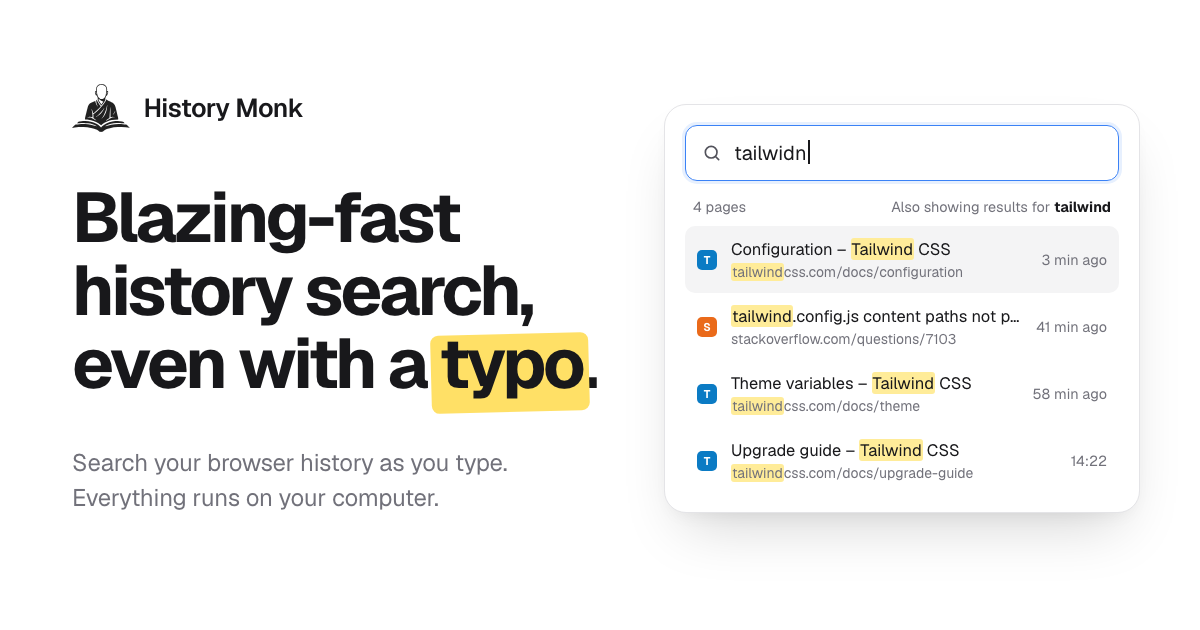
History Monk is a replacement for your browser's built-in history page. Instead of scrolling through days of browsing history, you type a few letters and the page you want shows up. It is aimed at anyone who has remembered visiting a page but cannot find it again, and it handles the full life of that record: searching it, filtering it, exporting it and clearing out the clutter. According to the website, History Monk is searchable 80 milliseconds after it opens, it replaces the browser's history page in Chrome, Edge and Opera, and in Firefox you open it from the toolbar button or with Alt+Shift+H. Everything runs on your own computer. Browsers record everything you look at but give you very little control over that record. The default history view is a long chronological list that is painful to scan, and it accumulates search result pages, sign-in screens, shortened links and pages you clicked exactly once. Most people never clean it because cleaning it would take hours. The website frames the problem plainly: no more scrolling through days of browsing history. It also points out that browsers cannot restore deleted history, for any extension, which is why History Monk pairs bulk deletion with confirmation steps and a protected-sites list. Privacy is the second problem: browsing history is sensitive, so Search, Analytics and Cleanup are run locally. Search is the core of the product. You type part of a title or the name of a site and matching pages appear while you type, with results updating for every letter, no Enter key and no waiting for a page to load. Spelling mistakes are corrected from the words in your own browsing history, so typing "plannig" still finds the planning doc. Power filters narrow the list further: site:github.com restricts results to one site, -site:youtube.com excludes one, title:invoice matches the page title only, url:/pull/ matches the address only, after:yesterday and before:17:30 restrict by date and time of day, and visits:>10 finds pages opened more than ten times. A regular expression can be combined with any of these filters, sort:new orders by best match, newest or most visited, and selected: shows only the rows you ticked. The site counts more than eleven power filters. Terms can be mixed in any order, quotes match an exact phrase, and the site states that 100,000 pages can be searched with no lag. Recently closed keeps every tab and window you close, newest first, next to your browsing history. The last tab you closed sits on top, you can type a word to filter the closed tabs, and clicking one opens it again. In Chrome, the Devices view lists the tabs open on your other signed-in devices — phone, tablet and laptop — grouped by device and newest first, with the time each tab was last used, searchable by title or address and openable right there. The website notes this uses the Chrome sync you already have, needs no extra account, and that Firefox does not share other devices' tabs with extensions. Sites is where bulk deletion happens: tick one site or fifty, using shift-click for a range or Ctrl+A for every site, and press Delete to remove every page from those sites, including older visits you cannot see on screen. You can also right-click any page or link and choose "Delete all history of this site". Deleting a site always asks first, and sites on your protected list can never be removed. Export turns what you have found into a file. Search or filter first, then export just those results, or a whole Cleanup group. CSV opens in Excel and Google Sheets, JSON is ready for your own scripts, and the HTML file is a searchable, sortable page you can keep offline. Every export keeps the same five columns — title, URL, site, last visited and visit count — and the file is created in your browser and saved to Downloads, with nothing uploaded. By group is another way to organise history: each search and the pages you opened from it stay together in one card, covering Google, Bing, DuckDuckGo, YouTube and dozens more with no setup. A group card can reopen the whole search with "Open N pages", which brings every page back in a new tab group, or delete a search and its pages in two clicks, leaving pages you also visited at other times untouched. Cleanup sorts history into 24 groups of removable pages, such as search result pages, duplicate pages, sign-in and callback pages, links with tracking parameters, shortened links, pages visited once and never again, untitled or failed pages, AI chat conversations, cart and checkout pages and webmail and calendar pages. You can look inside a group before anything is deleted, every delete waits for a second click to confirm, protected sites are never touched, and there are one-click deletes for the last hour, day or week. Timeline shows your history one day at a time, newest first, starting a new session after 30 minutes of quiet and displaying the gap for how long you were away. Analytics adds a weekday-by-hour heatmap, a focus score, streaks, rising and fading sites and the terms you search for most, and clicking any cell opens those pages. A weekly digest card summarises the last seven days — pages, top sites, your busiest hour and late-night share — and can be copied as an image or text. Keyboard shortcuts such as Alt+Shift+H to open History Monk from any tab, / to jump to search, arrow keys to move, Enter to open and Ctrl+Enter to open in the background keep your hands on the keys. History Monk's approach is local-first. It reads your browsing history through the browser's history API and searches it inside the extension page, so Search, Analytics and Cleanup all run on your computer and your browsing history never leaves your device. There are no content scripts, so it never runs inside the pages you visit; it only does work while its history page is open, which is why the site says it will not slow down your browser. In Chrome and Edge, site icons come from the browser's icon cache, so showing results makes no web requests. There is no account to sign up for and no third-party trackers or analytics. The only network requests it makes are to verify a licence key and to look up the current price. Hidden sites can be kept out of search, Sites, Analytics and Cleanup without touching the underlying history, and protected sites can never be deleted from any view. The payoff is speed and control over a dataset you already own. Search is ready 80 ms after the page opens and refreshes on every keystroke, so finding a page takes seconds instead of minutes. Typo correction removes the need to remember exact titles, and the filter language turns a flat list into something you can interrogate by site, date, title, URL, visit count or pattern. Bulk delete clears a whole site's history in one action, and Cleanup removes large blocks of junk in a chosen time range while still showing you exactly what will go. Export gives you a portable, reusable record of any slice of your history. Timeline and Analytics show where your time actually goes, and because everything is local with no account, using the product does not create a new privacy problem of its own. Concrete workflows come straight from the product's own examples. You remember the Lisbon flight you looked at yesterday, type a couple of letters, and the page is back. You close a tab by mistake and reopen it from the top of Recently closed. You are shopping for a surprise, so you tick that site under Sites or right-click the page and delete all of its history in one go. You want a record of your pull request pages, so you search site:github.com pull and download CSV, JSON or HTML. Your history has filled up with search result pages, duplicate pages and sign-in screens, so Cleanup shows you the 24 groups, you review a group such as the 1,204 search result pages, and delete them after a confirming click. You start reading something on your phone, open the Devices view on your laptop, and pick it up there. Or you simply open the weekly digest to see pages, top sites, your busiest hour and your late-night share. History Monk is distributed as a browser extension for Chrome, Edge, Opera and Firefox 140 and later. In Chrome, Edge and Opera it replaces the built-in history page, so the History menu and its shortcut open History Monk; in Firefox you reach it from the toolbar button or with Alt+Shift+H. It searches as far back as your browser keeps history — Chrome keeps about 90 days — loading the most recent 100,000 pages in the range you pick, with the first 2,000 searchable before the rest finish loading. It is free for 7 days with no account, and after the trial it keeps working for 3 opens a day; a licence removes the limit and enables deleting from Cleanup. It ships with 28 themes drawn from official palettes, including Nord, Dracula, Catppuccin, Solarized and Rosé Pine, and eight languages: English, Español, Français, Deutsch, Português, 日本語, 简体中文 and हिन्दी. You can also set a 12- or 24-hour clock, date order, row density and text size. In short, History Monk takes the browser's least useful built-in page and turns it into a fast, private tool for finding, filtering, exporting and clearing your browsing history. It searches as you type and forgives typos, it recovers closed tabs and shows tabs from your other devices, it deletes a whole site's history in one action, and it groups the junk into reviewable cleanup categories. Nothing is uploaded, there is no account, and the only network requests are for licence verification and price lookup — which is exactly what a tool built on this much personal data should look like.
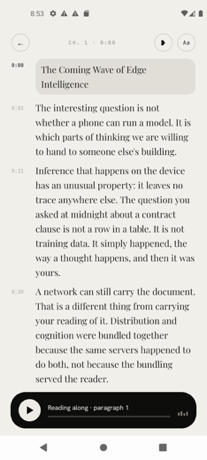
Fluence is a reading app for your phone that turns your PDFs, ebooks, reports and saved articles into something you can listen to, follow along with, and ask questions about. It is built for readers who want to get through long documents without keeping their eyes on a screen — people with reading piles, reports, books and saved articles, and anyone who prefers to listen. The promise is stated plainly on the product's own site: your books and documents, read aloud by a voice you choose. Its main purpose is to make listening to written material a first-class way of reading, with everything happening on the phone in your hand rather than on a remote server, so the app keeps working and your material stays with you. Documents are long, and the moments when you could actually get through them are usually the moments when reading is impossible. That is the gap Fluence addresses. Walking, driving, doing chores or commuting, you can listen even when you cannot look at a page, so a report or a book stops being something that only progresses when you are sitting still. The alternative tools tend to add friction of their own: accounts to create, servers to upload documents to, and subscriptions that keep charging month after month. Fluence is deliberately built the other way around. It does all of the work on the device in your hand — reading the file, making the speech, answering your questions — with no account, no server and no subscription. The result is a reader that still works on a plane, in a car, or anywhere the signal drops. The first thing Fluence changes about reading is that you never lose your place. The sentence being spoken lights up as you listen, so the text and the audio stay in step and your eye can follow every word as it is spoken. A highlighted line is also a foothold: after a distraction you can re-enter the document where the voice is, rather than hunting back through the page. Alongside following along, you can bookmark a line or write a note beside it. Those marks let you treat a listen as active reading — flagging the passage you want to return to and capturing the thought you had while it was being read out. The voice that reads to you comes with the app, so there is no voice pack to pick and nothing to download before you can start listening to your first document. That removes the setup step that usually sits between installing a reader and hearing a page. The voice that ships inside the app reads 31 languages, which means documents written in any of those languages are covered without extra configuration. If none of the available voices suit you, Fluence lets you use your own, made from a short recording you speak yourself. Choosing the voice is not a cosmetic detail — it is the difference between listening to a document with attention and merely tolerating it, and a voice you recorded yourself is one you already recognize. Fluence also lets you ask about what you read. You put a question to the document and get an answer drawn from the document itself, with the app showing you the passages the answer came from. Showing the source passages is what makes this usable for reports, research and non-fiction: instead of taking a summary on trust, you can see exactly where in the text the answer is grounded and read around it. Because the answer is drawn from the document's own passages, the feature works as a way of interrogating a file you have already loaded rather than as a general-purpose chatbot. Any book or document can become one audio file. Fluence prepares the audio for the whole document ahead of time while you do something else, and tells you when it is ready. What you get is a single file to keep, to play in the car, or to send to another app. Turning a document into one finished audio object is a different proposition from pressing play in a reader: the result is yours to carry with you and to hand to whatever player you already use. Preparing the audio is free; saving it out is part of the full version. Everything stays on your phone. Fluence does all of the work on the device in your hand — reading the file, making the speech, answering your questions — so your library, your notes and your recorded voice stay with you, and the app works offline rather than depending on a connection. On the input side, Fluence opens what you already read. It accepts PDF, EPUB, Word, OpenDocument, Rich Text, Slides, Text, Markdown and web articles, so you can bring the files you have instead of converting them into a format the app prefers. Between the on-device processing and the wide format support, the practical effect is that your existing reading pile is usable as it stands. Fluence is made for Android and is distributed through Google Play. Ten documents are free, so you can see how it feels first before deciding. The full version is a one-time payment of €14.99: buy once and it stays yours, on every phone you sign into with the same Google account. There is no subscription attached, which means the cost of listening to your documents does not recur month after month. The free allowance covers ten documents and includes preparing audio, while saving the finished audio file is part of the full version. The outcomes Fluence is built around are practical ones. You keep your place automatically because the spoken sentence is highlighted as it plays. You can listen while your hands and eyes are busy, which is when written material otherwise stalls. You can mark and annotate as you go, so listening still produces something you can return to. You can convert material into a single audio file that travels with you. And you can do all of this privately — offline, with no account and nothing leaving your phone. Together these make the app a way of finishing documents rather than a way of starting them. In daily use, Fluence fits the moments when reading is not possible. A commute is the obvious one: load a report or a book and follow the highlighted text on the screen, or just listen with the phone pocketed. Because any document can be turned into one audio file, the car is another: prepare the audio ahead of time, save the finished file, and play it through whatever you already use. For study and research, following the spoken line while reading, bookmarking the passages that matter and writing notes beside them supports close reading of dense material, and asking the document a question returns an answer with the passages it came from so you can check it against the text. Fluence is for anyone who has more to read than time to sit and read it. That includes people with long reports and work documents, students and researchers working through dense material, readers with a backlog of ebooks and saved articles, and anyone who would rather listen than look at a screen. Because it is an Android app that opens the formats people already have and works offline, it also suits listeners who want their documents and recordings to stay on their own device. Fluence's value proposition is narrow and clear: your books, documents and saved articles, read aloud on your phone by a voice you choose, with follow-along highlighting, answers drawn from the text itself, and finished audio files you can keep. It runs offline, keeps everything on your device, and costs one payment of €14.99 after ten free documents.
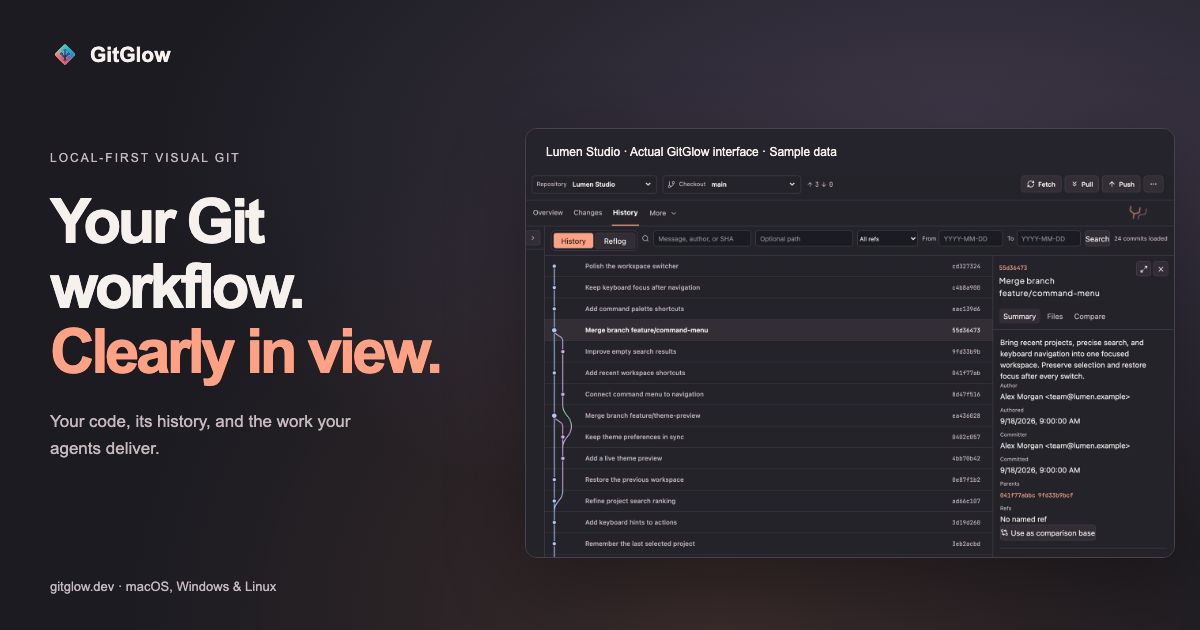
GitGlow is a local-first visual Git workbench for independent developers who want to know what their code and their agents will ship. It brings precise staging, clear commit history, conflict resolution, a checkout-aware terminal, coding-agent review, and release preparation into a single desktop workspace. Instead of switching between separate tools, a developer opens a clone, reviews the current diff file by file, stages precisely, and ships with confidence. GitGlow is available as desktop builds for macOS, Windows, and Linux, and the free tier works with a private local clone without requiring an account. The problem GitGlow addresses is that producing changes is easy, but verifying them is not — particularly when some changes come from AI coding agents. Developers need to inspect what actually changed, decide which parts belong in a commit, and remember what they have already reviewed. GitGlow's review confidence approach is explicit about this: mark files reviewed and run checks, and later edits bring files back to your attention while making earlier results stale. Agent context is also connected to the checkout, so observed and managed runs can carry repository, checkout, event, and attributed-file context into the same Changes workflow. Local private work remains useful on the free tier, covering precise staging, commits, branches, conflicts, history, blame, and reflog without a GitGlow account. Staging in GitGlow is deliberately granular: review files, hunks, or selected lines before composing a clean commit, so only what belongs is staged. This is available on the free tier for a local repository. Building on that, the Pro review confidence feature lets developers mark files reviewed and run an explicit check with timeout and cancellation, keeping results tied to the checkout that was tested. When a file is edited again later, it returns to attention and the previous verification becomes stale. Nearby, checkout-aware terminal tabs let developers run Git, tests, and installed agent CLIs beside the diff; one checkout is free, while concurrent checkouts are part of Pro. History in GitGlow is presented as topology rather than a flat list: explore real topology, compare revisions, and trace file or line history, with core history free and editing features in Pro. Developers work with branches, remotes, stashes, tags, and trusted worktrees — daily actions are free, while managed worktrees are Pro. Conflict resolution focuses on understanding the real operation: GitGlow explains the roles in merge, rebase, cherry-pick, and revert conflicts, and continuation and recovery are free. For people working across several clones, GitGlow keeps registrations, context, and workspaces without flattening local data, with one active repository free and concurrency in Pro; Pro also adds a selected-repository fetch that brings repositories up to date together with clear per-repository results. Agent work is treated as something to be reviewed rather than merely watched. GitGlow follows authentic provider and Git signals across live, observed, and managed runs, with basic observation free and managed controls in Pro. Observed sessions remain owned by their originating Desktop or CLI client: GitGlow monitors supported hook events and independent Git changes, but hides message, approval, and interrupt controls unless the provider exposes a supported channel, while runs launched by GitGlow are Managed and can expose those controls. An Activity Tape lets developers search and replay sanitized operational detail in context, with the latest Replay free and advanced retention in Pro. Through a packaged MCP sidecar, GitGlow gives agents bounded Git context by exposing read tools and reviewed native actions; reads are free and approved writes are Pro. Free MCP access is read-only, and every MCP-originated write waits for native approval in Agent Observatory while the desktop app is open. GitGlow's overall approach is local-first, with an explicit privacy boundary: local status, diffs, history, repository paths, previews, and audit records stay on the device. Optional GitHub, agent-provider, billing, and consented analytics connections have separate, explicit data boundaries. If GitHub is connected, GitGlow sends only the GitHub requests needed for installed repositories through the GitGlow API, and tokens never enter the desktop webview or MCP responses. For agent observability, an encrypted local flight recorder can retain sanitized provider-visible plans and commentary, commands, bounded output and tests, approvals, collaboration, relative paths, statistics, and safe text diff hunks. It excludes raw prompts, full transcripts or final replies, credentials, absolute paths, binary or oversized bodies, and contents or hunks from secret-prone files, and redaction and truncation are always disclosed. GitGlow states that it never exposes or stores hidden reasoning. Pro also extends the workspace beyond the local clone. A GitHub connection lets developers review authorized GitHub repositories, pull requests, issues, workflows, and checks. Release Workspace helps prepare a release you can review by bringing checks, merged work, notes, and tags into one guarded sequence; release publication is available only there, after a fresh guarded preview and explicit final confirmation. Insights explore the shape of the work — activity, commits, graphs, trends, complexity, work types, rhythm, sessions, and exports — with commits and activity free and advanced insights varying by plan. Indie Log turns evidence into a useful work log, written manually or produced as an analysis-only report pack built from selected sources, with manual logging free and managed reports in Pro. The stated benefits follow from these capabilities. Review confidence means knowing what you reviewed and what changed, so verification does not silently drift out of date. Fetching selected repositories together gives clear per-repository results when catching up across a workspace. Precise staging produces clean commits that contain only intended changes. Checkout-aware terminals keep tests and agent CLIs beside the diff they relate to. Agent observability makes agent work reviewable and ties it to the checkout, while bounded MCP context keeps agent access controlled through native approval. Moving between repositories safely preserves context and local data instead of flattening it. Concrete workflows start with onboarding: install GitGlow, open a clone, and create a first reviewed commit. From there, the daily Git loop covers reviewing changes, working with refs, resolving conflicts, and inspecting history. Developers who use coding agents connect supported clients, review events, and open the exact changed files, with repository, checkout, event, and attributed-file context carried into Changes. Developers preparing a ship can run the guarded release sequence in Release Workspace. They can also search the Activity Tape or replay sanitized operational detail when they need to return to the moment that matters, and produce a work log with Indie Log. The documentation additionally covers finding every control — exact button labels, shortcuts, availability, and recovery behavior. GitGlow describes itself as local Git for independent developers. It ships desktop builds for macOS, Windows, and Linux; GitGlow 2.0.5 has been manually checked on macOS, while Windows x64 and Linux x86_64/aarch64 packages are build-validated for version, architecture, payloads, sidecars, and checksums. Pricing is free for private local clones with no account needed, including one active repository or checkout, precise staging, commits, branches, sync, merge, conflict resolution, stashes, tags, topology history, compare, blame, reflog, basic observation, latest Replay, manual Indie Log, analytics, export, read-only MCP, and terminal tabs in the active checkout. Pro costs €2.99/month or €29/year and adds concurrent terminal sessions, review freshness, verification tied to checkout state, multi-repository fetch, guarded history editing, concurrent workspaces, managed agents, advanced Observatory review and Replays, GitHub integration, Release Workspace, managed Indie Log, and MCP writes. AI provider subscriptions and API usage are separate. Taken together, GitGlow is a local-first Git workbench that treats review as the central act of shipping software. It keeps everyday Git free and local, adds confidence and control through review marks, checkout-tied checks, concurrent workspaces, managed agents, GitHub integration, and release tooling in Pro, and gives coding agents bounded, approved access rather than open-ended control. For independent developers who want to know exactly what they reviewed and what will ship, the product's value proposition is simple: review every change and ship with confidence.
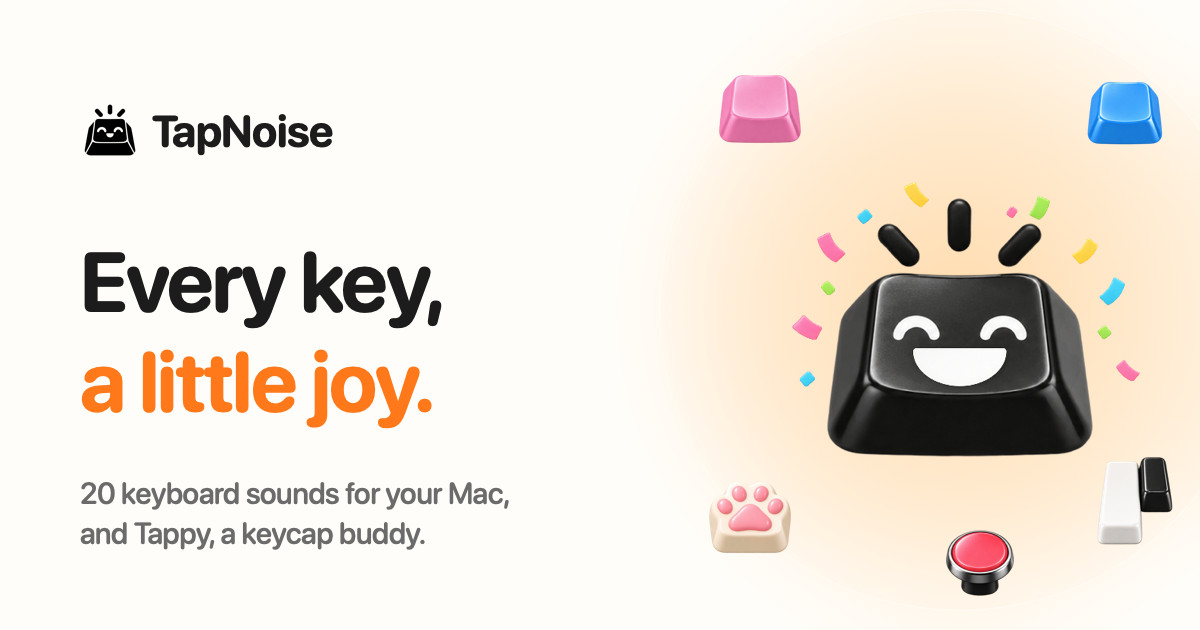
TapNoise is a macOS app that gives your Mac the sound of a dream keyboard. It ships with 20 keyboard sounds, from a deep thock to tiny paws, and adds Tappy, a little keycap character that lives on your desktop and reacts to everything you do. The app is built for Mac users who want typing to feel and sound better, and it also tells you when your AI coding agent is done. It runs on macOS 14 or later and is sold as a one-time purchase for one Mac (Solo) or two Macs (Duo), with no subscription. Most keyboard sound apps play the same clip for every key and every keystroke. TapNoise starts from a different premise: most keyboard sound apps play every key the same, so fast typing ends up sounding like a machine gun. Instead, TapNoise feels how hard you press through the MacBook's motion sensor, and every key plays as loud as you hit it. Every key also gets a take of its own, so fast typing never sounds like a machine gun. Space, Return and Delete sound like the bigger keys they are, and the stereo follows the key, left to right. TapNoise includes 20 keyboard sounds, which the site groups into Keyboards and Fun. The Keyboards set covers Thock, Creamy, Clicky, Silky, Hushed, Bumpy, Pillowy, Clunky, Chunky and Retro, including a deep and heavy thock that sounds like a custom board. The Fun set adds Typewriter, 8-bit, Bubble, Piano, Rain, Paws, Kalimba, Woody, Marbles and Laser. On the website you can pick a sound, click a box and type to hear the real sounds from the app. On a Mac they play under every key, in every app, and you switch sounds with one click from the menu bar, where you also turn TapNoise on or off and set the volume; Tappy, Clean Mode and Guard Mode are there too. Tappy is a little keycap with a face that sits in a corner of your screen, and you can drag it anywhere. It presses along with every key and shows your words per minute underneath. Tappy has moods drawn from what you are doing: Happy when typing along with you, Sweating when you type fast, On fire when you are really fast, Dizzy when someone slaps the Mac, Snacking when the charger goes in, Ears covered when Caps Lock is on, Sleepy when it is late, Asleep when you have been away, Party when you level up, and Bye! when the lid is closing. Every tap is XP: you type, level up, and Tappy unlocks hats to wear, including a party hat at level 2, sunglasses at level 4, headphones at level 6, a beanie at level 8, a chef's hat at level 10 and a crown at level 15. You can keep a daily streak going, watch your typing speed, and get a card of your week to share. Because it reads the MacBook's motion sensor, TapNoise can do more than play key sounds. Type softly and it whispers, hit hard and it clacks: every key plays as loud as you hit it. The MacBook itself has sounds too. Slap it and it says ouch, harder hits are louder. Opening the lid makes the hinge creak like an old door, faster the faster you move it. The charger and USB plugs get their own little sounds: Tappy has a snack when you plug in the charger, and USB gets a happy little chime. Slaps, knocks and pressure need a MacBook with a motion sensor, which means a MacBook Pro with M1 Pro or later, or a MacBook Air with M2 or later, and the lid creak needs a lid angle sensor, found on the same models plus the 2019 16-inch MacBook Pro. The same sensors that make the sounds do real work. Knock twice on your MacBook to pause the music, mute your mic in a call, or answer a waiting AI agent, and three knocks lock the screen. Guard Mode is for leaving your MacBook at a café table: if someone lifts it or pulls the charger, it sounds a loud alarm, and turning it off takes your Touch ID or password, though Force Quit ends Guard and closing the lid may put the Mac to sleep. Lift detection needs a MacBook with a motion sensor; other Macs get the charger alarm only. Clean Mode holds the keyboard and trackpad still so you can wipe them without typing nonsense or clicking anything, with a countdown so you know when it is done, and holding Esc stops it early. A shortcut cheat sheet appears when you hold Command for a second, showing every shortcut in the app you are using, and disappears when you let go. Tappy also acts as a break buddy, reminding you to stretch after a long stretch of work and nudging you when you start hammering the keys. Song Mode lets Piano, Kalimba or 8-bit play the next note of a song with every key, so you can type an email and hear Für Elise. Typing speed shows your words per minute live under Tappy, with your best today and your best ever. Quiet in calls means TapNoise goes silent while any app is using your microphone, so nobody in the meeting hears your thock. For developers, TapNoise puts your AI agent on speaker. If you code with Claude Code, Codex or Cursor, you can look away while it works, because TapNoise chimes when your agent is done or needs you, so you stop checking the terminal. A rising little chime and a Tappy party mean done; two quick taps and a sweating Tappy mean the agent needs you; a falling note and covered ears mean an error. When an agent is waiting, knock twice on your MacBook and its window jumps to the front, or just click Tappy. Connecting takes one click in Settings › Agents › Connect: TapNoise backs up your settings first, adds one small hook, and Remove takes it out again. The cues are made from the keyboard sound you picked, so they sound like part of your Mac rather than another alert, and they stay quiet in calls and follow your volume. It works with Claude Code (done, needs you and errors), Cursor (done and errors) and the Codex CLI (done). Knocking needs a MacBook with a motion sensor, while clicking Tappy works on any Mac. TapNoise is private by design: it hears keys, never words. It learns which key position went down, so it can play the right sound, and it never sees what you type, keeping only counts. From AI agents it hears only done, needs you or error, never your code. There is no account to sign up for and no analytics in the app; your stats, levels and hats stay on your Mac. TapNoise goes online to activate and check your license key with Dodo Payments, and once a day to look for an update, and nothing about your typing is sent. It is also built to be light: on a MacBook Air, typing at full speed uses about 4% of one CPU core and around 30 MB of memory, the motion sensor slows down when you are not typing, and it turns off with the features that use it. TapNoise is free for 3 days with no card, then sold as a one-time purchase. Solo covers 1 Mac and Duo covers 2, and every sound and every tool, plus every update, is included, with 14 days to change your mind. At launch the site lists a discounted price while launch licenses last: US$4.99 instead of US$9.99 for Solo and US$7.99 instead of US$14.99 for Duo, which works out at US$4 per Mac at launch, with the launch discount applied at checkout and no code to type. Standard pricing is listed as US$9.99 for one Mac (Solo) or US$14.99 for two (Duo), plus tax, with no subscription; checkout is handled by Dodo Payments and there is a 14-day refund policy. The license key arrives by email the moment you buy and is pasted into TapNoise Settings, License, Enter Key; a Solo key works on 1 Mac at a time and a Duo key on 2 Macs, and to move it you click Remove from this Mac on the old Mac and then activate it on the new one. Any Mac with macOS 14 or later plays the key, click, charger and USB sounds, with the built-in keyboard or any keyboard you plug in, and Guard Mode sounds its charger alarm. TapNoise is made independently by Rudra Satani, who also makes NotchMind. In short, TapNoise is more than a keyboard sound app. It pairs 20 carefully built sounds with a pressure-aware sound engine, a desktop companion that reacts to your typing and your moods, a set of genuinely useful tools such as Knock commands, Guard Mode and Clean Mode, and agent notifications that call you back when your AI finishes. It is a one-time purchase with no subscription, so every key really does get a little joy.
Skymir is a native Google Drive sync client built specifically for Linux. It mirrors Google Drive folders to local disk so that your cloud files become real files on your machine rather than a virtual filesystem, and it keeps both sides in sync in both directions. It is aimed at Linux desktop users who need a working Google Drive client on distributions such as Ubuntu, Linux Mint, Debian, and Pop!_OS, where Google's own Drive for desktop application is not available. Alongside syncing, Skymir generates shortcuts for Google Docs, Sheets, and Slides, shows sync status in a GTK system tray icon, and runs a background daemon that keeps everything up to date without user intervention. Google Drive for desktop runs on Windows and macOS only, so Linux users have long been left without a first-party client. Skymir's developers built the product after an accident: a sync run using rclone's bisync feature deleted 1,437 of their Google Docs while they were mirroring twenty years of files. rclone removed the native Docs, Sheets, and Slides as if they were missing files. The team emphasises that rclone is a great tool for bulk transfers, but keeping a working folder in sync with Drive's native documents turned out to be a different job. That experience shaped Skymir's safety-first design, which treats Google's native document formats as shortcuts rather than files that might appear to be missing. Skymir's core is true mirror mode. You can mirror your entire Google Drive, or only the folders you choose, and keep them in perfect sync with local disk. You can edit on either side and changes flow both ways, with full offline access to your mirrored files. Deletions propagate safely to the trash rather than being permanent, giving 30-day recovery on both sides. The app also includes a hard safety rule: a sync that would delete more than half of your files is refused. This max-delete safety is exposed in the General settings tab, alongside options such as sync interval, start-on-login, and exclude patterns. Google's native documents are handled differently. Skymir generates .gdoc, .gsheet, and .gslides shortcut files for every native Google Docs file in your Drive, so they are never treated as missing files. Double-clicking one of these shortcuts in Nemo, Nautilus, or Dolphin opens the live document in your browser, which means you can find and open a Doc the same way you open any other file on your desktop. Sync itself is quick and incremental: saving a file puts it on Drive within seconds, while changes made in Drive on the web, on your phone, or on another computer come down within about a minute. Skymir asks Drive only for what changed since the last check using the changes.list endpoint, so it never rescans your entire Drive. Skymir integrates with the Linux desktop through a native GTK tray icon built as a real AppIndicator3 applet that matches the theme of Mint, GNOME, Cinnamon, KDE, or XFCE. It shows sync status at a glance and provides quick actions: sync now, pause, open folder, and open settings. A Recent Activity window lists downloads, uploads, deletions, and shortcut creations with timestamps. At first-run setup a guided wizard walks you through Google sign-in and then offers two sync modes. Full Drive Sync mirrors your entire My Drive and automatically picks up new top-level folders you create later, the same model as Google Drive Desktop on Windows and Mac. Selective mode lets you choose exactly which folders to mirror, so you can leave large or noisy folders behind. You can switch between the two any time in Settings, and either way only My Drive is mirrored, since shared drives are not supported yet. Skymir was built from scratch on the Google Drive API, and it ships as a .deb package built against glibc 2.35. It installs from the skymir.app apt repository or as a direct .deb download, and runs on Ubuntu 22.04+, Linux Mint 21+, Debian 12+, Pop!_OS, elementary OS, Zorin OS and other Debian-based distributions. It has been end-to-end tested on Linux Mint 22.3, Ubuntu 24.04.4 LTS, Ubuntu 22.04.5 LTS, and Debian 13 "Trixie" across Cinnamon, GNOME, and KDE Plasma. Support for .rpm (Fedora) and Flatpak is planned after launch. A background daemon keeps everything in sync while the tray icon shows status, so the workflow is simply install, connect, and go. For users, the main benefit is that Google Drive behaves like a normal folder on Linux. Your files are real files on disk, not a virtual filesystem, so they are available offline and readable by any application. Local saves reach Drive in seconds and Drive-side changes arrive within about a minute, so working across a laptop, phone, and the web stays consistent. The safety measures, including shortcuts instead of missing files, trash-based deletion with 30-day recovery, and the refusal to run a sync that would delete more than half your files, are designed to prevent the kind of catastrophic data loss that inspired the product. Skymir also avoids vendor lock-in: if you uninstall it, your local files stay on your disk and your Drive content stays in Google Drive, with no proprietary format involved. Typical scenarios include mirroring an entire My Drive to a Linux workstation so that every folder is available locally and offline, and using Selective mode to mirror only the folders that matter while leaving large or noisy folders in the cloud. Because Skymir generates .gdoc, .gsheet, and .gslides shortcuts, users can browse a mirrored folder in their file manager and double-click a Google Doc to open the live document in a browser, which is useful for people who prefer working from the file manager rather than the Drive web interface. Since changes made in Drive on the web, on a phone, or on another computer arrive within about a minute, Skymir suits workflows where the same documents are edited from several devices. The Recent Activity window supports reviewing what was downloaded, uploaded, deleted, or turned into a shortcut. Skymir is aimed at Linux desktop users on Debian-based distributions who need Google Drive access, including people who previously relied on rclone's bisync, Insync, or overGrive. Pricing is a one-time $19 launch price with lifetime updates and no subscription. A 14-day free trial offers full functionality with no credit card and no account registration, just an email address for trial reminders and support replies, with the trial starting on first launch. All features are unlocked during the trial: mirror mode, tray, settings GUI, activity viewer, and the background daemon. One license activates one machine at a time, and you can move between computers at any time by deactivating on the old machine in Settings, License, Deactivate. A 30-day refund policy applies, and email support is available at support@skymir.app. Skymir is an independent third-party application built on Google's public Drive API and is not affiliated with, sponsored by, or endorsed by Google. Skymir fills a gap Google has left open: a native Google Drive client for Linux. It combines true two-way mirroring, double-click shortcuts for Google Docs, quick incremental sync, and a themed GTK tray in a .deb package that costs $19 once. Its safety-first design, with shortcuts rather than missing files, trash-based deletes, and a max-delete guard, targets the data-loss risk that makes sync tools dangerous, while the 14-day trial lets Linux users verify it on their own distribution before paying.
Skreno is an AI-powered screen recorder that runs entirely in your browser. It records your screen, captures screenshots and records meetings such as Zoom calls, then turns each recording into a shareable link that arrives with a transcript, an AI summary and comments placed on the exact second. Alongside recording, Skreno includes Studio, a recorder and editor that runs in the browser and is included with every plan, with exports up to 4K. It is built for individuals and teams who need to show something on screen rather than describe it in words. The problems Skreno addresses are the small frictions that pile up around explaining things visually. Installing an app just to hit record. Uploading a file, waiting, then pasting a link. Opening an editor just to draw an arrow. Cropping and labelling screenshots by hand. Chasing feedback across five threads. On engineering and support teams the friction is sharper still: a ticket says 'it works on my machine', a developer says 'I can't reproduce it without the error', and a hand-off arrives with no stack trace and no idea where to look. Support teams report that each ticket can take three replies before anyone can reproduce it, and video conversations tend to turn into long meetings when a short recording would do. Skreno's answer is to put recording, editing and sharing in one place in the browser, so the explanation travels with the evidence. Recording is the first layer. Skreno records right in the browser, so there is no app to install before hitting record. Screenshots are captured and labelled automatically, so each step in a sequence is grabbed and annotated rather than cropped and labelled by hand. Annotations can be drawn and marked up while you record, so an arrow or a highlight lands exactly where the point is being made instead of being added afterwards in a separate editor. Screen and camera can be recorded as separate tracks, which gives the editor freedom to choose the layout later. Sharing is immediate. The link is live the second you stop recording, so there is no upload-and-wait step between finishing and sending. Every recording arrives with a transcript, an AI summary and comments, and comments are placed on the exact second they refer to, which keeps discussion anchored to the moment in the video rather than scattered across threads. When typing three paragraphs would be slower than showing it, you can reply with a quick video instead. And when input is needed from other people, the feedback is collected right on the video. Studio is the editing layer, and it runs in the browser. It trims, captions, blurs and polishes, with exports up to 4K and no download required to do the work. A ten-second trim no longer means downloading the raw file first. Captions, blur and backgrounds live in one editor instead of being spread across one app for captions and another for backgrounds. Editors can pick a layout, cut silences, and add animated captions and titles. Because editing happens from the cloud, every edit updates the same link, so nobody has to re-upload the whole recording after a small change. For engineering work, Skreno attaches the technical evidence to the recording. A bug report can come with the console log attached, and a network panel shows three failed requests highlighted with the 500 error response body open, so the person fixing it can see what actually broke. That directly addresses the three familiar lines in a bug thread: 'it works on my machine', 'I can't reproduce it without the error' and 'no stack trace, no idea where to look'. Teams can also install Skreno on their own site with a Web SDK that needs one script tag, and an AI assistant can be connected so it searches your recordings over MCP and acts. Beyond screens, Skreno covers meetings and other people's recordings. The Meeting Notetaker records the call and writes the notes, so a meeting produces a transcript and a recap automatically, and transcripts and AI recaps are generated for recordings. For customer stories, you can send a link, the customer records, and you receive the testimonial. Request links work the same way for bug reports: anyone can record for you, no account needed. The way it all fits together is deliberately simple. Everything happens in the browser from a single starting point, with an optional Chrome extension and an SDK for your own site. Recording produces separate tracks, the cloud editor assembles them into a layout, and every edit updates one link. That link carries the video plus the transcript, AI summary, timestamped comments and, where relevant, the console and network logs. Nothing needs to be downloaded to trim, caption or export, and recordings stay attached to the work they belong to rather than living in a separate folder. The payoff is speed in the places where speed is scarce. Showing something takes minutes instead of meetings. A support ticket can be recorded by the customer directly, so the first reply is closer to a fix. A developer receives the error and the log together, which removes a round of guessing. Feedback lands on the second it concerns, so reviewers do not have to reconstruct context. Edits update the link that has already been shared, so nobody has to redistribute a new file after every change. Use cases span the teams that explain things on screen. Support teams send Request links so customers record the bug themselves, build a library of their ten most repeated tickets, and keep recordings attached to the ticket rather than in a separate folder. Engineering teams use dev logs and the Web SDK to capture what broke. Product and design teams mark up screens and collect feedback on the video. Meetings and calls get a notetaker that records the call and writes the notes. Marketing and adjacent teams collect customer stories by sending a link. Guides and tutorials are produced in the same editor used for everything else. Skreno is aimed at individuals and teams who work in a browser and need to explain, review or report something visual — support, engineering, product and design, meeting-heavy roles and anyone gathering testimonials. Pricing matches that reach: free is a real plan rather than a trial, with no card and no countdown, no watermark on any plan, and no account needed to try it. The full editor is free, Studio is included with every plan, and exports run up to 4K. Skreno's value proposition is the promise in its own line: record once, explain nothing. Record, edit and share in the browser, and let the transcript, AI summary, timestamped comments and technical logs do the explaining that usually costs another round of replies.
Cue is a free macOS app that turns your headphones into a focus switch. Put your AirPods in and your Mac turns on your Focus mode, blocks distracting sites and starts a timer in the notch; take them out and it is break time, with your sites coming back. It runs on macOS 14 (Sonoma) or later and the download is built for Apple Silicon, and it is made for anyone who wants to start and stop focusing without opening yet another app. Most focus tools wait for you to open them, pick a mode and start a session manually. Cue takes the opposite approach: it starts when you put your headphones in and ends when you take them out, so there is nothing to remember. The problem it addresses is the friction between deciding to focus and actually being in a focused state: the small habits of opening an app, choosing a timer length and remembering to stop are exactly the moments where distraction creeps back in. Because triggering focus is tied to a physical action you already perform, putting earbuds in, the switch happens automatically and consistently. Cue also notes that macOS has no public way to set a Focus mode, so it sets up its own shortcuts once and switches Focus for you with no more prompts. The core of Cue is the link between your ears and your Mac. When AirPods are detected in your ears, your Focus mode turns on, distracting sites are blocked and the timer starts. The blocker covers social, video and news lists plus any sites you add yourself; you can paste a comma-separated list and Cue splits it. Apps you list are asked to quit while you focus. Both the blocked sites and the quit apps come back when you take a break. Take your AirPods out and, after a 10-second grace period in case you are only adjusting a bud, Focus turns off and your sites return. The break ends after 15 minutes by default, and you can set it anywhere from 5 to 60 minutes in Settings. AirPods Pro, Max, 3 and 4 are the most precise because they report when they are in your ears, but any Bluetooth headphones work, with other headphones starting the session when they connect. Cue lives in the notch: a small dot and a timer sit next to the camera cutout, and you point at it to open it, tap to pin it, and hover to see your day. There is no Dock icon and no window in the way. On Macs without a cutout, such as the MacBook Air M1, iMac, Mac mini and Mac Studio, Cue draws a floating 190 x 32 pill instead, and the same pill floats at the top of the screen when you are plugged into an external monitor. The notch serves as a compact surface for your session: now playing appears with artwork and play, next and previous controls for whatever is playing, from Spotify to a YouTube tab. Notifications from any app land in the notch instead of the corner and tuck away by themselves. Volume and brightness show in the notch rather than as a big box mid-screen. You can give the notch your own colors by picking from presets such as Peach, Lilac, Mint, Sunset and Aurora, or using Mix, which blends three to five colors you choose into three gradient options so you keep the one you like. Battery information appears when you open your AirPods case, showing each bud's battery with one-tap connect. Small islands cover extras such as keep awake, a caps lock indicator and a nudge to unplug at full charge, and a single switch hides the notch from recordings. Two tiny mascot buddies hang under the notch and react to what you do. They run while you focus, nap on your break, dance when music plays and blush when you point at them. New in version 2.6, outside a focus session the buddies leave the notch and roam your whole screen, walking on windows, climbing their sides, hanging from the menu bar and jumping between them. You can pick one up and throw it or click it to cheer. A loop button sprays 20 to 30 buddies out of the notch, and the power button adds ten more per tap up to 60; tap loop again and they all go home. The skin you pick is worn on screen too, with seventeen outfits free from day one and eleven dance moves that change with each phrase and stay smooth on the beat. The buddies also react to your music, volume, notifications, AirPods and face. When they are on the notch they bob to the volume level, cover their ears when it is loud and squint when it is bright. Cue says two roaming buddies cost no more than the notch alone. Cue's approach is built on three steps and one workaround. First, you put your headphones in and focus starts: your Focus mode turns on, sites get blocked and the timer starts. Second, you take them out and a break starts: after the 10-second grace period Focus turns off and your sites come back, with the break ending after a configurable 5 to 60 minutes. Third, you see your day: today against your goal, your streak and the last seven days all appear in one place. Because macOS provides no public way to set a Focus mode, Cue sets up its own shortcuts once and then switches Focus for you with no more prompts. The app is also deliberately private: there are no accounts and no analytics, and your data stays on your Mac. It sends only feedback you write yourself, an optional update check that is off by default, and two anonymous one-time setup signals (opened, ready). It is written in Swift only and is described as light as a feather. The result is a focus routine that starts with a physical habit rather than a decision. You do not have to remember to open an app or start a timer, and you do not have to remember to stop either, because taking your earbuds out ends the session and returns your blocked sites and quit apps. The notch keeps session information, media controls, notifications and system levels out of the middle of your screen, so nothing is in the way while you work. The optional Face Unlock, for Macs without Touch ID, lets the buddies look at the camera while Cue scans your face and wave a welcome back once you are unlocked; Cue itself notes this is for convenience, not security, since a photo of you could open it. Cue also greets you by name and reminds you to drink water and rest, and you can wear any of the seventeen free skins on the notch. Use cases follow the rhythm of a working day. When you sit down with earbuds in, Cue quietly starts a focus session, blocks the social, video and news sites you listed, quits the apps you asked to quit and begins the timer in the notch. While you work, the notch carries what is playing, incoming notifications and your session timer, so the middle of the screen stays clear. If you need to check something, you can take one bud out; the 10-second grace period covers the case where you are only adjusting, so a quick adjustment does not end the session, and then you settle back in. At break time, sites and apps return for the length you configured. At the end of the day you can open the Today tab to see minutes against your daily goal, your streak, your longest session, sessions today and the last seven days. Cue also supports other headphones: any Bluetooth headphones work and Cue tells them apart, with AirPods starting when in your ears and other headphones when connected. Cue is aimed at Mac users who want to reduce friction around focusing, particularly people who already wear AirPods or other Bluetooth headphones while they work. It requires macOS 14 (Sonoma) or later and the download is built for Apple Silicon. It is free: there are no ads, no accounts and no paid tiers, and all seventeen buddy outfits are free from day one. Installation involves downloading the DMG, dragging Cue to Applications and completing a one-screen setup; because Cue is a free hobby app and is not notarized by Apple (which requires a paid developer account), macOS asks you to confirm once through Privacy & Security before it opens. During setup you click Start, enter your password once for the site blocking helper, allow Motion, and turn Cue on in Privacy & Security to Accessibility; Full Disk Access is optional and lets you pick your own Focus modes. The app is written in Swift, and the maker describes it as vibe-coded by one person and Claude. A feedback form accepts feature requests, feedback, bug reports and notes, and an optional email list announces new versions. The site is available in English and Vietnamese. In short, Cue turns a pair of headphones into the simplest possible focus switch for the Mac: in means focus, out means break, with site blocking, a notch timer, media and system controls, playful mascots and a private, account-free design. For anyone who wants focus to start on its own rather than from an app they have to remember to open, Cue makes the transition automatic and keeps everything it needs to show you in the notch.
Claude Dashboards and Claude Motion are two new beta artifacts inside Claude that let people ask for the finished output instead of building it by hand. Claude Dashboards connects to a company's data platform or CRM and turns a plain language question into a live dashboard that keeps itself current as the underlying data changes. Claude Motion turns reports, charts and walkthroughs into short animations that are written as code, so any word, number or timing can be edited, and the result can be downloaded as an MP4 file. Both features are aimed at work where people need answers and explanations: those asking questions of company data, and anyone preparing an all-hands, a board deck or a product walkthrough who wants their ideas to land better in motion rather than as another static slide. The article frames the problem in two familiar workplace bottlenecks. Asking questions about company data usually means filing a ticket or writing SQL, so people wait, or they skip the question entirely. Ideas that would land better in motion usually end up as another static slide. Claude could already help with parts of this, but the output was something a person still had to assemble. With Dashboards and Motion, you can ask for the dashboard or the animation itself, and see how Claude made it: each chart shows the query behind it, and each animation is built as code you can edit. Claude makes the first version, and you decide what gets shared. Claude Dashboards begins with a connection. You connect your company's data platform, such as Amazon Redshift, BigQuery, ClickHouse, Databricks or Snowflake, and then ask a question in plain language. Claude pulls the answers from your data, builds the dashboard, and keeps it current as the data changes. Dashboards also work with your other connectors, so you can ask for a dashboard of your Salesforce opportunities without setting up anything separate. Each chart shows when its data was last refreshed, which tells you how current a number is before you rely on it. Transparency is built in: click any number to see the query behind it, or ask Claude to explain it in words. The article positions Dashboards as a tool for quick, exploratory questions rather than deep analysis, and gives the example of asking how this week's signups compare with last month's. The illustrated example is a bike share dashboard built from a year of ride data, with trip totals and charts of rides per day and by hour. When a question needs deeper analysis, Dashboards work alongside your existing BI and analytics tools: you can send the dashboard from Claude straight to Amplitude, Grafana, Hex, Mixpanel, Omni, Perplexity, PostHog or Sigma and pick up the analysis from there. Looker, monday.com and Tableau are coming soon as additional destinations. Claude Motion is built for explaining your own work. You can ask Claude to turn a quarterly report into a 30-second explainer for an all-hands, add motion to a chart in a board deck, or make a product walkthrough for customer onboarding. Typing "/motion" in the Claude message box brings up the Motion option. Claude builds an animation from your prompt and it plays like a short video. Because Claude writes code that animates your text, charts, shapes and images, you can change any word, number or timing, either in the editor or by asking Claude to change it. When you are happy with it, you download it as an MP4 file. Motion deliberately does not use a video generation model, so there is no generated footage and no AI-generated people. When you want to take an animation further, you can open it in Adobe, Descript, HeyGen, Higgsfield, invideo, Luma AI or Runway, with Canva and Captions coming soon. Alongside the two new beta artifacts, the article also confirms that Claude Docs, Slides and Design are out of beta and available on every plan, including Free, and that people have made more than 45 million docs, decks and designs in Claude. Artifacts now support CMEK, and admins choose which artifact templates their organization uses. Teams and Claude can work on the same doc, deck, design or dashboard. Slides, designs, dashboards and animations can be shared with people outside your organization, or with anyone who has the link, if your admin allows it. PowerPoint and PDF downloads keep your formatting, and decks go straight to Google Slides as editable files. Docs, decks and designs can also be edited on your phone in the Claude mobile app. The shared idea behind both artifacts is that you ask for the finished thing and then inspect how it was made. Dashboards expose the query behind every number and the time of the last data refresh, so a plain language question still resolves to something you can verify. Motion writes the animation as code rather than generating footage, so every word, number and timing stays editable and the result contains no AI-generated people or generated video. In both cases Claude produces a first version and the person decides what gets shared, which keeps a human in the loop on the output that leaves the organization. The article also notes that Claude Design, which started at its own URL, now works inside every Claude conversation, where it can use your context, files and connectors. The practical benefit is speed on the questions people normally wait for. Instead of filing a ticket or writing SQL, you ask in plain language and get a dashboard that refreshes as the data changes, so the numbers do not go stale after the first screenshot. Instead of another static slide, you get a short animation that can be edited down to the individual word or number. Because the query is visible behind each number, the dashboard can be checked rather than taken on trust, and because Motion output is code, it can be handed to design and video tools without locking you into a single editor. Shared artifacts move beyond the team through links and exports that preserve formatting. The article suggests concrete scenarios. For data: a dashboard comparing this week's signups with last month's, a Salesforce opportunity dashboard, or the illustrated bike share dashboard built from a year of ride data with trip totals and charts of rides per day and by hour. For explanations: a quarterly report turned into a 30-second explainer for an all-hands, a chart in a board deck given motion, or a product walkthrough made for customer onboarding. The getting started section offers example prompts such as "Build a dashboard of this quarter's revenue by region," "Animate how our pricing plans compare for the sales kickoff," and "Turn these notes into a deck for Monday." Suggested starting points are the dashboard you would otherwise wait for, or the report that needs more than a slide. Availability is tiered. Claude Dashboards is in beta on paid plans. Claude Motion is in beta on Team and Enterprise. Docs, Slides and Design are out of beta and available on every plan, including Free. For Enterprise admins, Dashboards and Motion are off by default and can be turned on in Organization settings > Artifacts. Docs, Slides and Design turn on by default on October 15, or can be turned on today. Claude Design's standalone site at claude.ai/design remains available until December 14, with a migration guide for moving team design systems over; one migration on the Artifacts page brings over every design system in your organization, while the originals stay unchanged in the standalone version until it closes. Chats with Claude and comments on standalone projects stay in the standalone version and will not be available after it closes. Claude Dashboards and Claude Motion extend Claude from a helper on parts of a task to the place where the dashboard or the animation is produced. Dashboards answer plain language questions with live, refresh-aware views of company data and show the query behind every number; Motion turns reports, charts and walkthroughs into editable, code-built animations ready to export as MP4. Together they shorten the wait for a data answer and remove the need to settle for another static slide.
Phonable is smarter voicemail for iPhone. When you cannot pick up, callers hear your greeting and get a text back; if they leave a message, you get a transcript and an AI summary within seconds. It is built for iPhone owners who are not always able to answer the phone, whether they are in a meeting, on the road, mid-workout or away for the weekend, and it works alongside your existing number rather than replacing it. You keep your own number, no new SIM is needed, and the service is free to start, so the product's main purpose is to handle the calls you miss on both ends of the conversation. Phonable exists because a missed call leaves both sides hanging. As the product describes it, carrier voicemail has not changed in decades: a beep, a message you never get round to, and a caller left wondering. Phonable takes care of both ends of the call. Instead of a caller being greeted by a generic carrier beep and never knowing whether their message was received, Phonable speaks to them with a greeting you chose and follows up with a text, while you receive the message already transcribed and summarised. The result is that nobody is left guessing what happened after a call went unanswered. Text back, so callers are never left guessing. The moment you miss a call, Phonable sends a short text on your behalf, even when the caller hangs up without leaving a voicemail. Templates include "In a meeting", "Driving" and "Back on Monday", or you can write your own. The system is considerate by default: each caller receives at most one text per hour, so someone who tries twice is not flooded with messages. Because each mode has its own text, what callers read always fits where you are, whether that is driving, at the gym or away for the weekend. Texts use the SMS credits in your plan and are not sent to landlines or to countries that Phonable does not support yet. Visual voicemail, summarised. There is no more dialling in and pressing 1. Every voicemail appears in the app with the recording, a full transcript and a one-line AI summary, so you know what the message is about in seconds. The AI summary arrives as a notification before you have even opened the app. You can skim the transcript or listen to the recording at the speed you like, and reply in one tap by calling back or sending a message straight from the voicemail. Greetings that sound just right. If you are not a fan of recording yourself, you can type what you would like to say, pick a voice and a tone, and Phonable speaks it naturally; if you prefer your own voice, you can record it in seconds. The listed AI voices are Sarah (soft and reassuring, American), George (warm and trustworthy, British), Laura (bright and upbeat, American), Lily (clear and polished, British), Brian (deep and composed, American) and Charlie (casual and friendly, Australian). Any of those voices can be used in any tone: Professional, Friendly, Calm or Energetic. Modes are new in 2.0 and give you one tap for every situation. A mode pairs what callers hear with the text they get back. You can switch from Workday to Driving in one tap, keep a mode on for a while (an hour, three hours or until tomorrow morning), or let it switch on by itself with a schedule that picks the days and hours. The modes shown include Workday ("Sorry I missed your call. I'm in a meeting and will call you back within the hour."), Driving ("I'm driving right now and can't pick up. I'll get back to you as soon as I've parked."), Gym ("Mid-workout, can't pick up! I'll call you back within the hour.") and Weekend ("Thanks for calling! I'm away until Monday. For anything urgent, send me an email."). Modes and scheduled switching are available on the Basic and Pro plans. How it works: Phonable uses conditional call forwarding, a standard feature of mobile networks. You keep your number, your SIM and your phone, and Phonable only steps in when you do not answer. The flow has four steps. First, you miss a call, in a meeting, on the road or out of signal, and the calls you do not take are forwarded to your Phonable line. Second, the caller hears your greeting, either your own recording or a natural AI voice reading the words you typed. Third, the caller gets a text back telling them why you could not pick up and when you will get back to them. Fourth, you get the gist, with any voicemail transcribed and summarised and the summary landing in your notifications. Forwarding covers three situations: when you do not answer (it rang out while you were busy), when you are busy (you are already on a call, or you tap decline) and when you are unreachable (flight mode, a flat battery or no signal). Setup shows you exactly what to dial and walks you through three quick steps that take about a minute, and you can switch back anytime. When you do answer, nothing changes: the call connects as usual and Phonable is not involved. The little things are done well too. Every call appears at a glance in one timeline, by name, and if someone hung up without leaving a message you can still see that they got your text. Callers show up with the name from your contacts rather than a bare number. Phonable is private by design: your contacts stay on your iPhone and are never uploaded, and the company states that it never sells your data. You can upgrade to a dedicated Phonable line that only handles your calls, and the app has a calm design that follows your iPhone's light and dark mode. The benefits and outcomes are straightforward. The core promise is that you stop leaving callers hanging and you stop dialling into voicemail to find out what was said. Callers know you got the call and what happens next, and you know what a message is about in seconds, with the gist delivered to your notifications before you open the app. Replying takes one tap, so returning a call or sending a message happens straight from the voicemail. Because texts are limited to one per caller per hour, the automatic follow-up stays considerate rather than spammy. Typical use cases map directly onto the modes. In a meeting, Workday mode tells callers you are in a meeting and will call them back within the hour. On the road, Driving mode explains that you are driving and cannot pick up and that you will reply once you have parked. Mid-workout, Gym mode says you cannot pick up and will call back within the hour. Away for the weekend, Weekend mode tells callers you are away until Monday and suggests email for anything urgent. When you are unreachable, whether through flight mode, a flat battery or no signal, conditional call forwarding still sends the call to Phonable, and when you are already on a call or tap decline, the caller still receives a greeting and a text. Plans and availability. Phonable offers Test Drive, a free plan that includes greetings, voicemail and text backs, a monthly allowance of voicemails and texts, up to two modes and a shared community line. Basic, billed monthly or yearly, is for everyday use with more voicemails and texts every month, up to five modes and modes that switch on a schedule. Pro, also monthly or yearly and marked most popular, includes the most voicemails and texts, unlimited modes on a schedule, AI voice greetings and a dedicated line that is only yours. Prices are shown in the App Store in your local currency, yearly billing saves 20% and you can cancel anytime in your App Store settings. Phonable is available as an iPhone app through the App Store. Phonable takes the awkwardness out of the missed call: callers get an answer and a text immediately, while you get transcribed, AI-summarised voicemails in your notifications, all without changing your number. Missed calls, handled.
Opposable is computer use for phones. It gives AI agents thumbs: Claude Code, Codex, Cursor, any MCP client, or the free agent built into the app can see, tap and type across every app you are already signed into on a real Android phone, the one in your pocket or a private phone rented in the cloud. The agent reads a screenshot and the screen as a list of labelled elements, opens apps, taps, swipes and types, and every call reports what it actually did. Everyday tasks like alarms, calendar, calls and texts run on the phone with no model at all, payments always stop and wait for your Approve tap, and iPhones work in beta through Opposable for Mac. Most of your life runs through phone apps, and none of them have an API. Banking, rides, delivery, messaging and the two-factor prompt in the middle of every workflow are exactly where agents cannot currently go, which is why handing work to an AI usually ends with you copying a code between two screens. Reval Labs is building the layer that lets agents use those apps, on the phone you own and on phones the company runs for you, so an agent can open the banking app, check the amount, read the verification text and stop only for the one tap a person has to make. Getting an agent onto a phone is deliberately small. The Android app shows its address and a token, and the phone becomes a tool in your next session with one command, for example claude mcp add --transport http phone https://.p1.getopposable.com/mcp with a bearer token header. Codex takes a few lines in ~/.codex/config.toml, and Cursor or any other MCP client works the same way. Opposable also ships as a connector for the Claude and ChatGPT apps: install the Android app, turn it on in Settings Accessibility, paste https://getopposable.com/mcp into a custom connector, then sign in, pick your phone and allow access. It is free for 14 days per phone, then part of Pro. No model API key is needed, because Claude Code or Codex think on the subscription you already pay for. Most phone agents send your screen to a model in a data centre. Opposable's own agent runs on the phone it operates, so it keeps working with the laptop closed or with no signal, and the screen never leaves the device. About 40 tasks, including alarms, reminders, calendar, calls and texts, camera, settings, volume, maps and conversions, run with no model at all in 0 to 15 seconds each, and each one checks its own result on the screen. Everything else uses a 1.4 GB screen model that looks at the screen and taps like you do, plus a 0.7 GB answer model that answers questions from web results. On recent Snapdragon phones the vision step runs on the NPU; on a Galaxy S25 it was measured at about a quarter of a second, roughly 16 times faster than on a laptop CPU. Whatever Claude does once on your phone can be saved as a routine and replayed by the phone on its own in seconds. The screen is exposed as both a screenshot and a structured list of labelled elements with their positions, cheap enough to read on every step. The agent acts with simple tool calls such as tap_element, swipe, type_text in any language, launch_app and press_key, and every call reports what it actually did. Alongside MCP there is a plain REST endpoint and webhooks: posting a task to /api/do returns a status, a result and a duration in seconds, which makes Opposable callable from cron jobs, n8n and Zapier. Tasks can be scheduled daily or every few minutes, so the phone wakes, does the work and messages you the outcome. Connections run over USB, over the same Wi-Fi, or from anywhere through the hosted relay, where the phone keeps one outbound connection and there is no port to forward. Money never moves on its own: payments and purchases stop and wait for your Approve tap on every plan, and Pro lets you approve or deny from the phone's notification. The approach is model-neutral and phone-local. The same surface, one Android app with its own MCP server, a REST API, and a relay that reaches any phone, can be driven by Claude, Codex, OpenAI-compatible endpoints or the on-device agent, so you choose the brain without changing the hands. Because the phone's model runs locally, inference keeps working with no network and no screen data leaving the device, and because the phone only dials out, it can be operated on mobile data without exposing it to the internet. Pricing follows the same split: everything that runs on your phone is free, and you pay for what is annoying to host yourself, namely the relay, approvals and sync. The practical benefit is that you can close the laptop instead of carrying it around half-open. A task handed to the phone is done locally and only the result comes back, so agents keep working on routines, scheduled checks and app-only workflows that were previously out of reach. You keep control of the consequential moments: the agent does the twenty taps, you make the one that matters. Pro adds an audit log of everything your agents did, and recipes backed up and shared across up to three phones, with automatic recipe repair when apps update listed as coming. Power covers up to ten phones with an audit log across phones, a shared recipe library for a small team and priority recipe repair, both coming. Recorded, unedited runs show what this looks like in practice. In one demo, Claude Code over MCP turns on dark theme and sets a five-minute timer in 50 seconds across 17 tool calls. In another, the agent opens Chrome, goes to Wikipedia, reads the Apollo 11 launch date and crew, and returns 16 July 1969 with Armstrong, Collins and Aldrin for $0.44 and 118 seconds. A third run uses the on-device model to open Clock and the Stopwatch tab with no network calls for inference. Day-to-day examples from the site include reading the two-factor text the moment it lands and typing it where it is needed, opening the banking app to check the amount and stopping before paying, replying in chat apps in your voice with the whole thread in mind, booking a ride and sending the driver's ETA, reordering last week's grocery basket, and clearing the morning inbox by archiving, replying and moving invites into your calendar. Opposable is built for people who already run agents: Claude Code, Codex and Cursor users, anyone with an MCP client, and teams running agents on several phones. The Android app is a 43 MB APK and needs Android 11 or later; iPhones work in beta when paired with a Mac, and on Windows or Linux a small Opposable Stick, about $8 to $13 with firmware installable from the browser, does the Bluetooth part. The Free plan covers the phone app, its MCP server and REST API, common no-model tasks, USB or same-Wi-Fi use, unlimited tasks and recipe replays, and the free on-device agent. Pro is $8/mo, $79 a year with founding members at $5/mo for life, and adds the hosted relay, scheduled tasks and webhooks while your laptop is closed, payment approvals from notifications, an audit log, and recipes backed up and shared across up to three phones. Power is $29/mo for up to ten phones. If you have no spare phone, cloud phones start at $19/mo with Cloud Starter, $49/mo for an always-on phone and $149/mo for three; some banking apps refuse to run on virtual phones, while your own phone has no such limits. The takeaway: Opposable gives AI agents thumbs on a real phone, so the apps that never had an API become part of the workflow, free where it runs on your device and paid where you want remote access, approvals and control.