Category Focus/categories/writing
Writing AI Tools
Discover and compare the best writing AI tools and software. Browse 111+ curated tools with reviews and rankings.
Projects tracked
111
Sort mode
RECENT
Page
1
Discover and compare the best writing AI tools and software. Browse 111+ curated tools with reviews and rankings.
Projects tracked
111
Sort mode
RECENT
Page
1
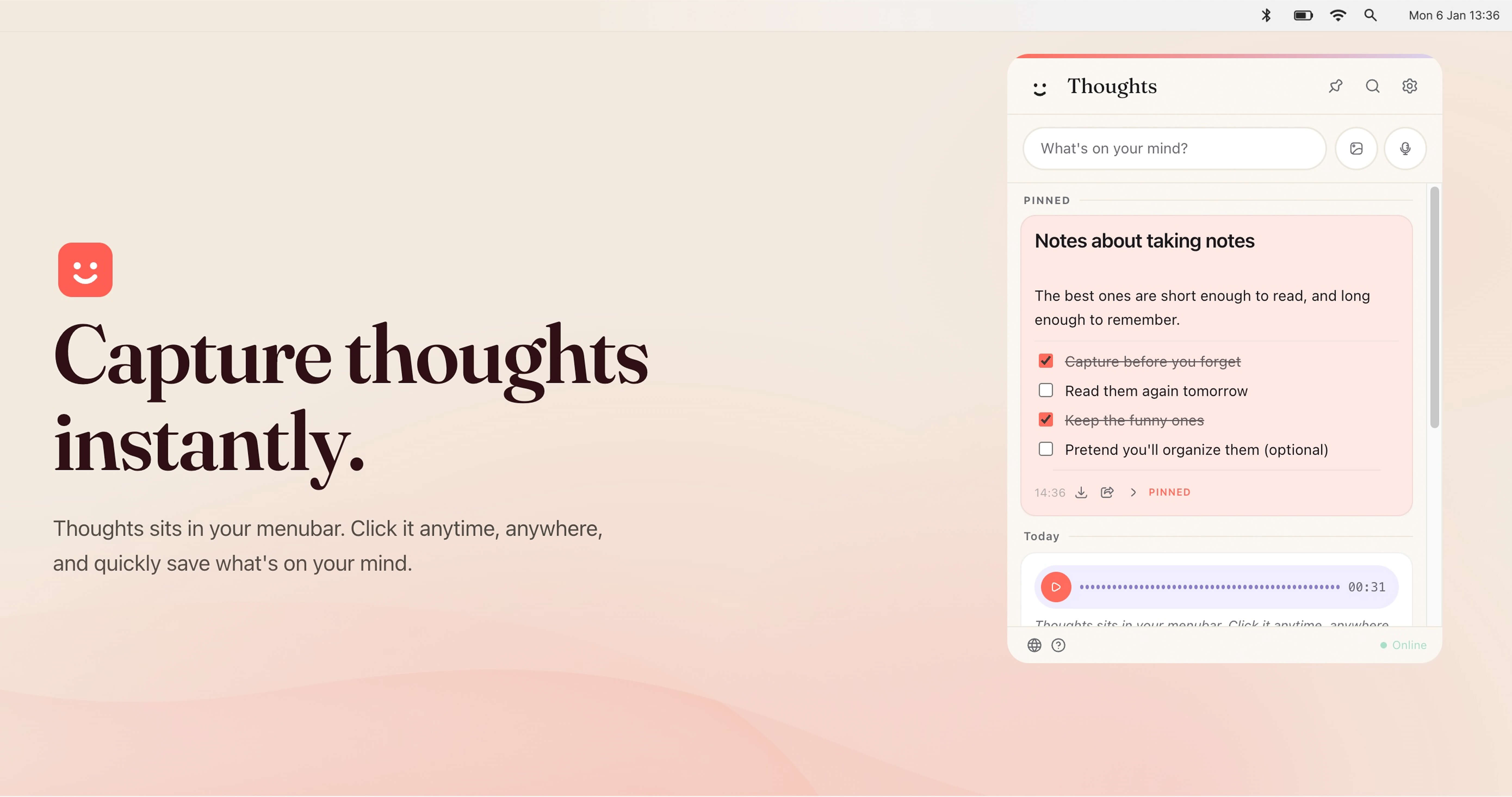
Thoughts for Mac is a native macOS menubar application for capturing notes, images, and voice recordings without leaving what you are doing. It sits in the Mac menubar, and a single click opens it so you can quickly save whatever is on your mind. The app captures structured text notes, checklists, code blocks, standalone links with previews, voice recordings, images, and text-like files such as TXT and CSV. It is presented as a small multi-tool for the menubar, and it is free to download and use, with all future updates included and no subscription. Because it lives alongside your other menu bar icons, it stays within reach while you work in other applications. The thinking behind Thoughts for Mac is speed of capture. Rather than opening a full note-taking application, creating a document, and finding a place to file it, the app puts a capture surface in the menubar where it is always one click away. The website frames this simply: Thoughts sits in your menubar, you click it anytime and anywhere, and you quickly save what is on your mind. That makes the app useful for the moment a thought, link, image, or spoken idea appears in the middle of other work. It also supports captures that arrive from outside the app itself: desktop builds can receive shared text, images, and audio through URL schemes, open-with actions, macOS Services, and native imports, so content can be sent to Thoughts from elsewhere on the system. The core capture experience covers the three input types the website presents as Write it, Drag in an image, and Talk to it. Writing produces structured text notes, and the app also handles checklists, code blocks, and standalone links that carry previews. Dragging an image in saves the image itself as a note, and screenshot capturing is listed among the app's capabilities. Talking records voice, which becomes a voice note that can later be transcribed with your own AI provider key. Beyond those interactive paths, Thoughts also accepts text-like files such as TXT and CSV, and on desktop it can take in shared text, images, and audio from URL schemes, open-with, macOS Services, and native imports. Voice recordings can be exported as MP3 in the desktop app whenever you want them. AI is optional and brought by you. In Settings you can connect OpenAI, Claude, or Gemini with your own API key. Once connected, the app can transcribe voice notes, context images to text, and perform simple text transforms such as capitalization, translations, spelling fixes, shortening, lengthening, summarizing, and converting case. The website also lists extracting text from images among the available actions. Claude is available for text actions, while transcription support depends on the provider you connect. Only AI-powered actions require a key: capturing notes, images, and audio does not need one. The app is free, and you use your own OpenAI, Gemini, or Claude API key for features like transcription, OCR, summaries, translations, and rewrites. Organizing what you capture is handled by search and pinning. Search works across notes, links, screenshots, and image names instantly, so a note can be found even when you only remember part of an image's name. Pinned Thoughts let you keep important notes at the top of your list so they are not buried under newer captures. The app also supports light and dark mode and adapts to whichever you prefer. Instant access is provided by a custom shortcut of your own choosing, meaning you can open Thoughts from anywhere on your Mac with a keystroke rather than reaching for the mouse. Thoughts works as a local-first menubar utility. In the desktop app, notes and settings are saved locally on your Mac, and media files are stored in the app's user data folder, with no account required. That means there is no sign-up step and no server-side account to manage for the core experience; AI actions are the exception, since they rely on the API key of the provider you connect. A browser preview mode also exists, but it is session-only, so notes created there are temporary. The free model and the bring-your-own-key approach combine to keep the tool light: you pay nothing to download or use it, including future updates, and you decide separately which AI provider, if any, powers the optional text and audio actions. Export and sharing are built in, so what you capture is not locked in. You can share notes as text, and you can export audio recordings whenever you want them. If you ever decide to leave, you can export all notes from Settings as JSON, or export individual notes in the best available format: text notes as TXT, image notes as image files, PDF attachments as PDF, and voice notes as MP3 in the desktop app. Benefits stated on the site include instant capture from the menubar, quick access through a custom shortcut, search that reaches into images and image names, pinning for important items, and both light and dark appearance modes. Concrete workflows follow from the capture types. During a call or a meeting you can talk to Thoughts and keep the recording as a voice note, then transcribe it later with your connected provider. While browsing, you can save a standalone link with its preview, or capture a screenshot of something you want to keep. When you drag in an image, the app can extract text from it through OCR once an API key is connected, turning a picture of text into usable content. You can bring in text-like files such as TXT and CSV, jot checklists, or store a code block you want to find again. Text actions handle small chores — summarizing a note, fixing spelling, converting case, shortening or lengthening text, or translating it. On the Mac, other apps and system services can send text, images, or audio into Thoughts through URL schemes, open-with, macOS Services, and native imports. Thoughts for Mac is built for macOS users who want a fast place to put thoughts, notes, links, images, and voice memos without opening a larger note-taking app. The site lists its topics as Productivity, Writing, and Menu Bar Apps. Integrations are limited to the AI providers you connect — OpenAI, Claude, or Gemini — using your own API key, and to macOS system entry points such as URL schemes, open-with, macOS Services, and native imports. Pricing is straightforward: the app is free to download and use, including future updates, with no subscription; the only cost you may incur comes from the API provider whose key you use for AI features. The download is delivered through the linked Gumroad page, and the app is native to macOS. Thoughts for Mac keeps capture at the edge of your screen: a menubar click or a custom shortcut, a written note, a dragged image, or a spoken thought, all saved locally with no account required. Search, pinning, export, and light and dark modes make the notes usable afterwards, while optional bring-your-own-key AI actions add transcription, OCR, summaries, and translations through OpenAI, Claude, or Gemini. It is free, and every feature is available at no cost with future updates included.
Voiskey is an AI voice typing tool that turns natural speech into polished, ready-to-use text. Rather than transcribing words literally, it starts from what you meant: you speak a rough thought and it comes back shaped for where it is going and who is reading it. It produces text for messages, emails, notes, documents, AI prompts and more. Voiskey is available on macOS, Windows, iOS and Android, works anywhere on your computer and in any language, and is described as 5x faster than typing. It is free to start, with a free month of Pro for people who join during launch. The problem Voiskey addresses is the gap between how quickly people think and how quickly they can type. An average keyboard runs at roughly 45 words per minute, while Voiskey voice is presented at 220+ words per minute. That gap shows up as friction in everyday work: the first draft is the hardest part, ideas hit fast but drafting is slow, thoughts disappear quickly before they can be captured, and meeting details are easy to forget. The same friction appears in professional routines — prompting takes longer than coding now, the faster the follow-up the warmer the deal, and tickets pile up faster than a support agent can type. Voiskey's answer is to let people speak the way they naturally would and let the product handle the shaping. Voiskey is built to listen for meaning rather than to capture every sound. The website describes it as more than listening — it understands. When you speak the way you naturally would, fillers, stumbles, changes of mind and grammar slips are all caught by Voiskey rather than passed through into the final text. The point is that you should not have to tidy your speech before you start; you think out loud, and Voiskey handles it. This is what makes the output ready to use rather than a raw transcript that still needs editing, and it is the foundation for everything else the product does with your words. Voiskey is built to adapt, and the content says it always lands right. It knows what you are going for and automatically tailors the formatting, tone and word choice so that every output fits your intent and is ready to send. The Product Hunt listing describes the same behaviour from the opposite direction: a spoken thought comes back shaped for its destination and its reader — casual with a friend, composed with a colleague, technical with an AI. This matters because the same idea needs a different form in a text message, an email, a meeting note or an AI prompt, and Voiskey applies that shaping automatically instead of leaving it to you to rewrite. Voiskey also learns your style. According to the website, it learns your names, jargon and spelling preferences so that your words always land in your style. This is a personalisation layer: rather than producing generic, uniform text, it keeps the vocabulary and spellings you actually use, which matters for people working with specialist terminology, product names, colleague names or in-house shorthand. The stated outcome is that you still sound like you — the product cleans up the mechanics of speech without erasing the voice of the person speaking. Voiskey covers voice to native-sounding text in more than 100 languages, and it presents a long list of supported languages on the site, including English, Japanese, Spanish, Korean, French, Portuguese, Arabic, Russian, Italian, Thai, Vietnamese, Dutch, Polish, Danish, Swedish, Finnish, Greek, Czech, Romanian, Hungarian, Bulgarian, Slovenian and Estonian, among others. The site states that Voiskey works anywhere on your computer and in any language. It also covers translation: you speak in your own language when you need to translate, and Voiskey turns your voice into fluent, native text across 100+ languages. That makes dictation and translation part of the same speaking workflow rather than two separate tools. A distinctive capability is turning spoken intent into AI-ready instructions. Voiskey lets you tell your AI what to build just by speaking: you talk through what you want to build or change, and Voiskey turns it into a clean AI-ready prompt with files, paths, commands and key details captured. This is presented as a practical answer to the observation that prompting now takes longer than coding, and it is a core part of how Voiskey is positioned for engineers — spoken intent becomes prompts, commits and design docs. Capturing files, paths and commands automatically means the details that are easy to lose when speaking are preserved in the final prompt. Voiskey's overall approach is a single voice experience that follows you across every device. It runs on macOS, Windows, iOS and Android, and the site states that it works anywhere on your computer — wherever you type and however you speak, Voiskey is ready. There is no separate destination app to paste into: you dictate into the place where the text is going, and the output arrives cleaned up and ready to send. The product is positioned as starting from what you meant rather than just what you said, which is the through-line connecting its filler handling, its adaptive tone and formatting, its style learning, its multilingual output and its AI prompt generation. The stated benefit is speed and readiness in the same step. Voiskey is described as arriving 5x faster than typing, cleaned up and ready to send, while you still sound like you. The comparison the site makes is 45 wpm for a keyboard against 220+ wpm for Voiskey voice, which means thoughts get out before the keyboard slows them down. Because formatting, tone and word choice are adapted automatically, the output is not a draft that needs a second pass. And because Voiskey learns names, jargon and spellings, the speed does not come at the cost of sounding generic. Voiskey frames its use cases around the formats people write in and the roles they work in. By format, the site names Messages (texts, DMs and quick replies), Emails (rough drafts shaped into clear, structured emails), Notes (reminders, quick lists and random ideas captured the moment they show up), Meetings (decisions, action items and follow-ups) and Teams (clear updates, handoffs and action items). By role, it lists Engineers (prompts, commits and design docs), Sales (call notes, CRM updates and replies), Customer Support (tickets, live chats and help articles), Writers and Creators (posts, scripts and book chapters), Students (lecture notes, essays and emails), Founders (updates, replies and job posts) and Legal and Consulting (memos, client letters and contracts). Voiskey is aimed at anyone who writes more slowly than they think, and the role pages make that concrete: engineers, sales people, customer support teams, writers and creators, students, founders, and legal and consulting professionals. It is available on macOS, Windows, iOS and Android, with a single voice experience across all four. Pricing is free to start, and the launch offer includes a free month of Pro for people who join during the launch period. No specific price points or further plan details are stated in the provided content. Voiskey's core promise is that you can say it rough and send it right. It listens for meaning rather than words, strips out fillers and stumbles, adapts tone, formatting and word choice to the reader and destination, learns your names, jargon and spellings, works in 100+ languages with translation, and turns spoken intent into AI-ready prompts. It delivers all of that across macOS, Windows, iOS and Android at a stated 5x faster than typing, and it is free to start. For anyone whose ideas outrun their keyboard, that combination is the value proposition.
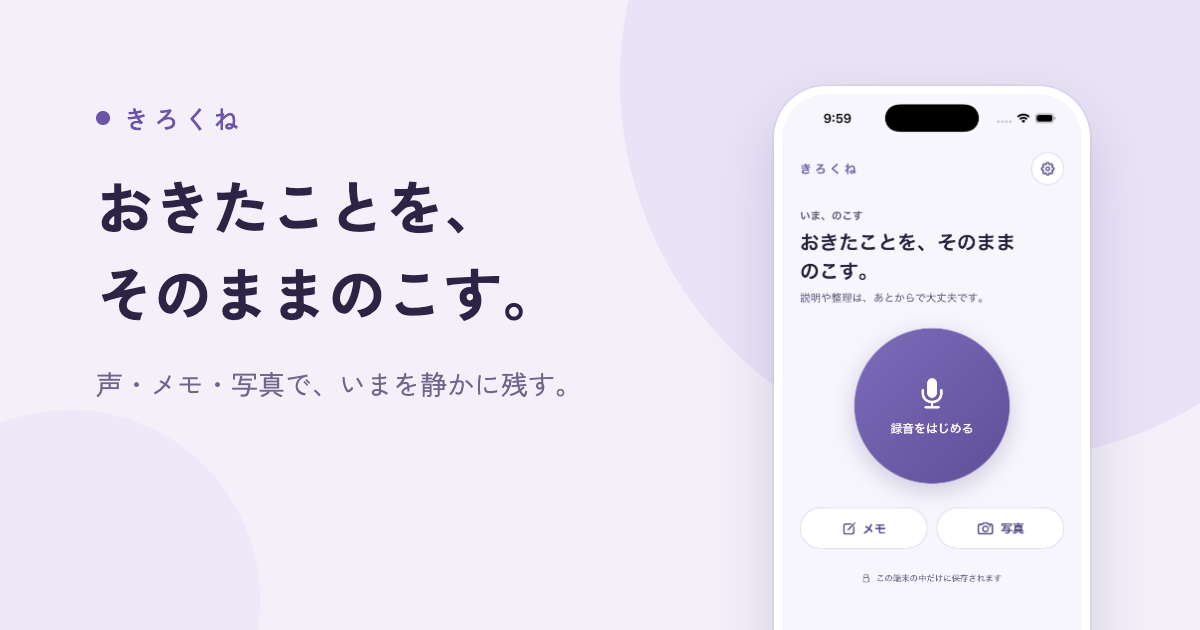
Kirokune is an iPhone app for logging work and personal incidents. It lets you capture what happened in your own words — through a short note, a voice recording, or a photo — and keeps that record on your iPhone, organized into a timeline inside a private case. The app is designed for people who have been told to document everything but have no simple, private place to do it. Unlimited records in one case are free, and no account is required to start; you open the app and begin. Kirokune also offers a free workplace incident log template and example on its website, so you can start documenting even before you install anything. Everyone says document everything, but the practical question of where to write it down rarely gets answered. Work and personal incidents often happen at moments when you have neither the energy nor the time to sit down and compose a careful written account. Details fade, exact wording is lost, and the sequence of events blurs together. Kirokune addresses that gap by lowering the effort of capture to almost nothing: one tap starts a recording, and a photo or a quick note works just as well. The record you create while it is fresh stays on your iPhone until you decide what, if anything, you want to do with it — you do not have to let it go just to get through the day. The core of Kirokune is capturing what happened while it is fresh. A short note written in your own words is enough to begin, and a single tap starts an audio recording for the moments when you cannot bring yourself to type. Photos can be saved alongside notes and recordings, so a visual detail sits with the written account rather than in a separate camera roll. All of these record types live together in the same place, which means you are not choosing one format at the expense of another. The app does not require any setup before you start — you open it and immediately begin a note, a recording, or a photo. Once records exist, Kirokune organizes them rather than rewriting them. Events are shown in time order — dates, times, and exact words — and the timeline is reviewed alongside your original notes. Critically, nothing you already wrote gets changed; the app keeps your own record organized and that is all. Records are grouped into cases, and the free plan allows unlimited records inside one case. Kirokune Plus adds unlimited cases, so people who are tracking more than one situation can keep each one separate. Sorting happens later, when you have the energy, rather than at the moment of capture. Kirokune can also save a chat export as a record. You choose a supported export file from Apple Messages, Messenger, or Instagram — without connecting your chat accounts to the app. Kirokune keeps the file's whole original text alongside the messages it can display, so the original wording stays attached to the record. Because the app does not connect to those services, the guidance suggests choosing the conversation and date range before exporting, where the service allows it. This makes it possible to fold a written conversation into the same private case as your notes, recordings, and photos. The workflow Kirokune describes has three steps. First, get it down: open the app and start a note, a recording, or a photo, with no setup first. Second, sort it later: when you have the energy, group what you saved into a private case. Third, look back: everything is in order, exactly the way you wrote it. Underneath that workflow is a deliberate approach — the app stores records on your device and requires no account. Nothing leaves the app unless you export it yourself. Kirokune states plainly that it does not decide what happened, does not diagnose, and does not give legal advice; it keeps your own record organized. The benefit is that you won't have to go from memory. When you decide to talk it through — with someone you trust, HR, a lawyer, or a support service — having it written down in your own words helps you explain what happened. Because capture takes one tap or one short note, you can document something at the moment it happens instead of reconstructing it weeks later. Because records stay on your iPhone, privacy is the default rather than a setting you have to find. And because you can name the other person however you like — initials or a nickname you would recognize later — you are never forced to record a name you don't want to write. Typical uses follow the situations the app was built for. Someone documenting a workplace incident notes the date, the time, where it happened, what was said, and who was there, as soon as they can, and Kirokune keeps all of that together in one private place in time order. Someone who wants a record in the moment but cannot type taps record instead. Someone preparing for a conversation looks back at what they saved, at their own pace, and pulls it into a summary they can walk someone through. Someone with a written chat conversation exports it and saves the file as a record so the original text stays with it. The free worksheet on the website lets anyone start this practice without an app at all. Kirokune is for iPhone users running iOS 17 or later. There is no Android app; the website's free worksheet can be saved and used in your own notes without installing anything or creating an account. The app is available in the United States and India, with English, Japanese, Traditional Chinese, Korean, and Spanish interfaces. Kirokune is a free download with in-app purchases: the free plan covers unlimited notes, recordings, photos and other records organized in one case, with no account required. Optional Kirokune Plus adds unlimited cases, detailed reviews, PDF export, and removal of ads, available as monthly, yearly, or one-time lifetime purchases, with local price and renewal terms shown in the purchase screen. Two practical notes appear in the app's own guidance. Rules about recording and sharing a conversation vary by place and by situation, so Kirokune suggests considering letting the other person know and checking the rules where you are; the app cannot tell you whether a recording is lawful or how it would be treated. Also, Restore Purchases checks access to your paid plan and does not restore a backup of your records, because records are stored on your device and the app currently provides no automatic sync or cloud backup — so keep your own copies before deleting the app. The takeaway is simple: Kirokune is a private place to write down what happened, on your iPhone, until you decide to talk to someone.
Ghostwriter by MyHandler is a Windows desktop writing tool that drafts text for you directly inside whatever application you are already using. Instead of opening a separate chat window and describing what you want written, you place your cursor in a text field, double-tap the hotkey, and your Handler reads what is actually on your screen — the thread above the cursor, the question beside it, the half-finished sentence inside it — works out what you would write next, and types that draft at your cursor in your voice. There is no prompt to type and nothing to say out loud. It is built for people who spend their day answering messages, email threads, Slack conversations, browser forms and comment boxes, and who want the first draft of a reply to already be there, in their own style, without leaving the app they are working in. The problem Ghostwriter addresses is the gap between knowing what to say and getting it written. Most AI writing tools require the user to describe the request first: you have to summarise the thread, explain the tone, paste in context, and then copy the result back to where it belongs. That description step is often the same work the user was trying to avoid — as the site puts it, describing what you want was the work you were avoiding. Meanwhile the context that actually matters — the conversation on screen, who is speaking to whom, what is being asked — is already sitting in front of the user, and the calendar that determines whether a proposed time is even possible lives somewhere else entirely. Ghostwriter's approach is to take the screen itself as the input, remove the prompt, remove the copy-and-paste round trip, and leave the final decision — whether to send — with the person. The interaction model is deliberately minimal. There is no prompt field, no sidebar, no dictation. You put your cursor where the words go and double-tap the hotkey in any text field, in any app — the Product Hunt listing names double-tap Left Ctrl. The Handler then captures the screen around that cursor: the thread above it, the question beside it, the unfinished sentence in it. That capture happens on your own machine, against an encrypted vault on your PC, and the assembled context is sent to the cloud model with zero data retention to write the draft. Because the screen in front of you is the entire input, it works the same way across the applications the site names — your mail client, Slack, a browser form, a comment box — with nothing per-app to set up. Before writing a single word, Ghostwriter decides what kind of writing it is looking at. The site describes the situations it distinguishes: a reply owed in a thread, a sentence to continue from exactly where it stops, a blank box under a question that wants a real answer, and a message the context obviously calls for. Getting that classification right is described as most of the job, which is why the decision is made before any drafting begins. The consequence is behavioural: a continuation does not restate your own sentence back at you, and a reply does not summarise the thread back at the person who just wrote it. If the reply it produces proposes a time, that time is checked against the next two weeks of your calendar first — the product states plainly that it won't double-book you. Ghostwriter also tracks who is who in a conversation. It maps each message to its sender, works out which handle is yours, and follows who asked whom for what, so that the draft answers the other party rather than replying to your own words. On top of that identity mapping, it matches how you write to that specific person, down to the sign-off. The material it draws on can include the thread on screen, your calendar, your files and your past meetings, indexed in an encrypted vault on your PC. Together these two behaviours — correct attribution and per-person voice — are what separate a draft you can send from one you have to rewrite. Nothing is ever sent. Ghostwriter types its draft into the text box and stops; you read it, change it, delete it or send it, and that last step stays yours. If you select text first, the double-tap rewrites the selection instead of drafting something new. Architecturally the product is split: the screen capture and the encrypted vault live on your own PC, while the assembled context goes to a cloud model with zero data retention in order to write the draft. Ghostwriter is part of the MyHandler desktop app, so it ships alongside the same Handler's other capabilities — Dictation, which turns held-key speech into text at the cursor; an AI Gatekeeper that watches every connected channel, screens the noise on your PC and never sends a word on its own; Contact Intelligence, which builds living contact profiles automatically on your machine from messages, meetings and activity already in your vault; and a Daily Briefing written from local data. The stated benefits follow directly from that design. There is no prompt to write, so the whole interaction collapses to a double-tap. The Handler reads the situation rather than just the words, so the draft lands in the right register: a continuation continues, a reply replies, a form gets filled, and a message the context calls for gets composed from scratch. It gets who's who right, so the answer addresses the other party rather than your own words. And because the draft arrives at the cursor in your voice, in the style you use with that person, the editing pass is a light one rather than a full rewrite. The outcome the product advertises is the end of rewriting the same reply over and over: it drafts, and you decide. Concrete scenarios come straight from the described workflow. You are in your mail client with a thread open and your cursor in the reply box; a double-tap puts a reply drawn from the thread above the cursor in place. You are in Slack and a question is sitting there for you; the Handler maps the message to its sender and drafts the answer to the other party. You are in a browser form or a comment box with a blank field under a question, and it composes a real answer rather than leaving the box empty. You have half a sentence on screen and want the next part; it continues from exactly where the text stops. You are arranging a meeting and the draft proposes a time; the next two weeks of your calendar are checked before the words appear. Or you have already written something and want it said differently: select the text, double-tap, and the selection is rewritten. Ghostwriter is aimed at people whose working day is made of written replies — anyone living in email, team chat, browser forms and comment boxes who wants the first draft to already exist and to sound like them. It runs on Windows 10 or 11, requires a cursor in a text field to trigger, and needs a connected calendar only for the scheduling cross-check; everything else works without one. The product is described as free for Windows 10 and 11, with macOS and Linux coming soon. Because the screen capture happens locally and the index lives in an encrypted vault on the PC, that side stays on your machine, while the drafting step uses a cloud model with zero data retention. Ghostwriter's proposition is narrow and clear: two taps and it's already written. Every other AI writes what you tell it; Ghostwriter writes what you already know, using the screen in front of you as the input and your own voice as the output, and it hands the last step — sending — back to you.
Coldline AI, also styled ColdLine.ai, is an AI-powered outreach tool that turns cold prospects into hot leads with personalized pitches. As described in its Product Hunt listing, users simply add their prospect's details and Coldline AI creates a relevant, human-sounding pitch in seconds. Its stated purpose is to help users save time, personalize outreach, and get more replies without writing every message from scratch. It is presented as a fit for founders, sales teams, marketers, recruiters, and agencies, and its official website summarizes the brand's positioning with the headline "Innovate with AI Today." Cold outreach is a numbers game, but the numbers only work when messages feel like they were written for the individual receiving them. The tension Coldline AI is built around is the trade-off between personalization and time: crafting a tailored pitch for every prospect means writing every message from scratch, which scales poorly for anyone reaching out to more than a handful of people. At the same time, outreach that is not personalized tends not to earn replies, and recipients can generally tell when a message is a template with a name dropped in. Coldline AI addresses this tension by automating the pitch-writing step while keeping the output relevant and human-sounding, so personalization no longer has to be sacrificed in the name of speed. The result the product aims for is outreach that is both fast to produce and specific enough to deserve an answer. The core capability described for Coldline AI is AI-powered personalized pitch generation. Instead of starting from a blank page, the user provides details about their prospect, and the product uses that information to produce a pitch that is relevant to that specific person. This is the mechanism behind the promise of turning cold prospects into hot leads: the message is built around the prospect's details rather than being a generic template that could be sent to anyone. The pitch is also described as human-sounding, so the personalization is not just factual but tonal. For anyone who sends outreach regularly, this means the personal touch that normally requires research and careful drafting becomes part of an automated step rather than a manual chore. Speed is an explicit part of the product's value proposition: Coldline AI creates the pitch in seconds. The immediate benefit is that a task which would otherwise take minutes of drafting — and much longer when multiplied across an entire prospect list — is compressed into a moment. Seconds matter in outreach because the real constraint is usually not the quality of a single message but the number of messages a person or team is able to send. When each pitch is produced in seconds, users can work through more of their prospect list without giving up the personalization that makes outreach worth sending. The speed also lowers the friction of starting: there is no blank page to fill, only details to add. The content emphasizes that the generated pitch is relevant and human-sounding. Relevance ties the message to the prospect's details, while the human-sounding quality addresses the risk that automatically written outreach reads as stiff or obviously machine-generated — a tone recipients tend to ignore or delete. The stated outcome is more replies, which means the pitch is written to be something a prospect will actually respond to rather than something that merely fills a message field. Combined with the promise of not writing from scratch, this positions Coldline AI as a way to produce outreach that feels personal without hand-crafting every sentence. For users, that distinction matters because a pitch that sounds human is more likely to be read to the end and answered. The overall workflow described by Coldline AI is deliberately simple. The user adds their prospect's details, and the product generates the pitch from that input. There is no described requirement to build templates in advance or to write a draft for the tool to edit — the pitch is created for the user from the details they provide. This input-then-generate approach is what makes the tool usable by people who are not professional copywriters, including founders, recruiters, and agency teams for whom outreach is one part of a much larger job. The methodology is essentially to let AI handle the composition while the human focuses on choosing who to contact, sending the message, and following up on the replies that come back. The benefits stated for Coldline AI are saving time, personalizing outreach, and getting more replies. These three are connected: time saved comes from not writing every message from scratch, personalization comes from generating a pitch around each prospect's details, and more replies are the expected result of outreach that is both relevant and human-sounding. For an individual, the benefit is fewer hours spent drafting and less fatigue from staring at empty message boxes. For a team, the benefit compounds, because every member can produce personalized outreach at a pace that previously would have required generic templates. The product frames these outcomes as the reason to change how outreach is written. Coldline AI is presented as suitable for a range of outreach scenarios. Founders can use it to reach prospective customers, partners, or investors without blocking out hours for writing, since each pitch is generated from the details they add for that person. Sales teams can use it to personalize cold outreach across a pipeline, producing a relevant pitch for each prospect they enter instead of choosing between volume and relevance. Marketers and agencies can use it for outbound campaigns and client prospecting, where personalization at the individual level is what separates a campaign from spam. Recruiters can use it to reach candidates with messages tailored to the person, rather than sending the same note to everyone. In each case the described workflow is the same: add the prospect's details, generate a relevant pitch, and send it. The explicit target audiences for Coldline AI are founders, sales teams, marketers, recruiters, and agencies — essentially anyone whose work involves reaching out to people they do not yet know. These are people who send outreach regularly and need it to feel personal in order to get replies, but who do not want to write every message from scratch. The Product Hunt listing also categorizes the product under Sales, Marketing, and Artificial Intelligence, which reflects that dual identity of an AI tool applied to a go-to-market function. Coldline AI is accessed through its official website at coldlineai.xyz, making it a web-based product, and it is listed on Product Hunt as "Coldlineai" with the tagline "Turn cold prospects into hot leads with AI-powered pitches." No pricing details are stated in the available content. In short, Coldline AI takes the most time-consuming part of cold outreach — writing a personalized pitch for every prospect — and turns it into a seconds-long automated step. By taking prospect details as input and producing a relevant, human-sounding pitch, it aims to let founders, sales teams, marketers, recruiters, and agencies save time, personalize their outreach, and get more replies without writing every message from scratch. That combination of personalization and speed is the core value proposition the product states.
Moji is a desktop Markdown reader and editor that lets you open Markdown files the way you open a PDF: double-click a file and start reading. It displays your document with clear typography, tables and diagrams, while editing and export stay ready when you need them. Built for Windows, macOS and Linux, Moji is lightweight, comfortable for long-form reading, and simple enough to disappear while you read. It is free, open source under the MIT license, requires no account, and its interface is available in Portuguese, English, Spanish, Japanese, Chinese and Russian. The official site presents version 1.0.7. Moji exists because of a simple observation: opening Markdown should be as simple as opening a PDF. The creator built Moji because a Markdown file ought to open the way a PDF does — with a double-click, instantly readable, with clean typography and no setup. Usability came first from day one, and editing and export were added afterward without losing that focus, so the reader never turned into something heavier than the task required. The supporting idea is stated plainly on the site as a motto: "Less interface. More document." That framing explains nearly every decision in the product, from how files are opened, to how previews are rendered, to how diagrams and exports are handled. How you get a file into Moji reflects that same philosophy. You can open documents through a file dialog, drag and drop them into the application, rely on file associations so a double-click opens Moji directly, or keep several documents open at once in a multi-tab workspace. Once a document is open, the preview is described as rich and secure: it renders tables, task lists, footnotes, LaTeX, code highlighting and emoji, and it provides outline navigation so you can move through a long document by its structure rather than by scrolling blindly. Because the goal is comfortable reading, the preview keeps your content in the foreground, with synced outline navigation and a dark theme available for focused sessions. When reading is not enough, Moji becomes an editor. Editing is built on CodeMirror 6 and includes Markdown shortcuts, line numbers, history, and search and replace, so precise editing stays available without turning the reader into a full code editor. A live preview keeps the rendered output in view as you work, which means you can see the effect of a change immediately rather than bouncing between windows. Exports are described as predictable: PDF, HTML and PNG outputs preserve typography, diagrams and very long documents, so what you see in Moji is what you get in the exported file. The export dialog is deliberately simple — you choose a format and a layout and proceed. Diagrams are handled without leaving the document. Valid Mermaid blocks become responsive diagrams inside the preview, effectively going from code to diagram instantly, and the supported range covers flowcharts, sequence diagrams, Gantt charts, class diagrams, ER diagrams and more. Clicking a diagram opens a viewer with 10% to 1000% zoom, free pan and fit to view, plus a minimap for orientation on larger diagrams, and each image can be exported individually as PNG. The rendered diagrams are self-contained SVG in HTML, PDF and PNG exports, which means the diagrams travel with the document and keep their fidelity outside Moji. Moji's overall approach is to keep the interface quiet and the document loud. Subtle chrome, comfortable reading and compact controls are meant to keep you in the flow, with the content rather than the application occupying the foreground. Focused reading is supported by a synced outline and a dark theme; precise editing is supported by code, shortcuts and search; exporting is handled through a simple dialog where you pick a format and layout. The site organizes these capabilities as "the essentials, done well" and describes an interface that gets out of the way, which is also why the reader is presented as the primary mode and the editor as something that is there when you need it. The practical benefit is immediacy: no setup, no account, and no friction between a Markdown file and the text inside it. Because Moji is lightweight, it stays comfortable during long-form reading sessions and can be left open without demanding attention. Because it is free and open source under the MIT license, there is no cost or lock-in to evaluate before trying it, and the code can be explored or contributed to. Because the preview covers the formatting people actually use — tables, tasks, footnotes, LaTeX, code, emoji and diagrams — you rarely need a second tool to check what a document looks like. And because exports preserve typography, diagrams and very long documents, the same file can be shared, published or archived in a different format without rework. Concrete scenarios follow the reading-first design. You can open a README or project documentation by double-clicking it and read it like a PDF, using the outline to jump between sections. You can draft or fix a Markdown note in the editor with Markdown shortcuts, line numbers and search and replace, watching the live preview update. You can author a Mermaid flowchart or sequence diagram inside the document, zoom and pan around it in the viewer, and export that single diagram as a PNG. You can turn a long Markdown document into a PDF with precise layout, into HTML that is web ready, or into a PNG for very long documents. And you can keep several documents open in tabs while working across a project. In terms of audience and delivery, Moji is aimed at people who read and write Markdown on the desktop and want that experience to feel like opening a document rather than launching a technical tool. Official installers are published directly through GitHub Releases: an NSIS installer for Windows x64 with automatic updates, a universal DMG for macOS covering Apple Silicon and Intel with manual updates, and for Linux an AppImage with automatic updates or a DEB package for manual installation. The editing surface is built on CodeMirror 6, diagrams are rendered with Mermaid, and the interface speaks Portuguese, English, Spanish, Japanese, Chinese and Russian. Moji is free and distributed under the MIT license, with no account required. Taken together, Moji's value proposition is straightforward: it treats Markdown as something you should be able to simply read. Double-click a file, get clean typography, navigate by outline, edit when necessary, render diagrams inline, and export to PDF, HTML or PNG without surprises. The interface stays out of the way, the software stays free and open source, and the document remains the point.
Loqua is AI voice typing and dictation software for Mac and Windows that turns speech into polished, ready-to-use text. The product's core promise is captured in its own words: from voice to text, from screen to insight. Instead of typing, you speak naturally and Loqua transcribes, cleans up, formats, translates, and even acts on what you say. It is built for people who would rather think than type — professionals, founders, engineers, designers, writers, students, and anyone whose hands are busy or who simply speaks faster than they type. One shortcut works across any text field, so dictation happens right where the cursor is without switching apps. The keyboard is the bottleneck Loqua was built to remove. Traditional keyboard typing runs at roughly 45 words per minute, while Loqua's dictation is presented at 220 words per minute — a speed difference the product sums up as saving 3 hours per day. Speed is only part of the problem. Speaking out loud naturally produces filler words, repetition, and half-finished thoughts, and the person then has to re-read and re-edit everything just said. Work is also fragmented across dozens of apps, so writing a message, checking a chart, looking something up, or setting a reminder each require switching context. Language barriers add another layer for people who work across borders. Loqua's answer is to let you keep thinking out loud and let the software handle the cleanup, structure, and follow-through. At its core, Loqua is voice typing that produces clean output. As you speak, it removes filler words, cuts repetition, and refines your phrasing in real time, so what lands on screen is ready to send. The product frames this as Say it rough. Get it clean. and directly addresses the annoyance of re-reading everything you just said. Users describe the result as sounding exactly like they meant it — clear, sharp, and effortless. Words appear quickly enough that users describe a zero-latency feel which makes them forget the tool is even there. Loqua also handles technical vocabulary: one engineer noted that a screen full of framework names, library names, and acronyms was transcribed accurately, removing the need to go back and proofread. Structure is handled automatically. Instead of dictating formatting commands, you think in bullets or speak in blocks and Loqua hears the structure in your speech, building lists, headings, and hierarchy on its own. This means outlining a document, a plan, or a set of risks can be done conversationally and still arrive formatted. Translation removes language barriers: you speak in your own language and get native phrasing in nearly 100 languages, instantly. The product highlights speaking in English while sending emails in Spanish to a Latin America team, with the translation described as instant and natural. Together these two capabilities mean voice input produces not just words, but organized, shareable, multilingual output. Capture to Ask lets you act on what is on your screen. You use a shortcut to select a table, a chart, or anything else, speak your question, and receive an answer, analysis, translation, or summary without switching apps — a three-step flow the product labels Capture, Ask, and Know. Ask and Edit handles rewriting: you highlight anything, whether a product, a draft, or a note, speak to edit it, and it is rewritten on the spot. A related capability, Ask anything, answers a quick question instantly without leaving the app you are already working in. Together these features address moments when you are looking at something you cannot figure out, or when rewriting is eating up more time than writing. Command to Go turns voice into a hands-free command hub. Triggered by a shortcut, it can set reminders, open apps, search routes, place calls, and send texts, so you can move work forward without jumping between apps and tasks. For people who prefer listening over reading, Loqua offers AI Podcast read-aloud: select text and have it read to you as a hands-free text-to-speech assistant, which the product positions as ideal for morning news and multitasking. This extends the product beyond writing into consumption and control — you can dictate output, edit what already exists, ask about what you see, and listen to what you would otherwise have to read. Loqua's approach is context-aware. The stated promise is voice typing that understands what you mean, not just what you say — the system is designed around context rather than raw transcription, which is why it can clean up phrasing, infer structure, and translate into natural-sounding language. Everything is reached through a single global shortcut that works in a terminal, Slack, Notion, email, or any text field, with no switching and no waiting; your voice hits the screen right where your cursor is. That universality is central: rather than being a destination app you visit, Loqua runs across the apps you already use and is invoked from wherever you happen to be typing. The team states that the product is backed by a dedicated voice AI team with full model iteration capabilities. The outcomes users report are consistently about speed and reduced friction. Loqua contrasts roughly 45 words per minute at the keyboard with 220 words per minute by dictation, and estimates a saving of 3 hours per day. Testimonials cite 25 minutes saved in under 4 minutes of use, PRDs written by voice saving at least an hour a day, 30-minute writing sessions turning into 5-minute speaking sessions, and more than 60 daily emails taking half the time — while reading better than before. Other reported benefits are less about time and more about access: one user with RSI in both wrists said Loqua made work possible again, a designer with ADHD said talking to Loqua feels like chatting with a friend and the document writes itself, and non-native English speakers said the cleanup makes their writing sound native. Trust matters too — a corporate legal counsel handling client financial data described Loqua as the first voice tool they trust enough to use at work. Concrete use cases appear throughout the product page and its testimonials. For writing and documentation, engineers explain things out loud and get documentation formatted perfectly, product managers dictate PRDs, standup notes, sprint recaps, and stakeholder updates, and consultants talk through client debriefs and receive clean summaries. For communication, users draft emails, Slack messages, and LinkedIn posts by voice, with tone switching automatically between an email to a CEO and a message to a team. For research and study, a UX researcher dictates research notes between interviews and PhD candidates use it for academic writing and dissertations, where the cleanup and formatting alone is described as worth it. For design and creative work, designers keep their hands on Figma while narrating design processes and case studies. Developers use it in terminals, GitHub, VS Code, and IntelliJ IDEA, including for coding notes. On the move, one user talks while walking and finds the draft waiting for them at the office. Loqua runs on macOS and Windows and installs as a downloadable desktop application, with a 14-day free trial. It is used across a long list of applications, including Google Docs, Microsoft Word, Notion, Slack, Gmail, Figma, VS Code, Microsoft Teams, Obsidian, Google Sheets, Zoom, Excel, GitHub, Terminal, Discord, Outlook, IntelliJ IDEA, PowerPoint, GitLab, WhatsApp, Telegram, Stack Overflow, OneNote, Canva, Photoshop, LinkedIn, Google Slides, X, Sketch, Reddit, Illustrator, Confluence, Evernote, Facebook, Adobe XD, and Google Keep. The company states that it supports the open-source community, with maintainers of public OSS projects getting free access through a Developer Grant application. Its shared roadmap includes meeting transcription, multimodal capabilities, and a Skill Market, with the stated intent of becoming a reliable work companion through continuous iteration driven by user feedback. Loqua's primary value proposition is simple: your thoughts should not have to slow down for a keyboard. By combining fast, context-aware dictation with real-time cleanup, automatic structure, translation across nearly 100 languages, screen-based question answering, voice editing, hands-free commands, and read-aloud, it turns rough speech into polished work and keeps you in flow. The result, in the product's own framing, is less typing, less context switching, and more time in flow — one shortcut that moves you from thoughts to being done.
Thousand is a documentation engineering platform that provides git-backed docs for both humans and AI agents. It is built around a single markdown repository that supports folder-level access control, so every reader gets a workspace shaped exactly like their permissions. The product is designed for teams that want their documentation to serve a post-AI workforce, where teammates, outsiders, and AI agents all interact with the same source material. Thousand positions markdown as the document format, ensuring that a human reads the same bytes as a document that an agent reads as markdown. There is no export step and no second copy that can drift from the original. The platform addresses a fundamental limitation of markdown and git when used for documentation alone. Git traditionally shares all or nothing, which means access control at the folder or path level is not natively supported. At the same time, half of a typical team will never open a terminal, yet they still need to read and edit documentation. AI agents introduce another class of reader that requires programmatic access with expiring credentials. Thousand solves these problems by adding path-level access control on top of a markdown repo, enforcing rules even for readers who never touch git. It also provides a document editing experience for non-technical teammates while preserving clean markdown on disk. A core capability of Thousand is that one file is first-class for both readers. A teammate sees the markdown as a formatted document, while an agent reads the same bytes directly. This eliminates export and prevents copy drift. The platform enforces path-level access control through access rules. For example, admins can be granted write access everywhere, a design folder can be writable by a specific person, an engineering folder by another, a notes folder readable by an agent named summarizer-bot, and a marketing folder readable by the team. If no rule matches a path, the content remains hidden. These rules are enforced for all readers, regardless of whether they use git. Thousand can sync every codebase’s context into one place. Each repository’s docs folder mirrors into the workspace on every commit, read-only and stamped with its source. Because nobody maintains a copy, the documentation never rots. For teammates who never open a terminal, Thousand offers a document editor that lets them edit markdown without seeing markdown. They write in a familiar interface, but the file on disk stays clean markdown, and every save becomes a named commit. Any document can also be sent to someone who has no account: it becomes a link that opens in their browser, requiring no sign-up on their side, while the owner retains a revoke button. Comments in Thousand never touch the document file itself. Threads live beside the document, not inside it, and are saved as markdown that a clone carries too. This keeps the source clean while preserving discussion context. The platform also handles decks and PDFs: Office files and PDFs render in place and are searchable by what they say, not just by filename. Beyond prose, Thousand supports drawings and tables as first-class files in the repo. An Excalidraw canvas or a CSV table opens ready to edit under the same access rules as everything else, so structured and visual content remains governed by the same permissions model. An agent is treated as a member of the workspace, not an add-on. A bot gets its own name, its own folders, and a token that always expires. The profile card acts as a preflight check, showing exactly what the agent can access. Tokens are shown once and die with the agent. A Thousand workspace can also tidy itself: duplicates, stale drafts, and dead ends get swept out on a schedule, but nothing is removed without a human merging the change. Thousand keeps company with your remotes. It acts as one more remote on the same repo, so it works alongside GitHub or GitLab without conflict. For agents, the site answers markdown when requested, serving /AGENTS.md instead of a page built for eyes. Thousand’s approach is fundamentally git-backed and markdown-native. The workspace is a git remote: you can add it to an existing markdown repo, push, and retain history. Access rules are defined per folder or path, and the platform filters what each reader sees. Humans interact through a document editor or a reading view, while agents interact through tokens and markdown endpoints. The same repository powers all readers, with access control enforced at the path level. This means the repo remains the single source of truth, and the platform adds boundaries without creating a proprietary format or a separate copy of the content. The primary benefit is that documentation can serve both people and agents without sacrificing control or cleanliness. Teams avoid exporting content or maintaining duplicate copies, so documentation does not drift. Non-technical teammates can contribute without learning git or markdown syntax. External sharing is simple and revocable, with no account required for the recipient. AI agents get scoped access with expiring tokens, reducing security risk. The self-tidying workspace keeps documentation current by surfacing duplicates and stale files for human review. Because the repo is yours, there is no lock-in: a git clone yields the same files, same history, and same markdown. Concrete use cases include internal team documentation such as budgets, forecasts, and board notes, where folder-level access ensures only the right people see finance or legal content. Engineering teams can mirror codebase docs from multiple repositories into one workspace, keeping context synced on every commit. Marketing and design teams can collaborate on pricing pages and assets with comment threads that stay beside the document. Companies can share decks or PDFs with external parties via revocable links. AI agents can be given read access to specific folders for tasks like summarization, while their tokens expire automatically. Teams already using GitHub or GitLab can add Thousand as an additional remote without disrupting existing workflows. Thousand is for teams that rely on markdown documentation and need real access control, especially those working alongside AI agents. It suits organizations where some members are highly technical and others never open a terminal. Integration points include GitHub and GitLab as remotes, and agents that consume markdown via HTTP with an Accept header. The tech stack centers on markdown and git, with support for Office files, PDFs, Excalidraw canvases, and CSV tables as repo files. Pricing is free while Thousand is early, and the exit policy is explicit: git clone is always the whole exit. In summary, Thousand provides documentation engineering with plain markdown, real boundaries, and one clone to leave, making it a git-backed documentation platform for a post-AI workforce.
Skilldocs is a collaborative markdown editing tool described as "Figma for markdown." It allows users to open a skill document and have everyone inside it at once, with real cursors, inline comments, and an editor that renders as you type. Once the group has finished editing and discussing the document, the whole conversation and diff can be handed back to a coding agent. The product is aimed at teams and developers who work with markdown files and need a better way to collaborate than pasting documents into other apps or sharing screens. Collaborating on .md files is often painful. People paste them into Notion, open them locally and share their screens, or edit in separate tools without real-time awareness. After making edits and comments, there is no easy way to get the feedback back into coding agents. Skilldocs solves this awkward collaboration gap by providing a shared live workspace for markdown documents, so multiple people can work in the same file simultaneously and then export the results for agent use. Skilldocs combines features from several popular products: HackMD's mono viewer, Figma's live cursors and follow mode, Google Docs' real-time highlighting and comments, and Bear's beautiful WYSIWYG markdown editor. During a session, users can edit the doc together, leave inline comments, and see each other's cursors in real time. Afterward, they can copy the diff and comments and send them to their coding agent of choice. The product supports several ways to import skills: dropping a .md file, pasting markdown, importing from GitHub, or importing from a local machine via an MCP. Export is also simple: users can copy the .md of the current doc, the diff, or the comments. This flexibility makes it easy to bring existing markdown content into Skilldocs and then move the results back out. One notable feature is the ability to click on a teammate's avatar to follow them through a doc or even through switching docs. This works like following in Figma, feeling like a screenshare but snappier. Another feature is the ability to cmd+click to create multiple carets and edit several lines at once, a capability borrowed from Sublime. Skilldocs is positioned for collaborative document work in general. The maker notes that it's really fun having a meeting in it, indicating that the product can be used as a live collaborative space during meetings. The ability to hand the conversation and diff back to an agent also opens up workflows where coding agents can pick up context directly from the collaborative session. The product is launched as free, with a focus on productivity, developer tools, and artificial intelligence. The maker is Rajiv Ayyangar, and the product is built with Cloudflare, Vercel, and Claude Code. The team is considering adding proper team source control, as it has been requested by users, and is open to suggestions. Skilldocs addresses a real need for teams that work with markdown skills or docs and need both human collaboration and agent handoff. Its combination of real-time editing, live cursors, inline comments, and easy export to coding agents makes it a practical tool for modern collaborative development and documentation workflows.

Veenew is a microblogging platform designed to be simple at its core while flexible enough to support regular blogs, essays, journals, personal websites, and everything in between. It is rooted in the ethos of open standards and personal websites. The platform supports ActivityPub and provides RSS feeds on every user profile. It is designed without ads, likes, comments, AI, or algorithms, creating an uncluttered space for writing and sharing thoughts. The user interface is noted for being very minimalistic. Veenew is built on open standards, emphasizing the personal-website ethos. Its unique approach is to provide a 'naked' blogging experience focused purely on content and connection through established protocols. The primary benefit is having a simple, uncluttered space to write and share your thoughts and get connected. It serves as a flexible platform for various forms of written content, from microblogs to full essays. The product is for individuals seeking a minimalist, ad-free, and algorithm-free space for personal expression online, rooted in open web standards.