Category Focus/categories/translation
Translation AI Tools
Discover and compare the best translation AI tools and software. Browse 27+ curated tools with reviews and rankings.
Projects tracked
27
Sort mode
RECENT
Page
2
Edyt is a lightweight desktop application for Mac and Windows that adds AI actions to any text field. Select text anywhere, press a shortcut, and the result appears right where your cursor is. It is designed for people who write in many different applications—email clients, browsers, notes apps, chats, and documents—and who want help without switching windows, copying text into a separate tool, or breaking their flow. Edyt's stated purpose is simple: bring AI right where you write. The company describes it as an AI text assistant that works inside any app with an editable text field, on both Mac and Windows, with Ubuntu listed as the next platform. The problem Edyt addresses is that most writing assistance requires leaving the place where the writing actually happens. You copy text, open another app or a browser tab, paste it in, get an answer, and then copy it back. That interruption is especially noticeable when the text cannot easily be selected at all—a scanned PDF, a screenshot, or a shared screen. Edyt's tagline puts it plainly: AI for text you can't even select. By living inside the apps people already use, and by offering a way to read text from images on the device itself, Edyt aims to remove the copy-paste round trip and let people get an answer, a correction, or a better phrasing without leaving their work. The Rewrite action polishes tone, grammar, and clarity in place. According to Edyt, Rewrite keeps your tone and follows your instructions, so it is not limited to correcting mistakes—it can also adjust how something sounds while preserving the writer's voice. Proofread takes a different approach: every issue is flagged in place and grouped by kind on the left, so the user can see what kind of problems were found. The arrow keys move between issues, and Enter fixes one; users can also fix them all at once. The result remains editable—after typing, a Re-check catches anything new—and Insert pastes the text back in, formatted, right where it came from. The demo also shows a readability measure such as easy-to-read word counts. Alternatives is for moments when the phrasing is uncertain. After selecting text and pressing the shortcut, Edyt suggests several ways to say it. A Show another option produces a genuinely new alternative, never a repeat, and the user can move between options with the arrow keys and press Enter to open Insert or Copy. Explain, meanwhile, is built for understanding. Selecting text and pressing the Explain shortcut opens a panel with definitions on the left and the explanation on the right. A follow-up question keeps the conversation going, so users can dig deeper into the same passage without starting over. The product demos show this with technical language such as a SOC 2 Type II attestation being explained in plain terms. Translate lets a user select a message and render it in another language. The demo shows a chat in Spanish being translated into English, and the reverse workflow: select a message, pick the language, and insert the result into the reply box before sending. Edyt also lets users ask how to adjust a translation if it is not quite right. Use Prompt is the customization layer. Pressing its shortcut runs your last prompt right away. A library on the left lets you pick another prompt, and personalized prompts remember how you like things phrased. Asked to rewrite a weekly sync draft, the demo produced progressively stronger versions, and the Insert action drops the result straight into the document without retyping. Saved prompts run on anything you select and follow your account to every machine. One of Edyt's distinctive capabilities is reading text that cannot be selected. If the text is in a PDF, a screenshot, or on a shared screen, the user can hold Option (Alt) and drag over it. Edyt reads it on the device, using Apple's built-in recognition on Mac and the built-in Windows OCR on Windows. The image never leaves the device. On Mac this uses the Screen Recording permission, and only to capture the area you drag; Windows asks for no extra permission. Once the text has been read, the same actions apply—Proofread, Alternatives, Explain, Translate, and Use Prompt—so even a scanned lease agreement can be explained in plain language. Edyt follows a three-step pattern. First, select your text: highlight anything in any app, such as email, docs, or chats, with no copying and no switching windows. Second, press a shortcut: Ctrl+Shift+Space brings up the toolbar, and you pick the action you want. Third, get your result in place: Edyt calls the AI and drops the result right where your cursor is. Each action also has its own shortcut, and every shortcut can be remapped. Users can write their own prompts and organize them in a library from the dashboard. On privacy, Edyt states that text is sent over an encrypted connection for processing and then discarded—never stored, logged, or used to train AI models. The benefits Edyt claims are straightforward. It removes the need to leave your app or break your flow, and it works across the applications people already write in. It can handle text that cannot be selected, which most writing assistants cannot. It aims to preserve the user's own tone rather than replace it, and it offers a free plan that Edyt says is enough for most people, with no credit card required. There is also a stated privacy benefit: the text is discarded after processing, and screen text is read on the device so the image never leaves the machine. The demos on Edyt's site sketch several concrete scenarios. One is fixing a grammar-heavy message before sending it to a client. Another is proofreading a personal essay, where errors are flagged in place and can be fixed one at a time or all at once. A third is replying to a Gmail message when the phrasing is uncertain, using Alternatives to find a better way to say it. A fourth is understanding jargon in a work email—the SOC 2 explanation—and asking follow-up questions. A fifth is translating a Spanish chat message and replying in the reader's own language. A sixth is rewriting a weekly sync announcement in a clearer, shorter style. Finally, holding Option and dragging over a scanned lease agreement lets the user read the automatic-renewal clause and ask what it actually means. Edyt is aimed at people who write in many apps and want AI help without switching tools—knowledge workers, writers, and anyone who sends email, chats, or documents on a Mac or Windows PC. It runs on macOS 12.3 (Monterey) or later, on both Apple Silicon and Intel, and on Windows 10 or later, 64-bit, currently as a beta. It is distributed directly from the website rather than the Mac App Store, because reading and typing text in other apps requires macOS's Accessibility API, which does not work inside the App Store sandbox; the app is signed and notarized by Apple. Edyt is free to download and free to use, with generous daily, weekly, and monthly usage on the free plan and no credit card required. Pro removes the limits for unlimited use. In short, Edyt is a desktop AI text assistant for Mac and Windows that puts rewrite, proofread, alternatives, explain, translate, and custom prompts inside any app. It keeps the work in place, reads text you cannot select, and treats privacy as part of the design. Free to download and free to use, it is built for people who want AI right where they write.
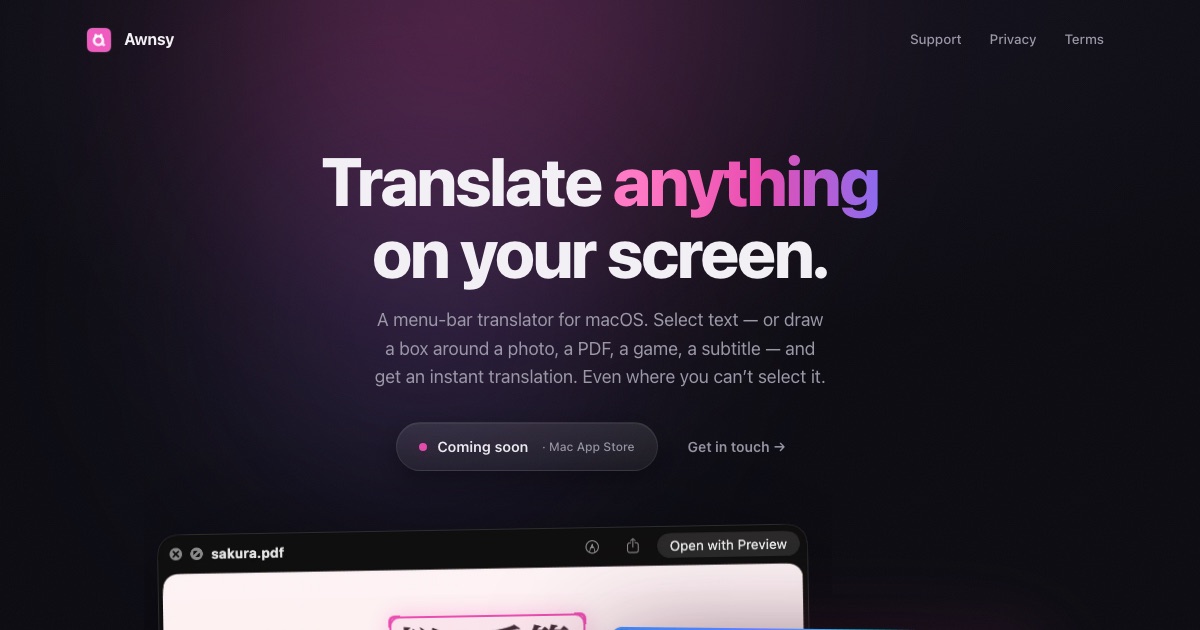
Awnsy is a small menu bar translator for macOS that turns one keystroke into an instant translation. You select text in any app, press ⌘C twice, and the translation streams in live right over the window you are working in. For text you cannot select — words inside images, videos, or apps that will not let you highlight anything — you drag a box around the area and Awnsy reads the screen itself. Its stated goal is to be everything a translator should do on a Mac, with the translation model living inside the app and running on your machine, so what you translate stays with you. Why a dedicated Mac translator? The everyday friction of reading something in another language is rarely the translation itself — it is everything around it. Copying text out of one app, pasting it into a browser, waiting for a cloud round trip, and then matching the result back to what you were reading all break the flow. Worse, much of the foreign text Mac users meet is not selectable at all: it is baked into a screenshot, a scanned PDF, a video frame, or an interface that simply refuses to be highlighted. Awnsy is built around the idea that translation should happen where the text already is, with no account to create, no API key to manage, and no telemetry. The product is positioned as a small app with serious reach: everything a translator should do on a Mac, plus a couple of things that require reading the screen rather than the clipboard. One keystroke, any language. Double-pressing ⌘C is the entire interface — or you can assign your own hotkey instead. As soon as it is triggered, the translation streams in live rather than appearing only after the whole request is finished, and the result is shown over the window you are already looking at, so you never lose your place. Inside that window you can switch the target language or change which translation model is answering, without opening preferences, signing in, or restarting anything. Awnsy describes this as "one keystroke, any language" — the point being that translation should feel like a reflex on the Mac rather than a separate task you have to go and perform somewhere else. Reads the screen itself. Plenty of the text you want to translate cannot be selected: words inside images, frames of a video, scanned PDFs, or applications that do not allow text selection. For those cases Awnsy uses on-device text recognition — you drag a box around whatever is on screen, and the app pulls the words out of the picture before translating them. Because recognition happens on the device, the content being read is not sent anywhere for that step, which keeps the same privacy posture as the built-in translation model and means the feature keeps working even when the machine is offline. Private by default, and your models if you want them. The built-in translation model runs entirely on your Mac — offline, with no account, no API key, and no telemetry — so what you translate stays on your machine. If you would rather have cloud quality, you can bring your own OpenAI or Anthropic key instead; that key is stored in your Keychain rather than sitting in plain text somewhere in the app's files. The model switcher lives in the same translation window, so choosing between the on-device model and your own cloud provider is a toggle rather than a setup project. Native and featherlight is not just a slogan here: Awnsy is written in pure Swift rather than Electron, lives in the menu bar, and never clutters your Dock. That architecture is what makes the rest of the product possible — a lightweight, always-available companion that can be summoned with a keystroke from inside whatever you happen to be doing, rather than a heavyweight application you launch and manage. The overall approach is a single, narrow surface: trigger with your hotkey, get a streamed translation over the current window, switch language or model inline if you need to, and dismiss it. There is no dashboard, no project setup, and no dedicated translation screen to learn. The outcome is translation that costs almost nothing in attention. You do not leave the app you are reading, you do not copy and paste into a browser, and you do not need an account or a key to get started — the built-in model is there the first time you double-press ⌘C. Because that model runs on your Mac and works offline, results are available in situations where a cloud service would not be: no connection, a locked-down environment, or content you would simply rather not send to a third party. And because text recognition covers material you cannot select, the same gesture handles a paragraph, a screenshot, a scanned document page, or a line of on-screen text inside a video. Concretely, Awnsy fits the moments where foreign text appears in the middle of other work. Reading a foreign-language article, help thread, or documentation page in a browser or a document, you select the passage and double-press ⌘C, and the translation appears over the page. Reviewing a scanned PDF, you draw a box around a paragraph because there is no selectable text to copy. Watching a video whose on-screen text you cannot copy, you box the frame and read it in your language. Looking at a screenshot, a chart, or a third-party app whose text resists selection, the same box gesture works. And on a plane, on a locked-down network, or simply offline, the built-in model keeps working. Awnsy is built for Mac users — the Product Hunt listing files it under Mac, Productivity, and Artificial Intelligence — and particularly for people who encounter several languages during the day and would rather not context-switch to handle them. It runs on macOS and is distributed through the Mac App Store, where it is free to download; the paid Awnsy Pro tier unlocks unlimited screen translation. The app is written in pure Swift and integrates optionally with OpenAI and Anthropic as bring-your-own-key providers, keeping that key in the Keychain. No account is required for the on-device mode. The takeaway: Awnsy compresses Mac translation into a single gesture. Select text, double-press ⌘C, read the result where you are — or draw a box when the text is trapped in an image, a video, or an app that will not let you select it. Offline and private by default, cloud quality optional with your own key, and native enough to stay out of the way in the menu bar.
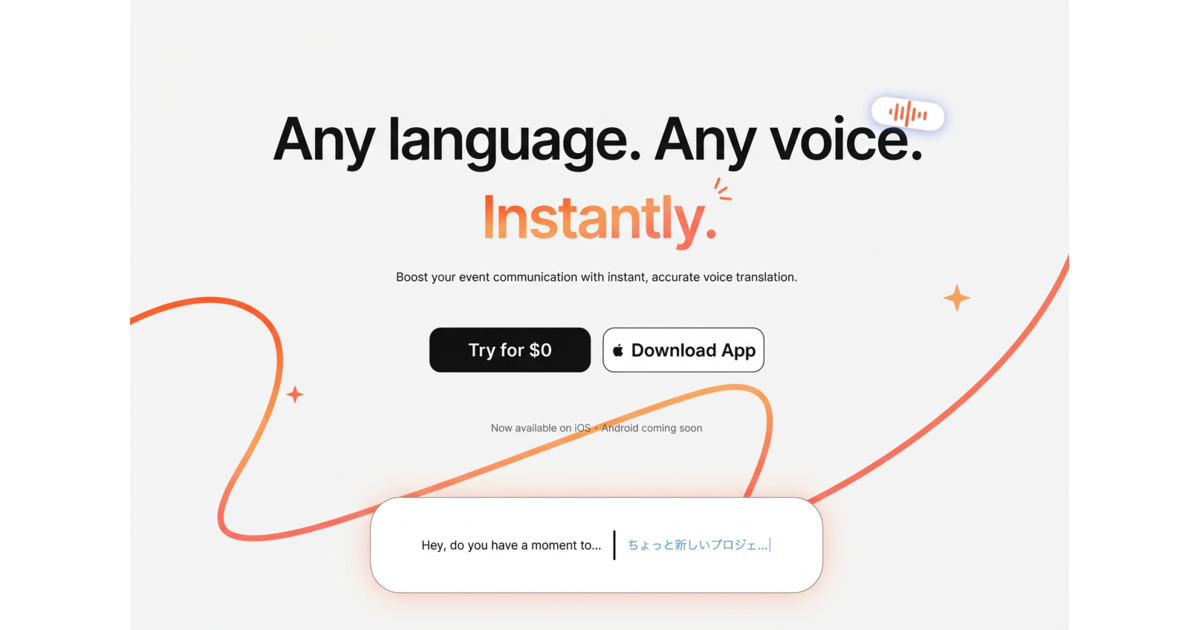
Saydi is an AI voice translation platform delivering real-time interpretation for meetings, events, and conferences. It supports 60+ languages with near-zero latency while preserving nuance and intent.

ScreenTranslate is a lightweight macOS utility that translates any on-screen text instantly. It works entirely on-device using Apple Vision OCR and Apple Translation for privacy and offline use.

Seagull captures audio from any app and translates it on screen in real-time. It provides magic captions for your entire desktop across meetings, podcasts, YouTube, and lectures.
Wordy helps you master languages naturally through your favorite movies and TV shows with interactive subtitles and smart vocabulary tracking. It offers personalized learning paths for 20+ languages.
DuoNinja helps you practice vocabulary using spaced repetition with real example sentences and audio. It imports your Duolingo words and creates flashcards that show up when you're about to forget them.

Plae is a macOS menu bar app for on-device translation that works privately without internet. It translates text instantly using Apple Translation, Apple Intelligence, or a built-in AI model.
Typeflow is the keyboard shortcut to translate and fix your writing instantly in any language, anywhere on your desktop. Made for people who message daily at work in a second language. No more back-and-forth between Slack/emails and AI chat.
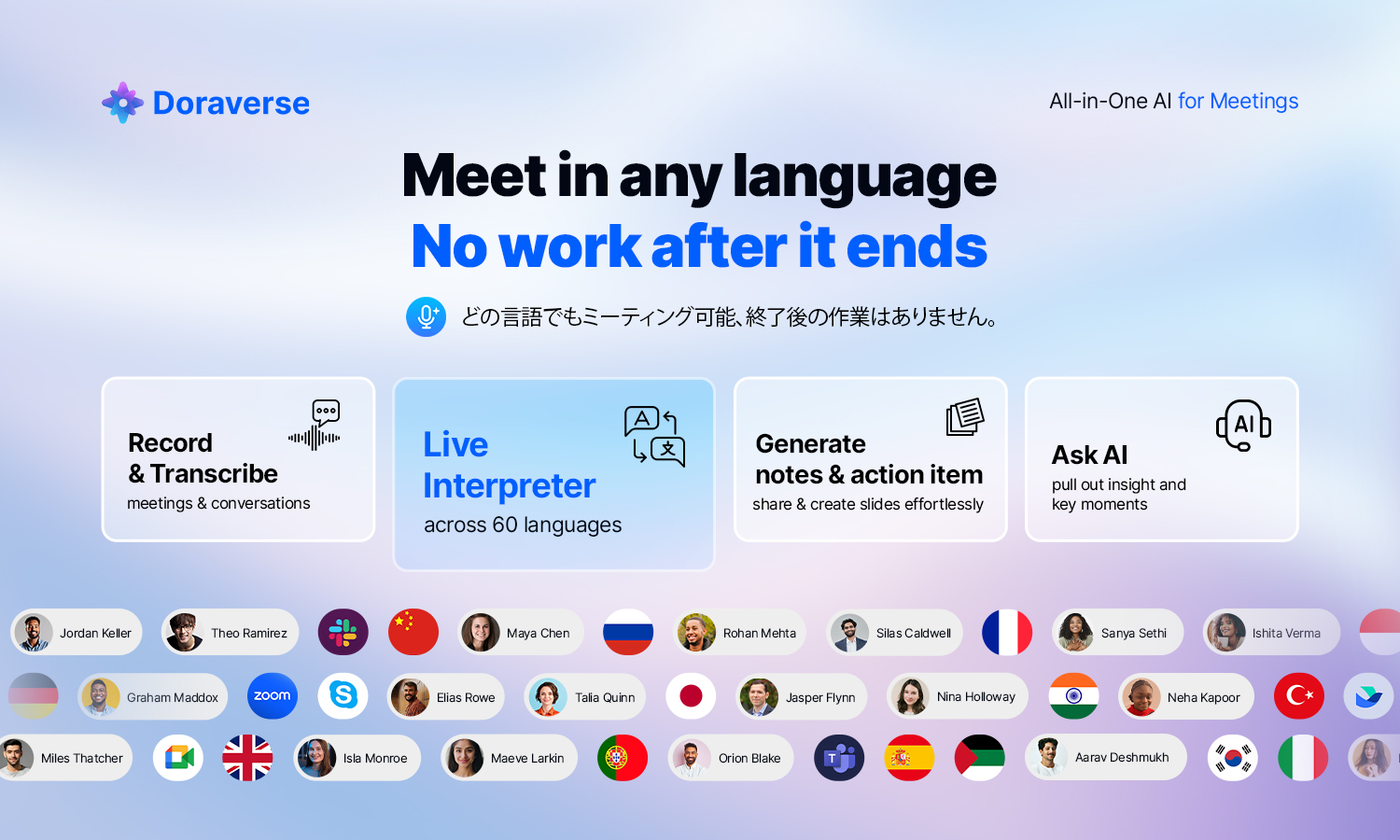
Doraverse captures meetings with live translation and transcription across 60 languages. It automates post-meeting work with notes and action items while providing an AI assistant you can ask on the spot.