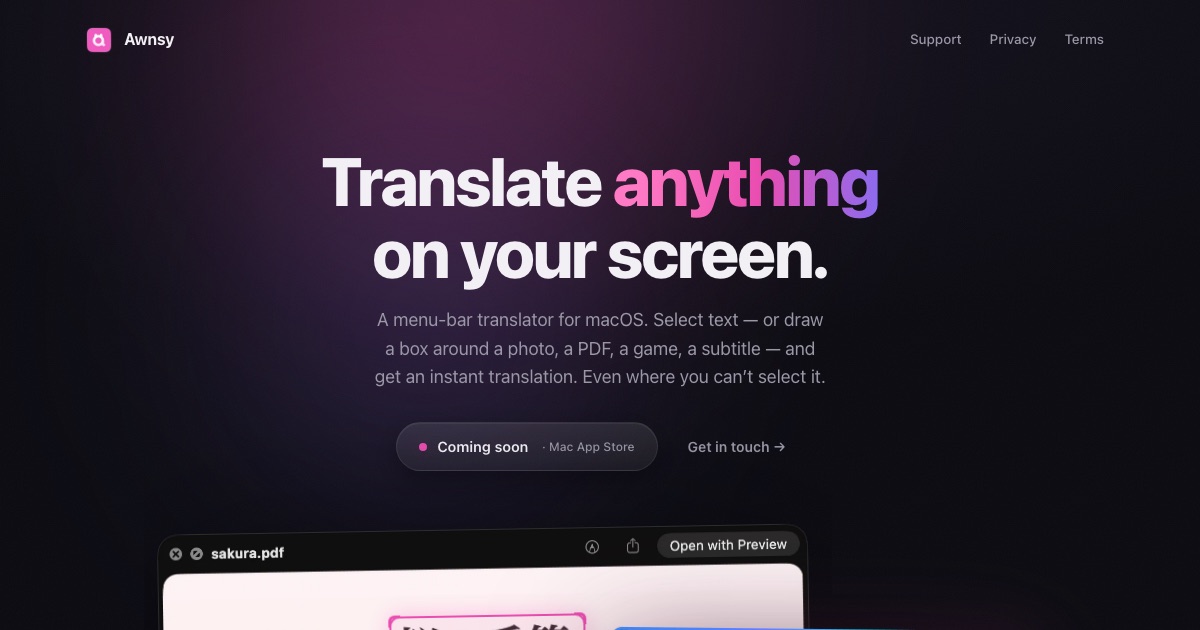
Awnsy is a small menu bar translator for macOS that turns one keystroke into an instant translation. You select text in any app, press ⌘C twice, and the translation streams in live right over the window you are working in. For text you cannot select — words inside images, videos, or apps that will not let you highlight anything — you drag a box around the area and Awnsy reads the screen itself. Its stated goal is to be everything a translator should do on a Mac, with the translation model living inside the app and running on your machine, so what you translate stays with you.
Why a dedicated Mac translator? The everyday friction of reading something in another language is rarely the translation itself — it is everything around it. Copying text out of one app, pasting it into a browser, waiting for a cloud round trip, and then matching the result back to what you were reading all break the flow. Worse, much of the foreign text Mac users meet is not selectable at all: it is baked into a screenshot, a scanned PDF, a video frame, or an interface that simply refuses to be highlighted. Awnsy is built around the idea that translation should happen where the text already is, with no account to create, no API key to manage, and no telemetry. The product is positioned as a small app with serious reach: everything a translator should do on a Mac, plus a couple of things that require reading the screen rather than the clipboard.
One keystroke, any language. Double-pressing ⌘C is the entire interface — or you can assign your own hotkey instead. As soon as it is triggered, the translation streams in live rather than appearing only after the whole request is finished, and the result is shown over the window you are already looking at, so you never lose your place. Inside that window you can switch the target language or change which translation model is answering, without opening preferences, signing in, or restarting anything. Awnsy describes this as "one keystroke, any language" — the point being that translation should feel like a reflex on the Mac rather than a separate task you have to go and perform somewhere else.
Reads the screen itself. Plenty of the text you want to translate cannot be selected: words inside images, frames of a video, scanned PDFs, or applications that do not allow text selection. For those cases Awnsy uses on-device text recognition — you drag a box around whatever is on screen, and the app pulls the words out of the picture before translating them. Because recognition happens on the device, the content being read is not sent anywhere for that step, which keeps the same privacy posture as the built-in translation model and means the feature keeps working even when the machine is offline.
Private by default, and your models if you want them. The built-in translation model runs entirely on your Mac — offline, with no account, no API key, and no telemetry — so what you translate stays on your machine. If you would rather have cloud quality, you can bring your own OpenAI or Anthropic key instead; that key is stored in your Keychain rather than sitting in plain text somewhere in the app's files. The model switcher lives in the same translation window, so choosing between the on-device model and your own cloud provider is a toggle rather than a setup project.
Native and featherlight is not just a slogan here: Awnsy is written in pure Swift rather than Electron, lives in the menu bar, and never clutters your Dock. That architecture is what makes the rest of the product possible — a lightweight, always-available companion that can be summoned with a keystroke from inside whatever you happen to be doing, rather than a heavyweight application you launch and manage. The overall approach is a single, narrow surface: trigger with your hotkey, get a streamed translation over the current window, switch language or model inline if you need to, and dismiss it. There is no dashboard, no project setup, and no dedicated translation screen to learn.
The outcome is translation that costs almost nothing in attention. You do not leave the app you are reading, you do not copy and paste into a browser, and you do not need an account or a key to get started — the built-in model is there the first time you double-press ⌘C. Because that model runs on your Mac and works offline, results are available in situations where a cloud service would not be: no connection, a locked-down environment, or content you would simply rather not send to a third party. And because text recognition covers material you cannot select, the same gesture handles a paragraph, a screenshot, a scanned document page, or a line of on-screen text inside a video.
Concretely, Awnsy fits the moments where foreign text appears in the middle of other work. Reading a foreign-language article, help thread, or documentation page in a browser or a document, you select the passage and double-press ⌘C, and the translation appears over the page. Reviewing a scanned PDF, you draw a box around a paragraph because there is no selectable text to copy. Watching a video whose on-screen text you cannot copy, you box the frame and read it in your language. Looking at a screenshot, a chart, or a third-party app whose text resists selection, the same box gesture works. And on a plane, on a locked-down network, or simply offline, the built-in model keeps working.
Awnsy is built for Mac users — the Product Hunt listing files it under Mac, Productivity, and Artificial Intelligence — and particularly for people who encounter several languages during the day and would rather not context-switch to handle them. It runs on macOS and is distributed through the Mac App Store, where it is free to download; the paid Awnsy Pro tier unlocks unlimited screen translation. The app is written in pure Swift and integrates optionally with OpenAI and Anthropic as bring-your-own-key providers, keeping that key in the Keychain. No account is required for the on-device mode.
The takeaway: Awnsy compresses Mac translation into a single gesture. Select text, double-press ⌘C, read the result where you are — or draw a box when the text is trapped in an image, a video, or an app that will not let you select it. Offline and private by default, cloud quality optional with your own key, and native enough to stay out of the way in the menu bar.
Publisher
A
admin
Launch Date2026-09-21
Platformdesktop
Pricingfreemium
Tech Stack
#Swift