Category Focus/categories/productivity
Productivity AI Tools
Discover and compare the best productivity AI tools and software. Browse 864+ curated tools with reviews and rankings.
Projects tracked
864
Sort mode
RECENT
Page
19
Discover and compare the best productivity AI tools and software. Browse 864+ curated tools with reviews and rankings.
Projects tracked
864
Sort mode
RECENT
Page
19
chat-recall is, in its own words, Ctrl+F for every conversation you've had with an AI. Your team has done months of work with AI assistants, and a single command — npx chat-recall init — reads what those assistants already wrote down and turns it into one searchable history. The product is aimed at teams and developers who work daily with AI coding assistants and who have accumulated a large, scattered record of that work: the chats, the plans, the task lists and the notes. Rather than asking people to remember which tool holds which decision, chat-recall collects everything into one place that is searchable the moment it arrives. Critically, passwords are removed before anything leaves your computer, so the searchable history can be assembled without shipping secrets off the machine. The stated purpose is simple: make months of AI-assisted work findable, and stop teams from redoing work they already finished. The problem it addresses is fragmentation and loss of recall. Claude Code, Codex, Cursor and OpenCode each keep a full record of a team's work, in its own format, and none can read the others. The result, as the site puts it, is that none of it is searchable — until now. The headline framing is that Ctrl+F doesn't work on your brain, but chat-recall makes it work on your chat history. That matters in two directions. First, knowledge: decisions, plans and completed work live inside conversation histories nobody can search, so your assistant keeps asking what was decided last month, and people repeat work that was already done. Second, security: conversations with AI assistants are a place where credentials leak, and an API key pasted into an old chat is a live liability that nobody can audit by hand across months of history. chat-recall addresses both the recall problem and the leaked-secret problem from the same source of truth. The first capability group is unified, searchable history. chat-recall reads the record your assistants already wrote — conversations, plans, task lists and notes, across five AI coding tools — and assembles everything into one searchable history. Everything is searchable the moment it arrives, so there is no separate export or migration step to perform. Beyond manual searching, your assistant searches the history itself, which means it stops asking what you decided last month. That closes the loop: instead of a person being the only bridge between five separate chat tools, the assistant you are currently talking to can reach the shared record and pick up the context the team has already established. For a team whose decisions live in chat, this converts an unsearchable archive into a lookup. The second capability group is secret handling and leaked-key detection. Password removal happens on your own computer, before anything leaves the machine, and the system only ever sees the last few characters of a value — the site illustrates this with a masked key that keeps only its final characters visible. On top of that, chat-recall finds keys that leaked into old chats and checks which ones still work. The security view shows every key that was found, whether it still works, and how many conversations it turned up in. Each row presents a masked preview, a live-or-dead verdict, the detectors that matched, and how many sessions the key appeared in, with entries grouped by rule. Detection is based on the key formats the big services publish. If a company invented its own key format, users can tell the system the pattern and it gets checked too. Together this turns an unbounded audit problem — months of chat logs and unknown leakage — into a screen with a concrete verdict per credential. The third capability group is keeping every assistant and every machine on the same setup. The toolkit coverage matrix shows six skills down the left-hand side and a column for each AI tool on each of two computers; a filled cell means the skill is installed there, an empty ring means it is not. Each row carries a coverage count and a sync-to-all action, so a blank cell can be clicked to copy the missing add-on across. This makes consistency visible rather than assumed. A new laptop already knows everything: sign in and your whole history is right there, with nothing to copy over by hand. Every add-on you have built up follows you to whichever assistant you pick up next, so trying a new assistant does not mean starting over. Rules are set once, per project: mark a project a prototype or a live product, and every assistant that opens it plays by the right rules. And bugs turn into tasks on their own — each one shows up with the fix already sketched out, and closes itself once the problem is actually gone. The methodology behind all of this is local-first. Steps one through three — reading your conversations, removing passwords, and producing one searchable history — happen on your computer, and that history never leaves your computer. The ordering is deliberate: redaction is applied at the point of collection rather than after transmission, so the pipeline that aggregates five tools' worth of chat data does not also aggregate the secrets inside them. Your assistants then reach that local history themselves, which is what makes "your assistant searches it itself" possible without a manual export-and-import cycle between tools. The benefits follow directly from those mechanics. Teams stop redoing work they already finished, because completed work is findable. Passwords come out before anything leaves the computer, and leaked credentials are surfaced with a verdict rather than buried in old chats. People see what to fix next instead of guessing. Moving to a new computer means signing in rather than copying files by hand. Adopting an additional assistant no longer resets the accumulated add-on setup. Project rules are applied consistently across every assistant that opens a given project, and bugs become tracked tasks that close themselves once the underlying problem is actually resolved. In practice, the described workflows are concrete. A developer installs the tool with one command and gains a searchable history spanning the five AI coding tools they already use. A team opens the security view and sees each leaked key grouped by rule, with a masked preview, a live-or-dead verdict and the number of sessions it appeared in, then decides what to act on. Someone sets up a second computer, signs in, and finds the whole history already there. A developer who wants to try a different assistant carries their add-ons with them instead of rebuilding them. A project is marked a prototype or a live product so every assistant that opens it applies the right rules. A bug reported during a session arrives as a task with the fix already sketched out, and closes itself once the problem is gone. And an assistant asked about an earlier decision searches the shared history itself rather than asking the user to repeat it. On audience and integrations, the content points to teams that run multiple AI coding assistants — Claude Code, Codex, Cursor and OpenCode are named, and the diagrams consistently describe five AI coding tools and two computers. Installation is a Node command run with npx: npx chat-recall init. The product also exposes a way for the assistant to query the history directly, described on the site as "what your assistant can ask" and linked at the /mcp/ path, which indicates an MCP-based interface for assistants. No pricing, plan tiers, or supported operating systems are stated in the provided content. The takeaway is that chat-recall treats AI chat history as a first-class, searchable, shared asset while treating the secrets inside that history as something to strip before it goes anywhere. One command turns scattered records from five AI coding tools into one history your assistant can search itself; passwords come out before anything leaves your computer; leaked keys get a verdict instead of a guess. Ctrl+F doesn't work on your brain, but with chat-recall it works on your chat history.
Moji is a desktop Markdown reader and editor that lets you open Markdown files the way you open a PDF: double-click a file and start reading. It displays your document with clear typography, tables and diagrams, while editing and export stay ready when you need them. Built for Windows, macOS and Linux, Moji is lightweight, comfortable for long-form reading, and simple enough to disappear while you read. It is free, open source under the MIT license, requires no account, and its interface is available in Portuguese, English, Spanish, Japanese, Chinese and Russian. The official site presents version 1.0.7. Moji exists because of a simple observation: opening Markdown should be as simple as opening a PDF. The creator built Moji because a Markdown file ought to open the way a PDF does — with a double-click, instantly readable, with clean typography and no setup. Usability came first from day one, and editing and export were added afterward without losing that focus, so the reader never turned into something heavier than the task required. The supporting idea is stated plainly on the site as a motto: "Less interface. More document." That framing explains nearly every decision in the product, from how files are opened, to how previews are rendered, to how diagrams and exports are handled. How you get a file into Moji reflects that same philosophy. You can open documents through a file dialog, drag and drop them into the application, rely on file associations so a double-click opens Moji directly, or keep several documents open at once in a multi-tab workspace. Once a document is open, the preview is described as rich and secure: it renders tables, task lists, footnotes, LaTeX, code highlighting and emoji, and it provides outline navigation so you can move through a long document by its structure rather than by scrolling blindly. Because the goal is comfortable reading, the preview keeps your content in the foreground, with synced outline navigation and a dark theme available for focused sessions. When reading is not enough, Moji becomes an editor. Editing is built on CodeMirror 6 and includes Markdown shortcuts, line numbers, history, and search and replace, so precise editing stays available without turning the reader into a full code editor. A live preview keeps the rendered output in view as you work, which means you can see the effect of a change immediately rather than bouncing between windows. Exports are described as predictable: PDF, HTML and PNG outputs preserve typography, diagrams and very long documents, so what you see in Moji is what you get in the exported file. The export dialog is deliberately simple — you choose a format and a layout and proceed. Diagrams are handled without leaving the document. Valid Mermaid blocks become responsive diagrams inside the preview, effectively going from code to diagram instantly, and the supported range covers flowcharts, sequence diagrams, Gantt charts, class diagrams, ER diagrams and more. Clicking a diagram opens a viewer with 10% to 1000% zoom, free pan and fit to view, plus a minimap for orientation on larger diagrams, and each image can be exported individually as PNG. The rendered diagrams are self-contained SVG in HTML, PDF and PNG exports, which means the diagrams travel with the document and keep their fidelity outside Moji. Moji's overall approach is to keep the interface quiet and the document loud. Subtle chrome, comfortable reading and compact controls are meant to keep you in the flow, with the content rather than the application occupying the foreground. Focused reading is supported by a synced outline and a dark theme; precise editing is supported by code, shortcuts and search; exporting is handled through a simple dialog where you pick a format and layout. The site organizes these capabilities as "the essentials, done well" and describes an interface that gets out of the way, which is also why the reader is presented as the primary mode and the editor as something that is there when you need it. The practical benefit is immediacy: no setup, no account, and no friction between a Markdown file and the text inside it. Because Moji is lightweight, it stays comfortable during long-form reading sessions and can be left open without demanding attention. Because it is free and open source under the MIT license, there is no cost or lock-in to evaluate before trying it, and the code can be explored or contributed to. Because the preview covers the formatting people actually use — tables, tasks, footnotes, LaTeX, code, emoji and diagrams — you rarely need a second tool to check what a document looks like. And because exports preserve typography, diagrams and very long documents, the same file can be shared, published or archived in a different format without rework. Concrete scenarios follow the reading-first design. You can open a README or project documentation by double-clicking it and read it like a PDF, using the outline to jump between sections. You can draft or fix a Markdown note in the editor with Markdown shortcuts, line numbers and search and replace, watching the live preview update. You can author a Mermaid flowchart or sequence diagram inside the document, zoom and pan around it in the viewer, and export that single diagram as a PNG. You can turn a long Markdown document into a PDF with precise layout, into HTML that is web ready, or into a PNG for very long documents. And you can keep several documents open in tabs while working across a project. In terms of audience and delivery, Moji is aimed at people who read and write Markdown on the desktop and want that experience to feel like opening a document rather than launching a technical tool. Official installers are published directly through GitHub Releases: an NSIS installer for Windows x64 with automatic updates, a universal DMG for macOS covering Apple Silicon and Intel with manual updates, and for Linux an AppImage with automatic updates or a DEB package for manual installation. The editing surface is built on CodeMirror 6, diagrams are rendered with Mermaid, and the interface speaks Portuguese, English, Spanish, Japanese, Chinese and Russian. Moji is free and distributed under the MIT license, with no account required. Taken together, Moji's value proposition is straightforward: it treats Markdown as something you should be able to simply read. Double-click a file, get clean typography, navigate by outline, edit when necessary, render diagrams inline, and export to PDF, HTML or PNG without surprises. The interface stays out of the way, the software stays free and open source, and the document remains the point.
Devin Voice is the voice mode built into Devin, Cognition's AI software engineer. It lets you talk naturally with Devin to explore ideas, pressure-test an approach, and hand off work while you are away from your keyboard. Rather than typing every instruction, you start a voice call, speak your thoughts out loud, and let the conversation move at the speed of speech. Any message you have already typed is sent when you start the call, so you can move directly from a written prompt into a spoken discussion inside the same session. The Product Hunt listing describes the same idea more bluntly: you say it, Devin ships it, and you speak a task out loud while Devin plans, codes, and delivers. The capability is aimed at people who already work with Devin in Agent mode or in an existing session and want a conversational way to think through problems, ask questions, and keep work moving. Software work has long been keyboard-centric: you type a prompt, wait for a response, read it, and type again. Voice mode changes that rhythm by making the spoken conversation itself the interface between you and the agent. The documentation frames voice mode around three activities: exploring ideas, pressure-testing an approach, and handing off work while you are away from your keyboard. The stated tips reinforce how this is meant to feel in practice. You should not be afraid to interrupt Devin's work, and you should ask questions and clarify your thoughts as you have them. You are also free to interrupt Devin while it is talking. Together, those instructions describe a working style where clarification is welcome at any moment rather than something you have to schedule between long silences, and where getting your thinking out loud is part of the process rather than a disruption to it. Getting into voice mode is deliberately simple. On the home page in Agent mode, or inside an existing session, you click the voice call button that sits beside the message box and then allow microphone access. Hovering over the waveform icon shows a "Start voice call" tooltip, so the control is discoverable before you commit to a call. One detail worth noting: any message you have already typed is sent when you start the call. That means a half-written prompt or a queued instruction is not lost; it is delivered as the call begins, so your spoken conversation continues from the written context you had already built up. Starting from either the home page or an in-progress session means you can begin a call at the moment an idea strikes rather than having to set up something new first. Once a call is running, the documentation lists a small, clear set of controls. Mute microphone pauses your microphone, and clicking Unmute microphone lets you speak again. If you are muted but still want to say something without leaving the call, you can hold Space to talk while muted when you are not typing. Silence Devin turns off Devin's audio without muting your own microphone, and clicking Unsilence Devin brings the audio back. End voice call hangs up. These controls separate the two directions of the conversation, your input and Devin's output, so you can mute yourself while listening to a long explanation, or silence Devin's audio while keeping your own microphone live and ready to respond. Voice mode is not a separate, isolated room. You can navigate within Devin while the call stays connected, so you can move around the product without dropping the conversation. Your conversation appears in the session history, which means the spoken exchange becomes part of the recorded session rather than disappearing when you hang up. The documentation also notes that you can shape how Devin speaks: if you have preferences for how Devin should speak, for example to speak faster or slower, or a particular communication style, you can simply ask. There is no described settings panel for this; the adjustment happens through the conversation itself, which keeps the interaction consistent with the rest of the voice experience. Under the hood, the Product Hunt listing states that Devin Voice is powered by GPT-Live for natural conversation, with Cognition's new SWE-2 coding model under the hood. That combination is what the listing describes as letting Devin plan, code, and deliver after you speak a task out loud. Devin Voice connects you to Devin, described in the listing as Cognition's AI software engineer. On the documentation side, the overall description of how the feature works is straightforward: you talk naturally with Devin, in Agent mode or in an existing session, and the conversation is tied into the same session context, appearing in session history and continuing even as you navigate within Devin. The documentation also carries a standard note that responses are generated using AI and may contain mistakes. The benefits follow directly from those mechanics. Voice mode lets you explore ideas out loud instead of composing them in a text box, which the documentation positions as a way to pressure-test an approach. It lets you hand off work while you are away from your keyboard, so time spent away from a desk does not have to mean the work stops. Because you can interrupt Devin's work and ask questions as they occur to you, clarifications do not have to wait for a complete response, and because you can interrupt Devin while it is talking, you are not locked into listening to everything before you can steer the conversation. And because you can ask Devin to speak faster, slower, or in a different communication style, the spoken interaction can be tuned to your preferences. Concrete use cases flow from the documented behaviour. You might start a call on the home page in Agent mode, with a task already typed into the message box, and have that message sent as the call begins so you can talk through the task instead of typing more. You might be inside an existing session and open a voice call there to hand off work while you step away from your keyboard. You might keep the call connected while navigating within Devin, moving around the product without breaking the conversation. You might mute your microphone while Devin talks, or hold Space to talk while muted when you are not typing. You might silence Devin's audio without muting your own microphone so you can think or speak without the audio running. And afterwards, you can revisit the conversation in the session history. In terms of audience and context, the documentation is written for people using Devin itself, referring to the home page in Agent mode and to existing sessions, and describing the voice call button beside the message box. Product Hunt lists Devin Voice under Productivity, Developer Tools, and Artificial Intelligence, and the listing points readers to devin.ai to try Devin. The named technologies associated with the product are GPT-Live for natural conversation and Cognition's SWE-2 coding model under the hood. The documentation page does not describe pricing, plans, or platform availability beyond the described interface, and the listing does not state pricing either. The takeaway is straightforward: Devin Voice turns talking to Devin into a first-class way of working. You say it, and Devin ships it. By letting you start a call from the message box in Agent mode or an existing session, carry a typed message into the call, mute or silence either side of the conversation, keep working while Devin navigates alongside you, and simply ask for the speech style you prefer, voice mode makes it possible to explore ideas, pressure-test an approach, and hand off work away from your keyboard, with the conversation preserved in the session history.
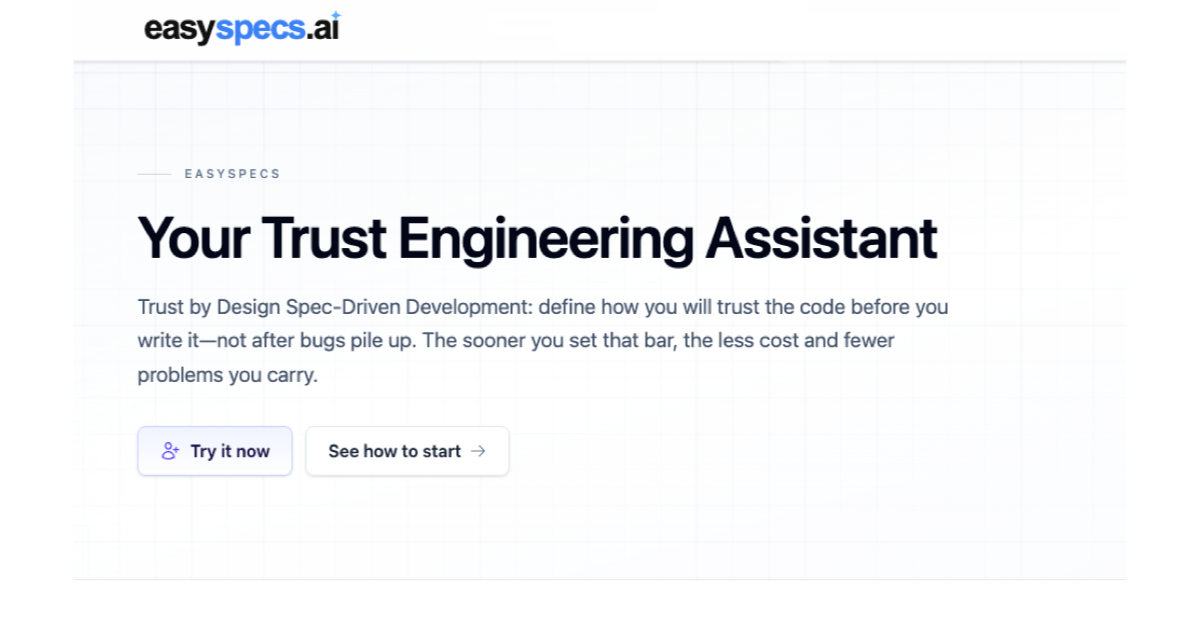
EasySpecs is a spec engineering assistant and spec review platform built for Spec-Driven Development. It documents undocumented codebases and turns them into trustworthy specifications, so that spec review becomes the new merge request review. The product is aimed at developers, product owners, technical product managers, and organization leaders who need shared, trustworthy understanding of their software at the speed AI now changes it. EasySpecs produces functional documentation of the real system, helps teams polish intent and ground it against the current codebase, and then creates Trust by Design Specs before the code is written rather than after bugs pile up. EasySpecs frames its purpose around a shift in how teams ship software. AI agents generate code far faster than humans write it, but teams cannot review it all. The platform's own framing is that the gap between 1.5x and 100x is not speed, it is trust. Developers describe babysitting an agent for an entire run because looking away causes things to go wrong, while engineering leads and CTOs describe drowning in AI pull requests because agents generate faster than their teams can review. In parallel, merge requests have surged and code review has become a bottleneck. Documentation lags behind the system, shared context goes stale, and product and engineering overlap in their work with no single place to align. Spec Driven Development is presented as the new standard — and the consequence is that teams need a tool for quality specs, spec management, and spec-driven change management. The first capability EasySpecs describes is code understanding. The platform produces functional documentation of a project with up to 98% LOC coverage assignment, which it calls the first stone of Trust Engineering. Rather than relying on stale docs or guesswork, this functional documentation describes the real system as it actually behaves. The benefit is that later change requests and specs start from how the application really works and what users actually intend, not from an assumption. The platform's narrative illustrates this with the "Docs lag" scenario: when documentation falls behind the code, shared context goes stale, and EasySpecs responds with auto-sync documentation so the shared understanding stays current. The second capability is intent. When intent is fuzzy, EasySpecs helps teams craft, clarify, and ground it to the current codebase before agents generate code, so that Spec-Driven Development has something trustworthy to drive. What EasySpecs captures is "the ask behind the change" — grounded in how the app actually works, so product and engineering share one picture before specs are written. A screenshot illustrating this for technical product managers shows a Specs accordion with Change, Intent, Diagram, and Spec steps, taking a team from change request to a Spec that agents can ship against. This is how EasySpecs addresses the scenario where product and engineering overlap but have no place to align together: they align in one place. Once intent is clear, EasySpecs creates Trust by Design Specs with structured views and HTML-rendered views, so a change is visible and checkable before any code is written. Every Spec is sided by a Trust Spec. The Spec is described as the standard SDD spec — what to build, presented in structured and HTML views the team can actually read. The Trust Spec holds validators, evals, and checks that sit beside the Spec, so the team knows how it will trust the change before agents generate code. The product description summarises this as reviewing specs including Oracles and Rubrics. The underlying idea is Trust by Design: define how you will trust the code before you write it, not after bugs pile up — and the sooner that bar is set, the less cost and fewer problems the team carries. EasySpecs connects into the tooling teams already use. It is integrated with Jira and Linear for tracking work, and it has IDE integration with VS Code, Cursor, Antigravity, and any VS Code–compatible IDE, so developers can work from specs and Trust Spec validators where they already write code. On the product side, EasySpecs is integrated with Jira so that specs written by technical product managers are ready the moment engineering picks them up. For organization leaders, the dashboard shows change requests and linked Spec status across projects, tracking every change request and its Spec. EasySpecs describes itself as one Spec-Driven operating system for Tech and Product, giving both sides the same source of truth. EasySpecs lays its methodology out in three steps that follow the theme "trust before you code." Step one is Understand the code: EasySpecs produces functional documentation of your project with up to 98% LOC coverage assignment, so change requests start aware of real behavior and user intent. Step two is Polish the intent and ground it to the current codebase: when intent is fuzzy, EasySpecs helps craft, clarify, and ground it before agents generate code, so Spec-Driven Development has something trustworthy to drive. Step three is Create Trust by Design Specs: with intent clear, the platform generates structured and HTML-rendered views of the change, sided by a Trust Spec of validators, evals, and checks. Around this loop, EasySpecs organises stories of change as change → consequence → EasySpecs, covering spec-driven change management, auto-sync documentation, shared alignment, and Trust Engineering that eases merge requests. The platform's use-case page and conference appearances — including a presentation at an agentic coding conference in Hamburg, Germany — sit alongside these ideas. The outcome EasySpecs describes for users is scale without babysitting. Developers stop sitting with the agent for the whole run and instead work from Specs and Spec of Trust validators, so generation starts from clear intent and checks rather than vibes. Engineering leads and CTOs get a way out from under a growing pile of AI pull requests: instead of reviewing every generated change, teams review specs, and spec review becomes the new merge request review. Product owners can ground change requests in the real app, polish intent, and shape Trust by Design Specs the team can actually see, instead of fuzzy stories that burn engineering time. One quoted customer summarises the effect: "My team finally speaks the same language about specs. The pace of change was so fast we could not align. Now with EasySpecs, all clear." Several concrete workflows are described in the content. Teams with undocumented codebases use EasySpecs to document the real system once, creating a foundation for later specs. Engineering organisations facing a surge of AI-generated merge requests use spec review as the review gate, trusting specs before the next change lands. Technical product managers write specs that developers can ship against, working through Change, Intent, Diagram, and Spec steps in Jira, ready the moment engineering picks them up. Organization leaders introduce Spec-Driven Development across tech and product as a shared operating system, and track every change request and its linked Spec status across projects from the dashboard. Developers, meanwhile, use the IDE integration to work from specs and validators inside VS Code, Cursor, Antigravity, or any VS Code–compatible IDE. EasySpecs is built for product owners and developers as two sides of the same Trust by Design loop, and it also speaks directly to technical product managers and organization leaders. Its integrations cover Jira and Linear on the work-tracking side and VS Code, Cursor, Antigravity, and any VS Code–compatible IDE on the development side. The content reviewed here does not state pricing details or the underlying tech stack. EasySpecs positions itself as your spec engineering assistant: document the real system, polish intent, and create Trust by Design Specs with validators and evals, so teams can review specs instead of every generated change. Ground your agents in reality, scale agentic development without babysitting, and ship code you actually verified.
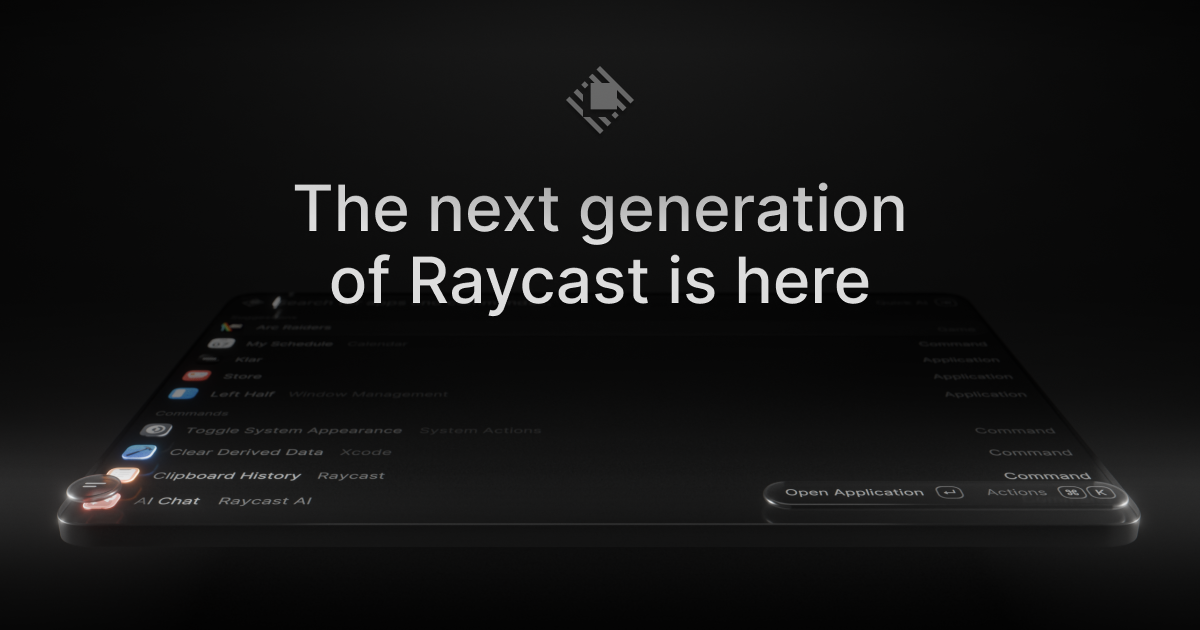
Raycast 2.0 is the next generation of Raycast, the macOS launcher that acts as a single shortcut to everything you do on your Mac. This release is built on a new foundation and redesigned from the inside out, with a refreshed interface that feels right at home on macOS Tahoe. It is made for people who work from the keyboard: it brings AI that can take action across your apps, Automations for recurring tasks, and Projects to keep ongoing work together, alongside the commands and extensions you already use every day. Raycast 2.0 replaces Raycast V1 on installation, and existing users can import their existing setup during onboarding so everything feels familiar. Raycast 2.0 is described as a major update rather than a small point release. On installation, the new Raycast replaces Raycast V1; there are just a handful of missing features, and these will be added soon. The team notes that users should expect frequent updates and occasional rough edges, which signals the product is being shipped and improved continuously. The reason for the rebuild is the scope of what has been added on top of a launcher: an AI experience that can take action across your apps, Automations for recurring tasks, and Projects that keep ongoing work together. Delivering that on top of the original foundation required building a new one, which is why the release is described as redesigned from the inside out and as the launcher, relaunched. The most visible change is the AI experience. Quick AI lives in the same Tab as your existing search, so you do not have to learn a new place to type — it simply brings more power from the surface you already use. AI Chat brings skills, agents, and memory together in one place, so longer-running work can build on what came before instead of starting from zero each time. Raycast 2.0 also brings AI that can take action across your apps, and you can connect your own ChatGPT or Claude account, which means the assistant works alongside the commands and extensions you use every day rather than in a separate tool. Built-in dictation lets you type with your voice, covering the moments when speaking is faster or more practical than using the keyboard. Navigation and search received attention too. File Search now sits in root, described simply as one less step to find your files, while file search itself is faster. Quicklinks and snippets tagging are listed among what is new, and hotkey handling has been improved. Settings have been reorganized so configuration is easier to find, and you can configure inline: hotkeys and aliases can be assigned directly from root search, so a command can be set up the moment you find it. The overall look and feel has been updated to feel right at home on macOS Tahoe, so the launcher matches the operating system it runs on. Beyond the interface, Raycast 2.0 adds two organizing concepts: Automations for recurring tasks and Projects to keep ongoing work together. Automations address the work you repeat — instead of walking through the same steps by hand, the recurring task is handled by Raycast. Projects give ongoing work a home so related items stay together rather than being scattered across your setup. The extension story carries over as well: custom extensions continue to work, and for extensions that do not import automatically you can run npx @raycast/api@latest dev, with the dev command described as clever enough to pick up the new version if it is running. Commands and extensions remain the everyday surface that AI works alongside. Getting started with Raycast 2.0 follows a defined path. You download the build for macOS — version 2.3.1.0 is referenced on the site — and macOS Tahoe and Apple Silicon are required. Raycast v2 is built for macOS Tahoe; if you are still on Sequoia or earlier, you need to upgrade macOS before installing v2. To ensure a seamless onboarding experience, Raycast asks you to install the latest version of Raycast v1, or at least v1.104.16. During onboarding you are prompted to import or migrate your data from Raycast v1. If you skip that step or want to rerun it, you can do it manually with one of two commands: Migrate from Raycast v1, which automatically migrates your data from v1, or Import Settings and Data, a manual import from a .rayconfig file that you must export from Raycast v1. The recommended migration approach also protects your habits. Migrate from Raycast v1 imports settings and migrates all of your shortcuts to Raycast 2.0 while disabling them from working in Raycast v1, which ensures your hotkeys do not conflict. Raycast notes this is the recommended approach because there is some extra data that is not imported with the manual import — this includes Clipboard History, Wrapped and the Emoji picker. The outcome is that you keep a familiar setup while gaining the new capabilities: AI in the same surface as your commands, voice dictation, faster file search, Automations for repeated work, and Projects that keep related work together. Because the update replaces V1 on installation, the transition is a single step rather than running two launchers side by side. Concrete workflows follow the same shape. A developer can keep using Raycast to run commands and custom extensions, and can hand recurring steps to Automations. Someone who works across several apps can use AI that takes action across those apps and connect their own ChatGPT or Claude account so the assistant sits next to the commands and extensions they already use. When files need to be found, File Search in root removes a step and faster file search shortens the wait. When typing is impractical, built-in dictation turns speech into text. Ongoing efforts, rather than one-off tasks, can be grouped into Projects, while quicklinks and snippets tagging cover the links and text that get pasted again and again. Raycast 2.0 is built for macOS users who want a keyboard-first way to work: Product Hunt classifies it under Mac, Productivity and Developer Tools, and the site's own navigation points developers to an API, a manual, a browser extension and a dedicated Developers area. The release requires macOS Tahoe and Apple Silicon and is installed as an app on the Mac. Integrations explicitly mentioned include connecting your own ChatGPT or Claude account and the extension ecosystem, including custom extensions built with the Raycast API and the npx @raycast/api@latest dev command. On the commercial side, the site links to Pro, Teams, Enterprise and Pricing pages, which indicates offerings for both individuals and organizations, although no specific prices are stated on this page. Taken together, Raycast 2.0 is a rethink of an everyday Mac launcher rather than a feature patch. It keeps the launcher at the center — commands, extensions, search and shortcuts — and layers on AI that can take action across your apps, Automations for recurring tasks, Projects for ongoing work, and built-in dictation, all wrapped in an interface redesigned for macOS Tahoe. The goal is stated plainly by the product itself: your shortcut to everything, now with AI put to work alongside the commands and extensions you use every day.
Loqua is AI voice typing and dictation software for Mac and Windows that turns speech into polished, ready-to-use text. The product's core promise is captured in its own words: from voice to text, from screen to insight. Instead of typing, you speak naturally and Loqua transcribes, cleans up, formats, translates, and even acts on what you say. It is built for people who would rather think than type — professionals, founders, engineers, designers, writers, students, and anyone whose hands are busy or who simply speaks faster than they type. One shortcut works across any text field, so dictation happens right where the cursor is without switching apps. The keyboard is the bottleneck Loqua was built to remove. Traditional keyboard typing runs at roughly 45 words per minute, while Loqua's dictation is presented at 220 words per minute — a speed difference the product sums up as saving 3 hours per day. Speed is only part of the problem. Speaking out loud naturally produces filler words, repetition, and half-finished thoughts, and the person then has to re-read and re-edit everything just said. Work is also fragmented across dozens of apps, so writing a message, checking a chart, looking something up, or setting a reminder each require switching context. Language barriers add another layer for people who work across borders. Loqua's answer is to let you keep thinking out loud and let the software handle the cleanup, structure, and follow-through. At its core, Loqua is voice typing that produces clean output. As you speak, it removes filler words, cuts repetition, and refines your phrasing in real time, so what lands on screen is ready to send. The product frames this as Say it rough. Get it clean. and directly addresses the annoyance of re-reading everything you just said. Users describe the result as sounding exactly like they meant it — clear, sharp, and effortless. Words appear quickly enough that users describe a zero-latency feel which makes them forget the tool is even there. Loqua also handles technical vocabulary: one engineer noted that a screen full of framework names, library names, and acronyms was transcribed accurately, removing the need to go back and proofread. Structure is handled automatically. Instead of dictating formatting commands, you think in bullets or speak in blocks and Loqua hears the structure in your speech, building lists, headings, and hierarchy on its own. This means outlining a document, a plan, or a set of risks can be done conversationally and still arrive formatted. Translation removes language barriers: you speak in your own language and get native phrasing in nearly 100 languages, instantly. The product highlights speaking in English while sending emails in Spanish to a Latin America team, with the translation described as instant and natural. Together these two capabilities mean voice input produces not just words, but organized, shareable, multilingual output. Capture to Ask lets you act on what is on your screen. You use a shortcut to select a table, a chart, or anything else, speak your question, and receive an answer, analysis, translation, or summary without switching apps — a three-step flow the product labels Capture, Ask, and Know. Ask and Edit handles rewriting: you highlight anything, whether a product, a draft, or a note, speak to edit it, and it is rewritten on the spot. A related capability, Ask anything, answers a quick question instantly without leaving the app you are already working in. Together these features address moments when you are looking at something you cannot figure out, or when rewriting is eating up more time than writing. Command to Go turns voice into a hands-free command hub. Triggered by a shortcut, it can set reminders, open apps, search routes, place calls, and send texts, so you can move work forward without jumping between apps and tasks. For people who prefer listening over reading, Loqua offers AI Podcast read-aloud: select text and have it read to you as a hands-free text-to-speech assistant, which the product positions as ideal for morning news and multitasking. This extends the product beyond writing into consumption and control — you can dictate output, edit what already exists, ask about what you see, and listen to what you would otherwise have to read. Loqua's approach is context-aware. The stated promise is voice typing that understands what you mean, not just what you say — the system is designed around context rather than raw transcription, which is why it can clean up phrasing, infer structure, and translate into natural-sounding language. Everything is reached through a single global shortcut that works in a terminal, Slack, Notion, email, or any text field, with no switching and no waiting; your voice hits the screen right where your cursor is. That universality is central: rather than being a destination app you visit, Loqua runs across the apps you already use and is invoked from wherever you happen to be typing. The team states that the product is backed by a dedicated voice AI team with full model iteration capabilities. The outcomes users report are consistently about speed and reduced friction. Loqua contrasts roughly 45 words per minute at the keyboard with 220 words per minute by dictation, and estimates a saving of 3 hours per day. Testimonials cite 25 minutes saved in under 4 minutes of use, PRDs written by voice saving at least an hour a day, 30-minute writing sessions turning into 5-minute speaking sessions, and more than 60 daily emails taking half the time — while reading better than before. Other reported benefits are less about time and more about access: one user with RSI in both wrists said Loqua made work possible again, a designer with ADHD said talking to Loqua feels like chatting with a friend and the document writes itself, and non-native English speakers said the cleanup makes their writing sound native. Trust matters too — a corporate legal counsel handling client financial data described Loqua as the first voice tool they trust enough to use at work. Concrete use cases appear throughout the product page and its testimonials. For writing and documentation, engineers explain things out loud and get documentation formatted perfectly, product managers dictate PRDs, standup notes, sprint recaps, and stakeholder updates, and consultants talk through client debriefs and receive clean summaries. For communication, users draft emails, Slack messages, and LinkedIn posts by voice, with tone switching automatically between an email to a CEO and a message to a team. For research and study, a UX researcher dictates research notes between interviews and PhD candidates use it for academic writing and dissertations, where the cleanup and formatting alone is described as worth it. For design and creative work, designers keep their hands on Figma while narrating design processes and case studies. Developers use it in terminals, GitHub, VS Code, and IntelliJ IDEA, including for coding notes. On the move, one user talks while walking and finds the draft waiting for them at the office. Loqua runs on macOS and Windows and installs as a downloadable desktop application, with a 14-day free trial. It is used across a long list of applications, including Google Docs, Microsoft Word, Notion, Slack, Gmail, Figma, VS Code, Microsoft Teams, Obsidian, Google Sheets, Zoom, Excel, GitHub, Terminal, Discord, Outlook, IntelliJ IDEA, PowerPoint, GitLab, WhatsApp, Telegram, Stack Overflow, OneNote, Canva, Photoshop, LinkedIn, Google Slides, X, Sketch, Reddit, Illustrator, Confluence, Evernote, Facebook, Adobe XD, and Google Keep. The company states that it supports the open-source community, with maintainers of public OSS projects getting free access through a Developer Grant application. Its shared roadmap includes meeting transcription, multimodal capabilities, and a Skill Market, with the stated intent of becoming a reliable work companion through continuous iteration driven by user feedback. Loqua's primary value proposition is simple: your thoughts should not have to slow down for a keyboard. By combining fast, context-aware dictation with real-time cleanup, automatic structure, translation across nearly 100 languages, screen-based question answering, voice editing, hands-free commands, and read-aloud, it turns rough speech into polished work and keeps you in flow. The result, in the product's own framing, is less typing, less context switching, and more time in flow — one shortcut that moves you from thoughts to being done.
Gojo is a macOS app that puts the everyday tools you reach for inside the MacBook notch. Instead of living in the menu bar or behind a buried shortcut, the app turns the notch into a control surface you reach by hovering, and it gathers dictation, window snapping, clipboard history, a file shelf, music controls and screen warmth into that one place. It is built for people who work on a MacBook every day and want fast access to the small utilities they constantly reach for, without installing and maintaining a separate app for every job. The website frames it simply: everything you reach for, right in the notch — dictation, window snapping, clipboard history, a file shelf, music and screen warmth — "one surface, always a hover away." Gojo is described as one native workspace covering all of those jobs. Every long-time Mac user accumulates a stack of single-purpose utilities, and the Gojo website names them directly: Boring Notch, Maccy, f.lux, Rectangle and Dropover. Each of those apps handles one distinct job — a notch overlay, clipboard history, screen warmth, window management and a file shelf — and each arrives with its own menu bar icon, its own settings pane and its own set of keyboard shortcuts to learn and remember. The problem Gojo identifies is the sprawl. As the site puts it, these jobs "usually mean a separate utility each, and a separate menu bar icon, settings pane and set of shortcuts to go with it." Gojo's answer is consolidation: it does all of those jobs from one surface you already have, replacing several downloads and several configuration screens with a single workspace that lives in the hardware you are already looking at. The site includes an independent feature comparison between Gojo and those five apps, and notes that Gojo is not affiliated with or endorsed by the products shown. The dictation feature is the centrepiece, and it is built around privacy. You hold one shortcut, ⌃ ⌥, and speak; when you release it, the words appear wherever your cursor already is — in Mail, Slack, a commit message or a search box. Speech recognition runs on a model you download once, so there is no API key and no account required, and the site states that no audio ever leaves your Mac. Because recognition is local, dictation still works on a plane. You choose your model during setup and can swap it later, and it runs offline on-device every time. The site's own screenshot shows that model list: Parakeet Unified from FluidAudio, 614 MB, marked as in use on that Mac, with Parakeet v3 available below it. The point the screenshot makes is that models live on your Mac locally and you can see exactly which one is doing the work, rather than trusting a black box in the cloud. Media controls move your music out of the way. Artwork, the track title and a scrubber sit in the notch, so you can skip, shuffle and seek whatever is playing without raising a window and losing your place. Gojo follows your current media source, and it lets you reorder the controls you actually use, so the buttons you care about sit where you want them. A screenshot shows the notch open on the media tab with album art, the track "Sunset Linen" by LoFi Serenity, a scrubber and playback controls, with a Spotify badge on the artwork. Alongside it sits Night Shift, which gives you a warmer screen after dark on your own schedule, controlled from the notch instead of System Settings. Sunset times are worked out on your Mac from a location you set once, and that location is used locally and never sent anywhere. Night Shift can start with your Mac if you want it to, and the site includes an interactive comparison — drag the divider to compare the same screen with Night Shift off and on. The clipboard tab keeps everything you have copied. Every item you copy is saved and searchable from the notch, so you can find that thing you copied ten minutes ago without opening another app or switching context. Anything a supported password manager marks as private is skipped, which means passwords and secrets stay out of your history rather than piling up in a list you might later paste into the wrong place. Search happens right in the notch, in a search field above a list of recently copied text entries, so retrieving an old snippet is a hover and a few keystrokes rather than a trip through another utility. The shelf solves the problem of holding files while you move between places. You drag files to the notch and they wait there while you move between folders, desktops and apps, then drag them back out when you arrive — or send them straight to AirDrop. The shelf survives folder, Space and app switches, so a file you picked up in one Space is still staged when you land in another, and an AirDrop target is built into the shelf itself. A screenshot shows the shelf tab with an AirDrop drop target beside two staged files waiting to be dragged out. Window management gets the same treatment. Gojo includes a switcher that shows you the window before you land on it, replacing ⌘ ⇥ with per-window previews, so you can confirm you are choosing the right document or terminal before you commit to the switch. It also provides a snap grid with the shortcut printed under every layout: halves, thirds, maximize and zoom. Because the keyboard shortcut is labelled on the layout itself, you are not guessing or memorising combinations — the grid doubles as a reference. A screenshot shows the windows tab with a list of open apps, a live preview pane for Ghostty, and a grid of six snap layouts each labelled with its keyboard shortcut. Gojo also invites you to make it yours. You can use all six tools or just one: turn off what you do not need, reorder the rest, and the notch stops showing what you have disabled, tabs included. Beyond the six main tools, the notch can also host optional extras if you switch them on — Spotlight-replacement search on ⌥ Space, a calendar and next-event glance, battery and charge state, a camera mirror for checking your framing before a call, shortcuts you already built, and brightness and volume HUDs. Overall, Gojo's approach is to treat the notch as a single surface for controls that are otherwise scattered across menu bar apps and System Settings. You hover to reach it, tabs separate the individual tools, and everything is configured from one place with toggles and reordering so the surface only shows what you actually use. The dictation model runs locally on the Mac, and location data used for Night Shift is also local. The app is native to macOS and requires macOS 14 or later, and the download is offered as a three-day free trial with no card and no account required. The outcome for users is less clutter and less context switching. Instead of keeping five utilities running with five menu bar icons and five sets of preferences, you keep one app that covers dictation, windows, clipboard, files, media and screen warmth, and you turn off the parts you do not want. Because dictation never leaves the machine, you can dictate sensitive work and still stay private, and because the shelf and clipboard persist across Spaces and apps, small interruptions stop costing you the thing you were carrying. Concrete scenarios show up throughout the site. You dictate into whatever field you are already in — composing a reply in Mail, a message in Slack, a commit message or a search box — by holding ⌃ ⌥ and releasing when you are done. You paste a snippet from clipboard history by searching the notch instead of retyping it. You pick up a file in one folder, work across several Spaces, and drop it into AirDrop at the end without losing it in between. You preview a window before switching to it, then snap it to a half, a third, maximize or zoom. You skip, shuffle or seek a track without pulling a player window forward, and you let Night Shift warm the display after dark without opening System Settings. Gojo is aimed at MacBook users on macOS 14 or later who want their everyday utilities in one place and prefer speech recognition that runs on-device rather than in the cloud. Pricing is available for either one Mac or up to three Macs, and every plan includes the full app and all future updates. On the personal, single-Mac tier there is a monthly subscription at $2.99 per month, or a lifetime licence originally $14.99 and now $9.99 as a one-time payment. On the multi-Mac tier covering three Macs, the subscription is $4.99 per month, or a lifetime licence originally $24.99 and now $19.99 one time. A three-day free trial is available with no card and no account. The takeaway is straightforward: Gojo consolidates the small tools Mac users reach for dozens of times a day — private local dictation, clipboard history, window switching and snapping, a file shelf, media controls and Night Shift — into the MacBook notch, one surface that is always a hover away.
Vibe Eyes is a macOS menu bar app that puts your pet in your menu bar. You drop in a photo of your own pet, and the app turns that pet into a tiny animated avatar that lives at the top of your screen. Eleven pets also ship built in for free, so you can try the experience immediately without uploading anything. The app is aimed at people who spend long days at a desk, staring at a screen, and miss the animal they share their home with. Instead of taking over your screen with a window, Vibe Eyes stays in the menu bar, where it becomes a small, permanent presence you catch sight of while you work. The idea comes directly from the maker's own routine. Working from home, with a dog sleeping two rooms away all day, he kept missing him while staring at a screen. The solution was to put the dog on the screen, in the menu bar, in a spot he already looked at a hundred times a day. That is the entire premise of the product: take the pet you miss, and place them somewhere you naturally glance during the workday. Because the menu bar is always visible and always in the corner of your eye, it becomes a low-effort way to keep a pet present without adding another app to manage or another window to switch to. The core workflow is simple. You supply a photo of your pet, and the app generates a small animated head from it that appears in the menu bar. Making your own pet is a one-time $14.99 unlock, and it requires you to connect your own AI key. There is no subscription attached to that unlock. Because the maker does not run a backend, your photo is sent to the AI provider you connect and nowhere else. That structure puts the user in control of both the generation step and the image data: you choose which provider handles the photo, and the developer's servers are never part of the path. Once the avatar is up, it behaves like a tiny companion. Its eyes follow your cursor as you move around the screen. It blinks on its own. It winks when you click. And when you have been idle for a while, it glances up at you. These four behaviours are the entire interaction model: there is nothing to configure and no window to open. The design leans on small, ambient signals rather than notifications or badges, so the pet reacts to what you are already doing at the machine rather than demanding attention. The result is a character that feels alive in the corner of the menu bar without interrupting the task in front of you. The hardest part of building it was not producing a cute head from a photo. It was the blink. A generated head has its eyes wherever the model decided to place them, which means the app has to measure the real eyeballs in the image and bake a closed-lid frame that matches them. When that frame is even slightly off, the result becomes uncanny: white crescents show through the lid, or the fur changes colour around the eye. According to the maker, most of the last few months of development went into that single frame, because a pet that blinks wrong stops looking like your pet. That attention to one detail is what separates the avatar from a generic animated sticker. Beyond custom pets, Vibe Eyes comes with eleven pets built in, free. Those built-in animals let you use the app straight away, with no photo, no AI key and no purchase. If you want your own pet in the menu bar, the custom path is a one-time $14.99 unlock plus your own AI key. There is no subscription and no backend. That combination gives the app a straightforward pricing shape: a free tier with eleven ready-made pets, and a single paid unlock for personalising the avatar with a photo of your own animal, paid once rather than monthly. The app is deliberately lightweight in how it occupies your Mac. There is no window, no dock icon, and no permissions to grant. Vibe Eyes lives only in the menu bar, which is the same place the avatar itself appears, so there is nothing else to manage or dismiss. Privacy is handled by omission: the maker does not run a backend, so your photo goes to the provider you connect and nowhere else. For anyone cautious about uploading pictures of their pet, that architecture is the point: you control the AI key, you control the provider, and the developer's server never receives the image. The outcome the app aims for is small but real. The maker's own description of the experience is that you catch yourself glancing up and smiling. It is not a productivity tool and it is not trying to change how you work; it adds a tiny, personal detail to an environment you stare at for hours. For people who work from home with a pet asleep in another room, or who simply like having a familiar face nearby, that detail changes the texture of a long desk session. The value is emotional and ambient rather than functional, and the app is honest about that scope. Typical use looks like this: you are working from home, your dog or cat is asleep two rooms away, and you are at the desk for hours. Vibe Eyes puts that pet in your menu bar so they are in view whenever you glance up. Another common path is dropping in a photo to turn your own pet into a custom animated avatar rather than picking one of the eleven built-in animals. Others start with the built-in pets simply to try the app, then move to a personalised version later. And, as the Product Hunt launch thread shows, people also enjoy deciding which pet they would put in their menu bar and sharing photos of them with other users. Vibe Eyes is a macOS app distributed through an App Store listing linked from its Product Hunt page. It is tagged on Product Hunt under Mac, Pets and Menu Bar Apps, and filed in the avatar generators category. At launch it gathered 86 votes, 5 comments and 78 followers, with commenters praising the attention paid to the blink, asking whether a Windows version is planned, and requesting additional pets such as a shiba inu. Those questions and requests appear in the launch discussion rather than as a formal roadmap, so capabilities beyond what is described here should not be assumed. In short, Vibe Eyes takes a photo of your pet, or one of eleven built-in animals, and turns it into a tiny animated avatar that lives in your macOS menu bar, following your cursor, blinking, winking when you click and glancing up when you have been away. It is free at the built-in tier, with a one-time $14.99 unlock plus your own AI key for a custom pet, and no subscription or backend behind it. The promise is modest and specific: a pet you miss, placed somewhere you already look a hundred times a day.
hob is an independent workspace for professional agent work, built for engineering teams that need control. It is aimed at developers who already use agent CLIs such as Claude Code, Codex, or OpenCode as part of real engineering work rather than casual prompting. hob does not provide model access of its own; instead it gives the tools a team already pays for a durable, local-first place to run. Multiple models, terminals, repositories, and parallel agent sessions live inside one workspace, and agents can shape that workspace around each task, coordinate through it, and guide the developer inside it. The stated purpose is to let teams run, review, automate, and recover agent work in the same system, directing more parallel work without piecing together the infrastructure themselves. Agent CLIs are powerful tools, but they were not designed to be a workspace. Running several of them across several repositories turns into a logistics problem: sessions scatter, context is lost when providers change, and returning to work in progress means hunting through terminal windows. Testimonials on the site describe exactly this. One user says they used to run more than six Claude Code instances in a terminal and that coming back to them was a nightmare; another says that with how fast agentic coding changes, staying current used to be a pain. hob answers that gap by separating the model layer from the workspace layer, so the workspace holds parallel sessions, terminals, local history, remote access, and project context across whatever providers a team already pays for. Independence from any single provider is the first pillar of the product. hob works with the inference your team already uses, naming Claude Code, Codex, and OpenCode among the agents it supports. Because subscriptions stay separate from the workspace, switching agent, provider, account, or model is one click, and work no longer lives inside one provider's ecosystem. The workspace runs many models and keeps workflows independent of each other, so a change in one agent does not disturb the others. hob is explicit that it is not a model provider and does not resell tokens: teams bring the agent CLIs, model accounts, API keys, and routing choices they already use, and hob supplies an independent workspace around them. The product describes itself as built from scratch for agent work and always at the frontier of agentic coding, so the work stays consistent and predictable, gets easier, and lets developers do more. Automations are a core part of doing real work in hob. They are used to automate recurring work, such as reviewing and addressing user feedback, and the steps are defined once so that every run does exactly the same thing. That repeatability is the point: a recurring job stops being a manual chore and becomes a defined process that behaves identically each time it runs. Secrets hold the keys an automation needs, and no agent gets them, so no provider does either, meaning credentials stay inside the workspace rather than travelling into a model provider's environment. hob also supports auto-starting anything that needs to stay on while the project is open, so long-running pieces of a workflow come back up with the project. Pull request work happens where the work happens. hob lets you open pull requests, comment on them, and close them, keeping the diff, the conversation, and the change in one place instead of spread across tools. You can run hob pr from an agent, or drive the pull request surface by hand, so the same surface serves automated and manual workflows. Remote issues extend this to the issue tracker: create, comment on, and close issues on GitHub, Gitea, or Forgejo without leaving hob, then hand any of them to an agent to fix. Agent-made issues stay linked to the conversation that produced them, so the reason a change exists does not get lost between the tracker and the agent session. The agent control surface is what makes hob different from a terminal multiplexer. Every agent you run can operate hob itself, not just edit your files, so agents open the files, diffs, and panes you need instead of leaving you to hunt for them. One agent can hand work to another, and both keep running side by side, which supports multi-step jobs where different agents own different parts. An agent can also explain how something works by walking you through the interface, which turns the workspace itself into something an agent can navigate and describe. Together these capabilities make the workspace a shared surface that both the developer and the agents act on, rather than a static container for terminal sessions. Remote access puts the full workspace in a browser and adds a phone companion for steering agents on the move. It drives your actual desktop session rather than a copy of it, so what you see remotely is the same workspace you left. Traffic runs through an encrypted relay and hob never opens a port to the public internet. Worktrees handle isolation on the local side: agents can be given separate worktrees when their tasks need isolation, the main tree stays clean, and parallel edits stay out of each other's way. When the work lands you can keep the branch; when it does not, you throw the worktree away. Together, remote access and worktrees let a developer supervise and separate many concurrent streams of agent work. Privacy is described as a matter of architecture rather than policy. hob runs locally and stores agent conversations in a local database on your device. Regular hob service traffic is limited to read-only checks such as app updates and model-list updates, and agent work travels between you and whatever agent provider you already use, such as Anthropic or OpenAI; hob describes itself as the interface, not the middleman. Pro+'s remote access uses a managed relay at roam.hob.dev, where frames are end-to-end encrypted by hob on top of WebSocket TLS before entering the relay, which forwards encrypted frames only and does not hold the plaintext needed to read workspace or session data. The stated consequence is simple: the hob team cannot read your panes, agent sessions, files, or history. Overall, hob works by taking the infrastructure concerns of agent work and putting them into one local application. You download hob for Linux or request a demo, point it at the agent CLIs, model accounts, and API keys you already use, and the workspace becomes the place where sessions, terminals, history, automations, pull requests, and issues are managed. Agents are not boxed into the workspace passively; they are given the ability to operate it, coordinate with each other, and guide you through it. Because the workspace layer is independent of the provider layer, swapping a model or an account does not require rebuilding a workflow. The same system is used to run work, review it, automate it, and recover it, which is what the product means when it says the tools the job needs are already there. The promised outcomes are control, continuity, and portability. Control comes from keeping subscriptions, provider choices, and credentials separate from the workspace, so a provider change is one click rather than a migration. Continuity comes from local history and persistent workspaces: users describe being able to shut a laptop and return to every workspace exactly where they left it, ready to resume, instead of rebuilding context. Portability comes from the local database, which stays on the machine and remains accessible regardless of subscription status, so if you cancel, your conversations, workspaces, and history remain yours. Reviewability comes from having diffs, conversations, and changes in one place, and recoverability comes from worktrees that can be kept or discarded depending on whether the work landed. Several concrete workflows are described on the site. Teams automate recurring work such as reviewing and addressing user feedback, defining the steps once so each run is identical. Developers open, comment on, and close pull requests from inside hob, or run hob pr from an agent, keeping the diff and its discussion together. Issues on GitHub, Gitea, or Forgejo are created, discussed, and closed inside hob, then handed to an agent to fix while staying linked to the conversation that produced them. Parallel agent work is isolated using worktrees so the main tree stays clean. Developers steer agents from a phone or a browser through encrypted remote access, and can ask an agent to walk them through the interface when they need to understand how something works. The vendor also notes when hob is not worth it: if you only use AI coding tools occasionally or mostly chat with one model in one app, the organizational benefits do not apply. hob's stated audience is developers who already use agent CLIs as part of real engineering work, not casual prompting, specifically people who run Claude Code, Codex, OpenCode, terminals, multiple repos, or parallel agent sessions daily. Integrations mentioned in the content include Claude Code, Codex, and OpenCode for agents; GitHub, Gitea, and Forgejo for remote issues; and the inference providers a team already uses, with Anthropic and OpenAI given as examples of where agent work goes. The Linux build is distributed directly, and a demo can be requested. The content references a plan called Pro+, whose remote access uses the managed relay at roam.hob.dev, and notes that subscription status does not affect access to local data. hob does not include Claude, Codex, or model access and does not resell tokens. In short, hob is an independent, local-first workspace that gathers the tools of professional agent work, models, sessions, automations, pull requests, issues, remote access, and isolation, into one place. It leaves model access and routing with the providers a team already pays for, and keeps the workspace itself under the team's control.
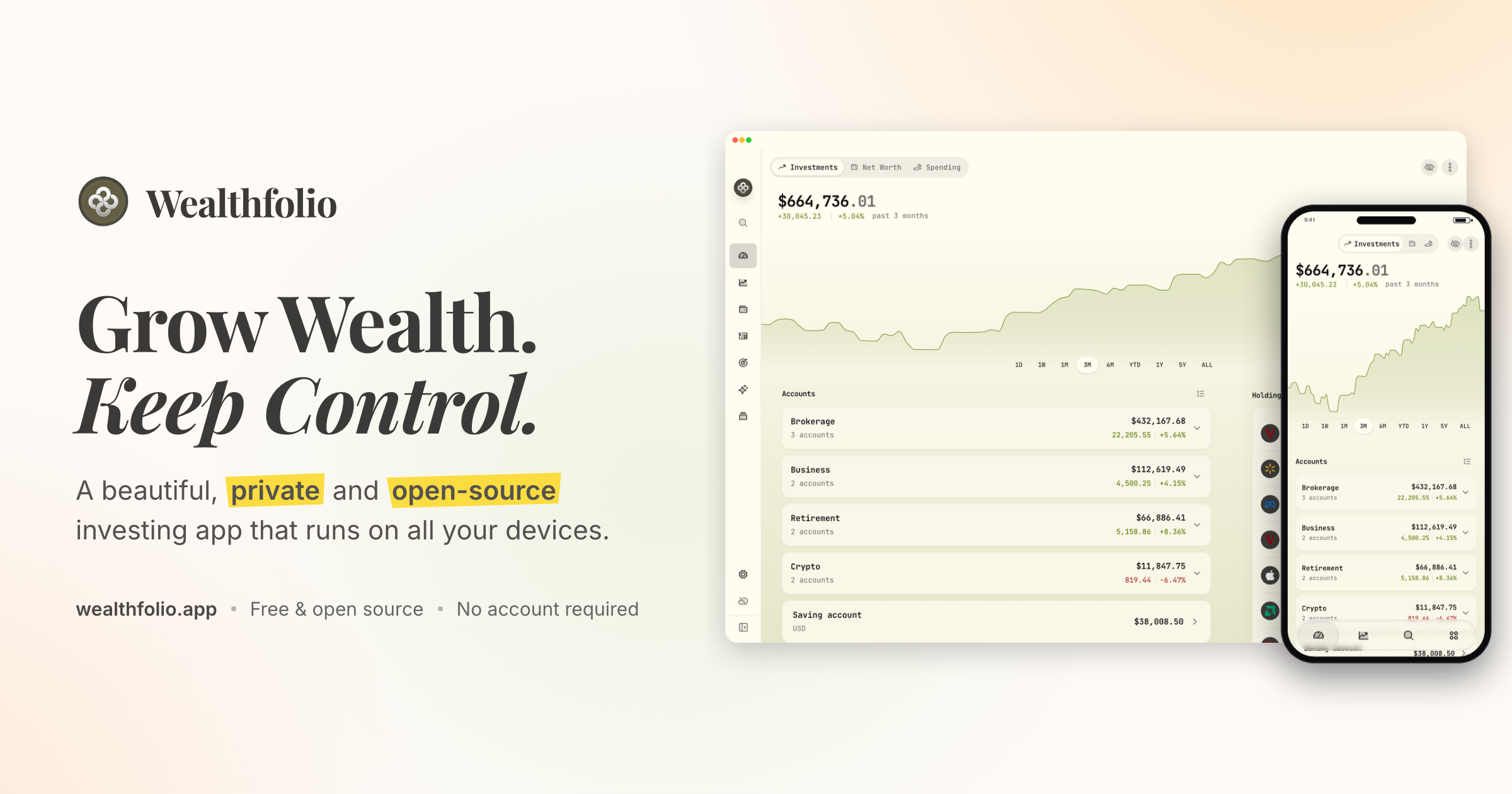
Wealthfolio is a private, open-source investing and personal finance app that runs locally on all your devices. It lets you track holdings, performance, allocation and income across your accounts, follow your net worth, understand your spending, and plan for goals and retirement. The product is aimed at people who want to grow their wealth while keeping control of their financial data, and its core app works without an account or a subscription. Wealthfolio is available on desktop, iPhone and iPad, and can also be self-hosted so you can access it through a web browser on infrastructure you control. The project describes itself as a beautiful, private and open-source investing and personal finance app that runs locally. The problem Wealthfolio addresses is the trade-off many people face between useful financial software and control over sensitive data. Traditional money apps typically require an account and keep financial history in a cloud platform, which means your financial history becomes dependent on another service. Wealthfolio takes the opposite approach: it runs locally, works without an account, and keeps your financial history under your control. The project is also open source, so the code can be inspected, contributed to and run on infrastructure you choose, and users are not forced to create an account or commit to a subscription before they can start. In the investments area, Wealthfolio brings all your brokers and banks into one view. You can track holdings, performance, allocation and income across your accounts, and import CSV statements from anywhere, which means data from a brokerage or bank that is not automatically supported can still be brought into the app. Portfolio Insights help you understand your asset allocation, sector exposure and geographic distribution, so you can see how your money is spread rather than just what it is worth. A Performance Dashboard lets you compare accounts and benchmark against the S&P 500 or any ETF. Allocation Targets & Rebalance let you set target weights, see your drift and get a clear rebalance plan, while Income Tracking follows dividends and interest income across your entire portfolio. Net Worth Tracking pulls all your assets and liabilities together so you can see your complete financial picture over time, rather than looking at individual accounts in isolation. The Spending & Budgets area tracks cash flow, auto-categorizes transactions and helps you build budgets that fit you. Together these tools let you follow both sides of your finances: what you own and what you owe, and where your money is going month to month. Planning tools cover both long-term retirement and shorter-term goals. The Retirement & FIRE Planner provides a year-by-year simulation with a Monte Carlo Risk Lab and a dedicated FIRE mode, so you can model how a plan might evolve under different conditions rather than relying on a single projection. The Goals & Save-Up Planner projects savings to a target with a milestone glide path and an on-track status, which makes it easier to see whether you are moving toward a specific purchase or savings milestone. Contribution Limits help you stay on top of IRA, 401(k) and TFSA contribution room, so you do not lose track of how much you have already contributed or how much room remains. Architecturally, Wealthfolio keeps a local database on your device where accounts, transactions and history are stored. You can install it directly as a standalone application, or self-host it with a Docker deployment and access it through a browser. Wealthfolio Connect is not a third way to run the app; it is an optional paid service that adds automation and synchronization on top of a standalone or self-hosted setup. Connect automatically imports from your brokerages through aggregators such as SnapTrade and keeps your Wealthfolio database in sync across devices. The core app remains fully usable on its own, with manual accounts and transactions, CSV imports and local data ownership. The main benefit is keeping your financial life under your control. Because the app runs locally and works without an account, your financial history stays on your devices instead of becoming dependent on another cloud platform. Because it is open source, you can inspect the implementation, follow development, contribute through GitHub, or run the software on infrastructure you control. Flexibility is another outcome: you can start free with manual tracking and add automation only when manually maintaining your financial data no longer makes sense. Typical use cases include importing CSV statements from a broker or bank to consolidate holdings in one view; tracking net worth across assets and liabilities over time; tracking cash flow and building budgets with automatically categorized transactions; comparing accounts and benchmarking returns against the S&P 500 or an ETF; setting target allocation weights and following a rebalance plan; and projecting retirement or FIRE scenarios year by year. Users who want everything in one always-available place can self-host with Docker and reach Wealthfolio from a browser, and households that want shared finances can use Connect's household sharing. Wealthfolio is available as a standalone install for macOS, Windows, Linux, iPhone and iPad, and as a self-hosted instance reachable through a web browser. The Wealthfolio app is free and open source and does not require an account, while Wealthfolio Connect is an optional subscription for automatic brokerage imports, encrypted device sync, household sharing, background updates and connection management. The project can be extended through add-ons such as the Investment Fees Tracker, Goal Progress Tracker and Stock Trading Tracker, and through custom price feeds for assets and markets not covered by the default providers. Supported AI and agent integrations are available through an MCP server, and an AI Assistant lets you ask questions about your portfolio. In short, Wealthfolio combines investment tracking, net worth tracking, spending and budgeting, and retirement and goal planning in one app that stores your data locally. It is free and open source by default, works without an account, and can be extended with automation through the optional Connect service. For anyone who wants a complete picture of their finances without handing their financial history to another cloud platform, Wealthfolio's primary value proposition is simple: grow wealth, keep control.