Category Focus/categories/image
Image AI Tools
Discover and compare the best image AI tools and software. Browse 79+ curated tools with reviews and rankings.
Projects tracked
79
Sort mode
RECENT
Page
4
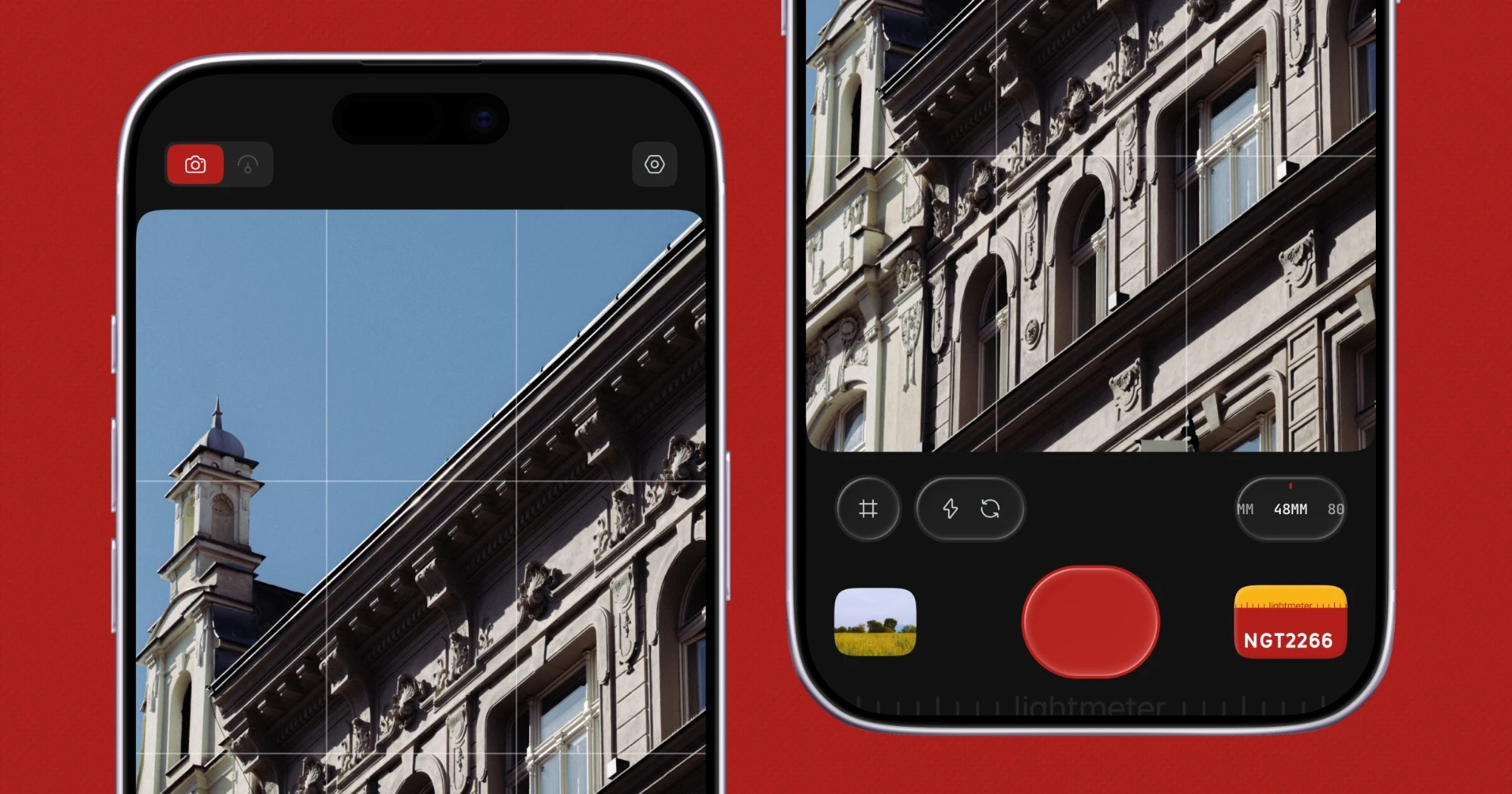
Lightmeter is an iOS app that describes itself as a pocket film camera designed for everyday moments. It fills two roles at once: it is a real light meter when you carry film, and it is a film camera when you do not. The app captures natural and raw photos with authentic film looks, and it is built for people who want the character of film in their everyday pictures without having a film camera in hand for every moment. Its film looks are built on true RAW capture, so grain, halation and color behave like film rather than a filter sitting on top of a flat photo. Lightmeter is distributed for iOS through the App Store, and the website includes a QR code that links directly to the App Store listing. The product is published by Aakash Goel and shares updates through the handle @lightmeterx. The problem Lightmeter addresses comes from the divided habits of film photographers. When you are carrying film, you need a dependable way to read the light before you expose a frame. When you are not carrying film, you still want photographs that look like film rather than clinical, heavily processed phone images. Lightmeter takes a clear position against the common mobile approach: it states that it uses zero-AI processing and no HDR. Instead of generating or guessing detail, it works from true RAW capture and applies film looks whose grain, halation and color are designed to behave the way film behaves. The result is aimed at photographers who care about analog character, natural color and authentic grain, and who want one iPhone app that covers both sides of that habit: metering light for film, and shooting with film character when they are not carrying a film camera. The first role Lightmeter describes for itself is metering. The app is described as a real light meter when you carry film, which positions it as a companion for analog shooting rather than purely a photo filter app. The site's own keyword list frames it as a light meter app, an iPhone light meter and a reflected light meter, and it also references an exposure calculator and the sunny 16 approach that film photographers know well. That vocabulary places Lightmeter in the world of exposure decisions made before a shot: the app is meant to be with you when you are thinking about light for a film camera rather than only when you are composing a phone photo. Having metering and shooting in the same app means you do not need to install a separate meter tool for analog work and a separate camera app for everything else. The second role is the film camera itself, delivered through a library of film looks inspired by real film stocks and artists. The website names twelve looks: NGT2266, Ink E6, Classic 64, Cine 50, Dusk, Daybreak, Bloom, Ember, Retro 400, Mono X400, Mono 3200 and Mono P400. The naming gives away the range: the Mono looks point at black-and-white film behavior, while the remaining looks span color emulsions and distinct moods such as Dusk, Daybreak, Bloom and Ember. Because these looks are applied to true RAW capture, the grain, halation and color in each one are designed to behave like film itself rather than a filter laid over a flat photo. A black-and-white facade, an iced coffee on a cafe table, a barista under pendant lights, glaciers between Himalayan ridges, a breaking wave and a cyclist passing flowering trees are among the everyday and travel subjects shown shot on Lightmeter, which underlines that the app is aimed at ordinary moments rather than studio production. Processing is where Lightmeter draws its sharpest line. The product states that it applies zero-AI processing and no HDR, delivering natural colors and authentic grains. The website makes the difference visible with a side-by-side comparison labeled Shot on lightmeter against Raw, no lightmeter, using the same dawn hill path scene. That comparison exists to show what the film look adds over an ungraded frame straight off the sensor. By refusing AI processing and HDR, the app avoids the synthetic look that comes from invented detail and aggressive tone mapping, and instead relies on RAW data plus film modelling for grain, halation and color. For photographers who want images that read as natural and film-like, this is the core promise: the look is baked into how the photo is captured and developed, not bolted on afterwards. Privacy is treated as a feature in its own right. Lightmeter states that it is private by design, with no signup required. The app has no tracking, no ads, and collects no data, and the site adds that nothing leaves your phone. That combination matters for a camera app, because photos are personal. There is no account to create before you can shoot, no advertising profile built from your behavior, and no upload of your images to a server for processing. The website repeats the phrase private by design alongside the App Store download prompt, making it one of the two headline ideas of the product page alongside the film look itself. Taken together, the approach is deliberately narrow and technical. Lightmeter does not try to reconstruct a scene with AI or lift shadows with HDR. It captures true RAW and builds film looks on top of that capture, so grain, halation and color are modelled rather than simulated as a single flat filter. It pairs that with a light meter mode for people who carry actual film, and it removes the usual account, tracking and server round trips from the equation. The method, in the product's own terms, is zero-AI, no HDR, true RAW, authentic grain, real film-inspired looks, and a private app with no signup. The benefits follow directly from those choices. Photographers get natural colors and authentic grain rather than the processed look that AI and HDR pipelines tend to produce. They get film looks that are inspired by real film stocks and artists, so the range covers color and monochrome moods in a single app. They get one tool that serves both analog habits: a light meter when film is in the bag, and a film camera when it is not. And they get that without creating an account, without advertising, without tracking, and with the assurance that nothing leaves their phone. For people who shoot everyday moments but still want the feel of film, that combination removes both the gear requirement and the privacy trade-off. The use cases are defined by the two modes the app describes. Carrying film and needing to read light for an exposure is the metering case. Walking around without a film camera and wanting film character in the pictures is the shooting case, and the site's collage of ordinary scenes shows what that looks like in practice: architecture, cafe tables, a barista at work, landscapes from the air, a wave, a cyclist. Black-and-white work is covered by the Mono X400, Mono 3200 and Mono P400 looks, while color moods are covered by looks such as Dusk, Daybreak, Bloom, Ember, Cine 50 and Classic 64. The Shot on lightmeter versus Raw, no lightmeter comparison gives a fourth scenario for anyone deciding whether a given photo benefits from the film look or should stay as a straight RAW frame off the sensor. Lightmeter is an iOS product. It is offered as a download for iOS through the App Store, linked from the website with a QR code, and it is categorized on Product Hunt under iOS, Photography, and Photo & Video. The site is published by Aakash Goel, and the app's public handle is @lightmeterx. The website's keyword set places the product in film photography and analog photography territory, referencing terms such as film camera app, film simulation for iPhone, exposure calculator, 35mm, sunny 16 and reflected light meter. No pricing or plan details are stated on the page, and no account or signup is required to use the app. Lightmeter's primary value proposition is straightforward: it is a pocket film camera in your phone that also serves as a real light meter for the film you actually carry. With true RAW capture, zero-AI processing, no HDR, film looks inspired by real film stocks and artists, authentic grain, natural colors, and a private-by-design app that asks for no signup and keeps everything on your device, it targets photographers who want the character of film in everyday pictures without the processing artifacts and privacy costs of typical mobile camera apps.
BiBimba is a Mac clipboard manager that keeps clipboard history, screenshots, and the text inside copied images in one searchable place. It is aimed at Mac users who copy and screenshot constantly and then need to find something again later without remembering where it came from. Instead of relying on memory, you type a few words, choose the item you need, and paste it straight back into the app you were using. Beyond history, BiBimba reads text inside screenshots with OCR and, on compatible Macs, runs on-device AI that can translate, summarize, or rewrite selected text. The entire experience is designed to be driven from the keyboard. The problem BiBimba addresses is simple and familiar to anyone who works on a Mac all day. The system clipboard only holds the last thing you copied, so everything before that is gone the moment you copy something new. Screenshots add a second layer of friction: an image can contain a receipt total, an error message, or a table of values, yet that text is locked inside a picture and cannot be searched or reused. The result is a lot of hunting — scrolling through folders, opening old screenshots, or copying the same information twice. BiBimba's answer, as its tagline puts it, is clipboard history that can read your screenshots, so copied text and screenshots become searchable together rather than living in separate silos. Search is the core of the product. With ⌃⇧C you open your history, then type a few words to search Mac clipboard history, screenshots, text inside images, and snippets all at once. You move through the results with ⌃N and ⌃P, choose an item, and paste it back into the app you were using. Because OCR results are indexed alongside ordinary copied text, the interface can even label matching items by type — the site shows an example query such as "invoice" returning a result group marked "@ocr · 6 items." For quick reuse without opening the full window, ⌃⇧V lets you pick an item and paste it directly, and the paste menu offers a plain paste with ↩ alongside text actions with ⌃K. The design goal is stated plainly on the site: you do not need to remember where something was saved; you search, choose, and use it. OCR is what separates BiBimba from a conventional clipboard history tool. BiBimba automatically reads the text in screenshots and copied images with OCR, so a screenshot stops being a dead-end image and becomes searchable, copyable text. You can copy the specific text you need rather than retyping it, and if BiBimba detects a table in an image, it can turn that detected table into Markdown, JSON, or HTML. The site illustrates this with a receipt screenshot reading "Receipt total ¥12,400" — the kind of detail that is easy to capture in a screenshot and painful to recover later. Dedicated shortcuts support the workflow: ⌃⇧S takes a screenshot and ⌃⇧O runs screen OCR, and the history view explicitly points out that you can search text inside screenshots and copy the part you need. Once text is in front of you, BiBimba can act on it. Selected text can be translated, summarized, or rewritten, and the site lists the built-in actions with their keyboard shortcuts: Translate (⌃T), Summarize (⌃S), Business email (⌃M), Bullet list (⌃L), and Format a table (⌃R). There is also a Saved actions entry on ⌃K, so the instructions you use often can be run from the keyboard rather than retyped. These operations run from the keyboard, which means you never have to leave the app you are working in or break your flow to open another tool. The site notes that summaries, rewrites, and some other features require a supported setup with Apple Intelligence enabled, so the AI actions depend on the capabilities of the Mac you are using. Snippets give you a small library of reusable text — the site shows a saved snippet reading "Thanks for reaching out." — which you can reach with ⌃⇧B and find through the same search you use for clipboard and screenshot content. Privacy is handled by keeping everything local. Clipboard and screenshot history is stored on your Mac, not in the cloud. You choose how many items to keep and for how long, older items are removed automatically, and you can delete anything you no longer need at any time. The site also states there are no ads and no clipboard or feature-usage analytics, so what you copy and screenshot stays on your machine. BiBimba's overall approach is keyboard-first and local-first. Everything is reached through a small set of shortcuts rather than menus or browser tabs: ⌃⇧C to open history, ⌃⇧V to pick and paste, ⌃⇧B for snippets, ⌃⇧S for a screenshot, ⌃⇧O for screen OCR, and ⌃K for text actions. Copying, screenshots, and OCR output all feed the same searchable history, and the AI text actions run on-device on compatible Macs instead of sending your content to a remote service. When an action produces a result — a translation, a summary, a rewrite, or a table converted to Markdown, JSON, or HTML — you paste the result straight back into the app you were using. The workflow loops cleanly: capture, search, transform, paste. The benefit is time and recall. Because clipboard history and screenshot text are searchable together, something you copied an hour or a week ago is still findable by typing a few words, which removes the need to remember where it was saved or to copy it again. Extracting text from an image saves retyping and makes screenshots of receipts, error messages, and tables usable as data rather than as pictures. Converting a detected table into Markdown, JSON, or HTML means an image can flow straight into documentation or code. Running translate, summarize, and rewrite actions from the keyboard keeps you inside your current app, and keeping history on your Mac with automatic cleanup and no usage analytics keeps the whole thing low-maintenance and private. Concrete scenarios follow directly from how the product is described. A shopper screenshots a receipt and later searches for the total instead of scrolling through photos. A developer captures an error message in a screenshot, finds it again with OCR search, and copies just the part needed. A support or sales person keeps snippets like "Thanks for reaching out." ready for quick replies. Someone preparing documentation finds a table in a screenshot, extracts it, and outputs Markdown, JSON, or HTML. A user reading something in another language selects the text, runs Translate with ⌃T, and pastes the result where they need it. And anyone drafting correspondence can select text and run Business email (⌃M), Bullet list (⌃L), or Format a table (⌃R) without leaving the app they are working in. BiBimba runs on Apple silicon Macs with macOS 26 or later; summaries, rewrites, and some other features require a supported setup with Apple Intelligence enabled, and the site notes it cannot run on non-Apple-silicon devices. The interface is available in ten languages: Japanese, English, Simplified and Traditional Chinese, Korean, Spanish, French, German, Portuguese, and Arabic. Pricing is a one-time US$9 purchase covering 3 active Macs, with all 1.x updates included; buying again with the same email adds 3 more Macs. A 7-day free trial is available inside the app via ⌃T, with no email, card, or automatic billing required. Installation is a DMG download from the site, moving BiBimba to the Applications folder, with distribution through Apple notarization. Refunds can be requested through Link Support from the purchase receipt; requests made within 60 days of purchase are responded to based on the circumstances, without affecting local consumer rights. The takeaway is that BiBimba turns the clipboard from a one-slot memory into a searchable, local archive that also understands the text hidden inside images. For anyone who copies and screenshots constantly on a Mac, it offers a keyboard-driven way to find anything again, extract text with OCR, and translate, summarize, or rewrite it with on-device AI before pasting the result straight back into the work at hand.
Pixolm is an AI image generation and editing workspace for creators and small teams. Generate from text or reference images, then refine results with prompts and optional masks. An AI creative agent and dedicated workflows support icons, hand-drawn illustrations and ecommerce visuals. Features vary by model and mode. New users receive 20 one-time welcome credits; paid plans start at $9.90 per month.
Image to ASCII is a free, browser-based converter that turns a picture into a composition of characters. Users drop, paste, or choose a JPG, PNG, WebP, or GIF image — or load a built-in sample such as the neon jellyfish — and the tool renders it as text art in a live preview. From there they refine the output and either copy it as plain text or Markdown, or export it as TXT, PNG, SVG, HTML, or ANSI. It is made for developers, designers, and creators who need text-based artwork for README files, Discord servers, blog covers, terminals, and posters, and it works without a signup. ASCII art has always been a practical way to put imagery into places that only accept text: source files, README files, terminal screens, forums, and chat code blocks. The traditional route is a command-line utility, a script, or a lot of manual retyping, and the result often falls apart the moment it lands somewhere with a different font or line wrapping. Online converters solve part of that, but many require uploading a private image or creating an account first. This tool addresses both problems: the conversion happens inside the browser so the file never leaves the device, and the export options are matched to the destination, so the artwork keeps its shape whether it is pasted into a code block or shared as an image. The conversion runs locally. As the site puts it, images are processed locally and never uploaded — the image is read by the browser and converted with Canvas, so the file stays on the device. Supported inputs are JPG, PNG, WebP, and GIF, provided the browser can decode them; a GIF conversion uses the frame the browser provides, which means the output is a still result rather than an animation. Users can upload a file, paste an image, or start from a sample and replace it later. Because nothing is transmitted, the tool suits portraits, logos, and other images that should not leave a personal machine. Width and character set are the two controls that decide how much detail the artwork carries. The ASCII width can be set from very compact output — 56 columns for a Discord mascot — up to 220 columns for detailed studies. Fewer columns produce bolder characters; more columns produce finer detail. Character ramps determine the texture of the result: Detailed uses a smooth photo ramp, Dense uses @%#*+=-:. , Blocks uses Unicode symbols, Simple uses #*+=-. , and Minimal uses @. . According to the FAQ, making art more detailed means increasing the ASCII width, choosing the Dense character set, and raising contrast slightly, since detailed photos often need more width than simple icons. Advanced tuning gives control over light, texture, and background: tonal balance, brightness, contrast, sharpen, saturation, background cleanup, and dither, plus an invert toggle. The interface shows starting values such as tonal balance 1.25, brightness 0, contrast 8, sharpen 18, saturation 110, and background cleanup 99%, with dither available as a separate switch. Tonal balance is described as a way to recover midtones without clipping the extremes. These controls sit close to the preview so every change is visible immediately in the live canvas, which can be viewed as paper or as characters, expanded, and compared against the original image. Presets cover two kinds of starting points. Visual style presets — Auto, Neon, Pixel, Gallery, Fine Art, and Portrait — set a look, while destination presets — Logo, README, Terminal, Social, and Poster — are tuned for where the artwork will end up. The site also publishes practical recipes: Portrait uses a detailed ramp with dither on, mild sharpen, and medium contrast; Logo uses the Blocks style at a smaller width with high contrast and dither off; README uses a simple ramp around 80 columns followed by Copy README or Copy Markdown; Terminal uses 80 columns with clean light backgrounds and exports ANSI or TXT; Social uses 56 columns for chat code blocks or PNG export when spacing may collapse; and Poster uses a wider 200-column output exported as PNG, SVG, or HTML. Presets are starting points, not platform limits. Color is handled separately from structure. Color output uses sampled image colors, and color is preserved in PNG, SVG, HTML, and ANSI exports, while TXT, Markdown, README, and comment exports remain plain so they stay valid inside code blocks. The plain text formats keep editable characters; the image formats preserve the visual appearance, which matters when a destination font would distort the letters. The site explains why colored ASCII does not work in TXT: text files store plain characters, not per-character colors, so PNG, SVG, or HTML should be used when the colored preview needs to travel with the artwork. Exports and copy actions are grouped so the common path is one click: Copy Plain, Download TXT, Download PNG, Copy Markdown, Copy README, Copy Comment, Copy ANSI, Copy Share Caption, Download SVG, Download HTML, and Download ANSI. A typical workflow is three steps — upload, paste, or try a sample; choose a preset and fine-tune width, style, dither, sharpen, and color; then copy plain or Markdown ASCII or download TXT, PNG, SVG, or HTML. A before/after comparison slider makes it easy to check the original against the characters, and a gallery of example studies (Chrome muse, Silk in motion, Into the light, and Electric deep) can be loaded with their settings so users can see how each result was produced. Under the hood, the converter reads the brightness and detail in a picture and maps them to text characters, so light, shadow, and form become a graphic text landscape. It compensates for tall text cells when sampling the image so the result is not stretched, which is why changing the column width changes the level of detail rather than the character proportions. Because spacing is what keeps ASCII art readable, the tool advises using a code block to preserve spaces or exporting PNG when the destination changes the font, and it recommends keeping the result in a monospace font with line breaks intact. For READMEs it suggests starting around 70 to 90 columns with the README preset so the art fits code blocks on laptops and mobile screens. Three purpose-built destinations show how settings and export choices line up. For blogs and editorial work, a glass flower is rendered at 200 columns with the Detailed ramp and color, then exported as PNG or SVG so the character texture and colors survive, while the headline stays in the blog editor so it remains readable and searchable. For GitHub, a geometric fox becomes an 80-column Simple monochrome mark whose clean outline stays recognizable at small size, copied with Copy README for a fenced text block while the project name and links stay outside the artwork. For Discord, a ghost mascot is rendered at 56 columns in the Dense style and copied as Markdown so spacing holds in a code block, or exported as PNG when the message would wrap or clip. Beyond those, the tool lists code comment artwork, terminal welcome screens, forum text art, profile images, posters, and landing accents. Image to ASCII is aimed at developers, designers, and creators who publish in text-first environments, and it is free to use with no signup. It runs as a web application with a mobile-friendly workbench, so upload, tuning, copy, and export actions stay reachable on small screens. The workbench includes single-click samples, the before/after comparison, a character-oriented preview, and links to dedicated guides for blog ASCII covers, GitHub READMEs, and Discord messages, so users can follow a documented path instead of guessing at settings. The takeaway is that Image to ASCII turns an ordinary photo, logo, or illustration into text art without giving up control or privacy. Conversion happens locally in the browser, the controls beside the live preview make every setting's effect visible, presets and guides cover the destinations people actually publish to, and the export formats — TXT, PNG, SVG, HTML, and ANSI — let the same artwork travel either as editable characters or as a faithful colored image.
Vibe Eyes is a macOS menu bar app that puts your pet in your menu bar. You drop in a photo of your own pet, and the app turns that pet into a tiny animated avatar that lives at the top of your screen. Eleven pets also ship built in for free, so you can try the experience immediately without uploading anything. The app is aimed at people who spend long days at a desk, staring at a screen, and miss the animal they share their home with. Instead of taking over your screen with a window, Vibe Eyes stays in the menu bar, where it becomes a small, permanent presence you catch sight of while you work. The idea comes directly from the maker's own routine. Working from home, with a dog sleeping two rooms away all day, he kept missing him while staring at a screen. The solution was to put the dog on the screen, in the menu bar, in a spot he already looked at a hundred times a day. That is the entire premise of the product: take the pet you miss, and place them somewhere you naturally glance during the workday. Because the menu bar is always visible and always in the corner of your eye, it becomes a low-effort way to keep a pet present without adding another app to manage or another window to switch to. The core workflow is simple. You supply a photo of your pet, and the app generates a small animated head from it that appears in the menu bar. Making your own pet is a one-time $14.99 unlock, and it requires you to connect your own AI key. There is no subscription attached to that unlock. Because the maker does not run a backend, your photo is sent to the AI provider you connect and nowhere else. That structure puts the user in control of both the generation step and the image data: you choose which provider handles the photo, and the developer's servers are never part of the path. Once the avatar is up, it behaves like a tiny companion. Its eyes follow your cursor as you move around the screen. It blinks on its own. It winks when you click. And when you have been idle for a while, it glances up at you. These four behaviours are the entire interaction model: there is nothing to configure and no window to open. The design leans on small, ambient signals rather than notifications or badges, so the pet reacts to what you are already doing at the machine rather than demanding attention. The result is a character that feels alive in the corner of the menu bar without interrupting the task in front of you. The hardest part of building it was not producing a cute head from a photo. It was the blink. A generated head has its eyes wherever the model decided to place them, which means the app has to measure the real eyeballs in the image and bake a closed-lid frame that matches them. When that frame is even slightly off, the result becomes uncanny: white crescents show through the lid, or the fur changes colour around the eye. According to the maker, most of the last few months of development went into that single frame, because a pet that blinks wrong stops looking like your pet. That attention to one detail is what separates the avatar from a generic animated sticker. Beyond custom pets, Vibe Eyes comes with eleven pets built in, free. Those built-in animals let you use the app straight away, with no photo, no AI key and no purchase. If you want your own pet in the menu bar, the custom path is a one-time $14.99 unlock plus your own AI key. There is no subscription and no backend. That combination gives the app a straightforward pricing shape: a free tier with eleven ready-made pets, and a single paid unlock for personalising the avatar with a photo of your own animal, paid once rather than monthly. The app is deliberately lightweight in how it occupies your Mac. There is no window, no dock icon, and no permissions to grant. Vibe Eyes lives only in the menu bar, which is the same place the avatar itself appears, so there is nothing else to manage or dismiss. Privacy is handled by omission: the maker does not run a backend, so your photo goes to the provider you connect and nowhere else. For anyone cautious about uploading pictures of their pet, that architecture is the point: you control the AI key, you control the provider, and the developer's server never receives the image. The outcome the app aims for is small but real. The maker's own description of the experience is that you catch yourself glancing up and smiling. It is not a productivity tool and it is not trying to change how you work; it adds a tiny, personal detail to an environment you stare at for hours. For people who work from home with a pet asleep in another room, or who simply like having a familiar face nearby, that detail changes the texture of a long desk session. The value is emotional and ambient rather than functional, and the app is honest about that scope. Typical use looks like this: you are working from home, your dog or cat is asleep two rooms away, and you are at the desk for hours. Vibe Eyes puts that pet in your menu bar so they are in view whenever you glance up. Another common path is dropping in a photo to turn your own pet into a custom animated avatar rather than picking one of the eleven built-in animals. Others start with the built-in pets simply to try the app, then move to a personalised version later. And, as the Product Hunt launch thread shows, people also enjoy deciding which pet they would put in their menu bar and sharing photos of them with other users. Vibe Eyes is a macOS app distributed through an App Store listing linked from its Product Hunt page. It is tagged on Product Hunt under Mac, Pets and Menu Bar Apps, and filed in the avatar generators category. At launch it gathered 86 votes, 5 comments and 78 followers, with commenters praising the attention paid to the blink, asking whether a Windows version is planned, and requesting additional pets such as a shiba inu. Those questions and requests appear in the launch discussion rather than as a formal roadmap, so capabilities beyond what is described here should not be assumed. In short, Vibe Eyes takes a photo of your pet, or one of eleven built-in animals, and turns it into a tiny animated avatar that lives in your macOS menu bar, following your cursor, blinking, winking when you click and glancing up when you have been away. It is free at the built-in tier, with a one-time $14.99 unlock plus your own AI key for a custom pet, and no subscription or backend behind it. The promise is modest and specific: a pet you miss, placed somewhere you already look a hundred times a day.
Viso Now is a self-building AI vision platform that turns images, video, and camera feeds into working computer vision applications. Instead of training models, annotating data, or writing code, users describe in plain language what they want to understand, and Viso Now builds the agentic vision logic and custom live dashboards for them. The platform is aimed at teams and individuals who need to solve real-world visual problems across industries such as construction, manufacturing, logistics, healthcare, food and beverage, oil and gas, hospitality, and transport, and who want to create, run, and manage entire computer vision products and systems from scratch on one platform. Traditional computer vision projects depend on model training, data annotation, and custom software engineering. That work is slow, expensive, and hard to maintain, and it often results in isolated, single-purpose solutions that address one use case at a time. The website states this directly: not all computer vision is equal, and isolated solutions are no longer enough. Viso's stated answer is a platform that drives business capabilities rather than leasing a single outcome that solves a single use case, offering flexibility, extensibility, and complete control of data across multiple locations. Because prompt-driven building removes labeling and model maintenance, the platform reports 90% less ML engineering effort compared with conventional approaches, along with an 85% reduction in the time-to-value of computer vision applications. At the center of Viso Now is prompt-based application building. A user describes the real-world situation they want AI to solve in plain language, and watches as Viso builds the application with them in real time. No model training and no annotation are needed. Each build produces agentic vision logic together with a custom live dashboard, so the result is not simply a detection model but an application that can be monitored and operated. The product page describes prompt-to-live-vision-agent in minutes and Visual General Intelligence for any use case, meaning the same engine is applied regardless of the industry or the problem being addressed, and applications connect seamlessly to other systems. Viso Now accepts multiple kinds of visual input. Users can click to upload or drag video files in MP4, MOV, or MKV, and images in PNG or JPG, or they can capture media directly using a device camera by taking a photo or recording video. When building, users choose how much effort the system applies by selecting between Fast, Balanced, and In-Depth modes. They can also start from a template or an example instead of a blank prompt. Once a draft application exists, users iterate on it until they are happy with the finished solution, and then go live by connecting cameras or uploading connectors so the application can be used immediately. The platform provides a template gallery of ready-made vision applications that illustrate what can be built. Templates include Task-Aware PPE Check, Excavator Near-Miss Monitor, Hot Work Safety Check, Work-at-Height Safety Check, MEWP Fall Protection Check, Clinical PPE Protocol Check, GMP Hygiene Check, Loading Dock Exclusion Zone, Dock Turnaround Intelligence, Front Desk Wait Tracking, Check-in Queue Orchestrator, Restricted Site Vehicle Alert, Hazardous Area PPE Check, Pipeline Integrity Scout, Visible Release Detection, Robot Cell Intrusion Detection, Production Area Access Check, 5S Shop Floor Audit, Emergency Exit Clearance, Reversing Vehicle Danger Zone, HSE Workplace Audit, Commercial Vehicle Safety Screening, Dump Zone Safety Inspector, Abandoned Luggage Response, Handling Risk Assessment, and Service Queue Pressure Analysis. Each template describes the assessment it performs — for example assessing truck handling performance at loading bays, or tracking whether a warehouse is safe, clear, and compliant for operation. Viso handles the end-to-end infrastructure behind these applications, from compute and visual analysis to governance, authentication, and integrations, so teams do not have to assemble and maintain that stack themselves. The offering is organized as two products on one platform. Viso Now is the free entry point with no credit card required; it is free forever, users can invite their team, and sign-up works with Google, Microsoft, or an email address. Viso Suite is the enterprise product for running vision intelligence at the scale of an operation: 10,000+ cameras across hundreds of sites, a full lifecycle of build, deploy, govern, and scale, edge AI with on-premises or cloud support, and compliance with SOC 2, ISO 27001, GDPR, and CCPA. Overall, Viso Now follows a describe, build, refine, and operate workflow. A user uploads or captures media and describes the situation they want the AI to solve. The system then generates agentic vision logic and a live dashboard in real time, so the application is visible and testable while it is being created. The user iterates until the solution matches the requirement. Going live is a matter of connecting cameras or uploading connectors, at which point the application runs continuously. Because Viso manages compute, visual analysis, governance, authentication, and integrations, the same platform supports building, running, and managing complete computer vision systems, and the enterprise tier extends that approach to governed applications and agentic workflows across many sites. Viso states a number of outcomes for users. Visual data can be understood ten times faster, to drive efficiency, automation, and innovation. The company reports an 85% reduction in time-to-value of computer vision applications and a 90% reduction in ML engineering effort, since there is no labeling and no model maintenance. A customer story describes a global manufacturer that replaced four point solutions with one Viso deployment and saw near-miss incidents fall 54% within 90 days, with the safety team spending zero hours rebuilding models. The platform is described as giving 24/7 eyes on every camera that never blink and never tire, and as running AI vision ten times faster than other methods. PwC is quoted saying that building computer vision applications with Viso Suite allows them to deliver business value faster and easier, while Stadt Schaffhausen notes that Viso Suite let them integrate existing camera and software systems across platforms while meeting strict privacy requirements. The applications listed on the site show the practical range of use cases. In construction, templates cover PPE compliance, near-miss monitoring around excavators and plant, hot work safety, work-at-height checks, and MEWP fall protection. In manufacturing, they cover robot cell intrusion detection, production area access checks, 5S shop floor audits, emergency exit clearance, and handling risk assessment for lifting tasks. In logistics and warehousing, they cover loading dock exclusion zones, dock turnaround intelligence, and warehouse HSE audits. In healthcare, they cover clinical PPE protocol checks and service queue pressure analysis; in food and beverage, GMP hygiene checks and foreign object detection; in oil and gas, hazardous area PPE checks, restricted site vehicle alerts, pipeline integrity scouting, and visible release detection; and in hospitality and transport, front desk wait tracking, check-in queue orchestration, airport baggage detection, and abandoned luggage response. Customer stories reference worksite safety for a rail group, safety and compliance oversight for a global food retailer, PPE detection for a leading oil company, and crowd safety at a major annual event. Viso Now is designed for people who need vision AI but do not want to run a machine learning program — operators, safety and compliance teams, and builders who want to turn an idea into a working vision agent quickly. The free tier requires no credit card and allows inviting a team. Enterprise customers move to Viso Suite for camera fleets at scale, governed applications, edge, on-premises or cloud deployment, and formal compliance certifications. Access is through the web, with sign-in via Google, Microsoft, or email. The company reports that its platform covers 136+ applications tuned for every industry, all running on the same Visual General Intelligence engine, and states that it is trusted by Fortune 500 organizations, with customer logos including Enpro, Vinci, CPI, Intel, Rhomberg, and Datwyler. Viso Now's core promise is that if you can describe it, you can build it. By removing model training, annotation, and coding from the computer vision workflow, and by generating agentic vision logic and live dashboards from a plain-language prompt, the platform lets teams go from an idea to a running vision agent in minutes and then scale the same approach across many cameras and sites with Viso Suite. The result is faster time-to-value, far less ML engineering effort, and continuous, tireless monitoring of the physical world — detecting, inspecting, alerting, and understanding — without assembling a large specialist team.
Diiverge is a web platform that turns a single picture into a playable, point-and-click adventure. It presents itself as a series of explorable worlds, where each volume is grown from one seeded image and becomes a persistent adventure that visitors can walk through. A player clicks something in the frame, chooses what happens to it, and the system generates the next scene together with a short film of the moment in between. The public worlds are free to play, and the tagline sums up the promise: start with a picture and see where it goes. Diiverge is built for people who want to explore AI-generated stories rather than simply read them, and for creators who want to turn a photo, painting or screenshot into a world of their own. Conventional point-and-click adventures are authored in advance: artists paint the scenes, writers script the branches, and developers wire the choices together before anyone plays. The result is fixed, and every player walks the same limited set of paths. Diiverge takes a different starting point by treating a single image as the seed for an entire world. Instead of shipping a finished story, it grows one scene at a time as visitors interact with the picture in front of them. That approach also addresses a familiar limitation of AI-generated content, where images and clips tend to disappear the moment they are produced. On Diiverge, the scenes people carve out stay part of the volume, so the world accumulates structure and history rather than resetting to a blank slate. Playing a volume is deliberately simple. A volume begins as one seeded image, and glowing dots mark the things inside the frame that can be interacted with. You click one of those elements, choose what happens to it, and the platform responds by generating a new scene while the moment in between plays as a short film. From there you can keep going deeper into the world or go back and take a different route. Nothing about the interaction requires technical skill: the choices are offered on top of the picture, and the AI handles the artwork, the transition and the continuity. The set of available interactions is derived from the image itself, which is why any picture can serve as a starting point, whether it is a photograph, a painting or a screenshot. Persistence is the structural idea behind the whole series. Every path anyone takes is saved, so a scene that one visitor carves becomes part of the volume for good. A later visitor can walk the same path, and the volume's map shows every branch that has been taken so far. Shared links land on the exact scene they point to, which makes it possible to send someone directly to a moment inside a world rather than to its front door. Because each world grows as people explore it, the numbers attached to a volume are a record of that collective activity: The Crystal Pass is listed as Volume II with 2,831 scenes so far, while Volume I, The Lantern Cove, is listed with 3,033 scenes. The series is described as persistent point-and-click adventures, and that persistence is what separates them from one-off AI image or video generations. The studio is where people make their own worlds. You upload a picture, sign in with your email, and the studio turns that photo, painting or screenshot into an explorable adventure. You buy scenes in packs, and the adventure stays private until you choose to share it. Sharing produces a link that others can follow, and the paths they take are saved just like the paths in the public volumes. The economics are connected to the cost of generation: playing is free, and replaying scenes that others have already carved costs nothing at all, but generating a new scene costs real money. Because of that, each volume in the series comes with a fixed number of free scenes and stops growing once they are used up. Sponsors add more scenes, and those additions are for everyone. A sponsorship is bought as a tier starting from $25 and adds roughly two scenes per dollar to the volume chosen; the scenes never expire, and the sponsor's name goes on the volume's frames. Underneath the experience is a chain of specialised models, and Diiverge describes each step explicitly. A segmentation model cuts the things in the frame out and makes them clickable, which is what produces the glowing dots that mark interactive elements. A vision model decides what each of those things is and what it might do, translating the contents of the picture into plausible choices. When a player picks a choice, an image model paints the aftermath of that chosen event as the next frame, and a video model renders the moment between the two frames as film. Overseeing the sequence is a judge model that reads the story so far and cuts any choice that breaks its continuity. Together these steps mean a single still image can become a branching, narrated world with motion and a sense of consequence, without anyone hand-authoring the scenes. For players, the direct benefit is that the whole experience is free to enjoy and free to revisit. Replaying scenes that others have already carved needs nothing at all, so there is no cost to exploring a volume that has already grown. Every path is saved, which means the effort of exploration produces something permanent rather than a disposable result: the world you walked through is still there for the next visitor, and the branches you opened become part of the map. For creators, the studio provides a way to turn an ordinary picture into a shareable adventure without any art or engineering work, and the privacy default means a world can be built and reviewed before it is shown to anyone. Sponsors get their name placed on the frames of a volume and the knowledge that the scenes they fund are added for everyone and never expire. Concrete scenarios follow from those mechanics. A player can open The Crystal Pass, the latest volume, step in, and start clicking through its scenes, using the map to see which branches other visitors have already taken. Someone who wants to follow in another person's footsteps can open a shared link and land on the exact scene it points to, then continue from there. A creator who has a photograph, a painting or a screenshot they like can bring it into the studio, buy a pack of scenes, and shape it into a private adventure before sharing the link with friends or an audience. A sponsor can pick a volume and a tier, from $25, and add roughly two scenes per dollar so that every future visitor to that world has more to explore. Anyone who simply wants to look around can replay scenes that have already been generated at no cost. Diiverge runs on the web at diiverge.co and is presented as a game and world-building experience rather than a developer tool. The audience implied by its features spans casual players who want a free, interactive AI story, people who enjoy branching adventures and want to see where a choice leads, and creators who want to turn an image into an explorable world and share it by link. The pricing model is mixed: playing the public volumes and replaying existing scenes is free, while generating new scenes requires buying scene packs in the studio, and sponsorships that add scenes for everyone start at $25 per tier with roughly two scenes added per dollar. Worlds created in the studio remain private until their creator chooses to share them. The takeaway is that Diiverge treats a single picture as the starting point for something durable. Click something in the frame, choose what happens, watch the moment play as film, and leave behind a path that the next visitor can follow. Free to play, persistent by design, and open to anyone with an image to upload, it turns passive pictures into worlds that grow with every person who explores them.
The AI Graduation Poster Maker transforms your senior photos into unique, cinematic silhouette posters. This tool allows you to upload graduation portraits and describe your campus memories, which the AI then fuses into a poetic side-profile poster. The generated artwork incorporates school landmarks, cap-and-gown symbols, and a keepsake-ready atmosphere, offering a deeply personal alternative to generic graduation graphics.The process begins with uploading 2-4 reference photos, ideally including a portrait, a side profile, campus scenes, and specific graduation details. The AI then processes these inputs to create a high-quality image. Users can choose between Standard quality for faster results or HD quality for sharper, more detailed output, with different credit costs associated with each. The AI aims to match lighting and shadows, preserve key facial details, blend backgrounds naturally, and ensure clean composition and color balance for a polished final product.This AI graduation photo generator is specifically designed for creating keepsake posters rather than generic template graphics. It utilizes a portrait-led storytelling approach, ensuring the final image feels personal and graduation-specific. A signature silhouette layout is a key feature, where a side profile of the graduate forms the outer shape of the poster, with campus scenes and symbolic graduation details artfully blended within it, creating a premium double-exposure effect.The tool excels at incorporating specific campus memory details, such as school gates, libraries, classrooms, ceremony stages, friends, books, and diplomas, making the poster instantly recognizable as a representation of the graduate's experience. The default style favors a cinematic watercolor aesthetic, often with soft mist, paper grain, and restrained white space, resulting in an artwork suitable for framing, social media sharing, or announcements. The AI ensures that the final output feels like a premium, personalized memento of the graduation year.
Seamlessly integrates with existing creative workflows through AI-powered automation, enabling effortless generation of cinematic videos with physics-accurate simulations and synchronized audio. The platform's API compatibility allows for direct embedding into professional editing pipelines.
Revolutionizing digital imagery through Gemini-powered AI that understands natural language editing commands with pixel-perfect precision