Category Focus/categories/video
Video AI Tools
Discover and compare the best video AI tools and software. Browse 129+ curated tools with reviews and rankings.
Projects tracked
129
Sort mode
RECENT
Page
5
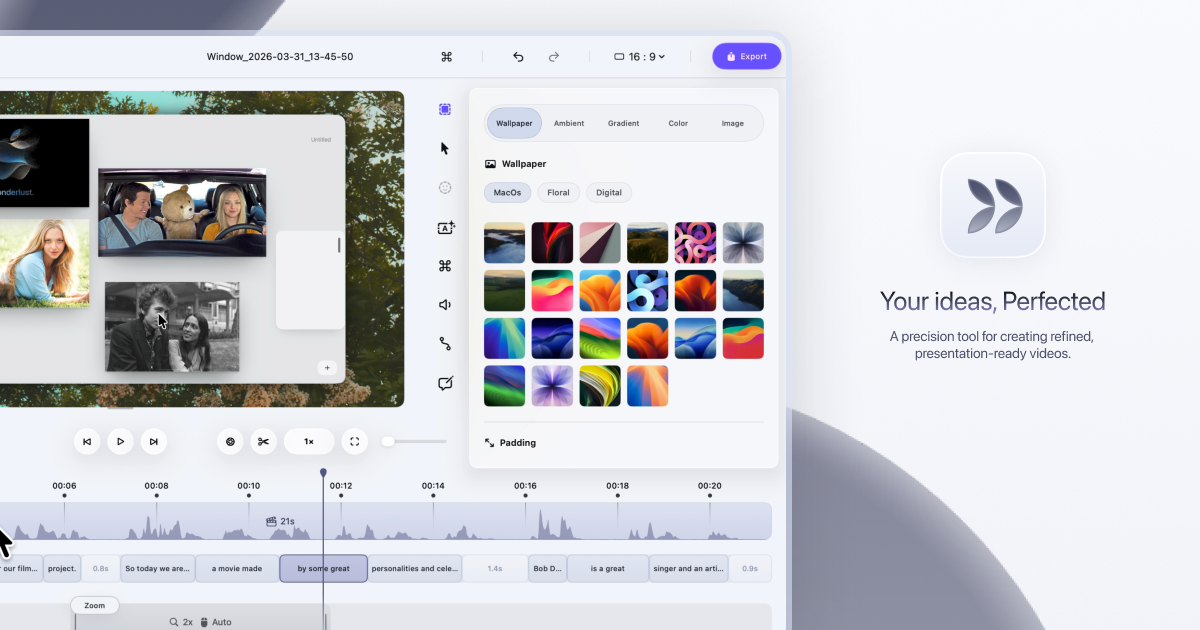
Dina is a screen recorder built exclusively for macOS that turns raw screen captures into polished, presentation-ready videos. It records your screen, audio, camera, cursor, and keystrokes in one take, then refines the result — with motion, zoom, and clarity handled for you — so every recording feels ready to present. The tool is made for people who need to explain something on screen clearly and beautifully, from product demos and tutorials to courses and social media videos. Dina's stated goal is to make every video worth watching, so what your audience sees is as clear as what you imagined. Screen recordings are the fastest way to show rather than tell, but the result rarely matches what the creator pictured. Key interactions get lost when the viewer cannot tell where to look, and motion can feel less intentional than intended. Dina's approach is to handle the refinement automatically: it records your screen and refines it automatically, and according to the product, demos and tutorials made with it feel clearer, more engaging, and effortless to watch because automatic zoom keeps the audience focused on what matters. Dina also positions itself as an alternative to tools such as Screen Studio, Loom, and Tella, standing apart by adding cinematic zoom, smooth animations, and AI-powered features to recordings so they feel polished without manual editing. Capture everything that matters, all in one take. Dina records screen, audio, camera, cursor, and keystrokes together, and you can capture your screen, a window, or a selected area with camera, mic, and system audio in high quality from the same recording panel. Scheduled Recording lets you set a time and let Dina handle the rest, so a recording can start without you being there, while Pause Recording lets you pause and resume whenever you need to so you can record at your own pace. Because capture happens in one place in one take, there is no need to assemble separate tracks afterwards. Automatic zoom is at the heart of the experience. Dina automatically zooms into key interactions, helping your audience stay focused without distraction, and you can switch to precise manual zoom control when you want to highlight something specific. Smooth, intentional zoom animations guide the audience through every important detail. A new dimension of depth comes from subtle 3D camera movement added to your recording, so scenes feel more cinematic and alive. You set the perspective with presets that range from a gentle angle to a dynamic top-down shot, then fine-tune camera position, distance, roll, and depth blur so each move feels exactly right. Cursor movement is gently refined so motion feels steady and intentional, and cursor size, variant, and highlight effects can be customized to match your brand. Keyframes provide smooth, natural transitions that highlight important moments and guide the viewer's attention. Complete layouts bring titles, slides, images, and video together into cohesive scenes that feel balanced, intentional, and ready to present. Mask Layout hides sensitive information with flexible, multi-region masking exactly where you need it. Slide Layout adds slides directly into your recording and gives you control over their color, timing, and animation so they feel like part of the video rather than an overlay. Text Layout adds text with solid or gradient fills and refined animations timed to appear and exit naturally as the recording progresses. Annotations guide attention exactly where it matters: arrows, highlights, shapes, and callouts are added directly into the video. Callouts provide contextual notes with customizable text, colors, and timing, Highlights draw the viewer's eye to key moments, and Shapes & Arrows frame, point, and guide with precision. Background and spacing can be adjusted to frame content clearly and consistently. Dina is built for presence, recording your webcam, microphone, and captions together so your message comes through naturally without extra setup. The webcam can be adjusted for size, shape, roundness, and position to place your camera exactly where it belongs in the frame. Voiceovers can be recorded directly in the timeline, so narration can be added, edited, and refined without breaking your flow. Editable captions generate transcripts automatically and let you fine-tune words, timing, and phrasing so captions read clearly and accurately. AI transcript editing turns speech into edits: your recording appears as text, so you can edit your video by editing the transcript while AI removes fillers and silence automatically. AI voiceovers turn text into natural-sounding narration instantly, generating voiceovers from text using efficient on-device models. Dina puts control at your fingertips so you can customize shortcuts and edit your video with speed and precision without slowing down. Visual keyboard overlays show every key as it is pressed so your audience can follow along, and the shortcut display itself can be customized to match your brand and improve clarity. Output is studio-quality and ready instantly, with 4K output, multiple formats, and fast rendering. Native resolution exports preserve the original resolution without quality loss, which is useful for high-quality demos and tutorials. Shareable video links let anyone watch, review, and collaborate on a recording without needing an account, and Layer Export lets you export videos in layers to preserve quality and flexibility for professional editing workflows. Dina also handles iPhone recordings. Beautiful iOS Recordings capture your iPhone in original resolution and enhance it with smooth motion and refined presentation, designed to make every recording look polished. A range of iPhone variants and device mockups let you present your recordings inside device mockups. Easy iOS device recording works by connecting your iPhone with a USB cable or by choosing the iPhone mirroring window, and then starting the recording. Under the hood, Dina is designed exclusively for macOS, using modern Apple technologies to deliver native performance. The interface is crafted with SwiftUI for fluid animations, precise interactions, and a clean macOS-native experience. Metal taps directly into the GPU to power smooth motion, real-time visual effects, and high-quality video processing. On-device Core ML models run intelligent features, from transcript generation to voice synthesis, with full privacy and zero cloud latency. Dina runs natively on Macs powered by Apple Silicon and requires macOS Sequoia or later; there is no Windows version, and the app is built exclusively for macOS to take full advantage of Apple Silicon and Metal. Privacy is a core part of the product. All recordings are saved locally on your Mac, Dina works completely offline, and it does not require any account or cloud connection, so your data stays on your device, private and secure. The AI features, including transcript generation and voice synthesis, run on-device via Core ML, so nothing needs to leave the machine. The practical outcome is a fast, private workflow where polished videos are produced without manual editing, without subscriptions, and without depending on an internet connection. Typical uses include product demo videos that show a feature in action, video tutorials and courses that walk through a process step by step, and social media video content intended for quick sharing. Mask Layout is useful when a recording contains sensitive information that should not be shown, and Scheduled Recording helps capture sessions that happen at a fixed time without the creator being present. Layer Export serves professional editing workflows where further work happens in another editor, while shareable links support review and collaboration, since anyone can watch, review, and collaborate on a video without an account. Dina is trusted by professionals at companies including FloraAI, Sketch, Windsurf, and Typeform. It is distributed as a Mac licence: a native macOS app sold as a one-time purchase rather than a subscription. The licence costs $58 per device and includes lifetime updates, with an option to choose one device or three devices. Buyers get a lifetime license, free updates forever, files saved locally, full offline operation, and all features unlocked. Dina also maintains a Slack community for new features and tips, and an X/Twitter account for release updates. In short, Dina is a native macOS screen recorder that makes recordings look intentional without manual editing. It captures screen, audio, camera, cursor, and keystrokes in one take, then applies automatic zoom, 3D camera motion, smooth cursor movement, layouts, annotations, captions, and transcript-based AI editing to produce studio-quality video. For Mac users who need demos, tutorials, courses, or social videos that look polished and stay private, Dina combines speed, cinematic presentation, and one-time pricing in a single offline app.
Lofi Cities is a free web app that pairs animated pixel-art city nights with endless lofi music generated live in your browser. It is made for anyone who wants a calm, continuous background for studying, working or winding down, and it asks for nothing beyond a browser: there is nothing to install, no account needed, and no pop-ups. You pick a city, press play, and let it run. Every scene is a 480×270 pixel-art animation that loops seamlessly every four minutes, with its own weather, landmarks and city sounds, while new lofi tracks are composed on the fly. It works on computers, phones and tablets. Lofi music has become a familiar companion for focus, study and sleep, but most ways of listening depend on an app, an account or a fixed playlist that eventually ends. Lofi Cities takes a different route. Rather than streaming a catalogue of recordings, it composes music while you listen, so the stream never runs out. Rather than showing a single looping video, it renders each city as a pixel-art animation drawn with its own weather, landmarks and ambient sounds. The result is a background that behaves more like a place than a playlist, one that can be left running for hours while you work, read or fall asleep. There are 16 cities to choose from: Paris, Tokyo, New York, London, Rio de Janeiro, Istanbul, Hong Kong, Sydney, San Francisco, Hamburg, Amsterdam, Dubai, Madrid, Rome, Prague and Munich. Each one is a distinct scene — rain on a painter's attic window under the zinc roofs of Paris with the Eiffel Tower sparkling far off; neon rain by Tokyo Tower; snow over the Brooklyn Bridge; fog and drizzle on the Thames; a Copacabana summer night; a rooftop tea garden on the Bosphorus; Victoria Harbour after dark; a jacaranda night on Sydney harbour; fog pouring through the Golden Gate; harbour lights on the Elbe; canal bridge lights in Amsterdam; a fountain night at the Burj; a summer night on Gran Vía; a warm night by the Colosseum; lamps on Charles Bridge; and a Christmas market in the snow in Munich. The city picker shows each city's local time and how many people are in it right now, and new cities are added over time. Every track is composed on the spot with the Web Audio API: a chord progression, a drum groove, a bass line and often a melody, finished with tape wobble and vinyl crackle. Chords, drums, bass and melody are all synthesized in real time, with no samples or recordings, which is why the music never runs out and every track is new. Track titles are inspired by the city on screen, so the music and the scene stay connected as you listen. The Vibe panel shapes what is playing. Style offers nine options: jazzhop, the default, built on a Rhodes, jazzy chords and a swung boom-bap beat at 68 to 88 BPM; piano, a sleepy felt piano with soft drums; ambient, slow warm pads with barely a beat, made for sleep and deep focus; bossa, nylon guitar over a bossa nova groove; synth, 80s city-pop synths; house, lofi deep house on a soft four-on-the-floor kick; guitar, a clean electric guitar fingerpicked over a lazy beat; sad, slow minor chords and a lonely muted trumpet; and medieval, a lute and a recorder over hand drums. Energy moves the mood from chill (slower and darker) to upbeat (faster and brighter), and Band plays the full band, no drums, or the chords only. A new style starts with the next track. A separate ambience layer mixes each city's own sounds under the music. The city sounds mixer goes further, offering a slider for every sound of the city — turn the rain up, the traffic off or the bells down — and that setting carries over to every city that has the same sound. The Weather chip brings rain, snow, autumn leaves or a clear night to any city, and the city sounds and track titles follow it: rain brings the sound of rain in, while snow arrives with a hush of wind. Music and city sounds each have their own volume slider, and the Up next list shows the coming tracks so you can pick one to play right away. Focus and sleep timers are built in. The focus timer runs 25 minutes of focus and 5 of break, or 50 and 10, on repeat, with a soft chime at each break and a bell to call you back; the sleep timer fades the music and city sounds out after 15 to 90 minutes and then pauses. The Tour chip moves on to the next city every 5, 10, 15 or 30 minutes, or follows the night, showing whichever city is closest to 1 am local time and moving west from Sydney to San Francisco as the hours pass, with cities on the same clock taking turns. Together adds a social layer: pick a heart, note, star or moon and tap the scene to float it up from that spot on everyone's screen there, or release a paper lantern that rises over the city for about a minute in the same place for everyone. The Chat button opens short messages from the last hour under a random two-word name such as "sleepy fox", with emoji available from a smiley button or by typing a colon and a name like :coffee:. The whole thing runs in your browser. Because the cities and the music are generated locally, Lofi Cities works offline after your first online visit, every city included. There is no sign-in and no cookies: settings such as the last city, volumes and vibe, plus anonymous random ids for statistics and the live count, are kept in your browser's local storage. Anonymous usage statistics, such as which cities are viewed, are collected without cookies, and browsers that send Do Not Track are left out of them. For chat, a random id in local storage makes your tabs count as one person, the server forgets it about 25 hours after your last visit, and other people only ever see your two-word name. For studying and working, the app gets out of the way: fullscreen hides everything else, H hides the interface, the controls fade out on their own when you stop moving the mouse, and P opens a picture-in-picture mini player that keeps the scene floating over your other apps on computers in browsers that support it. Streamers can add a browser source at 1920×1080 pointing to a city page with ?obs, which keeps the interface hidden and starts the music on its own, with the option to control audio via OBS. The save button or the S key exports the current frame as a 1080p PNG, and the city videos can also be bought on Gumroad as a 16-city collection of four-minute 1920×1080 MP4 loops at 60 fps without audio, for personal use and video or livestream backgrounds. Every city also has a billboard for rent where a business can be drawn in pixel art. In practice, Lofi Cities fits around a working day and around sleep. It can sit in a browser tab as a background for studying, coding, writing or reading, run in fullscreen with the interface hidden so only the city and the music remain, or float in a mini player over other applications. The focus timer turns it into a Pomodoro companion with chimes at each break. In the evening it becomes a wind-down: the ambient style, the sleep timer and the fader that pauses the music after 15 to 90 minutes. Streamers use it as a browser source behind their overlay, listeners save frames as 1080p wallpapers or loop the city videos, and people who like a bit of company can release lanterns, send a reaction or chat with whoever else is in the same city. Lofi Cities turns a browser tab into a place: sixteen animated pixel-art cities, each with its own weather and sounds, and lofi music composed live so it never runs out. It is free, needs no account, works on phone and desktop, and is built to be left running quietly in the background — a simple way to get a calm, endless lofi atmosphere for work, study or sleep.
Kapshot is a screen recorder for macOS that turns ordinary screen captures into polished, presentation-ready videos. It is built for people who need to share their screen — content creators making tutorials, developers walking through features, educators recording lessons, and product teams preparing launch demos — but who do not want to spend time in a video editor afterwards. Instead of recording the screen and then opening a separate editing app to add zooms, fix the cursor, and frame every interaction, Kapshot performs that polish automatically while you record. The result, in the product's own words, is a recording that "looks edited without a timeline," exported as a clean MP4 for fast loading and sharing. Recording a screen is easy; making the result look intentional is not. A raw capture usually arrives full of jittery cursor movement, missed clicks, and a flat full-screen frame that buries whatever detail mattered. The conventional fix is a second app: import the capture into a video editor, keyframe zooms by hand, try to mask cursor jitter, add a background, and render. That process is slow and repetitive, and it is the reason a customer quoted on the Kapshot site says "$19 lifetime is cheap for what editing zooms and cursor framing manually costs in hours." Kapshot's answer is to treat polish as something that happens during the recording itself, not after it — the zooms, the cursor and the framing are generated automatically as you record, so there is no timeline to work through before you can send the file. The first thing Kapshot changes is your pointer. It replaces your real cursor with a clean, smooth one that glides instead of jittering, driven by spring physics rather than raw mouse input. Size is adjustable from 16 to 200 pixels, so a cursor can be small and unobtrusive or large and readable in a compressed video. Click animations can be toggled on, and ripples can be added that show exactly where you clicked — useful when a viewer is watching an interaction and needs to see which control was pressed. The controls shown in the product interface include cursor size, ripple effects, and spring physics, all configurable. Auto-zoom handles emphasis. When you click something, Kapshot zooms in on that area so viewers do not miss it, then eases back out. Zoom can run from 1x to 4x. Instead of a hard cut every time you click, rapid clicks in the same spot are clustered into one smooth zoom rather than a series of jarring jumps, and the movement uses cinematic easing — the settings shown are a zoom level such as 2.5x, cinematic easing, and a duration of around 400ms. The result is a recording that directs attention the way a hand-edited screencast would, but without anyone placing keyframes. Styled backgrounds make the recording look like a product demo rather than a raw screen grab. The captured screen floats on a customizable canvas where you can choose a styled background preset or supply your own image. Padding, rounded corners and drop shadows are applied to the floating frame. Customizing these elements normally means rebuilding the composition inside a design or editing tool; here they are part of the recording setup, so the framing is already in place by the time you reach the export step. Kapshot ships with a built-in editor, so no extra apps are required. You can trim and cut footage, scrub the timeline, adjust the zoom segments that were placed automatically, and preview in real time — what you see in the editor is exactly what you get in the file. Export is a single action: the finished recording is written as an H.264 MP4 optimized for fast loading and sharing, with no render queues. The stated encoding details are CRF 18 for quality, the yuv420p pixel format, 60 fps smooth motion, and fast start so the file plays while it loads. Recording itself is captured at 60 FPS through ScreenCaptureKit, which keeps fast scrolls and animations fluid. The workflow is four steps. First, launch: a compact capture bar appears and you choose Display or Window, then toggle the camera. Second, record: a minimal floating dock controls the recording, and the dock itself is never captured, so it stays out of the way while you present. Third, edit: the editor opens with your recording already on a styled canvas and auto-zoom segments already placed. Fourth, export: click Export MP4 and the H.264 file is produced, ready to share. An optional camera overlay can be included during recording if you want a presenter view alongside the screen. The outcome Kapshot aims at is a video that looks like you meant it. Zooms land on the right places, the cursor is calm and readable, and the frame has a deliberate presentation treatment, all without a manual editing pass. Because everything runs locally on your Mac — recording, editing and exporting — nothing is uploaded and no data is sent to any server. Setup required is listed as none, and the product sits alongside tools like Lumiko and OBS with its own combination of automatic zoom, cursor smoothing, click ripples, styled backgrounds and a built-in editor. Kapshot is described as made for people who share their screen. Content creators use it for tutorial and demo videos that look professional. Developers use it for feature walkthroughs and bug reproductions, where zooming into a click and smoothing the cursor makes a reproduction easier to follow. Educators use it for screencasts in courses and lessons. Product teams use it for polished demos at launches and presentations. In all of these cases the same pattern applies: record the screen as normal, let the zooms, cursor and background treatment happen automatically, then trim and export a single MP4 file that can be shared directly. Kapshot is a native macOS app for macOS 14 or later and runs on both Apple silicon and Intel Macs; Windows and Linux are listed as planned. It records at 60 FPS via ScreenCaptureKit and supports MP4, WebM, MOV, MKV and AVI files. Pricing is a one-time purchase: the launch price is $19 against a regular price of $49, with $49 applying afterwards. A licence includes all pro features unlocked, lifetime updates, and a 14-day money-back guarantee — if the app does not fit how you work, you can email within 14 days of purchase for a refund. There is no subscription, and existing buyers download Kapshot from the site. Kapshot's proposition is narrow and clear: record your screen normally, and get back a polished video. Auto-zoom, cursor smoothing, styled backgrounds, a built-in editor and one-click export are combined in a single macOS app, so the hours that would otherwise go into keyframing zooms and fixing cursor movement are removed from the process. For anyone who shares their screen regularly — creators, developers, educators and product teams — that is a smaller workflow with a better-looking result.
Hookest is a searchable swipe file of viral video hooks — the opening seconds of short-form videos that make people stop scrolling. It gathers hooks from TikTok, Instagram Reels and YouTube Shorts and attaches real performance data to every clip, so creators, social media marketers and brands can study what has already worked instead of guessing. Users browse a library of hooks by keyword, caption or creator, filter by category, save the ones they want to study, and can connect that collection to Claude, ChatGPT or Gemini through MCP for deeper analysis. The site presents itself as a place to find 1000+ creative hook videos and trending hooks across the platforms where short-form video actually lives. Short-form video is decided in its opening seconds. Hookest's own FAQ defines a viral hook as the first 1–5 seconds of a video, or the opening line of a caption, designed to stop the scroll and grab attention instantly, and notes that hooks go viral when they trigger curiosity, emotion or controversy within the first three seconds. That is a very small window carrying a very large consequence, and the information creators need to fill it has traditionally been scattered across separate feeds, platforms and accounts. Raw view counts are a poor guide on their own: a high number tells you a video was seen, not whether its opening kept the promise it made. Add the fact that TikTok, Reels and Shorts each respond to different hook styles, and that trend hooks can shift within days, and the case for a structured, searchable record of proven hooks — with performance context attached — becomes clear. The centre of the product is the hook library. Users can search by keyword, caption or creator, or filter by one of 14 categories, and can sort results by newest to surface the trending hooks added today or by views to see what is already proven. Every hook in the library carries real performance numbers, so the decision about which opening to study is based on data rather than impression. The collection is organised around niches, with categories including Health, Food, Cars, Fashion, Beauty, Electronics, Technology, Business, Sports, Travel, Education, Music and Finance, and individual hooks are named for the visual device they use — Water Tank Splash, Saw To Supercar, Cream Splash, Mega Ramp Launch and Slow Motion Impact are examples from the library. Because the library is updated daily, it is meant to be a constantly refreshed source of hook ideas for Reels, Shorts and TikTok rather than a static archive. Saving a hook turns the library into a personal collection to review when planning content, and Hookest explicitly looks past raw view counts when it evaluates one. It asks whether the hook keeps its promise: the curiosity gap it opens, how relevant it is to its audience, and the direction it sets for the rest of the video. From there, users can connect Hookest to Claude, ChatGPT or Gemini through an MCP server and ask the assistant to break down any hook for them. The practical effect is that a saved hook stops being a bookmarked clip and becomes study material — why the opening worked, what it assumes about the viewer, and how the rest of the video pays off the promise the opening made. Two listening tools sit on top of the library. Competitor Listening lets a user add any Instagram competitor and receive a notification as soon as one of their posts starts going viral, so the format can be examined while it is still warm. Trend Radar delivers the week's new hooks to the inbox every Monday, limited to the categories the user chooses. Alongside these, Hookest publishes a weekly roundup of the viral hook videos gaining the fastest engagement across TikTok and Instagram, refreshed weekly precisely because trend hooks can shift within days, so users can spot a format before it peaks and adapt it into their own content early. The library also treats platforms separately rather than as one undifferentiated pool: TikTok hooks are described as leaning on fast cuts, sound-triggered openers and a first second that makes no sense until you keep watching; Instagram Reels hooks are described as caption-driven, with bold on-screen text and clean visual reveals where brands do particularly well; and YouTube Shorts hooks work best when they promise a specific result or reveal, so viewers stay for the payoff. Hookest's approach is to track the opening seconds of viral short-form videos and make them searchable, rather than serving a general feed of popular clips. Three ideas run through the product. The first is context: every hook is stored with performance data and judged on whether it kept its promise, not just on how many views it collected. The second is platform specificity: the same opening can stop the scroll on TikTok and fall flat on Reels or Shorts, so each platform is tracked separately and shown in terms of what its audience responds to in the first three seconds. The third is recency: the library, the weekly trending list and the Monday Trend Radar digest all assume that formats move fast. The site reports 2026 trend data drawn from 100 viral hooks tracked across niches, pointing to text-overlay hooks, transitional hook edits and niche-specific pain points such as relationships, money and fitness outperforming generic openers. For a user, the payoff is a shorter path from wondering what to post to a decision grounded in evidence. Instead of scrolling a feed and trying to remember what caught the eye, a creator can pull up proven openings in their own niche, see the numbers behind them, save the ones worth studying and understand why they worked. The FAQ suggests a workable method: pick a proven formula or clip, adapt it to your niche rather than copying it word for word, and test two or three variations. Competitor Listening and Trend Radar shorten the distance between a format appearing and the user noticing it, which matters when a trend can turn into yesterday's news within days. Hookest also reminds users that most transitional hook clips and hook video download templates are free to download and reuse, while advising them to check each clip's usage terms and avoid reposting someone else's original footage without modifying it into their own edit. In practice, Hookest fits several workflows. A creator planning next week's content opens the library, filters to their niche, sorts by views, saves a handful of hooks and adapts one into their own style. A marketer adds a competitor to Competitor Listening and waits for the notification that a post is taking off, then studies the opening while it is still building. Someone watching trends turns on Trend Radar to get the week's new hooks by email every Monday and checks the weekly trending roundup for formats gaining engagement fastest. A user who wants a deeper read saves a hook and asks Claude, ChatGPT or Gemini to break it down through MCP. And because each platform is tracked separately, users comparing TikTok against Reels or Shorts can see how the same idea is executed differently and build the version for where it will actually be watched. Hookest is aimed at creators, social media marketers, brands and content teams who publish on TikTok, Instagram Reels and YouTube Shorts, and who would rather plan around proven formats than post blind. Its most notable integration is the MCP server, which connects the saved hook collection to Claude, ChatGPT or Gemini. The product runs on the web, and the site exposes an English interface with alternate locales listed for Turkish, German, French and Spanish. Its categories let users work inside a specific niche — Health, Food, Cars, Fashion, Beauty, Electronics, Technology, Business, Sports, Travel, Education, Music or Finance — while platform separation supports teams comparing hook styles across networks. No pricing details are stated on the site beyond the note that most transitional hook clips and download templates are free to reuse, subject to each clip's usage terms. Taken together, Hookest treats the first few seconds of a short-form video as the thing worth studying, and it gives users the tools to study them properly. A searchable library of hooks with real performance data answers what is working; the evaluation model and MCP analysis answer why; Competitor Listening and Trend Radar answer what to watch next; and platform-specific tracking answers where a hook will land. For anyone whose growth depends on stopping the scroll on TikTok, Instagram Reels or YouTube Shorts, that combination turns a vague instinct about hooks into a repeatable, evidence-based part of content planning.
Clueso MCP is a connector that turns AI agents into video creation engines inside Clueso. Connect the Clueso MCP, describe the video you want, and the agent handles the production work while every output stays fully editable by you or by AI. It works with Claude, ChatGPT, Gemini, Cursor, Claude Code, Codex, and Antigravity. Clueso says its MCP lets AI agents create on-brand videos for customer education, product marketing, support, sales, and training. The tool's own tagline is simple: create and edit videos by chatting. Teams give Clueso an idea, a deck, a reference video, or a recording, and it handles the whole video production, including storyboard, scenes, voiceover, music, and editing, on-brand. Video production is usually a bottleneck. Someone has to storyboard, record, edit, caption, and localize a clip, then repeat that work every time a feature ships, a support question recurs, or a new market opens. The Clueso MCP addresses that by meeting teams where they already work: inside the AI agent they are already chatting with. Rather than learning a new editor or hiring production capacity, teams describe the outcome and let an agent act inside Clueso, which means video becomes part of existing workflows instead of a separate project. Clueso positions the MCP as the final piece needed to build a truly automated pipeline, connecting the agent to a workspace that holds brand guidelines, personas, tone of voice, and past projects. Setup takes about two minutes according to Clueso. You copy an install prompt from the cards at the top of the Clueso MCP page and paste it into your AI tool. The prompt walks your agent through connecting Clueso, then you sign in with Google. There is no API key or credentials to manage, and you do not need a Clueso account first, since one is created when you sign in. Clueso also offers a separate install for video skills. The connector works with any AI tool that supports the Model Context Protocol, including Claude, ChatGPT, Gemini, and Cursor today, and Clueso notes that as more tools adopt MCP, they will connect to Clueso automatically with no extra integration work needed on either end. Clueso MCP can build anything you can build in Clueso. The site lists video remakes, product launch videos, explainers and tutorials, talking head launches, and UI animations among the things an agent can produce, along with product walkthroughs, feature announcements, sales demos, training content, and customer onboarding videos. Inputs are equally broad: an idea, a deck, a reference video, or a raw recording. In the video remake workflow, you upload a video you love and Clueso rebuilds it inside your workspace, fully editable by hand or by chat. Agents can also edit existing videos, swapping assets, updating text, changing branding, trimming clips, adjusting transitions, and rearranging sections. The site highlights a set of top workflows that show how the MCP fits into work teams already do. In product marketing, a feature ships and a video ships with it: Clueso reads releases from Linear, generates a feature release video, and sends it to the PMM via Slack. In customer support, top support tickets become explainer videos: Clueso reads recurring questions from Intercom or Slack, produces tutorials, and publishes them straight to the Help Center. In sales enablement, every meeting ends with a shareable recap video in minutes, because Clueso reads transcripts from Gong, creates polished recap videos, and sends them to stakeholders via email. Two further workflows target content scale and onboarding. For translations, teams expanding into a new country can get their entire content library there first: Clueso creates videos for each customer persona a team sells to and exports a fully localized library in all languages. For employee onboarding, Clueso pulls SOPs from an HRMS such as Darwinbox, generates training videos, and organizes them into role-specific folders in Notion, so a new hire joining on Monday finds their training library already waiting. Clueso highlights four things that make the MCP different. Bulk editing lets a team update 3 videos or 300 with the same effort, scaling up custom copy, changing languages, or revamping brand guidelines with a single instruction to the AI agent. Always-on-brand behavior comes from giving the agent access to brand guidelines, personas, tone of voice, and past projects, so every video is on-brand from the first draft. Multi-tool workflows let teams build pipelines that span their entire stack, with the MCP described as the final piece that can create a truly automated pipeline. And edit-your-way means outputs remain fully editable end-to-end: change anything in your video by hand or just tell your AI agent to do it. Data handling is described in the FAQ. The MCP operates within existing workspace permissions, so an AI agent can only access projects and assets your account already has access to. Video content stays on Clueso's infrastructure and is never used to train external AI models, all connections are encrypted, and MCP access can be revoked anytime from settings. Collaboration works exactly as it always has: every member of a Clueso workspace can connect their own AI agent, and videos created or edited via MCP live in the shared workspace like any other project, so teammates can review, comment, and continue editing them in the Clueso editor or through their own AI agents. It is worth distinguishing the MCP from Clueso's built-in AI features such as auto-captions, smart trimming, and AI-assisted editing, which work inside the Clueso editor. MCP does something different: it lets external AI agents drive Clueso from the outside, so an agent can create and edit videos as part of a larger workflow spanning multiple tools, for example reading a ticket in Linear, generating a video in Clueso, and posting it to Slack in one automated chain. The stated benefits follow from that: less manual production work, consistency across every video, and the ability to produce at a scale that would otherwise require far more effort. Teamworks, which scales videos for 20+ products, is cited as a customer. Zach Romash, Senior Manager of Customer Education, says that from Claude they upload raw video straight to Clueso, tell it the edits, format, and callouts they want, and they are in good shape with just a few final touches. Typical use cases map directly to the workflows above: recreating a reference video as your own, announcing a release as soon as it ships, turning recurring support questions into Help Center tutorials, producing meeting recap videos for stakeholders, exporting a localized video library for a new market, and building onboarding libraries from existing SOPs. Because the product is aimed at customer education, product marketing, support, sales, and training functions, the practical target is any team that regularly produces instructional, promotional, or recap video and wants it generated, updated, and localized through conversation rather than manual editing. The takeaway is straightforward. Clueso MCP turns the AI agent a team already uses into a video production partner, connecting chat to a workspace where storyboards, scenes, voiceovers, music, editing, brand guidelines, and localized content all live and stay editable. If a team can type a message to a chatbot, it can create, edit, scale, and localize product videos from a simple conversation.
Supacut is a tool built for video editors that helps them explore, organize, and find the strongest material inside hours of interview footage before the edit begins. It is designed for editors who spend hours going through interviews to find the right material, and it is made for video editors working with interview-heavy footage — documentary, branded, corporate, and unscripted projects. Its stated purpose is simple: explore hours of interview footage, find the strongest soundbites, and organize your selects before you start cutting, so you can spend less time searching through footage and more time shaping the story. Supacut positions itself as a starting point for the edit — not a replacement for it. Interviews are messy, and the strongest material is scattered across hours of raw footage, different voices, repeated ideas and half-finished answers. The work before the edit is where editors lose the most time: watching hours of raw interview footage, searching through transcripts, taking notes manually, logging soundbites, comparing interviews, building spreadsheets, and jumping back and forth between transcripts and footage. Supacut was created to reduce this tedious work of watching, logging, comparing and searching through interviews, helping editors find and organize the material before they start cutting. By surfacing and organizing the strongest material across interviews, it lets editors shape the story faster instead of spending their hours hunting for the right clip. The workflow begins with Import & Sync. You bring transcripts and footage into Supacut so the material is organized and ready to explore, adding each interviewee with their original camera files. Original files stay where they are, and you stay in control of your material. From there, the Explore the Story stage analyzes your interviews to discover the main topics across your footage. Supacut groups your interview material by theme, so you can see what people are talking about and quickly jump to the original footage behind each idea — an approach that keeps you navigating the actual footage rather than reading a detached summary. Central to that exploration are thematic pillars. Supacut lets you choose how the pillars get created: you can let Supacut find the themes, in which case it analyzes the interviews and creates the most relevant thematic pillars, or you can use your own themes by providing your own pillars, and Supacut will classify segments into them. Suggested pillars are described as the main areas of material found across your interviews — not a story structure. Throughout, themes, quotes, speakers, and timecodes stay together: thematic pillars keep original quotes attached to the speaker and the source, so every idea remains connected to its origin. As the site puts it, Supacut doesn't just summarize interviews — it helps you navigate the actual footage. Once the material is explored, you build your selects in the Shortlist stage. You select the material you want to take into your edit and keep the original source, speaker and timecode attached. A built-in review player lets you use the preview panel to play through your clips in order, and you can export a Shortlist PDF. This shortlist becomes the foundation of the edit, capturing the strongest soundbites in an ordered, reviewable form before any cutting begins. The workflow is presented as Import, Explore, Organize, Compare, and Shortlist, and it also supports interview comparison so you can review different answers side by side. The final stage is Export XML. Supacut exports an editable assembly to Adobe Premiere Pro, DaVinci Resolve, or Final Cut Pro, and you start with a rough cut that you can refine yourself. The export is described as blocks with an estimated duration and XML with in/out points, so your selections arrive in your editing software ready to continue in your existing workflow. The finishing is still yours: Supacut begins the assembly, and the editor carries the story forward in the NLE they already use. The benefits are framed around time and control. Supacut reduces the tedious work of watching, logging, comparing and searching through interviews, so you can spend less time searching and more time editing and shaping the story. With Supacut you can explore themes across interviews, compare different answers, find strong soundbites, jump directly to the source footage, group material by theme, and build your selects for the edit. Crucially, Supacut doesn't decide what makes the cut. It helps you explore your interviews, organize the material and surface possibilities, while you decide what matters. You stay in control; Supacut helps you explore the material — you decide what makes the cut. Supacut is intended for interview-heavy projects such as documentary, branded, corporate, and unscripted work. In practice, an editor can bring an interview project into Supacut and start finding the material worth cutting: exploring hours of interview footage to find the strongest soundbites, organizing material by theme, comparing answers across interviews, building a shortlist of selects, reviewing clips in order with the built-in player, and then exporting an assembly to Premiere, Resolve, or Final Cut to finish the story. It also supports letting Supacut analyze the material and propose narrative directions, and generating an editable rough cut that the editor then refines. The primary target users are video editors, specifically documentary and interview editors working with interview-heavy footage. Supacut integrates with Adobe Premiere Pro, DaVinci Resolve, and Final Cut Pro through XML export. Pricing is 39 dollars a year, billed annually, with app updates included. The yearly plan includes unlimited projects, Explore the Story, thematic pillars, interview comparison, soundbite discovery, selects, a built-in review player, original source context, XML export, and support for Premiere Pro, DaVinci Resolve, and Final Cut Pro. Notably, Supacut uses a bring-your-own-API-key model: after purchase, you add your own API key, and the AI runs on your account rather than on a metered plan the company controls. You pay for the software, not the tokens, and you control the cost by paying the model provider directly for what you use. You can scale a feature or a full interview project without asking for more seats. In summary, Supacut's core value proposition is helping editors explore their interviews, organize the material, and find the strongest material before the edit begins. It reduces the tedious work of watching, logging, comparing, and searching through interviews so editors can spend more time editing and shaping the story, while remaining fully in control of what makes the cut and of the AI costs behind the analysis.
Flicka is a screen recorder that runs entirely inside a Chrome extension and produces launch-ready product demos from a browser tab. It is built for a Mac or a PC — as the site notes, phones cannot share their screen — and its stated purpose is to let you press record and have Flicka do the cinematography. You capture a take, and it arrives already zoomed and backdropped, then you aim it on the canvas rather than in a panel. Flicka is made for people who need to show software on screen and want the result to look deliberate without learning a video editor. The problem Flicka addresses is the gap between a raw screen capture and a demo that is actually worth shipping. A plain recording of a screen is flat: clicks happen away from the viewer's attention, small interface details are hard to read, and the footage usually needs to be pushed through an editor before it can be published. Existing workflows often add either an install or a server round-trip — upload the take, wait, download the result. Flicka takes the opposite approach. Capture, editing and encoding all run on your computer, nothing is uploaded, and the product's own words sum the promise up as "It records, frames and zooms the take without asking me anything." For teams that publish demos, tutorials, bug reports or marketing clips regularly, that removes both the editing effort and the question of where the footage lives. The entry point is a popup that the site describes as one sentence long, with the highlighted words acting as the controls: record this tab with my mic and auto-zoom. From that single popup you can choose this tab, the whole screen, one window, part of this tab, or just my camera, with options for the microphone, the tab's audio and a webcam bubble. Recordings have no time limit and begin with a countdown from three. A keyboard shortcut, Alt+Shift+R, starts a take from any page, and holding it grabs a still instead of a video. The same shortcut set continues inside the library, where R records, S takes a screenshot, Z adds a zoom, C cuts and Tab opens the panel. While a take is running, Flicka places a single bar on the page. Everything you can draw with lives under the word "Mark up": a pen, a highlighter, an arrow, a box, an oval, text, an eraser, blur, cursor effects, click effects and a spotlight, with a clear action to wipe the marks. The page bar presents six targets at rest, and everything about the take sits under the timer. This means you can mark up the page live as you record, blurring something sensitive before it is ever captured, rather than fixing it afterwards in an editor. The recording card repeats the same sentence back to you, keeping the interface consistent between the popup and everything that follows. The editor is where the auto-zoom promise is delivered. Your click clusters arrive as eased zoom blocks on the timeline before you touch anything — the site shows "3 clicks caught · zooms follow in the editor" — so a take can land with its zooms already cut. Five lanes share one time axis: zoom, draw, cuts, clicks and audio. Auto-zoom lays the first cut, and you re-aim a zoom by dragging the frame directly on the canvas instead of nudging numbers in a panel. Zoom blocks can be automatic or yours, with values such as 1.4× and 1.5× showing on the timeline, and the interface states an ease curve of 700 milliseconds with separate ease in and ease out. Around the picture, framing controls cover padding, corner radius, shadow, 3D tilt and mockups, with browser, macOS or no frame, plus gradient and solid backdrops. Beyond recording, Flicka includes an annotator and a template system. The annotator accepts any image, not just your own captures: drop or paste a picture and it opens with fifteen tools, numbered steps and redaction bars that actually redact. Layers can be cleared, arrows have adjustable weight, and exports go out as PNG at 1×, 2× or 3×, up to 2880×1800 — one example on the site is a 1440×900 image at six layers exported as PNG @2×. Templates turn code, posts and testimonials into generated plates rather than captures: a code snippet plate is generated from fields such as filename, language and theme, then passes through the same backdrop, framing and export as a capture. Tweet and testimonial cards follow the same route. Export is handled on your device. The extension offers presets including YouTube at 1920×1080, X at 1280×720, TikTok at 1080×1920, Instagram at 1080×1080, the original source size, and GIF at 960×540, with formats of MP4, WebM and GIF and quality settings of High, Medium and Low. MP4 is produced through WebCodecs where H.264 is available; when the browser cannot encode H.264, Flicka falls back to WebM through MediaRecorder, and there is a dependency-free GIF encoder as well. Rendering happens in the background while you keep editing, and the finished file is saved to your downloads. Underneath, one compositor drives two outputs: the same canvas pipeline draws both the preview you scrub and the frames the exporter encodes, so what you aim is what you ship. Among the browser APIs Flicka names are getDisplayMedia for the stream, canvas for the composite and WebCodecs for the file. The outcomes Flicka claims follow from that architecture. Takes arrive zoomed and backdropped, so the first pass already looks intentional, and you re-aim zooms by dragging on the canvas rather than editing by hand. Because capture, compositing and encoding all run on browser APIs inside the extension, work offline once the tab has loaded and require no install, nothing leaves your computer. Projects and media blobs are written to the extension's own storage, so your library is waiting when you come back, no account is needed to record, and there is nothing to delete from a server. Word-by-word captions, when used, are also made on your device. Priya Anand, Head of Product at Northwind, states in a testimonial that Flicka is "The only screen recorder I've stopped editing by hand." Concrete uses on the site include onboarding walkthroughs, pricing pages and bug reproductions — a library view shows a 47-second "Onboarding walkthrough" with four zooms, a pricing page marked as annotated, and a 1:12 "Bug repro — filter drawer" with two zooms. The annotator is used to redact before shipping, with the example caption "Blur this before you ship it". Templates cover code snippets, posts and testimonials for social and documentation work. Export presets map to the destinations people publish to: YouTube, TikTok, Instagram, X and GIF. The accompanying guides cover recording your screen on a Mac with audio, adding smooth auto-zoom to a screen recording, annotating and blurring screenshots online, and recording your screen on Windows 10 and 11. Flicka is intended for desktop browser users on Mac or Windows. Pricing starts free forever: the whole studio on your device, unlimited recording length, auto-zoom and manual zoom blocks, the full fifteen-tool annotator, the code snippet template, twelve gradient backdrops and solid colours, 1080p WebM and GIF export, up to ten projects, and a small Flicka mark on exports. Pro is $30 a year, or $5 a month with cancel any time, and adds MP4 and 4K export with no watermark, the webcam layer, click sounds, cuts and 3D tilt, word-by-word captions made on your device, all 42 gradients with custom colours and image and pattern backdrops, all device frames, tweet and testimonial templates, and unlimited projects. A Pro lifetime licence is $80 once, with every Pro feature and every future update, working in any browser while projects stay where they were made. Prices are in USD before local tax, payments are by Paddle, and there is a 14-day money-back guarantee. Share links and cloud extras are listed as planned. Projects can be exported as a .flicka.zip, and the site states it uses Google Analytics to count visits, with no ads and no tracking across sites. Flicka's core proposition is that a polished product demo should not require a separate editing session, an upload or an account. Press record, let the clicks become zooms, aim the framing on the canvas, and export an MP4, WebM or GIF from the same machine that captured it — all from one Chrome extension on Mac or Windows.
Creads is a marketing platform built around a team of AI agents that already knows your brand. It connects to your social and advertising accounts, then creates content, publishes it and launches ads on your behalf. The website describes the setup as taking about five minutes from a link: it reads your site, you pick your employees and connect your accounts, and then it runs. Creads positions itself as a full marketing team that runs itself, with chat and agents that hold real roles and handle ads, organic content and research on autopilot. It covers paid campaigns on Meta Ads and Google Ads and organic posting to Instagram, TikTok, LinkedIn, YouTube, X, Pinterest, Threads, Reddit and Google Business, and it reports back on how that content performs. The problem it addresses is the gap between having a product and having a marketing team. Founders, small brands and agencies often have a website and a set of social accounts but nobody whose only job is to write the ads, shoot the product imagery, cut the video, schedule the posts and read the numbers afterwards. The site frames the alternative bluntly: every other AI tool starts from zero, while Creads runs the whole loop of creating, publishing and reading results, and keeps what it learns on the way round. Instead of generating a single asset and forgetting the context, it accumulates brand knowledge and performance data so each batch of work starts better informed than the last. The first step is Business DNA. You paste your URL and Creads reads the site to learn your brand. In the walkthrough shown on the site it identifies brand colours, the typeface (Space Grotesk in the example), tone of voice (described as Direct and Gen-Z) and a product count of 12 products found, building a Business DNA that every employee works from. The FAQ explains the same mechanism: it reads the site for palette, fonts, tone of voice and your product catalogue. Corrections matter here, because if you fix something in chat the correction sticks, so the brand model gets sharper the more you use it. A dedicated Brand DNA and Memory area sits inside the workspace alongside chats and your asset library. The second step is hiring your team. Creads presents its AI agents as employees with one job each rather than one general-purpose assistant. The roster shown on the site includes Il Direttore as Orchestrator, Marco on Ads, Gaia on Social, Elena on Intelligence, Luca on Copy and Sofia on Video. You hire only the ones you need. The FAQ is explicit that each keeps its own memory, so the agent running your ads is not starting from zero every week. Because the roles are separated across paid, organic, analytics, copy and video, work can be routed to the right specialist while the orchestrator coordinates the rest. Connections come next. You link your accounts once and the platform publishes and launches by itself. The site lists Instagram, TikTok, Meta Ads with multiple ad accounts, LinkedIn, Google Ads, YouTube, X, Pinterest, Threads, Reddit, Google Business and Shopify among the connected or connectable destinations. The FAQ confirms that it schedules to Instagram, TikTok, LinkedIn, YouTube and the rest, and takes campaigns live on Meta and Google Ads. Everything lands on a calendar before it goes out, so you can cancel anything you do not want. The Scheduled view shows posts marked as published or scheduled with their times and account handles. Once set up, the core workflow is described in four steps. First, ask and it creates: you tell it what you want in plain words, with no prompts and no brief, and it shoots the photos, writes the script and edits the UGC video in your brand voice. The site shows a request as simple as Shoot my new drop producing four generated product shots, with the agent explaining that it pulled the brand palette and tone, leaned into close-ups because the last drop performed best there, kept the logo as the hero element in every frame and skipped a studio-white look that had been rejected previously. Second, it publishes itself: Marco launches the ads and Gaia schedules the posts straight to Meta, TikTok and every platform you connect. Third, it learns and reports back: performance flows back into the brand brain so every next batch is sharper than the last. Fourth, it runs itself daily: you save the flow as an automation and the entire loop repeats on its own. The content the platform produces is organised into named formats. These include UGC SAAS, described as creator-style video that sells software with a real face pitching your product; Product Reveal, short-form drops cut for the feed with captions and all; Instant Ad, a finished ad built from a product link with script, shoot and edit in one go; Static Ad, a headline, product line-up and call to action laid out and ready to run; UGC Unboxing, AI-generated unboxing videos that feel authentic and drive conversions; Styled Flat Lay, the product laid out with props and shot from above for the grid; and UGC Ad, creator-style content that blends into social feeds naturally. Each format targets a specific job, and the library lets the same brand brain feed several output types at once. Automations are the mechanism that turns creation into a repeating process. The Automations screen shows examples including Best-performer recap, Daily UGC reveal ad, Meta CPC guardrail running every 15 minutes, Weekly carousel drafts, Midnight reflection and Competitor scan, each with a schedule and a status such as running, auto or paused. Two modes are available per automation: ask-first, where the agent prepares the work and waits for your yes, or autopilot, where it ships and tells you afterwards. Reporting sits alongside this in a Social Insights view that tracks reach, impressions, engagements and video views for the current period against the previous one, so you can judge whether content is performing better than last time. Creads publishes headline results as averages across accounts running it on autopilot, measured against their own 60 days before: 41 percent lower cost per acquisition in the first 60 days, 3.2x blended ROAS across the accounts it runs, and 8x more creative shipped every month. It notes that individual results vary. The site also shows a conversions-by-creative breakdown and a results panel inside the chat workspace where figures such as ROAS and reach appear next to the scheduled asset. Concrete usage stories on the site include a DTC skincare founder, Luca R., who launched his first ads without ever having run one: he pasted his domain and went to bed, and Marco read the brand, wrote four creatives, launched at 40 euros a day and paused the two that never got going. Other named examples are Sara M., head of content at a fashion label, and Andrea C., founder of a creative agency. The site summarises these as three teams and three jobs they had nobody for, with the same brand brain behind all of them. Creads is positioned for founders, small brands, content leads and agencies, and it is explicitly built for people running several brands: every brand gets its own employees, its own memory and its own voice, with nothing bleeding between them, and agencies read one morning summary per brand instead of logging into eight dashboards. On pricing, the site states there is a monthly plan with a credit allowance included, where generating, editing, publishing and launching all draw from the same balance. Top-up packs never expire and stay yours even if you cancel, and new accounts start with free credits so you can run the whole loop before paying anything. The Product Hunt listing mentions a free 3-day trial. The FAQ also confirms that no prompt writing or video editing skill is required: you talk to it like a teammate, asking for it to be funnier or to try a younger actor, and it redoes that piece while keeping the rest, with cuts, captions, music and export all handled for you. The takeaway Creads offers is simple: stop writing prompts and start making ads. The claim on the site is that competitors using AI video ads spend about 90 minutes while a Creads user spends five, because the platform carries the brand knowledge, the creative production, the publishing and the optimisation loop in one place and keeps improving them together.
Lumiko is a free Chrome screen recorder and browser-based video editor that turns ordinary screen captures into polished, cinematic recordings. It is built for anyone who needs to show a screen — creators, developers, marketers, designers, founders, educators, and freelancers producing demos or client work — and its core promise is simple: you record your screen, and Lumiko edits the footage while you work. The extension captures your screen together with system audio and microphone voiceover, tracks where your cursor moves and clicks, and then automatically builds smooth zoom and pan moves over those moments, so the finished video guides the viewer's attention without any manual keyframing. A built-in editor in the browser lets you trim, split, and reorder clips, add a webcam bubble, apply backgrounds and click effects, and export up to 4K, all without creating an account or uploading anything to a queue. Traditional screen recording workflows are slow and fiddly. Recording is the easy part; making the result watchable is not. Editors normally have to scrub through the timeline, place keyframes by hand to zoom into the parts that matter, mask out anything sensitive, and then wait for a render before the file is ready to share. Cloud-based recorders add another layer of friction: clips go to a server, upload queues build up, accounts are required, and privacy becomes a question. Lumiko addresses this by treating the cursor and the clicks as the editing signal. Because the recording itself carries the information about where attention was, Lumiko can automate the zoom and pan work that would otherwise be done by hand, and it can do all of the processing locally in the browser rather than in the cloud. Auto Zoom & Pan is the headline feature. Lumiko analyzes your cursor and your clicks as you record, then creates smooth, cinematic zoom and pan moves that follow them automatically — no manual keyframes and no timeline gymnastics. The result is a recording that stays on the part of the screen that matters, guiding viewer focus the way a human editor would. Paired with this are click effects: ripple, orb, or pressure animations triggered on every mouse click, which make interactions visible and obvious to someone watching the video. Together these two capabilities mean a plain screen capture reads as a directed piece of footage rather than a flat, unedited dump of a desktop, which is especially valuable for demo videos where the viewer needs to understand exactly what was clicked and in what order. Smart Blur handles privacy. Drawing a box hides sensitive information such as API keys, emails, passwords, and revenue dashboards, with the stated purpose of obscuring that data instantly and automatically. For developers recording a terminal, a dashboard, or a settings screen, this removes the risk of leaking credentials or customer data in a published video. The Webcam Overlay adds a personal element: a draggable, resizable circular face-cam frame with a premium drop-shadow that stays perfectly synced with your screen recording. Because it can be moved and resized, it can be placed wherever it does not cover the part of the screen being demonstrated, giving the recording a presenter presence without requiring a separate camera setup or external compositing software. The Instant Editor is a browser-based timeline that runs with zero render queue. You can split clips, delete mistakes, and drag to reorder segments, then export in 4K, 1080p, or 720p in one click. Basic trimming with the timeline scissors removes dead space immediately. Beautiful Backgrounds lets you frame the recording with a preset gradient, a solid color, a transparent backdrop, a high-resolution Unsplash image, or your own uploaded brand assets, including a company logo. Multiple Aspect Ratios means the same video can be exported in 16:9 for YouTube, 9:16 for Shorts and TikTok, or 1:1 for LinkedIn, using intelligent auto-framing so the composition holds up in each format. Rendering is hardware-accelerated and local, so exports happen on your machine rather than through a cloud render farm. Overall, Lumiko is a Chrome extension built on Manifest V3 that works as a single integrated tool: record, edit, and export without leaving the browser. During recording it captures the screen and, on the free tier, system audio and microphone voiceover together. Because it tracks the cursor and clicks, it can generate the zoom and pan choreography as part of the recording rather than after it, which is what removes the keyframing step entirely. Editing then happens in the browser-based timeline, and export is performed with hardware-accelerated local rendering. Lumiko requests only four permissions — activeTab, storage, desktopCapture, and scripting — and states that there is no tracking, that recording and export processing happen locally in your browser, and that recordings are never uploaded, viewed, or retained. The practical benefits follow from that design. Creators get cinematic-looking recordings without learning an editor or placing a single keyframe. Because there is no render queue and no upload step, the gap between finishing a recording and sharing it shrinks considerably. Privacy is protected by default: sensitive data is hidden with Smart Blur before it ever leaves the machine, and no account is required to start. The pricing model is equally direct — free forever for unlimited recording, auto-zoom, Smart Blur, custom backgrounds, and exports up to 1440p, with a one-time Pro upgrade for watermark-free 4K exports and a lifetime license covering up to three device activations. There are no subscriptions and no surprise recurring charges, so the cost of producing professional demo videos stays predictable. Concrete workflows include recording product demos and feature walkthroughs where the viewer needs to follow a specific sequence of clicks; producing software tutorials and technical walkthroughs; and capturing bug reports or step-by-step reproductions for teammates. Marketers and founders can repurpose a single recording across channels by exporting it in the correct aspect ratio for YouTube, Shorts, TikTok, or LinkedIn. Freelancers and agencies record client-facing work with custom brand backgrounds, their own logo, no watermark, and a webcam overlay to add a personal introduction. Anyone recording a terminal, admin panel, analytics dashboard, or configuration screen can use Smart Blur to hide API keys, emails, passwords, and revenue figures before publishing. Educators and course creators can record lessons with system audio and voiceover, trim the dead space, and export in HD for a learning platform. Lumiko is aimed at makers — the site signs off with "built for makers" — which in practice covers developers, designers, product teams, marketers, founders, freelancers, agencies, educators, and course creators who publish screen recordings regularly. It runs as a Chrome extension and can be launched from the Chrome Web Store or the browser editor page, so the ecosystem it integrates with is the Chrome browser itself. Backgrounds can draw on preset gradients, solid colors, transparent options, or high-resolution images from Unsplash, and custom uploads for brand assets. Pricing is straightforward: a Free tier at $0 forever with unlimited recording, auto-zoom engine, click effects, timeline editing, Smart Blur, webcam overlay, and exports up to 1440p; and a Pro tier listed at $29 lifetime, discounted to a $9 one-time payment, adding 4K Ultra-HD exports, removal of the "Made with Lumiko" watermark, and a lifetime license with up to three device activations. Lumiko's value proposition is contained in a single idea: the recording edits itself. By turning cursor movement and clicks into automatic zoom and pan, adding Smart Blur, a webcam overlay, backgrounds, aspect-ratio exports, and a local timeline editor, it compresses what used to be a multi-step editing project into a record-and-export workflow that runs entirely in Chrome — free to start, and $9 once to unlock 4K, watermark-free output.
Narrative is an AI-first video editor built around a simple idea: bring your footage, say what you want made, and cut it together with an editor that does the work with you. Rather than assembling cuts by hand, you upload clips, describe the edit you want in plain words, and keep refining the result through chat. Narrative brings video editing, custom motion graphics and reference-video style matching into one interface. It builds a finished draft on a timeline you can still open and change, so the output is not a locked black box but a real project you can adjust. It is designed for people who already have footage and a clear idea of the outcome, but who do not want to learn Premiere or After Effects to get there. From podcast clips to launch videos, the first step is the same: say what you want. The problem Narrative addresses is the gap between having footage and having a finished cut. Editing traditionally means learning complex software, understanding timelines and motion graphics, and spending hours scrubbing through material to find the good bits. One producer notes that every episode used to cost an afternoon of finding the good bits. A media lead describes the difficulty of finding every goal in a ninety minute match, including the one the camera nearly missed. A product marketing team says their unboxing demos went from a freelancer and a week to a sentence and ten minutes. Narrative targets exactly that gap: the time, cost and specialised skill that sit between raw footage and a usable edit, whether the material is a two hour shoot, a wedding, a podcast or a match recording. The core of the product is editing by talking. You ask in ordinary language, and the agent does the work. An example from the site is a request to make a 15 second reel of the best rides, with a title at the start and music under it. The agent then reads the transcript, edits the clips and reports back what it did, explaining that four rides were placed on the strip with the tightest one first, the title running from 0:00 to 0:03 and the music bed sitting under everything. Anything you would say to an editor, you can say to this one — it works from the words, not a menu. The site lists prompts such as cutting to the beat, making it feel like a trailer, putting every goal in order, removing the ums, going vertical with captions, starting on the best line, tightening to thirty seconds, warming it up a little, and putting the title back at the end. Everything lives in the same editor as the conversation: the transcript, captions, versions, the frame and the models behind it. The editing surface is the editor itself, not a picture of it — you can press play, scrub the strip and mute a track. Tracks and elements shown in the interface include graphics, clips, dialogue and music, along with elements such as a title and a location card, with individual clips listed by timecode and duration. You can add music, sound effects and transitions, and Narrative also supports custom motion graphics and reference-video style matching, so you can take inspiration from reference videos. Because the assistant reads the transcript while cutting, requests such as removing filler words or placing captions are grounded in what was actually said in the footage. Every turn is a version. The version history in the interface shows a numbered list of states, with the current one marked and older entries available to restore — for example v12 as the current turn, v11 with edited styles, v10 where a clip was trimmed, and v9 where the frame was set to 9:16. Each entry carries a restore action, so you can step back to any of them or put the project back to how a turn left it. A completed turn also reports what it used, such as the number of tools and credits consumed. For teams, this matters: one testimonial notes that with every version kept, nobody on the staff can break the cut. You can choose the speed, or the brains. Narrative offers three model tiers: Fast, for quick cuts and small changes; Balanced, for most edits most of the time; and Max, for long footage and hard briefs. The frame control handles aspect ratio, starting at 16:9 and switching to others on request. The options shown are 16:9 (original), 9:16 described as both speakers stacked, 1:1 for feed and 4:5 for portrait feed. The 9:16 example is instructive: start in 16:9 and ask for 9:16, and both speakers stay in the shot, stacked. That means social-ready vertical versions can be produced from the same source project rather than being re-cut from scratch in another tool. Overall, Narrative's approach is to treat the conversation and the timeline as one workspace rather than bolting a chat box onto a traditional editor. You upload your footage, describe the edit, and the agent reads the material — including the transcript — makes the cut, and tells you what it did. Every instruction becomes a version you can inspect or restore, and each turn reports the tools and credits it used. You decide how much horsepower to apply by choosing Fast, Balanced or Max, and you control the output shape through the frame settings. Narrative handles rendering and storage, so you are not managing exports, disk space or a render queue yourself. The result keeps a real, open timeline at the centre instead of a one-shot generated file. The stated benefits follow from that model. Edits arrive faster: a three minute highlight from two hours of wedding footage was on the timeline before a coffee was cold, and a producer can ask for the five best moments as verticals with captions and then open the timeline to check the work. Work that previously required a freelancer and a week can become a sentence and ten minutes. Because the output is a real editor rather than a fixed render, changes stay possible — when legal wants a frame changed, the frame is changed. Version history protects the cut from accidental damage, and Narrative's own launch video was made entirely in Narrative. Concrete scenarios named on the site include wedding films, podcasts, match highlights and product demos. A wedding filmmaker asked for a three minute highlight with the vows in the middle from two hours of footage. A podcast producer asks for the five best moments as verticals with captions. A football club's media lead asks for every goal in a ninety minute match. A product marketer produces unboxing demos. Broader examples include a rough cut, a supercut, or a vertical reel from a two hour shoot, plus podcast clips and launch videos. The audience is filmmakers, producers, media leads, product marketers and teams who cut regularly. Plans run from Free at $0/month with 3 AI prompts, the whole editor and your own footage, through Plus at $20/month with 2,000 AI credits, 10 projects, 100 GB of footage, 4K renders without watermark, every model tier including Max and version history kept for a year, and Pro at $40/month with 4,000 AI credits, 30 projects and 500 GB of footage, to Studio at $100/month for teams cutting every day with 10,000 AI credits, unlimited projects, unmetered renders with priority in the queue, 1 TB of footage and priority support. Paid plans include a 3-day trial and can be cancelled any time, and there is an iOS app in addition to the web editor. Narrative's value proposition is straightforward: describe the edit you want in plain words, and get a finished draft on a timeline you can still open and change. It compresses the distance between raw footage and a usable cut while keeping the edit genuinely editable, with versions, model tiers and frame controls under your hand.