Category Focus/categories/video
Video AI Tools
Discover and compare the best video AI tools and software. Browse 129+ curated tools with reviews and rankings.
Projects tracked
129
Sort mode
RECENT
Page
3
subtitle.im manages existing YouTube captions in Chrome. Choose follow YouTube, automatically on or automatically off across videos. Local OCR detects burned-in subtitles to help handle duplicate soft captions according to your settings. Restore captions anytime. Try 10 successfully handled videos without signup; optional Pro supports continued handling, channel rules, video exceptions and memory of confirmed closures. It does not generate, translate, download or remove burned-in subtitles.
MOVO AI is an AI video agent built for long-form creation, available as an iOS app and on the web. It is designed for creators who want to turn an idea, script, reference, or existing asset into a complete video rather than a collection of disconnected clips. Instead of writing elaborate prompts or assembling footage by hand, users describe what they want in natural conversation, and the agent takes on the production workflow itself: understanding the direction, planning the story, generating scenes and shots, supporting review and refinement, and bringing everything together into one finished video. Most AI video generators and agents still leave creators juggling prompts and canvases just to produce videos that stay visually consistent. The result is a fragmented process — separate tools for images, clips, voiceovers, subtitles, and stitching — where the creator spends more time managing software than directing the outcome. MOVO AI positions itself against that pattern: no prompt gymnastics, no canvas-heavy workflows, and no manual clip stitching. It takes on the long-form creation workflow itself so that the effort shifts from operating tools to shaping the story, pacing, and visual direction of the finished piece. MOVO AI works as an agent rather than a single-shot generator, and the site describes four stages of its process. First, it understands your idea: it envisions scenes, moods, and visual paths from your ideas, references, and assets. Second, it plans your video: your vision is turned into scenes, and you refine style, pacing, and details through your feedback. Third, it composes your video: selected clips are synthesized into one cohesive video. Fourth, it remembers your context: it recalls characters, products, scenes, and styles to guide your next creation. Each stage is driven through the same conversational interface, so the creator reviews and redirects rather than building timelines manually. The core promise is complete long-form video production. MOVO AI generates complete long-form videos in a single chat session, taking raw ideas to ready-to-publish videos built around your story, including 120-second-plus narratives. Because the agent runs the process rather than waiting on step-by-step input, it keeps working while you are away — you can lock your phone and come back later to review the results or request changes through chat. The same project can be started on the web or on mobile, and work continues across devices, so a session begun on desktop can be picked up from the phone. Character and scene consistency is treated as a first-class capability. MOVO AI maintains consistent characters, scenes, products, and visual styles within the same project, which keeps long-form videos and episodes visually coherent across shots. The agent's memory of context — characters, products, scenes, and styles — carries into subsequent creations, so a returning user does not have to re-establish the look of a series each time. Testimonials on the site echo this: creators describe keeping characters consistent across scenes and refining individual shots without starting over. Reference-guided creative direction lets the agent analyze your references to understand their style, structure, and storytelling patterns, then use those cues to create original videos with a clear creative direction. The platform is built with leading AI models, listed on the site as Seedance 2.5, Seedance 2.0, Nano Banana Pro, GPT Image 2.5, and ElevenLabs. Creators describe being able to create images, videos, and complete stories in one connected process, and to choose different models and resolutions before generating videos, voiceovers, and subtitles in one place. The stated outcome is less time managing tools and more time directing the result. Because the whole workflow — planning, generation, review, and assembly — lives in one place, creators report saving time and reducing tool switching. The review process gives more control over the final result, and natural-language edits let users fix or extend parts of a video without writing complicated prompts. MOVO AI also states that content created with it can be used for commercial purposes, subject to applicable laws and third-party rights, with the user responsible for ensuring that uploaded materials are properly authorized. The site illustrates the range of output with named examples. Short films, brand films, ad videos, and narrative videos are all shown as completed projects made with the agent, and a dedicated use-cases page expands on these directions. Creators in testimonials describe using MOVO AI for series and mini-films, for bringing movie scenes to life and exploring different concepts, and for handling complex cinematic prompts where wardrobe consistency and camera movement matter. Others highlight building storyboards and managing references inside the same connected process. MOVO AI is aimed at creators — the site refers to 10,000+ creators worldwide — including filmmakers, ad and brand video producers, and narrative storytellers working on series or mini-films. It runs as an iOS app available on the App Store and on the web, with the mobile app pitched as a way to connect, swipe, and create anywhere and make faster creative decisions from your phone. New users receive 100 free credits to experience the AI video creation workflow. On privacy, MOVO AI states that it does not sell personal information or use private creative content to train AI models without permission, and that it uses industry-standard security measures. The takeaway is a shift in framing: MOVO AI presents itself not as another clip generator but as a complete video production agent. By combining conversational direction, agentic planning and composition, persistent context for characters and scenes, and reference-guided creative direction in one workflow, it lets creators start with an idea or an asset and finish with a coherent long-form video — on a phone, on the web, and without the manual stitching in between.
Fastlane is an AI marketing agent for brands, built around an agent named Senna. According to the company, Senna learns a brand from its website, studies competitors and customers, builds campaigns, creates ads and organic content, and launches them across Meta, Instagram, TikTok and YouTube Shorts. It then reads the results and feeds those learnings into the next round of creative. The product is built for solopreneurs and fast-growing teams, and the company states that more than 70,000 businesses use it. Fastlane began as a simple AI organic content creation tool and now positions itself as a system that runs paid marketing end to end. Its stated purpose is to deliver your next winning ad on autopilot and to increase ad diversity so teams can focus on big ideas. The problem Fastlane addresses is the cost and volume limits of creative production. Hiring an influencer or an agency is expensive and slow; one testimonial on the site compares an influencer who charged $800 for three videos with Fastlane generating 1,000. Marketers also need many variants to test hooks, formats, creators and emotional triggers, and a small team often cannot produce at that volume. Fastlane says it was created by marketers that have run $1B+ in ad spend, and it frames the tool as turning distribution into a repeatable pipeline so small teams can test ideas at a volume that used to require an agency. The core promise is creative volume plus a feedback loop that keeps improving results. The first step is brand and market learning. A user gives Senna a URL, and it pulls the product, palette and tone of voice, then scans every ad the brand has ever run and tells the user what is actually working. The site shows an example readout with 1,032 ads scanned, 528 days for the top ad, 48% discount-led ads, 40% without captions and two organic posts per week, alongside brand attributes such as science-backed, simple, warm and never hypey. Senna then reads competitors' ads and organic posts plus thousands of reviews across Reddit and Amazon (the example cites 12,000+ reviews read) and finds the audiences competitors are missing, such as a biohacker, a busy professional and a fitness lover, each with a short description of their angle and whether they are served or under-served. From that research, Senna creates the ads. Fastlane describes dozens of net-new concepts per campaign, spanning competitor remixes, trending formats, AI creators, statics and memes. The site lists a wide range of creative formats it can produce, including chalkboard, claymation, baby podcast, Netflix doc, competitor remix, car yapper, breaking news, meme, AI podcast, papermation, static, trolley remix, pills, text on body and winner variations. In the example workflow, Senna returns around 30 ads ready for review and the user approves them; the company's framing is that you approve and Senna makes. The point of that breadth is creative diversity: instead of one polished spot, the brand gets many concepts to test at once. Launch covers both paid and organic. Senna launches the ads in the brand's Ads Manager and runs AI creators that post daily to Instagram, TikTok and Shorts, all managed from one calendar. The site shows a 30-day calendar and a Meta view with 30 ads live at $5k/day, plus a roster of AI creator accounts with handles, personas and audience types such as fitness lover, busy pro and biohacker. Fastlane also offers warmed accounts: real US and EU TikTok and Instagram accounts, created from scratch, warmed up in the user's niche and managed inside Fastlane, priced at $100 per month per account plus $1.50 per post upload. After launch, Fastlane reads results per creative across metrics it names explicitly: thumbstop, hold rate, CPA and ROAS. Winners are saved to memory, losers are cut, and all of it feeds the next batch. The site illustrates this with a winning ad showing 41% thumbstop versus a 25% average, 5.4x ROAS versus 2.1x for the account, an 18% hold rate versus 8% average and a $32 CPA that is 46% below the account. It also shows plain-language learnings logged along the way, such as winner found with six variations made, morning routine winning 2:1 and being saved, and ingredient hooks being cut. Fastlane's overall approach is a repeating loop rather than a one-off generation. The site lays out five stages: learn your brand, research the market, create, launch, learn. Each lap ends with a winner that becomes variations, and the variations are meant to find the next winner. A lap-one diagram shows a winning ad saved to memory with three variations produced, a hook noted and the next batch planned as six more like it. Fastlane states that every loop makes the next one better because the learnings roll straight into the following batch. The stated benefits are volume, speed and lower creative cost. Testimonials on the site describe a 36.2 million view TikTok made and posted entirely from Fastlane, with the creator saying it took 60 seconds to create and schedule. Reviewers describe shipping 10 to 20 variants with the same narrative but different hooks, formats, creators and emotional triggers, and call the cost reduction versus traditional UGC roughly five times cheaper and much faster. Other quoted feedback says Fastlane turned distribution into a one-click deployment and gives absolutely wild leverage for small marketing teams by turning a simple URL into high-volume video pipelines. Concrete workflows described on the site include turning a website URL into a customer profile, a competitor set and a batch of videos and carousels; remixing a competitor's static ad into a brand version; producing dozens of statics and videos for a Meta campaign and approving them in bulk before launch; running a 30-day organic calendar in which AI creators post daily on Instagram, TikTok and Shorts; and cutting losers while spinning a winner into multiple variations. Fastlane also frames the tool as the AI that replaces a creative marketing agency, handling research, creation, launch and performance reading in a single loop. Pricing is tiered by volume and is labelled by audience. Starter is $29 per month for solopreneurs starting out and includes 500 credits a month, equal to up to 100 statics or 7 videos, light planning from Senna, one campaign at a time and one social account. Growth is $79 per month for teams starting to scale with 2,000 credits, up to 400 statics or 28 videos, 4x the Senna fuel, five campaigns at a time, 10 social accounts and three workspaces. Pro is $199 per month for teams pushing high volume with 10,000 credits, up to 2,000 statics or 142 videos, 5x the Senna fuel, 20 campaigns at a time, 500 social accounts and 10 workspaces. Enterprise is $999 per month with 40,000 credits, up to 8,000 statics or 571 videos, every Pro feature, 14x the Senna fuel, and scales to $2,999 a month in-app. A seven-day free trial with 50 credits is offered, credits are the only meter (a static is 5, a five-second video is 70, any mix), yearly plans save 30%, and the site also invites users to create 5 ads for free. In short, Fastlane's value proposition is a single agent that handles the full ad loop: learn the brand, research the market, create diverse creative, launch paid and organic, read performance and double down on winners. For solopreneurs and small teams, that means more creative tested faster, without assembling a production pipeline or an agency to do it.
Framefields is an open-source, code-first video engine built for coding agents and engineers. It ships as a single npm package that an agent drives with TypeScript to author motion graphics, type, charts, 3D scenes, visual effects and audio, then render the result to an MP4 on the GPU. Its stated purpose is to give a coding agent everything it needs to write video, check its own frames, and ship the finished file. The package bundles the capabilities that would otherwise require a stack of separate tools: glyph-accurate typography solved on the GPU, a 3D renderer whose camera lines up one-to-one with 2D pixels, more than 50 effects, on-device vision through ONNX, a local WebGPU preview player, and audio that runs on the same clock as the picture. It is aimed at people who prefer composing video in code rather than in a timeline application, and at the AI agents working alongside them. Framefields positions itself as an alternative to recording a headless browser. The site walks through the trade-offs directly: a headless Chromium pipeline lays out the DOM and then takes a screenshot, while Framefields renders straight to a GPU texture. Where a browser-based approach depends on wall-clock timers that can drift, Framefields times everything by the frame number. Text in a browser is rasterised on the CPU; in Framefields, curves are evaluated per pixel. Memory per worker drops from roughly 2-4 GB with headless Chromium to 200-400 MB with Framefields. And capabilities that a browser pipeline leaves you to bring yourself, such as 3D, effects and vision, are included in the package. The practical consequence is deterministic, frame-accurate output produced without Chromium or browser overhead, exported as hardware-accelerated MP4s directly from TypeScript. The typography and 3D layers are the two halves of the rendering core. Glyph outlines are solved per pixel on the GPU, so text stays crisp from 10 px up to 10,000 px, which matters when a single composition mixes small captions with oversized display lettering. Text can be animated letter by letter using After Effects-style selectors and typewriter timing. In 3D, a camera lines up 1:1 with 2D pixels, so a 3D element can be placed in the same frame as flat type and graphics without a separate coordinate system. The 3D layer supports physically based materials, image-based light, shadows, bloom, ambient occlusion, and skinned models imported from OBJ, FBX, glTF, STL, PLY and VOX. The example gallery shows this in practice with a Mac keyboard built entirely from 3D primitives. The effects library contains more than 50 options: curves, levels, selective colour, 3D LUTs, halftone, film grain, mesh warp, liquify, glass, track mattes and scene transitions, with the site also showing gradient map and zoom blur. These are the kinds of corrections and stylisations normally associated with a compositing suite, available as part of the same package. Vision runs on the device through ONNX and covers detection, segmentation, pose and person mattes. That lets a composition pin graphics to a tracked object, cut a subject out of a shot, or reframe 16:9 footage to 9:16 vertically. The site demonstrates the tracked-and-composited case with a dancer example, where graphics follow the subject through the frame. Sound is handled on the same clock as the image. Soundtrack layers can be placed to the frame, procedural sound effects can be generated on a beat grid, and signals extracted from the audio can drive any property in the composition, so motion can respond to the soundtrack. Data visualisation is treated as ordinary layers rather than a special case: line, bar, scatter, candlestick and pie charts are standard layers inside a composition. Lottie and dotLottie files composite on the GPU alongside everything else, which means existing animation assets can be mixed into a Framefields render without a separate render path. The workflow is built around the agent generating and verifying its own output. A local WebGPU player runs the composition itself, so the preview is not a proxy; you can scrub, step frame by frame, and pin notes on the picture for the agent to apply. For motion quality, compositions can be tested: render a grid of frames to check easing and transitions at a glance, and assert on pixels or frame-to-frame change in Vitest. The site reports that a 255-frame, 1920x1080 composition was rendered from film.ts in 2.6 seconds on an Apple M1 Pro using framefields@2.1.1 from npm. The skill installation is equally direct: a plugin install command inside Claude Code, or an npx skills add command for Codex, Cursor, Gemini CLI and other agents, gives the coding agent the Framefields skills it needs. The benefits follow from that architecture. Rendering straight to a GPU texture instead of screenshotting a laid-out page removes a whole layer of tooling, and timing by frame number rather than by wall-clock timers makes output repeatable and frame-accurate. Lower memory per worker of 200-400 MB, against 2-4 GB for headless Chromium, changes how many renders can run in parallel on the same machine. Because 3D, effects and vision ship in the package, the agent does not have to assemble and maintain separate dependencies. And because the agent can preview frames, step through them, read pinned notes and assert on pixel changes in tests, it can iterate on a composition and verify the result before shipping, rather than handing off an unreviewed render. Concrete uses described on the site include launch films, such as the Framefields launch film itself; product scenes built from 3D primitives, illustrated by the Mac keyboard example; longer narrative pieces such as Full Circle; and tracked compositing work such as the dancer, where a subject is tracked and graphics are composited over the footage. The vision feature set supports reframing 16:9 to 9:16 for vertical formats and cutting subjects out of a shot. The chart layers point to data-driven explainers, while soundtrack layers, procedural sound effects on a beat grid and audio-driven properties support music-synchronised motion. Each long-form example lives as a folder in the repository's examples directory. Framefields is open source, with examples hosted in the gatewai-dev/framefields repository on GitHub. The install path differs by agent: `/plugin install framefields` in Claude Code, or `npx skills add gatewai-dev/framefields` for Codex, Cursor, Gemini CLI and others. The package is published on npm, with version 2.1.1 used for the benchmarked render, and it is powered by native WebGPU in Node.js. It is written to be driven with TypeScript, so the composition file, the demo's film.ts, is the source of truth for the video. Product Hunt lists it under Design Tools, Developer Tools, Artificial Intelligence and GitHub topics, which reflects its split identity as both a design tool and a developer library. Framefields reduces video production to a TypeScript file plus a render call, and gives the coding agent the means to check its own frames along the way. One npm package covers type, 3D, effects, vision, charts, Lottie and audio; the GPU handles the render; frame numbers handle the timing; and Vitest handles the assertions. For teams already working with coding agents, that turns video from a separate application and a manual export step into something an agent can write, inspect and ship.
OptimAI Studio is an all-in-one AI creative studio built for turning an idea into a connected creative project. According to the site, you describe your vision and let the AI instantly generate high-fidelity graphics for your brand or personal projects, and from there you can direct creative agents to plan films, generate images, video and music, and refine the results in a browser editor. The product brings images, video, sound, stories, websites and creative AI agents into the same creative journey, so a character, a song or a scene can move into the next medium without exporting, re-uploading or starting again. It is aimed at people who imagine something and want to carry it through to a finished piece of work rather than stopping at a single generated asset. The problem the studio addresses is fragmentation. As the site explains, creative work normally means an image generator plus a separate upscaler, a text-to-video app followed by another editor, a song generator locked in its own library, a text-to-speech tool and exported files, a writing tool and a separate illustration tool, and a coding assistant with separate hosting and asset hand-offs. Every hop between those tools costs an export, a re-upload and often a restart, and creative continuity is lost along the way. OptimAI Studio keeps all six studios in one connected project library, so character sheets, artwork, music takes, narration and video scenes can move directly between studios and the timeline editor. Image Studio turns a brief and references into campaign visuals, character concepts and artwork, and the site describes it as offering references, character sheets and upscale passes so you can keep the direction and refine the details. Video Studio lets you direct cinematic shots from a prompt or from an image, with start and end frames, and carry references between scenes. Clips, music and captions then come together in the editor. AI is built into the timeline: you can open a clip from Video Studio to generate the next shot, extend a moment, bridge two shots, or hand the edit to your Creative Agent. Audio Studio gives an idea a soundtrack. You can create original songs, expressive voiceovers and dialogue, shape the lyrics, direct the delivery, and then turn a saved song into a music video. Voice mode lets you choose a language, voice and delivery, or use two speakers for dialogue, and narration and two-speaker dialogue can sit on the same timeline. A lyrics assistant can write or refine lyrics for a separate quote. For music videos, Music Video Director helps you review a visual concept, storyboard and separate production budget before it generates and assembles scenes to the song's duration, while Sound Canvas is described as a browser-based alternative for music-reactive visuals. Story Studio is for building a world worth getting lost in: you develop illustrated stories with characters, chapters and scenes and keep refining the words and artwork in a connected story workspace, and the site points to illustrated storybooks and web manga with a recurring cast. Website Studio creates responsive websites and playable web games starting from a brief or a template; you refine sections, preview desktop and mobile layouts, and playtest game controls before publishing. The site notes that source-code access has separate restrictions. AI Agents Studio is described as a way to find a new way to make, exploring open-source creative tools for camera effects, layered frame sculptures and music-reactive visuals, including free tools that run on your device. Several browser agents process media locally without generation credits, while other agents use cloud Studio workflows, and the different data flows are explained in their workspaces. Edit Studio is where the pieces meet. The site lists a magnetic 30 fps timeline with 8 video layers plus text and caption lanes, 16 audio lanes with waveforms and fades, 25 transitions rendered on the GPU, 18 title templates and 16 animated backgrounds, speed from 0.25–4× with reverse and freeze frame, and −16 LUFS export with loudness evened out. You can split, trim and ripple on the timeline, lock, mute or hide any track, and undo every step. Six looks, five effects and seventeen in and out animations each have an intensity you control, alongside eight text styles with real fonts and a caption track in subtitle, lower-third or title style. Smart Mix balances voice, music and effects and ducks the music under dialogue, and you can add an AI voiceover or an original score. Export renders an MP4 in the browser, and projects autosave to the cloud with a local draft as backup. The overall workflow follows the steps the site displays: imagine, brief, plan, generate, direct, edit, publish and remix. The app shows a quote before generation, and audio, video, lyrics assistance and music-video production have separate prices; music and video use separate credit rules, reusing a saved soundtrack in the editor is free, and eligible actions can use available daily free credits. Creating a draft is separate from publishing it: you review your images, audio, story, film or website and then choose whether to publish or export, with local browser utilities and cloud generation having different data flows explained in their workspaces. Because the studios share one project library and one credit system, users keep continuity across formats instead of rebuilding context in each tool. A saved song can become a storyboard and then a cut; a character sheet can carry into a story and a website; generated scenes can flow into a timeline with captions and a mixed soundtrack. The stated goal is less between thought and thing: shape an image, direct a film, build a website, and treat the brief as a beginning rather than the final word. Concrete use cases described on the site include turning a completed music take into a music video through four steps — create your song, shape the story, direct the scenes, then make the final cut with timeline, sound and captions. Other scenarios include producing campaign visuals and character concepts from a brief and references, developing an illustrated storybook or web manga with a recurring cast, building and publishing a responsive website from a template or an idea, playtesting a playable browser game, and cutting a short film in the browser, as shown by the community film MIRAGE cut in Edit Studio. The studio is presented for creators working on brand or personal projects, including those making films, music, illustrated stories, websites and browser games, and community works are shown with credit to each creator. Monetization is credit-based: the app shows a quote before generation, prices are separate for audio, video, lyrics assistance and music-video production, daily free credits are available for eligible actions, and on-device browser agents can process media locally without generation credits. In short, OptimAI Studio positions itself as one connected creative studio where an idea can become an image, a soundtrack, a story, a website or a playable world, with creative agents doing the planning and a browser editor doing the finishing — so nothing you imagine has to start over when it changes medium.
Reelbird is a free, open-source screen recorder for macOS 15 and later. It records your Mac screen, camera and microphone, and a share link is on your clipboard the moment you stop recording. Later you can add auto-zoom, a smooth cursor and captions, then update that same link. It is built for Apple silicon Macs, requires no account, and is MIT licensed. Its main purpose is to combine the fast, link-on-stop workflow of Loom with the polished auto-zoom look of Screen Studio in a single take, for free, with the files kept on your Mac. The problem it solves is a split in existing screen recording tools. Loom gets you a link fast, but on its free Starter plan it stops each video at 5 minutes, keeps 25 videos, records up to 720p and offers no downloads, and it has no auto-zoom. Screen Studio produces polished auto-zoom videos but costs $29 a month, or $9 billed yearly, and its share link only exists after you export. Reelbird does both from one take, for free: the link is ready when you stop, the polish can come later under the same link, and every take is kept as MP4 files on your Mac. Reelbird sets no limits of its own. Where the alternatives still do more: Loom has comments, view counts and apps for every platform, and Screen Studio has a more mature editor and a signed download. Recording starts with a simple choice. You pick a display, a window or an area, and the shortcut ⌥⇧R starts a recording from any app. The picker shows windows to choose from, including ones on other desktops, along with switches for microphone, camera, system audio and Share while recording. Camera, microphone and system audio record as separate tracks, so screen, camera, microphone and system audio stay apart. Keeping those tracks separate means you can move the camera bubble or mute system sound after recording instead of committing at capture time. The recording bar shows the timer, microphone level, pause, restart, delete and Stop. Share while recording is the core of the workflow. With it turned on, Reelbird uploads a 1080p stream to your own bucket as you record. When you stop, a Shared popover shows the link with Copy, Open in Browser and Update Link, and the link is already on your clipboard. You can paste it anywhere and it plays in any browser a moment later, with no app and no sign-in. The link never changes, even when you update the video: after editing, Update link replaces the video and the URL stays the same, so everyone you already sent it to sees the new version. Polishing happens under that same link, whenever you have time. Auto-zoom follows your clicks and typing, with a Subtle to Punchy slider in the Zoom inspector and zoom regions marked on the timeline; a real export zooms in on each click, then out again, planned from the clicks in the recording. The cursor is redrawn from the log so it glides smoothly instead of jittering, and you can resize or hide it after recording. Preview and export use the same Metal renderer, so the file looks exactly like what you watched. Framing options include background, padding, rounded corners, shadow, and a camera bubble you can move after the fact. Audio and captions are handled on the Mac. Auto level measures your voice and sets it to −16 LUFS, so a quiet take comes out at a normal level. Voice enhance uses Apple's sound isolation to take out room noise and hum where your Mac supports it, then applies a gentle compressor, de-esser and presence lift. Ducking dips system audio about 12 dB while you speak and brings it back when you stop. Captions are made on your Mac by Apple's speech recognition; you can burn them in or offer them as a track viewers can turn on. Cut Long Silences finds pauses and removes them in one go, and any cut can be restored. Safe peaks put a limiter on every track and on the mix with a −1.5 dBFS ceiling so nothing clips. Reliability and output formats are designed around not losing work. Every track is written to disk in 2-second segments from the first frame, so if your Mac crashes Reelbird recovers the take on next launch, minus at most two seconds. Warnings for a silent microphone, stalled capture, audio drift, a filling disk or uploads falling behind show up during the recording rather than after it. Exports come in the usual formats: MP4 (H.264), HEVC, ProRes and GIF with hardware encoding, in landscape, square, vertical or 4:3. Overall, the architecture is deliberately simple. Your Mac records and uploads; your bucket — Cloudflare R2, S3, B2 or MinIO — stores the files; any browser plays them. Setup takes about ten minutes, once: a bucket, a scoped API token and a public URL, entered through endpoint, bucket, region, access keys, public URL and prefix fields and verified with Test Connection. Reelbird is native and light: Swift, ScreenCaptureKit and Metal, with no Electron and no third-party dependencies. A take is an open project format — a .reelbird folder of standard MP4s, JSON and an event log — so nothing is locked in. Privacy follows the same principle: nothing leaves your Mac unless you share it. Recordings, edits, captions and transcripts stay in ~/Movies/Reelbird. Captions and titles come from Apple's on-device frameworks, with no API keys and no cloud. Shares go only to the bucket you set up, signed with your own keys, and the secret lives in your Keychain. There is no account, analytics, telemetry, crash reporting or update checks. Links are unlisted, not secret: anyone with a link can watch, so share accordingly, and Stop sharing deletes every file under that link. Reelbird can also be driven by an MCP helper: adding it to an assistant exposes list_sources, start_recording, stop_recording and share, so you can ask for a 20-second demo of a settings page you just changed and get the polished share link back. The benefits follow from that workflow. Because the link arrives the moment you stop, you can share immediately and improve the video later without resending anything. Because the polish happens under the same link, you avoid re-exporting and re-sharing. Because the files live on your Mac and your own bucket, you control storage and cost — Cloudflare R2's free tier of 10 GB with free egress covers most people. Typical scenarios include recording a quick demo of a feature you just shipped, turning a raw take of a task app or settings page into a walkthrough with zooms and captions, recording a voiceover with system audio and ducking or muting it afterwards, and capturing automated demos on request through the MCP integration. Installation, platform and pricing are straightforward. Reelbird is free and MIT licensed, with no paid tier, watermark or export limit. Download the zip from the download page, unzip it, and drag Reelbird to Applications; it is signed with an Apple Developer ID and notarized by Apple, so it opens like any other app. You can also build it from source with git clone and make install using Apple's Command Line Tools, with no Xcode needed. It runs on macOS 15 or later on Apple silicon Macs, and version 0.1.1 shipped in October 2026. It does not work on Windows or Linux, and that is not planned, because Reelbird is built on Apple frameworks throughout. In short, Reelbird gives Mac users a free, open-source way to record the screen, camera and microphone, get a share link the moment they stop, and polish that same take later with auto-zoom, a smooth cursor, captions and audio cleanup under a link that never changes. With your own storage bucket, no account and no telemetry, it is a privacy-conscious alternative that combines Loom's speed with Screen Studio's polish.
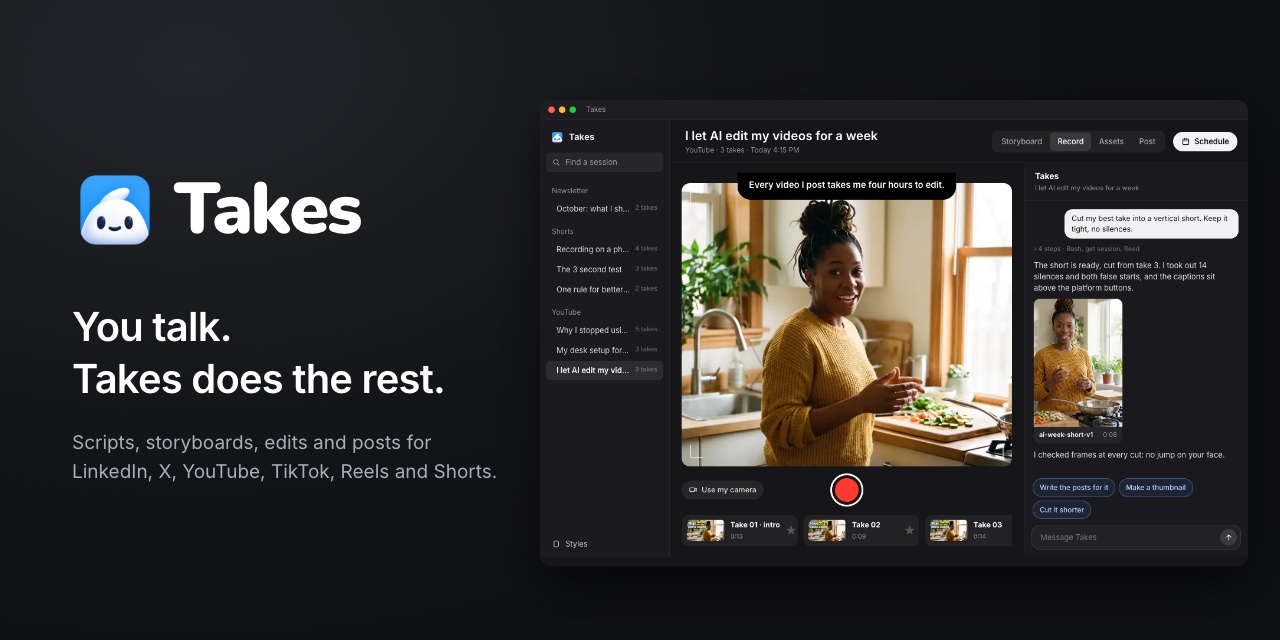
Takes for Mac is a free, open-source Mac app for making talking-head videos. You read your script from a teleprompter that scrolls as you speak, record a few takes and pick the best one. Claude Code, running on your own Claude plan, then storyboards the video, cuts the edit, produces the vertical version and writes the posts. The whole loop — Storyboard, Record, Post — lives in one place, so going from an idea to a posted video does not mean jumping between a scripting tool, a camera app, an editor and a scheduling tool. It is made for the person in front of the camera rather than for someone who wants to spend the evening in a timeline. The problem Takes is built around is the editing tax on talking-head video. The demo on the site opens with a line many creators recognise: "Every video I post takes me four hours to edit." Most of those hours are not creative. They go on hunting silences, trimming false starts, lining up captions, exporting a second vertical cut, then rewriting the same message for LinkedIn, an X thread, YouTube, Shorts, Reels and TikTok. Takes aims to move that work onto an AI agent that already understands the footage, while you stay focused on the part only you can do: being on camera and saying something worth watching. Storyboard is the first step. Claude writes the script and splits it into shots, drawing a sketch for each one. Every shot shows its line, how to film it and a Record button, so instead of reading a wall of text you look at seven or so frames that carry the video from a hook through the main body to the end. The built-in chat is a Claude Code chat that sits next to your takes. It reads the same folders the app writes, so it already knows the script, the best take and the posts. You can ask it in plain words — for example, "Cut my best take into a vertical short. Keep it tight, no silences" — and it works through the steps, reporting what it changed. The same chat can also draft the posts when the edit is done. Record is where the camera work happens. A teleprompter sits beside the camera and follows your voice, so you never lose your place and never look away from the lens. Each shot offers a few opening lines to choose from, so you can start strong instead of settling for the first thing you wrote. You record as often as you need and mark the best take; the app keeps every one in a visual list. Takes records the camera and the screen at the same time, producing two files that are recorded in sync, which means you can show a screen recording or a product demo inside the same talking-head video. Post is the publishing step. Takes shows a post for each platform the way it will actually look there — LinkedIn, an X thread, YouTube, and vertical formats for TikTok, Reels and Shorts. Line breaks, the "more" cut-off, the thumbnail and the caption all sit where the platform puts them, so you review the real thing rather than a text box. You can try other versions and then schedule the post. Styles control the look of every edit — captions, titles and colours — so the visual identity stays consistent across videos without you rebuilding it each time. Feedback is what makes the edits improve over time. You point at the frame and say what is wrong: pick the moment, mark the area, type the note. Takes fixes it in a new version and replies with what changed. The rule and the parts you liked are saved to your style, and the next video starts from there. The site shows the effect with a chart of notes per video dropping from six to three to one, and a style panel listing rules such as "Cut every silence longer than 0.4 s", "Calm music, well under the voice" and "Captions sit low, never on a face". Underneath, Takes deliberately avoids lock-in. Your library is plain folders: the app records into ~/Movies/Takes, one folder per project, one per video, with Markdown scripts, .mov takes and an edits folder. Claude Code works on the same files, and when a file changes the app shows it at once. Nothing lives in a cloud you cannot open, and you back the folders up the way you back up anything else. Claude Code can be driven from the chat panel inside the app, or from any compatible agent. On first launch Takes adds the takes MCP server to each agent it finds on your Mac — Claude Code, Codex, Cursor, Gemini CLI, Antigravity, opencode, pi and Claude Desktop — and Claude Code also gets two skills, so you can ask any of them to "storyboard my next Takes video" or "cut my last take". The stated benefits are time and cost, not features. Edits happen on work the agent can do, so you write fewer notes each time and the next video arrives closer to finished. Because the AI runs on your own Claude plan through Claude Code, there is no API key and no extra bill — Takes never sees a bill or an API key, and it adds no cost on top of the plan you already pay for. Scripts and posts keep every version, so anything can be undone. The app has no account and sends no usage data, and the code is public on GitHub, with an 85-line install script you can read before running it. Typical use looks like a weekly posting rhythm. A founder wants a LinkedIn post and a short: they storyboard a seven-shot video, read off the teleprompter, mark the best take, ask for a vertical cut with silence removal, then ask for the posts and schedule them. A creator publishing to YouTube and Shorts films once with camera and screen in sync and gets both a 16:9 edit and a 9:16 short from the same take — the site's own demo shows ai-week-v1 at 16:9 and ai-week-short-v1 at 9:16 cut from the same footage. Someone who already uses Codex or Cursor can drive the same library from that agent instead of the built-in chat. Takes is aimed at people who talk to a camera and would rather not edit: founders, creators, marketers and anyone posting regularly to LinkedIn, X, YouTube, Shorts, Reels and TikTok. It is a Mac app and needs Apple silicon, macOS 15 or later, and a paid Claude plan (Pro or Max) for Claude Code. The makers stress it is not only for technical users: you paste one line into Terminal once, and after that you work in the app, reading off the teleprompter, picking the best take and asking the chat in plain words. Installation can also be done by downloading the .dmg. Takes is free and the code is public, made by Marvin Aziz, with new versions shipping several times a week and an iPhone app in the repo that you build yourself with your own Apple developer team. Takes for Mac takes the repetitive parts of talking-head video — silences, false starts, vertical re-cuts, per-platform captions — and hands them to Claude Code, while keeping the teleprompter, the takes and the posts in one plain-folder library on your own Mac. You talk; Takes does the rest.
ngram is an AI video generator that creates perfect AI videos for every team, covering onboarding, training, demos and explainers from a prompt or a screen recording. Its Product Hunt listing describes ngram 2.0 as a tool for creating explainers, screencasts, and AI avatar videos by turning ideas, documents, and recordings into narrated videos. The site presents it for sales teams, marketing teams, support teams, HR teams, product teams, founders, explainers and every team in between. The core promise is that you describe the video you want in plain words, ngram plans and builds it, and the finished video stays editable so you can then make it perfect. The problem ngram addresses is the gap between having something worth explaining and having a video that actually explains it. The site draws the contrast directly: Loom is useful for quick screen recordings but does not help with structure or polish, while Descript requires editing skills. ngram instead starts from your intent — who the video is for and what it should achieve — and builds a complete video with structure, visuals, and polish. The customer stories suggest why that matters. The Owelet team says, “I can finally show people what Owelet does instead of just describing it.” The Wolvio Solutions team reports that “what used to take weeks can now be done in a day” and cites 80% less production time, while the Quillr team went from producing 3 to 7 reels a week. A G2 reviewer notes ngram makes it easier to create and refine instructional content. ngram can begin from whatever material a team already has. The most direct starting point is a prompt: you describe your video idea, audience, and tone, and that description is treated as the whole brief. The site's own example brief asks for a 30-second launch film for Inkpolish, specifying the opening moment, the ranking drop, the fix, and a request to use the brand kit. Projects can also start from a screen recording or an uploaded video, which ngram analyzes to identify key moments and build clear product walkthroughs. Other inputs named on the site include documents and PDFs, screenshots, photos and references, your README, and even your website — for example, one prompt asks ngram to turn a website into a 30-second explainer for facility managers. The homepage is explicit that assets are optional: you can start with just a description, and ngram will write the script, plan the storyboard, and generate visuals to match. Before anything renders, ngram plans the story. After you describe the video, ngram outlines every scene and waits for your approval — the site's example plan lists five scenes with individual durations covering the publish moment, the ranking drop, the score and fix, the prompt, and the publish decision. Once approved, you watch it build: narration, soundtrack, visuals and animation come together while you watch, and the site describes ngram recording the narration, composing the soundtrack, generating visuals, building the animation and checking the result. The site also states that ngram plans the story structure before generating anything and uses your brand kit for consistency, a deliberate approach designed so videos look intentionally produced rather than obviously automated. Every video stays editable, which is where the “then make it perfect” half of the promise lives. You can edit any scene by chatting: you point at the frame you want changed and say what you want, and ngram makes a new version. In the site's example, a change pinned to scene two — “Get to this drop sooner. The intro runs long.” — caused ngram to shorten scene one from 4s to 2s so the drop lands sooner, producing version two. Iteration works in plain language after the video is done too, with requests like “make the intro shorter” or “swap the second scene for a screen recording.” You can also take the controls yourself: captions, music and scene edits are a click away, and captions can be set to styles such as Pop Light from the Edit video menu. Deeper control is available through the timeline editor, which offers frame-level precision, plus the ability to swap scenes, edit text, change styles and regenerate sections. ngram supports narrated, animated and avatar-led videos. You can create animated explainers or add an AI avatar presenter, and the site lists AI presenters and custom voices, cinematic AI footage, and the ability to swap the voice or the language. Captions are added automatically and can be matched to your brand colors. A brand kit is set up once, and every video then uses your identity — colors, fonts, logo, intro/outro sequences — for consistent branding across your entire team. Output is flexible: finished videos export as MP4, and short ones can also be downloaded as a GIF. You can create in 16:9 (landscape), 9:16 (vertical), or 1:1 (square) when the selected models support it, and you can download the finished video or share a link to it, or embed it. The overall method is a seven-step flow the site lays out in order: describe it, approve the plan, watch it build, preview the video, point at a change, take the controls, and download. The preview stage plays the finished video beside its storyboard, scene by scene, so you can see how each beat maps to the plan. This structure is what the site presents as the core difference from other tools — ngram starts from your intent and builds a complete video with structure, visuals, and polish, rather than handing you a raw recording or expecting editing expertise. It also means the video is planned before it is generated, so story decisions come before rendering, and revisions afterward are targeted rather than wholesale. The stated outcomes for users are speed, clarity and iteration without starting over. Teams report moving from weeks to a day, 80% less production time, and higher output like 3 to 7 reels a week. The site frames the benefit as being able to show rather than describe — “I can finally show people what Owelet does instead of just describing it.” Because you review the script and storyboard before anything renders and can iterate anytime afterwards, changes do not require rebuilding the video. ngram also reports a G2 rating of 4.6 out of 5 from 62 reviews, and offers a free start with no credit card. Use cases map onto teams. For sales and revenue, ngram pitches sending the demo and skipping the call, with pitch explainers built from screenshots. For marketing, it generates industry explainers from screenshots, promo videos with an AI presenter from a PDF or doc, and product launch films from photos and references. For customer success and support, it makes customer onboarding videos from screenshots and customer education from a PDF or doc. For HR, People and L&D, it produces compliance training and messages with an AI presenter from photos and references — including non-English training, such as a safety video in Vietnamese about hand hygiene compliance in hospitals. For product and engineering, it creates stakeholder demos from screen recordings and developer launch teasers from your README. For founders and leadership, it builds board update videos from reports and all-hands announcements from a prompt. For explainers and education, it turns a website into an explainer or builds technical explainers from photos and references. ngram is aimed at teams rather than individual editors. The homepage explicitly names sales, marketing, support, HR, product, founder, and explainer/education audiences, and the example library spans brands such as Slack, Headspace, Revolut, Robinhood and Cernel, alongside companies listed as customers including HubSpot, Deel, Zapier, ITV, Veeva, DP World, Genpact and SafetyCulture. Pricing is described as “Free to start · No credit card.” The marketing site is built on Next.js. The site is also clear that the product is not limited to marketing videos: teams use ngram for product demos, customer onboarding, internal updates, training videos, sales enablement, changelogs and investor pitches — any message that lands better as video. In short, ngram's value proposition is that anyone on a team can describe the video they need — or bring a prompt, a screen recording, a document, or a website — approve a plan, and end up with a narrated, branded, polished video they can refine by chatting or by hand. It removes the structure and production burden while keeping the finished video fully editable.
OpenScreen is a free, open-source screen recorder and video editor for Windows, macOS and Linux that takes a raw screen capture and turns it into a finished demo. Its stated purpose is that a raw capture goes in and a finished demo comes out, in the category Screen Studio defined. It is aimed at anyone who records their screen — a founder demonstrating a product, a developer walking through a tool, a support person showing a workflow — and wants the recording to look finished without learning a separate editing suite. Both halves of the job live in one application: the recorder captures the screen, and the editor places zooms, restyles the cursor, dresses the frame, and cuts the video, including cuts described in writing and handled by an AI agent over MCP. Screen recordings usually look unfinished on the first take. The cursor is small, the frame is a bare rectangle of desktop, and the moment that matters — a button being clicked — scrolls past at normal speed. The usual fix is to re-shoot, or to move the file into an editing program and rebuild the framing by hand. OpenScreen's approach is to make the recording look good before you touch anything: a finished frame with wallpaper, padding, shadow, rounded corners and a little motion blur is applied by default, and zooms are planned from where you clicked. It is MIT licensed, with no watermark and no account, and it continues the original OpenScreen project, which its creator archived after v1.5.0. Recording is done with the operating system, not around it. You pick a window or a display, and OpenScreen uses the capture path the system itself provides: macOS goes through ScreenCaptureKit, Windows through Windows Graphics Capture, and Linux through PipeWire and the ScreenCast portal. System audio is captured without an extra driver, and Windows uses Media Foundation for webcam capture. The important technical detail is that the pointer is recorded as data rather than burned into the pixels, which is the only reason the cursor can be restyled later instead of being committed at record time. On macOS, cursor shape and clicks become available once Accessibility is granted. The editor is built around a small number of things you will actually do. For style, you can swap the background to an image, a colour or a gradient behind your recording with no re-shoot, set the background animation to none, Drift, Aurora or Waves, and apply background blur. For effects, padding, motion blur, shadow and roundness each composite live, so you frame it your way. For the cursor, size, smoothing, motion blur and click bounce are all adjustable, because every move should read on screen. Five cursor packs ship with the app — Studio Ink, Prism Glow, Pop Coral, Pixel Candy and Star Sprout — and each can be drawn as a 3D object with a shadow. Zoom placement is the headline editing behaviour. Zooms from your clicks means each take is zoomed where you clicked, by a fixed rule, with no AI and no network call, and it can be turned off in Record mode. On top of that sits a 3D camera: each zoom can stay flat, turn the screen left or right, or orbit it while following the zoom's focus, and depth of field softens the far side to add depth. Around the screen you can place a frame — a window, laptop, phone or screen, in light or dark — over an animated background. On the timeline, zooms, speed ramps, trims and comments each land as a pill, so one click places every zoom and the edit stays visible rather than hidden in menus. The transcript is a second editing surface. You edit video like text: delete a word or a silence and the cut lands on the timeline, and nothing is destructive, so the original material stays intact. Captions lean on the same idea. Transcription runs on your machine because whisper.cpp ships with the app; the model downloads once on first use, and after that it works with the network off across 100 languages. The audio never leaves the laptop, and what comes back is editable text — set the typeface, the size, the colour and the position, then burn it into the render. Webcam work is handled with layouts and segmentation. There are four layouts: picture in picture, dual frame, vertical stack, or no webcam at all. Full Camera gives a stretch of the timeline to the camera, so it grows to full screen and then eases back. Blur, cut out or replace is driven by a segmentation model that separates you from the room on your own computer, and nothing is uploaded. The same take can be framed for any aspect ratio — 16:9, 9:16, 1:1, 4:3, 4:5, 16:10 or 10:16. Blur regions, smooth or mosaic, as a rectangle, an oval or a freehand shape, can be drawn over an email, a key or a password before the clip is shared. Then there is the agent. You describe the edit and the agent makes it. The wizard places zooms by watching where your cursor went; the agent goes further by reading the actual transcript and the actual timeline, so it answers with timecodes you can go and check, telling you which spans it will cut and how much that saves. Every edit it makes is an ordinary undoable one, it needs a provider key you supply, and it is off by default — nothing runs until you connect one. Export writes the file on your machine, which is where the local-first promise is easiest to see. Output is MP4 from 720p up to source resolution, at 24, 30 or 60 frames per second, in H.264, or a GIF. The encode runs on your machine and counts frames while it does, so you can see progress rather than wait behind a queue. There is no account, no watermark, and the file is on disk when the bar fills. The outcome for users is a demo that looks deliberate without a second tool. Nothing is uploaded: recording, transcription and rendering all happen on your machine, and your video never leaves it. Text leaves only when you ask — the chat panel and caption translation each use a key you supply, and transcription downloads its 264 MB Whisper model once, on first run. Every feature ships free for personal and commercial use, with no paywalls, no premium tier and no usage caps. Because transcript cuts and agent edits are non-destructive, you can experiment without risking the take. The concrete workflows are the ones the product was built around. You record a product demo and let the zooms fall where you clicked, as in the walkthrough showing a soil sensor being paired in the Fern garden app: no app store, no account, the probe talks to the laptop, and the whole thing took forty seconds — with the dead air still to be trimmed. You trim that dead air by deleting words and silences in the transcript instead of scrubbing a timeline. You cut a vertical or square version of the same take for a social post without recording again. You mask a key, an email or a password with a blur region before sharing a support clip. You let the agent read the transcript and propose which spans to cut, with timecodes you can verify. And you burn subtitles in whatever language the audience needs. OpenScreen runs on Windows, macOS and Linux from one source tree with native capture on each. Distribution is broad for a free tool: a Microsoft Store listing, a .dmg, a .exe, a .deb, a .rpm, a .pacman, an AppImage and a Nix flake, with a signed and notarized macOS build — the Windows .exe is not code-signed, so SmartScreen warns before it runs. The interface is available in 15 languages: English, Arabic, Czech, German, Spanish, French, Italian, Japanese, Korean, Russian, Turkish, Vietnamese, Brazilian Portuguese, Simplified Chinese and Traditional Chinese. The tech stack leans on the platform: ScreenCaptureKit, Windows Graphics Capture, PipeWire, Media Foundation and whisper.cpp for local transcription, with H.264 encoding on the way out. The takeaway is straightforward. OpenScreen is a free, open-source screen recorder and video editor that makes the first take look finished, keeps the whole pipeline on your machine, and leaves the tedious part of editing — placing zooms, trimming dead air, cutting spans — to rules, transcripts and, if you want it, an AI agent you connect with your own key. No watermark, no account, MIT licensed, and every edit reversible.
Skreno is an AI-powered screen recorder that runs entirely in your browser. It records your screen, captures screenshots and records meetings such as Zoom calls, then turns each recording into a shareable link that arrives with a transcript, an AI summary and comments placed on the exact second. Alongside recording, Skreno includes Studio, a recorder and editor that runs in the browser and is included with every plan, with exports up to 4K. It is built for individuals and teams who need to show something on screen rather than describe it in words. The problems Skreno addresses are the small frictions that pile up around explaining things visually. Installing an app just to hit record. Uploading a file, waiting, then pasting a link. Opening an editor just to draw an arrow. Cropping and labelling screenshots by hand. Chasing feedback across five threads. On engineering and support teams the friction is sharper still: a ticket says 'it works on my machine', a developer says 'I can't reproduce it without the error', and a hand-off arrives with no stack trace and no idea where to look. Support teams report that each ticket can take three replies before anyone can reproduce it, and video conversations tend to turn into long meetings when a short recording would do. Skreno's answer is to put recording, editing and sharing in one place in the browser, so the explanation travels with the evidence. Recording is the first layer. Skreno records right in the browser, so there is no app to install before hitting record. Screenshots are captured and labelled automatically, so each step in a sequence is grabbed and annotated rather than cropped and labelled by hand. Annotations can be drawn and marked up while you record, so an arrow or a highlight lands exactly where the point is being made instead of being added afterwards in a separate editor. Screen and camera can be recorded as separate tracks, which gives the editor freedom to choose the layout later. Sharing is immediate. The link is live the second you stop recording, so there is no upload-and-wait step between finishing and sending. Every recording arrives with a transcript, an AI summary and comments, and comments are placed on the exact second they refer to, which keeps discussion anchored to the moment in the video rather than scattered across threads. When typing three paragraphs would be slower than showing it, you can reply with a quick video instead. And when input is needed from other people, the feedback is collected right on the video. Studio is the editing layer, and it runs in the browser. It trims, captions, blurs and polishes, with exports up to 4K and no download required to do the work. A ten-second trim no longer means downloading the raw file first. Captions, blur and backgrounds live in one editor instead of being spread across one app for captions and another for backgrounds. Editors can pick a layout, cut silences, and add animated captions and titles. Because editing happens from the cloud, every edit updates the same link, so nobody has to re-upload the whole recording after a small change. For engineering work, Skreno attaches the technical evidence to the recording. A bug report can come with the console log attached, and a network panel shows three failed requests highlighted with the 500 error response body open, so the person fixing it can see what actually broke. That directly addresses the three familiar lines in a bug thread: 'it works on my machine', 'I can't reproduce it without the error' and 'no stack trace, no idea where to look'. Teams can also install Skreno on their own site with a Web SDK that needs one script tag, and an AI assistant can be connected so it searches your recordings over MCP and acts. Beyond screens, Skreno covers meetings and other people's recordings. The Meeting Notetaker records the call and writes the notes, so a meeting produces a transcript and a recap automatically, and transcripts and AI recaps are generated for recordings. For customer stories, you can send a link, the customer records, and you receive the testimonial. Request links work the same way for bug reports: anyone can record for you, no account needed. The way it all fits together is deliberately simple. Everything happens in the browser from a single starting point, with an optional Chrome extension and an SDK for your own site. Recording produces separate tracks, the cloud editor assembles them into a layout, and every edit updates one link. That link carries the video plus the transcript, AI summary, timestamped comments and, where relevant, the console and network logs. Nothing needs to be downloaded to trim, caption or export, and recordings stay attached to the work they belong to rather than living in a separate folder. The payoff is speed in the places where speed is scarce. Showing something takes minutes instead of meetings. A support ticket can be recorded by the customer directly, so the first reply is closer to a fix. A developer receives the error and the log together, which removes a round of guessing. Feedback lands on the second it concerns, so reviewers do not have to reconstruct context. Edits update the link that has already been shared, so nobody has to redistribute a new file after every change. Use cases span the teams that explain things on screen. Support teams send Request links so customers record the bug themselves, build a library of their ten most repeated tickets, and keep recordings attached to the ticket rather than in a separate folder. Engineering teams use dev logs and the Web SDK to capture what broke. Product and design teams mark up screens and collect feedback on the video. Meetings and calls get a notetaker that records the call and writes the notes. Marketing and adjacent teams collect customer stories by sending a link. Guides and tutorials are produced in the same editor used for everything else. Skreno is aimed at individuals and teams who work in a browser and need to explain, review or report something visual — support, engineering, product and design, meeting-heavy roles and anyone gathering testimonials. Pricing matches that reach: free is a real plan rather than a trial, with no card and no countdown, no watermark on any plan, and no account needed to try it. The full editor is free, Studio is included with every plan, and exports run up to 4K. Skreno's value proposition is the promise in its own line: record once, explain nothing. Record, edit and share in the browser, and let the transcript, AI summary, timestamped comments and technical logs do the explaining that usually costs another round of replies.