Category Focus/categories/video
Video AI Tools
Discover and compare the best video AI tools and software. Browse 95+ curated tools with reviews and rankings.
Projects tracked
95
Sort mode
RECENT
Page
2
Discover and compare the best video AI tools and software. Browse 95+ curated tools with reviews and rankings.
Projects tracked
95
Sort mode
RECENT
Page
2
Clueso MCP is a connector that turns AI agents into video creation engines inside Clueso. Connect the Clueso MCP, describe the video you want, and the agent handles the production work while every output stays fully editable by you or by AI. It works with Claude, ChatGPT, Gemini, Cursor, Claude Code, Codex, and Antigravity. Clueso says its MCP lets AI agents create on-brand videos for customer education, product marketing, support, sales, and training. The tool's own tagline is simple: create and edit videos by chatting. Teams give Clueso an idea, a deck, a reference video, or a recording, and it handles the whole video production, including storyboard, scenes, voiceover, music, and editing, on-brand. Video production is usually a bottleneck. Someone has to storyboard, record, edit, caption, and localize a clip, then repeat that work every time a feature ships, a support question recurs, or a new market opens. The Clueso MCP addresses that by meeting teams where they already work: inside the AI agent they are already chatting with. Rather than learning a new editor or hiring production capacity, teams describe the outcome and let an agent act inside Clueso, which means video becomes part of existing workflows instead of a separate project. Clueso positions the MCP as the final piece needed to build a truly automated pipeline, connecting the agent to a workspace that holds brand guidelines, personas, tone of voice, and past projects. Setup takes about two minutes according to Clueso. You copy an install prompt from the cards at the top of the Clueso MCP page and paste it into your AI tool. The prompt walks your agent through connecting Clueso, then you sign in with Google. There is no API key or credentials to manage, and you do not need a Clueso account first, since one is created when you sign in. Clueso also offers a separate install for video skills. The connector works with any AI tool that supports the Model Context Protocol, including Claude, ChatGPT, Gemini, and Cursor today, and Clueso notes that as more tools adopt MCP, they will connect to Clueso automatically with no extra integration work needed on either end. Clueso MCP can build anything you can build in Clueso. The site lists video remakes, product launch videos, explainers and tutorials, talking head launches, and UI animations among the things an agent can produce, along with product walkthroughs, feature announcements, sales demos, training content, and customer onboarding videos. Inputs are equally broad: an idea, a deck, a reference video, or a raw recording. In the video remake workflow, you upload a video you love and Clueso rebuilds it inside your workspace, fully editable by hand or by chat. Agents can also edit existing videos, swapping assets, updating text, changing branding, trimming clips, adjusting transitions, and rearranging sections. The site highlights a set of top workflows that show how the MCP fits into work teams already do. In product marketing, a feature ships and a video ships with it: Clueso reads releases from Linear, generates a feature release video, and sends it to the PMM via Slack. In customer support, top support tickets become explainer videos: Clueso reads recurring questions from Intercom or Slack, produces tutorials, and publishes them straight to the Help Center. In sales enablement, every meeting ends with a shareable recap video in minutes, because Clueso reads transcripts from Gong, creates polished recap videos, and sends them to stakeholders via email. Two further workflows target content scale and onboarding. For translations, teams expanding into a new country can get their entire content library there first: Clueso creates videos for each customer persona a team sells to and exports a fully localized library in all languages. For employee onboarding, Clueso pulls SOPs from an HRMS such as Darwinbox, generates training videos, and organizes them into role-specific folders in Notion, so a new hire joining on Monday finds their training library already waiting. Clueso highlights four things that make the MCP different. Bulk editing lets a team update 3 videos or 300 with the same effort, scaling up custom copy, changing languages, or revamping brand guidelines with a single instruction to the AI agent. Always-on-brand behavior comes from giving the agent access to brand guidelines, personas, tone of voice, and past projects, so every video is on-brand from the first draft. Multi-tool workflows let teams build pipelines that span their entire stack, with the MCP described as the final piece that can create a truly automated pipeline. And edit-your-way means outputs remain fully editable end-to-end: change anything in your video by hand or just tell your AI agent to do it. Data handling is described in the FAQ. The MCP operates within existing workspace permissions, so an AI agent can only access projects and assets your account already has access to. Video content stays on Clueso's infrastructure and is never used to train external AI models, all connections are encrypted, and MCP access can be revoked anytime from settings. Collaboration works exactly as it always has: every member of a Clueso workspace can connect their own AI agent, and videos created or edited via MCP live in the shared workspace like any other project, so teammates can review, comment, and continue editing them in the Clueso editor or through their own AI agents. It is worth distinguishing the MCP from Clueso's built-in AI features such as auto-captions, smart trimming, and AI-assisted editing, which work inside the Clueso editor. MCP does something different: it lets external AI agents drive Clueso from the outside, so an agent can create and edit videos as part of a larger workflow spanning multiple tools, for example reading a ticket in Linear, generating a video in Clueso, and posting it to Slack in one automated chain. The stated benefits follow from that: less manual production work, consistency across every video, and the ability to produce at a scale that would otherwise require far more effort. Teamworks, which scales videos for 20+ products, is cited as a customer. Zach Romash, Senior Manager of Customer Education, says that from Claude they upload raw video straight to Clueso, tell it the edits, format, and callouts they want, and they are in good shape with just a few final touches. Typical use cases map directly to the workflows above: recreating a reference video as your own, announcing a release as soon as it ships, turning recurring support questions into Help Center tutorials, producing meeting recap videos for stakeholders, exporting a localized video library for a new market, and building onboarding libraries from existing SOPs. Because the product is aimed at customer education, product marketing, support, sales, and training functions, the practical target is any team that regularly produces instructional, promotional, or recap video and wants it generated, updated, and localized through conversation rather than manual editing. The takeaway is straightforward. Clueso MCP turns the AI agent a team already uses into a video production partner, connecting chat to a workspace where storyboards, scenes, voiceovers, music, editing, brand guidelines, and localized content all live and stay editable. If a team can type a message to a chatbot, it can create, edit, scale, and localize product videos from a simple conversation.
Supacut is a tool built for video editors that helps them explore, organize, and find the strongest material inside hours of interview footage before the edit begins. It is designed for editors who spend hours going through interviews to find the right material, and it is made for video editors working with interview-heavy footage — documentary, branded, corporate, and unscripted projects. Its stated purpose is simple: explore hours of interview footage, find the strongest soundbites, and organize your selects before you start cutting, so you can spend less time searching through footage and more time shaping the story. Supacut positions itself as a starting point for the edit — not a replacement for it. Interviews are messy, and the strongest material is scattered across hours of raw footage, different voices, repeated ideas and half-finished answers. The work before the edit is where editors lose the most time: watching hours of raw interview footage, searching through transcripts, taking notes manually, logging soundbites, comparing interviews, building spreadsheets, and jumping back and forth between transcripts and footage. Supacut was created to reduce this tedious work of watching, logging, comparing and searching through interviews, helping editors find and organize the material before they start cutting. By surfacing and organizing the strongest material across interviews, it lets editors shape the story faster instead of spending their hours hunting for the right clip. The workflow begins with Import & Sync. You bring transcripts and footage into Supacut so the material is organized and ready to explore, adding each interviewee with their original camera files. Original files stay where they are, and you stay in control of your material. From there, the Explore the Story stage analyzes your interviews to discover the main topics across your footage. Supacut groups your interview material by theme, so you can see what people are talking about and quickly jump to the original footage behind each idea — an approach that keeps you navigating the actual footage rather than reading a detached summary. Central to that exploration are thematic pillars. Supacut lets you choose how the pillars get created: you can let Supacut find the themes, in which case it analyzes the interviews and creates the most relevant thematic pillars, or you can use your own themes by providing your own pillars, and Supacut will classify segments into them. Suggested pillars are described as the main areas of material found across your interviews — not a story structure. Throughout, themes, quotes, speakers, and timecodes stay together: thematic pillars keep original quotes attached to the speaker and the source, so every idea remains connected to its origin. As the site puts it, Supacut doesn't just summarize interviews — it helps you navigate the actual footage. Once the material is explored, you build your selects in the Shortlist stage. You select the material you want to take into your edit and keep the original source, speaker and timecode attached. A built-in review player lets you use the preview panel to play through your clips in order, and you can export a Shortlist PDF. This shortlist becomes the foundation of the edit, capturing the strongest soundbites in an ordered, reviewable form before any cutting begins. The workflow is presented as Import, Explore, Organize, Compare, and Shortlist, and it also supports interview comparison so you can review different answers side by side. The final stage is Export XML. Supacut exports an editable assembly to Adobe Premiere Pro, DaVinci Resolve, or Final Cut Pro, and you start with a rough cut that you can refine yourself. The export is described as blocks with an estimated duration and XML with in/out points, so your selections arrive in your editing software ready to continue in your existing workflow. The finishing is still yours: Supacut begins the assembly, and the editor carries the story forward in the NLE they already use. The benefits are framed around time and control. Supacut reduces the tedious work of watching, logging, comparing and searching through interviews, so you can spend less time searching and more time editing and shaping the story. With Supacut you can explore themes across interviews, compare different answers, find strong soundbites, jump directly to the source footage, group material by theme, and build your selects for the edit. Crucially, Supacut doesn't decide what makes the cut. It helps you explore your interviews, organize the material and surface possibilities, while you decide what matters. You stay in control; Supacut helps you explore the material — you decide what makes the cut. Supacut is intended for interview-heavy projects such as documentary, branded, corporate, and unscripted work. In practice, an editor can bring an interview project into Supacut and start finding the material worth cutting: exploring hours of interview footage to find the strongest soundbites, organizing material by theme, comparing answers across interviews, building a shortlist of selects, reviewing clips in order with the built-in player, and then exporting an assembly to Premiere, Resolve, or Final Cut to finish the story. It also supports letting Supacut analyze the material and propose narrative directions, and generating an editable rough cut that the editor then refines. The primary target users are video editors, specifically documentary and interview editors working with interview-heavy footage. Supacut integrates with Adobe Premiere Pro, DaVinci Resolve, and Final Cut Pro through XML export. Pricing is 39 dollars a year, billed annually, with app updates included. The yearly plan includes unlimited projects, Explore the Story, thematic pillars, interview comparison, soundbite discovery, selects, a built-in review player, original source context, XML export, and support for Premiere Pro, DaVinci Resolve, and Final Cut Pro. Notably, Supacut uses a bring-your-own-API-key model: after purchase, you add your own API key, and the AI runs on your account rather than on a metered plan the company controls. You pay for the software, not the tokens, and you control the cost by paying the model provider directly for what you use. You can scale a feature or a full interview project without asking for more seats. In summary, Supacut's core value proposition is helping editors explore their interviews, organize the material, and find the strongest material before the edit begins. It reduces the tedious work of watching, logging, comparing, and searching through interviews so editors can spend more time editing and shaping the story, while remaining fully in control of what makes the cut and of the AI costs behind the analysis.
Flicka is a screen recorder that runs entirely inside a Chrome extension and produces launch-ready product demos from a browser tab. It is built for a Mac or a PC — as the site notes, phones cannot share their screen — and its stated purpose is to let you press record and have Flicka do the cinematography. You capture a take, and it arrives already zoomed and backdropped, then you aim it on the canvas rather than in a panel. Flicka is made for people who need to show software on screen and want the result to look deliberate without learning a video editor. The problem Flicka addresses is the gap between a raw screen capture and a demo that is actually worth shipping. A plain recording of a screen is flat: clicks happen away from the viewer's attention, small interface details are hard to read, and the footage usually needs to be pushed through an editor before it can be published. Existing workflows often add either an install or a server round-trip — upload the take, wait, download the result. Flicka takes the opposite approach. Capture, editing and encoding all run on your computer, nothing is uploaded, and the product's own words sum the promise up as "It records, frames and zooms the take without asking me anything." For teams that publish demos, tutorials, bug reports or marketing clips regularly, that removes both the editing effort and the question of where the footage lives. The entry point is a popup that the site describes as one sentence long, with the highlighted words acting as the controls: record this tab with my mic and auto-zoom. From that single popup you can choose this tab, the whole screen, one window, part of this tab, or just my camera, with options for the microphone, the tab's audio and a webcam bubble. Recordings have no time limit and begin with a countdown from three. A keyboard shortcut, Alt+Shift+R, starts a take from any page, and holding it grabs a still instead of a video. The same shortcut set continues inside the library, where R records, S takes a screenshot, Z adds a zoom, C cuts and Tab opens the panel. While a take is running, Flicka places a single bar on the page. Everything you can draw with lives under the word "Mark up": a pen, a highlighter, an arrow, a box, an oval, text, an eraser, blur, cursor effects, click effects and a spotlight, with a clear action to wipe the marks. The page bar presents six targets at rest, and everything about the take sits under the timer. This means you can mark up the page live as you record, blurring something sensitive before it is ever captured, rather than fixing it afterwards in an editor. The recording card repeats the same sentence back to you, keeping the interface consistent between the popup and everything that follows. The editor is where the auto-zoom promise is delivered. Your click clusters arrive as eased zoom blocks on the timeline before you touch anything — the site shows "3 clicks caught · zooms follow in the editor" — so a take can land with its zooms already cut. Five lanes share one time axis: zoom, draw, cuts, clicks and audio. Auto-zoom lays the first cut, and you re-aim a zoom by dragging the frame directly on the canvas instead of nudging numbers in a panel. Zoom blocks can be automatic or yours, with values such as 1.4× and 1.5× showing on the timeline, and the interface states an ease curve of 700 milliseconds with separate ease in and ease out. Around the picture, framing controls cover padding, corner radius, shadow, 3D tilt and mockups, with browser, macOS or no frame, plus gradient and solid backdrops. Beyond recording, Flicka includes an annotator and a template system. The annotator accepts any image, not just your own captures: drop or paste a picture and it opens with fifteen tools, numbered steps and redaction bars that actually redact. Layers can be cleared, arrows have adjustable weight, and exports go out as PNG at 1×, 2× or 3×, up to 2880×1800 — one example on the site is a 1440×900 image at six layers exported as PNG @2×. Templates turn code, posts and testimonials into generated plates rather than captures: a code snippet plate is generated from fields such as filename, language and theme, then passes through the same backdrop, framing and export as a capture. Tweet and testimonial cards follow the same route. Export is handled on your device. The extension offers presets including YouTube at 1920×1080, X at 1280×720, TikTok at 1080×1920, Instagram at 1080×1080, the original source size, and GIF at 960×540, with formats of MP4, WebM and GIF and quality settings of High, Medium and Low. MP4 is produced through WebCodecs where H.264 is available; when the browser cannot encode H.264, Flicka falls back to WebM through MediaRecorder, and there is a dependency-free GIF encoder as well. Rendering happens in the background while you keep editing, and the finished file is saved to your downloads. Underneath, one compositor drives two outputs: the same canvas pipeline draws both the preview you scrub and the frames the exporter encodes, so what you aim is what you ship. Among the browser APIs Flicka names are getDisplayMedia for the stream, canvas for the composite and WebCodecs for the file. The outcomes Flicka claims follow from that architecture. Takes arrive zoomed and backdropped, so the first pass already looks intentional, and you re-aim zooms by dragging on the canvas rather than editing by hand. Because capture, compositing and encoding all run on browser APIs inside the extension, work offline once the tab has loaded and require no install, nothing leaves your computer. Projects and media blobs are written to the extension's own storage, so your library is waiting when you come back, no account is needed to record, and there is nothing to delete from a server. Word-by-word captions, when used, are also made on your device. Priya Anand, Head of Product at Northwind, states in a testimonial that Flicka is "The only screen recorder I've stopped editing by hand." Concrete uses on the site include onboarding walkthroughs, pricing pages and bug reproductions — a library view shows a 47-second "Onboarding walkthrough" with four zooms, a pricing page marked as annotated, and a 1:12 "Bug repro — filter drawer" with two zooms. The annotator is used to redact before shipping, with the example caption "Blur this before you ship it". Templates cover code snippets, posts and testimonials for social and documentation work. Export presets map to the destinations people publish to: YouTube, TikTok, Instagram, X and GIF. The accompanying guides cover recording your screen on a Mac with audio, adding smooth auto-zoom to a screen recording, annotating and blurring screenshots online, and recording your screen on Windows 10 and 11. Flicka is intended for desktop browser users on Mac or Windows. Pricing starts free forever: the whole studio on your device, unlimited recording length, auto-zoom and manual zoom blocks, the full fifteen-tool annotator, the code snippet template, twelve gradient backdrops and solid colours, 1080p WebM and GIF export, up to ten projects, and a small Flicka mark on exports. Pro is $30 a year, or $5 a month with cancel any time, and adds MP4 and 4K export with no watermark, the webcam layer, click sounds, cuts and 3D tilt, word-by-word captions made on your device, all 42 gradients with custom colours and image and pattern backdrops, all device frames, tweet and testimonial templates, and unlimited projects. A Pro lifetime licence is $80 once, with every Pro feature and every future update, working in any browser while projects stay where they were made. Prices are in USD before local tax, payments are by Paddle, and there is a 14-day money-back guarantee. Share links and cloud extras are listed as planned. Projects can be exported as a .flicka.zip, and the site states it uses Google Analytics to count visits, with no ads and no tracking across sites. Flicka's core proposition is that a polished product demo should not require a separate editing session, an upload or an account. Press record, let the clicks become zooms, aim the framing on the canvas, and export an MP4, WebM or GIF from the same machine that captured it — all from one Chrome extension on Mac or Windows.
Creads is a marketing platform built around a team of AI agents that already knows your brand. It connects to your social and advertising accounts, then creates content, publishes it and launches ads on your behalf. The website describes the setup as taking about five minutes from a link: it reads your site, you pick your employees and connect your accounts, and then it runs. Creads positions itself as a full marketing team that runs itself, with chat and agents that hold real roles and handle ads, organic content and research on autopilot. It covers paid campaigns on Meta Ads and Google Ads and organic posting to Instagram, TikTok, LinkedIn, YouTube, X, Pinterest, Threads, Reddit and Google Business, and it reports back on how that content performs. The problem it addresses is the gap between having a product and having a marketing team. Founders, small brands and agencies often have a website and a set of social accounts but nobody whose only job is to write the ads, shoot the product imagery, cut the video, schedule the posts and read the numbers afterwards. The site frames the alternative bluntly: every other AI tool starts from zero, while Creads runs the whole loop of creating, publishing and reading results, and keeps what it learns on the way round. Instead of generating a single asset and forgetting the context, it accumulates brand knowledge and performance data so each batch of work starts better informed than the last. The first step is Business DNA. You paste your URL and Creads reads the site to learn your brand. In the walkthrough shown on the site it identifies brand colours, the typeface (Space Grotesk in the example), tone of voice (described as Direct and Gen-Z) and a product count of 12 products found, building a Business DNA that every employee works from. The FAQ explains the same mechanism: it reads the site for palette, fonts, tone of voice and your product catalogue. Corrections matter here, because if you fix something in chat the correction sticks, so the brand model gets sharper the more you use it. A dedicated Brand DNA and Memory area sits inside the workspace alongside chats and your asset library. The second step is hiring your team. Creads presents its AI agents as employees with one job each rather than one general-purpose assistant. The roster shown on the site includes Il Direttore as Orchestrator, Marco on Ads, Gaia on Social, Elena on Intelligence, Luca on Copy and Sofia on Video. You hire only the ones you need. The FAQ is explicit that each keeps its own memory, so the agent running your ads is not starting from zero every week. Because the roles are separated across paid, organic, analytics, copy and video, work can be routed to the right specialist while the orchestrator coordinates the rest. Connections come next. You link your accounts once and the platform publishes and launches by itself. The site lists Instagram, TikTok, Meta Ads with multiple ad accounts, LinkedIn, Google Ads, YouTube, X, Pinterest, Threads, Reddit, Google Business and Shopify among the connected or connectable destinations. The FAQ confirms that it schedules to Instagram, TikTok, LinkedIn, YouTube and the rest, and takes campaigns live on Meta and Google Ads. Everything lands on a calendar before it goes out, so you can cancel anything you do not want. The Scheduled view shows posts marked as published or scheduled with their times and account handles. Once set up, the core workflow is described in four steps. First, ask and it creates: you tell it what you want in plain words, with no prompts and no brief, and it shoots the photos, writes the script and edits the UGC video in your brand voice. The site shows a request as simple as Shoot my new drop producing four generated product shots, with the agent explaining that it pulled the brand palette and tone, leaned into close-ups because the last drop performed best there, kept the logo as the hero element in every frame and skipped a studio-white look that had been rejected previously. Second, it publishes itself: Marco launches the ads and Gaia schedules the posts straight to Meta, TikTok and every platform you connect. Third, it learns and reports back: performance flows back into the brand brain so every next batch is sharper than the last. Fourth, it runs itself daily: you save the flow as an automation and the entire loop repeats on its own. The content the platform produces is organised into named formats. These include UGC SAAS, described as creator-style video that sells software with a real face pitching your product; Product Reveal, short-form drops cut for the feed with captions and all; Instant Ad, a finished ad built from a product link with script, shoot and edit in one go; Static Ad, a headline, product line-up and call to action laid out and ready to run; UGC Unboxing, AI-generated unboxing videos that feel authentic and drive conversions; Styled Flat Lay, the product laid out with props and shot from above for the grid; and UGC Ad, creator-style content that blends into social feeds naturally. Each format targets a specific job, and the library lets the same brand brain feed several output types at once. Automations are the mechanism that turns creation into a repeating process. The Automations screen shows examples including Best-performer recap, Daily UGC reveal ad, Meta CPC guardrail running every 15 minutes, Weekly carousel drafts, Midnight reflection and Competitor scan, each with a schedule and a status such as running, auto or paused. Two modes are available per automation: ask-first, where the agent prepares the work and waits for your yes, or autopilot, where it ships and tells you afterwards. Reporting sits alongside this in a Social Insights view that tracks reach, impressions, engagements and video views for the current period against the previous one, so you can judge whether content is performing better than last time. Creads publishes headline results as averages across accounts running it on autopilot, measured against their own 60 days before: 41 percent lower cost per acquisition in the first 60 days, 3.2x blended ROAS across the accounts it runs, and 8x more creative shipped every month. It notes that individual results vary. The site also shows a conversions-by-creative breakdown and a results panel inside the chat workspace where figures such as ROAS and reach appear next to the scheduled asset. Concrete usage stories on the site include a DTC skincare founder, Luca R., who launched his first ads without ever having run one: he pasted his domain and went to bed, and Marco read the brand, wrote four creatives, launched at 40 euros a day and paused the two that never got going. Other named examples are Sara M., head of content at a fashion label, and Andrea C., founder of a creative agency. The site summarises these as three teams and three jobs they had nobody for, with the same brand brain behind all of them. Creads is positioned for founders, small brands, content leads and agencies, and it is explicitly built for people running several brands: every brand gets its own employees, its own memory and its own voice, with nothing bleeding between them, and agencies read one morning summary per brand instead of logging into eight dashboards. On pricing, the site states there is a monthly plan with a credit allowance included, where generating, editing, publishing and launching all draw from the same balance. Top-up packs never expire and stay yours even if you cancel, and new accounts start with free credits so you can run the whole loop before paying anything. The Product Hunt listing mentions a free 3-day trial. The FAQ also confirms that no prompt writing or video editing skill is required: you talk to it like a teammate, asking for it to be funnier or to try a younger actor, and it redoes that piece while keeping the rest, with cuts, captions, music and export all handled for you. The takeaway Creads offers is simple: stop writing prompts and start making ads. The claim on the site is that competitors using AI video ads spend about 90 minutes while a Creads user spends five, because the platform carries the brand knowledge, the creative production, the publishing and the optimisation loop in one place and keeps improving them together.
Lumiko is a free Chrome screen recorder and browser-based video editor that turns ordinary screen captures into polished, cinematic recordings. It is built for anyone who needs to show a screen — creators, developers, marketers, designers, founders, educators, and freelancers producing demos or client work — and its core promise is simple: you record your screen, and Lumiko edits the footage while you work. The extension captures your screen together with system audio and microphone voiceover, tracks where your cursor moves and clicks, and then automatically builds smooth zoom and pan moves over those moments, so the finished video guides the viewer's attention without any manual keyframing. A built-in editor in the browser lets you trim, split, and reorder clips, add a webcam bubble, apply backgrounds and click effects, and export up to 4K, all without creating an account or uploading anything to a queue. Traditional screen recording workflows are slow and fiddly. Recording is the easy part; making the result watchable is not. Editors normally have to scrub through the timeline, place keyframes by hand to zoom into the parts that matter, mask out anything sensitive, and then wait for a render before the file is ready to share. Cloud-based recorders add another layer of friction: clips go to a server, upload queues build up, accounts are required, and privacy becomes a question. Lumiko addresses this by treating the cursor and the clicks as the editing signal. Because the recording itself carries the information about where attention was, Lumiko can automate the zoom and pan work that would otherwise be done by hand, and it can do all of the processing locally in the browser rather than in the cloud. Auto Zoom & Pan is the headline feature. Lumiko analyzes your cursor and your clicks as you record, then creates smooth, cinematic zoom and pan moves that follow them automatically — no manual keyframes and no timeline gymnastics. The result is a recording that stays on the part of the screen that matters, guiding viewer focus the way a human editor would. Paired with this are click effects: ripple, orb, or pressure animations triggered on every mouse click, which make interactions visible and obvious to someone watching the video. Together these two capabilities mean a plain screen capture reads as a directed piece of footage rather than a flat, unedited dump of a desktop, which is especially valuable for demo videos where the viewer needs to understand exactly what was clicked and in what order. Smart Blur handles privacy. Drawing a box hides sensitive information such as API keys, emails, passwords, and revenue dashboards, with the stated purpose of obscuring that data instantly and automatically. For developers recording a terminal, a dashboard, or a settings screen, this removes the risk of leaking credentials or customer data in a published video. The Webcam Overlay adds a personal element: a draggable, resizable circular face-cam frame with a premium drop-shadow that stays perfectly synced with your screen recording. Because it can be moved and resized, it can be placed wherever it does not cover the part of the screen being demonstrated, giving the recording a presenter presence without requiring a separate camera setup or external compositing software. The Instant Editor is a browser-based timeline that runs with zero render queue. You can split clips, delete mistakes, and drag to reorder segments, then export in 4K, 1080p, or 720p in one click. Basic trimming with the timeline scissors removes dead space immediately. Beautiful Backgrounds lets you frame the recording with a preset gradient, a solid color, a transparent backdrop, a high-resolution Unsplash image, or your own uploaded brand assets, including a company logo. Multiple Aspect Ratios means the same video can be exported in 16:9 for YouTube, 9:16 for Shorts and TikTok, or 1:1 for LinkedIn, using intelligent auto-framing so the composition holds up in each format. Rendering is hardware-accelerated and local, so exports happen on your machine rather than through a cloud render farm. Overall, Lumiko is a Chrome extension built on Manifest V3 that works as a single integrated tool: record, edit, and export without leaving the browser. During recording it captures the screen and, on the free tier, system audio and microphone voiceover together. Because it tracks the cursor and clicks, it can generate the zoom and pan choreography as part of the recording rather than after it, which is what removes the keyframing step entirely. Editing then happens in the browser-based timeline, and export is performed with hardware-accelerated local rendering. Lumiko requests only four permissions — activeTab, storage, desktopCapture, and scripting — and states that there is no tracking, that recording and export processing happen locally in your browser, and that recordings are never uploaded, viewed, or retained. The practical benefits follow from that design. Creators get cinematic-looking recordings without learning an editor or placing a single keyframe. Because there is no render queue and no upload step, the gap between finishing a recording and sharing it shrinks considerably. Privacy is protected by default: sensitive data is hidden with Smart Blur before it ever leaves the machine, and no account is required to start. The pricing model is equally direct — free forever for unlimited recording, auto-zoom, Smart Blur, custom backgrounds, and exports up to 1440p, with a one-time Pro upgrade for watermark-free 4K exports and a lifetime license covering up to three device activations. There are no subscriptions and no surprise recurring charges, so the cost of producing professional demo videos stays predictable. Concrete workflows include recording product demos and feature walkthroughs where the viewer needs to follow a specific sequence of clicks; producing software tutorials and technical walkthroughs; and capturing bug reports or step-by-step reproductions for teammates. Marketers and founders can repurpose a single recording across channels by exporting it in the correct aspect ratio for YouTube, Shorts, TikTok, or LinkedIn. Freelancers and agencies record client-facing work with custom brand backgrounds, their own logo, no watermark, and a webcam overlay to add a personal introduction. Anyone recording a terminal, admin panel, analytics dashboard, or configuration screen can use Smart Blur to hide API keys, emails, passwords, and revenue figures before publishing. Educators and course creators can record lessons with system audio and voiceover, trim the dead space, and export in HD for a learning platform. Lumiko is aimed at makers — the site signs off with "built for makers" — which in practice covers developers, designers, product teams, marketers, founders, freelancers, agencies, educators, and course creators who publish screen recordings regularly. It runs as a Chrome extension and can be launched from the Chrome Web Store or the browser editor page, so the ecosystem it integrates with is the Chrome browser itself. Backgrounds can draw on preset gradients, solid colors, transparent options, or high-resolution images from Unsplash, and custom uploads for brand assets. Pricing is straightforward: a Free tier at $0 forever with unlimited recording, auto-zoom engine, click effects, timeline editing, Smart Blur, webcam overlay, and exports up to 1440p; and a Pro tier listed at $29 lifetime, discounted to a $9 one-time payment, adding 4K Ultra-HD exports, removal of the "Made with Lumiko" watermark, and a lifetime license with up to three device activations. Lumiko's value proposition is contained in a single idea: the recording edits itself. By turning cursor movement and clicks into automatic zoom and pan, adding Smart Blur, a webcam overlay, backgrounds, aspect-ratio exports, and a local timeline editor, it compresses what used to be a multi-step editing project into a record-and-export workflow that runs entirely in Chrome — free to start, and $9 once to unlock 4K, watermark-free output.
Narrative is an AI-first video editor built around a simple idea: bring your footage, say what you want made, and cut it together with an editor that does the work with you. Rather than assembling cuts by hand, you upload clips, describe the edit you want in plain words, and keep refining the result through chat. Narrative brings video editing, custom motion graphics and reference-video style matching into one interface. It builds a finished draft on a timeline you can still open and change, so the output is not a locked black box but a real project you can adjust. It is designed for people who already have footage and a clear idea of the outcome, but who do not want to learn Premiere or After Effects to get there. From podcast clips to launch videos, the first step is the same: say what you want. The problem Narrative addresses is the gap between having footage and having a finished cut. Editing traditionally means learning complex software, understanding timelines and motion graphics, and spending hours scrubbing through material to find the good bits. One producer notes that every episode used to cost an afternoon of finding the good bits. A media lead describes the difficulty of finding every goal in a ninety minute match, including the one the camera nearly missed. A product marketing team says their unboxing demos went from a freelancer and a week to a sentence and ten minutes. Narrative targets exactly that gap: the time, cost and specialised skill that sit between raw footage and a usable edit, whether the material is a two hour shoot, a wedding, a podcast or a match recording. The core of the product is editing by talking. You ask in ordinary language, and the agent does the work. An example from the site is a request to make a 15 second reel of the best rides, with a title at the start and music under it. The agent then reads the transcript, edits the clips and reports back what it did, explaining that four rides were placed on the strip with the tightest one first, the title running from 0:00 to 0:03 and the music bed sitting under everything. Anything you would say to an editor, you can say to this one — it works from the words, not a menu. The site lists prompts such as cutting to the beat, making it feel like a trailer, putting every goal in order, removing the ums, going vertical with captions, starting on the best line, tightening to thirty seconds, warming it up a little, and putting the title back at the end. Everything lives in the same editor as the conversation: the transcript, captions, versions, the frame and the models behind it. The editing surface is the editor itself, not a picture of it — you can press play, scrub the strip and mute a track. Tracks and elements shown in the interface include graphics, clips, dialogue and music, along with elements such as a title and a location card, with individual clips listed by timecode and duration. You can add music, sound effects and transitions, and Narrative also supports custom motion graphics and reference-video style matching, so you can take inspiration from reference videos. Because the assistant reads the transcript while cutting, requests such as removing filler words or placing captions are grounded in what was actually said in the footage. Every turn is a version. The version history in the interface shows a numbered list of states, with the current one marked and older entries available to restore — for example v12 as the current turn, v11 with edited styles, v10 where a clip was trimmed, and v9 where the frame was set to 9:16. Each entry carries a restore action, so you can step back to any of them or put the project back to how a turn left it. A completed turn also reports what it used, such as the number of tools and credits consumed. For teams, this matters: one testimonial notes that with every version kept, nobody on the staff can break the cut. You can choose the speed, or the brains. Narrative offers three model tiers: Fast, for quick cuts and small changes; Balanced, for most edits most of the time; and Max, for long footage and hard briefs. The frame control handles aspect ratio, starting at 16:9 and switching to others on request. The options shown are 16:9 (original), 9:16 described as both speakers stacked, 1:1 for feed and 4:5 for portrait feed. The 9:16 example is instructive: start in 16:9 and ask for 9:16, and both speakers stay in the shot, stacked. That means social-ready vertical versions can be produced from the same source project rather than being re-cut from scratch in another tool. Overall, Narrative's approach is to treat the conversation and the timeline as one workspace rather than bolting a chat box onto a traditional editor. You upload your footage, describe the edit, and the agent reads the material — including the transcript — makes the cut, and tells you what it did. Every instruction becomes a version you can inspect or restore, and each turn reports the tools and credits it used. You decide how much horsepower to apply by choosing Fast, Balanced or Max, and you control the output shape through the frame settings. Narrative handles rendering and storage, so you are not managing exports, disk space or a render queue yourself. The result keeps a real, open timeline at the centre instead of a one-shot generated file. The stated benefits follow from that model. Edits arrive faster: a three minute highlight from two hours of wedding footage was on the timeline before a coffee was cold, and a producer can ask for the five best moments as verticals with captions and then open the timeline to check the work. Work that previously required a freelancer and a week can become a sentence and ten minutes. Because the output is a real editor rather than a fixed render, changes stay possible — when legal wants a frame changed, the frame is changed. Version history protects the cut from accidental damage, and Narrative's own launch video was made entirely in Narrative. Concrete scenarios named on the site include wedding films, podcasts, match highlights and product demos. A wedding filmmaker asked for a three minute highlight with the vows in the middle from two hours of footage. A podcast producer asks for the five best moments as verticals with captions. A football club's media lead asks for every goal in a ninety minute match. A product marketer produces unboxing demos. Broader examples include a rough cut, a supercut, or a vertical reel from a two hour shoot, plus podcast clips and launch videos. The audience is filmmakers, producers, media leads, product marketers and teams who cut regularly. Plans run from Free at $0/month with 3 AI prompts, the whole editor and your own footage, through Plus at $20/month with 2,000 AI credits, 10 projects, 100 GB of footage, 4K renders without watermark, every model tier including Max and version history kept for a year, and Pro at $40/month with 4,000 AI credits, 30 projects and 500 GB of footage, to Studio at $100/month for teams cutting every day with 10,000 AI credits, unlimited projects, unmetered renders with priority in the queue, 1 TB of footage and priority support. Paid plans include a 3-day trial and can be cancelled any time, and there is an iOS app in addition to the web editor. Narrative's value proposition is straightforward: describe the edit you want in plain words, and get a finished draft on a timeline you can still open and change. It compresses the distance between raw footage and a usable cut while keeping the edit genuinely editable, with versions, model tiers and frame controls under your hand.
DemoTV is a 24/7, television-style channel where short product demos play continuously and the audience — not advertisers — decides what sits at the top. Founders submit a demo, viewers watch two products go head to head in a Channel Battle and back the one they would actually try, and that pick becomes the audience rank. Channels 1, 2 and 3 are the current top three on the station, driven by an Elo-style audience score built from wins and battles. The station is made for independent makers, startups and product teams who want their demo discovered by people genuinely interested in trying new tools, rather than ranked by whoever spends the most money. Watching and voting requires no sign-up. Getting a new product in front of the right people is hard, and most channels hand the top slots to whoever pays for them. That leaves independent builders competing for attention against budgets they cannot match. DemoTV separates the two ideas: exposure can be bought through clearly labelled placements, but standing on the station cannot. Rank 1 on a channel is the demo viewers picked most — the page states plainly that it is not a paid slot and that airtime never buys rank or a channel. This gives founders a place where a strong demo can outrank a bigger budget, and gives viewers a feed of products that other people, not ad buyers, decided were worth a look. The core mechanic is the Channel Battle. Two products built for the same job are shown head to head, and the viewer simply backs the one they would try — no sign-up required. That pick feeds the audience rank, and the resulting ranking decides which demos occupy Channels 1–3, the current top three on the TV. Each demo carries an audience score alongside a win and battle count; the number one entry at the time of capture showed a score of 1368 from 145 wins across 178 battles, with Channels 2 and 3 close behind on 1344 and 1315. The directory board mirrors the channel: rank 1 sits first on the board and is the same tape as Channel 1, and Channels 2 and 3 are the next two. Demos only start playing when a viewer presses play or selects a channel, so nothing auto-plays just because someone scrolled past. For founders, getting on the station starts with a free submission — no card needed. A demo can be a YouTube link or an MP4 upload (40 MB maximum), and every submission is reviewed before it goes live. The submission flow runs through four steps: website details, video, visitor action, and review. Before submitting, makers can have DemoTV suggest a title and tagline from their project URL, and they choose the category whose battles the demo will join. Once approved, a private dashboard provides a single embed code for the maker's own website — a widget containing the video, an optional try link and a chosen button label such as Visit website, Start free, Join waitlist, Book a demo or Claim offer, with a configurable button destination. From the dashboard, founders can also request testers, cap reveals, and claim their company. Makers who want to reward viewers who picked them can attach an optional viewer thank-you — a backer code such as a time-boxed free week or a percentage discount, which never moves the Elo score and does not appear on battle buttons. Paid reach exists, but it is kept separate and clearly labelled. After claiming a listing, a founder can buy airtime units (5, 10, 25 or 100, with the price shown at checkout) which add promoted placements across the reel and directory; the page states repeatedly that these units never change a demo's audience score or channel. Featured partners pay $39 for 30 days of labelled placement as a homepage card — the copy notes that partners support the station, never the rank. Demo Studio is a paid option, priced at $79 for “Make my tape,” where a maker pastes their site and gets automated production with station QA before air, subject to their approval, while rank remains audience-only. Launch Week is a labelled 7-day sponsorship. Every one of these options buys exposure, completed views and clicks, never the ranking. The overall workflow is deliberately simple and stated on the site as three steps. First, submit your demo for free — a YouTube link or MP4, no card needed, reviewed before it goes live, with the message that submitting is free to founders. Second, win Channel Battles, because viewers pick the demo they would try and those wins move Channels 1–3. Third, boost with airtime if you want extra reach — optional labelled ads that become available after claiming the listing and that never touch the rank. A new entry begins as a pending station approval; the demo stays private until review is complete, and the maker receives a private management link and an email when it is live. For makers, the outcomes are discovery and validation rather than empty impressions. A demo that viewers would genuinely try climbs, so the success metric is real audience preference instead of ad spend. Founders get an embeddable widget they can place on their own site, a way to recruit testers, a company listing with a contact-the-maker form and reporting tools, and a channel that keeps showing their tape to people browsing the station. For viewers, DemoTV offers a way to discover independent products, watch short demos and try something new — with the ability to influence what gets seen next by backing the products they would try. Use cases follow directly from this setup. An indie founder launching a new app can submit a short demo for free, get it reviewed, and enter the relevant category battle without spending anything. A product with a direct competitor can be placed head to head in a Channel Battle — the site itself shows a battle between two app builders — and let viewers decide which one they would try. A maker who wants to test demand can attach a backer code and give viewers who picked them a time-boxed free week or discount, then measure interest. A team that already has a demo video can embed the widget on its own site so visitors watch the demo and take the try action directly. Advertisers and companies with budget can buy labelled airtime, featured partner placement or Launch Week sponsorship to reach the station's audience while leaving the ranking untouched. And a viewer simply looking for new tools can browse the demo directory, sorted by audience rank or newest, to find products to try. The directory itself is organised around categories that define which battles a demo joins: AI agents, AI app builders, video generation, chat assistants, computer use, developer tools, design & no-code, data & analytics, marketing & sales, productivity, infra & APIs, games, crypto & web3, crypto wallets, crypto infra, robotics & hardware, fintech & payments, security & privacy, education, consumer & social, climate & energy, and other. Makers can suggest a new category of 2–40 characters, which is listed under Other until reviewed. The board is paginated at 10 demos per page with sorting by audience rank or newest, and the station reported 110 live demos, 571 audience backings, 54.2K views and 6,845 visitors at the time of capture. Station numbers only appear once live demos exist. Contact for takedowns, press or submissions is hello@demotv.lol, reporting options cover scams, spam, malware, adult content, impersonation and broken videos, and the site's optional first-party analytics are explicitly described as containing no ad trackers or search terms. The takeaway is straightforward: DemoTV is an audience-ranked channel for product demos. It gives founders free airtime that is earned by the audience's own picks, keeps paid promotion clearly labelled and strictly separate from rank, and gives viewers a simple, sign-up-free way to watch demos and decide which product deserves the top channels.
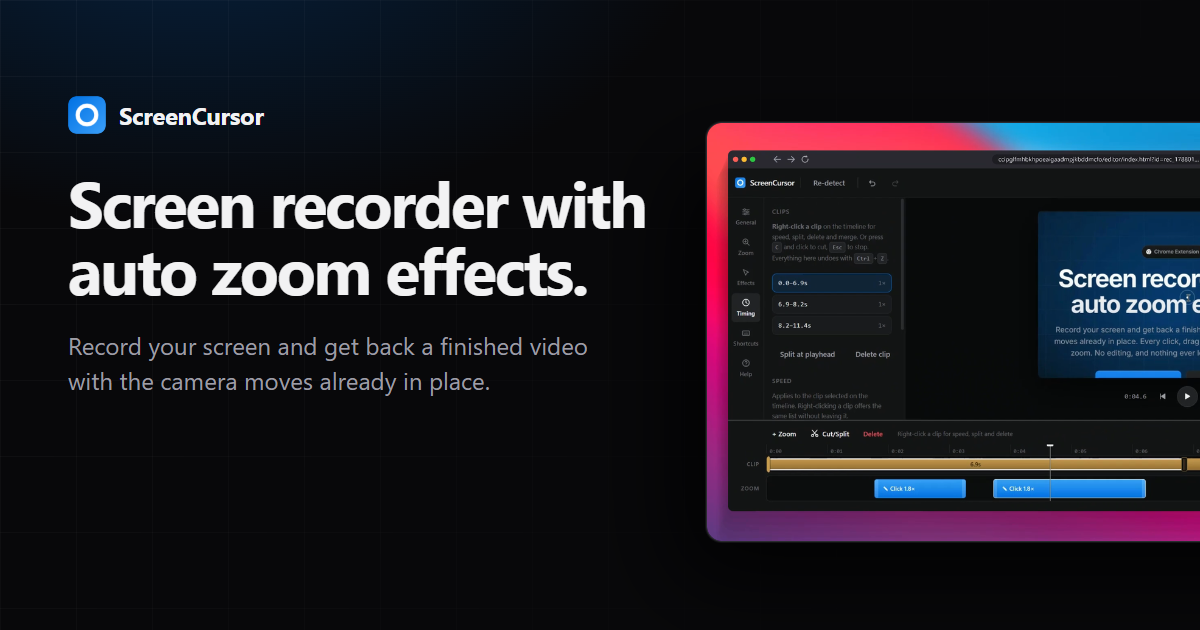
ScreenCursor is a Chrome extension that records your screen and hands back a finished video with the camera moves already in place. Rather than returning a raw capture and leaving the zooming to you, it turns every click, drag and keystroke into a camera move while you are still recording. The result is a screen recording that is already watchable the moment you stop: there is no timeline to learn and no second pass in a video editor required. It is built for anyone who needs to show how something works on a screen — a demo, a walkthrough, a piece of work in progress — and who wants that video done without spending time on editing afterwards. As the site puts it, the middle step of the workflow, the zooming, is the whole product and it is the one you do not have to do. The problem ScreenCursor sets out to solve is a familiar one. Most screen recording software gives you back exactly what you recorded and leaves the camera work to you in a video editor. That means every demo becomes a two-stage job: record first, then sit down and manually place zooms, trim dead air and frame the footage so a viewer can actually follow what is happening. The site states plainly that the best screen recorders for sharing work are the ones that produce something watchable without a second pass, and that producing that is the only thing this product is trying to be. In other words, the tool is not trying to be a general-purpose video editor; it is trying to remove the editing step from screen recording altogether. The first feature is the automatic camera work, and it is the one that happens on its own. Clicks, drags and keystrokes are all picked up while you record. Each one gets a zoom at the same depth, and the zoom arrives a beat before the action so the viewer is already looking at the right place at the moment the action happens. Because the timing is anticipatory rather than reactive, the viewer's eye is guided to the click rather than chasing it afterwards. On the site this is summarised as every click, drag and keystroke becoming a camera move, placed and timed for you, with nothing to place by hand. The remaining features are there for when you want them, and the first of those is full control over every zoom. Nothing is baked in. You can retime a zoom, push its depth in or out, move it, switch the motion between snappy and gentle, or delete the one you did not want, and you can add your own zooms anywhere as well. The camera rebuilds as you drag, so what you are watching is what exports. This matters because automatic placement is only useful if it can be corrected; preserving full adjustment means the automation is a starting point rather than a fixed output. Framing and timing make up the next group of capabilities. For framing, you can sit the recording on a wallpaper, a gradient or your own image, softened so the backdrop never competes with the picture. You can add a browser frame carrying the real page title, round the corners, and pick the aspect ratio for wherever the video is going. For timing, you can split the clip anywhere, delete the stretches nobody needs to sit through, and speed up the ones that merely drag. Importantly, the zooms move with the cut, so nothing drifts out of step with the picture. Together these let a recording be dressed and paced for its destination without exporting into another tool. How the product works overall is described in three steps, with the explicit note that the middle one is the whole product and is also the one you do not have to do. Step one is to hit record: you pick your screen and go, and ScreenCursor waits three seconds so you can hide Chrome's sharing bar first, then stays out of your way. Step two is that it zooms itself, turning every click, drag and keystroke into a camera move that arrives before the click, holds steady, and then follows your cursor. Step three is export and ship: you can trim, cut or adjust any zoom if you want to, then export MP4 at up to 1080p straight to your Downloads folder. The whole pipeline — recording, editing and export — happens inside your browser, and the video never leaves your computer. There is no account to create and no server for it to go to. The benefits that follow from that approach are stated directly on the site. There is no watermark, no account and no subscription, and there is no limit on how much you record. Because everything stays local, recording and editing work offline and nothing is uploaded, ever. The purchase is one payment of $49 at early pricing (regularly listed at $79), yours permanently, with updates included, and one purchase activates on up to three of your own computers. Export is MP4 at 720p or 1080p, delivered to your Downloads folder like any other file, ready to upload anywhere without conversion. The Chrome Web Store rating shown is 5.0. In practical terms, ScreenCursor is aimed at scenarios where someone has to show a process rather than describe it. That includes recording your whole screen, including anything outside the browser such as other apps, your desktop or a design tool, and producing something a viewer can follow without having sat through the raw capture. It suits demo videos and work-sharing clips where the site's own framing is "sharing work" and, in its closing line, "stop editing your demos." The workflow is deliberately short: pick the screen, hide the sharing bar during the three-second wait, perform the task once while the zooms are placed for you, optionally trim the dead air, and export. One purchase covers a laptop, a desktop and a work computer, and if you replace a machine you can free its slot from the license page inside the extension or from your Polar account and activate the new one. Because it is a Chrome extension it runs wherever Chrome does, including macOS, Windows and Linux; recording performance depends on the machine having hardware video encoding, which the site says almost everything made in the last decade has. The site also positions it against Screen Studio, noting that Screen Studio is macOS-only and costs about $108 a year, while ScreenCursor is $49 once and runs anywhere Chrome does, though it acknowledges Screen Studio does more, including webcam overlay, motion blur and recording an iPhone over USB. The takeaway is narrow and deliberate: ScreenCursor exists to make screen recordings that are watchable without a second pass. It automates the camera work that normally lands in a video editor, keeps full manual control for when you want to change something, and does all of it locally in the browser with no account, no watermark, no subscription and no upload. If the goal is a demo that is finished when the recording stops, that is the entire value proposition.
Wisry is an agentic ad platform for ecommerce brands that turns an existing store into a source of high-ROAS campaigns. Described as an Agentic AdClone for ecommerce, it uses AI agents that analyze winning ads and generate high ROAS campaigns. The workflow begins when you paste your store URL: Wisry builds brand memory covering your products, voice, visual identity, and audience so that every agent stays on-brand. It then researches the ads already working in your market, generates evidence-backed campaign angles, generates video and static ads cloned from the best performing creative, and ships them to Meta and Google. It is built for ecommerce brands and agencies that want to launch high-ROAS ads roughly ten times faster, with research, creative, and launch handled end to end in minutes rather than weeks. The problem Wisry addresses is the guesswork behind ecommerce advertising. Advertisers typically start from a blank canvas, invent angles, produce creative, and then wait to see what converts, which is an expensive and slow loop. Wisry starts from a different premise: winning ads already exist in the market. Its research agent reads the Meta ad library and TikTok top ads, deep-analyzes competitor ads and content, and identifies what is already converting. Instead of briefs built on assumptions, campaigns begin from ads with a live track record. In the studio's ad library view, ads are ranked to clone, for example one ad shown at 64 days live with 17 variants and 2.4M impressions, another at 35 days live with 10 variants and 1.1M impressions, and a third at 23 days live with 6 variants and 740K impressions, drawn from a set of 1,323 reviewed. That ranking makes the market's proven patterns visible before any budget is spent, which matters because in categories such as supplements the window for a trend closes quickly, and teams that spot and replicate what is winning first gain the advantage. Agentic ad research is one of Wisry's two flagship features. Research agents read the ads already running in your market, cite what they found, and turn the winners into angles you can brief. This is not a list of raw ads: the strategist agent converts research into campaign concepts covering audience, hooks, and messages, and provides source citations behind every angle. Evidence-backed angles mean the reasoning behind a campaign is traceable back to a real, running ad rather than to opinion. In practice, an ecommerce team can see which concept has survived the longest, which format has survived a full test cycle, and which has the fastest variant ramp in the category, and then brief creative against those findings. Wisry's second flagship feature is video ad cloning. You point Wisry at a video ad that works and get your own version of it, with the same structure and pacing but your product and your brand; the structure matched includes the hook, proof, and close. Static ad cloning works on the same principle: Wisry rebuilds a winning static in your palette, with your type and your product shots, then fans it out into every placement you need. What is kept and what is swapped is explicit: layout, headline structure, and type are retained from the source, while the palette and product are swapped for yours. This lets a brand reuse a proven creative formula without copying a competitor's product or visual identity. The studio also includes ad templates and video editing. Templates let you start from formats with a track record instead of a blank canvas, and every template arrives sized and safe-area-checked for its placement. Formats shown include listicle, problem-solution, quiz, portrait, us-versus-them, seasonal, feature-benefit, and how-to, sized for Feed 1:1, Feed 4:5, Portrait 2:3, Landscape 16:9, Reels 9:16, and Story 9:16, so the same idea can be produced across the placements a campaign actually needs. Video editing means every generated cut opens in a real editor where you can retime scenes, restyle captions, swap a shot, and re-render without leaving Wisry. Together these capabilities keep generated creative editable and controllable rather than locked, so teams can fine-tune an asset before it ships. Wisry works as a five-step loop handled end to end by agents. Step one: Wisry pulls your brand and products, so you paste your store URL and it builds brand memory covering products, voice, visual identity, and audience, keeping every agent on-brand. Step two: it studies your market's winning ads, with a research agent deep-analyzing your Meta and TikTok competitors' ads and content to find what is already converting. Step three: it generates evidence-backed angles for your campaigns, turning research into campaign concepts covering audience, hooks, and messages, with source citations behind every angle. Step four: it copies winning creatives for your products, generating video and static ads from the best performing ads and your chosen angles. Step five: the ads agent launches, optimizes, and repeats 24/7, shipping your ads to Meta and Google, watching performance, moving budget to winners, and keeping new creatives coming. The studio ships nine capabilities in total, all pointed at selling more of your products, with research and cloning described as the two flagship capabilities and the rest downstream of them. The stated outcomes are speed and performance. Wisry reports a +200% average boost in ad performance, says its strategist was trained on over $1B in ad spend, and claims it is 10x faster to launch a high-ROAS campaign with AI, with research, creative, and launch handled end to end in minutes rather than weeks. The intended benefit is that advertisers stop testing blindly and start scaling what is proven. In testimonials, a seller of a hardware product to Tesla owners, a niche audience where every ad dollar counts, says Wisry took what was already working in the account and multiplied it, with ROAS up 300%. A supplements advertiser says the value is spotting what is winning and replicating it before the window closes, shipping winning variations twice as fast. An agency says the bottleneck of research and iteration was removed, letting it scale client accounts much faster than a manual team could. Concrete scenarios follow from the workflow. An ecommerce brand pastes its store URL, lets Wisry build brand memory, and receives campaign angles plus cloned static and video ads ready to launch on Meta and Google. A growth team watching the ad library ranking picks a proven concept, such as a long-running contrarian concept with many live variants, and clones its structure into its own product. A creative team takes a generated cut into the editor to retime scenes, restyle captions, or swap a shot, then re-renders and ships. A media buyer uses the ads agent to keep optimizing, watching performance, moving budget to winners, and continuously receiving new creatives. An agency runs the same research and cloning loop for multiple client accounts, turning market research into output at a pace the testimonial describes as beyond what a team could touch manually. Brands in trend-driven categories such as supplements use it to react to what is winning while the window is open. Wisry is aimed at ecommerce brands and the agencies and media buyers serving them, particularly teams that want to scale paid social and search without adding research and creative headcount. Its agents are orchestrated using leading models: Grok, Gemini, OpenAI, Claude, KlingAI, and Nano Banana. The product is web-based, and the connections described in the content cover the Meta and TikTok ad libraries for research and Meta and Google for ad delivery. Pricing is a paid, prepaid subscription: 2 weeks at $49.50, 4 weeks at $99 marked Most Popular and offered at $49.50 with a 50% saving, and 8 weeks at $198 offered at $89.10 with a 55% saving. The checkout note states one payment of $49.50 for 4 weeks, then $99 per month, cancel anytime, secured by Stripe, and plans are described as costing less per day the longer you commit. Wisry was featured on Product Hunt with 308 votes and 49 comments. Wisry's proposition is straightforward: your store in, winning ads out. By turning the public ad libraries of Meta and TikTok into a ranked source of proven creative, rebuilding that creative for your brand as static and video ads, and then launching, optimizing, and repeating around the clock on Meta and Google, Wisry compresses ecommerce ad research, production, and optimization into minutes. For ecommerce brands and agencies that want high-ROAS campaigns without the guesswork, it positions the market's already-winning ads as the starting point rather than a blank canvas.
Mock Magic is a browser-based device mockup generator for images and video. It lets you upload a screenshot or a screen recording, drop it into a realistic device frame — an iPhone, iPad, MacBook, Android phone, desktop monitor or smartwatch — and export the result in high resolution within seconds. The tool is built for designers, developers, freelancers and marketing teams who need to present apps, websites and digital products inside convincing device hardware. Everything runs in the browser: there is nothing to install, and no Photoshop or After Effects is required. The site positions the product simply as a way to create beautiful device mockups — upload your design, select a device, and download your mockup in seconds — with unlimited free image mockups and video mockups available on the paid subscription. Most mockup tools stop at images. That is the gap Mock Magic was built to close: a static device frame is often enough for a screenshot, but apps, websites and digital products increasingly need motion — a screen recording wrapped in a phone frame, an animated product demo inside a laptop, a short branded clip for a launch. Producing that kind of device video has traditionally meant heavyweight desktop software such as Photoshop or After Effects, plus the skills, licences and time to use them. Mock Magic removes that friction by moving the workflow into the browser and by supporting video sources alongside images. According to the product description, the tool turns a screen recording into a polished device video, in your brand colours, in the browser, in seconds — with nothing to install. Device coverage is one of Mock Magic's core strengths. The site says the tool supports 54+ device variants, spanning the latest iPhones, Android phones, iPads, MacBooks, desktop monitors and smartwatches, and that the library is constantly updated with new devices. Dedicated pages exist for individual device families, including iPhone mockups, MacBook mockups, iPad mockups, Android mockups, desktop mockups and smartwatch mockups, so visitors can start from the hardware they care about. Alongside raw device frames, Mock Magic offers a template library. Templates cover different orientations, single-device layouts and multi-device compositions, so you are not limited to one screen in one position. Some templates are included in the free plan, while premium templates with advanced layouts and features are available exclusively to Pro subscribers. The site describes templates as a way to create professional-looking mockups with minimal effort. Backgrounds are optional but well covered. Mock Magic lets you highlight your design against a solid colour or a gradient, and both options sit behind the device frame rather than competing with it. Customisation goes further than presets: you can choose your own background colour using a colour picker, or upload your own background image. Custom backgrounds are saved to your account so they can be reused in future mockups, which makes it practical to keep a recurring brand backdrop on hand instead of rebuilding it each time. The product description also mentions setting a brand colour with a hex code, which suits teams that work from a defined palette. In short, the background system is designed to help you create the perfect setting to showcase your design, whether that setting is a plain colour, a gradient, or an image of your own. Mock Magic handles both still and moving content. Images can be added on the free plan, while video mockups are a Pro feature. Supported image formats are PNG, JPG and SVG; supported video formats are MP4 and WebM. All mockups — image or video — can be downloaded in high resolution, and the site promises high quality exports. Video support means moving content renders inside the device frame rather than being flattened into a screenshot, which is what makes an app promo video or an animated landing page asset possible. The other half of the workflow is repeatability. You can save your device selection, background choice and template preference as default settings, so every new mockup starts with your preferred options already selected. The Product Hunt listing frames the same idea as presets: save your setup once and reuse it, so every mockup for your app store, website or socials matches. The workflow is deliberately short. You start by uploading a screenshot or screen recording into the browser editor at Mock Magic's studio. Next you pick a device frame from the 54+ variants, choose a template if you want a particular orientation or a multi-device composition, and set a background — a solid colour, a gradient, a hex-code brand colour, or an uploaded image. Then you export in high resolution and download. The distinctive part is what happens after that first export: Mock Magic remembers your setup. Device selection, background and template can be saved as defaults, and presets let you reuse a branded configuration for future files. That turns mockup production from a one-off design task into a repeatable, consistent process that lives entirely in the browser, with no installable software in the loop. The benefits follow directly from that workflow. Speed: the site repeatedly describes exports in seconds and a process that takes a few steps — upload, select a device, download. Consistency: saved defaults and presets mean a series of mockups shares the same device, background and layout, which matters when assets sit next to each other on a store listing, a landing page or a social grid. Accessibility: because the tool is browser-based, there is no Photoshop or After Effects licence, no install, and no specialist motion-design skill implied. Cost: unlimited image mockups are free, and video mockups are available on the Pro plan at €7.99 per month. Quality: exports are high resolution, whether the asset is a static screenshot or a moving device video. Mock Magic lists typical applications for device mockups, and they map closely to its features. App Store screenshots are the classic case: a phone frame in the right orientation with a branded background. Social media posts reuse the same assets in different formats. Landing page hero images benefit from the desktop and laptop frames, and from gradient or solid-colour backgrounds that blend into a site design. Pitch decks use device mockups to make a product feel tangible during a demo or investor presentation. App promo videos are where video support earns its keep: a screen recording placed inside a phone or laptop frame becomes a moving product demo rather than a static picture. The Product Hunt listing adds a related scenario — turning a screen recording into a branded device video using a saved preset, so a whole series of clips shares one look. Mock Magic names its audience directly: designers, developers, freelancers and marketing teams. Anyone who needs to present an app, website or digital product inside device hardware fits the description, and the free image tier lowers the barrier for individuals testing the tool. Pricing is split between a Free plan and a Pro plan at €7.99 per month. The pricing section lists device selection, background colours and gradients, high-quality export, saved selections, unlimited video mockups, Pro templates and custom background image uploads against both plans; the FAQ clarifies the intent, stating that image mockups are unlimited and free, that video mockups are a premium feature for paid subscribers, and that premium templates with advanced layouts are available exclusively to Pro subscribers. Access is browser-based through the Mock Magic studio. For anyone who needs device mockups without a design suite, Mock Magic condenses the job into a browser tab: upload an image or a screen recording, choose from 54+ device variants, dress it in a branded background, and export in high resolution. Templates cover single-device and multi-device layouts, saved defaults and presets keep a series of assets consistent, and video support on Pro turns screen recordings into finished device videos. Free unlimited image mockups make it easy to start, and €7.99 per month unlocks video and premium templates. The result is faster, more consistent product presentation — built for app stores, websites, socials and pitch decks.