Category Focus/categories/image
Image AI Tools
Discover and compare the best image AI tools and software. Browse 79+ curated tools with reviews and rankings.
Projects tracked
79
Sort mode
RECENT
Page
3
SpriteGen helps game creators generate pixel-art sprites and consistent animated sprite sheets from text prompts. Create characters, enemies, and items; refine results with a pixel editor; preview animations; and export transparent PNG, GIF, or JSON for game workflows. Free access is available for getting started, with paid plans and credit packs for additional AI generation.
ogimagegenerator.dev turns any URL into a social preview. Paste a link and it reads the page copy, brand colours, fonts, logo and a screenshot, then designs three on-brand Open Graph images in seconds.The AI never draws pixels. It writes a design spec that deterministic templates render, so text is always crisp and every result can be edited by hand. Formats cover Open Graph 1200x630, X header 1500x500 and square 1080x1080.Export a PNG or copy a hosted og:image URL with ready-made HTML and Next.js snippets. Free, no account.
OptimAI Studio is an all-in-one AI creative studio built for turning an idea into a connected creative project. According to the site, you describe your vision and let the AI instantly generate high-fidelity graphics for your brand or personal projects, and from there you can direct creative agents to plan films, generate images, video and music, and refine the results in a browser editor. The product brings images, video, sound, stories, websites and creative AI agents into the same creative journey, so a character, a song or a scene can move into the next medium without exporting, re-uploading or starting again. It is aimed at people who imagine something and want to carry it through to a finished piece of work rather than stopping at a single generated asset. The problem the studio addresses is fragmentation. As the site explains, creative work normally means an image generator plus a separate upscaler, a text-to-video app followed by another editor, a song generator locked in its own library, a text-to-speech tool and exported files, a writing tool and a separate illustration tool, and a coding assistant with separate hosting and asset hand-offs. Every hop between those tools costs an export, a re-upload and often a restart, and creative continuity is lost along the way. OptimAI Studio keeps all six studios in one connected project library, so character sheets, artwork, music takes, narration and video scenes can move directly between studios and the timeline editor. Image Studio turns a brief and references into campaign visuals, character concepts and artwork, and the site describes it as offering references, character sheets and upscale passes so you can keep the direction and refine the details. Video Studio lets you direct cinematic shots from a prompt or from an image, with start and end frames, and carry references between scenes. Clips, music and captions then come together in the editor. AI is built into the timeline: you can open a clip from Video Studio to generate the next shot, extend a moment, bridge two shots, or hand the edit to your Creative Agent. Audio Studio gives an idea a soundtrack. You can create original songs, expressive voiceovers and dialogue, shape the lyrics, direct the delivery, and then turn a saved song into a music video. Voice mode lets you choose a language, voice and delivery, or use two speakers for dialogue, and narration and two-speaker dialogue can sit on the same timeline. A lyrics assistant can write or refine lyrics for a separate quote. For music videos, Music Video Director helps you review a visual concept, storyboard and separate production budget before it generates and assembles scenes to the song's duration, while Sound Canvas is described as a browser-based alternative for music-reactive visuals. Story Studio is for building a world worth getting lost in: you develop illustrated stories with characters, chapters and scenes and keep refining the words and artwork in a connected story workspace, and the site points to illustrated storybooks and web manga with a recurring cast. Website Studio creates responsive websites and playable web games starting from a brief or a template; you refine sections, preview desktop and mobile layouts, and playtest game controls before publishing. The site notes that source-code access has separate restrictions. AI Agents Studio is described as a way to find a new way to make, exploring open-source creative tools for camera effects, layered frame sculptures and music-reactive visuals, including free tools that run on your device. Several browser agents process media locally without generation credits, while other agents use cloud Studio workflows, and the different data flows are explained in their workspaces. Edit Studio is where the pieces meet. The site lists a magnetic 30 fps timeline with 8 video layers plus text and caption lanes, 16 audio lanes with waveforms and fades, 25 transitions rendered on the GPU, 18 title templates and 16 animated backgrounds, speed from 0.25–4× with reverse and freeze frame, and −16 LUFS export with loudness evened out. You can split, trim and ripple on the timeline, lock, mute or hide any track, and undo every step. Six looks, five effects and seventeen in and out animations each have an intensity you control, alongside eight text styles with real fonts and a caption track in subtitle, lower-third or title style. Smart Mix balances voice, music and effects and ducks the music under dialogue, and you can add an AI voiceover or an original score. Export renders an MP4 in the browser, and projects autosave to the cloud with a local draft as backup. The overall workflow follows the steps the site displays: imagine, brief, plan, generate, direct, edit, publish and remix. The app shows a quote before generation, and audio, video, lyrics assistance and music-video production have separate prices; music and video use separate credit rules, reusing a saved soundtrack in the editor is free, and eligible actions can use available daily free credits. Creating a draft is separate from publishing it: you review your images, audio, story, film or website and then choose whether to publish or export, with local browser utilities and cloud generation having different data flows explained in their workspaces. Because the studios share one project library and one credit system, users keep continuity across formats instead of rebuilding context in each tool. A saved song can become a storyboard and then a cut; a character sheet can carry into a story and a website; generated scenes can flow into a timeline with captions and a mixed soundtrack. The stated goal is less between thought and thing: shape an image, direct a film, build a website, and treat the brief as a beginning rather than the final word. Concrete use cases described on the site include turning a completed music take into a music video through four steps — create your song, shape the story, direct the scenes, then make the final cut with timeline, sound and captions. Other scenarios include producing campaign visuals and character concepts from a brief and references, developing an illustrated storybook or web manga with a recurring cast, building and publishing a responsive website from a template or an idea, playtesting a playable browser game, and cutting a short film in the browser, as shown by the community film MIRAGE cut in Edit Studio. The studio is presented for creators working on brand or personal projects, including those making films, music, illustrated stories, websites and browser games, and community works are shown with credit to each creator. Monetization is credit-based: the app shows a quote before generation, prices are separate for audio, video, lyrics assistance and music-video production, daily free credits are available for eligible actions, and on-device browser agents can process media locally without generation credits. In short, OptimAI Studio positions itself as one connected creative studio where an idea can become an image, a soundtrack, a story, a website or a playable world, with creative agents doing the planning and a browser editor doing the finishing — so nothing you imagine has to start over when it changes medium.
sellphotos.online is an online store for your shoots, built for event photographers, schools, colleges and sports clubs.How it works:Upload an event shoot. The previews get your watermark (27 designs, with your text or logo); the originals stay private.Share one link or a print-ready QR code. Guests open it on any phone, with no app and no sign-up to browse.A guest takes a selfie and face search shows only the photos they're in, out of hundreds or thousands.The guest pays you directly, the way you already get paid (UPI, bank transfer, or anything you write as your payment details), and uploads a payment screenshot.You check the money arrived and approve, the watermark comes off, and the guest downloads the full-size originals.The money never passes through the platform, so there's no commission, no payout fee and no identity checks to open a store. You pay one yearly plan, from $99, sized by how many photos you upload and how many orders you approve.Pricing that sells more: per photo, "all my photos" and whole-event prices, volume discounts, and any of 47 currencies. Every order step is emailed to the buyer with your reply address, and unpaid orders get reminders.Privacy: the selfie image is never stored. It's matched only against that event's watermarked previews, the result expires after 24 hours, and you can turn face search off per event.
Nostaliga is an iPhone and iPad app that turns your listening history into a personal timeline. Pick any song and see the day around it: your photos, places, runs, check-ins, shows and posts. The app brings your music, photos, workouts, walks, the places you have been, and the movies and shows you have watched into one timeline, so that a single track becomes an entry point into a period of your life rather than just a piece of audio. Nostaliga is made for anyone who has ever heard a song and been pulled straight back to a specific time and wanted to see that moment again, the photos that were taken, the route that was ridden, the place that was checked in to, and not only feel a vague sense of nostalgia. The app grew out of a very specific memory. The maker describes hearing "1-800-273-8255" by Logic and being instantly back in 2017, the first year he was cycling, doing long rides with that song on repeat. The song remembered those rides better than he did, but the routes and the photos from them were scattered across Strava, his camera roll and Last.fm. That fragmentation is exactly the problem Nostaliga sets out to solve. The music that triggers a memory lives in one service, the photographic evidence lives in another, the workout data in a third, and the check-ins, shows and social posts somewhere else again. Nostaliga anchors all of those threads to listening history, so instead of hunting through several apps for the same day, you can start from the song and let the app reassemble the context around it. The central interaction is deliberately simple: pick any song and Nostaliga shows you the day around it. The app looks through your listening history and brings back the photos, places, rides, walks and moments from the times you played that track before. Photos, places, runs, check-ins, shows and posts all sit in the same view, arranged around the music rather than around a date. This matters because most memory tools ask you to remember a date or scroll a photo library; Nostaliga starts from the thing that actually triggered the memory. The song is the index, and everything else, where you were, what you photographed, what you were doing, hangs off it. Nostaliga also includes an On This Day experience that works across the years. Instead of looking only at a single song, you can go back to the same date in earlier years and see what belongs to it. That gives the timeline a second axis: one direction from a song into a day, and another from a calendar date back through the years. Together they turn the app into something closer to a personal archive with two ways in, so the memory can be found whether you remember the music or the date. The app draws on a broad set of sources so the timeline is not limited to music. It works with Apple Music and Last.fm for listening history, Photos for imagery, Apple Health and Strava for runs, rides, workouts and walks, Swarm for check-ins, Trakt for the movies and shows you have watched, and Calendar for events. If your listening history does not live in those services, you can import your Spotify listening history, and you can also import your Twitter, Instagram or Facebook archives. Each of these sources contributes a different kind of evidence about a day, where you went, what you did, what you watched, what you shared, and Nostaliga's job is to line them up against the music. Underneath, Nostaliga's approach is defined as much by what it does not do as by what it does. There is no account, and there is no analytics or tracking. Your timeline is built and stored on your device, so the assembled record of your listening, photos, places and activity stays with you instead of being uploaded and held by a service. That makes the app a local, personal archive rather than a social or cloud product. The result is a timeline you can explore without signing up, without a profile, and without the sense that your memories are being collected by someone else. The benefits follow from that design. A song stops being only a song and becomes a way back into a particular stretch of life, the year you were cycling, the city you were in, the film you were watching that week. Because the sources are gathered rather than scattered, you do not have to remember which app holds which fragment; the timeline does it for you. And because the listening history is the organizing principle, the memory is triggered by the same thing that would have triggered it in real life: hearing the track. Finally, the on-device, no-account model means the value of the archive is not tied to a subscription or a login. Concretely, Nostaliga is used when a song brings back a period and you want to see it rather than only recall it. You might pick a track that was on repeat during a first year of cycling and use it to pull up the routes and photos from those long rides. You might use On This Day to revisit the same date in earlier years and see what you were listening to, where you checked in and what you were watching. You might start from a film or show in Trakt and work back to the music of that month, or start from a check-in in Swarm and see what was playing. If your history is spread across Apple Music, Last.fm, Strava, Photos and social archives, importing those sources is the first step in building the timeline you then browse by song or by date. Nostaliga is an iOS app for iPhone and iPad, listed under iOS, Music and Photography. Its connected sources include Apple Music, Last.fm, Photos, Apple Health, Strava, Swarm, Trakt and Calendar, along with imports for Spotify listening history and Twitter, Instagram or Facebook archives. It is free to use. Because it requires no account and performs no analytics or tracking, there is nothing to sign up for before you begin: the timeline is assembled and kept on your own device. The takeaway is that Nostaliga treats your listening history as the thread that ties your memories together. By combining music with photos, places, runs, check-ins, shows, posts and calendar events in one on-device timeline, and by letting you enter it either from a song or from a date, it makes rediscovering the days behind your favorite songs a matter of picking a track and seeing what comes back.
Redlamp is a native, open-source RAW photo editor for Apple Silicon Macs, built from scratch in Swift and Metal. According to its website, it keeps "Lightroom's workflow" — the panels, slider names, ranges and keyboard shortcuts photographers already know — while rebuilding everything underneath as a native, GPU-first application. It describes itself as an editor, not a catalog: it opens folders of photos and keeps your edits in small sidecar files right next to them, and it never touches your originals. It runs on macOS 26, is currently at pre-alpha version 0.2.6, and the site states that the Mac editor comes first, with iPad and iPhone to follow from the same platform-neutral engine. The website explains the motivation behind the project directly: Lightroom defined how millions of photographers edit, but it is described as "a cross-platform application that doesn't feel at home on a Mac," and one that is tied to a subscription and a cloud. Redlamp's name comes from the darkroom safelight — "the one light you can work by without fogging the paper" — a way of saying you can see and shape your photo freely while the original is never harmed. Redlamp is licensed MPL-2.0, described as compatible with the App Store, and the site says its algorithms are implemented clean-room from published papers. It is free, with no subscription, and support is offered through Ko-fi. The Develop module is presented as "Lightroom's workflow, at home on the Mac." The site says the layout, panel order, slider names, ranges and defaults, and single-key shortcuts all carry over, so there is nothing to relearn, while everything underneath is rebuilt as a native, GPU-first app. Panels listed include Basic, Tone Curve, Color Mixer, Color Grading, Detail and Effects. The site states that Lightroom Classic's shortcuts are implemented as 83 actions on 87 key bindings, that you can find an adjustment (⌘F) by name or by the words people use, and that before and after is available in three layouts, cached so edits never re-render it. Sliders can be clicked to jump, dragged to adjust, Shift-dragged for fine control and double-clicked to reset; clicking the value lets you type one in or drag to scrub. Double-clicking a panel title resets it, and Option-clicking a header turns on Solo Mode. The histogram shows clipping indicators and you can drag across it to adjust Blacks, Shadows, Exposure, Highlights or Whites. The command palette is a central part of the workflow described on the site. ⌘K opens one search for every action, every Develop slider and every picker, and choosing a slider or a picker does not close the palette — it turns into that control, over the photo. ⌘F searches the sliders alone. Pressing Enter on a slider shrinks the palette to a slider bar over the photo; the arrow keys step the value, Shift moves ten times as far and Option moves finer, up and down move to the next slider, and a run of presses counts as one history step. Moving through a picker previews each choice on the photo, Enter applies it, and Esc goes back one level. You can also type a value directly, such as "exposure 0.7" or "temp 5600k", or type something like "x+0.3" in the slider bar. A hint bar always shows the keys that work right now. Responsiveness is framed as a core design principle. The site states that rendering and UI are strictly separated, so the UI never waits on the engine, the disk or the GPU. One fused Metal kernel applies every adjustment, frames arrive as IOSurfaces without a copy, and rendering never waits on the main thread. The site reports interactive renders at Fit in 0.6 to 3 ms on Apple Silicon, a full 26 MP frame at 1:1 in about 13 ms, a full-resolution export render in 45 ms, and opening a raw file in 70–250 ms, all measured on an Apple M1 Ultra with a Release build. Latest-wins scheduling collapses a burst of slider events to the newest, and a full mip pyramid means every zoom level samples the right resolution. Masking is described as "part of the architecture, not an afterthought." Every edit is a layer with its own adjustments plus a mask built from components that add, subtract and intersect, each of which can be inverted. Components include linear and radial gradients drawn directly on the photo, a brush with A and B brushes and Erase, Size, Feather, Flow, Density and Auto Mask plus pen pressure, and Luminance Range and Color Range selections that follow the photo's global edit. AI masks cover Subject, Background, People (including parts such as face skin, eyebrows, eye sclera, iris, lips, teeth and hair) and Sky using Apple Vision's built-in models, with nothing to download. Objects can be selected by hovering to preview and then clicking, dragging a box or brushing, using Segment Anything 2.1; Depth Range comes from a photo's own depth map or an estimated depth map; and Landscape masks cover water, vegetation, mountains, architecture, ground and snow. Mask presets such as Blue Sky, Brighten Subject, Darken Background, Smooth Skin, Whiten Teeth and Pop Eyes compute their masks for each photo. The site says masks are evaluated per pixel inside the same GPU kernel, so up to 16 of them cost well under a millisecond extra at Fit, and that every model runs on the Mac, with photos never uploaded. Colour handling is described as "serious colour science, scene-referred from the start." The pipeline is linear and scene-referred, with a camera white-balance model using Robertson's method and the camera's matrix. The Color Mixer works in OKLCh so hues move the way the eye expects, and some looks are measured against cameras' own renderings — the site notes that Standard v3 sits within ΔE 3.26 of the camera's Provia. Other colour tools include 3-way and individual colour-grading wheels with Blending and Balance, which also tint B&W images for split-toning, and parametric and point tone curves. Treatment switches between Colour and B&W, and Base Looks come with an Amount slider from 0 to 200 plus a browser that renders every look on the photo; six built-in looks and 15 film-style looks built on 3D look tables are listed. In the Detail panel, noise reduction is described as knowing your camera's noise. It scales to each photo's own noise, read from the DNG NoiseProfile tag, otherwise from the camera's calibrated profile at its ISO, otherwise measured from the raw data when the file opens. Luminance and Color controls are provided with Lightroom's controls, and luminance keeps fine texture through wavelet shrinkage and a non-local-means pass in exports. Sharpening is noise-aware: detail is measured on a denoised copy and applied to the untouched image, so grain passes through instead of being sharpened, and Detail moves from an unsharp mask towards Richardson–Lucy deconvolution. Texture, Clarity and Dehaze work globally and inside masks, and highlight reconstruction rebuilds clipped photosites. Recipes bring presets, profiles and LUTs into one open format. One format holds presets, profiles (a recipe's Base Look) and LUTs, and the site says you can type in a Fujifilm-style camera recipe card exactly as it is written. There are 39 bundled recipes in eight groups with hover to preview, import and export of .redrecipe, .cube, .3dl and HaldCLUT files, camera controls for Dynamic Range, Color Chrome and white-balance shift, and a Recipe Lab that checks every look across a 40-image set. Lightroom develop presets (.xmp) can also be imported, with a report of what came across exactly, approximately or not at all. Redlamp uses its own RAW pipeline. LibRaw only unpacks the file; black levels, white balance, demosaicing and colour all happen in Redlamp, on the GPU. The site lists Menon demosaic for Bayer sensors, Markesteijn's X-Trans demosaic, hot-pixel repair before demosaicing, row and column banding correction measured in the sensor's masked margins, and DNG gain maps applied before demosaicing. It states support for Sony ARW, Canon CR3, Nikon NEF, Fujifilm RAF, Apple ProRAW and Pixel DNG, plus JPEG, HEIC, TIFF and PNG. Edits are saved to a small sidecar next to each photo, and the original stays exactly as you shot it. Focus stacking is a separate Stack workspace. Redlamp spots a focus bracket in your folder and offers to merge it with a merge banner. Frames are stacked as demosaiced camera RGB before any edit, so every Develop slider still works on the result, and you can retouch from any frame. Stacks are detected for you, with Auto, Smooth and Detail strategies and a depth map, and the site reports that 25 Canon CR3 frames merge in about 8 seconds. A command-line tool, redlamp stack, does the same from the terminal. The workspace follows a Lightroom-style layout: Navigator, Folders, Recipes, Snapshots and History on the left, the photo with a filmstrip below in the centre, and the histogram, tool strip and Develop panels on the right. Folders are remembered by bookmark, shown as a tree with the number of photos in each, and nothing on disk is moved or changed — the filmstrip follows the disk by itself. The site says Redlamp is built to stay fast with any number of photos: a folder lists without reading a single sidecar, thumbnails decode in parallel on every core, memory is kept within a 128 MB budget and cached on disk in one file per folder, and the filmstrip is built so 50,000 photos cost what a screenful does. The benefits described are practical: photographers keep a workflow they already know, with the same panel layout, slider names and ranges and keyboard shortcuts, while gaining a native, GPU-first app where every slider lands within a frame and the UI never waits on the engine. Because edits are stored in sidecar files next to photos rather than in a catalog or the cloud, the described outcome is that you can see and shape your photo freely and the original is never harmed. On-device AI and optional downloadable models mean photos are never uploaded. Concrete scenarios where the product is used, as shown on the site, include editing RAW files from cameras such as a Sony α7R V, Nikon Z 6, Fujifilm X-T3 X-Trans, Canon EOS R6 and iPhone 12 Pro ProRAW; applying masks such as a linear gradient to darken and cool a sky while a feathered radial gradient warms trees; splitting tones with the colour-grading wheels; working at 1:1 with the Detail panel on a Canon EOS R6 CR3; applying camera-style recipes to Fujifilm raw files; and merging a focus bracket of 25 Canon CR3 frames into a single developing result. Redlamp is aimed at photographers who edit RAW files on a Mac and want the Lightroom workflow without a subscription or a cloud, and at users on Apple Silicon running macOS 26 — the site notes it is a pre-alpha release. It is free, with no subscription, and supported via Ko-fi, so it can also be downloaded and built from source under MPL-2.0. The technology stack listed is Swift and Metal, with an AppKit-based workspace, Apple Vision models and Core ML conversions running locally, all on one platform-neutral engine that the site says will also power iPad and iPhone versions. In short, Redlamp's stated proposition is Lightroom's workflow made native to the Mac: a from-scratch Swift and Metal RAW editor with a familiar Develop module, architecture-level masking, serious scene-referred colour, its own GPU-first RAW pipeline, and no subscription, no cloud and no changes to your originals.
AI Room Makeover helps you preview changes in a photo of your real room before buying furniture, painting or remodeling. Upload a room photo, describe the change, and optionally add product or material reference images. Generate a visual preview of new furniture, wall colors, flooring or a room style while keeping the original space as close to the source photo as possible. A free tier is available, with optional one-time credit packs.
Scumble is a free, open-source desktop editor built specifically for AI inpainting. Rather than moving between a masking tool, a generation workflow and a separate image editor, you select part of a picture, say what belongs there, and the result arrives as its own colour-matched layer. It is made for people who inpaint regularly — retouchers, photographers and AI image makers who already work with models such as FLUX 3, GPT Image or Nano Banana and want one place to run and refine those edits. Scumble works with your own ComfyUI instance or your own API keys, so generation stays on infrastructure you already control instead of a subscription service you do not. The project began as a weekend build. Its maker describes doing a lot of inpainting and repeating the same dance every time: build a mask here, run a workflow there, pull everything back into an image editor, fix the edges, and repeat. That loop is the problem Scumble addresses. Each step is individually reasonable, but together they force constant context switching, and the final blending work — matching an AI-generated patch to the lighting and colour of the surrounding photograph — is exactly the part that general-purpose tools handle clumsily. Scumble's answer is to make the inpainting result a first-class layer inside the editor, so the fiddly part of the process happens where you can see it. Selection is deliberately flexible. You can paint a mask by hand, point at an object in the picture, or simply type what it is, letting the editor work out where the selection should be. Whichever route you take, every result comes back as its own layer that is colour-matched to its surroundings, and the original image is never touched. That last detail matters: because the edit lives on a separate layer, an almost-right generation does not overwrite your base photograph. You keep the pixels you started with, and the AI output sits on top as something you can judge, adjust and combine rather than something that permanently replaces your file. Scumble does not lock you into one provider. It runs against your own ComfyUI setup — local, remote or Comfy Cloud — or against your own API keys for a range of models, including FLUX 3, FLUX.2, GPT Image, Nano Banana, Seedream, Qwen and Ideogram. The API path is handled with a privacy detail worth noting: only the area around your selection leaves your machine, and the answer comes back at full resolution. In practice that means you are not uploading the whole photograph to a third-party service just to change one region of it. Because it is your own ComfyUI or your own keys, you pay the model providers directly, and Scumble takes no cut. Prompting goes beyond a single text box. Boxes in the prompt let you draw where things should go and describe each box individually — a capability the maker lists for FLUX 3 Image and Ideogram 4 — so a single generation can place several described objects into specified regions of the frame. Reference images can be addressed by name inside the prompt as well, allowing instructions such as 'put their cup from @img1 on the sill'. Together these two features let you compose edits with a level of spatial and referential control that a plain inpainting prompt cannot express, while still keeping the workflow inside the same editor window rather than spread across multiple applications. Under the hood, Scumble can be driven not only by a person but by an agent. It ships an MCP server with 105 tools, which means Claude Code or any other MCP client can operate the editor directly. Combined with the layer-based output model, that is Scumble's defining approach: inpainting is treated as a normal editing operation that produces a discrete, colour-matched layer, rather than a one-shot generation you have to redo when it is not quite right. The editor also includes 46 film looks that apply as layers, along with retouch tools, so a generated patch can be graded and blended in the same environment it was created in, without exporting to a different application just to finish it. The practical benefit is time. As the maker puts it, colour-matched layers were possible in Photoshop or ComfyUI before, but in a much more cumbersome way; having it directly as a feature in the layer saves a great deal of that time. Commenters on the launch made the same point from the other direction, noting that the layer-based approach makes AI edits feel more like ordinary photo editing instead of forcing a full regeneration of the image. PSD export extends that logic further: if an AI edit is almost right, you can finish it in another editor rather than generating again. Scumble also keeps accounts out of the equation — no account, no telemetry, and API keys stored in the system's credential store. Scumble fits workflows where a photograph needs a targeted change rather than a wholesale reimagining. A retoucher can paint a mask, replace an object and blend the result via a colour-matched layer and one of the 46 film looks before exporting a PSD. A masked region can be regenerated through an API with only the area around the selection leaving the machine, which suits work on images that should not be uploaded in full. Teams building something like virtual try-on, where garment print and texture must stay clean at mask edges, can keep the AI output on its own layer. And with the MCP server, a developer can let an MCP client such as Claude Code drive the editor programmatically. Scumble is aimed at anyone who inpaints often enough to want a dedicated tool: photographers, retouchers and AI image makers already comfortable with ComfyUI or with provider API keys. Integration is broad on the model side — ComfyUI (local, remote or Comfy Cloud) and keys for FLUX 3, FLUX.2, GPT Image, Nano Banana, Seedream, Qwen and Ideogram and more — while output supports PSD, ORA and TIFF export and pictures of 15,000 pixels and more. On pricing it is free and open source under GPL-3.0. Availability is honest about its stage: version 0.1.x and moving fast, with Windows first — a Microsoft Store listing signed by Microsoft, a GitHub installer and a portable zip — Linux builds coming out of CI, Mac planned, and not every API provider tested live. Scumble's value proposition is narrow and clear: it is a free, open-source desktop editor that treats AI inpainting as a layer-based editing task, running on your own ComfyUI or your own API keys. By returning every generation as a colour-matched layer, keeping the original untouched, sending only the selected area when going through an API, and supporting PSD, ORA and TIFF export, it removes the mask-run-edit-fix loop that makes inpainting tedious. Add a 105-tool MCP server and it becomes something an agent can drive too. For anyone who inpaints regularly, it is an attempt to make the process feel like ordinary photo editing.
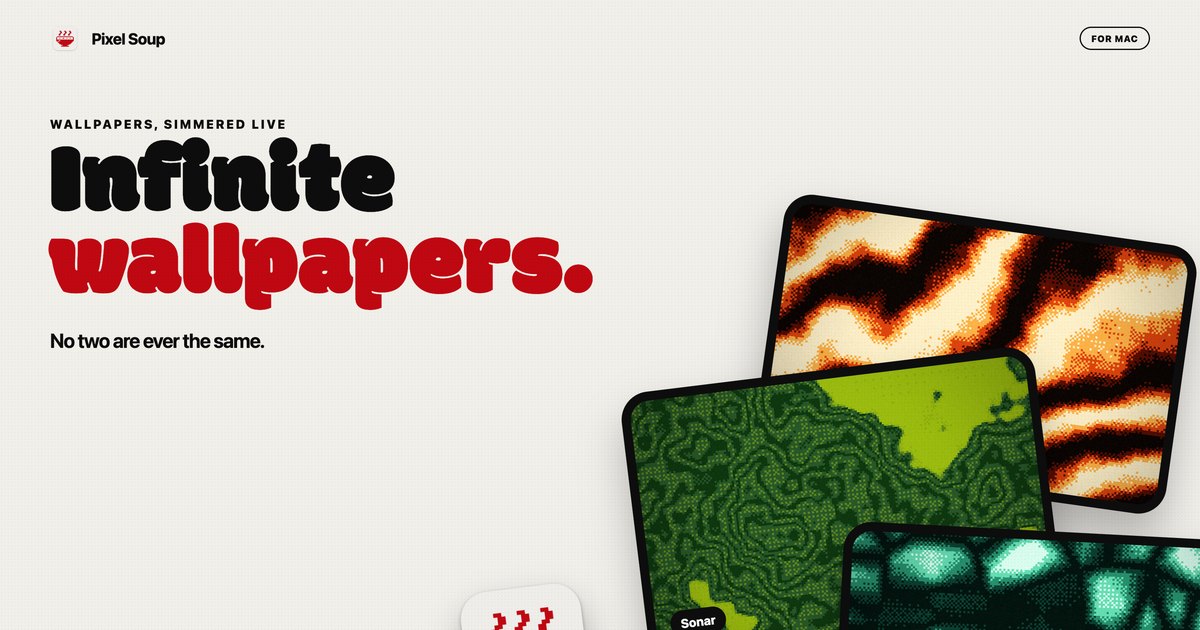
Pixel Soup is a Mac app that generates dithered wallpapers on your own GPU. Each wallpaper is made from a shape, a palette, a dither style and a seed, and it can sit still as your desktop picture or keep drifting gently behind your icons at a speed you choose. The app is for Mac users who want a desktop that looks distinctive without hunting for images elsewhere: Pixel Soup makes the wallpaper for you, in the style of dithering, and no two results are ever the same. A small handle sits on the edge of your screen, and clicking it opens the editor, so there is no Dock icon and no window in the way. You pick a shape, a palette and a dither, press Apply, and it becomes your desktop. The thinking behind Pixel Soup is abundance plus ownership. Because every wallpaper is a shape, a palette, a dither and a seed, there are over a hundred thousand combinations before you touch a single dial, and every one of them keeps moving. Instead of a fixed library of static images that everyone else also has, the app can serve a fresh wallpaper every hour or every day if you like being surprised, and if you preferred the last one, Previous brings it back. Ownership is part of the pitch too: the app is a one-time purchase rather than a subscription, it requires no account, it makes no analytics calls, and nothing about you leaves your Mac. The core of the app is its shape set. Pixel Soup ships with twelve shape tiles in the editor, among them Flow, Mesh, Plasma, Ripple, Aurora, Cells, Topo, Whorl, Sonar, Mosh and Weave, with a page on the site showing them all. A shape provides the underlying structure that the generator animates and dithers, so the same palette and the same dither choice will look entirely different depending on which shape is selected. Because a wallpaper is defined by shape, palette, dither and seed together, the number of possible results exceeds a hundred thousand before you adjust any sliders. If you cannot decide, a one-button shuffle produces a random new wallpaper, and you can keep shuffling until something stops you, then keep that one. The Fresh Bowl option serves a new wallpaper every hour or every day, for people who like being surprised. Dithering is the visual signature of Pixel Soup, and the app provides ten dither styles: Smooth, Poster, Bayer 4, Bayer 8, Noise, Halftone, Lines, Diamond, ASCII and Benday dots. The site links to a reference page showing what each one looks like, which matters because dither styles change the character of an image dramatically, from clean gradients to hard-edged dot patterns reminiscent of print. Beyond picking a style, you set the pixel size the dither is applied at and how many colours the image is allowed to use. Those two dials control how coarse or how refined the result looks, so the same shape can read as a subtle gradient or as a chunky retro pattern. The dither layer is what turns a generated gradient into something that looks like it was printed rather than rendered. Colour is handled through palettes. Pixel Soup includes twelve palettes, and you can build your own from up to five colours. If you would rather pull a palette out of something you already like, you can point the app at a photo and it will extract a palette for you. Photos also work as source material in their own right: drop in an image and Pixel Soup dithers that instead of a generated shape, applying the same dither styles, pixel size and colour controls to your own picture. The site dedicates a page to turning a photo into a dithered wallpaper, so this is a first-class workflow rather than an afterthought. Combined with palette extraction, it means you can produce a dithered version of a photograph that matches a colour scheme you have already chosen, or use colours from that photograph on generated shapes elsewhere. Every wallpaper can be still or moving. Freeze any single frame as your desktop picture, or let it keep drifting behind your icons at a speed you choose. When you want to take a result elsewhere, you can export it as a PNG for this display, at 6K, at iPhone size, or as a 2048 square, and exported PNGs are yours to use anywhere, including commercially. Multi-display setups are supported: every display gets the wallpaper at its own resolution, and plugging a display in or out sorts itself out. Answers on the site address battery life directly: an animated wallpaper is drawn by the GPU at a low frame rate, pauses when windows cover the desktop, and slows down again in Low Power Mode, while a still wallpaper costs nothing once it is set. Pixel Soup runs entirely on your Mac. It is sandboxed, requires no account, includes no analytics, and nothing about you leaves your machine. The editor lives behind a small handle on the edge of your screen, so the app stays out of the way with no Dock icon and no window competing with your work. The workflow is deliberately short: pick a shape, a palette and a dither, press Apply, and the wallpaper is your desktop. Generation happens live on the GPU rather than being downloaded, which is how the app can offer so many variations from a single install. The download is a notarized DMG that updates itself, and the full app is free to try for three days with no account and no card. What you get out of Pixel Soup is a desktop that never looks like anyone else's, produced on your own machine in seconds. Because the app generates rather than downloads, there is no library to browse and no account to create; you shuffle until something stops you and apply it. Stills carry no ongoing cost, so freezing a frame is an option that costs nothing once it is set, and the animated mode is built to be polite about power by lowering its frame rate and pausing when the desktop is covered. Exporting PNGs means a result you like is not trapped inside the app and can be used anywhere, including commercially. And the purchase model is a single payment with updates included, not a subscription. Concrete use cases come straight out of the app's own workflows. If you want a new look without deciding anything, hit the shuffle button for a random wallpaper, or turn on Fresh Bowl and let a new one arrive every hour or every day, using Previous to go back if you liked the last one better. If you have a photograph you love, drop it into Pixel Soup and dither it, optionally pulling a palette from it first so a generated shape elsewhere on your desktop matches. If you work across several monitors, each display receives the wallpaper at its own resolution and plugging a display in or out sorts itself out. If you make things, export a 6K, iPhone or 2048 square PNG and use it in other places. And if you simply want a moving desktop, choose a speed and let it drift. Pixel Soup is for Mac users running macOS 14 Sonoma or later, on either Apple silicon or Intel; the app is a universal, notarized build. Pricing is a one-time payment: $4.99 during launch week, then $9.99, and the licence is good for up to 3 of your Macs. The download from the site is the full app, free for three days with no account and no card; if you want to keep it after that, you buy a licence, sold through Dodo Payments, who handle your receipt and any tax. A Mac App Store version is coming soon and will be the same app at the same price, without the trial. Refunds are available within 14 days, no questions asked. Taken together, Pixel Soup is a small Mac utility with a narrow and clearly stated promise: your Mac makes its own dithered wallpapers, still or gently moving, and no two are ever the same. It does that on your own GPU, keeps everything on your machine, stays out of the way behind a handle on the edge of the screen, and asks for a single payment rather than a subscription. The free three-day trial means you can find out whether your desktop looks better dithered before you decide.
What to Order is a decision helper for restaurant diners. Its purpose is stated simply: find food you will love on any restaurant menu. Rather than asking people to read a long list of dishes and choose, it reverses the process — you say what you are in the mood for, and the dishes that fit float up from the menu. The product covers several well-known US chains, including The Cheesecake Factory, Olive Garden, IHOP and Chipotle, and it also works with any menu a diner photographs. It is offered for free and is aimed at anyone who has ever stared at a menu without being able to decide. The problem the product addresses is menu paralysis. As the product's own description puts it: ever sat down at The Cheesecake Factory and been handed the menu? 331 items. You flip through it, get nowhere, and order the same thing as last time. That is a familiar pattern in large chain restaurants, where the sheer number of dishes makes comparison impractical and pushes diners toward a habitual order. What to Order treats that as a search problem rather than a browsing problem. Instead of expecting a diner to scan and weigh hundreds of items, it takes a plain-language description of what the diner wants and checks every dish on the menu against it. The core feature is mood and constraint-based searching. A diner tells the product what they are in the mood for, and it checks every dish on the menu on their behalf. Short, everyday prompts work: the product notes that Spicy works, and so does a combined request such as Spicy vegetarian. That combination handling matters, because real diners rarely have a single requirement — they may want something spicy and meat-free, or light and high in protein. The product also supports occasion-level requests: asking for a Thanksgiving dinner for 2 returns a whole order, pumpkin cheesecake included, according to the description. In other words, the output is not just a list of matching dishes but, in some cases, a complete suggested order. A second feature group is prepared menu coverage for popular US chains. The product states that it has 7 US chains so far, naming The Cheesecake Factory, Olive Garden, IHOP and Chipotle among them. The menus represented in the product's content span the full range of a large chain menu: appetizers and small plates, soups and salads, flatbread pizzas, burgers and sandwiches, pastas, steaks, seafood and chicken dishes, tacos, sides, SkinnyLicious lighter options, a kids menu, brunch and breakfast plates, cheesecakes and other desserts, milkshakes and smoothies, coffees, cocktails, zero-proof drinks and lemonades. Having that menu data already prepared means a diner does not have to type dish names or paste a menu in — the dishes are already there to be filtered. The third feature group is menu capture by photograph. If a diner is eating somewhere that is not among the supported chains, they can snap a photo of the menu, and the product will work with it. The description states plainly: eating somewhere else? Snap a photo of the menu. This extends the product beyond its built-in chain coverage to essentially any restaurant, from a local cafe to a place with a paper menu. Together with the pre-loaded chain menus, the photo option means the diner's own situation is covered in most cases, whether the restaurant is a large national brand or a one-off spot. Overall, the product works the other way around from a normal menu. A conventional menu is organized by the restaurant — appetizers here, entrées there, desserts at the back — and the diner has to translate their own appetite into that structure. What to Order inverts that relationship. The diner's intent comes first, expressed in ordinary language, and the menu is treated as a set of dishes to be checked against that intent. The result is presented as dishes that float up from the menu, so the matching items are surfaced rather than buried among hundreds of others. The same mechanism handles a simple craving, a dietary restriction, or a full meal request for a group. The benefits follow from that reversal. Diners spend less time scanning and comparing a long menu, and more of the decision is made for them. Someone with a dietary requirement such as vegetarian does not have to read every dish description to find the options that qualify; someone who wants something spicy gets the spicy dishes surfaced directly. Occasion-based requests produce a complete order rather than a single dish, which helps when the diner is ordering for more than one person or planning a whole meal. And because the product is free, there is no cost barrier to trying it the next time a menu feels too long to read. The prompts shown on the product's site suggest the kinds of situations it is used for: I need to lose weight, something spicy, I am vegetarian, hangover cure, my picky 6 year old, high protein after the gym, chocolate, obviously, and light lunch before a meeting. Each maps to a real dining moment. A diner on a diet wants lighter options surfaced. A vegetarian wants dishes that qualify without reading every line. A parent with a picky six-year-old wants something the child will actually eat. Someone coming from the gym wants high-protein dishes. Someone heading into a meeting wants a light lunch. And someone who simply wants chocolate — as the prompt puts it, chocolate, obviously — wants the dessert list reduced to the right answer. The product is for restaurant diners generally, and it is especially useful for people eating at large chain restaurants where the menu runs to hundreds of items. Families ordering for children, diners with dietary restrictions, people with fitness or weight goals, and groups assembling a full order are all addressed by the prompts the product presents. It is a web product, reached at whattoorder.app, and it is free. The supported chain lists named in the product's materials are The Cheesecake Factory, Olive Garden, IHOP and Chipotle, with the product stating it has 7 US chains so far, and any other menu can be used by photographing it. In short, What to Order is about starting from the diner rather than the menu. Instead of reading 331 items at The Cheesecake Factory and defaulting to the usual order, a diner says what they are in the mood for and the dishes that fit float up. With prepared menus for several US chains, a photo option for everywhere else, and no charge to use it, the product targets the everyday problem of not knowing what to order — and answers it in the diner's own words.