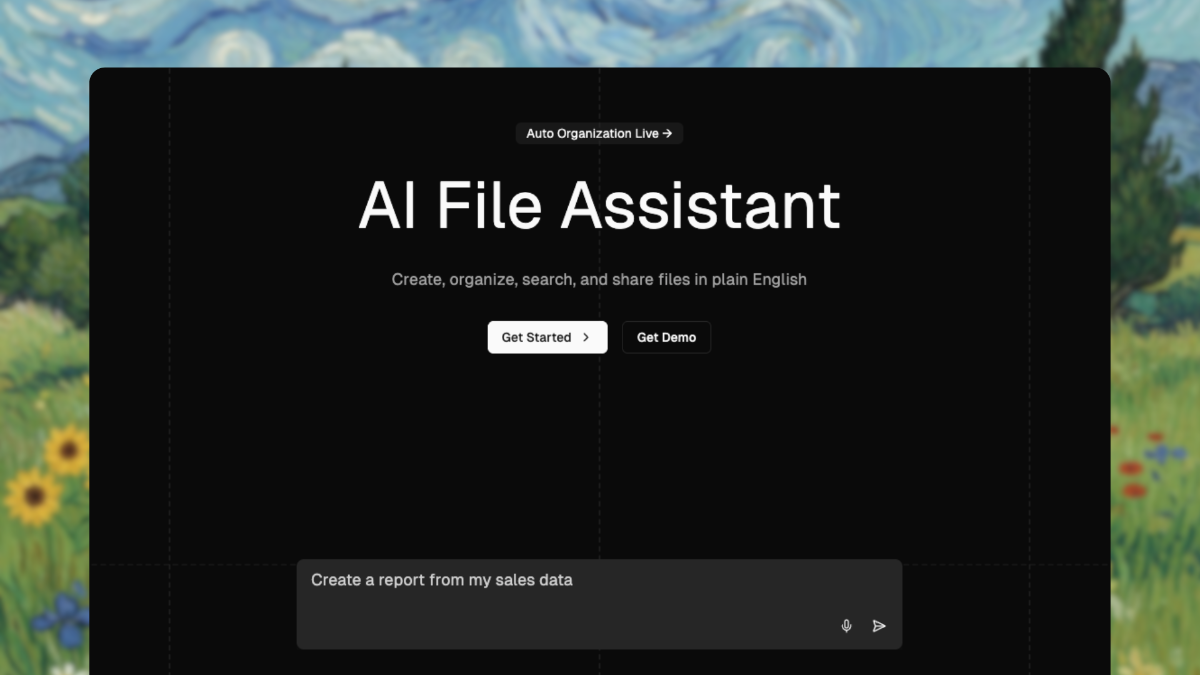
The Drive AI is an AI file assistant that organizes, searches, and creates documents in plain English, in its own workspace or in connected Google Drive, OneDrive, SharePoint, and Dropbox accounts. The website describes it as the AI assistant that organizes and searches your team's files: you connect the drives your company already uses, and the assistant reads and organizes them in place, so nothing has to move. It is built for teams and individuals who want to stop filing by hand and instead ask for what they need in a single sentence, whether that is sorting a folder, finding a clause, sharing a report, or asking a question across thousands of files.
The problem it addresses is one almost every team recognizes. Files are usually named by whoever happened to save them, which is why the homepage points at collections full of scan_0412.pdf and Final FINAL v3.docx, where the filename tells you nothing about what the document actually contains. Once a drive reaches that state, search stops being reliable, duplicates accumulate, and the only dependable way to find anything is to open files one at a time. The Drive AI's answer is to read every file by what it says rather than by what it is called. As the Product Hunt description puts it, most AI tools can read your files; The Drive AI does the work after reading. Rather than stopping at summarizing or chatting about a document, it takes the next step and reorganizes, renames, merges, shares, and sends files on your behalf.
Organizing is the first job the assistant takes on. You can ask it to sort every invoice by client and year, to sort a year's client documents by entity and fiscal year, or to rename every invoice that lands in Finance to vendor, date, and amount. It also finds duplicates and can organize thousands of files in a single prompt. Crucially, it proposes the work as a plan rather than mutating a drive silently: a sample request to sort the Clients folder by client and year produces a proposal showing 1,264 changes and 24 new folders, flagged as needing your OK. For accounting firms the same plan covers every file at once, and an undo puts it all back. This plan-first approach is what makes a large-scale reorganization of thousands of files practical rather than terrifying.
Alongside organizing, the assistant answers questions across the entire collection rather than one document at a time. You can ask which vendors raised prices this year, and it reads the files to find out. In the real estate example, asking which invoices for 14 Elm Street came in over $2,000 this year makes it read every invoice for the property and answer with a table. For law firms, asking which NDAs renew in the next 90 days makes it read each agreement and list them with their notice periods. That turns a folder of unstructured PDFs into something you can interrogate directly, without opening anything yourself.
The assistant also creates and acts on documents, not just sorts them. It can turn the Q3 board notes into a two-page PDF summary, merge three contracts into one PDF, and build a new document such as a closing binder from 20 PDFs. In the human resources example, asking it to split Priya's onboarding packet makes it split the PDF, name each form, and file them under the employee. It handles sharing too: you can ask it to share the Q4 report with Sarah, view-only, or send the Acme NDA to both signers. The workspace that ships on every plan adds version history, permissions by file and folder, file requests from anyone, and e-signature, so document workflows that normally span several tools can happen in one place.
The website summarizes the workflow in three verbs: connect it, ask it, approve it. In the connect step, you link Google Drive, SharePoint, OneDrive, Dropbox, or upload files directly, and every file is read by what it says rather than what it is called. In the ask step, one sentence is enough to sort a folder, find a clause, share a report, or ask a question across thousands of files. In the approve step, it shows the plan: small changes apply at once, big ones wait for your OK, and everything can be undone. Three explicit rules govern this. Small changes apply at once and can be undone. Large changes, and anything sent to another person, wait for your OK. Admins decide where that line sits for the whole workspace. On top of that, workflows let you describe a job once and have it run on every file that arrives afterward, wherever it arrives from; you see every step before it runs, and any run can be replayed. An activity log records every change, who made it, and who it was for, including restores, moves, shares, and renames.
The benefits follow directly from that design. Work that used to mean hours of dragging, renaming, and cross-referencing becomes a single sentence and an approval. Renames like scan_0412.pdf becoming Acme MSA 2024.pdf mean files are findable by the next person, not just by the person who saved them. Questions that previously required opening dozens of PDFs are answered with a table. Because the assistant reads and organizes files in place, nothing has to move between systems. And because every change is visible, approvable, and reversible, teams can let an agent act on real business documents without losing control of them.
The product is explicitly framed around document-heavy industries, with concrete scenarios for each. Real estate teams use it to read every invoice for a property and answer spend questions with a table, and to file documents from different senders under one address in the order the deal happened, so a listing agreement, purchase contract, and inspection report all land in the right place. Law firms use it to read each agreement and surface NDAs renewing in the next 90 days with their notice periods. Accounting firms use it to sort a year's client documents by entity and fiscal year in one approved plan. Property management teams use it to put every lease under its property and unit, named with tenant and start date, proposing the moves and renames as a single change. HR teams use it to split onboarding packets and file each form in the right employee folder. Finance teams use it to rename every invoice that lands in Finance to vendor, date, and amount, and to organize invoices by client and year.
New files can arrive from uploads, Gmail, Outlook, Slack, and Microsoft Teams, while the connected drives it works on are Google Drive, OneDrive, SharePoint, and Dropbox. Files can alternatively live in The Drive AI's own workspace, which is on every plan, while connected drives require the Max or Team plan. The product is free to start, with a book-a-demo option through Cal.com. On trust, the site states that data is encrypted, scanned for malware, and never used to train AI, and lists CASA Tier 2 certification, Microsoft Verified Partner status, AES-256 encryption, real-time malware detection, and enterprise infrastructure. A Chrome extension lets you use it right inside your existing drive.
The takeaway is simple: The Drive AI positions itself as the assistant that does the work on your files rather than just reading them. Find anything, file nothing by hand — connect a drive or upload a folder, ask in plain English, approve the plan, and let every new file be read and filed where it belongs.
Publisher
A
admin
Launch Date2026-10-14
Platformweb
Pricingfreemium
Tech Stack
#Next.js#Cal.com#Zoom