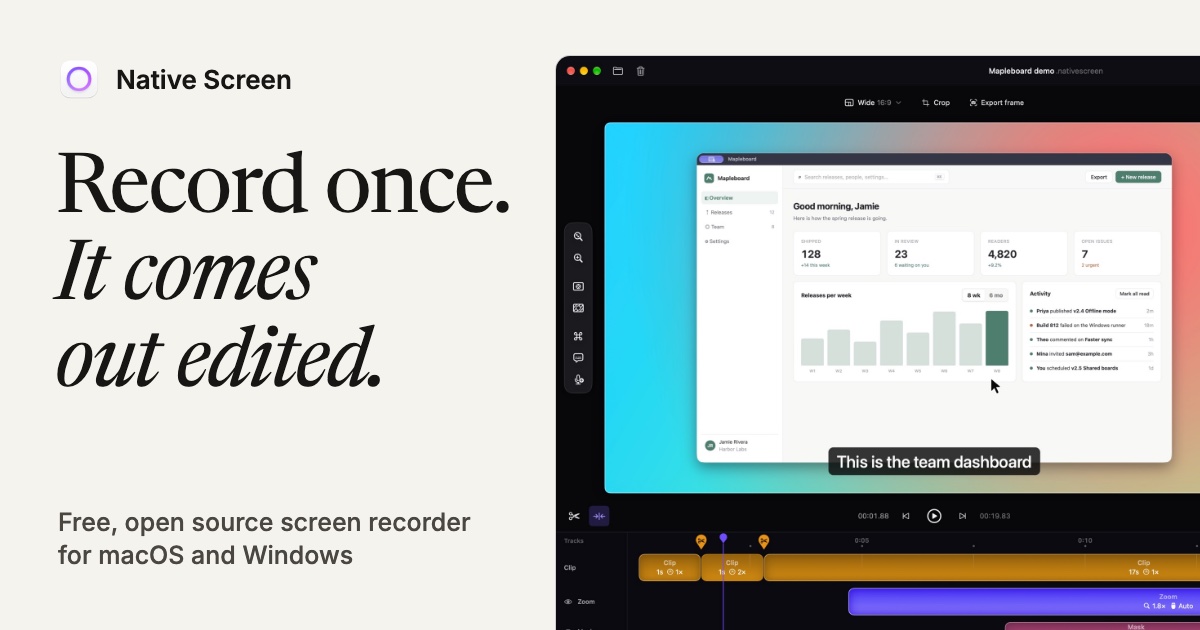
Native Screen is a free, open-source screen recorder and demo video editor for macOS and Windows. It is built for people who need to turn a plain screen recording into a polished product demo, walkthrough or tutorial, and it is designed so that most of the editing happens on its own. The product's promise is simple: record once, and it comes out edited. Clicks and typing become zooms automatically, shaky cursor paths are smoothed, and a real multi-track timeline is there whenever you want manual control. Everything — recording, captions, sensitive data detection and export — runs on your computer. There is no account, no upload and no watermark, and the project is MIT licensed with every line on GitHub. Native Screen positions itself as an open-source alternative to Screen Studio, native on both macOS and Windows.
Most screen recorders give you a raw video file and a single row of controls, then leave the work of making the recording watchable to the person who recorded it. Zooms have to be keyframed by hand, cursor movement arrives exactly as the mouse moved, captions are typed out separately, and anything sensitive in the frame has to be covered frame by frame. As a result, a five-minute product demo can take an hour of editing, which is why many recordings never get published at all. Native Screen is built around the opposite idea: the recording should arrive already edited, and the editor should exist for the parts that genuinely need a human decision.
The centre of the editor is a real multi-track timeline. Where many recorders give you one row for zooms and call it editing, Native Screen gives each kind of item its own track — zooms, blur masks, annotations, shortcuts and captions — and lets you add more. Two blurs can overlap, caption lines can be stacked for two speakers, and keyboard shortcuts can sit on their own lane. Items can be dragged between tracks, trimmed, split and duplicated, and everything snaps to edges, cuts and the playhead so timing stays clean. A track can be hidden while you work or deleted along with everything on it, and every change counts as one undo step.
Zooms follow you. Clicks and typing become zooms on their own, so the audience is already looking at the right part of the screen without anyone placing keyframes. Those zooms can be moved, their depth changed, or switched to a loupe that magnifies a single spot. The cursor glides rather than jitters: shaky paths are smoothed, and the pointer can be resized or restyled after the recording is finished. Clicks get a quiet ripple so viewers register them. Fast moves also pick up a short motion blur, the way a camera would see them, so nothing jumps between positions.
Keyboard shortcuts you press appear as keycaps on their own track, so viewers can see exactly how you got somewhere — useful for developer tools, IDEs or anything driven by hotkeys. You can also draw while you talk: press a key during a recording and draw on the screen with a pen, a highlighter, arrows or boxes. Anyone watching live sees the strokes as you present, and every stroke lands in the editor as an annotation you can still change afterwards. Text, arrows, shapes and images can be added on their own tracks; they draw in and fade out right on time, and the top track sits in front.
Backgrounds and framing are handled without leaving the app. You can blur the room behind you or swap it for a photo, then add a sticker that stays on your face as you move; it all runs on your computer and can be changed at any time. The canvas can switch between wide, square and vertical formats whenever you like, and zooms re-aim and captions move so they stay readable. Reel mode lays the TikTok, Reels or Shorts interface over the preview, so you can see whether anything important will end up under a button before you publish.
Captions are made on your computer, in your language. The transcript then becomes an editor in its own right: delete a sentence and the matching video is cut, or clear every filler word and long pause in a single pass. The transcript view marks filler words and pauses and offers buttons to remove them. Captions support styles for line or word animation, per-caption colours, and export as .srt files.
Native Screen also speaks the Model Context Protocol, which lets AI agents such as Claude, Codex and Cursor operate the editor. Through its MCP server an agent can record, cut, zoom, caption, restyle and export inside the editor you are looking at, and every change it makes can be undone. The connection is a local socket that only your account can open. Setup is described in three steps: turn on Settings › AI Agents, copy the command for your agent from that page, and describe the video you want.
The app is not a web page in a window. It is written with each system's own tools — SwiftUI, AppKit and Metal on the Mac, WinUI 3 and Direct3D 11 on Windows — so it uses the windows, menus, shortcuts, text fields and accessibility you already know, and it stays out of the way of your fans and your battery. The GPU draws every frame and the hardware encoder writes it; there is no FFmpeg and no browser engine. Recording, captions, sensitive data detection and export all run locally, with no account, no upload and no telemetry. Recordings are written in small pieces as you go, so a crash or a dead battery does not lose the take.
Projects are folders with documented JSON, and the same project opens on Mac and Windows, so work is not locked into a proprietary file format. The interface ships in fifteen languages — English, Vietnamese, Simplified and Traditional Chinese, Japanese, Korean, German, French, Spanish, Italian, Brazilian Portuguese, Russian, Czech, Turkish and Arabic — and supports light and dark themes that follow the system or can be picked manually, with the editor, the recording bar and the page all switching together.
The payoff is that a plain screen recording becomes a polished demo without a separate editing session. Zooms, cursor smoothing, motion blur and captions are already in place when the recording stops, so the time between finishing a take and sharing it shrinks to minutes. Sensitive material such as an email address, a phone number or a new key can be covered with two overlapping mask tracks — a blur for one, a pixelate for the other — instead of being avoided altogether. And because nothing is uploaded and nothing is watermarked, the finished video is yours to publish wherever you like.
Concretely, the product fits product demos and feature walkthroughs exported straight to a web app; tutorials and documentation videos where viewers need to see which shortcut was pressed; short vertical clips for TikTok, Reels or Shorts using Reel mode; live presentations where you draw on screen while talking and keep every stroke as an editable annotation; and privacy-sensitive recordings where emails, phone numbers or keys must be masked on separate tracks. Because of the MCP server, an agent can also drive a rough cut, add captions and export, with each step undoable in the open editor.
Native Screen runs on macOS 14 or later on Apple silicon and Intel, and on Windows 10 or 11 x64. The Mac build is signed and notarized by Apple and receives updates inside the app. On Windows you can install from the Microsoft Store, which is signed and kept up to date by the Store, or use the installer from GitHub — the same app, though the GitHub installer is not yet signed, so SmartScreen shows a warning the first time and you can compare the file with the SHA-256 on the release page. The product is free for good: no trial, no plan, no watermark.
Native Screen's value proposition is straightforward: record once and let the editing largely take care of itself. Automatic zooms, a gliding cursor, motion blur, shortcut keycaps, on-device captions and a genuine multi-track timeline are combined with a native, local-only architecture that keeps recordings private and costs nothing to use.
Publisher
A
admin
Launch Date2026-11-14
Platformdesktop
Pricingfree
Tech Stack
#SwiftUI#AppKit#Metal#WinUI 3#Direct3D 11#Model Context Protocol