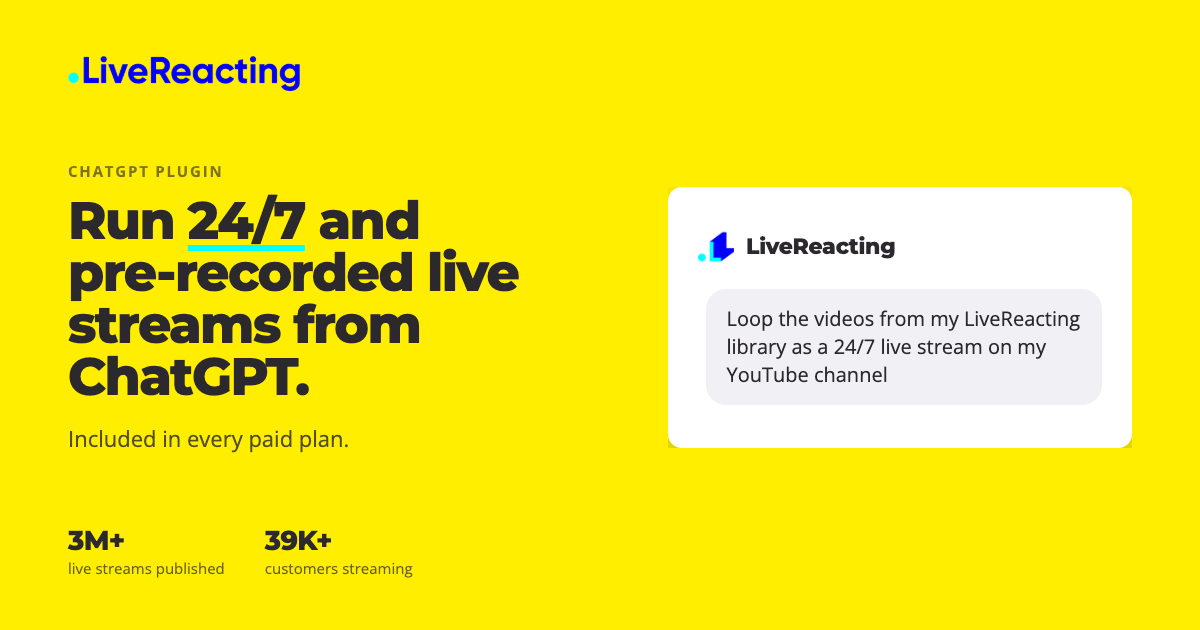
LiveReacting for ChatGPT is a ChatGPT plugin that lets people create and manage live streams by typing a request into a ChatGPT chat. After installing the plugin and signing in with a LiveReacting account, a user types @LiveReacting and describes the stream they want: a 24/7 loop of videos on their YouTube channel, or a recorded video that should go live at a time they choose. ChatGPT then works with what already exists in the LiveReacting account — the videos in the library and the channels that have been connected — and builds the stream there. LiveReacting's servers send that stream to YouTube, Facebook, Twitch, LinkedIn, X or any other platform the user has connected, all at the same time, so the user's computer can be off while the broadcast runs.
Running a continuous or scheduled live stream normally means opening a streaming tool, preparing the video files, building a playlist, picking destinations and starting the broadcast — a sequence of steps that has to be repeated for every new stream. LiveReacting for ChatGPT moves that work into a conversation. The product page frames the experience as asking for a stream "in your own words": type @LiveReacting, then say which videos, which channel and what time, and ChatGPT works out the steps and reports back when they are done. This matters for creators, pages and teams that publish recurring or scheduled streams and would rather describe the outcome they want than operate a streaming interface each time.
Two of the plugin's core capabilities are looping videos as a 24/7 live stream and scheduling a recorded video. For a 24/7 stream, the user names the videos and the channel; ChatGPT puts them in a playlist in the order the user wants, and that playlist plays on a loop until the stream is stopped. For a scheduled stream, the user gives ChatGPT the date and time the broadcast should start, up to 28 days ahead; LiveReacting starts the stream at that time and ends it when the video ends. The scheduled mode plays the video once, which contrasts with the loop that runs continuously. Both modes are created from the same chat, so a user can move between a permanent channel and a one-off broadcast without leaving the conversation.
The plugin works with videos that are already in the user's LiveReacting library, and it can add new ones from a link. A user can give ChatGPT a Google Drive link, a Dropbox link, a public link to a video file, or a video from their own YouTube channel, and ChatGPT adds that video to the library. When building a 24/7 stream from library videos, ChatGPT finds the videos in the library and checks that each one can be streamed before building the looping playlist. Videos stored on the user's own computer are handled differently: they are added to the library in the LiveReacting Studio first, after which the user can ask ChatGPT to use them. In the chat itself, ChatGPT takes a new video from a Google Drive, Dropbox or public link rather than from a file the user attaches.
Multistreaming is built into the same request. A user can pick several channels for one stream, and LiveReacting sends it to YouTube, Facebook, Twitch, LinkedIn, X or any other platform connected to the account at the same time. This means a single chat request can reach several audiences at once instead of requiring a separate setup for each destination. The product page also notes a practical limit on Facebook: Facebook ends a live stream after 8 hours, so a 24/7 stream cannot run on Facebook alone. Adding YouTube or another platform to the same stream keeps it running there, which is why multistreaming matters for continuous channels.
Streams are not frozen once they start. From the chat, a user can add a video to the playlist or switch to another scene while the stream is live; viewers see the change and the stream keeps running. The plugin also reports on performance. A user can ask whether a stream is live and how it is doing on each channel, and for past broadcasts ChatGPT tells them how long each one ran and its peak viewers. Together these two capabilities turn the chat into a lightweight control and monitoring surface for streams that are already broadcasting.
Under the hood, the plugin connects to the LiveReacting MCP server, the same server that Claude, Claude Code, Cursor and other AI agents use. Setup is short: choose Open in ChatGPT, click Install plugin, and sign in with a LiveReacting account when ChatGPT asks; then, in any chat, type @LiveReacting and ask for the stream. ChatGPT receives access to the LiveReacting account but never sees the user's platform logins — YouTube, Facebook, Twitch and other channels are connected inside the LiveReacting account, and ChatGPT picks from the ones that were connected. The actual broadcast is produced by LiveReacting's servers and sent to the chosen platforms, which is what allows the user's computer to be switched off.
The main benefit is that a stream can be requested in natural language and then runs without the user's machine being involved. Because LiveReacting's servers send the stream, the user is not tied to a computer during the broadcast. Because the plugin works with the videos and connected channels already in the account, users do not need to rebuild assets for each stream. Because the playlist can be changed and the status checked from the same chat, routine maintenance — swapping a video, checking which channels are live, reviewing how long a past broadcast ran and its peak viewers — happens in the conversation where the stream was created.
The product page illustrates the workflow with example prompts. One asks to loop the videos from the LiveReacting library as a 24/7 live stream on a YouTube channel, which suits a channel that should always be broadcasting. Another asks to live stream a recorded video from Google Drive on a Facebook page today at 8 PM: ChatGPT imports the video from the link, builds a stream that plays it once, then schedules it for 8 PM on the Facebook page. A third asks to show the status of running live streams, and ChatGPT lists which streams are live and how each one is doing on every channel. The same capabilities cover multistreaming one stream to several destinations and adding a new video to a playlist mid-broadcast.
The plugin is included in every paid LiveReacting plan. On the Free plan, ChatGPT can connect, but each request stops with a message that the account needs a paid plan. The page is explicit about what the plugin cannot do: it cannot build overlays, polls or trivia, which are created in the LiveReacting Studio, the browser-based stream editor — although ChatGPT can still start, schedule, stop and check a stream that has them. It cannot import a YouTube playlist or channel; users give one video link at a time in the chat, or import the whole playlist or channel in the Studio. And it cannot run a 24/7 stream on Facebook alone, because Facebook ends a live stream after 8 hours; adding YouTube or another platform to the same stream keeps it running there.
In short, LiveReacting for ChatGPT turns a chat message into a running broadcast. It combines 24/7 looping playlists, scheduled pre-recorded streams up to 28 days ahead, multistreaming to the platforms a user has connected, live playlist and scene changes, and status and viewer reporting, all handled on LiveReacting's servers so the user's computer can stay off.
Publisher
A
admin
Launch Date2026-11-05
Platformweb
Pricingfreemium
Tech Stack
#ChatGPT plugin#LiveReacting MCP server#RTMP