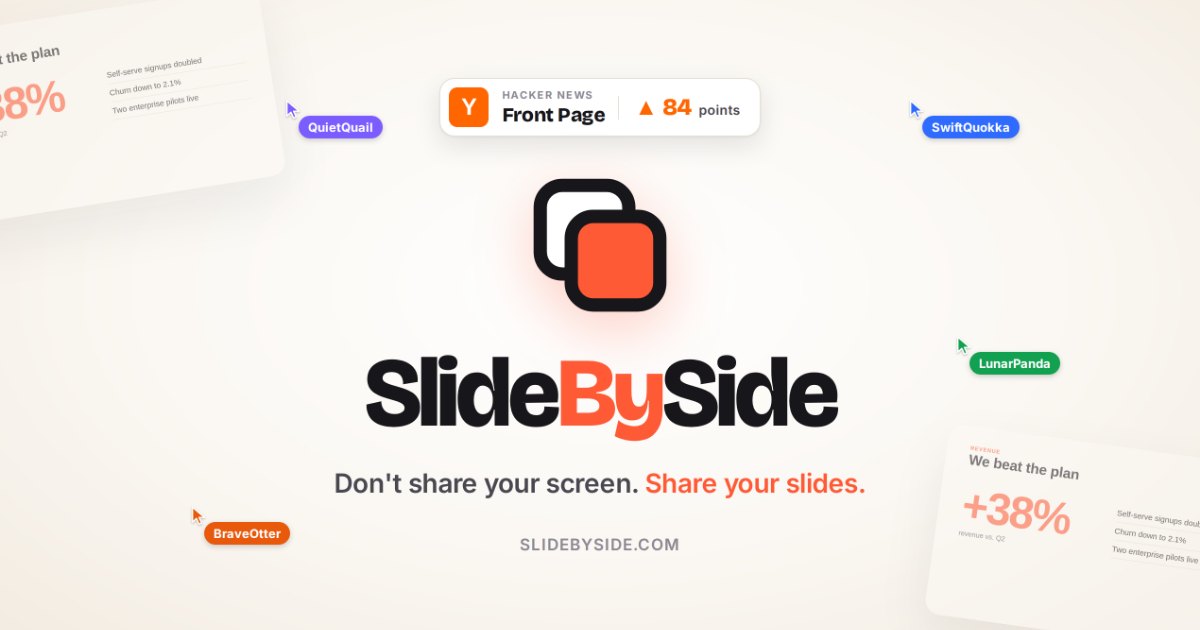
SlideBySide is a browser-based presenting tool built around one simple idea: instead of sharing your screen, you share your slides. A presenter uploads a PDF, PPT or PPTX file (up to 40 MB) or pulls a deck from Google Drive or OneDrive once signed in, then sends out a link. Everyone who opens that link joins the deck instantly and lands on the same slide, following along as the presenter moves through the presentation. Rather than watching a stream of someone else's desktop, each participant views the slides directly in their own browser, with live cursors labelled with their names, shared slide control and the option to draw on the slide itself. It is built for anyone who presents to a remote audience — colleagues, classmates, clients — and it deliberately removes friction: no installs, no meeting software, and no account needed for either the presenter or the audience.
The product exists because screen sharing is a blunt instrument for presenting slides. When a presenter shares an entire screen, the audience sees whatever else happens to be on that screen, the slides are squeezed into a video stream, and attention drifts away from the deck itself. SlideBySide states the problem plainly: don't share your screen, share your slides. By making the deck a shared object that every participant opens in their own browser, the presentation stays on the slide and the audience stays oriented on the content rather than on the presenter's desktop. The link-based model also removes the setup ritual around remote presentations — there is nothing to install, no meeting software to join and no account to create for the audience, so joining is as simple as opening a URL and being dropped straight onto the current slide, while the presenter can start in seconds and create an account later only if they want to keep their slides.
Collaboration on the slide itself is the core of the product. Live cursors show where everyone is pointing, and each cursor is labelled with the person's name, so a question like "this line here" becomes visible to the whole room. Participants receive a fun random name when they join and can change it. A small drawing toolbar adds a pen, a highlighter, text and a laser pointer, allowing people to mark up the slide under discussion. Ink can be kept on the page so annotations persist, or allowed to fade, which suits quick pointing during a live walkthrough. Because these tools operate on the shared slide rather than on a screen recording, everyone sees the same markings at the same time and in full quality, turning a one-way presentation into something the audience can actively participate in.
Control over who can do what is handled through permissions. The presenter decides who can change slides, who can draw, who can browse alone and who can download, either for everyone at once or per person, so a large webinar and a small working session can use the same deck with different rules. Viewers are not locked to the presenter's position either — they can step away to browse other slides on their own and then jump back to the live slide when they are ready. Presentation mode puts the deck full screen with a single key press, and the presenter can choose whether other people's cursors are shown during that full-screen view, which keeps a clean picture for an audience while still allowing collaboration when it is useful. A counter shows how many people are following along.
Sharing and file management round out the feature set. A deck can be shared with anyone who has the link, with specific people by email, or kept private to the owner. Versions are supported too: a presenter can upload a new version of a deck at any time, and older versions are kept along with their drawings, so annotations made against a previous iteration are not lost when the file is updated. Cloud import pulls decks in from Google Slides, Google Drive or OneDrive once the presenter is signed in, and files can also simply be dropped onto the page or selected by browsing. Accepted inputs are PDF, PPT and PPTX, with a maximum file size of 40 MB, which covers typical review decks, lesson material and client presentations.
Getting started follows three explicit steps. First, upload your deck as a PDF, PPT or PPTX, or pick one straight from Google Drive or OneDrive once signed in. Second, share the link: anyone who opens it joins instantly and gets a fun random name they can change. Third, present together: flip slides for everyone, point with your cursor, draw, or let people browse on their own. Everything runs in the browser, so there is no installation step, no meeting software to download and no account required for the audience. The same flow works whether the presenter is showing a quarterly review to a handful of colleagues or sharing a deck with a larger group.
The benefits follow directly from that model. The audience sees clean, full-quality slides instead of a compressed screen capture, and each person can read the deck on their own device at their own size. The presenter never exposes anything beyond the deck, because the only thing being shared is the slides themselves. Joining takes a single click with no account, which removes the usual drop-off when inviting people to a remote session. Named cursors and drawing give the audience a way to point at specifics, which keeps discussion tied to the material rather than to a description of it. Permissions keep order in larger sessions while still allowing the presenter to hand out slide-flipping or drawing rights selectively, and versions preserve the history of a deck along with the annotations made on it.
Concrete situations map naturally onto the tool. A team reviewing a Q3 review deck can walk through the slides together while colleagues mark up charts with the highlighter and drop text notes on the page. A teacher or lecturer can share lesson slides with a class that follows along in browsers rather than watching a shared screen, with drawing available for working through a problem on the slide. A client presentation can be shared by link with permissions set so the client can browse but not edit or download. A design or document review can use the pen and text tools to leave comments directly on the page while the owner keeps control of slide changes, and a distributed meeting or study session can let individuals step away to re-read an earlier slide and then jump back to live. Import from Google Drive, OneDrive and Google Slides means decks that already live in the cloud can be brought in without re-exporting.
The tool is aimed at anyone who presents slides to a remote audience: teams running reviews and working sessions, educators and students sharing lesson or project material, and presenters meeting clients or stakeholders over a link. It runs in any browser, requires no sign-up for the audience, and the audience members can be given as much or as little control as the presenter chooses. Cloud import connects it to Google Slides, Google Drive and OneDrive, and it accepts PDF, PPT and PPTX files up to 40 MB. SlideBySide is free to start and you can create an account later if you want to keep your slides, which makes it practical for one-off sessions as well as recurring ones.
The takeaway is straightforward: SlideBySide replaces screen sharing with a shared deck. Upload a PDF or PowerPoint, send a link, and everyone lands on the same slide with live named cursors, drawing and highlighter tools, granular permissions and optional independent browsing. No installs, no meeting software and no accounts for the audience — just the slides, side by side.
Publisher
A
admin
Launch Date2026-11-18
Platformweb
Pricingfreemium