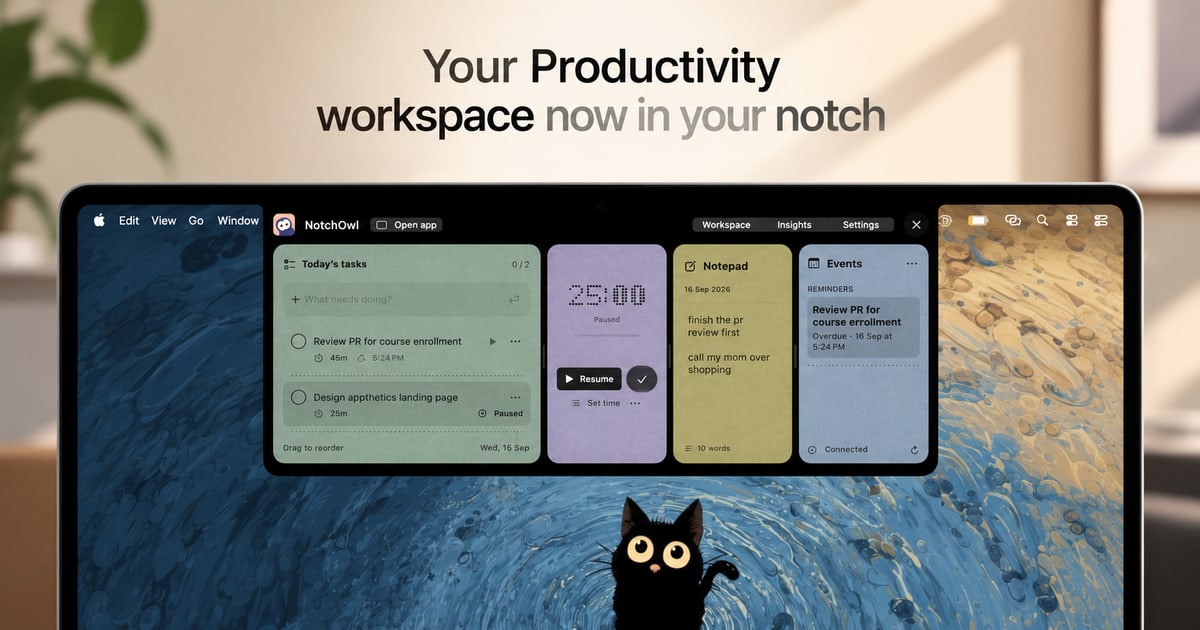
NotchOwl is a Mac productivity workspace that turns the notch at the top of your screen into a place to work. It brings together tasks, a focus timer, quick notes, calendar events, and productivity insights so that everything you need to stay on track sits one hover away. Instead of moving between windows and separate apps, you open NotchOwl in the notch, add a task, start a focus session, jot down a note, or check today's upcoming events, then close it and get back to work. It is built for Mac users who want their next task and their captured ideas to stay close to whatever they are doing, and its tagline captures the idea simply: keep your day a notch closer.
Most productivity tools live in their own window or browser tab, which means using them requires leaving the thing you are actually working on. NotchOwl is built around the opposite idea: less switching, more doing. The product's website frames the benefit directly, describing a workspace where everything you need to stay on track is available without switching windows. The problem it addresses is twofold. First, tasks and timers are easy to lose sight of when they sit in another app, so the work you planned gets interrupted by the mechanics of managing it. Second, a busy week can be hard to remember, making it difficult to see what you actually finished and where your attention went. By keeping the workspace in the notch and its timer visible while you work, NotchOwl keeps your intentions in view rather than filed away.
The focus timer is the core of the task workflow. You pick a task and give it a time limit, or you let a stopwatch run when you do not need a deadline. The timer stays visible in the notch while you work, so you can see the remaining time without opening anything. You can pause, resume, or add five minutes when you need a little longer, which makes the timer flexible enough for work that does not end exactly on schedule. Two details matter for accuracy: timers pause when your Mac sleeps, and Insights counts only active focus time. The result is a timer that reflects the time you actually spent focusing rather than wall-clock time that includes every interruption.
The daily notepad is where thoughts get captured before they disappear. You can jot down an idea, a link, or something to follow up on, and the notepad saves as you type. When a line becomes something to do, you place the cursor on that line and press Command–Return to turn it into a task. That single shortcut closes the gap between capturing a thought and acting on it, so notes do not pile up as an unprocessed list. Because the notepad lives in the same workspace as your tasks and timer, the moment you write something actionable you can convert it without leaving the notch.
Insights is the reflection layer. A busy week can be hard to remember, so Insights brings together completed tasks, active focus time, and daily activity in one place. That lets you see what you finished and where your attention went, turning a scattered set of sessions into a readable record of the work you put in. Because active focus time is counted separately, timers pause when your Mac sleeps, so the picture Insights shows is about deliberate work rather than time spent with the app open.
Calendar events are available in the same notch workspace, and connecting Calendar is optional. The notch workspace shows today's upcoming events from the calendars you already have added to Apple Calendar on your Mac. NotchOwl is explicit about how this works: macOS calls the permission Full Access, but NotchOwl only reads events and never creates, edits, or deletes them. That means you can check what is coming up next without opening a calendar app, while your calendar data stays under the control of Apple Calendar on your Mac.
Getting into the workspace is deliberately quick. You hover over your Mac's notch or press Option–N to open NotchOwl, then add a task, start a focus session, jot down a note, or check today's upcoming events. When you are ready to work, you close it, and your running timer stays visible in the notch. You do not need a Mac with a notch to use it: on displays without a notch, NotchOwl opens at the top center of the screen, below the menu bar, and you can also open a full dashboard. Your tasks, notes, and timers work locally and your planner data stays on your Mac, and you can export your planner data as a JSON backup.
The stated outcomes are practical. Keeping the workspace one hover away means less switching and more doing, because checking your next task no longer means leaving the app you are working in. Because the timer stays visible in the notch, your commitment to a task stays in front of you, and the ability to pause, resume, or add five minutes keeps that commitment realistic. The notepad means ideas and follow-ups are captured as they happen rather than lost. Insights answers the question of what you actually got done, and the calendar view keeps the next appointment in view. Together these pieces support the product's closing invitation: make room for what matters.
Several concrete workflows follow from the features described. During a focused piece of work, you can pick a task and give it a time limit, or run a stopwatch if the work has no clear deadline, and watch the countdown in the notch until you pause, resume, or add five minutes. Mid-task, you can hover the notch and jot an idea or a link into the daily notepad without switching windows, saving it as you type. If a line you wrote is something to do, Command–Return turns it into a task immediately. Before a meeting, you can open the workspace and check today's upcoming events from Apple Calendar. At the end of a busy week, you can open Insights to review completed tasks, active focus time, and daily activity. And if you need a broader view, you can open the full dashboard. NotchOwl also keeps working when you are offline: after license activation, tasks, notes, and timers work locally, and an internet connection is needed only for activation, deactivation, and update checks.
NotchOwl is for Mac users. The current download requires macOS 14 or later and is built for Apple silicon Macs, and a notch is not required since the workspace also opens at the top center of the screen on displays without one, with a full dashboard option as well. It is a paid product sold as a one-time purchase rather than a subscription: the lifetime license is $4.9 USD and covers all NotchOwl features, lifetime updates, and activation on up to 3 Macs, with a 14-day money-back guarantee. The installer is free to download, but a paid license is required to use the app; after checkout the license key arrives in the Dodo Payments email and is entered in the Mac app. There is no recurring payment, and you can move the license to another Mac by choosing Deactivate this Mac in the License section of Settings, after which you can use the key on the new Mac, subject to the 3-Mac limit and an internet connection for deactivation.
NotchOwl's value proposition is narrow and clear: instead of another window to manage, it puts tasks, a focus timer, quick notes, calendar events, and insights in the Mac's notch, one hover or Option–N away. For Mac users who want their next task and captured ideas to stay close, without switching windows, it offers a small, local, one-time-purchase workspace for the work in front of them.
Publisher
A
admin
Launch Date2026-09-20
Platformdesktop
Pricingpaid