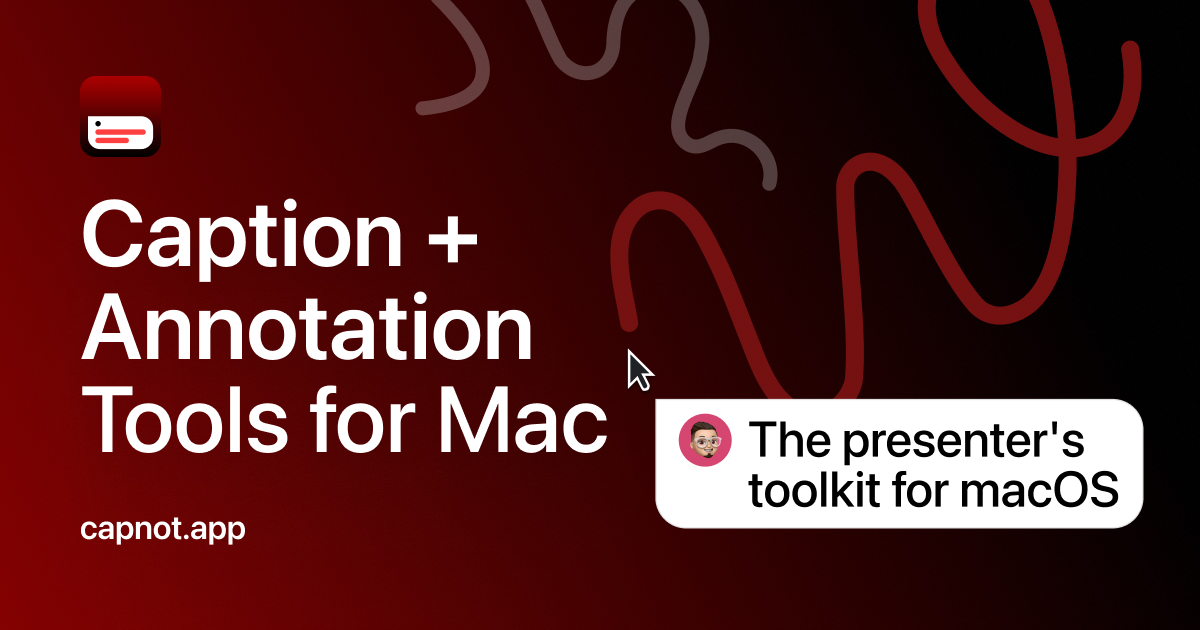
Capnot is a macOS app that adds a caption-first communication layer on top of whatever is on your screen. It places live captions, caption bubbles, drawings, and pointer tools over any app running on your Mac, so a screen demo can still make sense when the sound is off. The product is built for people who explain through screens — SaaS founders and indie developers shipping product demos, presenters, remote workers, educators, and streamers — and its stated purpose is to let you record once and explain it live, with no voice-over and no post-production. Every tool is one hotkey away from a menu bar app, and the captions and annotations appear on screen instantly in whatever recording or screen share you are already running.
The website frames the core problem simply: your screen is visible, but your meaning is not. It describes three specific failures. First, the demo is done but the editing is not — you finish a walkthrough and then lose another hour adding captions, arrows, and zooms in a video editor. Second, no mic means no explanation, so a noisy room, a muted call, or a silent social post stops you from explaining what is on screen. Third, viewers lose the tiny cursor and miss the button, menu, or detail you meant to show, which breaks the explanation. Capnot's answer is to add the missing communication layer while you record, share, or present, rather than afterwards in an editor.
The Caption toolkit covers everything you want to say, on screen, right now. Bubble Chat (hotkey ⌃/) creates a caption bubble anchored to your cursor; you click anywhere to plant it on screen so viewers read your message next to the thing you are talking about, with no "look at the top-left corner" confusion. Dialogue Mode (⌃.) presents like a broadcaster, showing your name, photo, and title above a polished subtitle panel at the bottom of the screen while you speak naturally; you can choose from built-in style presets or design your own, and toggle Dialogue Mode off for a clean subtitle-only look. With the broadcaster overlay off, you get the Subtitle Bar: a slim, unobtrusive, readable bar at the bottom of the screen, style-matched to your brand. Live Captions, marked Beta, let you hit the mic and speak naturally while Capnot transcribes you in real time via macOS Speech Recognition, fully on-device, so no audio leaves your Mac and there is no cloud or subscription involved.
The Annotation toolkit lets you draw attention to what actually matters by overlaying your screen with drawings and shapes, with no app switch and one hotkey. The tool list includes a Move tool to reposition shapes, a Pen for freehand drawing, an Arrow to point to anything, a Line tool for straight lines, a Rectangle for box shapes, a Circle for circles and ellipses, Text for text labels, and a Counter for numbered markers — useful for walking through steps in order. A Blur Box lets you redact content, an Eraser removes shapes, Select Color picks the stroke color, and Clear All wipes the canvas. Because these annotations are drawn directly over the app you are demonstrating rather than added later in an editor, the shapes and labels land exactly where the explanation happens.
The Pointer toolkit makes your cursor impossible to ignore with four tools. Spotlight Mode (⌃S) dims the screen to black except for the area around your cursor, with feathered edges that keep it natural, so your audience stops looking at the wrong part of the screen. The Laser Pointer (⌃L) shows a vivid glowing dot that trails behind your cursor with a fading streak, with adjustable color, dot size, trail duration, and glow intensity — described as looking great in recordings and live screen shares. The Cursor Highlighter (⌃H) puts a bright ring around your cursor everywhere on screen, with customizable color, size, and shape to match your brand or mood. The Magnifier (⌃M) shows a circular magnified view that follows your cursor with a crosshair and adjustable zoom level, so you can show small UI details, tiny code diffs, or compressed content without zooming your entire display.
Overall the product works as an overlay and a hotkey system rather than a recording suite. Capnot installs once, follows a guided setup, and settles into your menu bar. From there, every tool has a keyboard shortcut — no menus, no mode switching, no hunting for buttons — and captions and annotations appear on screen instantly. Because Capnot sits on top of any app, it works with any screen recorder or screen share; you are not locked into Capnot's own capture workflow. The site describes the whole path as three steps: install once, press a hotkey, and you're done, with no timeline editing and no post-production. A Settings window with four tabs — General, Caption, Annotation, and Pointer — lets you change every keyboard shortcut, font size, colors, corner radius, opacity, gradient borders, and more.
The stated benefits follow from that design: you finish a walkthrough without losing another hour adding captions, arrows, and zooms in a video editor; you can explain what is on screen even in a noisy room, a muted call, or a silent social post; and viewers no longer miss the button, menu, or detail you meant to show because the pointer is impossible to lose. Because explanations go into the recording live, you record once and share immediately. Because Live Captions run on-device through macOS Speech Recognition, no audio leaves the Mac. And because it is a one-time purchase, there is no subscription hanging over every demo you make.
Concrete use cases named on the site map to specific audiences. SaaS founders and indie developers ship product demos without voice-over, explaining a launch, feature, or code walkthrough with captions already on screen, then recording once and sharing immediately. Presenters keep their audience reading with on-screen cues, talking points, and live captions during conference talks and demos while their slides stay clean. Remote workers communicate without a mic by typing captions teammates can see during screen shares, which suits noisy environments, muted calls, or async video. Educators highlight what they are pointing at, annotate diagrams, and caption explanations in real time to make lessons easier to follow. Streamers drop captions, circle things on screen, and spotlight content live without touching their streaming software or switching scenes.
On pricing and requirements, Capnot is $12.99 as a one-time purchase with one plan that includes every Caption, Annotation, and Pointer tool — no subscription and no feature-gated Pro tier. A 7-day free trial requires no card. The license covers one Mac, updates are included, and checkout is handled by Polar, with refund requests handled according to Polar's refund policy. Capnot supports macOS 13 (Ventura) and later, and Live Captions requires macOS Speech Recognition, available on Apple Silicon and Intel Macs. The app ships as a downloadable DMG, and the site notes there is no account creation, timeline editor, or complicated recording workflow.
In short, Capnot's value proposition is that your next demo can explain itself: live captions, annotations, and pointer tools added to every recording on a Mac, for a single one-time price, with no voice-over, no editing afterwards, and no subscription.
Publisher
A
admin
Launch Date2026-11-08
Platformdesktop
Pricingpaid
Tech Stack
#macOS#macOS Speech Recognition