Category Focus/categories/productivity
Productivity AI Tools
Discover and compare the best productivity AI tools and software. Browse 958+ curated tools with reviews and rankings.
Projects tracked
958
Sort mode
RECENT
Page
2
Pauta is a meeting transcription and summarization app for Mac and Windows that runs entirely on your own computer. It records your microphone or your system audio, transcribes the conversation while it happens, and then turns it into a note with decisions and tasks. The product is aimed at people who hold a lot of conversations — meetings, interviews, classes, appointments and voice notes — and who want a private memory of them rather than another cloud subscription. There is no bot that joins the call, no account to create and no server storing your audio. You pay once and the license is yours forever. Most meeting recorders work the same way: a bot joins the call as an extra participant, audio is streamed to a server, and the transcript lives in someone else's cloud behind a monthly fee. Pauta takes the opposite route. It records through your own computer, capturing both the microphone and the system audio, so it works in Zoom, Google Meet, Microsoft Teams and any other call with no extra guest. The website is explicit that nothing leaves your machine: Pauta servers do not receive your recordings, transcripts or summaries. Offline use is supported — the internet is only needed to validate the license, download models and, if you connect Claude or ChatGPT, to summarize with them. Capture starts in two ways. Pauta notices when a meeting starts, or you turn it on manually whenever you want, for videos and any system audio. The rule stated on the site is simple: if you can hear it, Pauta can capture it. Controls are always at hand — on the Mac the recording sits at the top of the screen in the Mac Island; on Windows the system tray offers one click to record or mark a moment. During a session you can mark a moment worth returning to and turn on stealth recording from a meeting-detected prompt. Before you record, the options drawer shows what stays on the device. Transcription happens while the conversation is happening, from either the microphone or the system audio, and the text stays on your machine without touching a server. The interface shows the transcription engine in use — Parakeet V3 in the demo screens — alongside a language setting. Speaker identification is the second layer: Pauta separates the voices in each meeting and matches them against people it already knows, on your computer. It learns each person's voice and recognizes it in later meetings, so a familiar participant is labeled by name instead of a generic speaker number. Fix a name once and it remembers; the demo shows three speakers in a recording with two already named. Summaries are produced by the AI you pick. Local Qwen 2.5 3B is the default and the recommended option: it runs on your computer, with no cloud and no account. If you prefer, you can connect Claude or ChatGPT using your own API key, in which case the text for a summary or an answer goes to that provider. The output is a structured note rather than a wall of text — the screens show a note written by AI and attached to a project, with a decisions list covering items such as the second batch closing on Friday, Rafael taking the integration by Thursday and support being warned before the holiday, plus a task count. Projects give Pauta its memory. You create a project with a name and a description, and each recording lands in the right one; when a recording ends, Pauta suggests the right project and you confirm it with one click. A project then rolls every conversation on that subject into a single summary — the example project called Batch 2 holds three recordings totaling 1h54 and keeps an overview plus a shared decisions list. On top of that, each project has an AI conversation about all of its recordings. Inside a project you can ask what has been decided so far or who ended up with the most tasks, and the answer draws on the summaries and transcripts of every recording in that project. Beyond projects, Pauta organizes recordings with tags and a no-project bucket for anything you have not filed yet, and transcripts are searchable. Two integrations extend where the material goes. Obsidian Sync turns every recording into a note in your vault, organized by project, and keeps the note current when you edit it in Pauta. The calendar sits in the menu bar: your next meeting shows next to the icon, read from Apple Calendar with no server involved — to see Google or Outlook you connect those accounts to Calendar. The website sums the workflow up as detect, transcribe, know who spoke, summarize, organize into projects and answer across meetings. The overall approach is local-first and native. Pauta is built with SwiftUI for macOS on Apple Silicon and Intel as a universal binary, and for Windows 10 and 11 on x64 and ARM64 through the Microsoft Store. Because transcription and summaries run on the computer, the pipeline does not depend on a connection, and the privacy default is visible before you record. The only outbound contacts Pauta describes are license validation, model downloads, update checks and the optional Claude or ChatGPT calls you configure yourself. For users, the outcome is a durable, private record of conversations. Decisions and tasks are captured in a note instead of being reconstructed from memory; familiar voices are named automatically; and a subject's history is queryable in one place rather than scattered across separate recordings. Because the license is a one-time purchase, the cost does not scale with usage, and every future update is included. The site lists broad use cases rather than a single vertical. Pauta transcribes any audio from the computer or the microphone: online meetings, classes, interviews, appointments and videos. It also handles voice notes, which the product description groups with meetings and interviews as material it records, transcribes and turns into summaries and action items. The demo screens show day-to-day scenarios — a project meeting on a customer batch with three speakers, a coffee with the design team, a one-on-one with Rafael, and a roadmap review pulled from the calendar. Pauta is sold as a lifetime license: $5, marked down from $15, paid once with every future update included and no subscription or annual fees. Before buying, you can try it free for 7 days with no card required. A license activates on up to 2 computers — two Macs with the Mac license or two PCs with the Windows one — and you can deactivate an old computer to free a slot. The Mac version requires macOS 13 Ventura or later; the Windows version installs and updates through the Microsoft Store. After purchase the serial key arrives on the confirmation page and by email, payment is handled by Stripe, and activation happens in Pauta's license settings. iOS and Android builds are listed as work in progress with a waitlist. Taken together, Pauta positions itself as a private, pay-once replacement for bot-based meeting recorders: your microphone and system audio transcribed and summarized on your own Mac or Windows machine, speakers recognized by voice, and every conversation on a subject gathered into a project you can question.
FounderMail is email for founders who ship on Cloudflare. One click puts a Worker in your own Cloudflare account, and your domain has mail — real addresses on your own domain, for you, your team and your agents. You sign up, bring your Cloudflare account and your domains, and FounderMail does the rest: a small proxy sits in your Cloudflare account, mail comes in through it, and your replies go out the same way. Cloudflare sends and receives on your account, while FounderMail runs the mailbox behind it. The inbox lives at inbox.foundermail.app and holds every mailbox you hold in one list, personal and shared side by side, with each thread labelled by the mailbox it came to. The product is built for founders and small teams already running domains on Cloudflare who want real email without paying per seat and without forwarding to Gmail. The launch description frames FounderMail against two familiar alternatives: paying per seat for hosted email, and forwarding a domain's mail to Gmail. It also addresses a newer requirement — AI agents that need to work with mail. As the description states, you, your team and your AI agents work from the same inbox, and agents get their own access instead of your password. The site summarises the promise as "Cloudflare email without the setup or the maintenance," meaning the DNS records, the relay and the mailbox are handled for you rather than assembled by hand. FounderMail also draws a hard line: it will not install on a domain that already receives mail somewhere else. It checks, and it stops, because taking over that domain's MX records would end the existing mail. That makes the product suited to domains that are new to email or are being moved deliberately. The inbox itself is organised around a single unified view. All inboxes — every mailbox you hold — appear in one list, with personal and shared addresses side by side rather than scattered across separate accounts. Each thread is labelled with the mailbox it came to, so you can tell at a glance whether a message arrived at Ada, Team or Billing. The interface is keyboard first: j and k move between items, e archives, and ⌘K reaches everything else. The mobile inbox view shows thirteen conversations from one user's three mailboxes in one list, each tagged with its destination mailbox, which illustrates how the unified list works in practice. FounderMail is explicitly built for agents. It offers a REST API, OAuth and two MCP servers: one for mail and one for the control plane. A token issued for one is refused by the other, so access to mail does not silently become access to administration. Agent seats let you give an agent a seat on any inbox, and reading and sending are separate scopes — read-only means read-only. The site answers the question "Can an agent send as me?" directly: only if you let it. An agent given read access to a mailbox can read it and cannot send from it; give it send, and it sends from that mailbox's addresses. Agents can also be pointed at the published llms.txt at https://foundermail.app/llms.txt to discover how the service works. Shared addresses and multi-domain setups are first-class. Every address — hello@, sales@, support@ — can be held by as many people and agents as you like, so a support inbox can belong to an invited teammate and a read-only triage agent at the same time. One relay per Cloudflare account covers every domain on that account, and you can bring as many accounts as you have. Mail leaves from your domain with your own DKIM, SPF and DMARC records, so your domain's sending reputation is built on your own records rather than someone else's. The setup is described in three numbered steps. First, sign up: 14 days free, no card, so you can make an account and look around before connecting anything. Second, bring your Cloudflare account and domains, and FounderMail does the rest — the proxy in your Cloudflare account handles inbound and outbound, Cloudflare sends and receives on your account, and FounderMail runs the mailbox. Third, assign inboxes to as many people or agents as you like, each with addresses on your own domain. The requirements are explicit: your domain's DNS must be active on Cloudflare, on an account with the Workers Paid plan, because sending from your account needs it. The install proves that before it touches your domain's mail. Ownership is split in a way the site spells out. Yours: your Cloudflare account, the DNS records (MX, DKIM, SPF), the relay that sends and receives, your domain and every address on it, and your domain's sending reputation. Ours: the mailbox, stored on FounderMail's infrastructure. If you leave, you can take a copy first — every mailbox as an mbox file, from Settings → Your data in the console. If your subscription ends, FounderMail keeps your mail so you can come back or take it out, and gives you at least 30 days' notice before deleting it. The site also warns that disconnecting does not put your MX records back, so you should turn off Email Routing and publish your new records first before moving to another provider. Concrete workflows follow from the address model shown on the site. A founder can hold a personal inbox such as matthew@yourdomain.com as owner, while support@yourdomain.com is held by a teammate invited by email and simultaneously by a triage agent with a seat and read-only access. Billing addresses can be shared between an owner and another invited person. Because unlimited people, agents, mailboxes, addresses and domains are included on both plans, the same pattern scales from a single founder to a team running several domains across several Cloudflare accounts, all reachable from one inbox list. Agents that need to act on incoming mail can be granted read scope without send scope, which keeps automated triage separated from the ability to reply as the domain. On pricing, both plans start with 14 days free and no card. Founder is $20 a month with 20 GB of mail; Team is $200 a month with 200 GB of mail. People, agents, mailboxes, addresses and domains are unlimited on both. Storage is a fair-use allowance measured as the 30-day average of each day's peak; each email counts at least 10 KB, a message delivered to several mailboxes counts in each, and the Trash counts until it is emptied. FounderMail emails you at 80% and 100%, and states that your mail never stops because of it. One mailbox holds about 10 GB, and the console tells you when one is filling so you can add another. There is no service level agreement; the service is provided as it is. On data handling, FounderMail commits to processing your mail only on your instructions, keeping it confidential and secure, using only the providers its privacy notice names and telling you before adding one, notifying you without undue delay if a breach affects your mail, and deleting it when you do. FounderMail's primary value proposition is ownership without administration: real mail on the Cloudflare domains you already run, with your own DNS records and sending reputation, one inbox for every mailbox you hold, and first-class seats for AI agents whose read and send permissions are kept separate. For founders already on Cloudflare, it turns an awkward email decision into a single install.
Glasshand hosts real iPhones and Macs in its own data center and rents them, month to month, to AI agents. Instead of asking an agent to imagine what a phone or a desktop looks like, you give it an actual device that it can see and operate. You connect Claude Code, Codex, Cursor, OpenClaw, Hermes, or any other agent through the Glasshand API, and the agent rents an iPhone or a Mac from glasshand.com with a prompt. From there it can watch the screen and tap, type, or click exactly the way a person would. Glasshand is aimed at people who want their agents doing real work inside Apple's ecosystem: running social accounts, building and testing native apps in Xcode, or handling everyday admin that lives behind a sign-in. The page frames the core problem as realism. Glasshand runs real iPhones and Macs, "not virtual machines, emulators, or simulators," and asks why a real device is better. The answer it gives is that a rented device works just like the iPhone or Mac you use every day: it reaches Apple's ecosystem, it can carry a real phone number, and it can be locked with a password you set yourself. That matters for the kinds of tasks that break on a simulated device, such as installing apps from the App Store, receiving a verification text at a phone number, or completing sign-in and checkout flows on hardware that behaves like the phone in a customer's hand. Control happens through a dedicated controller. The agent asks the controller to show the screen, the controller looks, and the iPhone answers with what is displayed, for example the home screen. The agent then works through steps the way a person does: see the screen, open the browser, type a search, and check the result. Glasshand illustrates this with a simple goal, "Find the weather in San Francisco," where the agent reads the screen, opens the browser, types the query, and verifies the answer. Because the loop is see-then-act, the same approach carries from a one-off lookup to multi-step work inside apps, and the agent responds to what is actually on screen rather than to a fixed script. Because the hardware is genuine, the software is genuine too. Agents download real apps, including Instagram, TikTok, WhatsApp, and more, from the App Store rather than working against stripped-down replicas. An iPhone can also be given its own phone number by adding an eSIM plan with SMS, which lets the agent receive verification texts and use iMessage. That combination is what makes account-based work possible: a verification code arriving at the device's own number is exactly the step that stalls an agent running anywhere without one. Users also set a real password that locks the device, just as they would on their own phone. The third piece is account context. Users sign in to iCloud and the apps they already use, so the agent can work with calendars, contacts, messages, and files to get tasks done with the context it needs. This is the difference between an agent that can open an app and an agent that can act inside it. Glasshand also states that the setup persists: apps, files, and sign-ins stay put between tasks until the device is released. A single rented device therefore accumulates your configuration once, and every later task your agent runs starts from a device that is already signed in and already equipped. The rental lifecycle is stated plainly. Your device starts factory-reset, ready for your apps and accounts. It is not shared with other customers, it is yours alone, and you set the password. When you release it, Glasshand erases your data and restores the device to factory settings, and the controller is wiped and reset too. Sessions are not billed by the hour or the day; devices are rented month to month, and you can cancel at any time. If you cancel, your device stays available until the end of your current billing period, then your subscription ends. Getting started is designed to happen inside the agent's chat rather than in a separate console. You tell your agent to rent an iPhone or a Mac, paste the prompt Glasshand provides, and then approve and pay when the agent asks. The same flow is offered for both device types: rent an iPhone from glasshand.com and connect so the agent can see the screen, tap, and type, or rent a Mac and connect so it can see the screen, click, and type. Glasshand lists Claude Code, Codex, Cursor, OpenClaw, and Hermes as compatible, alongside any other agent that connects through the API, and a demo can be booked as well. Glasshand names three broad jobs. Running your socials means posting on Instagram, TikTok, and LinkedIn, replying to comments and DMs, finding leads, and following up, which depends on being signed in as a real account on a real app. Building and testing apps means building native apps in Xcode on a hosted Mac and testing sign-in and checkout on a real Mac or iPhone, so the flows that usually fail only in production get exercised on real hardware instead. Working with your accounts means signing in to iCloud and the apps you use so the agent can reach calendars, contacts, messages, and files. Everyday admin sits alongside these, and the site sums up a device's purpose as running social media, building and testing native apps, and handling everyday admin. The people this suits are those already directing agents and wanting them to reach places an API alone cannot: social media teams and founders posting across Instagram, TikTok, and LinkedIn; developers who need real hardware for Xcode builds and for sign-in and checkout tests; and anyone whose calendars, contacts, messages, and files live behind an iCloud sign-in. The requirement is an agent that can call the Glasshand API, such as Claude Code, Codex, Cursor, OpenClaw, Hermes, or anything else, and a willingness to rent month to month rather than by the hour or day. The proposition is narrow and concrete: your agent gets a real iPhone or Mac, hosted and maintained by Glasshand, that it controls by seeing the screen and acting on it, that keeps your apps and sign-ins between tasks, and that is erased and factory-reset when you let it go.
QualityLayer is a software factory that keeps you in the loop while your coding agents plan, build and review software. It is designed for people who already work with AI coding agents — Claude Code, Codex, Cursor, Antigravity, Pi, OpenCode, Grok and GitHub Copilot — and who want each change to move through a structured path instead of a single prompt. You can work side by side in the QualityLayer App or in the browser, or keep using your favourite terminal or IDE, with a CLI that connects other agents. Every change travels through seven steps: Discuss, Research, Plan, Outline, Implement, Verify and Review, before your agent handles the pull request. The product describes itself as quality by design and as the software factory with you in the loop. The product's framing is stated directly on its own site: plan before you build, agree on the plan, then review the tested change. Rather than letting a change go straight from a prompt to code, QualityLayer inserts the decisions you make — Discuss, Research, Plan and Outline — before implementation begins. After implementation, your project's checks and an independent review produce proof, and the site's stated rule is that every point needs evidence. The result is presented as a workflow where you decide, agents work and agents check, in that order across the steps. A quoted engineer says that with QualityLayer, developing software with agents finally feels like doing real engineering again, and a former Pilot Shell user says that their productivity shot through the roof. QualityLayer works with the agents you already use rather than replacing them. The supported agents listed are Claude Code, Codex, Cursor, Antigravity, Pi, OpenCode, Grok and GitHub Copilot, and the CLI connects other agents. You keep your existing login or API key, and the site states that you use the models you already pay for: Opus 5.5, Sonnet 5.5, Fable 5.1, Haiku 5.5, GPT-6.1 Sol, Grok 4.7 and Gemini 3.8 Flash, reached through those agents. Models can be chosen separately for building and for independent review — for example Opus 5.5 builds it, subagents are used when useful, Codex reads the plan, Claude Code reads the plan, or one agent does every step. Any model your coding agent offers can also be used. Before any code is written, your agent maps the files a change will touch and how they connect. The site's example change map separates 'today' from 'after changes', marking three changed files, one new file and one risk, and traces connections across a gateway, billing, meters, usage windows, a handler, a new meter and a ledger with price() in the pricing file. The map can be dragged to move and zoomed, and new, changed and risk items are colour-coded. The Plan step is where you review diagrams and clickable designs and then approve the plan, and you can comment on change maps, diagrams and clickable mockups. The stated sequence is simple: agree on the plan, then review the tested change. QualityLayer runs your project's checks and security scans, and a separate agent reviews the change against your request. Project checks are described as repeatable checks from your project: tests and types run through your own recorded commands, linters using your project's rules, code health covering complexity and duplication, and recorded proof where every point needs evidence. Independent agents cover a security review of inputs, access and secrets; an independent review by an agent that did not write the code; a design review that checks each finished design; and an optional second opinion from another coding agent. Anything still open reaches you in Review together with its evidence. The workflow runs from prompt to pull request across eight numbered stages: Discuss, Research, Plan, Outline, Implement, Verify, Review and Pull request. You decide at Discuss, Plan and Review; agents work at Research, Outline, Implement and Pull request; agents check at Verify. In Discuss you settle the open questions with your agent — the site's example asks whether 400-seat customers move to usage or stay on seats, offering three choices and a recommendation. In Research, agents trace how the code works today and what can be reused. In Outline, your agent breaks the plan into small, testable tasks. In Implement, your agent builds test first and hands independent work to other agents when useful. In Verify the agent fixes the findings, and in Review you look at the code and checks, request changes or approve, control the merge, and the agent handles failing checks and review comments. You can add your own checks, tools and skills to any step. QualityLayer runs on your computer. The site lays out four layers: where you work, with your task on the left and your agent on the right in the App or browser; your agent on your own subscription, using your existing login or API key; QualityLayer planning, answering and reviewing beside your agent, with visual plans or conversation and a CLI that connects any other agent; and your repository, where every step is a Markdown file you can read, diff and commit, including the plan, decisions and test runs. Every decision, document and test run stays with the change, so the reasoning behind a piece of work remains readable and reviewable long after it was produced. Because the plan, the decisions and the test runs are stored with the change, users get a record of why the code looks the way it does rather than only the code itself. The check results and the independent review arrive together with their evidence, so you review findings rather than repeat the work. Working beside your agent in the App or browser means you do not have to abandon the terminal or IDE you already like — the same workflow is available in either place, and other agents can be connected through the CLI. Projects also accumulate reusable lessons that can be shared through Git, so working preferences and project specifics carry forward from one change to the next. The site lists concrete prompts that show how the product is used in practice: 'Using QualityLayer, add rate limits to the export API', 'Using QualityLayer, chat about the billing refactor', 'Open the settings design in my browser', 'Scan this repository for leaked secrets' and 'Share this task with my team', all asked in plain words in any language. Connected agents can plan, design and check work together — in the example, Claude Code asks Codex to review a rate-limit change on feat/export-limits, Codex reads the change and runs its tests, replies REVISE with two items (the limit resets per process, not per account), and Claude Code fixes both items in the same session. QualityLayer addresses engineers who already use coding agents, and its FAQ asks whether it is for product managers as well as engineers, and whether it can be used on your own or only with a team. The App is available for macOS, Windows and Linux, with a Linux AppImage download listed, and for servers, WSL or containers the site points to installing the command line. Settings cover agents, plan limits and reviewers, Home shows what needs you, Memory keeps useful project lessons, Artifacts let you try a screen before it is built, and Team asks the people who know. Your own model subscription is used rather than a separate one. In short, QualityLayer is a human-in-the-loop software factory: your existing agents discuss, research, plan, outline, implement, verify and review a change, you approve the plan and the result, and independent checks provide the proof.
Brink is a free menu bar app for macOS that turns the edges of a MacBook trackpad into controls. Instead of reaching for the function keys, you slide a finger along an edge: the right edge handles volume, the left edge handles brightness, the top edge adjusts the keyboard backlight, and the bottom edge handles media playback, with a double-tap in the top-right corner to mute. It is built for people who already work on a Mac laptop or with a multitouch trackpad and want a faster, more physical way to reach the settings they change most often, without leaving the keyboard or the window they are in. Volume and brightness are among the most frequently adjusted settings on a laptop, and they normally live on keyboard keys or in Control Center. Brink approaches the same job differently by treating the trackpad as a continuous surface with four usable borders. Because the controls are slides rather than key presses, the adjustment follows your finger: you can slide up or down the right edge to raise or lower volume, or slide along the left edge to change screen brightness, and the matching macOS display appears as you go. The site sums up the idea simply: your trackpad has edges, so use them. The result is a control surface that is already under your hands, requiring no new hardware and no new habits beyond a slide. The volume control occupies the right edge. Sliding up makes the Mac louder, and the display fills in sixteen steps — the same native volume indicator your volume keys show. The brightness control occupies the left edge and reflects changes on screen with the sun icon you already know from the brightness keys. On the top edge, sliding sideways controls the keyboard backlight: left dims it, right brings it back up. Because all three use the native macOS display rather than a custom overlay, adjustments look like the ones the system already shows, which keeps the experience familiar and avoids a second set of on-screen indicators to learn. The bottom edge handles media. Swiping the bottom edge skips a track, and double-tapping the top-right corner mutes. There is also an optional double-tap on the bottom edge to play or pause, which the site notes is available if you switch it on. The menu bar panel refers to Quick Mute and a Media Strip, shown alongside haptics, sensitivity and edge width. Together these gestures mean music and other media can be controlled from the same surface as volume and brightness, without hunting for the keyboard's media keys or opening a player window. Haptic ticks give the trackpad a physical response: every step of a slide taps back under your finger, and the strength can be set to Off, Light, Medium or Strong. Fine Control lets you hold ⇧⌥ while sliding so each step splits into four for finer adjustments, and Precise Sliding makes that the default behaviour. Pointer stays put means that while you slide an edge, the cursor waits exactly where you left it, so you do not lose your place in whatever you were doing. Taken together, these details make edge slides feel precise and confirmed rather than approximate. Active Area decides where a slide can begin: anywhere on the edge, or only in the bottom ¾, half or quarter, which helps avoid accidental triggers. Swap Sides puts brightness on the right and volume on the left for people whose hands prefer that arrangement. Require Fn or ⌥ means a slide only registers while a modifier key is held, so a resting thumb never changes a thing. The menu bar panel shows live levels on the edges that set them, along with haptics, Quick Mute, the Media Strip, sensitivity and edge width, so most day-to-day settings are adjustable at a glance; settings you change once, such as swapping sides, choosing an active area, requiring a key, holding the pointer, Light or Dark appearance and opening at login, live behind them. Under the hood, Brink works by posting the same media keys your keyboard sends and by holding the pointer still while you slide, which is why macOS requires Accessibility access; the site states that nothing leaves the Mac. Only a slide that starts inside the thin edge strip counts, so taps, clicks and scrolling near the edge behave as usual, and if you still catch an edge by accident you can narrow the edge width, limit the Active Area, or require Fn or ⌥. Brink is written in Rust on Tauri by Zerowing Studios, which keeps it small and light, and builds are published on GitHub. The outcome for users is fewer reach-and-press movements: volume, brightness, keyboard light and media all become one slide or tap on a surface your hands are already on. Because the gestures drive the native macOS displays and happen without moving the cursor, the change feels like part of the system rather than a separate utility layered on top. Haptics add confirmation without looking down, and the Active Area and Require Fn or ⌥ options let people tune how sensitive the edges are to their own typing and resting habits. Concrete scenarios include adjusting volume while watching a video without leaving the trackpad, dimming the screen in a dark room, nudging the keyboard backlight up at night, skipping tracks while writing, or muting instantly with a double-tap in the top-right corner. Someone using an external multitouch trackpad, or a Magic Mouse through the Magic Mouse mode that listens along the sides of the mouse, can get the same controls on a desktop setup. Brink is free, with every feature included, no account and no trial. It requires macOS 13 Ventura or later and ships as a universal app for Apple silicon and Intel, signed and notarized by Apple. It also includes Magic Mouse support, Light and Dark appearance, a liquid-glass panel, Open at Login and updates that install themselves; the download is a disk image you drag to Applications, and from then on it updates itself. In short, Brink takes an unused surface — the border of your trackpad — and turns it into a set of native-feeling controls for the settings you adjust most, at no cost and with nothing to unlock.
kwant is an open-source, self-hosted team of AI agents that you run on your own machine. The whole product ships as a single binary, called kwnt, which you can install on a laptop or a VPS and which brings the app and the database with it. Instead of a single chat tab, you get a group of bots, each with its own role, voice and model, that share chats, pass work to each other with @mentions and keep going on a schedule even after you close the tab. It is built for people who want an AI team that proves its work rather than simply announcing that a job is done. Most AI tools answer a question and then declare the job finished, leaving you to take the model's word for it. kwant takes a different position: chat apps and agent frameworks can do the work, but they rarely prove it. In a typical chat assistant there is one assistant per chat, one answer is picked for you, and when facts conflict you only ever see the version that was chosen. Agent frameworks can be wired up to do better, but you have to build the routing, the evaluations and the approvals yourself. kwant is built around the idea that a result should be checked, that a fact should open at the exact quote it came from, and that nothing should be paid without you. Each bot has its own role, voice and model, and knows who else is in the room. You hire bots from 27 roles, and each message goes to the bot that fits, with kwant picking the bot, the model and the effort and showing you why. When one bot finishes its part it hands the work on with an @mention: in the product's own example, TechLead takes a request to ship a pricing page and passes the layout to Designer, who then asks QA to check the layouts on a phone. Team discussions work the same way, with the lead running a short discussion and posting a single summary, while the full fold of every turn stays available to read. New teammates are added from presets such as Security, Research or Chef, and the name, role, avatar and voice fill in automatically. Verified results are the core of the product. Bots split work into cards, and a card turns Verified only when kwant runs the check itself, so "done" means it was actually checked. Web facts come with links that open at the exact quote, and no quote on the page means no claim. When two facts conflict, they wait for you: the Truth Ledger shows both and you keep one. Goals let you state what should stay true, kwant checks it, and when a goal breaks a bot offers one fix for you to approve. Smart Results turns a table or list in a reply into a comparison you can sort, a chart or a checklist, copied word for word. Risky steps are handled deliberately. Ordinary work just runs, but something risky, like a push, a network call or a change outside the bot's folder, shows you exactly what will happen first, with the full arguments in front of you and Allow once, Always allow or Deny as the options. That prompt can be switched off too. Payments always ask, even when they sit behind a plain "Continue". Autonomy is earned rather than assumed: in Flight School bots earn tiers per kind of work, only you grant them, and new bots start at Act. AutoFix, audits, Flight School and the Truth Ledger all run without setup. kwant is designed to keep going when you are not watching. Say "every morning" and the bot sets up the routine itself, with Undo, Edit and Pause on the card, or you can create one for daily, weekly, every few minutes or a cron rule. The Inbox page collects what happened while you were away on one screen: what is waiting on you, what finished, and what got stuck. Loose ends finds the reply you owe across chats, email and GitHub and drafts it, though it never sends. Letters lets you photograph a bill or notice so kwant can pull out the deadline and amounts and remind you. Accounts and spaces keep everything separated. You can use Claude, Codex or Grok logins you already pay for, API keys or your own server, and when one account runs out of usage the turn moves to the next in your order across Claude, Codex, Grok and Custom API, with the chat saying so. Spaces give work, side projects and home their own bots, chats, routines and accounts so nothing leaks between them; each space gets a name, an icon and a colour, switches with Command or Ctrl plus 1 to 9, and opens where you left it. Getting started requires Rust and Node.js to build it plus one AI account. You run make run, the web app opens on your machine, and on a server you open the link it prints once. Accounts are added by using a CLI you are already signed in to or by pasting a key, and you can add as many as you like. There are downloads for Mac, as a universal build for Apple silicon and Intel that is not yet notarized by Apple, and for Linux as a .deb for Ubuntu and Debian on x86_64 or an AppImage, plus a Docker option. kwant is AGPL-3.0 open source, at version 0.6.8 with 19 releases since October 25. Typical scenarios follow the shape of a working day. A research bot runs every weekday at 07:00, sums up three new app reviews, spots a price change on a rival's site and puts a draft reply in Loose ends for you to review the next morning. A team ships a pricing page by handing the layout to a designer and the phone check to QA. Parallel Universe load-tests up to three ways to deploy on your own server before you pick one. You approve an action from your phone away from your desk, or photograph a notice to have the November 5 deadline pulled out and tracked. kwant is aimed at people who want an AI team on their own hardware without writing code. It works with Claude Code, Codex, Grok, API keys, any MCP server, Ollama and any OpenAI-compatible server, and runs on Mac, Linux and Docker. It is free and open source, and you bring the model accounts you already have. The takeaway is straightforward: kwant gives you your own self-hosted team of AI bots that share chats, hand off work, check each other, quote their sources and ask before they spend, all from one binary on your laptop or server.
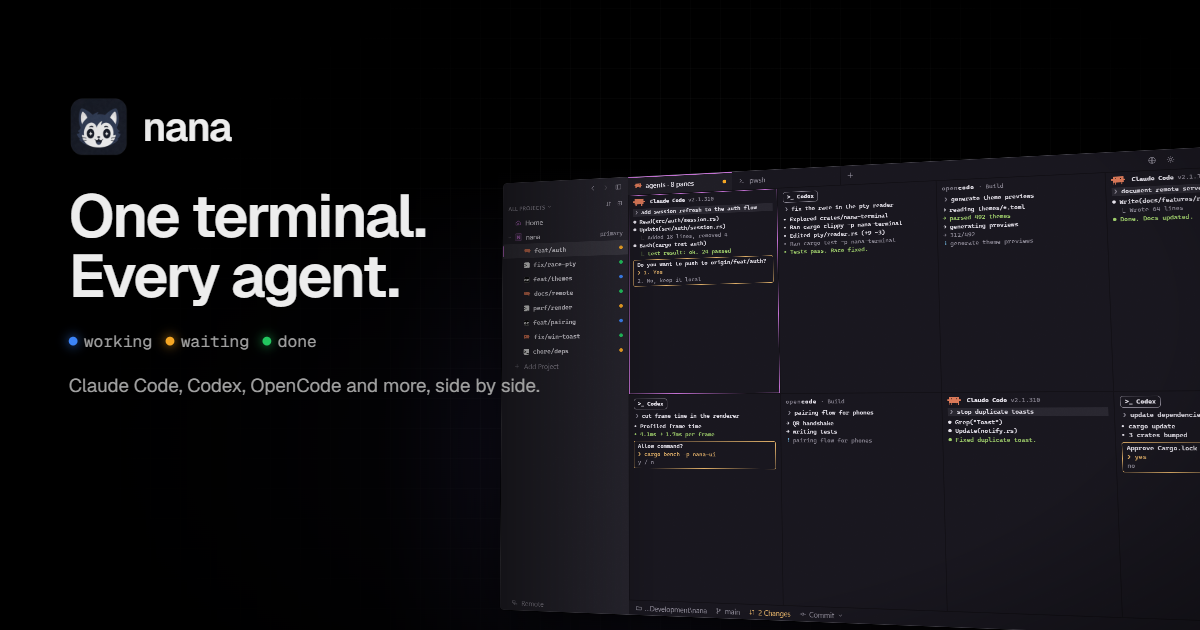
Nana is a native terminal multiplexer for Windows built for running multiple coding agents at the same time. Rather than keeping a single terminal tab on a single agent, nana lets you run Claude Code, Codex, OpenCode and other agents side by side, each one on its own git worktree, inside one fast native terminal. It is made for developers who already work with command-line coding agents and want to run several in parallel without losing track of what each one is doing. Nana is currently a free beta for Windows 10 and newer, needs no admin rights, can be installed from PowerShell with a single command, and is also available as a download with the source on GitHub. Running more than one coding agent on the same repository quickly gets messy. Agents edit the same files, and without isolation they step on each other's work. Nana's answer is to give each agent its own git worktree and branch, so parallel sessions never collide. The second problem is visibility: once several agents are running in different tabs, it is hard to know which one is still thinking, which one has stopped to ask a question, and which one has finished. Nana is built for many agents, not one tab, and it reports the state of every agent — working, waiting or done — so you know where your attention is needed. A third problem is continuity: closing a terminal normally kills whatever was running inside it, which is painful when an agent is in the middle of a long task. The core of the product is the worktree sidebar. Each agent gets its own worktree, and the sidebar shows the branch next to the agent using it — for example feat/auth next to Claude Code, or fix/race-pty next to Codex. From that sidebar you can switch between agents, merge their work, and clean up worktrees when you are done. Alongside it, nana detects the agents running inside your terminals and shows whether each one is working, waiting or done, with no hooks and no setup required. The status is descriptive rather than a bare spinner: it can show that Claude Code is waiting on a question such as whether to push, that Codex has finished with tests passing, or that OpenCode is still working through a task with progress like 312/492. Because state is shown per agent, you can leave several running, glance at the list, and jump only into the pane that actually needs you. Nana also brings code review into the same window. You can review code right in Nana instead of switching to another tool: view Git diffs to see exactly what changed, browse older commits, and revisit previous changes without leaving the terminal. The review area separates current changes from commit history, so you can look at the working diff of an agent's branch and then step back through the commits that produced it. Diffs are displayed in a line-by-line format with added and removed lines marked, which makes it practical to check what an agent did before merging its worktree. Combined with the worktree sidebar, this turns nana into a place where parallel agent output can be inspected and accepted rather than a set of terminals you have to trust blindly. Terminals in nana live in nana-server rather than in the window, so quitting the window does not stop your agents — they keep running in the background, and you can come back to find the work continued. The product surfaces this directly, for example with a nana-server panel showing three sessions running while updates and test commands continue in the background. Remote servers extend the same idea to other machines: you can open projects on Linux or macOS over SSH, and nana installs nana-server there. Because the terminals live on the remote server, remote sessions keep running even when you disconnect. The interface presents this as a normal machine entry — for example a local Windows nana alongside an ubuntu@build-box server running nana-server — so local and remote agents are managed from the same place. Several smaller features round out the day-to-day workflow. The Composer lets you write long prompts with files and images attached and then send them to a single terminal or to every split pane at once, which is useful for instructions like asking the agents to run the tests and fix any failures. Themes make the terminal yours: nana ships with more than 490 terminal themes and a live preview, including well-known options such as Tokyo Night, Gruvbox Dark, Nord, Dracula, Solarized Dark and Catppuccin Mocha. Extensions let you build what you need — you can add tabs, panels, commands and status bar items using any web tooling, so the terminal can be shaped around how you actually work. Underneath, nana is a native Rust application with GPU rendering and Ghostty's terminal engine, and it deliberately does not use Electron. That choice is what makes it fast and light on memory compared with running several heavyweight terminal windows. It also works with the agents you already use rather than locking you into one: Claude Code, Codex, OpenCode, Copilot, Cursor, Droid, Grok, Kiro, Pi, Oh My Pi, Antigravity and Xal are all listed as supported. The split is straightforward: the nana window is the interface you look at, while nana-server holds the terminals, so sessions can outlive the window and, when nana-server is installed on a remote machine, outlive your connection. Agent detection happens without hooks or configuration, which means an existing setup keeps working. The practical benefit is parallelism without collisions. Instead of running one agent at a time, you can put several to work on separate branches of the same project and let them proceed independently. The status list tells you where to spend attention, so waiting agents get answered and finished agents get reviewed rather than forgotten. Reviews inside the terminal mean an agent's diff can be checked and merged on the spot. Background sessions and remote servers mean long-running work is not tied to a window being open or a connection being alive. And because the app is native, all of this runs in one fast, memory-light terminal rather than several heavy ones. Typical scenarios follow the feature set. A developer might start Claude Code on a feature branch, Codex on a bug fix and OpenCode on a themes change, each in its own worktree, and watch the sidebar for whichever one needs input. Another might use the Composer to send the same instruction to every pane, then review each resulting diff from the commit history view before merging. Someone working with a Linux build box can open the project over SSH, let nana install nana-server there, and keep tests running after disconnecting. Others will simply close the nana window at the end of the day knowing the agents are still working in the background. Nana is aimed at developers on Windows who use terminal-based coding agents and want to run more than one at a time. It requires Windows 10 or newer and no admin rights. The stack is Rust with GPUI for the interface, libghostty for the terminal engine, and WebView2 for extensions. It is currently free in beta, with an optional way to buy the developer a coffee. Mobile apps for iOS and Android are listed as coming soon; they will connect straight to your server, with no cloud and no account. The takeaway is simple: nana treats coding agents as a fleet rather than a tab. One native Windows terminal, one worktree per agent, live status, in-place diffs, and sessions that survive closing the window or dropping a connection — free while in beta.
Wavefunction is a coding agent built as a desktop application for macOS. It is aimed at developers who want an agent that stays focused on writing and changing code instead of growing into a general-purpose suite. The app puts one agent and one conversation on screen, with a simple project sidebar that leaves the conversation and the composer at the center. You give it a task and keep talking while it works on several tasks at once. Wavefunction is free and open source under the MIT license, and it can run on local models, your own API keys, or a ChatGPT sign-in. The product's starting point is a reaction to how coding agents have evolved. The site explains that coding agents keep turning into super apps, adding more with every release, while Wavefunction goes the other way: less is more, simpler is better, and building comes first. To make the contrast concrete, the site describes other apps as an interface crowded with tabs, sidebars, editor panels, and a terminal. Against that, Wavefunction shows a simple project sidebar with room for the conversation and composer, so there are fewer sidebars and fewer tabs and the conversation stays at the center. The stated intent is to leave more room to focus on your code. The minimal interface is a deliberate feature set rather than a stripped-down compromise. There are fewer sidebars and fewer tabs, and the conversation is the primary surface. Wavefunction does not ship a built-in browser: links open in your default browser, with the setup you already use. It also describes itself as just a coding agent, without dots, bots, built-in apps of all kinds, or a million extra features. The claim is that what remains is the set of tools needed to get things done, which keeps the app minimal, considered and fast instead of crowded. Parallel workflows are handled by splitting work across subagents inside a single conversation. You send the next task while the last one runs; each new piece of work that can run on its own gets a subagent, and nothing waits its turn. To stay parallel without collisions, every chat starts on its own branch, and subagents that could touch the same files each get a worktree. Wavefunction reviews their changes and brings the work together. You can also steer while it works: change your mind mid-task and your message reaches the subagent already on it, so it adjusts without starting over. Fork or rewind lets you start a new chat from any message, or put the code and the conversation back to how they were. Computer use is separated from your own machine. Other agents take over your mouse, keyboard and screen; Wavefunction gets a desktop of its own, a local Docker container with its own browser and files, so you keep working while it clicks, and you can watch it or take control at any time. The site states that it never moves your pointer, types on your keyboard, or records your screen, and that a file reaches your Mac only when the agent hands it over, into a folder you allowed. When a site needs your login, you sign in privately: the agent pauses and never sees what you type, and the chat stays signed in for next time. Downloads come to your Mac in the folder you choose, and files you add are ready to upload. Computer use needs Docker Desktop and a model that can read images. Models are a choice rather than a lock-in. You can sign in with ChatGPT Plus or Pro, use API keys from Anthropic, Google Gemini, OpenAI, OpenRouter or Vercel AI Gateway, or run models locally through Ollama on your Mac or your server, LM Studio, or another OpenAI-compatible server. You pick a model for each chat and switch whenever you like, so you are never tied to one provider's plans or limits. Running models locally or requiring zero data retention from a provider are the two privacy paths the site describes. Privacy is grounded in where things are stored and which services you connect. Your conversations and settings are stored on your computer. Using a local model keeps model inference local; alternatively you can configure a provider with zero data retention. Which services receive your data is determined by the models and connectors you choose. The app is open source down to the prompt, released under the MIT license, with a public GitHub repository containing backend, frontend, skills and a Tauri-based src-tauri directory alongside AGENTS.md, LICENSE and README.md. The project welcomes new contributors. Analytics surface what the agent consumes. Wavefunction tracks token usage, cache usage, and provider-reported costs in one place, so you can see what you use, what you spend, and how it changes over time. Connectors extend what the agent can reach: there are 70+ ready-made MCP connectors, plus any MCP server you add, and the catalogue shown includes Gmail, Outlook, Google, Microsoft 365, Airtable, Asana and Atlassian. Skills and instructions keep the agent aligned with existing practice: it follows your AGENTS.md and loads SKILL.md skills from .agents, .codex and .opencode folders. Overall, the product works as a conversation-first loop. You describe what you want in one conversation; Wavefunction can split work across subagents for the pieces that can run independently, each on its own branch or worktree. Follow-up instructions are accepted while they run and passed to the subagent already handling that work. Results are reviewed and brought back together for you to check. When a task needs a graphical environment, the agent works in its containerized desktop with its own browser and files, handing files back only into folders you permit. The outcomes the site emphasizes follow from those choices. You get to keep the conversation flowing instead of waiting for one task to finish before describing the next, which is why the app is described as optimized for parallel workflows. That parallelism is framed as parallel without collisions because of branches and worktrees, and mid-task changes do not force a restart. Your own computer stays under your control and stays yours while the agent works. Cost and usage visibility, plus the ability to bring your own model or run one locally, keeps spending and data handling under your control rather than a vendor's. Concrete workflows appear throughout the site. In the main example, a user asks for a billing dashboard; Wavefunction starts three subagents for the API, interface and tests, each in its own worktree. The user then asks to also add a usage chart, and a fourth subagent takes the chart while the rest keep moving. When the user says to use Stripe for the invoices, the instruction is passed to the Billing API subagent, which adjusts without starting over, and all four tasks come back ready to review. Separately, the computer-use example shows the agent working in its isolated desktop on a billing site, looking at a screen with invoices and a downloadable report, which the user can watch or take control of. Other described workflows include updating the docs from the project sidebar and relying on an existing AGENTS.md and SKILL.md setup so the agent works the way a repository already expects. Wavefunction is built for developers on macOS; the site states it is currently available for macOS only, and you download the app, connect a model, and start a conversation. Integrations come through the MCP connector catalogue and any MCP server you add, including the listed Gmail, Outlook, Google, Microsoft 365, Airtable, Asana and Atlassian, and through repository instructions and skills. Model providers include ChatGPT sign-in, Anthropic, Google Gemini, OpenAI, OpenRouter, Vercel AI Gateway, Ollama and OpenAI-compatible servers such as LM Studio. Pricing is free and open source under the MIT license; you bring your own models or provider account, and any model usage charges come from your provider. Computer use additionally requires Docker Desktop. The takeaway is a deliberately small tool with a large amount of leverage: one agent, one conversation, parallel subagents that keep working while you keep talking, a containerized desktop that leaves your Mac alone, and your choice of model, all in a free, MIT-licensed macOS app that is open source down to the prompt.
Widgeteer is an AI tool that builds working website widgets from a single sentence of plain English. You describe what you need — the site's own examples are "a cleaning quote calculator" and "a table booking form" — and Widgeteer produces a working widget in seconds. The range covers forms, quizzes, booking tools and calculators, with the widget library also listing galleries and saying there is "plenty more". The product is positioned for busy owners of shops, blogs, agencies, clubs, clinics and side projects: people who, in the site's words, "do not have an afternoon to spend in a form builder". Its promise is summarised in the three words used across the homepage — say it, see it, sorted — with "no setup, no keys, no code" needed to get from an idea to an embedded widget. Traditional form and widget builders assume you will spend time in a configuration interface: choosing field types, wiring up settings and figuring out where submissions go. Widgeteer frames that work as the product's job rather than the user's, under the heading "No tech. No config. No code." The site describes the target customer's constraint directly: "Whatever you run, you do not have an afternoon to spend in a form builder. Say what you need and get on with your day." It also addresses the common frustration that a generated widget can be close but not quite right, noting that "your widget is never stuck the way it came out" — you can fix a word yourself or ask for something bigger. Booking and enquiry widgets are a major part of what Widgeteer builds. A showroom appointment booking widget lets customers book a visit to a showroom by appointment only, and booked slots disappear for everyone else so there are no double bookings. A Calendly-style booking widget can be edited in the browser — picking the wording and colour scheme — before being embedded on any site. Restaurants and cafes get an OpenTable-style table booking form where guests pick a date, party size and time and then confirm, with no per cover fees. For enquiries there is a Typeform-style form that asks one question at a time, built on the site for a wedding photographer, and a floating WhatsApp chat button that shows your photo, a greeting and a ready-made message so visitors tap once and the chat opens in WhatsApp. Interactive marketing and calculation widgets round out the library. A cleaning business instant quote calculator lets customers price their own clean, with bedrooms, bathrooms, extras and a weekly discount adding up live before they book in two steps. A product recommendation quiz asks five questions, scores the answers and recommends the right product, collecting an email before showing the result. A spin-to-win discount wheel collects emails, with prizes and odds you set and a code shown to copy at checkout. A before-and-after image slider lets visitors drag a handle to compare work, with tabs for showing several projects. There is also a podcast player that puts your Spotify episodes on your own website, built for health and fitness coaches. Every widget stays editable after it is generated. Editing by hand lets you change any question, answer type, message or colour, move, copy or remove questions, and split a long form into steps. Editing with AI is the shortcut for bigger changes: need a new field, an extra step or a different layout, and you say it in plain English and Widgeteer makes the change. Before anything goes live, the preview is the real widget — you can fill it in and submit it before it goes anywhere near your site. The widget library also lets you open an existing widget, edit it and use it as the starting point for your own version, which is how many of the listed templates are presented. The overall workflow is three steps. First, ask in plain English: tell Widgeteer what you want — a booking form, a quote calculator, a countdown for Friday's drop — typed "like you'd text a colleague". Second, watch it appear: it builds a working widget in seconds, and forms actually submit; if you don't like a bit, change it by hand or ask again. Third, drop it anywhere: add it as a Shopify section, a WordPress block or a snippet of embed code, on a homepage, product page or landing page. Submissions are routed somewhere useful — every form actually works, and you can get an email the moment someone submits or send it to Zapier, n8n, Make or a webhook, with Airtable, Telegram and more listed as additional actions. The site stresses there are no keys to paste and no setup screens. The practical benefit is speed and control without technical work. Because widgets are described rather than configured, the gap between knowing what you need on a page and having it live is short — the site describes widgets appearing in seconds. Because everything stays editable both by hand and by asking, a near-miss result is not a dead end. Because submissions route to email, automation tools or webhooks without API keys, the widgets are functional rather than decorative. And because the preview is the real widget, you can test the actual submission flow before your visitors encounter it. For restaurants, the table booking widget also avoids per cover fees, which the site calls out explicitly. The demo section shows widgets combined into whole sites. Fieldnote, a children's learning and therapy centre in Leeds, uses a support finder quiz, a course list, fees, team profiles, parent reviews, free call booking, video lessons, a branching enquiry form and an FAQ. Rota Transfers, an airport taxi and transfer company in Lisbon, uses a live taxi fare quote and booking, car comparison, a price list, an arrivals guide, reviews, an FAQ and contact forms. Individual widget pages show narrower scenarios: a showroom visit booking, a cleaning quote, a skincare product finder quiz, a call booking form, an email-capture wheel, a before-and-after portfolio, a restaurant table reservation, a WhatsApp chat button and a wedding photography enquiry form. Widgeteer is built for busy owners — shops, blogs, agencies, clubs, clinics and side projects — rather than for developers. Distribution matches that: build the widget on Widgeteer and paste the embed code into any site, or use the Shopify app to add it to any theme, or the WordPress plugin to add it to any page. Pricing starts with a free plan and includes a 14-day trial on Premium, with no card required to start; several widget pages note that specific widgets are free to start. Documentation is organised around tasks such as editing a widget, changing a widget with AI, previewing a widget, and sending form submissions to email, Zapier, n8n, Make or a webhook. Widgeteer's core proposition is that a working, editable, embeddable widget should be one sentence away. Describe the form, quiz, booking tool or calculator you need, adjust it by hand or by asking, test it in a live preview, then embed it on WordPress, Shopify or any other site with submissions routed to email, Zapier, n8n, Make or a webhook — no code, no keys, no setup screens.
ernd calls itself the credit card for the AI stack, and it is built for US companies that pay for AI. The product is a business credit card whose rewards are weighted toward AI vendor spend: card spend at AI vendors earns 4% back, while everything else earns 1.5%, and the balance is paid off once a month. On top of rewards, ernd negotiates partnerships with AI providers so that cardholders get better pricing and capacity. The company is backed by Y Combinator and is issuing cards to US companies that request them, with requests handled on a first-come, first-served basis. The context ernd sets out is simple: companies now carry a monthly AI bill, and that spend is spread across vendors. ernd's stated model is that it negotiates the contracts once, and every cardholder gets them. Instead of each company negotiating on its own with each AI provider, ernd negotiates with each provider for all the companies on the card and adds more perks as deals get signed. The card is positioned as a way to get something back from spend a company is already making, while also pooling the terms ernd negotiates with each provider. The rewards structure is stated directly on the site. Card spend at every AI vendor earns 4% back, and the FAQ confirms this includes OpenAI and Anthropic. Payments to Superserve, Conifer and AgentPhone each earn 5% back. Everything else earns 1.5%. The FAQ adds that the balance is paid off once a month. ernd repeats that final terms come with the card, so the published rates should be read as the current description of the offer rather than a locked contract. For a company routing its AI bills through the card, the gap between a general-purpose business card and a 4% rate at AI vendors is the core of the proposition. Beyond the earn rates, ernd lists negotiated perks from specific providers, and these are presented as part of the card rather than as separate purchases. Firecrawl offers 2x usage limits. Superserve, Conifer and AgentPhone each offer 5% back. EigenPal offers 5% back on OpenParser and DOCX Editor. Experiential Labs offers 5.5% back. Osto offers a free security stack for the first 100 cardholders. According to the FAQ, these perks come from ernd negotiating with each provider for all the companies on the card, and more are added as deals get signed. The perk list doubles as a signal of which AI vendors ernd is currently working with. Rewards are issued as points, and the site describes two ways to use them. The first is cheaper work travel: ernd says that because it buys airline points in bulk, it can pass the savings on to cardholders for customer visits, offsites and more. The second is cash back, which the site calls the simple option. ernd notes that a point is worth more at partners like Superserve, so redeeming there is described as the better deal for companies that already use those providers. The FAQ summarises the same position: points are redeemable as cash back and go further on travel ernd books and with recommended providers. Final terms come with the card. What makes the model distinctive is where the value comes from. The rewards are described as coming from ernd, not from the AI providers: the FAQ states that OpenAI and Anthropic do not sponsor or endorse ernd, that ernd is an independent company, and that companies pay OpenAI and Anthropic with the ernd card the same way they would with any business card. The second source of value is negotiation: ernd signs partnerships with AI providers and extends the resulting pricing and capacity to every cardholder. The site also lists priority GPU and inference capacity as coming soon, presented as another negotiated benefit rather than a shipped feature. ernd puts a number on the payoff with an on-site estimate. At a monthly AI bill of $10,000, the page estimates the card pays back roughly $4,800 a year. The FAQ adds that requesting a card is free and there is no annual fee, with final terms coming with the card. Taken together, the stated benefits are 4% back on AI spend at every AI vendor, 5% back at named partners, 1.5% back on everything else, access to negotiated provider perks, and a choice between travel savings and cash back when redeeming. The estimate is presented as an illustration tied to the monthly bill entered on the page. The concrete scenarios the site describes are paying AI vendors, redeeming points on work travel such as customer visits and offsites, and claiming partner perks. A company paying OpenAI and Anthropic monthly would route those payments through the card, as it would with any business card, and the 4% rate applies at every AI vendor. If it also uses Superserve, Conifer, AgentPhone, Firecrawl, EigenPal, Experiential Labs or Osto, the listed perks — extra usage limits, additional cash back, or a free security stack for the first 100 cardholders — attach to that spend. Travel booked through ernd is the alternative redemption path for teams that would rather convert points into cheaper flights. The card is for US companies. A company admin signs in with a work email or a Google work account and sends the request from the ernd app, which the site says takes a few minutes. The request asks for the company's legal name, type, state, address, phone, EIN, revenue and cash estimates, expected card spend, and the name, title and email of each owner of 25% or more. Submitting a request does not guarantee a card; ernd issues on a first-come, first-served basis and emails the admin about next steps, and a request can be withdrawn from the app at any time. The site also offers a 15-minute booking with Connor. In short, ernd is a credit card aimed at companies whose AI bills have become a real budget line. It combines 4% back at every AI vendor, 5% back at named partners, 1.5% on everything else, negotiated provider perks, and points that can be taken as cash back or stretched further on work travel, with no annual fee and a request process open to any US company.