Category Focus/categories/audio
Audio AI Tools
Discover and compare the best audio AI tools and software. Browse 93+ curated tools with reviews and rankings.
Projects tracked
93
Sort mode
RECENT
Page
2
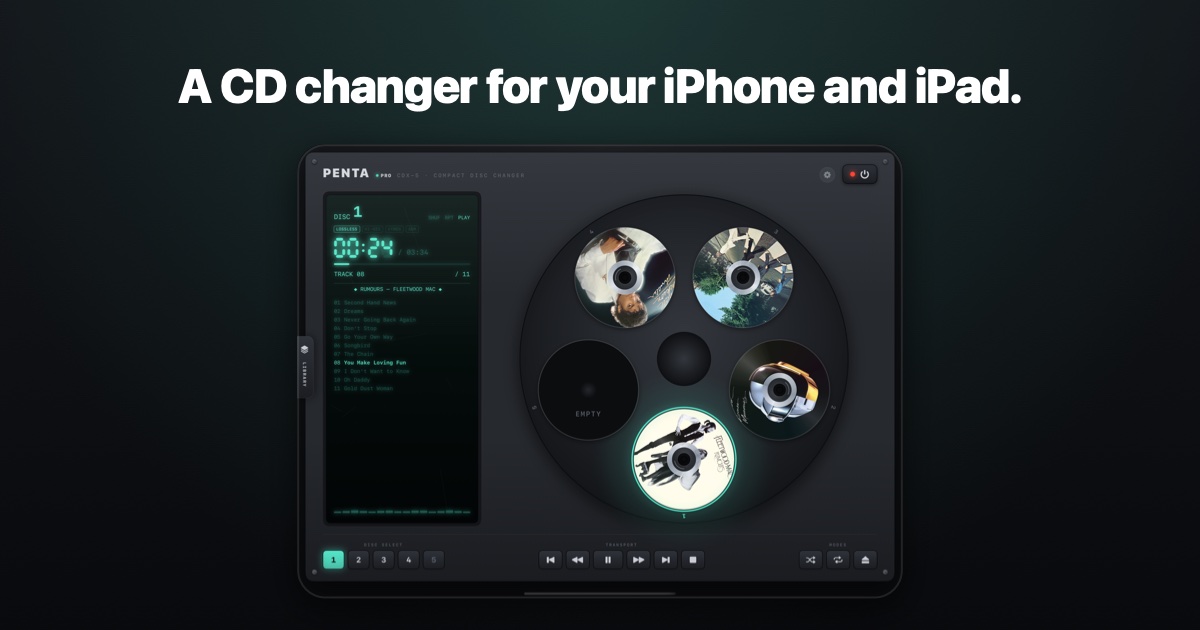
Penta is a CD player app for iPhone and iPad that turns your Apple Music library into a five-disc CD changer. Rather than presenting your albums as a list, it recreates a '90s five-disc carousel: you pick an album, open its jewel case and drop the disc into the carousel, then play music the old-fashioned way with authentic sights and sounds. It is built for people who want the ritual of physical media back on a device they already carry, and it is free on iPhone and iPad. Penta 1.3 extends the idea to iPhone Duo, where the phone itself becomes the jewel case. Streaming libraries made music instant and invisible. Everything you own sits behind a search field, and the small ceremonies that used to surround listening — pulling a case off a shelf, reading the liner notes, hearing a tray motor slide out — disappeared along with the hardware. Penta's answer is to rebuild those ceremonies in software. Its starting point is the five-disc CD changer, a piece of '90s hardware that held a fixed set of albums and asked you to swap discs as you went. The app keeps that constraint and the physicality around it, so browsing a library becomes a sequence of small physical actions again instead of an endless scroll. The core of Penta is the carousel. Five discs sit on it beside a glowing display, and loading one follows the same order every time: pick an album, open the jewel case, drop the disc into the carousel. Music plays the old-fashioned way, from the carousel rather than a queue. Every disc carries real album art, so the changer looks like a rack of CDs rather than a grid of thumbnails, and an optional one-time Pro unlock adds the real printed CD art. Because only five slots exist, choosing what goes in becomes part of using the app — the same small decision a physical changer forced on its owner. Penta's sound design is the detail that sells the illusion. Every click, whir and tray motor in the app was recorded from a real CD changer, so the noises that accompany a tray opening or a disc being loaded are sampled from physical hardware rather than synthesized. Paired with the authentic sights of the changer, those sounds make loading an album feel like operating a machine. The glowing display and its level meters are decorative: Apple Music audio is protected, so no app can read the live signal, and Penta states that the meter animation is decorative by design. iPhone Duo support, arriving with Penta 1.3 as a free update, is where the concept gets unusual. On iPhone Duo the phone itself is the jewel case. Closed, you are holding the album; opening the Duo opens the case with it, because the hinge is the case's hinge — liner notes on one side, the disc on the other. Opened flat, the whole deck is visible: five discs on the carousel and a glowing display. Folded like a laptop, the layout becomes a CD wallet above the deck, so you can flip through your collection above the tray. Held upright, the app shows a CD wallet over the tray that animates open and closed. On iPhone today you also get keys you can feel, and on iPad the app works any way up. Underneath the hardware impression, Penta works with the music you already have in Apple Music. It reads your library to show and play albums and never adds, removes or edits anything. Albums you own play without a subscription; streaming from the Apple Music catalog requires an Apple Music subscription. The app needs permission to access your music library — if access was declined, it can be turned back on in Settings › Penta › Media & Apple Music — and catalog albums will not play without a subscription either. Penta runs on an iPhone or iPad with iOS or iPadOS 17 or later. The benefit is atmosphere: the same library, heard through a deliberately limited, tactile interface. Because the carousel holds five discs, listening becomes a short set of deliberate choices rather than an infinite queue, and because every interaction carries recorded mechanical sound and real album art, the app restores some of the weight that digital music lost. It also respects what you already have — the app is free, an optional one-time Pro unlock adds the real printed CD art, and nothing in your library is modified by using it. In practice, Penta suits a few clear situations. It is for the listener who wants to load a handful of albums and let the changer run. It is for anyone who used a '90s changer and wants the pick, open and drop sequence back, complete with recorded clicks and whirs. It is for iPhone Duo owners who want to close the phone and be holding an album, open it and watch the case open along the hinge, or fold it like a laptop and flip through a CD wallet above the deck. And it is for iPad users who want the carousel and glowing display visible on a stand, any way up, while albums play from their library. Penta is aimed at iPhone and iPad users with an Apple Music library who want to play albums the old-fashioned way, and at iPhone Duo owners curious about what a foldable screen adds to a music app. It is available on the App Store and free on iPhone and iPad, with an optional one-time Pro unlock for the real printed CD art. iPhone Duo support arrives with Penta 1.3 as a free update for everyone who has the app. Support is handled by email at jaseubert@gmail.com, and the developer says every message is read. Penta's value is simple: it makes a digital library behave like a five-disc CD changer, with the case, the carousel, the glowing display and the recorded sounds of real hardware. For anyone who misses the physical ritual of playing an album, that is the whole point.
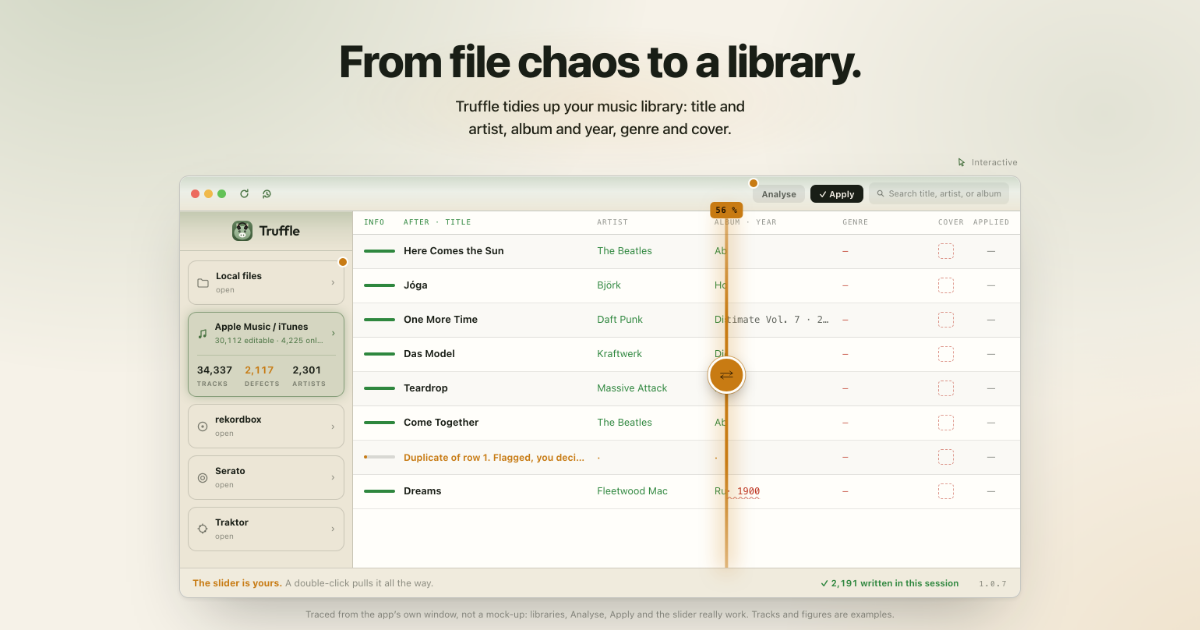
Truffle is a music tag editor for the Mac that tidies up a music library: title and artist, album and year, genre and cover. It works with the Apple Music library (formerly iTunes), with folders of local files on disk, and with the collections of rekordbox, Serato and Traktor, playlists included. Truffle recognises each track by its sound and checks eight sources to produce one suggestion per field, and it writes nothing until the user confirms. Files stay where they are: Truffle moves nothing and renames nothing, and it writes into the audio files rather than into a DJ program's database. The starting point is usually a library that has been broken in over many years. Ripped CDs arrive without covers, accents arrive garbled — the app's own example is “Björk — Jóga”, mojibake since 2014 — titles arrive in capitals, edits carry “(ORIGNAL MIX!!)” in the name, and one album is spelled three different ways. Files are called “Track 12” or “come_together_finalFINAL.mp3”, tempo and key are missing, and the same playlist exists as Summer, Summer (1) and Summer 2. The Music app's Info window is enough for a few tracks, but with a large library it lacks a preview, a check and a way back. Truffle is built for exactly that situation: an old iTunes library from the CD days, with garbled accents and albums spelled three ways. Recognition is the core of the product. Even when the file gives nothing away, Truffle recognises the track by its sound: an audio fingerprint, unambiguous and unaltered, using Apple's Shazam recognition (ShazamKit). Around that fingerprint sit eight sources that together give one answer per field. Audio recognition identifies the recording; Apple/iTunes supplies spelling and genre; MusicBrainz supplies album and year with evidence; audio analysis measures BPM and key locally on the device; Deezer finds the cover; Cover Art Archive confirms the cover; Beatport provides a second opinion on BPM and key; and a web lookup steps in when no catalogue knows the track. One click, done — and each of these sources can be switched off. Covers, spelling and measurement are handled in one pass. When an album has no image, Truffle finds one up to 1000 px and, in the app's words, from the right release, with Cover Art Archive confirming it. Broken umlauts, shouting titles, “(ORIGNAL MIX!!)” and albums spelled three ways all come back into shape. Tempo and key are measured on the Mac straight from the audio, so no internet is needed, and above about 130 BPM the tempo is an approximation. Tempo and key are written only on an explicit click, which matters for anyone who trusts their own analysis. Bulk edit (⌘B) sets one field to the same value across all selected tracks, finds and replaces text — regular expressions included — or changes capitalisation, and the preview shows every line before anything is written. Duplicates are recognised by title, artist, album and length and marked, with the file left on the Mac and nothing deleted without asking; duplicate playlists such as Summer, Summer (1) and Summer 2 are merged. Album coherence finds tracks of one album that disagree and sorts the changes by kind: missing album artist, different spelling, missing year, a compilation without its checkmark, a missing cover. Albums with several years are gone through one by one, because on best-ofs that is often intended. The overall approach is preview first, write second. The interface is traced from the app's own window rather than a mock-up: libraries are listed with track and defect counts, Analyse runs, Apply writes, and a slider sits between the two, with a double-click pulling it all the way. Nothing is written until the user confirms, and the history knows every change: searchable, restorable one by one or as a whole session. Before Truffle writes a file it backs up the original. Only deleting is not taken back, and deleting is the user's alone. For DJs the promise is that the collection and playlists are read without the database being touched. Truffle reads the exported XML from rekordbox with playlists included, the Serato database with crates included, and Traktor's collection.nml with playlists included. It writes into the audio files, never into the database of rekordbox, Serato or Traktor, so cues, loops, beat grids, crates and sets stay as they are and the program re-reads the tags. With Serato, cues and loops live in the file itself and Truffle writes around them. Special care is taken with DJ files: remixes and edits keep their name, DJ pool endings with tempo, key and codes are taken out of the title, the artist in the filename counts, and cues, beat grids, crates and sets stay. Classical music gets its own handling. Besides pop, rock and electronic music, Truffle recognises classical recordings by their sound and suggests fields one by one: work titles with catalogue numbers such as BWV, KV and op.; orchestra and conductor as the recording names them; and the cover of the recording rather than just any cover. The examples shown in the app run from Beethoven's Fifth and Bach's Toccata und Fuge to Mozart's Eine kleine Nachtmusik, Debussy's Clair de lune, Grieg's Morgenstimmung, Handel's Messiah, Satie's Gymnopédie n° 1 and Vivaldi's La primavera. Truffle works across five libraries — Apple Music/iTunes, local files, rekordbox, Serato and Traktor — and knows 17 file extensions, from mp3 via m4a and flac to aiff and wav; what it does not know, it leaves untouched. Tracks that are only in iCloud are marked with an iCloud symbol and changed details are written to the library through the Music app. Streamed tracks from an Apple Music subscription are not files on the Mac, so Truffle recognises them, excludes them from editing and says why in the list. A folder can be dragged into the window and left where it is on disk. The outcome is order across the whole library rather than one file at a time: titles and artists that match the recording, albums that hold together as one tile, years that reflect the original release instead of a reissue, covers that come from the right release, and genres that are spelled one way. Because every write is preceded by a backup and recorded in the history, that order can be reached without losing the state a collection was in. For DJs the benefit is narrower and more valuable: cleaner tags in the files with the cues, grids and sets still exactly where they were. Typical workflows follow the shape of the library. Someone with an old iTunes library from the CD days runs Analyse over the whole thing and accepts suggestions album by album. Someone who cannot find anything fixes genre consistency — Rap, HipHop and Hip Hop becoming 7 × Hip-Hop — in Bulk edit, checking the preview line by line. A file called “Track 12” or “AUD_0037.mp3” gets a title, artist and album from audio recognition. A DJ prepares a set by repairing tags in the files while the rekordbox or Traktor database stays closed. A classical collection gets work titles with catalogue numbers and the conductor as the recording names them. Pricing is a one-time €59.99 as an in-app purchase in the Mac App Store: once, for life, no subscription, updates at no extra cost, on every Mac signed in with the Apple Account. Before buying, the app is a free download that analyses 100 tracks and writes 20 in total, with no feature locked. Truffle requires a Mac with Apple Silicon and macOS 14 (Sonoma) or later, comes from the Mac App Store and runs in the macOS sandbox. There is no account with the vendor, no telemetry, no ads and no tracking; only the metadata of the track being checked and, for audio recognition, a short fingerprint of the audio leave the Mac. The app and the website are available in 20 languages, and there is no Windows or Android version. Truffle's value proposition is narrow and complete: take a messy Mac music library — Apple Music, folders on disk, or a DJ collection — and put it back in order from the sound of the tracks themselves, with eight sources agreeing on one suggestion per field, a preview before every write, and a history behind every change.
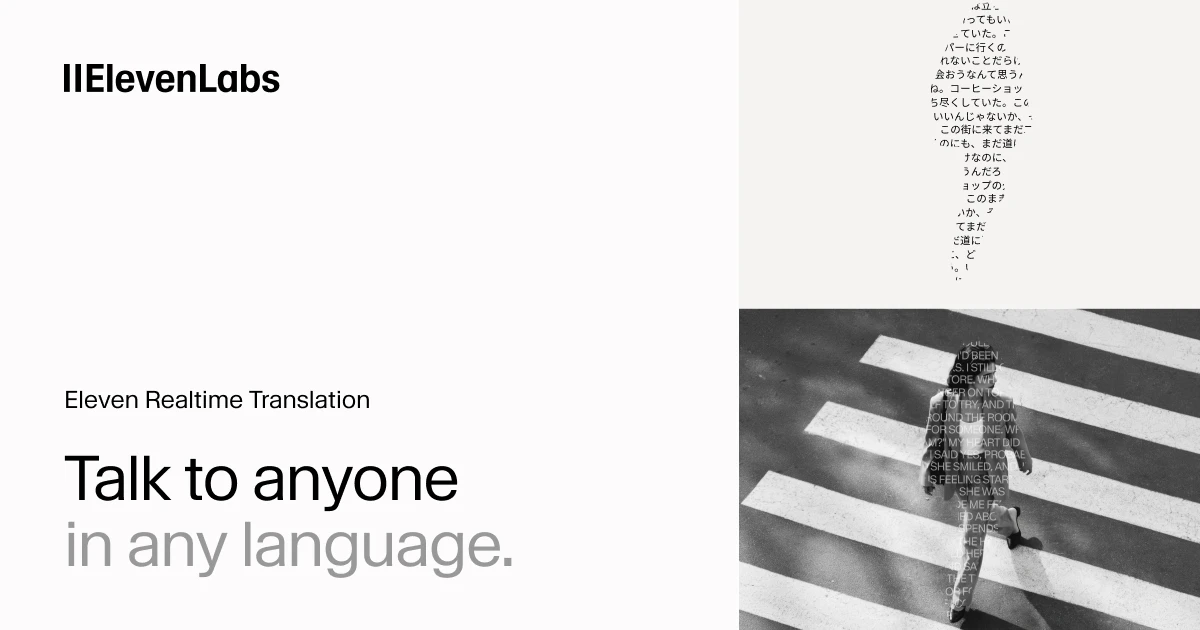
ElevenLabs Realtime Translation turns live speech into natural, expressive translated audio as people talk. Each person speaks their own language and hears the other in theirs, so two parties who do not share a common language can hold a conversation without reading captions or waiting on a separate interpretation step. The site frames the promise simply as "Talk to anyone in any language." The product is positioned as a streaming voice layer for telecom operators, contact centers and BPOs, and live events, and it can output translated speech in more than 90 languages using Eleven v4 Turbo by default. Access is provided through an API with published documentation, a single WebSocket connection and per-session configuration parameters. The problem it addresses is the friction of real-time conversation across languages. Caption-only tools require participants to read rather than listen, and stitched pipelines that chain separate speech-to-text, language model and text-to-speech stages add latency and operational complexity between the spoken word and the translated audio. ElevenLabs describes Realtime Translation as going from live speech to expressive translated audio over one WebSocket, keeping a single consistent voice throughout the session. The company also distinguishes it from Eleven Realtime Dubbing: Realtime Translation is intended for more latency-critical use cases such as two-way conversation, where both parties can speak and hear the other party in their own language. Language coverage is the foundation of the product. Output is available in 90+ languages, with the site listing German, Japanese, Hindi, Spanish, French, Arabic, Mandarin Chinese, Bengali and Portuguese among them, plus accent options such as New York, Cockney, Irish, Australian, Canadian, German and Italian, alongside a note of +93 languages and accents. Voice selection is handled separately from translation: users pick from a library of over 17,500 expressive, human-like voices, or supply their own Instant or Professional Voice Clone as the voice_id. That chosen voice stays consistent for the whole conversation. ElevenLabs states explicitly that Realtime Translation does not carry the original speaker's voice across languages exactly; instead the selected output voice approximates a specific speaker, which is why choosing a clone or a library voice matters for caller experience and brand consistency. Because conversation tolerates different amounts of delay in different contexts, the product exposes an eagerness parameter per session, set to low, medium or high. High begins translating soonest for the lowest latency; low waits for more of the sentence to arrive, producing a higher-quality translation with more delay; medium is the default. Model choice is also configurable. Eleven v4 Turbo is the default text-to-speech model for translated speech, and customers can set tts_model_id to eleven_flash_v2_5 or eleven_v3 instead. ElevenLabs notes that Eleven v4 Turbo gives one voice stronger performance across multiple languages, which supports the promise of consistent voice quality from one language to the next and lets teams match the model to the latency profile of each deployment. Beyond audio, every session streams translated text alongside the speech, plus interim and final transcripts of the source audio, which can power live captions or logging on top of the translated audio. Automatic language detection identifies the language each caller speaks without manual selection. The product is telecom-ready: it works with the audio formats networks use and is easily configurable via the API. Two-way translation is supported, and bidirectionality is configured at the network or product level — for example, by connecting each caller to a dedicated instance of the endpoint, so both sides can speak their own language and hear the other in theirs. The overall approach is streaming rather than batched. Speech enters over one WebSocket connection and translated, expressive audio comes out as the conversation continues, with the same selected voice carried through the session. Because the pipeline is delivered as a single voice layer instead of several stitched services, an operator configures behaviour through parameters rather than assembling and maintaining separate components: eagerness for the speed-versus-quality trade-off, tts_model_id for the speech model, and voice_id for the output voice, all settable per session. Published API reference documentation covers the realtime translation endpoint so teams can wire the layer into their own network or product. The stated outcome is that people understand each other in the moment. Every conversation gets the same natural voice quality, and voices stay consistent across more than 90 languages, so a listener does not hear a different-sounding voice each time the language changes. Expressive delivery is part of the promise, and the site's demo illustrates emotional tones such as reassuring, empathetic, frustrated, urgent and apologetic. For businesses, the benefit is reach: telecom operators can make conversations seamless regardless of what language subscribers speak, and contact centers and BPOs can serve globally in more languages while letting customers and agents converse in their native language rather than a shared second one. Three concrete scenarios are described. For live events, translated audio is streamed to attendees' devices at conferences, press briefings and multilingual meetings, so the audience listens in their own language instead of following captions. For telecom operators, live translation can be offered as a feature on the network, so conversations happen seamlessly regardless of what language subscribers speak — the site's example is a Spanish-speaking customer raising a double-charged subscription and requesting a refund. For contact centers and BPOs, customers and agents converse in their native language, extending global service into more languages without requiring agents to speak each one. Streamed translated text and source transcripts can additionally feed live captions or logging in these same deployments. ElevenLabs positions the product as enterprise ready, citing SOC 2, PCI DSS Level 1, ISO 27001, HIPAA and GDPR compliance together with Zero Retention Mode. The audience implied by the site is organisations running high volumes of live conversation across languages: carriers and telecom operators, contact centres and business process outsourcers, and event producers or teams running multilingual meetings and briefings. The site routes commercial enquiries through a contact sales form and offers sign-up and log-in for the ElevenLabs platform; no published price tiers or plan details appear in the provided content, and the capability is documented through the API reference rather than a self-serve pricing table. In short, ElevenLabs Realtime Translation is a streaming, API-driven voice layer that converts live speech into expressive translated audio in 90+ languages, keeps one consistent voice, streams captions and transcripts, and lets teams tune latency against quality per session. Its value proposition is straightforward: a conversation in two languages that sounds like a conversation in one, backed by enterprise-grade security and telecom-ready integration.
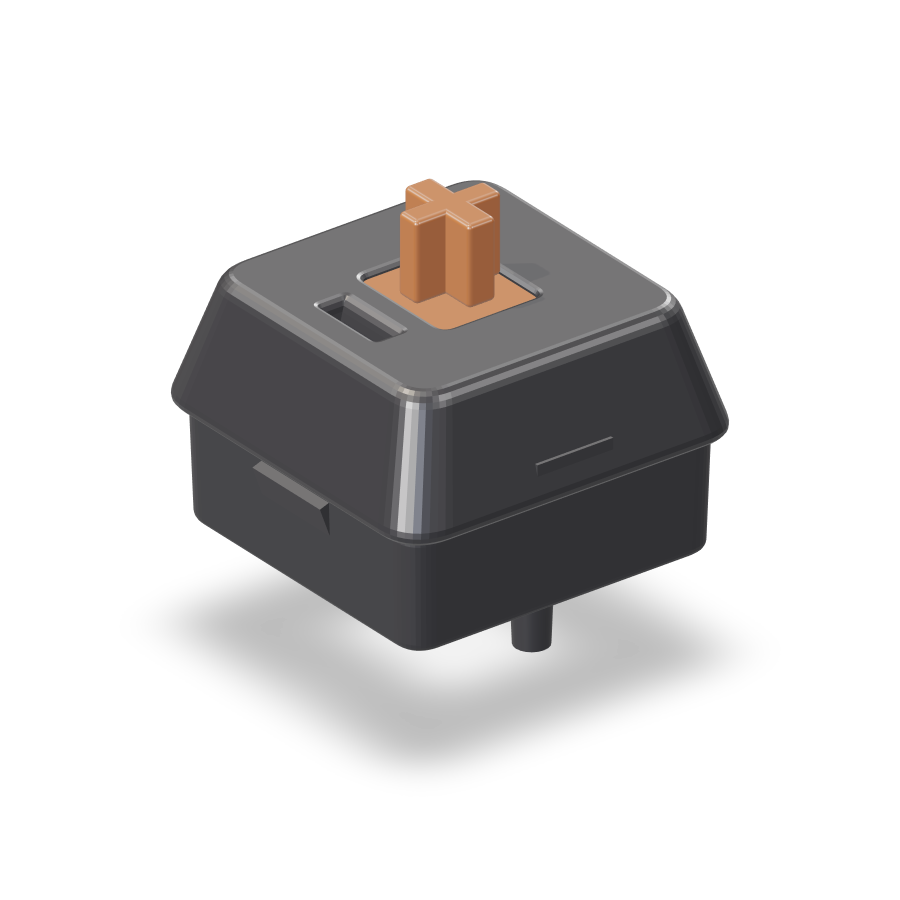
Switch Lab is a browser-based tool for pressing, hearing and comparing mechanical keyboard switches before you buy them. Instead of a spec sheet or a video, you get a 3D keyboard you can interact with: lift the keycaps, look at the switch underneath, swap it for another model and press it to hear the real recorded sound. The library covers 100 popular switches, from MX Red, MX Brown and MX Blue to Oil King and silent switches. Switch Lab is built for anyone shopping for a mechanical keyboard or a set of switches who wants to know how a switch will sound and feel on their own desk before spending money on it. Buying mechanical keyboard switches is a guessing game. Specs and YouTube videos don't tell you how a switch will sound and feel on your own desk — that framing comes straight from the product itself, and it captures the problem precisely. A switch listing might state its type, its weight and its actuation point, but those numbers do not translate into the sound a key makes when you bottom it out, or the way the spring pushes back under your finger. Videos recorded on someone else's keyboard, desk and microphone only get you part of the way. Switch Lab closes that gap by letting you press a switch, hear its recorded sound and compare it with others in the same session, so the decision rests on what you actually experience rather than on a specification sheet. Switch Lab starts by explaining what is actually inside a keyboard. Under every keycap your finger touches hides a switch, and the switch decides most of how a key feels and sounds, so changing only the switches makes the same keyboard feel completely different. The site breaks a keyboard into four layers: the keycap — the cap you touch, which pops off and swaps out; the switch — one per key and the star that sets feel and sound; the plate — which holds the switches firmly in place; and the case — the body around it all, which adds a little resonance. Each of the 87 keys sits on an identical switch, and pulling one out reveals the stem you press, the housing around it and the spring inside — the thumbnail-sized part that decides sound and feel. The central interaction is swapping switches and pressing them yourself. Tap a switch card and its stem really travels down while the recorded sound plays; hold the big switch and it stays pressed all the way down. Each card reports travel against a 4.0 mm scale with an orange mark at the 2.0 mm actuation point, along with loudness and force figures such as 55g for Oil King, 45g for MX Red, 55g for MX Brown, 60g for MX Blue and 50g for Milky Yellow. Cards carry a one-line feel summary — Oil King 'glides down smoothly and bottoms out with a deep thock', MX Red is smooth with no bump, MX Brown has a light bump, MX Blue clicks every press, and Milky Yellow is a soft, tidy clack — plus a type label such as linear, tactile or clicky. Switch Lab deliberately avoids jargon. Instead of words like 'tactile' or 'actuation force', it tells you how loud a switch is, how heavy it feels and where it works best, showing four things on one screen for every switch: how it feels in one line, who it suits (first mechanical, office, heavy typing and similar), where it is cheapest, and a link to hear more. The price block lists per-switch prices from each store, cheapest first — in the site's example, $0.39 per switch from Store A at 90 pieces, $0.45 from Store B at 70 pieces and $0.52 from Store C at 35 pieces. The 'hear more' link jumps straight to real sound tests on YouTube, searching for something like 'Oil King sound test'. Once you have found a switch you like, you plug it in and type on it yourself. Drop the switch you pulled out into the empty slot and the keycaps tap back on like a wave; from there, pressing keys on screen or typing on your own keyboard makes the 3D keyboard press along. Practice mode lets you type with the sound you picked, as if you had used the switch for a few days before buying. Sessions range from English and Korean typing to Python and JavaScript coding, and if you finish without a typo your name goes on the leaderboard. The switch library holds 100 popular switches, from MX Red, Brown and Blue to Oil King and silent switches, and you can filter by type, weight and sound to narrow the list to candidates that fit your taste. Beyond practice, Switch Lab includes mini games — typing marathon, drum stems and metro typing — that turn time with a switch into something more playful than a spec sheet. The 3D keyboard scrolls down the page in numbered sections, moving from a general look at keyboard layers to a single switch close-up, then to pressing, comparing, plugging in and practicing, so the whole evaluation follows the same order you would follow in real life: understand, listen, compare, then try. Colour is a separate, purely visual layer. You can pick keycap and case colours from five themes — Industrial, Ink Orange, Retro Beige, Lilac Mint and Cream Sage — while the sound stays exactly the same. This matters because the same switch can look completely different depending on the keycaps and case around it, and buyers often choose a keyboard at least partly on appearance. Letting you change the look while holding the sound constant keeps the comparison honest: when you switch from one theme to another, you know that any change in impression comes from the visuals, not from the audio. The core approach pairs a 3D keyboard model with recordings of real switches rather than synthesised or approximated sounds. The stem animation is tied to the playback of the recording and to the travel scale, so pressing and listening happen together instead of in two separate steps. The same model is reused across features: the switch you pull out in the close-up is the switch you drop into the keyboard, the switch you type on in practice, and the switch whose card you compare in the picks list. Everything runs in the browser — no install, no sign-up — and it works on phone and desktop, so you can pull it up while shopping online or standing in front of a display. The benefit is confidence before you spend. Instead of ordering a set of switches based on a written description and hoping, you hear a recorded sound, watch the stem travel, read a plain-language feel line, see who the switch is recommended for and check what it costs per switch across stores. Comparing several switches back to back in the same session is far easier than opening a dozen tabs of reviews and videos. Practice sessions let you live with the pick for a few minutes, and the leaderboard gives you a small reason to keep typing, which means more time hearing the switch you are considering. Typical use cases follow the site's own flow. Someone buying their first mechanical keyboard can start with switches labelled 'first mech' and work up from there. An office worker can filter toward quiet options like Oil King, described as not loud and fine at the office. A heavy typist can look at weight and force figures. A shopper comparing stores can check the per-switch prices from Store A, B and C before ordering 70 or 90 pieces. A developer can run a Python or JavaScript session to hear the switch under coding-speed typing. And anyone who wants a quick break can open a mini game such as typing marathon, drum stems or metro typing. Switch Lab is aimed at people shopping for mechanical keyboard switches and keyboards — first-time buyers who do not know what 'tactile' or 'actuation force' means, office workers who need something quiet, heavy typists, and anyone who cares about sound as much as specs. It requires no install and no sign-up, and works on both phone and desktop. The site also notes that 100 popular switches are available to press, spanning MX Red, Brown and Blue, Oil King and silent switches, and that each switch card includes per-switch prices from multiple stores so you can see where it is cheapest. Switch Lab's proposition is simple: press it, hear it, then buy it. By combining a 3D keyboard, real recorded switch sounds, plain-language descriptions, per-switch price comparisons, a plug-in typing mode, practice sessions and mini games in one browser page, it turns switch shopping from a guessing game into something you can actually try. For anyone who has ever wondered how a switch would sound on their own desk, that is the whole point.
walkai-talkai is a macOS application that turns any handheld two-way radio into a push-to-talk microphone and speaker for an AI coding agent. You press the PTT key on a walkie-talkie, speak your request out loud, and the app transcribes your voice on the Mac, types the command into the agent you already use, and broadcasts the agent's answer back through the radio. It is built for developers who want to talk to Cursor, Claude Code, Antigravity or a terminal-based agent without sitting at the keyboard — the radio becomes the interface and the Mac does the rest. The product describes itself as a push-to-talk voice bridge between any two-way radio and AI coding agents, running on Apple Silicon Macs with macOS 13 or later, with low latency. The product addresses a simple gap: an AI coding agent runs on your Mac, but you normally have to be at the Mac to talk to it. walkai-talkai separates the two. The radio's audio-out feeds the Mac through a simple cable, and the agent's reply is synthesized and played into the radio's VOX line, so the developer can step away from the keyboard and still issue commands and hear results. The website describes the recommended setup as leaving one radio at the Mac and taking the other with you, and its Accessibility automation is noted as typing into the exact window you chose even while you are away from the keyboard. Everything in the loop is organized around that separation — the radio is the microphone and the speaker, while the Mac handles transcription, dispatch and speech synthesis. walkai-talkai offers two operating modes so you can either drive your IDE or skip it entirely. In Target Window mode you pick a target window once, and every transmission is typed straight into that window — Cursor, Antigravity, Terminal or any app — via macOS Accessibility and then submitted with Enter, with the agent replying over HTTP. In API Mode the app talks to models directly instead of typing into an app, covering OpenAI, Anthropic, Gemini, DeepSeek and Ollama. Both modes share the same radio loop, so moving between them is a mode switch in the app rather than a different hardware setup. That means a developer can point the radio at whichever agent or model is already part of their workflow, from a local Ollama model to a hosted provider, without changing anything about the radio. Speech recognition is handled by OpenAI Whisper running locally on Metal, in Turkish and English, with live waveform monitoring in the app. Because transcription happens on the Mac rather than in the cloud, your voice is converted to text locally, and the product explicitly states that your radio audio never leaves your Mac. On the return path, reply speech is synthesized with Kokoro and EMA neural voice models running on CoreML and the Apple Neural Engine, which the site describes as fast, high-quality radio announcements. Neural voice is available in both English and Turkish. The combination means a full round trip — your spoken command in, the agent's answer out — can be completed without sending audio to an external service. Radio signalling is what makes that loop work over a real handheld. A rising 880 → 1100 → 1400 Hz preamble opens your radio's VOX before the first syllable, so the opening of the reply is not clipped, and a roger beep marks the end of the transmission. Any agent that can run curl can talk back through a one-line agent API: a POST to 127.0.0.1:1988/api/reply carrying a short text payload. That endpoint is loopback-only, so nothing is exposed to your network. Accessibility automation types into the exact window you chose, even while you are away from the keyboard. Inside the app, the station UI is organized into Station, Dashboard, Audio I/O, Automation, API Settings, Command Logs and Diagnostics, with a live spectrum that shows incoming audio in green and your reply in orange, and each message displayed underneath for a few seconds. The full loop runs in five documented stages. First, key up: press PTT and speak, and the radio's audio-out feeds the Mac through a simple cable. Second, transcribe: Whisper converts your voice to text on the Mac, in Turkish or English. Third, dispatch: the command is typed into Cursor, Antigravity or Terminal and sent, tagged as a radio command. Fourth, reply: your agent POSTs a short summary to 127.0.0.1:1988/api/reply. Fifth, broadcast: CoreML neural TTS speaks that summary into your radio's VOX line with wake tones and a roger beep. The site summarizes the architecture as Whisper, CoreML, ANE and 127.0.0.1:1988 — the radio is the microphone and the speaker, and the Mac handles everything in between. The outcomes the product describes follow directly from that design. Commands are spoken and answers are heard, which is what the site calls hands-free coding: no keyboard in the middle of the loop, and no need to return to the desk to see a result. Because recognition and synthesis both run locally, radio audio stays on the machine, and the app keeps working offline for up to 14 days between license checks. The loop is deliberately small — the site frames it as everything the loop needs and nothing it doesn't — so there is no extra cloud service sitting between you and your agent. A one-line curl request is the whole integration surface on the agent side, which means agents that already exist can talk back without modification. The concrete scenarios on the site show how this plays out. In a Target Window setup, you key up and say the buy button doesn't do anything when clicked, the phrase is typed into the agent as a radio command, and the agent answers over the radio that it checked every page, that the fix is saved and ready to ship when you say so. With two radios — one at the Mac, one carried with you — you can stay in another room and keep the loop going. In API Mode you skip the IDE entirely and call OpenAI, Anthropic, Gemini, DeepSeek or Ollama directly, receiving the model's answer as a radio broadcast. Turkish and English are both supported for recognition and neural voice, so the same station works for either language. The hardware list is short and specific: any handheld two-way radio with VOX and an external audio port — Baofeng, Quansheng, Motorola, Kenwood and similar — a standard 2-pin K-plug or 3.5 mm audio cable into the Mac or a USB audio adapter, a second radio to carry with you, and an Apple Silicon Mac running macOS 13 or later. Pricing is a single lifetime license, listed at $19.99 as an early bird price against a $29.99 regular price, one-time and excluding tax, with sales tax or VAT added at checkout and Stripe acting as Merchant of Record. One license activates one Mac and can be moved to a new Mac anytime, and free updates are included. In short, walkai-talkai turns a handheld radio into a push-to-talk remote control for an AI coding agent: local Whisper transcription in, neural voice with VOX tones and a roger beep out, with a loopback HTTP endpoint connecting the two. Its value proposition is the combination of hands-free voice control, local audio processing and a one-time license on a Mac you already own.
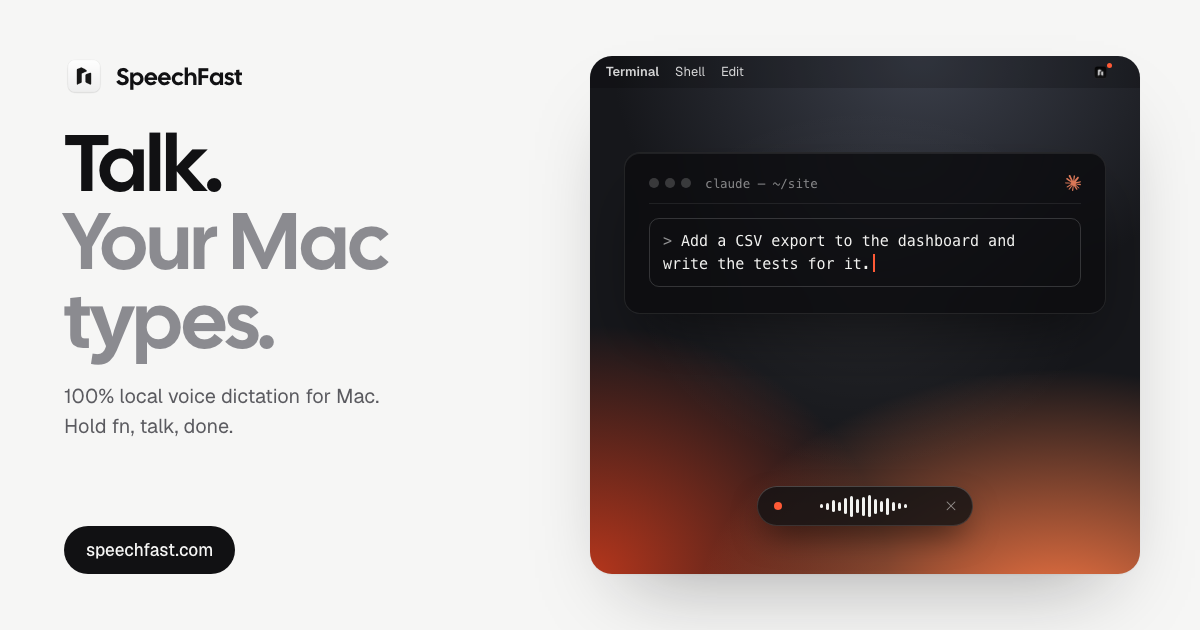
SpeechFast is a voice dictation app for Mac that turns speech into clean, ready-to-send text in any app where you can type. You hold the fn key, talk the way you normally talk, and the text lands at your cursor about a second after you let go. It works in Mail, Slack, Notion, your code editor, or anywhere else a text field accepts your keyboard. The core promise is privacy: transcription and clean-up run on the Mac itself. The speech model is downloaded once, and after that no audio and no text ever leaves your machine, so you can dictate offline, on a plane, or behind a locked-down corporate network. The gap SpeechFast addresses is the distance between how people actually speak and what they want to send. Spoken sentences arrive with filler words, repeated words and false starts, and typing them out by hand is slow. The site shows the difference directly: a dictation that begins with 'Um, soSo for Thursday's demo, we're, we're we're almost ready. Just uh the sign-up left to finish, I think Tuesday, no wait, Wednesday morning at the latest' is presented alongside the clean text that gets typed instead. The second problem is privacy. Most dictation tools work by sending your audio somewhere else to be transcribed, which is a difficult trade for anyone handling confidential material or working on a restricted network. SpeechFast takes the opposite position, and an automated test enforces it: the test fails if transcription or clean-up makes a single network request. The everyday interaction is built around three gestures. Holding fn starts dictation, and a pill opens at the bottom of your screen and follows your voice; when you let go, the text lands at your cursor in about a second. Pressing shift plus fn switches to hands-free mode for long messages, which keeps listening without you holding the key, and a tap on fn stops and processes what you said. Pressing esc cancels the dictation entirely, so nothing is pasted and nothing is kept. If fn is not comfortable, the right command key works as an alternative. Because the app pastes at the cursor and restores your clipboard afterwards, it fits into whatever writing you were already doing rather than asking you to move to a separate window. SpeechFast ships with three transcription engines, all running on your Mac. You choose between speed and accuracy in Settings and can switch any time. Parakeet is the default engine: it is fast and accurate, detects the language you speak on its own, runs on the Neural Engine, covers 25 languages, takes roughly one second from release to text, and requires a one-time 600 MB download. Cohere Transcribe is the most accurate option, intended for text where every word counts, at the cost of a few more seconds per sentence; the site lists a word error rate of 1.5% in English and 1.3% in French, with a one-time 2 GB download. Apple is the on-device transcription built into macOS, installed by macOS, working in one fixed language that you pick in Settings. Beyond raw transcription, SpeechFast cleans up what you say. Filler words, repeats and false starts are removed and punctuation is fixed, with clean-up handled by Apple Intelligence on the device. You can also keep your own vocabulary for names and jargon so that the things you say often come out spelled the way you need them. Every dictation is kept in a local history for 30 days by default, which you can shorten, turn off or erase entirely. The audio itself is never stored: your voice stays in memory just long enough to transcribe it. If no text field is selected, the text goes to your clipboard and your history, so no dictation is lost. The overall approach is a single on-device pipeline. Transcription runs on the Neural Engine, clean-up is handled by Apple Intelligence, and everything happens on the chip. The app asks for Accessibility access so it can detect the fn key from any app and paste the text at your cursor; your clipboard is saved before pasting and restored right after. Because the model is downloaded once rather than queried over a network, the app keeps working in airplane mode, on a train, in flight, or on a locked-down corporate network. There is no account and no sign-up either, just one email at checkout to receive your key. The benefits follow from those choices. Dictation is as fast as speech, the text does not need a second editing pass to remove the ums and the repeats, and privacy needs no extra effort because nothing is sent anywhere. Language handling is more flexible than the dictation built into macOS: with Parakeet the language is detected on its own, so you can go from English to French from one sentence to the next, whereas Apple's dictation requires switching languages from a menu next to the cursor. And because the same app accepts Apple's own engine if you prefer it, you are not locked out of the transcription you already trust. Typical use cases map to the situations the product describes. You can dictate a long message hands-free with shift plus fn instead of holding a key. You can work on a flight, on a train, or behind a corporate network where nothing may leave the machine. You can dictate into Mail, Slack, Notion or a code editor, since any text field that accepts your keyboard accepts your voice. You can switch between English, French, German, Spanish and other languages sentence by sentence, or pick Cohere Transcribe when you are writing text where every word counts. SpeechFast requires an Apple Silicon Mac (M1 or later) running macOS 26. Clean-up uses Apple Intelligence, and if it is turned off the app pastes the transcript as it is. It is a one-time purchase of 39.99 euros for three Macs with updates included, not a subscription; the site compares that with Wispr Flow Pro at 15 dollars a month. A 7-day free trial is available, and after the trial dictation stops and the app offers you a license while your history and settings stay put. To move to another Mac you deactivate the old one from Settings and License. The listed version is 1.0.10, signed and notarized by Apple. The takeaway is simple: SpeechFast is a focused dictation tool that gives you clean text at your cursor in any Mac app, with the whole transcription and clean-up pipeline running on your own machine. It replaces typing and server-based dictation with one key, your voice, and an on-device model that never sends your words anywhere.
Openbroca is an AI dictation app for Mac that turns spoken words into clear, ready-to-send text inside whatever app you are already typing in. You press a shortcut, talk the way you normally do, and Openbroca writes the result at your cursor — in email, messages, notes, documents, or AI prompts. It is built as a native Swift application for Mac with a download of roughly 6.5 MB, and it is positioned as a lightweight alternative to Typeless for Mac. Its stated purpose is simple: let you talk messy and read clean, so the way you speak naturally becomes the way your writing reads. It is aimed at Mac users who would rather speak a draft than type one, and who want the output to still sound like them rather than like a generic AI rewrite. Most people speak faster and more naturally than they type, yet dictation has historically been awkward in practice. Standard voice-to-text produces transcripts littered with fillers, false starts, and repetition, so the cleanup can take as long as typing the text by hand. Many writing assistants go the other way: they rewrite your words into a generic AI voice, and getting a usable result requires prompt tweaking and re-prompting. Openbroca is built around the gap between those two experiences. It assumes you will talk messily — the way people actually think out loud — and takes responsibility for turning that into clean, readable text that keeps your meaning and your tone, with no prompt tweaking required. The product sums this up as talk messy, read clean. AI cleanup is the core of the product. Instead of transcribing verbatim, Openbroca removes fillers and repetition from what you said while preserving your meaning and tone. That means you can speak a draft the way you would explain it to a colleague, complete with the ums, the half-restarts, and the repeated phrases, and still get text that is ready to send. Because no prompt tweaking is involved, there is no instruction to write, no model to coach, and no template to fill in — you simply dictate and the cleaned result appears. The stated benefit is text that still sounds like you, which matters for emails, messages, and AI prompts where your own phrasing carries intent and personality. A personal dictionary handles the vocabulary that generic dictation tends to get wrong. You add names, terms, and preferred spellings, and Openbroca can also learn from corrections you make right after dictation, so a mistake you fix once is less likely to recur. The dictionary supports spoken-phrase replacements — the site shows the example of mapping the spoken phrase open broker to Openbroca — which is useful for product names, client names, and jargon. Openbroca also supports importing a Typeless dictionary, so people switching from Typeless can carry their vocabulary across. An optional Screen Context feature helps recognize names and terms that appear on screen, and it is enabled during setup and can be switched on or off in Preferences. Translation extends dictation beyond a single language. You speak naturally, then choose one of 28 output languages, and Openbroca translates your dictation and puts the result at your cursor — so the source and the destination both stay inside the app you are working in. The language list spans English, Simplified Chinese, Japanese, Korean, Spanish, French, German, Portuguese, Italian, Arabic, Hindi, Thai, and more. On the input side, Openbroca supports dictation in 30 languages with automatic language detection, which means you do not have to declare a language before you start speaking. Together, automatic input detection and selectable output languages let you draft in one language and deliver in another without leaving your document. Operationally, Openbroca is built around a keyboard shortcut. Press Option-Space to start or stop dictation, or hold the shortcut while you talk. A second shortcut brings back your previous transcript when you want to reuse or recover it. Speech recognition and text cleanup are cloud-powered, so an internet connection is required, and Openbroca stores no audio. Setup involves granting microphone access and text insertion permission, with optional Screen Context if you want on-screen names and terms recognized. Preferences cover the microphone, shortcuts, and translation language. If direct insertion is unavailable, Openbroca copies the text so you can paste it manually, and you can retry a recording if the first attempt did not come out as expected. The whole setup is described as a few clean settings. The benefits follow from that design. You can speak a draft directly into the field you are working in and keep editing without switching apps, which keeps your flow intact. Cleanup happens automatically, so the time you would spend deleting fillers and repeated words is not spent at all. Because cleanup preserves meaning and tone, the result reads like your writing rather than like an AI paraphrase. The personal dictionary reduces repeated corrections of the same names and terms, and dictionary import lowers the cost of moving from another dictation tool. Translation into 28 languages removes the need to draft in one app and translate in another, since the translated text lands at your cursor. Concrete use cases named on the site include emails, messages, notes, docs, and AI prompts. In an email, you might speak a quick update to a colleague — the site's own example is a launch update about moving a final review to Thursday afternoon and sending an updated brief before lunch — and get a clean, sendable message. In messages, dictation lets you reply at speaking speed without typing on a keyboard. In notes and docs, you can capture a draft while it is fresh and edit afterward. For AI prompts, speaking a detailed prompt is often faster than typing one, and cleanup produces a clearer prompt while keeping your phrasing. With translation, you can dictate in your own language and deliver the output in one of 28 target languages. Openbroca is a universal Mac app for both Apple silicon and Intel, requiring macOS 15 or later, and it is distributed as a native Swift build of roughly 6.5 MB, which is the basis for its lightweight positioning. Dictation works in the apps you already use rather than in a separate editor, so there is no new workspace to learn. Pricing is free to try: the free plan includes 3,000 text units weekly with all features and no card required, and the site describes all features as free to try. A Windows version is not yet available; the site offers a waitlist for Windows availability and early-access updates. The takeaway is that Openbroca targets a narrow, practical problem — the distance between how you speak and how you need to write — and closes it inside the Mac apps you already use. Speak naturally, keep your tone, and get clean text at your cursor, with a personal dictionary that learns your vocabulary and translation into 28 languages when you need it.
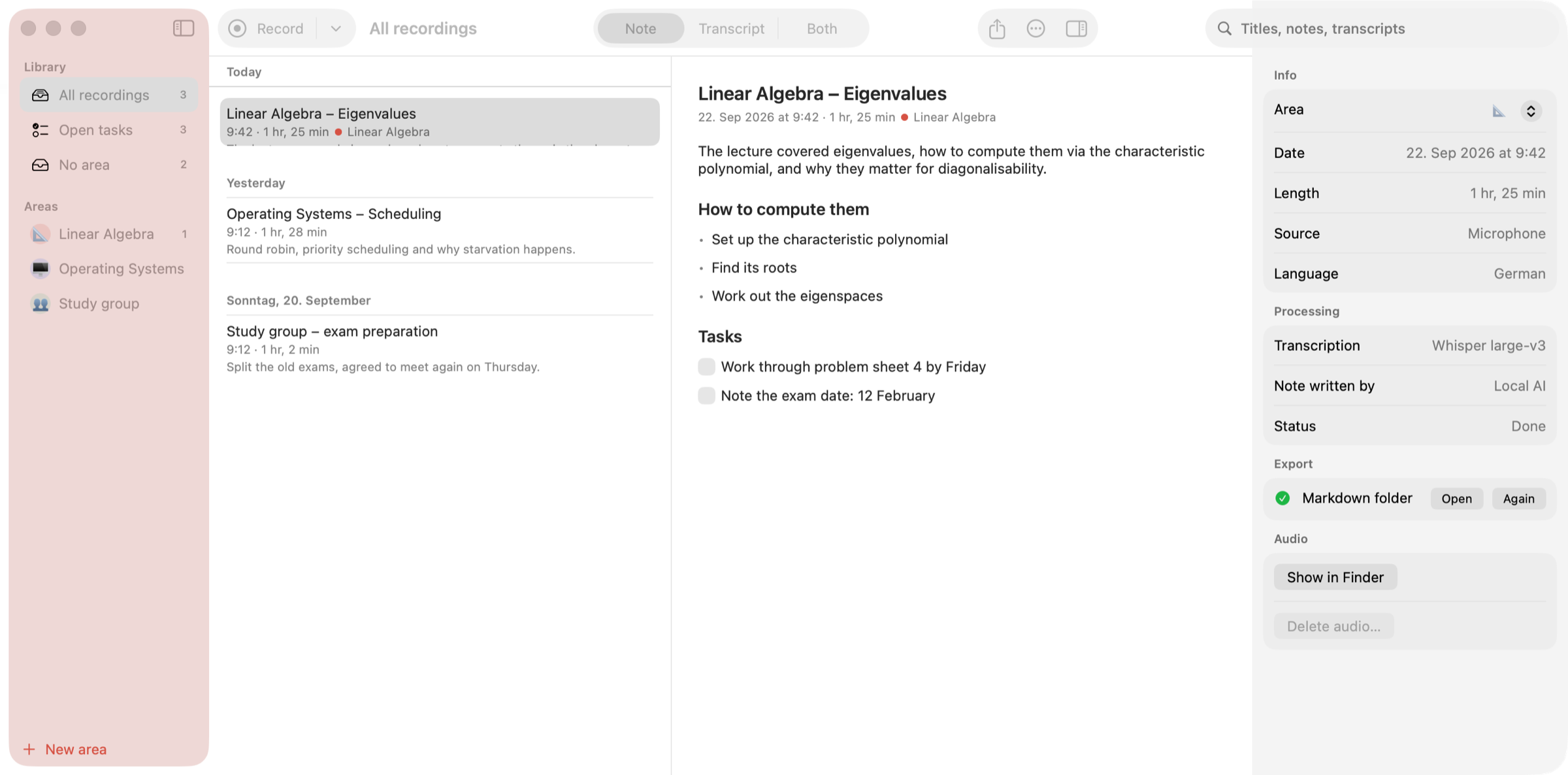
Earnote is a note-taking app for Mac, iPhone and iPad that records lectures, meetings and calls, transcribes them with Whisper and turns the recording into a structured written note. Instead of leaving you with a wall of transcript, it produces a short summary, the topics that actually came up, decisions and tasks you can tick off, plus flashcards and a printable PDF study sheet. It is built for students sitting in lectures, for people who need a record of meetings and calls, and for anyone who wants to talk through an idea and keep the result as a written note. The app is free and open source under the MIT licence, with no account, no ads and no subscription. The problem Earnote addresses is the gap between what is said in a room and what a person manages to write down. A lecturer who speaks quickly, a meeting where several people talk at once, or a call that ends with a list of follow-ups all produce information that is easy to lose. A plain recording solves only half of it: the audio exists, but finding the relevant minute later means scrubbing through an hour of sound. A plain transcript produces text that still has to be read and reorganised by hand, and the details that matter — decisions, tasks, exam hints — disappear into the paragraphs. Earnote's stated ambition is to write what you would have written yourself if you had been fast enough: a short summary, the topics that actually came up, decisions and tasks, all while the recording stays on your own devices. Recording starts with ⇧⌘R or a single click in the menu bar, and Earnote captures the microphone and system audio together, so everyone on a Zoom, Teams or Meet call ends up in the transcript as well as the people in the room. A global shortcut, ⌃⌥⌘R, starts and stops a recording from any app without hunting for a window first. On iPhone and iPad the app records the whole lecture even with the screen off and the phone locked, and offers a Live Activity on the Lock Screen, Control Center and Action button controls, and widgets. It pauses for phone calls, notices when Zoom, Teams or Meet is running, asks whether it should take notes and can stop when the call ends. If a calendar event is running, the recording is named after the event — "Linear Algebra" instead of "Uni, 21 Sep" — and you choose which calendars count. Transcription runs with Whisper, and on the Mac the speech recognition happens locally on the machine. On a Mac with enough power you see the transcript live while you are still in the room, and because Earnote transcribes while it records, most of the work is already done by the time you press stop. On an M1 MacBook Air a 60-minute lecture is transcribed in about five to six minutes, roughly 12× real time, and the note then takes a few minutes more while you watch it being written. Low Power Mode makes everything about three times slower, and Earnote tells you when that happens. Recordings can be transcribed in many languages and you choose the language of the notes separately; the interface follows your Mac and is available in English or German. The note is written by a language model, downloaded once and run on your device, and it contains a summary and the topics that actually came up rather than a reformatted transcript. Decisions are pulled out, and follow-ups become tasks with checkboxes you can tick off. You can edit any part of the note by hand, or summarise again with your own instruction while the AI version stays one click away. Six local AI models are available and Earnote preselects the one that fits your Mac. Per-area instructions give every subject or client its own style for the AI, so the notes for a maths lecture and for a client call do not read the same way. Study material comes out of the same note. Flashcards — question and answer cards written straight from the lecture — can be edited inside the note and exported to Anki so you can quiz yourself. The note can be printed or saved as a clean PDF study sheet with headings, bullet points and tasks rendered as boxes, which makes revision possible away from the screen. For a whole subject there is an overview across every lecture at once, showing the topics, how they build on each other and any exam hints that were mentioned along the way. Listening back is built into the transcript. Every timestamp is a button: click the time and you hear exactly that moment, so when the lecturer went too fast you can jump straight to the sentence instead of hunting. The paragraph that is playing stays highlighted while you read along, and ⌘3 puts the note and the transcript side by side with the transcript scrolling along with the audio. Search inside recordings finds a term across all transcripts, steps through the matches with ⌘G and lets you hear the spot. Names and terms that Whisper gets wrong can be corrected once in a dictionary: the correction applies to the title, the note and the transcript, and the dictionary is handed to Whisper and to the AI so the next recording gets it right, per area or for everything. Privacy is treated as a default rather than a setting. Transcription runs locally with Whisper and the notes are written by a language model that Earnote downloads once and then runs on your device — no account, no API key, works offline. Recordings, transcripts and notes live in your home folder and are never synced. The app sends no analytics and no crash reports, and there is no server that belongs to Earnote. Cloud AI is possible only if you ask for it: you can pick Claude, OpenAI, Gemini or your own server, and the app says clearly when text would leave the machine. Housekeeping follows the same principle — you can see what the recordings take up and drop the audio of old ones while notes and transcripts stay, and Earnote filters the sentences Whisper invents during silence instead of writing them down. Notes are filed where you already work: Notion, Obsidian, Logseq, Apple Notes, Bear, Craft or a plain Markdown folder. Open tasks go to Apple Reminders, Things or Todoist, with one list per subject, and every subject or client can be set up as an area with its own colour, AI instructions and export targets. The app keeps itself up to date by telling you when a new version is there, showing what changed and installing it after you agree. On iPhone, a recording can be written up on the device itself, by your Mac through your own iCloud — with the audio deleted afterwards — or with your own free Google key, where only the text is sent and never the audio; notes then sync with your Mac. The Mac app requires macOS 15 or newer on Apple Silicon with about 8 GB of memory, and the first run downloads the speech model (~1.6 GB) and the local AI (~2.3 GB) once. It is a 26 MB download, signed and notarised by Apple, and it is not in the Mac App Store because the sandbox there would get in the way of recording system audio and filing notes into other apps. iPhone and iPad versions require iOS 26 / iPadOS 26 and are available on the App Store; on iPhone 15 Pro and later even the note is written on-device. There is no Windows version, because Earnote builds on Apple's CoreML and MLX frameworks. Everything on the Mac is free; on iPhone and iPad an optional one-time Earnote Pro purchase adds speaker detection, ask your notes and translation, with no subscription. Typical use is a student recording a linear algebra lecture, getting a summary and tasks, quizzing themselves with flashcards and revising from a PDF study sheet before the exam. It is a meeting where Zoom, Teams or Meet audio is captured alongside the room, the recording is named after the calendar event, follow-ups land in a task manager and the note is exported to Notion or Obsidian. It is an explanation recorded out loud that comes back as a structured note, or a phone on the desk recording a full lecture with the screen off and the notes waiting afterwards. It is also semester-scale work: one overview across every lecture of a subject, with search across all transcripts when a term needs to be found again. Earnote's value proposition is narrow and concrete: press record, keep talking, and end up with a note you would have written yourself — summary, topics, decisions, tasks, flashcards and a PDF — while the audio and the transcript never leave your devices unless you explicitly send them somewhere.
Chathonk is described in the provided content as a fun and engaging chat platform that lets people connect with friends. Its Product Hunt tagline says it offers instant chat, web games, and audio calls with friends. The product description adds that users can search for other users by email or username and spice up conversations with emojis and GIFs. The website content shows a login page where people access the product through an account, with options to continue with Google or use an email and password. There is also a forgot-password link, a create-account link, and a continue-as-guest option. Chathonk is listed under Messaging, Games, and Chat rooms on Product Hunt, matching the chat and games positioning in the available content. The provided content does not include a detailed problem statement or origin story. It frames Chathonk around connecting with friends and making conversations more fun and engaging. The stated features address common needs in a chat product: finding people to talk to, expressing yourself in conversation, and spending time together through lightweight activities. Searching by email or username gives users a way to locate people without relying only on display names. Emojis and GIFs add expressive elements to messages. Web games and audio calls extend the experience beyond plain text chat. The content does not claim to replace any specific tool or solve a named industry problem; it simply presents these capabilities as part of a fun chat platform. The login page shows several ways to enter Chathonk. Users can continue with Google, or they can sign in with an email address and password. A forgot-password link is available for account recovery, and a create-one link supports new account registration. The page also offers a continue-as-guest option for people who are just looking. These access paths matter because they set the tone for how people begin using the product. Google sign-in can reduce the need to remember another password, while email and password login gives users a direct account option. Guest access lets someone explore without creating an account first. The content does not describe any additional authentication methods beyond these. Chathonk's description says users can search for users by email or username. This is the only user-discovery method explicitly mentioned in the provided content. It supports a direct way to find a specific person when you already know their email address or their chosen username. The content does not describe browseable directories, contact imports, friend suggestions, or other discovery tools. For the purpose of this extraction, the stated capability is limited to searching by email or username. That capability is important because it gives the platform a concrete way to help people locate one another before starting a conversation. The product description states that Chathonk lets users spice up conversations with emojis and GIFs. These are explicitly mentioned expressive elements for chat. Emojis can add tone or emotion to a message, and GIFs can add animated visual reactions. The content does not specify how emojis and GIFs are selected, whether there is a library, or whether they can be used in every conversation type. It only states that they are part of the chat experience. Within the available information, this feature supports the broader positioning of Chathonk as a fun and engaging platform rather than a plain text-only messaging tool. The tagline says Chathonk includes web games and audio calls with friends. These are the two non-text interaction modes explicitly named in the provided content. Web games are described as part of the product alongside instant chat, which suggests that games are available within the same platform. Audio calls are also named as a way to connect with friends. The content does not list specific games, describe game rules, state call limits, or explain how calls are started. It also does not say whether games and calls are available to guest users. The extraction therefore records only the stated presence of web games and audio calls. Based on the provided content, the overall flow is straightforward. A person arrives at the Chathonk website and sees a login screen. They can continue with Google, enter an email and password, recover a forgotten password, create an account, or continue as a guest. Once inside, the product is described as a chat platform for connecting with friends. Users can search for other users by email or username, then chat with them. Conversations can be enhanced with emojis and GIFs. The tagline adds that the platform also offers web games and audio calls with friends. The website footer shows an Edit with Base44 label, which is the only technology-related detail explicitly present in the content. No further technical architecture or workflow details are provided. The stated benefits are centered on fun, engagement, and connection. Chathonk is described as a fun and engaging chat platform, so the content positions enjoyment as a core outcome. Searching by email or username can make it easier to find the right person to talk to. Emojis and GIFs can make conversations more expressive. Web games and audio calls can add variety beyond text chat. The login options can reduce friction because users can choose Google, email and password, or guest access. These benefits are directly tied to features named in the content. The provided material does not include claims about security, speed, privacy, reliability, or business outcomes, so those are not included here. Several concrete use cases follow directly from the stated features. A user can search for a friend by email or username and start an instant chat. Friends can make conversations more fun by adding emojis and GIFs. A group of friends can use the web games capability as part of their time on the platform. Friends can also make audio calls through Chathonk. Someone who is just looking can continue as a guest before deciding to create an account. A new user can create an account, and an existing user who has forgotten a password can use the recovery link. These scenarios are based on the login page, product description, and tagline provided. The target audience, as described by the content, is people who want to connect with friends through a fun chat platform. The product is listed under Messaging, Games, and Chat rooms, which points to social chat and casual gaming interests. Login through Google is the only integration explicitly named. The website shows Base44 in an Edit with Base44 label, making Base44 the only technology named in the provided content. No pricing, plan, free-tier, or paid-tier information appears in the provided content. No mobile app, desktop app, or API details are stated. The available platforms information is therefore limited to the web, because the content is a website and login page. In summary, Chathonk is presented as a fun and engaging chat platform for connecting with friends. Its core stated capabilities are instant chat, user search by email or username, emojis and GIFs, web games, and audio calls. The login page adds Google sign-in, email and password login, password recovery, account creation, and guest access. The content does not provide deeper detail on pricing, plans, technical architecture, or specific game and call functionality. Within those limits, Chathonk's primary value proposition is a casual, expressive, and multi-activity way to chat with friends.
Nostaliga is an iPhone and iPad app that turns your listening history into a personal timeline. Pick any song and see the day around it: your photos, places, runs, check-ins, shows and posts. The app brings your music, photos, workouts, walks, the places you have been, and the movies and shows you have watched into one timeline, so that a single track becomes an entry point into a period of your life rather than just a piece of audio. Nostaliga is made for anyone who has ever heard a song and been pulled straight back to a specific time and wanted to see that moment again, the photos that were taken, the route that was ridden, the place that was checked in to, and not only feel a vague sense of nostalgia. The app grew out of a very specific memory. The maker describes hearing "1-800-273-8255" by Logic and being instantly back in 2017, the first year he was cycling, doing long rides with that song on repeat. The song remembered those rides better than he did, but the routes and the photos from them were scattered across Strava, his camera roll and Last.fm. That fragmentation is exactly the problem Nostaliga sets out to solve. The music that triggers a memory lives in one service, the photographic evidence lives in another, the workout data in a third, and the check-ins, shows and social posts somewhere else again. Nostaliga anchors all of those threads to listening history, so instead of hunting through several apps for the same day, you can start from the song and let the app reassemble the context around it. The central interaction is deliberately simple: pick any song and Nostaliga shows you the day around it. The app looks through your listening history and brings back the photos, places, rides, walks and moments from the times you played that track before. Photos, places, runs, check-ins, shows and posts all sit in the same view, arranged around the music rather than around a date. This matters because most memory tools ask you to remember a date or scroll a photo library; Nostaliga starts from the thing that actually triggered the memory. The song is the index, and everything else, where you were, what you photographed, what you were doing, hangs off it. Nostaliga also includes an On This Day experience that works across the years. Instead of looking only at a single song, you can go back to the same date in earlier years and see what belongs to it. That gives the timeline a second axis: one direction from a song into a day, and another from a calendar date back through the years. Together they turn the app into something closer to a personal archive with two ways in, so the memory can be found whether you remember the music or the date. The app draws on a broad set of sources so the timeline is not limited to music. It works with Apple Music and Last.fm for listening history, Photos for imagery, Apple Health and Strava for runs, rides, workouts and walks, Swarm for check-ins, Trakt for the movies and shows you have watched, and Calendar for events. If your listening history does not live in those services, you can import your Spotify listening history, and you can also import your Twitter, Instagram or Facebook archives. Each of these sources contributes a different kind of evidence about a day, where you went, what you did, what you watched, what you shared, and Nostaliga's job is to line them up against the music. Underneath, Nostaliga's approach is defined as much by what it does not do as by what it does. There is no account, and there is no analytics or tracking. Your timeline is built and stored on your device, so the assembled record of your listening, photos, places and activity stays with you instead of being uploaded and held by a service. That makes the app a local, personal archive rather than a social or cloud product. The result is a timeline you can explore without signing up, without a profile, and without the sense that your memories are being collected by someone else. The benefits follow from that design. A song stops being only a song and becomes a way back into a particular stretch of life, the year you were cycling, the city you were in, the film you were watching that week. Because the sources are gathered rather than scattered, you do not have to remember which app holds which fragment; the timeline does it for you. And because the listening history is the organizing principle, the memory is triggered by the same thing that would have triggered it in real life: hearing the track. Finally, the on-device, no-account model means the value of the archive is not tied to a subscription or a login. Concretely, Nostaliga is used when a song brings back a period and you want to see it rather than only recall it. You might pick a track that was on repeat during a first year of cycling and use it to pull up the routes and photos from those long rides. You might use On This Day to revisit the same date in earlier years and see what you were listening to, where you checked in and what you were watching. You might start from a film or show in Trakt and work back to the music of that month, or start from a check-in in Swarm and see what was playing. If your history is spread across Apple Music, Last.fm, Strava, Photos and social archives, importing those sources is the first step in building the timeline you then browse by song or by date. Nostaliga is an iOS app for iPhone and iPad, listed under iOS, Music and Photography. Its connected sources include Apple Music, Last.fm, Photos, Apple Health, Strava, Swarm, Trakt and Calendar, along with imports for Spotify listening history and Twitter, Instagram or Facebook archives. It is free to use. Because it requires no account and performs no analytics or tracking, there is nothing to sign up for before you begin: the timeline is assembled and kept on your own device. The takeaway is that Nostaliga treats your listening history as the thread that ties your memories together. By combining music with photos, places, runs, check-ins, shows, posts and calendar events in one on-device timeline, and by letting you enter it either from a song or from a date, it makes rediscovering the days behind your favorite songs a matter of picking a track and seeing what comes back.