Category Focus/categories/audio
Audio AI Tools
Discover and compare the best audio AI tools and software. Browse 91+ curated tools with reviews and rankings.
Projects tracked
91
Sort mode
RECENT
Page
1
Pauta is a meeting transcription and summarization app for Mac and Windows that runs entirely on your own computer. It records your microphone or your system audio, transcribes the conversation while it happens, and then turns it into a note with decisions and tasks. The product is aimed at people who hold a lot of conversations — meetings, interviews, classes, appointments and voice notes — and who want a private memory of them rather than another cloud subscription. There is no bot that joins the call, no account to create and no server storing your audio. You pay once and the license is yours forever. Most meeting recorders work the same way: a bot joins the call as an extra participant, audio is streamed to a server, and the transcript lives in someone else's cloud behind a monthly fee. Pauta takes the opposite route. It records through your own computer, capturing both the microphone and the system audio, so it works in Zoom, Google Meet, Microsoft Teams and any other call with no extra guest. The website is explicit that nothing leaves your machine: Pauta servers do not receive your recordings, transcripts or summaries. Offline use is supported — the internet is only needed to validate the license, download models and, if you connect Claude or ChatGPT, to summarize with them. Capture starts in two ways. Pauta notices when a meeting starts, or you turn it on manually whenever you want, for videos and any system audio. The rule stated on the site is simple: if you can hear it, Pauta can capture it. Controls are always at hand — on the Mac the recording sits at the top of the screen in the Mac Island; on Windows the system tray offers one click to record or mark a moment. During a session you can mark a moment worth returning to and turn on stealth recording from a meeting-detected prompt. Before you record, the options drawer shows what stays on the device. Transcription happens while the conversation is happening, from either the microphone or the system audio, and the text stays on your machine without touching a server. The interface shows the transcription engine in use — Parakeet V3 in the demo screens — alongside a language setting. Speaker identification is the second layer: Pauta separates the voices in each meeting and matches them against people it already knows, on your computer. It learns each person's voice and recognizes it in later meetings, so a familiar participant is labeled by name instead of a generic speaker number. Fix a name once and it remembers; the demo shows three speakers in a recording with two already named. Summaries are produced by the AI you pick. Local Qwen 2.5 3B is the default and the recommended option: it runs on your computer, with no cloud and no account. If you prefer, you can connect Claude or ChatGPT using your own API key, in which case the text for a summary or an answer goes to that provider. The output is a structured note rather than a wall of text — the screens show a note written by AI and attached to a project, with a decisions list covering items such as the second batch closing on Friday, Rafael taking the integration by Thursday and support being warned before the holiday, plus a task count. Projects give Pauta its memory. You create a project with a name and a description, and each recording lands in the right one; when a recording ends, Pauta suggests the right project and you confirm it with one click. A project then rolls every conversation on that subject into a single summary — the example project called Batch 2 holds three recordings totaling 1h54 and keeps an overview plus a shared decisions list. On top of that, each project has an AI conversation about all of its recordings. Inside a project you can ask what has been decided so far or who ended up with the most tasks, and the answer draws on the summaries and transcripts of every recording in that project. Beyond projects, Pauta organizes recordings with tags and a no-project bucket for anything you have not filed yet, and transcripts are searchable. Two integrations extend where the material goes. Obsidian Sync turns every recording into a note in your vault, organized by project, and keeps the note current when you edit it in Pauta. The calendar sits in the menu bar: your next meeting shows next to the icon, read from Apple Calendar with no server involved — to see Google or Outlook you connect those accounts to Calendar. The website sums the workflow up as detect, transcribe, know who spoke, summarize, organize into projects and answer across meetings. The overall approach is local-first and native. Pauta is built with SwiftUI for macOS on Apple Silicon and Intel as a universal binary, and for Windows 10 and 11 on x64 and ARM64 through the Microsoft Store. Because transcription and summaries run on the computer, the pipeline does not depend on a connection, and the privacy default is visible before you record. The only outbound contacts Pauta describes are license validation, model downloads, update checks and the optional Claude or ChatGPT calls you configure yourself. For users, the outcome is a durable, private record of conversations. Decisions and tasks are captured in a note instead of being reconstructed from memory; familiar voices are named automatically; and a subject's history is queryable in one place rather than scattered across separate recordings. Because the license is a one-time purchase, the cost does not scale with usage, and every future update is included. The site lists broad use cases rather than a single vertical. Pauta transcribes any audio from the computer or the microphone: online meetings, classes, interviews, appointments and videos. It also handles voice notes, which the product description groups with meetings and interviews as material it records, transcribes and turns into summaries and action items. The demo screens show day-to-day scenarios — a project meeting on a customer batch with three speakers, a coffee with the design team, a one-on-one with Rafael, and a roadmap review pulled from the calendar. Pauta is sold as a lifetime license: $5, marked down from $15, paid once with every future update included and no subscription or annual fees. Before buying, you can try it free for 7 days with no card required. A license activates on up to 2 computers — two Macs with the Mac license or two PCs with the Windows one — and you can deactivate an old computer to free a slot. The Mac version requires macOS 13 Ventura or later; the Windows version installs and updates through the Microsoft Store. After purchase the serial key arrives on the confirmation page and by email, payment is handled by Stripe, and activation happens in Pauta's license settings. iOS and Android builds are listed as work in progress with a waitlist. Taken together, Pauta positions itself as a private, pay-once replacement for bot-based meeting recorders: your microphone and system audio transcribed and summarized on your own Mac or Windows machine, speakers recognized by voice, and every conversation on a subject gathered into a project you can question.
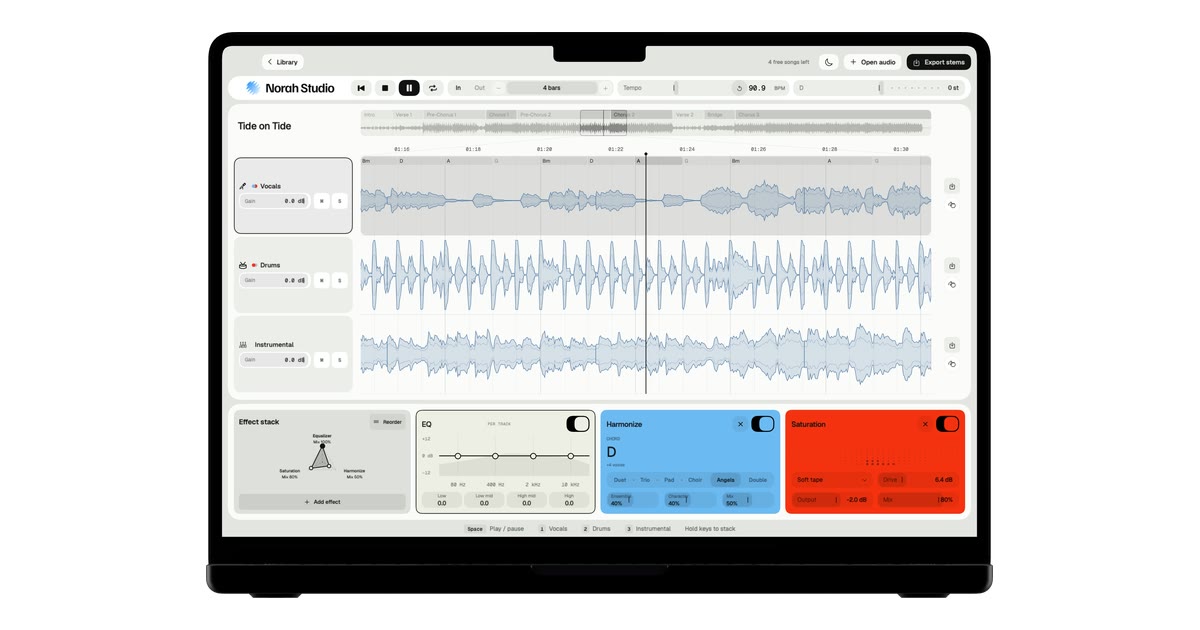
Norah Studio is a creative studio for exploring, transforming and reimagining your music on Mac, iPad and iPhone. It separates any song into vocals, drums and instrumental on the device in your hands, then lets you loop it by bars, change its tempo and key, add effects, take the stems with you, follow chords, build harmonies, turn melodies into instruments and export audio or MIDI. It is aimed at anyone who wants to take a song apart — to learn a part, build a backing track or pull a drum loop — and it works as both a practice room and a remix desk. Recorded music usually arrives as one finished mix. The vocal, the drums and the band are already blended together, which is exactly what you want for listening and exactly what gets in the way when you want to learn a part, play along in a different key, sing over the record's own band or sample a drum groove. Norah Studio's answer is to split the song into its parts first: vocals, drums and instrumental, each in its own lane, ready to be soloed, looped, reshaped and exported. Because streaming services lock their files to their own apps, the app works with audio files you already have that the system decodes — MP3, M4A and AAC, WAV, AIFF, FLAC, CAF and more, up to ten minutes — rather than with tracks from streaming catalogues. The workflow starts with Open, split, play. You open a song and three tracks come out. It starts playing from the first second while the rest is still being separated, so there is no queue and nothing to wait for. The app reports 1.1 s to first sound on a Mac and 1.5 s to first sound on an iPhone 16, measured in October 2026 with a song of 2 min 18 s, and 0 bytes uploaded, ever. There is no account to create and no upload step: the models that take the song apart travel inside the app and run on your own chip. The chosen lane can be soloed on its own, so you can hear just the vocal, just the drums or just the instrumental. Once the song is apart, the practice tools take over. Loop by bars gives you a bar grid and named sections, so you can loop exactly one section or any number of bars instead of guessing at a selection by ear. Tempo and key let you slow a song down without the pitch dropping, or move it to your range without changing its speed. Chords are read above the vocal, one per beat group, together with the key and the tempo, so you can see the harmonic shape of the passage you are working on. The app labels tempo, key and chord results as estimates — good enough to loop by bars and play along. Each lane has its own processing chain. Norah Studio offers 24 effects and 4 visualizers, an EQ on every lane, and the effects run in the order you choose. MIDI Learn maps any control to a knob on your controller, so the parameters you reach for most can sit under your hands rather than on the screen. Melody Synth takes the vocal melody and plays it with 19 instruments, from synth leads to a grand piano, turning a sung line into an instrumental part. Harmonize adds a choir that follows the chords, with six voicings — Duet, Trio, Pad, Choir, Angels and Double. Export closes the loop. You can take the three stems with their effects, and the melody as MIDI, so the work you did inside the app can move into whatever comes next. The Library keeps recent songs and reopens them with everything as you left it, so a session can be picked up later rather than rebuilt from scratch. Reopening a song you already took apart is always free. Norah Studio is the same engine, native on each device. On a Mac it is the whole desk, with a keyboard and a mouse; on an iPad it is the whole desk under your fingers; on an iPhone it is the desk folded upright for one thumb. Your songs never travel between them: each device separates on its own, offline. There is no server and no analytics, and the App Store privacy label reads Data Not Collected. Because the models are inside the app, the first song works in airplane mode, and nothing leaves your device. The app is also candid about its limits: no separation is perfect, and on a dense mix a little of the voice can stay in the instrumental; tempo, key and chords are estimates and are labelled as such. The practical benefit is that a finished recording becomes material you can work with. A song you own can become a slower version in the same key for practice, a version without the singer for karaoke, a drum loop lifted from a track you like, a backing track built from the record's own band, or a vocal melody handed to a piano. Because everything happens on the device, the work is private by default and available without a connection — on a plane, in a practice room, wherever the song and the device are. Because every feature is in the free version, the whole studio can be tried on five songs before deciding about Pro. The app suggests concrete places to start. Remove vocals takes the singer out of any song you own, leaving the record's own band. Slow down a song lets you practise at your speed in the same key, with looping to repeat the passage you are learning. Karaoke gives you the record's own band in your key. Beyond those, the separated lanes make it possible to learn a part against the lane that carries it, pull a drum loop for reuse, or turn a vocal melody into an instrument line and export it as MIDI. Norah Studio runs on a Mac with Apple silicon on macOS 15 or later, an iPad on iPadOS 26 or later, or an iPhone on iOS 26 or later. The free version includes every feature and five songs; Pro adds unlimited songs and nothing else, with Pro Monthly at €7.99 per month (cancel any time) and Pro Lifetime at €69.99 once (never renews). Prices are shown in your country's currency on the App Store, and Pro bought on one device also covers your other devices signed in with the same Apple Account. In short, Norah Studio turns any song you own into parts you can play with — separated, looped, retuned, processed and exported entirely on your own device, with no account, no upload and no connection required.
Nocto is a native macOS app that turns the black notch at the top of a MacBook display into a small, interactive control center — the product itself calls it a Dynamic Island for the MacBook's notch. Rather than staying empty, the notch grows into a panel when there is something to show: the song that is playing, the next meeting on the calendar, files parked on a shelf, items recently copied to the clipboard, or battery status for the Mac and connected AirPods. It shrinks back when it is not needed. Nocto is aimed at MacBook owners running macOS 14 Sonoma or later who want everyday information and quick actions within reach without opening another app or managing another window. It is an independent Mac app and is not made by Apple. The starting point is the notch itself. On a MacBook the notch is a strip of black space that, for most people, does nothing at all — it occupies part of the screen and gives nothing back. Nocto treats that space as an opportunity: a place where the small, frequent things that interrupt a working day can live briefly instead of demanding a window. A single day involves checking what a song is called and skipping it, remembering a call that starts in ten minutes, holding onto a file that needs to be dragged somewhere else, reusing something copied a moment ago, and glancing at battery levels. Each of those normally means switching context, and each is a place where Nocto puts the answer next to the notch instead. The music mode is built for whatever is playing. Nocto supports Apple Music, Spotify, YouTube, browser-based players and podcasts — anything macOS reports as Now Playing appears in the notch, browser tabs included. Pointing at the notch reveals artwork, playback controls and a scrubber, so the current track and its progress are visible without switching to the player. Gestures sit on top of that: swiping sideways over the music changes songs, next on a right swipe and previous on a left swipe, while scrolling over the progress bar seeks through the track. The point is that hearing a song you want to skip no longer requires hunting for the app that is playing it; the control is already at the top of the screen, in the space the pointer passes anyway. The meetings mode is where Nocto is most opinionated. Today's meetings appear in their calendar colours, so work and personal events look the way they do in Calendar. Ten minutes before a call begins, a countdown appears next to the notch. When the meeting actually starts, the notch opens on its own and offers a Join button. Nocto finds the call link inside the event and recognises Zoom, Google Meet, Microsoft Teams, Webex and FaceTime, so joining does not require opening the calendar, finding the event and looking for the right link in the notes. The calendar is read on the Mac and is never uploaded. For anyone who joins several calls a day, the countdown works as an early warning and the Join button as the single action that matters at the moment the call begins. The shelf gives files a place to wait. Files, images, links and text can be dragged onto the notch to park them there, then retrieved after switching to another app by dragging them back out. Dragging an item onto AirDrop sends it straight to an iPhone or another device. It behaves like a temporary holding area on top of the screen: the file does not need a folder, it does not need a window kept open, and it does not need to be found again through Finder. Dragging out works anywhere, into any app, so the shelf can be used to move an image into a document, a file into an email, or a link into a message without saving anything first. Clipboard history turns what was copied into something visible. Copy a hex value and Nocto shows the colour; copy a screenshot and it shows the picture; copy a link and it shows the site rather than the tracking. Items can be filtered by text, links, colours and images, clicked to copy again, or dragged directly into any app. Links are cleaned before they are pasted: tracking parameters such as utm, fbclid and si are removed. Privacy is handled explicitly — history is kept in memory only and is cleared when the app quits, copies that password managers mark as private are skipped, and clipboard history is off until it is turned on. Battery information appears once and then disappears. Plugging in shows how long until the battery is full; connecting AirPods shows the level of the left bud, the right bud and the case. On the Mac, Nocto covers charging status, time to full and low battery. The design choice here is deliberate: the notch shows the information for a moment and then gets out of the way, rather than leaving a persistent indicator on screen. The information arrives when it is relevant — on connection or on power — and does not compete with anything afterwards. Beyond the five main modes, Nocto collects a set of smaller behaviours. Clean links remove utm, fbclid and si tracking before pasting. Drag out anywhere means files, text, links and images can be pulled from the notch into any app. The open notch can be shaped — width and corner radius are adjustable to match the screen. Nocto hides in full-screen apps, has no dock icon and opens no windows to manage, so it does not add to the window clutter it is meant to relieve. macOS 14 Sonoma or later is required; MacBooks with a notch get the full effect, while other displays get a small virtual notch at the top of the screen. Nocto is driven by the trackpad and a few consistent gestures. Resting the pointer on the notch makes it open, so a peek requires no click. A swipe down pins the notch open while work continues; a swipe up dismisses it or clears a notice; sideways swipes over the music change songs. Everything else follows the same idea of small, reversible interactions. The app is native and described as light — about 4 MB — and it is signed and notarized by Apple. Data stays local: music, calendar, clipboard and files are read on the Mac and remain there. There is no account, no analytics and no tracking, and Nocto only goes online to check the license and look for updates. Permissions are requested only when they are used: calendar for meetings, Bluetooth for AirPods, and permission to read Music or Spotify. The outcome Nocto is selling is fewer interruptions, not more features. Music control, the next meeting, a parked file, the last thing copied and the battery level are all things a person checks many times a day; putting them at the notch means checking them does not require leaving what is being worked on. The countdown and the Join button mean a call is harder to miss. The shelf means a file can be held without a desktop full of windows. Clipboard history means something copied can be found again instead of re-copied. And because the notch hides in full-screen apps and has no dock icon, all of this arrives without adding another thing to manage through the day. Concrete workflows follow from those behaviours. During focused work, a swipe on the notch skips a track without opening Music or Spotify. Ten minutes before a standup, the countdown appears, and when the call starts one click joins it in Zoom, Meet, Teams, Webex or FaceTime. A screenshot copied for a design review can be found again in clipboard history, or dragged straight into a document. A file pulled from Finder can be parked on the shelf while switching to another app, then dragged out — or dropped on AirDrop to reach an iPhone. A hex code copied from a design tool shows its colour before it is pasted. And on plugging in a charger or connecting AirPods, the levels appear and then disappear. Nocto is aimed at people who spend the day on a MacBook — particularly those who join several meetings and switch between apps constantly — and who would rather have small pieces of information at the edge of the screen than another window. It requires macOS 14 Sonoma or later. Pricing is a one-time purchase: $9.99 at launch, down from $14.99, and not a subscription. A license covers everything on the page on up to three Macs plus all 1.x updates. There is a 7-day free trial with no card and no account, a 14-day refund with no questions asked, and secure checkout through Lemon Squeezy with the license key arriving by email. A license can be moved between Macs by deactivating it in Settings → License. After the trial, music in the notch keeps working for free; meetings, the shelf, AirDrop, the clipboard and battery updates need a license. Nocto's proposition is narrow and concrete: the notch is already there, and it can do something. By putting music, meetings, files, clipboard and battery into that black space — with a countdown before calls, a one-click Join, a shelf with AirDrop, a clipboard that shows colours and clean links, and information that appears once and leaves — it turns an unused part of the screen into a genuinely useful one. One payment, local data, no account, and music free forever.
Paste a TikTok link and download the video in seconds. Free, no login, no app needed. Works on iPhone, Android, and PC. Tiktok Video Downloader
Download Spotify songs, playlists, and albums for free with Spotidown – Free Spotify Downloader. Fast, high-quality Spotify downloader with no login required.
Loqui is a voice-to-text tool for Mac and Windows that turns spoken words into clean, ready-to-send text inside any application where you can type. You hold a key — the fn key on a Mac or the right Ctrl key on Windows — talk the way you normally talk, and the finished text appears at your cursor. Loqui is built for people who write all day and would rather speak: it delivers the text ready, punctuated and in the right tone, without plugins and without copy and paste. The product also records meetings and writes the minutes afterwards, supports over 90 languages, and offers a free plan with no card needed. The problem Loqui addresses is that modern writing is fragmented across many apps and interrupted by the mechanics of typing. Conventional dictation makes you dictate punctuation out loud — saying "comma" and "period" — and hands back a raw transcript full of hesitations and backtracked sentences that you then have to clean up yourself. Loqui's premise is that you should be able to hesitate, backtrack and change your mind mid-sentence and still get text that reads as if it were written. A second premise is tone: the same spoken sentence should sound loose in a chat, careful in an email and direct in a doc. A third is that conversations with many voices should produce minutes that separate what was decided from what someone agreed to do, with the audio that proves it. Loqui works wherever you write. There is no plugin: the text goes wherever your cursor is, in any app you can type in, and the site lists Gmail, Slack, Notion, WhatsApp, Docs, Teams, Figma, Linear, Zoom, Outlook, Discord, Telegram, VS Code, Cursor, GitHub, Obsidian, Sheets, Trello, Word, Jira, Meet and Asana among the places it is used. Loqui also notices where the text is going and writes the way people write there — professional tone in Gmail, conversational tone in Slack and WhatsApp, technical tone in VS Code, structured tone in Notion and neutral tone in Figma comments. You talk the same way; the output adapts to the destination. It edits while you speak. If you hesitate, backtrack or change your mind mid-sentence, Loqui drops the fillers, understands the correction and formats amounts, dates and lists — all without you saying comma or period. The site's example takes a spoken sentence padded with "uh", "like, wait" and a self-correction from twelve thousand to fifteen thousand, and returns a single clean line: the budget is $15k and delivery is on Friday, with three fillers removed, one correction applied and the amount formatted in dollars. This is what makes the output ready to send rather than a transcript to be tidied. Several capabilities build on that core. Loqui learns your vocabulary: names, acronyms and jargon go into a dictionary, it suggests terms you use, and every correction you make teaches it not to miss again. You can speak in over 90 languages, either by picking the language or by letting Loqui figure out which one you are speaking. Spectros let you pick an option on the glyph before you speak, so the dictation comes out translated, summarized or written as an email. Seals save text you keep repeating and let you call it up by voice — for example a signature you ask Loqui to sign off with. Hands-free mode opens the microphone when you tap the key twice and inserts the text when you tap once more. Everything you say stays at hand. Every dictation is saved with its audio and is searchable, so you can find a past sentence by a word inside it. If you did not like the result, you can redo it from the original speech in another tone — formal, balanced or casual — without saying it again. Loqui also shows how you talk, including your most common fillers and the time of day you talk the most, calculated on your computer. When the conversation has many voices, Loqui records the meeting and gives each voice a Dito and its own track; microphone and system audio are captured on separate tracks and you can name a voice right on the timeline. At the end, the minutes separate what was decided from what someone agreed to do, with the audio clip that proves it. Items to review include decision, action, risk, dependency and open question, and you approve what counts. A contradiction radar flags when a meeting contradicts an earlier decision on the same project, and Loqui suggests the next agenda from whatever was left open. The overall approach is deliberately privacy-conscious. To become text, your audio passes through Loqui's servers and is discarded right there — only the text comes back. No audio is kept on servers, not from dictation and not from meetings, and your dictation history is kept only on your computer. Sync starts off, so taking your dictionary, tones and minutes to another computer is your call. Meetings record only after the notice, and Loqui reminds you to let everyone in the conversation know. The one exception is optional: turning on product improvement donates text samples of your dictations for up to 90 days, never the audio, and servers keep a technical record of each request. For teams, the team speaks the same language: one shared glossary for everyone, with invitations by username, and only people who consented record into the space. Glossary entries can be approved or proposed by team members, so shared names and jargon stay consistent across the group. The practical benefits follow from these mechanics: you stop typing and start speaking at the speed of thought, you stop cleaning up transcripts, and the text arrives formatted for the app it lands in. Typical scenarios on the site include drafting a revised proposal in Gmail, replying in a Slack launch channel, writing a validation comment in VS Code, capturing a planning decision in Notion, sending a quick WhatsApp message, and leaving a note in Figma. Meetings add a second workflow: record the call, review decisions, actions, risks, dependencies and open questions, then use the suggested next agenda. Loqui runs on Mac and Windows with the same experience, triggered by fn on Mac and right Ctrl on Windows. Pricing starts free forever for anyone who wants to stop typing, with a weekly dictation quota, text already formatted and ready to paste, and one hour of meetings per account as a one-time allowance. Pro is US$8 per month for people who write all day, adding dictation with no weekly quota and three hours of meetings per month. Pro + Meetings is US$16 per month for people who live on calls, with thirty hours of meetings per month and an extra ten-hour pack for US$6. Loqui's core promise is simple: speak, and Loqui writes. It turns everyday speech into finished text in whatever app you are already using, adapts the tone to the destination, and extends the same approach to meetings so the record of a conversation is ready when the call ends.
Yourcast is a Telegram bot that turns the messaging app into a podcast player. Rather than installing a separate podcast client, a listener opens a chat with @yourcastbot, searches for a show, taps to subscribe, and new episodes arrive as audio right in the conversation. The bot is aimed at people who already spend their day inside Telegram and want podcast discovery, subscription and listening to happen in the same place they already talk, read channels and share files. Yourcast 2.0 builds on that listen-in-chat model with AI summaries that carry timestamps you can tap to jump into the audio, the ability to ask questions about any episode, feeds that repair themselves, file support up to 2 GB, OPML import and payments in Telegram Stars. Podcast listening usually starts by leaving whatever app you are in. You open a dedicated podcast client, search for a show you just heard about, and manage a separate subscription list that lives apart from your conversations. Yourcast addresses that split. Telegram already holds chats, channels and audio files, so keeping a listener's shows in the same space removes a step between hearing about a podcast and following it. The subscribe flow is deliberately reduced to a tap: find the show, tap once, and future episodes are delivered as audio messages in the chat instead of waiting in another library. That matters most in the moment of discovery, when the intent to follow a show is strongest and any friction tends to end it. The core of the product is search and subscription inside a chat. A user searches for a podcast by name, reviews the results the bot returns, and taps to subscribe. From then on, new episodes of that show arrive as audio directly in the Telegram conversation, so playback happens where the notification already is. There is no separate library screen to open and no episode list to refresh: the chat itself becomes the feed. The bot also points to a channel, @yourcast_channel, and a chat, @yourcast_chat, alongside the bot itself, giving listeners a place to follow updates and talk with other users. Because everything happens in a Telegram chat, the same interface works across the Telegram apps a person already uses, with the bot link launching it directly. Version 2.0 adds AI summaries to the listening experience. After an episode is available, the bot can provide a summary of it, and that summary carries timestamps. The timestamps are tappable: tapping one jumps to the corresponding point in the audio. This turns a summary from a static block of text into a navigation tool. A listener can read the summary first to decide whether a long episode is worth the time, then jump straight to the segment that matters instead of scrubbing through the player looking for it. For shows where only one topic is relevant, or for episodes that run long, the combination of an AI summary and tap-to-jump timestamps compresses the decision of what to listen to and where to start into a single screen inside the chat. Beyond summaries, Yourcast lets a user ask questions about any episode. Instead of reading or listening to the whole thing to find one answer, the listener asks the bot directly about the episode in the chat. The second reliability feature is feeds that repair themselves. Podcast feeds can break, and Yourcast 2.0 handles it by repairing the feed rather than leaving the subscription dead. For a listener, that means a show they subscribed to keeps delivering new episodes without manual re-adding or troubleshooting, and the maintenance work that usually falls to the user is handled by the bot. 2.0 also lifts several practical limits. Files up to 2 GB are supported, so long episodes and larger audio files that would previously exceed a limit can be delivered into the chat. OPML import means a listener can bring an existing subscription list from another podcast app into Yourcast rather than rebuilding it show by show. Payments run through Telegram Stars, so upgrading happens inside Telegram without leaving the app or entering card details elsewhere. On the free tier, users get 10 episodes a week on demand, which sets a clear boundary between casual listening and heavier use. How the product works overall is intentionally simple: it is a bot, not a separate app. A user launches it from the bot link, lands in a chat with @yourcastbot, and interacts through messages. Searching, subscribing, requesting an episode on demand, reading a summary, tapping a timestamp and asking a question are all chat actions in the same thread. Because the bot lives inside Telegram, there is nothing to install beyond Telegram itself, and episode delivery uses the app's existing audio file handling. The website presents the product in a single line, the podcast bot that searches, subscribes and plays podcasts, with a Start Bot button as the whole onboarding path. The benefit is consolidation. Listening, subscribing and catching up happen in a place the user already opens many times a day, which makes following a new show a one-tap decision instead of a context switch. AI summaries with timestamps reduce the time spent deciding what to play and finding the relevant part of an episode, and asking questions about an episode replaces hunting through audio for a single answer. Self-repairing feeds remove a maintenance chore from the listener. OPML import protects existing subscriptions, 2 GB file support removes a size ceiling, and Telegram Stars keeps payment inside the app. The free allowance of 10 episodes a week on demand makes it possible to try the workflow before paying. Typical scenarios follow directly from those features. Someone sees a podcast mentioned in a Telegram channel or a group chat, opens @yourcastbot, searches the title, taps subscribe, and the next episode shows up in that same conversation. A commuter with a forty-minute window reads the AI summary of a long episode, taps the timestamp for the segment they care about, and listens to just that part. A listener with an established library in another podcast app imports it via OPML instead of re-adding shows one at a time. Someone curious whether an episode covers a specific topic asks the bot a question about it before committing to a full listen. And a heavy listener who runs past the free 10 episodes a week on demand upgrades through Telegram Stars without leaving the chat. Yourcast is built for Telegram users who listen to podcasts, from casual listeners who follow a handful of shows to heavier users who subscribe to many. The bot interface is available in English, Russian, Portuguese, Spanish, German and Hebrew, so the same chat workflow works for listeners across those languages. The project is open source under GPL v3, with GitHub listed among its topics, which matters to users who want to inspect or reuse the code behind a bot they rely on. Pricing follows a freemium model: a free tier with 10 episodes a week on demand, and paid upgrades handled with Telegram Stars. Yourcast 2.0's value proposition is straightforward: it moves podcast search, subscription and listening into Telegram, then adds AI summaries with tap-to-jump timestamps and episode questions so that the time spent with audio is time spent on the parts that matter. Combined with self-repairing feeds, OPML import, 2 GB files and in-app Telegram Stars payments, it turns a chat window into a complete, low-friction podcast workflow.
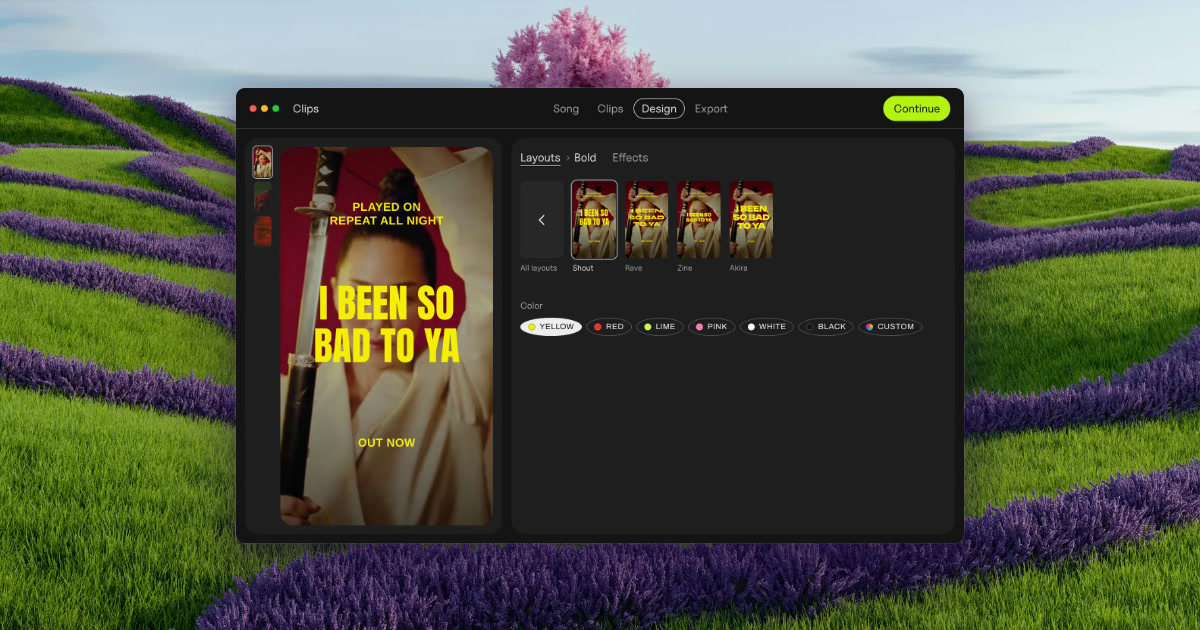
Clips by Plastic is a lyric and lip-sync video maker for Mac that turns a finished song into vertical videos for every part of it. You drop in a song along with your own footage or photos, and the app cuts every part and its catchiest snippets into vertical videos, on the beat, with the lyrics synced word by word. It is built for music artists, and for the people who promote their songs, who need ad creative for a release without opening a timeline-based editor. The point of the app is stated plainly on its site: find the part of your song that sells it, test them all, then spend on the one that works. The problem Clips was built around is stated on its own site: making 15 videos takes all evening, so you cut two and pray. A single song has multiple parts — intro, verses, pre-chorus, chorus and bridge — and any one of them might be the fragment that makes a listener stop scrolling. Producing a separate video for each part, on each backdrop, by hand in a conventional video editor is slow, repetitive work, and it competes directly with the time an artist wants to spend on music. The founder's note on the page makes the same point from personal experience: Clips was built while promoting an album, because cutting the same song fifteen ways was eating the time that was meant for music. Instead of guessing which section to promote, the product is designed to let results from real ad spend pick the hook. Clips begins by analyzing a finished song. It finds the tempo — the page shows an example at 124 BPM — and it detects every part of the song, listing sections such as Verse 1, Pre, Chorus, Verse 2, Bridge, Chorus and Intro. Each of those parts then becomes one clip, and the clip is cut on the beat rather than at arbitrary timestamps; the page describes a chorus section as "16 beats, cut on the beat." This matters because a vertical ad that starts and ends on the musical grid feels intentional and loops cleanly, and because the artist does not have to scrub a waveform to find section boundaries. The work of mapping the song's structure is done automatically, so the first step of the four-step workflow is simply dropping the song in. The second layer is lyrics. Clips syncs the words to the music and offers two modes: word by word, on the beat, or line by line, on the beat. A word-level sync puts each word on screen as it is sung, which keeps a short vertical clip visually busy and readable without the viewer needing sound. The page also shows a third element: a hook line placed on top of the video — a short phrase that stays visible while the synced lyrics run below. The hook is what makes a clip legible at a glance in a feed; the word-level lyrics are what hold attention once the clip starts playing. Together they allow one song section to be presented as a self-contained ad rather than an excerpt that needs context. Visually, Clips separates the words from the treatment applied over them. You pick a layout, then choose from 54 effects — the page lists Paper, Glow, Vertigo, Riso, Xerox, Tape, Bitmap, Lines, Heatwave, Drift and Negative among them — and drag a strength slider to set how strong the effect is. Because the effect sits on top of the same footage, one chorus can be produced in 54 different looks, so ads can match the visual language of a release instead of looking like a template. The page frames the output as ads that look like your release, not like a template. A backdrop in Clips is effectively that combination of footage and treatment: the export screen shows the same set of parts repeated across backdrops named katana, neon and eye. Export is where the multiplication happens. Rather than rendering one video at a time, Clips exports every part of the song on every backdrop in a single batch — the page shows 15 videos being exported at once, in vertical 1080 × 1920, with square 1080 × 1080 also supported. Files are named by song, part and backdrop, so a batch drops straight into Ads Manager without a renaming session. The page contrasts this directly with the manual route: a video editor handles one video at a time, Flowstage limits posts, Hypeddit's maker restricts output, and none of them produce every part of the song in one batch. Clips is presented as producing about 30 ads a song. The four-step workflow is stated explicitly: drop your song, and Clips finds the tempo and every part; pick the parts, and each becomes one clip, cut on the beat; add your hook, a line on top with lyrics synced word by word; and export, every part on every backdrop, ready for Ads Manager. The methodology continues past export into a testing loop the page calls Test first. Then spend. On Day 1 you upload the batch. On Days 2 to 6 you let them all run at a few dollars a day each, so strangers rather than your own guess decide the winner. On Day 7 you keep the winner and put your budget behind it. The example given is deliberately counterintuitive: the intro won, not the chorus — $0.21 cost per result against $0.63 for the chorus — which is the argument for testing rather than assuming the hook is the chorus. Cost per result is tracked one line per part: Intro, Verse 1, Pre, Chorus, Verse 2 and Bridge. The stated benefit is time and confidence. A batch that would take an evening of timeline work is produced in one export, so the artist can ship many variants instead of two. Decisions about ad spend are made on measured cost per result rather than intuition about which section is catchiest. Because the app runs offline and on the Mac, an unreleased song never leaves the machine — a meaningful point for artists sitting on music before release. And the pricing is a one-time purchase of $99 for the Artist license: no subscription, no credits, no caps, free updates, with a 30-day refund. The free version is not a trial with a timer; it includes every feature and unlimited exports, and the only difference is a small Clips tag on exports, which you remove by buying the license before putting money behind an ad. Concrete situations described on the page include an artist with a new single who wants a batch of ad creative in minutes rather than an evening; an artist without footage, who can use photos since Clips animates stills, a single phone clip for a whole batch, or free high-quality vertical videos from Pexels matched to the mood of the song; an artist between releases, who can use the non-expiring free version on an old song; a label, studio or manager producing videos for a roster or clients under the Label / Studio license, which covers client and commercial work and up to 10 Macs; and an artist testing the same chorus across many effects to find a look that fits the release. The Day 1 to Day 7 workflow is itself a use case: running every part of one song as a small-budget ad set for a week and consolidating budget on the winner. Clips is aimed at music artists promoting their own releases and at the labels, studios and managers promoting artists they work with. The site distinguishes the two in licensing terms: Artist at $99 once covers your own music, removes the Clips tag and allows up to 3 of your own Macs with free updates; Label / Studio at $299 once covers up to 10 Macs for a team, client and commercial work, and priority email support. A bundle with Plastic's DOT app is $125 once for both apps unlocked, up to 3 Macs and free updates. Requirements are macOS 13 or later on Apple silicon or Intel, with lyric sync described as best on macOS 26; Clips is Mac only today, and the page invites Windows users to write in. Delivery is a DMG download (Clips-1.3.2.dmg) with a step-by-step guide sent by email. Clips by Plastic packages a repetitive production job into a four-step Mac app and pairs it with a testing method: analyze the song, cut every part on the beat, sync the lyrics word by word, add a hook, export every part on every backdrop in one batch, then let a week of small ad spend reveal which part sells the song. Free to try without a time limit and $99 once for the Artist license, it is built for artists who would rather test fifteen versions than cut two.
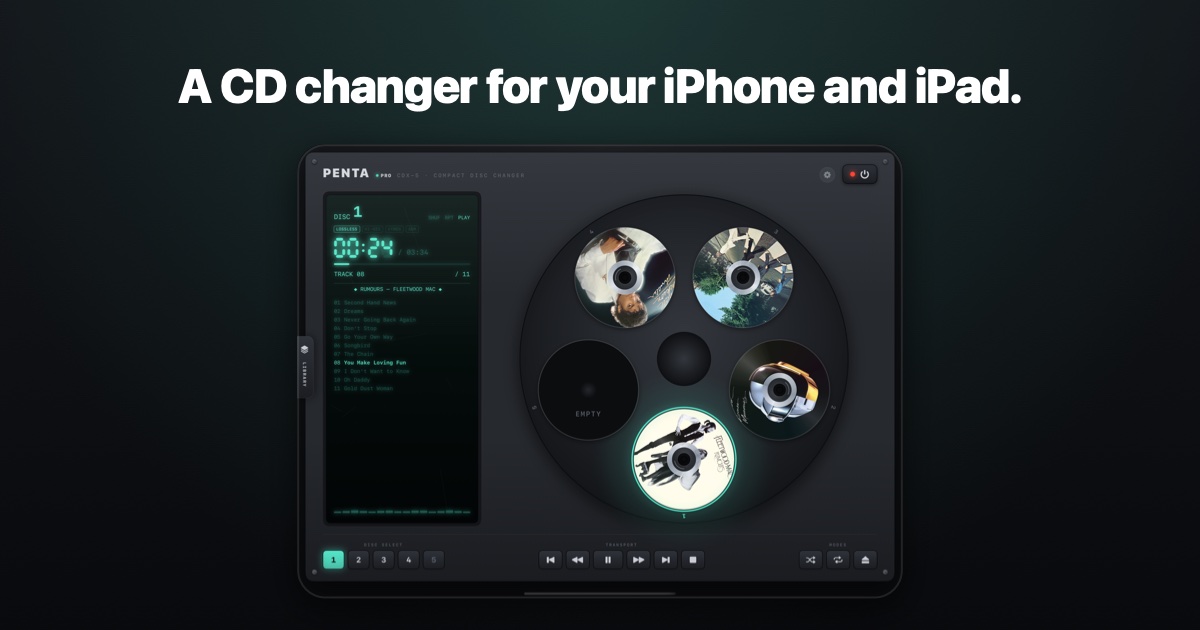
Penta is a CD player app for iPhone and iPad that turns your Apple Music library into a five-disc CD changer. Rather than presenting your albums as a list, it recreates a '90s five-disc carousel: you pick an album, open its jewel case and drop the disc into the carousel, then play music the old-fashioned way with authentic sights and sounds. It is built for people who want the ritual of physical media back on a device they already carry, and it is free on iPhone and iPad. Penta 1.3 extends the idea to iPhone Duo, where the phone itself becomes the jewel case. Streaming libraries made music instant and invisible. Everything you own sits behind a search field, and the small ceremonies that used to surround listening — pulling a case off a shelf, reading the liner notes, hearing a tray motor slide out — disappeared along with the hardware. Penta's answer is to rebuild those ceremonies in software. Its starting point is the five-disc CD changer, a piece of '90s hardware that held a fixed set of albums and asked you to swap discs as you went. The app keeps that constraint and the physicality around it, so browsing a library becomes a sequence of small physical actions again instead of an endless scroll. The core of Penta is the carousel. Five discs sit on it beside a glowing display, and loading one follows the same order every time: pick an album, open the jewel case, drop the disc into the carousel. Music plays the old-fashioned way, from the carousel rather than a queue. Every disc carries real album art, so the changer looks like a rack of CDs rather than a grid of thumbnails, and an optional one-time Pro unlock adds the real printed CD art. Because only five slots exist, choosing what goes in becomes part of using the app — the same small decision a physical changer forced on its owner. Penta's sound design is the detail that sells the illusion. Every click, whir and tray motor in the app was recorded from a real CD changer, so the noises that accompany a tray opening or a disc being loaded are sampled from physical hardware rather than synthesized. Paired with the authentic sights of the changer, those sounds make loading an album feel like operating a machine. The glowing display and its level meters are decorative: Apple Music audio is protected, so no app can read the live signal, and Penta states that the meter animation is decorative by design. iPhone Duo support, arriving with Penta 1.3 as a free update, is where the concept gets unusual. On iPhone Duo the phone itself is the jewel case. Closed, you are holding the album; opening the Duo opens the case with it, because the hinge is the case's hinge — liner notes on one side, the disc on the other. Opened flat, the whole deck is visible: five discs on the carousel and a glowing display. Folded like a laptop, the layout becomes a CD wallet above the deck, so you can flip through your collection above the tray. Held upright, the app shows a CD wallet over the tray that animates open and closed. On iPhone today you also get keys you can feel, and on iPad the app works any way up. Underneath the hardware impression, Penta works with the music you already have in Apple Music. It reads your library to show and play albums and never adds, removes or edits anything. Albums you own play without a subscription; streaming from the Apple Music catalog requires an Apple Music subscription. The app needs permission to access your music library — if access was declined, it can be turned back on in Settings › Penta › Media & Apple Music — and catalog albums will not play without a subscription either. Penta runs on an iPhone or iPad with iOS or iPadOS 17 or later. The benefit is atmosphere: the same library, heard through a deliberately limited, tactile interface. Because the carousel holds five discs, listening becomes a short set of deliberate choices rather than an infinite queue, and because every interaction carries recorded mechanical sound and real album art, the app restores some of the weight that digital music lost. It also respects what you already have — the app is free, an optional one-time Pro unlock adds the real printed CD art, and nothing in your library is modified by using it. In practice, Penta suits a few clear situations. It is for the listener who wants to load a handful of albums and let the changer run. It is for anyone who used a '90s changer and wants the pick, open and drop sequence back, complete with recorded clicks and whirs. It is for iPhone Duo owners who want to close the phone and be holding an album, open it and watch the case open along the hinge, or fold it like a laptop and flip through a CD wallet above the deck. And it is for iPad users who want the carousel and glowing display visible on a stand, any way up, while albums play from their library. Penta is aimed at iPhone and iPad users with an Apple Music library who want to play albums the old-fashioned way, and at iPhone Duo owners curious about what a foldable screen adds to a music app. It is available on the App Store and free on iPhone and iPad, with an optional one-time Pro unlock for the real printed CD art. iPhone Duo support arrives with Penta 1.3 as a free update for everyone who has the app. Support is handled by email at jaseubert@gmail.com, and the developer says every message is read. Penta's value is simple: it makes a digital library behave like a five-disc CD changer, with the case, the carousel, the glowing display and the recorded sounds of real hardware. For anyone who misses the physical ritual of playing an album, that is the whole point.
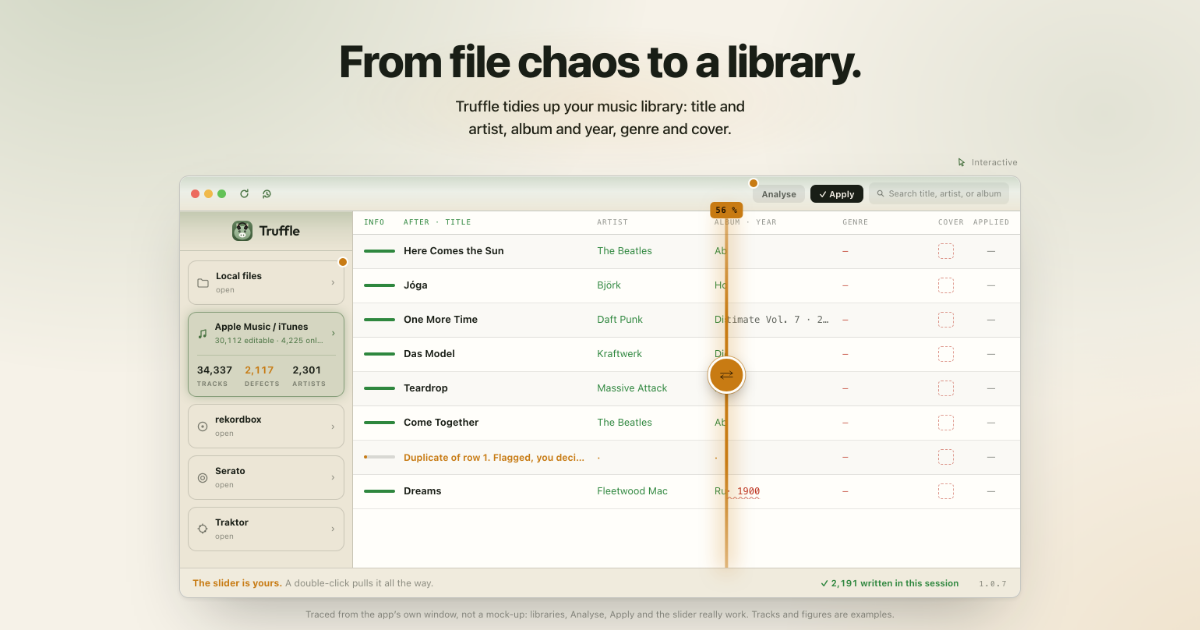
Truffle is a music tag editor for the Mac that tidies up a music library: title and artist, album and year, genre and cover. It works with the Apple Music library (formerly iTunes), with folders of local files on disk, and with the collections of rekordbox, Serato and Traktor, playlists included. Truffle recognises each track by its sound and checks eight sources to produce one suggestion per field, and it writes nothing until the user confirms. Files stay where they are: Truffle moves nothing and renames nothing, and it writes into the audio files rather than into a DJ program's database. The starting point is usually a library that has been broken in over many years. Ripped CDs arrive without covers, accents arrive garbled — the app's own example is “Björk — Jóga”, mojibake since 2014 — titles arrive in capitals, edits carry “(ORIGNAL MIX!!)” in the name, and one album is spelled three different ways. Files are called “Track 12” or “come_together_finalFINAL.mp3”, tempo and key are missing, and the same playlist exists as Summer, Summer (1) and Summer 2. The Music app's Info window is enough for a few tracks, but with a large library it lacks a preview, a check and a way back. Truffle is built for exactly that situation: an old iTunes library from the CD days, with garbled accents and albums spelled three ways. Recognition is the core of the product. Even when the file gives nothing away, Truffle recognises the track by its sound: an audio fingerprint, unambiguous and unaltered, using Apple's Shazam recognition (ShazamKit). Around that fingerprint sit eight sources that together give one answer per field. Audio recognition identifies the recording; Apple/iTunes supplies spelling and genre; MusicBrainz supplies album and year with evidence; audio analysis measures BPM and key locally on the device; Deezer finds the cover; Cover Art Archive confirms the cover; Beatport provides a second opinion on BPM and key; and a web lookup steps in when no catalogue knows the track. One click, done — and each of these sources can be switched off. Covers, spelling and measurement are handled in one pass. When an album has no image, Truffle finds one up to 1000 px and, in the app's words, from the right release, with Cover Art Archive confirming it. Broken umlauts, shouting titles, “(ORIGNAL MIX!!)” and albums spelled three ways all come back into shape. Tempo and key are measured on the Mac straight from the audio, so no internet is needed, and above about 130 BPM the tempo is an approximation. Tempo and key are written only on an explicit click, which matters for anyone who trusts their own analysis. Bulk edit (⌘B) sets one field to the same value across all selected tracks, finds and replaces text — regular expressions included — or changes capitalisation, and the preview shows every line before anything is written. Duplicates are recognised by title, artist, album and length and marked, with the file left on the Mac and nothing deleted without asking; duplicate playlists such as Summer, Summer (1) and Summer 2 are merged. Album coherence finds tracks of one album that disagree and sorts the changes by kind: missing album artist, different spelling, missing year, a compilation without its checkmark, a missing cover. Albums with several years are gone through one by one, because on best-ofs that is often intended. The overall approach is preview first, write second. The interface is traced from the app's own window rather than a mock-up: libraries are listed with track and defect counts, Analyse runs, Apply writes, and a slider sits between the two, with a double-click pulling it all the way. Nothing is written until the user confirms, and the history knows every change: searchable, restorable one by one or as a whole session. Before Truffle writes a file it backs up the original. Only deleting is not taken back, and deleting is the user's alone. For DJs the promise is that the collection and playlists are read without the database being touched. Truffle reads the exported XML from rekordbox with playlists included, the Serato database with crates included, and Traktor's collection.nml with playlists included. It writes into the audio files, never into the database of rekordbox, Serato or Traktor, so cues, loops, beat grids, crates and sets stay as they are and the program re-reads the tags. With Serato, cues and loops live in the file itself and Truffle writes around them. Special care is taken with DJ files: remixes and edits keep their name, DJ pool endings with tempo, key and codes are taken out of the title, the artist in the filename counts, and cues, beat grids, crates and sets stay. Classical music gets its own handling. Besides pop, rock and electronic music, Truffle recognises classical recordings by their sound and suggests fields one by one: work titles with catalogue numbers such as BWV, KV and op.; orchestra and conductor as the recording names them; and the cover of the recording rather than just any cover. The examples shown in the app run from Beethoven's Fifth and Bach's Toccata und Fuge to Mozart's Eine kleine Nachtmusik, Debussy's Clair de lune, Grieg's Morgenstimmung, Handel's Messiah, Satie's Gymnopédie n° 1 and Vivaldi's La primavera. Truffle works across five libraries — Apple Music/iTunes, local files, rekordbox, Serato and Traktor — and knows 17 file extensions, from mp3 via m4a and flac to aiff and wav; what it does not know, it leaves untouched. Tracks that are only in iCloud are marked with an iCloud symbol and changed details are written to the library through the Music app. Streamed tracks from an Apple Music subscription are not files on the Mac, so Truffle recognises them, excludes them from editing and says why in the list. A folder can be dragged into the window and left where it is on disk. The outcome is order across the whole library rather than one file at a time: titles and artists that match the recording, albums that hold together as one tile, years that reflect the original release instead of a reissue, covers that come from the right release, and genres that are spelled one way. Because every write is preceded by a backup and recorded in the history, that order can be reached without losing the state a collection was in. For DJs the benefit is narrower and more valuable: cleaner tags in the files with the cues, grids and sets still exactly where they were. Typical workflows follow the shape of the library. Someone with an old iTunes library from the CD days runs Analyse over the whole thing and accepts suggestions album by album. Someone who cannot find anything fixes genre consistency — Rap, HipHop and Hip Hop becoming 7 × Hip-Hop — in Bulk edit, checking the preview line by line. A file called “Track 12” or “AUD_0037.mp3” gets a title, artist and album from audio recognition. A DJ prepares a set by repairing tags in the files while the rekordbox or Traktor database stays closed. A classical collection gets work titles with catalogue numbers and the conductor as the recording names them. Pricing is a one-time €59.99 as an in-app purchase in the Mac App Store: once, for life, no subscription, updates at no extra cost, on every Mac signed in with the Apple Account. Before buying, the app is a free download that analyses 100 tracks and writes 20 in total, with no feature locked. Truffle requires a Mac with Apple Silicon and macOS 14 (Sonoma) or later, comes from the Mac App Store and runs in the macOS sandbox. There is no account with the vendor, no telemetry, no ads and no tracking; only the metadata of the track being checked and, for audio recognition, a short fingerprint of the audio leave the Mac. The app and the website are available in 20 languages, and there is no Windows or Android version. Truffle's value proposition is narrow and complete: take a messy Mac music library — Apple Music, folders on disk, or a DJ collection — and put it back in order from the sound of the tracks themselves, with eight sources agreeing on one suggestion per field, a preview before every write, and a history behind every change.